

Nearly every week a Windows 10 user posts the same complaint: a cheap Bluetooth headset pairs instantly, the system shows it as “connected,” the microphone works for calls — but there’s no music, no system sound, or audio quality collapses to a hollow, mono tunnel. This is not a mysterious hardware failure in most cases; it’s the predictable interaction of Bluetooth audio profiles, Windows’ legacy stack, and the cost-cutting choices inside many discount headsets. Readers buying “hot discount” headphones should know what’s happening, why Windows 10 behaves this way, and the realistic fixes and trade-offs before they tear open the packaging or demand a refund. Bluetooth audio actually works
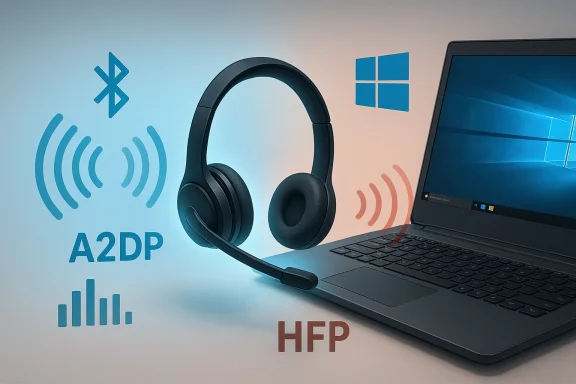
Bluetooth audio doesn’t behave like a single, universal “audio device.” It’s a set of profiles — small, well-defined behaviors — that negotiate what features are available between your PC and the headset. The two profiles that matter most for this problem are A2DP (Advanced Audio Distribution Profile) and HFP/HSP (Hands-Free Profile / Headset Profile).
This automatic profile switching is the technical root of the common report: “My headset is connected but I only get voice (or no sound) for music.” It’s not always an outright bug — often it’s an intentional, backward-compatible behavior that harms user expectations in 2026.
Manufacturers of budget headphones frequently cut corners to hit aggressive price points: simpler Bluetooth stacks, reduced codec support, and minimal firmware development. Those chts more fragile when interacting with PCs that expect complete and stable profile behavior.
Practical takeaway: if you bought a discount Bluetooth headset expecting seamless stereo + mic on Windows 10, the platform limitations make that expectation unrealistic in many cases. Upgrading to Windows 11 and ensuring your PC and headset explicitly support LE Audio will help — but that’s a longer-term mitigation, not an immediate fix.
Microsoft and chipset vendors: better user-facing controls to choosit notifications when applications request microphone access would reduce the surprise factor. The LE Audio work in Windows 11 is the right direction; wider availability and clearer upgrade paths would help Windows 10-era users, but those are platform-level changes that take time.
Consumers: before you buy, verify whether the headset supports the use-case you need (music + mic simultaneously on your OS). Ask whether the vendor ships firmware updates and whether their support documentation explains Windows behavior. If your budget compels a discount headset, accept that you may need simple workarounds (separate mic, USB dongle) to get a friction-free experience.
The good news is that most cases resolve in under an hour using the checklist above — and the fixes are well known in both official Microsoft guidance and community troubleshooting playbooks. If you’re troubleshooting one of these headsets right now, start with the two-minute checks (select the Stereo endpoint, re-pair, and run the built-in troubleshooter). If those don’t help, move through the measured steps here before buying replacement hardware — and when in doubt, test the headset on a smartphone to confirm whether the issue is the headset or your PC’s Bluetooth stack.
Source: Born2Invest https://born2invest.com/?b=style-332256712/
Bluetooth audio doesn’t behave like a single, universal “audio device.” It’s a set of profiles — small, well-defined behaviors — that negotiate what features are available between your PC and the headset. The two profiles that matter most for this problem are A2DP (Advanced Audio Distribution Profile) and HFP/HSP (Hands-Free Profile / Headset Profile).
- A2DP is the one-way, high-quality stereo stream used for music and video playback. It’s what gives you rich, two-channel audio on headphones.
- HFP/HSP provides bidirectional voice (microphone + speaker) support but at much lower fidelity, usually mono and at a lower sampling rate. It was designed for phone calls, not music.
This automatic profile switching is the technical root of the common report: “My headset is connected but I only get voice (or no sound) for music.” It’s not always an outright bug — often it’s an intentional, backward-compatible behavior that harms user expectations in 2026.
 Why “discount” headsets are disproportionately affected
Manufacturers of budget headphones frequently cut corners to hit aggressive price points: simpler Bluetooth stacks, reduced codec support, and minimal firmware development. Those chts more fragile when interacting with PCs that expect complete and stable profile behavior.- Lower-cost headsets may not support optional codecs or newer features that make smoother switching possible, so the host (your PC) and the head a high-quality playback path.
- Marketing claims on third‑party sites can promise compatibility or advanced features (like LE Audio) the hardware or firmware doesn’t actually implement; those claims should be treated skeptically until verified by the manufacturer.
What has changed since Windows 10? Why Windows 11 helps — but not for everyone
Microsoft has been improving Bluetooth audio. Windows 11 introduced better codec support and, more recently, LE Audio features such as super wideband stereo, which can allow stereo playback even when the microphone is active — but only when both the headset and the PC support LE Audio and updated drivers. These improvements substantially reduce the A2DP/HFP trade-off, but they are not available to all users: Windows 11 is a requirement for the most recent LE Audio features, and compatible radios and headset firmware are essential. If you’re on Windows 10, you generally won’t benefit from these modern capabilities.Practical takeaway: if you bought a discount Bluetooth headset expecting seamless stereo + mic on Windows 10, the platform limitations make that expectation unrealistic in many cases. Upgrading to Windows 11 and ensuring your PC and headset explicitly support LE Audio will help — but that’s a longer-term mitigation, not an immediate fix.
A methodical troubleshooting checklist (safe to advanced)
Below is a practical, ordered checklist you can follow. Start at the top and only escalate if earlier steps don’t help. These steps combine manufacturer guidance, Windows official advice, and community-tested workarounds.- Quick checks (safe, non-invasive)
- Verify headset battery power and that the headset is in pairing mode.
- Toggle Bluetooth Off → wait 10 seconds → On. Then reconnect.
- Check the Windows sound output: click the sound icon (taskbar) and confirm the Bluetooth device is selected as the output. If you see separate endpoints, pick the one labeled Stereo or Headphones.
- Try the headset on a phone. If the same audio issues occur on the phone, suspect the headset hardware or firmware.
- Set the correct playback endpoint
- Open Settings → System → Sound (or Control Panel → Sound).
- Under Playback, find the Bluetooth device and set the Stereo / A2DP endpoint as the default playback device. If Windows defaulted to the “Hands‑Free” endpoint, switching to Stereo often restores media audio.
- Re-pair and run the Windows troubleshooters
- Remove (Forget) the device from Bluetooth settings and add it again.
- Run Windows’ Bluetooth and Playing Audio troubleshooters (Settings → Update & Security → Troubleshoot or Microsoft’s Get Help guidance).
- Temporarily disable hands‑free mode (workaround)
- Open Control Panel → Devices and Printers.
- Right-click your Bluetooth headset → Properties → Services tab.
- Uncheck Handsfree Telephony and apply. Reconnect the headset.
- This forces the host to avoid exposing HFP to the system, which keeps the device in A2DP stereo mode — but it also disables the headset microphone for system calls. Treat this as a temporary workaround, not a permanent fix.
- Disable the headset microphone endpoint (stronger workaround)
- Open Soucording tab.
- Find the headset microphone endpoint (often labeled Hands‑Free AG Audio), right-click and Disable it.
- Set a different microphone (laptop mic or USB mic) as the default recording device.
- With the headset mic disabled, Windows has the audio connection into HFP mode, so media playback remains in A2DP.
- Driver, power, and service checks (intermediate)
- Update Bluetooth and audio drivers from the PC manufacturer or Bluetooth chipset vendor (Intel, Qualcomm, Realtek) rather than relying on generic Windent update broke behavior, try a driver rollback.
- In Device Manager, open the Bluetooth adapter properties → Power Management tab, and uncheck “Allow the computer to turn off this device to save power.”
- Restart services: Bluetooth Support Service, Windows Audio, and Windows Audio Endpoint Builder.
- Advanced: system integrity and event analysis
- Run SFC and DISM scans if you suspect corruption.
- Check Event Viewer for Bluetooth, Service, and Kernel-PnP related errors.
- Generate a powercfg energy report if connections drop when on battery.
- Last resorts and replacement options
- If the headset works on multiple phones but not your Windows 10 PC after these steps, Bluetooth dongle with modern stack/driver support or upgrading to a headset certified for your platform.
- If the headset fails on all hosts, escalate to vendor support — it may be a firmware or hardware defect.
The hands‑free trade‑off: what you gain and what you lose
It’s crucial to understand the trade-offs before you start disabling services or hardware endpoints.- Disabling Hands‑Free Telephony or disabling the headset mic keeps music quality high (A2DP) but removes the headset microphone from the system. If you rely on the headset mic for phone calls, meetings, or voice chat, this is not acceptable as a permanent solution.
- Replacing the headset mic with a separate mic (USB or laptop built-in) is a practical compromise many users accept. It yields high-quality playback and a reliable mic for calls.
- Aggressive driver purges, third‑party driver uirmware updates through unsupported methods can brick devices or destabilize Windows. Always prefer official vendor downloads and conservative rollback steps.
A short, explicit step-by-step fix (do this first)
- On Windows 10, open Control Panel → Hardware and Sound → Devices ant-click the Bluetooth device entry for your headset and select Properties.
- Go to the Services tab and uncheck Handsfree Telephony. Click Apply.
- Disconnect the headset, then reconnect it. In Settings → System → Sound, choose the Stereo A2DP output for music playback.
When to escalate: what to watch for and when to replace
Use the checklist above to isolate whether the problem is host-side or headset-side.- If the headset works fine on multiple phones and tablets but consistently fails on your PC, the PC’s radio, drivers, or the likely culprits. Try a known-good USB dongle to confirm.
- If the headset fails across multiple hosts after resets and firmware updates, escalate to vendor support — you may have a defective unit.
- On managed corporate devices, consult IT before rolling back drivers or changing settings; group policy or MDM tooling can block or revert changes.
What vendors and platforms should do (and what users should demand)
Manufacturers: stop treating Bluetooth as a checkbox. Firmware and full profile support matter. Clear, honest compatibility statements are that suggests modern features like LE Audio without clear model/firmware requirements is irresponsible. The community data shows budget vendors often omit vital details, creating avoidable user pain.Microsoft and chipset vendors: better user-facing controls to choosit notifications when applications request microphone access would reduce the surprise factor. The LE Audio work in Windows 11 is the right direction; wider availability and clearer upgrade paths would help Windows 10-era users, but those are platform-level changes that take time.
Consumers: before you buy, verify whether the headset supports the use-case you need (music + mic simultaneously on your OS). Ask whether the vendor ships firmware updates and whether their support documentation explains Windows behavior. If your budget compels a discount headset, accept that you may need simple workarounds (separate mic, USB dongle) to get a friction-free experience.
Security and stability cautions
- Avoid third‑party “driver updater” utilities; they frequently install incorrect drivers that create additional instability. Rely on chipset or PC OEM driver downloads.
- Don’t attempt to flash firmware through unofficial routes (emulators or reverse-engineered tools) — vendor firmware is often signed and vendor-delivered updates through official apps are the safe path. Unsupported firmware flashes can permanently damage the headset.
- Document any changes you make while troubleshooting. If you must revert them, a careful record of the steps you took will save time and reduce the chance of accidentally leaving the system in a non-standard state.
Conclusion: realistic expectations and a pragmatic roadmap
The surprising silence you hear when your discount Bluetooth headphones “only connect for voice” is not a hardware mystery in most cases — it’s an interaction between legacy Bluetooth profiles, platform behavior, and vendor compromises. With a systematic approach you can usually recover media audio quickly: choose the Stereo/A2DP endpoint, re-pair, update drivers, or temporarily disable Hands‑Free Telephony if you can accept losing the headset mic. For users who demand both stereo fidelity and an on-device mic without trade-offs, the long-term options are to upgrade to hardware and a host that explicitly support modern LE Audio features (and preferably run Windows 11), or to adopt a wired or USB solution that was designed for simultaneous stereo + mic.The good news is that most cases resolve in under an hour using the checklist above — and the fixes are well known in both official Microsoft guidance and community troubleshooting playbooks. If you’re troubleshooting one of these headsets right now, start with the two-minute checks (select the Stereo endpoint, re-pair, and run the built-in troubleshooter). If those don’t help, move through the measured steps here before buying replacement hardware — and when in doubt, test the headset on a smartphone to confirm whether the issue is the headset or your PC’s Bluetooth stack.
Source: Born2Invest https://born2invest.com/?b=style-332256712/
