

Microsoft is giving Windows 10 users a one‑year security lifeline — but it’s a bridge, not a lifeboat: eligible PCs can receive Extended Security Updates (ESU) through October 13, 2026 if owners enroll via an on‑device wizard, using one of three consumer paths (sync settings to OneDrive, redeem 1,000 Microsoft Rewards points, or pay a one‑time fee), provided the device meets specific prerequisites and has the required August 2025 cumulative patch installed.
Microsoft’s formal consumer ESU program is a time‑boxed, security‑only extension that covers eligible Windows 10 Home, Pro, Pro Education and Workstation editions for one additional year after the platform’s end‑of‑support date. The program does not restore feature updates, general technical support, or non‑security fixes — it delivers critical and important security updates only, intended explicitly as a temporary bridge for users who cannot upgrade immediately. The eligibility window and enrollment mechanism were rolled out in mid‑2025. Enrollment appears inside Settings → Update & Security → Windows Update as an “Enroll now” banner for devices that meet the prerequisites; Microsoft staged the rollout and released a cumulative update in August 2025 (commonly referenced as KB5063709) to fix early enrollment wizard glitches. If you don’t see the enrollment option immediately, that staged rollout — and the requirement to install the latest cumulative update — is the most common reason.
Treat ESU as a well‑defined breathing space to plan and execute a migration. Actively prepare now — check your Windows 10 edition and build, install all updates (including the August 2025 patch where applicable), sign in with a Microsoft Account if you intend to enroll, and select the enrollment path that matches your privacy and cost tolerance. Use the extra year to test hardware upgrades, collect compatibility data, and execute a migration plan that brings your device back onto a fully supported platform before October 13, 2026.
(End of article)
Source: CNET Still Using Windows 10? These Free Updates Will Help Keep Your PC Secure
 Background and overview
Microsoft’s formal consumer ESU program is a time‑boxed, security‑only extension that covers eligible Windows 10 Home, Pro, Pro Education and Workstation editions for one additional year after the platform’s end‑of‑support date. The program does not restore feature updates, general technical support, or non‑security fixes — it delivers critical and important security updates only, intended explicitly as a temporary bridge for users who cannot upgrade immediately. The eligibility window and enrollment mechanism were rolled out in mid‑2025. Enrollment appears inside Settings → Update & Security → Windows Update as an “Enroll now” banner for devices that meet the prerequisites; Microsoft staged the rollout and released a cumulative update in August 2025 (commonly referenced as KB5063709) to fix early enrollment wizard glitches. If you don’t see the enrollment option immediately, that staged rollout — and the requirement to install the latest cumulative update — is the most common reason. What the consumer ESU actually gives you
- Security‑only updates (Critical and Important classifications) delivered through Windows Update, month by month, for devices enrolled in the consumer ESU program.
- Coverage window: devices enrolled will receive ESU updates through October 13, 2026. The consumer ESU path is explicitly time‑limited and non‑renewable under the consumer offer.
- Enrollment scope: consumer ESU is for personal devices only. Domain‑joined systems, enterprise MDM‑managed devices, kiosk machines, and certain managed configurations must use enterprise ESU channels or volume licensing.
Who qualifies — the technical prerequisites
Before you can enroll, your device must meet these non‑negotiable checks:- Run Windows 10, version 22H2 (consumer editions). Systems on older Windows 10 Feature Updates are not eligible for the consumer ESU path.
- Have the latest cumulative updates installed: Microsoft flagged the August 2025 cumulative (the KB5063709 build) as important because it resolves enrollment wizard issues and ensures the “Enroll now” flow surfaces reliably. If you haven’t installed it, the ESU wizard may not appear.
- Be signed in with a Microsoft Account (MSA) that is an administrator on the device. Local accounts are not eligible for the consumer ESU enrollment — a deliberate design decision that ties the entitlement to an MSA.
- Not be joined to Active Directory or otherwise managed by enterprise tooling (those scenarios are handled via separate enterprise ESU offerings).
How to enroll (consumer path): step‑by‑step
If your device satisfies the prerequisites and you want the consumer ESU, this is the on‑device sequence Microsoft published:- Confirm you’re on Windows 10, version 22H2: Settings → System → About.
- Run Windows Update and ensure all pending cumulative and servicing stack updates are installed, specifically the August 2025 cumulative (KB5063709) where available. Reboot if required.
- Sign in to Windows with a Microsoft Account (MSA) that has administrator privileges. Local accounts are not supported for ESU enrollment.
- Open Settings → Update & Security → Windows Update and look for the banner stating "Windows 10 support ends in October 2025" with an Enroll now link. If you don’t see it, the rollout may not have reached your machine yet — check again after updates and a reboot.
- Click Enroll now and follow the enrollment wizard. You will be offered three consumer options (details below). Complete the wizard and confirm your ESU status in the Windows Update page.
The three consumer enrollment options — what they are and the catches
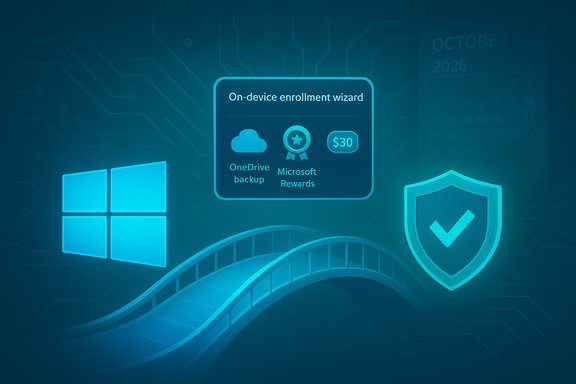
When the ESU wizard appears, consumers are presented with three ways to activate the one‑year security coverage:- Free by syncing settings with OneDrive via Windows Backup: enable the Windows Backup / settings sync option so the device saves certain settings to OneDrive. This path requires an MSA and makes ESU available at no additional charge. Caveat: OneDrive’s free tier is limited (5 GB of storage under a free Microsoft account), and if your profile or backup selection exceeds that threshold you may be prompted to purchase additional OneDrive storage.
- Redeem 1,000 Microsoft Rewards points: if you have an existing Microsoft Rewards balance, you can redeem 1,000 points to enroll a device for ESU. This option is effectively free if you already accumulated points, but not everyone participates in the Rewards ecosystem.
- Pay a one‑time purchase (approx. $30 USD): a pay‑to‑enroll option processed through the Microsoft Store that covers consumer ESU for the account and can be applied to eligible devices linked to the same MSA (Microsoft described local currency equivalents and tax adjustments). This is the simplest paid path for users who don’t want to enable cloud sync or don’t have Rewards points.
The OneDrive caveat — how “free” can still cost you
The “free” route that uses Windows Backup and syncs settings to OneDrive is free in terms of monetary ESU cost, but it can interact with OneDrive storage limits in ways that lead to charges for some users.- Microsoft’s free OneDrive allocation for non‑subscribers is 5 GB. If the data being backed up or synced — or the account’s current usage across OneDrive and Outlook attachments — exceeds that, the account will need additional paid storage to continue syncing. That purchase is separate from the ESU program itself, but it’s a realistic downstream cost to consider for users who have large profile folders or who already use OneDrive heavily.
Regional nuance: EEA / Europe changes and regulatory pressure
Microsoft adjusted its approach for users in the European Economic Area (EEA) after consumer advocacy groups raised concerns that tying security updates to a cloud backup requirement effectively pushed customers toward paying for storage.- Regulators and consumer groups in Europe pressured Microsoft to remove the OneDrive prerequisite for free ESU in the EEA, and Microsoft subsequently made consumer ESU available in that region without forcing users to enable Windows Backup. That change means EEA consumers can enroll without the OneDrive storage requirement, whereas in other regions Microsoft initially retained the backup/redemption/paid choice model.
Strengths: why the consumer ESU matters
- It reduces immediate risk for users who cannot upgrade to Windows 11 because of hardware or software compatibility, limited budgets, or other constraints. A year of critical security patches is materially better than zero.
- Multiple enrollment paths create flexibility — Microsoft offered a paid route, a rewards‑based route, and a cloud‑sync route so households can choose what fits their privacy and budget preferences.
- Low consumer price: the paid option (~$30 USD) is affordable for households that need a simple, one‑time enrollment across multiple eligible devices registered to the same Microsoft Account.
- Practical technical fix: Microsoft addressed enrollment stability issues with the August 2025 cumulative update (KB5063709), showing responsiveness to rollout problems and minimizing friction for users who prepare their systems.
Risks and limitations — what ESU will not protect you from
- Not a long‑term plan: ESU is time‑boxed to October 13, 2026 for consumers. Relying on it indefinitely is dangerous; after the coverage window expires, Microsoft will not issue new security patches for consumer Windows 10.
- Scope limitations: ESU provides security updates only. If your system encounters hardware compatibility issues, driver problems, application breakage, or non‑security regressions, ESU won’t deliver fixes for those scenarios. Firmware and driver updates — which sometimes resolve critical reliability or performance problems — may not be included.
- Account and privacy tradeoffs: the consumer ESU paths tie the entitlement to a Microsoft Account. For privacy‑minded users who prefer local accounts or who avoid cloud sync for confidentiality reasons, ESU forces a change in device authentication that may be unacceptable.
- Potential OneDrive costs: as noted, syncing settings via OneDrive can push accounts past the 5 GB free tier and create an incidental cost. While this isn’t an ESU fee, it’s a material financial tradeoff for many consumers.
- Rollout reliability: Microsoft’s staged enrollment and early wizard bugs meant some users reported not seeing the enrollment option immediately, or encountering wizard crashes before the August patch fixed the flow. Waiting and ensuring the right updates are installed is necessary to avoid surprises.
Practical recommendations for Windows 10 users
If you are still on Windows 10 and cannot upgrade immediately, follow this pragmatic checklist:- Inventory your PC: confirm edition (Home/Pro/etc., build (22H2 required), and whether the device is domain‑joined or managed by enterprise tools.
- Back up important data now: create a full local backup or system image before you change account sign‑in, enable sync options, or enroll; treat ESU as a short‑term measure.
- Install all pending updates, then reboot — ensure the August 2025 cumulative (KB5063709) is applied where available; that patch corrected known ESU‑wizard issues.
- Switch to or sign in with a Microsoft Account if you plan to use the consumer ESU wizard; make the MSA an administrator on the PC. Be mindful that this changes how some settings and features behave.
- Open Settings → Windows Update and use the “Enroll now” wizard when it appears; choose between OneDrive sync, Microsoft Rewards points, or the paid purchase according to your privacy and cost tolerance.
- Plan the migration: use the ESU year to test hardware upgrades, evaluate Windows 11 compatibility, migrate to a newer PC, or consider alternate OS options (for advanced users). ESU is a bridge — set a calendar reminder for the October 2026 deadline.
Alternatives and longer‑term strategies
ESU is a short window. Households and organizations should evaluate longer‑term options now:- Upgrade to Windows 11: if your hardware is compatible (TPM 2.0, Secure Boot, supported CPU and firmware), migrating is the straightforward path to regain full support and feature updates. But Microsoft’s hardware requirements mean many older PCs are not eligible.
- Buy a new PC: for many mainstream users, a newer PC that ships with Windows 11 will be the least disruptive option over the next few years.
- Switch to an alternate OS: for advanced users comfortable with Linux or macOS on supported hardware, a migration away from Windows 10 is viable and can extend security life without ESU. This path requires application compatibility planning and may not be practical for everyone.
- Third‑party security tools: if you elect not to enroll, make sure your endpoint protection, browsers, and key apps are current and consider third‑party patching services — though these are no substitute for OS‑level security updates.
Reader caution: unverifiable or changing claims to watch
- Pricing and regional mechanics changed during rollout. While Microsoft publicized the three consumer paths and a $30 paid option, regional regulatory action (notably in the EEA) produced changes to the OneDrive requirement. Consumers should verify the enrollment conditions that apply to their specific country or region at the time of enrollment, because those surfaced as differences in practice. Regional policy shifts and staged rollouts make some early claims in press reports subject to change; check the Windows Update enrollment screen on your device to see the options Microsoft presents to you personally.
- The enrollment wizard availability and the precise behavior of the August 2025 cumulative (KB5063709) vary by build and channel, and Microsoft continued to adjust the rollout to address bugs. If you encounter an enrollment UI that behaves differently from published guides, treat the on‑device prompts as authoritative and ensure the latest cumulative updates are applied.
Conclusion — how to treat ESU as a responsible stopgap
Microsoft’s consumer ESU is a useful, pragmatic extension for users who truly cannot upgrade off Windows 10 immediately. It restores a basic, critical layer of protection for an additional year, but with important limitations: the entitlement is temporary, security‑only, and tied to account and configuration choices that may not suit privacy‑conscious users.Treat ESU as a well‑defined breathing space to plan and execute a migration. Actively prepare now — check your Windows 10 edition and build, install all updates (including the August 2025 patch where applicable), sign in with a Microsoft Account if you intend to enroll, and select the enrollment path that matches your privacy and cost tolerance. Use the extra year to test hardware upgrades, collect compatibility data, and execute a migration plan that brings your device back onto a fully supported platform before October 13, 2026.
(End of article)
Source: CNET Still Using Windows 10? These Free Updates Will Help Keep Your PC Secure
