

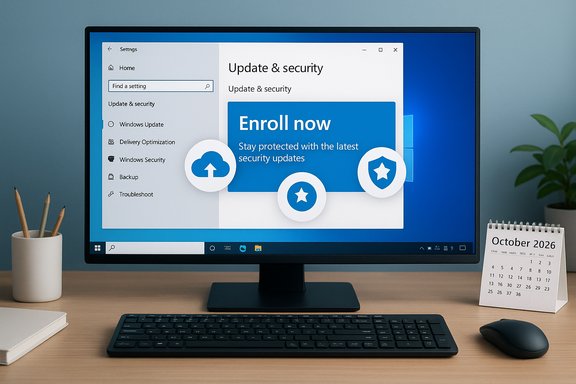
Microsoft’s one‑year lifeline for Windows 10 — the Consumer Extended Security Updates (ESU) program — is now rolling out to eligible PCs, and the enrollment process is deliberately simple: open Settings > Update & Security > Windows Update and click “Enroll now,” then choose whether to link your Microsoft account, redeem Rewards points, or make the one‑time $29.99 purchase.
Windows 10 reached its official end of support on October 14, 2025. That retirement means Microsoft stopped issuing routine feature updates, non‑security quality fixes, and standard technical support for consumer editions on that date. For users who need more time to migrate, Microsoft is offering a time‑limited, security‑only extension: the Windows 10 Consumer ESU program, which supplies critical and important security patches through October 13, 2026. This consumer ESU path is separate from—and much shorter than—the enterprise ESU options, and it requires enrollment through an in‑Windows wizard or via account‑linked purchase and redemption workflows.
This article explains exactly who qualifies, how to enroll step‑by‑step, the privacy and operational trade‑offs of each path, known rollout issues and fixes, and practical migration alternatives for households and power users who don’t want to be stranded on an unsupported platform.
Privacy trade‑offs:
Windows 10’s ESU rollout removes a major immediate headache for households stuck on older hardware, but it’s a bridge, not a destination. Use the enrollment wizard to claim the one‑year safety net if you need it, then plan your migration — whether that’s an in‑place upgrade to Windows 11, a new PC purchase, virtualization for legacy workloads, or a move to an alternative OS for less critical devices.
Conservative, deliberate action now—confirming version 22H2, installing the necessary servicing updates, and enrolling through the path that matches your privacy and budget choices—will keep your Windows 10 devices receiving security updates through October 13, 2026 and give you time to transition safely.
Source: Windows Latest How to sign up for Windows 10 ESU, now rolling out
 Overview
Windows 10 reached its official end of support on October 14, 2025. That retirement means Microsoft stopped issuing routine feature updates, non‑security quality fixes, and standard technical support for consumer editions on that date. For users who need more time to migrate, Microsoft is offering a time‑limited, security‑only extension: the Windows 10 Consumer ESU program, which supplies critical and important security patches through October 13, 2026. This consumer ESU path is separate from—and much shorter than—the enterprise ESU options, and it requires enrollment through an in‑Windows wizard or via account‑linked purchase and redemption workflows.This article explains exactly who qualifies, how to enroll step‑by‑step, the privacy and operational trade‑offs of each path, known rollout issues and fixes, and practical migration alternatives for households and power users who don’t want to be stranded on an unsupported platform.
Background: why Microsoft created Consumer ESU
Microsoft has for years provided extended security updates for retired operating systems as a bridge to migration. In this cycle, Microsoft’s goals are clear: reduce the exposure of large Windows 10 installs to new vulnerabilities, provide a short runway for users and small households to upgrade, and encourage migration toward Windows 11 and newer hardware. Unlike prior extended support programs that targeted enterprises, the Windows 10 Consumer ESU is explicitly aimed at home users who cannot upgrade immediately. The coverage window is intentionally short—one year—so the program is a stopgap, not a replacement for upgrading.Who this is for — eligibility and limits
The Consumer ESU program is aimed at private, non‑managed PCs that meet these baseline requirements:- The device must run Windows 10, version 22H2 (consumer SKUs such as Home, Pro, Pro Education, or Pro for Workstations). Older Windows 10 branches are not eligible until upgraded to 22H2.
- The device must have the latest cumulative and servicing‑stack updates that enable the enrollment flow; Microsoft shipped preparatory updates in mid‑2025 to surface the wizard reliably.
- The PC must be a consumer (non‑domain) device. Domain‑joined, enterprise‑managed, MDM‑enrolled, kiosk mode, and many workplace devices must use the commercial ESU channels instead.
- Consumer ESU provides security‑only updates (critical and important) through October 13, 2026. It does not provide feature updates, standard non‑security bug fixes, or general Microsoft product support.
- The ESU entitlement is tied to the Microsoft account used to enroll; a single enrolled Microsoft account can cover up to 10 eligible devices in many markets.
The three consumer enrollment paths — tradeoffs and exact steps
Microsoft offers three ways for households to obtain ESU coverage; each yields identical security updates but differs in cost, convenience, and privacy:- Free (account + Windows Backup / Sync your settings): tie your device to a Microsoft account and enable the Windows Backup / settings sync option (backups and a settings catalog are stored in OneDrive). This path costs nothing in cash but requires an account sign‑in and a cloud‑sync step.
- Microsoft Rewards (1,000 points): redeem 1,000 Microsoft Rewards points inside the enrollment wizard to claim ESU under your Microsoft account. Useful if you already have points.
- One‑time paid purchase (~$29.99 USD): pay a single fee and associate the ESU license with your Microsoft account; this option is suitable if you prefer not to enable backup sync and are using a local account. The fee is regionally variable and subject to taxes.
Step‑by‑step: enroll using the free account + backup route (fastest, most common)
- Confirm prerequisite: open Settings → System → About and verify Windows 10, version 22H2. If you’re not on 22H2, run Windows Update until the feature update installs.
- Install all pending updates—including servicing stack updates and cumulative rollups—and reboot. Microsoft shipped preparatory updates in August 2025 that corrected enrollment wizard issues; missing these updates can prevent the wizard from appearing.
- Sign in to Windows with your Microsoft account (MSA) and confirm the account has administrator rights on the device. Local accounts aren’t accepted for the free route.
- Open Settings → Update & Security → Windows Update and click Check for updates. If eligible, you’ll see an Enroll now banner. Click it and follow the wizard, choosing Windows Backup / Sync your settings when prompted. The wizard will attach the ESU entitlement to your Microsoft account and complete enrollment in seconds.
Step‑by‑step: redeem Microsoft Rewards points
- Follow steps 1–3 above to reach the enrollment wizard.
- Select Redeem Microsoft Rewards and confirm the use of 1,000 points. The wizard redeems instantly and adds ESU to the Microsoft account linked to the device. This is viable only if you already have a sufficient Rewards balance.
Step‑by‑step: pay the one‑time fee (local‑account friendly but still account‑tied)
- Start the enrollment wizard from Settings → Update & Security → Windows Update.
- Choose One time purchase and follow payment prompts. The ESU license is applied to the Microsoft account you sign in with and can be used across multiple eligible devices tied to that account. After purchase you can return to the device’s Settings and stop automatically signing in to Microsoft apps to restore a local account state for everyday use; the ESU entitlement remains linked to the MSA.
What Microsoft will and won’t patch under ESU
- ESU supplies security‑only updates classified by Microsoft’s Security Response Center as critical or important. These cover active exploitation risks and widely impactful vulnerabilities, but not feature work or general bug fixes.
- ESU does not restore standard technical support, new OS features, or performance/quality updates outside security bulletins. Consider ESU a bridge—not long‑term maintenance.
Regional nuance: the EEA exception and privacy trade‑offs
Microsoft adjusted the consumer ESU flow for residents of the European Economic Area (EEA) following regulatory and consumer group scrutiny. In the EEA, Microsoft made a no‑cost ESU path available that relaxes certain cloud backup preconditions, but an MSA sign‑in and periodic re‑authentication remain required (reports indicate reauthenticating roughly every 60 days to maintain entitlement). Outside the EEA, the free route commonly requires enabling Windows Backup / OneDrive settings sync. If you care about minimizing cloud sync, the paid or Rewards routes are alternatives.Privacy trade‑offs:
- The free backup route uploads a settings catalog to OneDrive: app lists, preferences, accessibility options, and optionally Wi‑Fi credentials and certain credentials if you enable them. It is not a full disk image by default, but it does link device state to your Microsoft account. If privacy is paramount, the paid one‑time purchase avoids the backup requirement but still requires an MSA for the entitlement.
Known rollout problems and required fixes (what to install if the wizard doesn’t appear)
A recurring issue during the rollout was that some systems didn’t show the “Enroll now” banner. Field reports and Microsoft guidance point to a servicing stack or cumulative update—commonly referenced as an August 2025 rollup and servicing update—that fixes enrollment wizard bugs and ensures the flow surfaces correctly. If you don’t see the wizard:- Verify you’re on 22H2.
- Install all pending Windows updates, especially servicing stack updates (SSUs) and the August 2025 cumulative (community references cite fixes such as KB5063709 and later rollups). If you still don’t see the prompt, give the staged rollout a few hours or days; Insiders saw the wizard first.
Cost calculus: is ESU free or paid?
- For most home users, ESU is functionally free if you sign in with a Microsoft account and enable the Windows Backup/Sync option—Microsoft applies the entitlement at no cash cost for one year. You can enroll up to 10 devices per Microsoft account.
- If you prefer not to link cloud backups or use a local account, the one‑time purchase costs about $29.99 USD (regional equivalents and taxes apply). The price anchors the entitlement to your Microsoft account but allows you to keep using a local account after enrollment (you must sign in briefly to purchase).
- The Microsoft Rewards option requires 1,000 points and is only practical if you already have a balance.
Troubleshooting checklist (quick)
- Confirm Windows 10 version: Settings → System → About → Version 22H2.
- Run Windows Update until there are no pending cumulative or servicing updates and reboot.
- Sign in with a Microsoft account that has administrator privileges and open Settings → Update & Security → Windows Update to look for the Enroll now banner.
- If you still don’t see the wizard, wait for the staged rollout or try enrolling on another eligible device using the same Microsoft account.
Migration alternatives and risk management
ESU is a temporary bridge. Households should treat the program as time to prepare a migration plan:- Upgrade to Windows 11 if your PC meets the hardware requirements (TPM 2.0, Secure Boot and supported CPU list) — this is the vendor‑recommended long‑term path.
- Buy a new Windows 11 PC or refurbished machine if your hardware doesn’t meet Windows 11 minimums. Consider trade‑in programs for secure disposal and value recovery.
- For single‑purpose or older devices, consider lightweight alternatives such as a supported Linux distribution or ChromeOS Flex for web‑centric use. These options require compatibility testing for proprietary apps, printers, and VPNs.
- For essential legacy apps that must remain in a Windows 10 environment, consider virtualization: run a Windows 10 VM on a modern host that receives full support, isolating legacy risk. This reduces exposure of the host OS.
Practical household plan — what to do in the next 30 days
- Inventory devices: identify which PCs are on Windows 10 and confirm which are consumer (non‑domain) devices.
- For each PC, check Settings → System → About to verify version 22H2. Upgrade any that are not on 22H2.
- Install all pending updates and ensure the August 2025 servicing/cumulative update and the latest SSU are applied. Reboot.
- Decide how you want to enroll: free backup sync, Rewards, or paid purchase. If privacy is a concern, factor in the consequences of the backup path and consider buying ESU for affected devices.
- Enroll via Settings → Update & Security → Windows Update before you need the next Patch Tuesday rollout; enrollment after October 14, 2025 remained possible but any period before enrollment is unprotected.
Strengths, risks, and the bottom line
Strengths- The Consumer ESU program gives households a practical, rapid path to keep receiving critical security fixes while they plan upgrades. The in‑OS wizard simplifies the enrollment process and supports multiple account options.
- Microsoft’s staged rollout and preparatory updates address early reliability problems; once prerequisites are met the enrollment often completes in minutes.
- ESU is explicitly limited—security‑only updates for one year—and is not a substitute for upgrading to a modern, supported OS. Relying on ESU indefinitely is unsafe.
- The free route requires linking device state to a Microsoft account and enabling cloud‑sync of settings; for privacy‑sensitive users this is a material trade‑off. The paid option avoids backup but still requires signing in to purchase, and entitlements remain tied to the MSA.
- Regional differences (EEA concession, re‑authentication cadence) mean enrollment mechanics can vary by country; verify behavior from the device’s enrollment wizard.
Final checklist — quick reference
- Are you on Windows 10, version 22H2? Yes → proceed; No → update now.
- Are all cumulative and servicing updates installed? Yes → check Windows Update for “Enroll now.”
- Do you want to avoid cloud sync? Consider the paid $29.99 one‑time route or Rewards redemption if you prefer not to enable Windows Backup.
- Enroll from Settings → Update & Security → Windows Update and follow the wizard. Verify enrollment in Update History after the next ESU patch.
Windows 10’s ESU rollout removes a major immediate headache for households stuck on older hardware, but it’s a bridge, not a destination. Use the enrollment wizard to claim the one‑year safety net if you need it, then plan your migration — whether that’s an in‑place upgrade to Windows 11, a new PC purchase, virtualization for legacy workloads, or a move to an alternative OS for less critical devices.
Conservative, deliberate action now—confirming version 22H2, installing the necessary servicing updates, and enrolling through the path that matches your privacy and budget choices—will keep your Windows 10 devices receiving security updates through October 13, 2026 and give you time to transition safely.
Source: Windows Latest How to sign up for Windows 10 ESU, now rolling out
