

Microsoft’s deadline is no longer a warning — it’s a hard deadline: Windows 10 stopped receiving routine security updates on October 14, 2025, and for most users the safest, most practical path forward is to upgrade to Windows 11 now rather than wait for problems to force a rushed migration.
Windows 11 has graduated from an awkward first release into a full platform push: cleaner visuals, tighter window management, rebuilt default apps, gaming and HDR improvements, and integrated AI through Copilot. Many of the mainstream technology outlets and community threads have distilled the argument into a simple calculus: better security, better productivity tools, and platform features that Windows 10 will no longer receive.
Microsoft’s lifecycle decision is the practical root cause: after October 14, 2025, consumer editions of Windows 10 won't get regular cumulative updates unless you enroll in a narrowly scoped Extended Security Updates (ESU) program that buys a one‑year bridge for many home users. That changes the risk profile for continuing to run Windows 10 on internet‑connected machines.
This feature unpacks the ten headline reasons often cited for upgrading, verifies the technical claims where possible, weighs benefits against costs and risks, and gives a practical, prioritized plan for users and IT teams still on Windows 10.
Practical wins include:
Why power users care:
Benefits:
Why this matters:
If you regularly connect to a docking station or multiple displays for work, these improvements reduce interruptions and window rearrangement headaches.
What’s new:
Key takeaways:
However, the risks are real and concentrate around hardware eligibility, privacy and telemetry trade‑offs with AI services, and the uneven, phased feature rollouts that can leave some users waiting for promised capabilities. Marketing claims about X× speedups or blanket security multipliers should be tested on your hardware and treated as indicative rather than guaranteed.
Practical next steps: inventory your machines, take full backups, pilot the upgrade on a spare system, and document privacy and driver checks before broad deployment. The move to Windows 11 is not just about cosmetics — it is a security and capability upgrade that, when planned, yields clear returns.
Source: PCMag Australia Still Using Windows 10? Here Are 10 Big Reasons You Should Upgrade Now
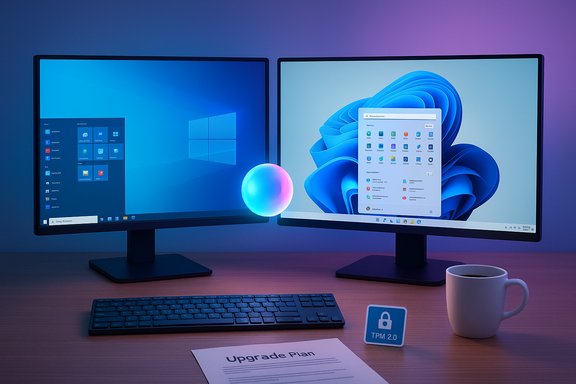 Background / Overview
Windows 11 has graduated from an awkward first release into a full platform push: cleaner visuals, tighter window management, rebuilt default apps, gaming and HDR improvements, and integrated AI through Copilot. Many of the mainstream technology outlets and community threads have distilled the argument into a simple calculus: better security, better productivity tools, and platform features that Windows 10 will no longer receive.Microsoft’s lifecycle decision is the practical root cause: after October 14, 2025, consumer editions of Windows 10 won't get regular cumulative updates unless you enroll in a narrowly scoped Extended Security Updates (ESU) program that buys a one‑year bridge for many home users. That changes the risk profile for continuing to run Windows 10 on internet‑connected machines.
This feature unpacks the ten headline reasons often cited for upgrading, verifies the technical claims where possible, weighs benefits against costs and risks, and gives a practical, prioritized plan for users and IT teams still on Windows 10.
1. A more consistent, modern interface
What changed
Windows 11 introduces a refreshed visual language: a centered taskbar, rounded window corners, updated iconography, streamlined menus, and touch‑friendly surfaces. These UI changes are more than skin‑deep — Microsoft reworked a number of context menus and system behaviors to match the new aesthetic and improve discoverability.Why it matters
The new interface reduces visual clutter and can reduce cognitive friction during multitasking. For users who value a modern, cohesive desktop, the UI alone is often enough to justify the upgrade. That said, interface preference is subjective: some long‑time Windows 10 users find the centered Start layout and tighter taskbar restrictive at first. Expect a short learning curve if you rely heavily on muscle memory.2. Improved included apps
What’s different
Windows 11 refreshed many default apps: Notepad, Paint, Photos, Clock (with Focus Sessions), Snipping Tool, Media Player, and Clipchamp. Microsoft has also used the Microsoft Store to push newer app versions to Windows 10 where compatible, but Windows 11 sees the freshest innovations first.Practical benefits
- Photos: generative-erase and faster editing workflows for casual creators.
- Clock: Focus Sessions integrates with Microsoft To Do and Spotify to help structured work.
- Clipchamp: quick template-driven video editing without heavyweight software.
These improvements reduce friction for everyday content tasks and reduce the need for third‑party editors for basic photo and video edits.
Caveats
Some of the most advanced, AI‑driven features in inbox apps rely on cloud services or Copilot gating; offline parity with Windows 10 isn’t guaranteed for every capability. If you need on‑device-only editing with guaranteed privacy, evaluate feature‑level requirements before switching.3. A better screenshot and capture tool
Windows 11’s Snipping Tool is no longer a simple grab utility — it now supports screen recording, simple OCR (text extraction from images), richer markup, and a compact editor. The tool’s UI and workflow are notably improved compared to Windows 10’s mix of legacy utilities.Practical wins include:
- Quick copy/paste of text captured from screenshots.
- Simple delay and region capture options plus a lightweight editor.
- Screen recording for short clips without third‑party tools.
4. Snap Layouts for an organized desktop
Hover the maximize icon or press Win+Z and Windows 11 offers Snap Layouts, letting you choose from several multi‑pane arrangements. Combined with Snap Groups — persistent layout groupings saved as taskbar entries — this is a meaningful step up from classic side‑by‑side snapping in Windows 10.Why power users care:
- Faster multi‑app setups for research, content creation, or coding.
- Saved groups reduce setup time when switching contexts.
- Docking behavior remembers layouts for external monitors (see next section).
5. Widgets for quick access to news, weather, and more
Windows 11 introduces a Widgets board — a customizable, swipeable panel for news, weather, calendar, family safety, OneDrive photos, stocks, and third‑party widgets. Widgets can also run full screen and appear on the lock screen for glanceable info. This is a more versatile evolution of Windows 10’s News & Interests.Benefits:
- Personalized, glanceable information reduces app switching.
- Third‑party support opens the ecosystem for vertical widgets.
- Widgets pull personalized content and can increase telemetry; users concerned about data collection should review widget account settings and telemetry controls.
6. Better malware resistance (but know the trade‑offs)
Windows 11’s security posture is meaningfully more advanced than Windows 10’s baseline. Microsoft requires TPM 2.0, enforces Secure Boot expectations on many systems, and promotes secured‑core devices that combine firmware‑level protections and virtualization‑based security. Microsoft and some independent reporting describe secured‑core machines as significantly more resistant to firmware and kernel‑level attacks.Why this matters:
- TPM 2.0 protects cryptographic keys and supports features like BitLocker and passkeys.
- Virtualization‑based protections (VBS) raise the bar against driver/firmware exploits.
- The TPM requirement prevented some older hardware from being eligible for Windows 11, forcing hardware replacements or workarounds.
- Enabling virtualization security and secured‑core features can increase driver compatibility testing and may marginally affect performance on low‑end devices.
- Marketing figures (for example, “twice as resistant”) are directional; they should be treated as manufacturer claims based on selected telemetry rather than universal guarantees. Independent verification suggests improved security posture, but exact multipliers vary by environment.
7. Improved multiple desktops and monitor docking
Windows 11 improved docking behavior: when you disconnect a monitor, the OS remembers and minimizes windows that belonged to that external display rather than scattering them across the laptop screen. You can also assign different wallpapers per virtual desktop, and desktop switching has a cleaner interface. These are small but meaningful productivity refinements for multi‑monitor users.If you regularly connect to a docking station or multiple displays for work, these improvements reduce interruptions and window rearrangement headaches.
8. Gaming performance and HDR improvements
Windows 11 includes modern gaming platform optimizations:- Auto HDR brings HDR color improvements to compatible displays.
- DirectStorage allows games to stream assets directly to GPU memory, reducing load times.
- Improved Game Mode and support for dynamic refresh rates and Xbox app integration round out the gaming experience.
- DirectStorage benefits are strongest with NVMe SSDs and games that implement the API; older HDDs won’t see the same gains.
- Auto HDR improves visuals on HDR displays but requires compatible hardware and drivers.
- Benchmarks show improvements, especially on systems with modern GPUs and storage, but results vary by title and hardware. Evaluate expected returns based on your GPU, CPU, and storage.
9. Copilot AI — convenience and new privacy choices
Windows 11 is the platform for Microsoft’s Copilot integration: system‑level AI assistance for writing, search, file recall, semantic search, and on Copilot+ devices, more advanced local AI features such as Click‑to‑Do and Recall. Copilot blends large‑model capabilities with web aggregation to give contextual answers.What’s new:
- Copilot lives in the OS as a quick actions assistant and is integrated into tools like the Snipping Tool and file search workflows.
- Copilot+ PCs promise richer on‑device AI acceleration, but these features are gated by hardware and OEM configurations.
- Some Copilot claims (for example, “up to five times faster” on new Copilot+ machines) are marketing statements grounded in selective benchmarks and hardware contexts; treat them as directional promises rather than universal outcomes.
- Copilot’s richer features often require cloud connectivity and implicate account and telemetry settings. Organizations and privacy‑sensitive users must evaluate what data is uploaded or indexed and configure privacy controls accordingly.
10. Windows 10’s days are numbered — ESU options and reality checks
Microsoft’s official end‑of‑support date for Windows 10 was October 14, 2025. For consumers Microsoft offered a one‑year Extended Security Update (ESU) pathway that, in many scenarios, can be claimed without outlay via OneDrive backup enrollment or Microsoft Rewards, or bought outright for a modest fee (roughly $30 one‑time for that insurance in many markets). Business ESU pricing follows a different scale and often increases annually. ESU is security‑only — no new features or routine servicing — and is meant to be a temporary bridge.Key takeaways:
- ESU buys time — use it to build a migration plan, validate apps/drivers, and budget hardware refreshes.
- ESU is not a long‑term solution; security-only patches are limited and don’t substitute for being on a maintained platform.
Cross‑verification: the claims that matter (and how well they check out)
- Windows 10 end of support: repeated, documented by Microsoft and confirmed by numerous outlets; this is a firm fact.
- TPM 2.0 and secured‑core security improvements: Microsoft’s hardware requirements and secured‑core marketing are well documented; independent analysis confirms improved resistance to firmware and kernel attacks, though precise multipliers are vendor‑presented. Treat the security improvement as real but variable by configuration and implementation.
- Copilot performance claims and “up to X× faster” marketing: these are situational; independent reporting and community testing show meaningful improvements on modern hardware but not universal outcomes — label these promotional and test on your hardware.
- DirectStorage and Auto HDR benefits for gamers: technically real, but benefits depend on NVMe storage, GPU support, and driver readiness. Benchmarks show load time reductions when titles are optimized.
Risks, friction points, and who should wait
- Hardware compatibility: Many older CPUs and systems without TPM 2.0 are not officially supported. While registry workarounds exist, they are unsupported and can create trouble for updates and security. Use the Windows PC Health Check (or vendor tools) to confirm compatibility.
- Privacy and telemetry: Widgets, Copilot, and several inbox apps rely on online services; privacy‑sensitive users should audit account sign‑in requirements, telemetry toggles, and the scopes of on‑device indexing or cloud recall.
- Driver and app compatibility: Businesses with legacy LOB applications or niche peripherals should pilot Windows 11 before broad deployment. Some virtualization‑based security features can impact drivers that aren’t updated.
- Feature rollout variability: Microsoft ships features in waves via the Microsoft Store and Insider channels. Expect some features to be region‑ or hardware‑gated. If you need a specific feature immediately, verify availability on your configuration.
- Perceived performance vs. reality: On older hardware, enabling virtualization‑based security or other protections can slightly affect raw benchmark numbers. The platform trade is improved security and feature‑set vs. marginal performance impact on weak CPUs. Test on representative machines.
Practical upgrade and migration checklist (prioritized)
- Inventory: Run PC Health Check and record CPU, TPM version, RAM, storage type, and peripherals.
- Backup: Create a full disk image and store a copy offline plus cloud backup of essential files. Don’t rely on a single backup.
- Pilot: Upgrade one machine (or a small pool) and validate your critical apps, printers, scanners, and drivers.
- Consider ESU only as a bridge: If hardware prevents an immediate upgrade, enroll in ESU to buy time and plan hardware refreshes. Use the year to test migration strategies.
- Privacy review: Decide whether and how to use Copilot features, Widgets, and on‑device indexing; document settings and consent for managed devices.
- Hardware upgrade plan: For incompatible systems, evaluate whether firmware updates, TPM modules, or full system replacements make sense versus purchasing refurbished or new Windows 11‑capable hardware.
Recommendations by user profile
- Power users and productivity seekers: Upgrade now if your hardware is supported — you’ll benefit from Snap Layouts, improved inbox apps, and Copilot productivity helpers.
- Gamers: Upgrade if you have NVMe storage and an HDR‑capable display to get DirectStorage and Auto HDR benefits; otherwise, upgrades still help but gains are hardware‑dependent.
- Privacy‑sensitive users and enterprises: Pilot and set policies before enabling Copilot features. Use ESU as a planning window if immediate hardware upgrades are impractical.
- Users with legacy apps/peripherals: Test thoroughly. If critical systems depend on older drivers, delay mass rollout until vendors provide certified drivers or find compatible workarounds.
Final analysis — strengths and potential risks
Windows 11 is no longer a cosmetic refresh; it’s a platform modernization aimed at security, AI integration, and modern hardware features. For the majority of users on supported hardware, it represents a net gain: stronger security defaults, tangible productivity enhancements, and improved multimedia and gaming features. The Microsoft push to migrate users off Windows 10 is supported by a solid, time‑boxed ESU program, which should be considered a short‑term contingency rather than a solution.However, the risks are real and concentrate around hardware eligibility, privacy and telemetry trade‑offs with AI services, and the uneven, phased feature rollouts that can leave some users waiting for promised capabilities. Marketing claims about X× speedups or blanket security multipliers should be tested on your hardware and treated as indicative rather than guaranteed.
Conclusion — a pragmatic call to action
The clock that matters is not the calendar so much as your exposure. With Windows 10 off mainstream servicing, staying connected on an unpatched platform increases risk. For most users on supported hardware, upgrading to Windows 11 now is the prudent choice — it unlocks Snap Layouts, modern apps, gaming API benefits, and the Copilot AI ecosystem while moving you to a platform that will continue to receive feature and security updates. If your hardware or business constraints prevent an immediate move, enroll in ESU only as a time‑boxed bridge and use the window to test, plan, and execute a staged migration.Practical next steps: inventory your machines, take full backups, pilot the upgrade on a spare system, and document privacy and driver checks before broad deployment. The move to Windows 11 is not just about cosmetics — it is a security and capability upgrade that, when planned, yields clear returns.
Source: PCMag Australia Still Using Windows 10? Here Are 10 Big Reasons You Should Upgrade Now
