• Thread Author
If your Windows 10 PC is being told it’s “ineligible” for Windows 11, the fix may be a single BIOS/UEFI switch — enabling your machine’s TPM (Trusted Platform Module) support — and in many cases that alone will make the system eligible for the free Windows 11 upgrade before Windows 10 support ends on October 14, 2025. This piece walks through exactly what TPM is, why Microsoft requires it, how to check for and enable TPM (including the Intel PTT and AMD fTPM options you’ll see in many UEFI menus), what to do after you flip the switch, and the important risks and workarounds when TPM isn’t present or enabling it doesn’t solve the problem.

PC motherboard with glowing TPM 2.0 ring and Windows 11 Secure Boot menu.Background / Overview​

Microsoft’s Windows 11 upgrade path enforces a short list of minimum hardware requirements: a 64‑bit CPU with two or more cores at 1 GHz or faster, at least 4 GB of RAM, 64 GB of storage, UEFI firmware with Secure Boot capability, DirectX 12/WDDM 2.0 graphics support, and Trusted Platform Module (TPM) version 2.0. Those requirements are official and still in force. Most modern laptops and desktops built in the last several years already meet those specs, but TPM in particular shows up in two forms: as a discrete chip soldered to the motherboard or — more commonly on mid‑range and many laptop systems — as a firmware TPM implemented by the CPU platform (Intel’s Platform Trust Technology, PTT, or AMD’s fTPM). If a device already contains TPM support but the firmware option is disabled, Windows 10 will report the device as missing TPM and refuse an in-place Windows 11 upgrade until you enable it in BIOS/UEFI. In many real‑world cases, switching a single setting in UEFI is all that’s needed. That’s exactly what several hands‑on reports and community threads document.

Why TPM 2.0 matters for Windows 11​

TPM is a small hardware (or firmware) secure element used to store cryptographic keys, protect measured boot and attestation, and provide a hardware root of trust for features such as BitLocker disk encryption, Windows Hello credentials, and platform integrity protections.
  • Security-first rationale: Microsoft requires TPM 2.0 to underpin modern security features and combat increasingly sophisticated firmware- and boot‑level attacks. That’s the reason Microsoft doubled down on TPM as a non‑negotiable baseline for Windows 11.
  • Practical effect: When TPM is present and enabled, Windows 11 can provide hardware-backed key storage and enable features that simply cannot be secured at the same level by software alone.
Those security improvements carry trade‑offs: some older hardware lacks TPM 2.0 or lacks firmware that exposes TPM functionality, which is why an otherwise capable PC can be blocked from the official upgrade pathway.

The key facts you must verify before trying an upgrade​

Before you touch UEFI settings, confirm the essentials:
  • Windows 10 builds must be at least version 2004 (or later) to perform the official upgrade path.
  • Windows 10 end of support is October 14, 2025 — after that date Microsoft will stop routine security updates for Windows 10 devices unless enrolled in Extended Security Updates (ESU). That deadline is the practical reason many users are racing to upgrade.
  • If your PC fails the upgrade check, run Microsoft’s PC Health Check app for a breakdown of which requirement failed; it often reports exactly “TPM is disabled,” “TPM not found,” or “Secure Boot not enabled.”
Cross‑reference: Microsoft’s own requirements page and the PC Health Check guidance should be your first stop for authoritative, up‑to‑date status.

How to check whether your PC already has TPM (fast checks)​

  • Open the Run box (Win + R), type tpm.msc, and press Enter. If a TPM is present and enabled, you’ll see “The TPM is ready for use” and the “Specification Version” will typically show “2.0.” If it reports “Compatible TPM cannot be found,” TPM is absent or disabled.
  • Use Device Manager: expand “Security devices” and look for “Trusted Platform Module 2.0.” No listing means Windows does not see an active TPM device.
  • System Information: run msinfo32 and check “BIOS Mode” (should be UEFI for Windows 11), and look for other firmware indicators. If BIOS Mode is Legacy, you’ll likely need to convert to UEFI/GPT before a supported upgrade.
If these checks suggest TPM is present but “not ready” or simply absent, your next step is to inspect UEFI.

How to enable TPM 2.0 in BIOS / UEFI — the practical steps​

Important: firmware menus vary by vendor and motherboard. Vendors label the TPM option differently — “TPM,” “Security Device Support,” “Intel PTT,” or “AMD fTPM” are the most common labels. The following is a general, vendor‑agnostic sequence; examples from ASUS and Intel documentation back up the wording you’ll likely see.
  • Back up your data. Always do this first. UEFI changes and later upgrade steps (like converting MBR to GPT) can cause data loss if mishandled.
  • Reboot and enter UEFI/BIOS:
  • Immediately after powering on, press the boot/menu key shown by your PC/vendor (common keys: Del, F2, F10, Esc). If you’re unsure, check your motherboard or laptop manual or the manufacturer’s web support page.
  • Find the TPM/security setting:
  • Look under Security, Advanced, or Trusted Computing sections.
  • Intel systems: look for “Intel PTT” or “PTT” and set to Enabled.
  • AMD systems: look for “fTPM,” “AMD fTPM,” or “TPM Device Selection” and switch to “Firmware TPM” or “fTPM.”
  • Save and exit:
  • Usually F10 saves and exits; confirm the prompt to save changes, then reboot into Windows.
  • Verify:
  • Re-run tpm.msc or Device Manager. You should now see “TPM is ready for use” and Specification Version should read 2.0 if firmware implements TPM 2.0. If it does not, the platform may only support TPM 1.2 or require a BIOS update.
  • If UEFI doesn’t show TPM options:
  • Update your motherboard or laptop firmware (BIOS/UEFI) to the latest vendor release and retry. Some boards require a firmware update to expose fTPM/PTT options.
ASUS, Intel, and other vendors explicitly document these menu names and the enable/disable steps; their support pages are the best place to confirm the exact labels for your model.

Intel PTT vs AMD fTPM — quick note​

  • Intel PTT acts like a firmware TPM and fulfills Windows 11’s TPM 2.0 requirement on Intel platforms.
  • AMD fTPM is the AMD equivalent implemented in platform firmware and is commonly present on Ryzen systems; enabling it in UEFI makes Windows detect the TPM.

After enabling TPM: what to do next​

  • Reboot into Windows and run the PC Health Check app (Settings → Windows Update → Check for updates or run the PC Health Check tool) to force a new compatibility scan. The tool should now show TPM present and may change your compatibility status.
  • If Windows Update doesn’t immediately offer Windows 11:
  • Install any pending Windows updates first and reboot, then check again.
  • In some cases you may see a message that your device is eligible but the update isn’t yet ready — click “Check for updates” until the Windows 11 offer appears.
  • If PC Health Check still reports a failure after enabling TPM:
  • Confirm UEFI is in native UEFI mode (not CSM/Legacy). TPM 2.0 is not supported in Legacy/CSM mode. If your system uses Legacy BIOS + MBR, you may need to convert the system disk to GPT (Microsoft’s MBR2GPT tool can do this non‑destructively) and switch firmware to UEFI. Guides from Windows Central and Microsoft document this conversion path.

When enabling TPM doesn’t solve the problem​

If enabling TPM doesn’t make your PC eligible, there are three common reasons:
  • CPU/feature list exclusions: some very old CPUs lack necessary instruction support (e.g., POPCNT, SSE4.2) required by later Windows 11 builds; those cannot be fixed by enabling TPM. Community testing and official notes indicate later Windows 11 24H2 builds enforced some instruction‑level checks that older chips fail to meet.
  • Secure Boot not enabled or disk partitioning incompatible: if Secure Boot is off or your system uses MBR partitioning under Legacy BIOS, Windows Update may still block the upgrade until the system uses UEFI/GPT and Secure Boot is enabled. Converting MBR→GPT and enabling Secure Boot are verifiable steps you may need to take.
  • TPM hardware absent: desktops sometimes expose a physical TPM header for an add‑on module; if neither discrete chip nor CPU/firmware TPM are present, you may need a motherboard‑level upgrade or a TPM module — check the motherboard vendor’s compatibility first.

Alternatives and workarounds — pros, cons, and risks​

If your device can’t be made eligible by enabling TPM, the community has documented several approaches; these are technology paths, not official Microsoft recommendations.
  • Registry bypass (AllowUpgradesWithUnsupportedTPMOrCPU): a registry key can relax Setup checks when you run Windows Setup from within Windows and allow an upgrade on some devices. This method is widely circulated and can work for borderline setups, but it’s unofficial and may result in an unsupported configuration. Community posts explain the exact key and workflow in detail.
  • Custom install media (Rufus and related tools): Rufus and other utilities can build installation media that remove or bypass hardware checks, enabling installations on unsupported hardware. This can be used for either in‑place upgrades or clean installs, and it’s especially useful for Legacy BIOS systems, but it carries the same caveat: unsupported configurations may not receive updates and may be unstable.
  • Hardware upgrades: on desktops, adding a discrete TPM module (if your motherboard supports one), upgrading the CPU/motherboard, or buying a new Windows 11–ready PC are the most future‑proof solutions. OEM systems and laptops are often not upgradeable in CPU or TPM hardware, so a full device purchase may be the practical path.
  • Extended Security Updates (ESU) for Windows 10: if you can’t upgrade immediately, Microsoft offers ESU options that extend critical and important security updates for a limited time — check the terms and regional availability. ESU is a bridge, not a forever solution.
Why the caution: Microsoft has stated that unsupported installations may not get updates, and it has tightened rules in successive builds, so bypasses that work today might be blocked later or leave you without security patches. Independent tech outlets and community threads have repeatedly warned that registry hacks and patched installers are a security and stability risk for production machines.

Practical pre‑upgrade checklist (step by step)​

  • Full backup: create a system image and backup documents; treat this as mandatory.
  • Run msinfo32 and tpm.msc to capture baseline state.
  • Update BIOS/UEFI to the latest firmware from your vendor.
  • Enable TPM (PTT/fTPM) and Secure Boot in UEFI, save, and reboot.
  • Verify TPM with tpm.msc and Secure Boot in msinfo32.
  • Run PC Health Check and Windows Update; install all pending updates.
  • If disk uses MBR and BIOS is Legacy, consider converting to GPT with MBR2GPT (documented by Microsoft) before changing boot mode to UEFI. Backups are essential here.

Security and support caveats — what you must accept before enabling or bypassing anything​

  • Enabling TPM itself is a low‑risk, vendor‑supported action when done through official UEFI settings; it’s the recommended route to qualifying for Windows 11. But enabling TPM can have implications for enterprise management (if the device is corporate-owned or managed) — consult your IT admin.
  • Using registry bypasses or modified installers to skip TPM/CPU requirements is an advanced, partly experimental approach that can expose your machine to missing updates or unpredictable driver/firmware interactions. Microsoft’s stance is that unsupported installations may not be eligible for the full Windows Update path. Several community posts and technical guides document workarounds and emphasize the risks.
  • If you proceed with a hack or a non‑standard install, maintain a robust backup strategy and be prepared to revert or rebuild if you run into driver issues, stability problems, or update blocks.

Real‑world evidence and anecdote — what the XDA piece and community threads are saying​

Hands‑on reports, including the XDA article that first brought this simple BIOS toggle to many users’ attention, confirm that enabling TPM in UEFI restored eligibility for Windows 11 on machines that were previously flagged as “ineligible.” These anecdotes are valuable because they reflect the typical home‑desktop scenario: hardware supports TPM in firmware, the option is disabled by default, and toggling it fixes the compatibility report. Still, these are case‑by‑case anecdotes — they’re useful for troubleshooting but should not be taken as a universal guarantee.
Community threads on Windows forums echo the same basic pattern and detail both the official route (enable PTT/fTPM) and the community workarounds for machines that truly lack TPM hardware. Those threads also provide step‑by‑step instructions, BIOS menu screenshots, and practical troubleshooting tips such as updating firmware or converting disks to GPT.

Bottom line — practical recommendation​

  • If your PC fails the Windows 11 check with TPM missing: reboot into UEFI and look for an option labelled TPM, PTT, or fTPM. Enable it, save, reboot, and rerun the PC Health Check and Windows Update. For many users this resolves the issue quickly and painlessly.
  • If your PC still fails the check after enabling TPM and updating firmware, confirm UEFI/GPT and Secure Boot status. If the hardware is too old (CPU lacking required instructions) or lacks TPM hardware entirely, plan for either a hardware upgrade, enrollment in ESU as a bridge, or a migration to a supported OS or machine.
  • Avoid registry and installer bypasses on critical systems. If you decide to use them on a personal machine, understand the support and security trade‑offs and keep full backups. Community guides document these approaches but also stress the caveats.

Conclusion​

For a large segment of Windows 10 users running reasonably modern hardware, the gate to Windows 11 is not a new CPU or a full hardware replacement — it’s a firmware setting: enabling TPM (Intel PTT or AMD fTPM) in UEFI and ensuring UEFI/GPT + Secure Boot are active. That single BIOS/UEFI change can often clear the compatibility block and allow the official free upgrade pathway, saving time and expense. Yet it isn’t a silver bullet for every machine — old CPUs, missing firmware, or locked corporate devices still require other solutions.
Follow the checklist: back up, update firmware, enable TPM and Secure Boot, verify with tpm.msc and PC Health Check, and only resort to unsupported bypasses after you understand the security and update‑support trade‑offs. With that precautionary approach, many users can reach the Windows 11 upgrade with a single firmware flip — and do it with confidence.
Source: XDA Changing this one BIOS setting could let you upgrade to Windows 11 — Here's how
 

If your Windows 10 PC shows as “incompatible” but the hardware still works, you can often move to Windows 11 without buying new hardware — but the path is neither uniform nor risk‑free. Community guides and tech outlets have documented two broadly used, free methods: a Microsoft‑acknowledged registry override that relaxes CPU/TPM checks when running Setup from inside Windows, and custom installation media that removes or bypasses TPM/Secure Boot checks (most commonly constructed with Rufus). These options let many older systems run Windows 11, but they come with significant caveats about update entitlement, driver support, warranty and long‑term stability.

Cybersecurity warning on a laptop with floating security dialogs against a blue circuit background.Background / Overview​

Microsoft’s Windows 11 policy enforces a baseline of hardware requirements — most notably TPM 2.0, UEFI with Secure Boot, and a supported CPU family — that left a large installed base of Windows 10 PCs officially “incompatible.” Microsoft documents those requirements on its Windows 11 specs page and recommends enabling TPM/UEFI where possible. The company has also been explicit: installing Windows 11 on a device that doesn’t meet the minimum requirements is not recommended and such devices “aren’t guaranteed to receive updates, including but not limited to security updates.” The timing pressure is real: Microsoft has set October 14, 2025 as the general end‑of‑support date for Windows 10, after which routine security updates and free support cease (Extended Security Updates are available as a limited bridge). That deadline is the practical reason many users are looking for ways to move aging PCs forward rather than replace them.

What “incompatible” really means​

The technical checklist​

Microsoft’s official minimums for Windows 11 include the following baseline items:
  • Processor: 64‑bit, 1 GHz or faster, 2+ cores and on Microsoft’s approved processor lists.
  • Memory & storage: 4 GB RAM and 64 GB storage minimum.
  • System firmware: UEFI with Secure Boot capability.
  • TPM: Trusted Platform Module version 2.0 (fTPM/Intel PTT counts).
  • Graphics: DirectX 12 / WDDM 2.0 compatible GPU and minimum display requirements.
These checks are enforced by PC Health Check and Setup. A failure can be as simple as TPM being disabled in UEFI, or as hard as a CPU that lacks required instructions. Many OEMs provide BIOS/UEFI options to enable fTPM or Intel PTT — often resolving an “incompatible” flag without further intervention.

Why Microsoft enforces this​

Microsoft’s stance is security and reliability: TPM 2.0 and Secure Boot underpin features like BitLocker, Windows Hello and virtualization‑based security (VBS). The company maintains that these platform features deliver a higher baseline of protection and compatibility for new features. Critics counter that the policy forces otherwise functional hardware into obsolescence; Microsoft’s position has not softened.

Two practical paths to upgrade an “incompatible” PC​

1) The Microsoft‑documented registry override (in‑place upgrade)​

Short summary: create a registry value that allows the Windows 11 installer to ignore CPU and TPM version checks when you run Setup.exe from a mounted ISO or Windows 11 installation media.
What the tweak does:
  • The registry DWORD AllowUpgradesWithUnsupportedTPMOrCPU under HKEY_LOCAL_MACHINE\SYSTEM\Setup\MoSetup changes the installer’s behavior so Setup will proceed on machines with unsupported CPUs or older TPM versions (it reduces TPM enforcement to an earlier minimum in certain cases). Microsoft documents the key and also warns users that unsupported installs “won’t be entitled to receive updates.”
Step‑by‑step (high level):
  • Back up your data and create a full system image.
  • In Windows 10, open regedit and navigate to HKEY_LOCAL_MACHINE\SYSTEM\Setup\MoSetup. If MoSetup doesn’t exist, create it.
  • Create a new DWORD (32‑bit) named AllowUpgradesWithUnsupportedTPMOrCPU and set its value to 1.
  • Download the official Windows 11 ISO from Microsoft and mount it in File Explorer.
  • Run Setup.exe and follow the prompts; you will first see a warning that the PC does not meet minimum requirements — acknowledge it to proceed.
When it’s appropriate
  • Good for systems that already have UEFI and either a TPM 1.2 or a TPM 2.0 that Windows does not detect, or for PCs whose CPU is off Microsoft’s approved list but otherwise capable.
  • Commonly used when users want to preserve applications and settings with an in‑place upgrade.
Limitations and caveats
  • This tweak does not magically enable Secure Boot or convert Legacy BIOS to UEFI. It also does not fix missing TPM hardware — it only relaxes the checks.
  • Microsoft’s support page and several tech outlets emphasize this method is unsupported and that Microsoft may block updates or remove update entitlement at any time. Plan for manual maintenance.

2) Create custom installation media that bypasses checks (Rufus or similar)​

Short summary: build a bootable USB from the official ISO using a utility that offers an “extended Windows 11 installation” or LabConfig bypass; that USB will present options to remove TPM/Secure Boot/CPU checks during install.
What Rufus and similar tools do:
  • Rufus offers an Image/ISO creation flow that injects the LabConfig bypass or creates a custom installer allowing the installer to ignore TPM and Secure Boot checks. This can permit clean installs or in‑place upgrades from the USB. Third‑party coverage and community testing repeatedly show Rufus can create such media, and it’s widely used for this purpose.
Typical workflow:
  • Download the official Windows 11 ISO from Microsoft.
  • Run Rufus on a working PC, select the ISO and choose the “Extended Windows 11 Installation” or select the options that bypass hardware checks when prompted. Create the USB.
  • Boot the target PC from the USB or, on an existing Windows 10 PC, run setup.exe from the USB to start an in‑place upgrade or perform a clean install.
When it’s appropriate
  • Best for machines that lack TPM entirely, run legacy BIOS, or otherwise cannot be nudged into UEFI/TPM mode. Rufus’s USB approach also works for clean installs where you prefer to wipe and rebuild.
Limitations and caveats
  • As with the registry method, Microsoft’s policy applies: installations on unsupported hardware are not guaranteed to receive updates. There have also been community reports of update delivery quirks after installations from certain media; vigilance for cumulative update delivery and builds is required. Some users have reported that particular Windows 11 24H2 ISO builds and certain installer combinations can produce problems that require manual intervention.

Technical and security risks — what you must understand before proceeding​

  • Update entitlement and future patches: Microsoft’s explicit guidance is that a device running Windows 11 on unsupported hardware “won’t be entitled to receive updates” and “might malfunction.” That warning is not legalese only — Microsoft controls Windows Update and may refuse or delay quality/security patches on unsupported machines. Plan for manual patching or accept the risk.
  • Driver and stability issues: Older hardware may lack Windows 11 drivers from OEMs. This can lead to degraded battery life, absent features, or peripheral failures. Always check the OEM support pages for drivers; where drivers aren’t available, expect to troubleshoot or fall back to Windows 10/alternate OS.
  • Warranty & compliance: Installing an unsupported OS may void manufacturer warranty claims tied to software compatibility. For corporate machines, this could violate IT policy and regulatory compliance. Enterprises should use supported upgrade paths or ESU.
  • Security posture: TPM 2.0 and Secure Boot are foundational for features like BitLocker, VBS and Windows Hello. Running without these protections increases exposure to firmware attacks and makes some Windows security features less effective. If you bypass TPM and Secure Boot, plan compensations — e.g., use strong disk encryption handled outside OS defaults, keep backups, and limit sensitive work on the device.
  • Long‑term maintainability: Feature updates may require reapplying bypasses or fresh installs. Microsoft has changed installer behavior across Windows 11 feature releases; a machine that boots and runs Windows 11 today may not seamlessly accept later feature updates without repeating the workaround process.

A practical pre‑upgrade checklist (recommended)​

  • Back everything up: image the drive + copy personal files to an external disk or cloud.
  • Create official Windows 10 recovery media and store it offline.
  • Update BIOS/UEFI firmware to the latest version; sometimes enabling PTT/fTPM in firmware converts an “incompatible” machine into a supported one.
  • Run PC Health Check to see which requirement fails; this tells you whether firmware toggles might fix the issue.
  • Decide the desired path: registry tweak (in‑place, keep apps) or Rufus USB (clean install or in‑place from USB).
  • If proceeding with an unsupported path, document serial numbers, collect drivers and note rollback steps. Test the install on a non‑critical machine if available.

Step‑by‑step example: registry override + in‑place upgrade (condensed)​

  • Backup image and files.
  • In Windows 10, open regedit (Run → regedit) and go to HKEY_LOCAL_MACHINE\SYSTEM\Setup. Create a key named MoSetup if absent.
  • Under MoSetup create a DWORD (32‑bit) value named AllowUpgradesWithUnsupportedTPMOrCPU and set its value to 1. Reboot.
  • Download the official Windows 11 ISO from Microsoft, mount it in File Explorer, and run Setup.exe. Accept the compatibility warning and follow the prompts to keep personal files and apps or choose a clean install.
Note: this approach is not a guaranteed fix for missing TPM hardware or machines running legacy BIOS; use Rufus method for deeper bypasses.

Alternatives to forcing Windows 11 on older hardware​

  • Enable TPM and UEFI if available: Firmware updates or toggles often convert an “incompatible” result into eligibility. This is the preferred route because it preserves update entitlement.
  • Extended Security Updates (ESU) for Windows 10: Microsoft offers a limited ESU program to prolong security updates as a bridge if you cannot move to Windows 11 immediately. Details and conditions apply.
  • Move to Linux (e.g., Linux Mint): For many older PCs, modern Linux distributions restore performance and security without the Windows 11 hardware demands. Linux Mint XFCE is a common recommendation for users who prefer a lightweight, Windows‑like experience. This is specifically useful for desktops and laptops used for web, email, and productivity that don’t require Windows‑only applications.
  • Cloud or virtualized Windows (Windows 365 / Cloud PCs): For organizations, shifting workloads to cloud‑hosted Windows desktops can keep older endpoints usable as terminals while centralizing security and compliance. This option is generally enterprise‑targeted and involves subscription costs.

What the community and reporting show (real‑world experience)​

Community reporting and tech outlets (ZDNet, How‑To‑Geek, Tom’s Hardware and the Windows community) document many success stories of upgrading older PCs using the registry tweak or Rufus method. These reports consistently highlight two themes: (1) the methods often work for machines that are a few generations old, and (2) follow‑up maintenance required by unsupported installs is a real, recurring cost in time and risk. Readers sharing upgrade logs, step lists and troubleshooting posts have become a large informal knowledge base for “incompatible” upgrades. At the same time, outlets report Microsoft’s steady tightening on certain compatibility avenues (especially with later 24H2 builds) and persistent warnings about update entitlement on unsupported devices. That means what worked in one feature update cycle might require fresh adjustments in the next.

Decision guide — how to choose the right path​

  • If your PC becomes eligible by enabling TPM/UEFI or by a BIOS update: use the supported upgrade via Windows Update, Installation Assistant or Media Creation Tool. This preserves security updates and vendor support.
  • If your PC is ineligible but you need a supported, long‑term solution for work or compliance: replace hardware or use ESU as a temporary bridge.
  • If you accept the risks and are technically comfortable: the registry override (for CPUs/TPM versions) or Rufus custom media (for missing TPM/Secure Boot) are viable short‑to‑medium term options — but plan for manual maintenance, driver troubleshooting and possible reinstall cycles.
  • If the machine’s role is basic (browser, mail, documents) and you prefer stability: consider Linux distributions such as Linux Mint XFCE to extend hardware life without the Windows 11 compatibility drama.

Final analysis: strengths, trade‑offs and practical advice​

Strengths of the community methods:
  • They preserve investment in functioning hardware and avoid immediate replacement costs.
  • Many users report clean migration with preserved apps and data if the registry method is used carefully.
Risks and trade‑offs:
  • Update and security uncertainty: Microsoft’s update entitlement warnings are non‑trivial; unsupported systems may miss security patches or be deprioritized in update rollouts. This is the central long‑term risk.
  • Driver and feature loss: Hardware vendors may never publish Windows 11 drivers, producing degraded or missing functionality.
  • Maintenance burden: Expect to troubleshoot feature updates; workaround steps may be required for each new Windows 11 feature release.
Practical recommendations (quick):
  • Try the supported route first: check for a firmware option to enable TPM/UEFI and run PC Health Check.
  • If a bypass is necessary, back up, gather drivers, and test on a non‑critical machine first.
  • Treat any unsupported Windows 11 install as a stop‑gap rather than a permanent, business‑critical deployment. If the device runs sensitive workloads, invest in supported hardware.

In summary, the combination of a Microsoft‑documented registry override and community tools such as Rufus gives capable users practical, no‑cost options to install Windows 11 on otherwise “incompatible” PCs. These techniques are effective and widely used, but they shift risk from vendor support to user maintenance: update entitlement, driver compatibility, warranty coverage and future feature updates are all areas of potential brittleness. For anyone considering this route, the safest approach remains enabling official firmware features where available, backing up completely, and understanding that unsupported installs are a pragmatic but imperfect way to keep older hardware running modern Windows.
Source: Daily Kos Upgrading an 'incompatible' Windows 10 PC to Windows 11 - for free
 

Consumer advocates in Colorado and across the U.S. are warning that Microsoft’s decision to stop free, automatic security updates for Windows 10 on October 14, 2025 will leave millions of still‑working PCs vulnerable or force costly hardware replacements — and that existing mitigation plans from Microsoft leave too many users exposed.

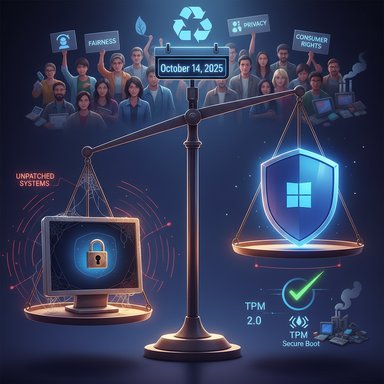
A scale pits unpatched systems against a Windows shield secured by TPM 2.0.Background: what Microsoft announced and what the Denver7 report says​

Microsoft has formally set October 14, 2025 as the end‑of‑support date for Windows 10, after which the operating system will no longer receive routine security updates, feature updates, or standard technical support for consumer editions. The company recommends upgrading eligible PCs to Windows 11 or enrolling eligible Windows 10 devices in a temporary Consumer Extended Security Updates (ESU) program that extends only critical and important security fixes for one additional year through October 13, 2026. The local Denver7 report summarized a complaint from consumer advocates (CoPIRG) that this plan is exploitative for ordinary purchasers of Windows 10 machines: advocates say forcing households to either pay for a one‑year ESU or replace functioning hardware is unfair and will disproportionately harm people who cannot upgrade to Windows 11 because of Microsoft’s stricter hardware baseline. The report quotes CoPIRG’s Easton Lane and notes the group’s open letter asking Microsoft to extend free Windows 10 security updates; it also cites CoPIRG’s estimate that as many as 400 million machines could be affected and that roughly 43% of Windows 10 PCs are blocked from upgrading to Windows 11 by hardware rules.
Those on the advocacy side point to historical examples — most prominently the 2017 “WannaCry” ransomware outbreak — arguing that when vendors stop issuing patches, attackers shift quickly to exploit unpatched systems. That attack infected on the order of hundreds of thousands of machines worldwide and is repeatedly cited as an illustration of how unpatched Windows systems can be weaponized at scale.

Why this matters: scale, hardware gates, and the ESU stopgap​

The scale problem​

Windows 10 remains a very large installed base even as Windows 11 adoption has grown. Industry metrics and advocacy groups put Windows 10’s installed share well into the mid‑40s percent range for desktop Windows in mid‑2025, translating to hundreds of millions of devices worldwide that will be affected by any support cutoff. PIRG and allied groups use those market figures to estimate that up to about 400 million machines could be left unable to take the official Windows 11 upgrade path. That 400 million figure is a campaign estimate — useful for illustrating scale, but it is an estimate that depends on methodology and what counts as “in‑use” devices.

The hardware gate: why many PCs can’t “just upgrade”​

Microsoft’s Windows 11 minimum baseline intentionally raised the hardware security bar. The most consequential requirements are:
  • TPM 2.0 (Trusted Platform Module) — a hardware root of trust used for device encryption and secure key storage.
  • UEFI firmware with Secure Boot enabled.
  • A supported 64‑bit CPU family (Microsoft publishes lists of supported Intel, AMD, and Qualcomm processors).
  • Minimum RAM and storage baselines (Windows 11’s practical needs often exceed the bare minimum for a smooth experience).
Because TPM and secure‑boot requirements are hardware or firmware dependent — and because Microsoft’s CPU compatibility lists exclude many older but otherwise serviceable processors — a meaningful share of Windows 10 devices cannot receive an in‑place, Microsoft‑supported upgrade to Windows 11 without hardware changes. That is the technical root of the advocacy complaint.

The ESU safety valve — limited, conditional, and temporary​

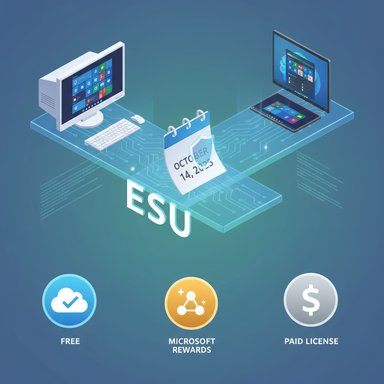
Microsoft’s consumer ESU program is a one‑year, security‑only bridge that runs through October 13, 2026. Enrollment is available through three consumer paths: enabling Windows Backup (syncing settings to a Microsoft account), redeeming Microsoft Rewards points (1,000 points reported), or purchasing a one‑time ESU license (widely reported at around $30 USD) that can cover multiple devices tied to the same Microsoft account. ESU does not include feature updates or general technical support. This design — a short, conditional bridge rather than an open, indefinite continuation of patches — is at the center of the policy dispute. Advocacy groups argue the free route’s reliance on Microsoft account linkage, the short one‑year timebox, and the presence of a paywall are inadequate for protecting low‑income households, schools, libraries, and other vulnerable entities.

Technical reality: what “end of support” means for users and defenders​

  • After October 14, 2025, Windows 10 systems will still boot and run, but the vendor will no longer ship routine OS‑level security patches for newly discovered vulnerabilities. That increases exposure steadily over time as attackers find and weaponize new bugs.
  • Parts of Microsoft’s ecosystem (for example, some Microsoft 365 Apps security servicing and Edge updates) follow separate timelines; those are helpful but are not substitutes for OS kernel and driver patches.
  • ESU provides only Critical and Important updates as defined by Microsoft’s Security Response Center. It is a temporary mitigation, not a long‑term security model.
For organizations with regulatory or compliance obligations, running an unsupported OS can be immediately problematic. For consumers, the immediate practical tradeoff is between paying (or signing into a Microsoft account) for a one‑year reprieve, scrambling to buy new hardware, or continuing to use an increasingly dangerous, unpatched platform.

The advocacy case: fairness, privacy, and environmental costs​

Consumer groups and right‑to‑repair advocates have framed three linked harms:
  • Fairness and affordability: For many households, a sudden support cutoff effectively places a new cost on a previously purchased device or forces an intrusive account‑linking choice to receive a free year of updates. Groups argue that consumers who bought a PC in good faith should not be required to pay extra or prematurely trash hardware to remain protected.
  • Privacy: The free ESU enrollment path that requires a Microsoft account and backup sync is a legitimate privacy concern for users who prefer local accounts or who reject cloud‑linked telemetry by design. Advocacy groups say a privacy‑preserving free path should be provided.
  • Environmental impact (e‑waste): Large scale premature replacement of otherwise working PCs would generate substantial electronic waste and associated carbon and mineral‑extraction impacts. PIRG and other NGOs produced modeling showing very large potential global e‑waste volumes if millions of devices are retired quickly. Those estimates vary by methodology but are used to put the problem in stark terms.
These are not purely rhetorical concerns: tens or hundreds of millions of devices, if discarded, would stress recycling systems and create real environmental and economic costs.

The counterargument from Microsoft and practical realities​

Microsoft’s position — as stated in lifecycle documentation and the Windows Experience Blog — is that modern platform security depends on hardware features that Windows 11 leverages by design. Maintaining long support tails for legacy code and a broad array of drivers and firmware is costly, and from Microsoft’s engineering vantage the way to raise security broadly is to shift the installed base to a platform with more robust hardware‑backed protections by default. Microsoft has therefore:
  • Published clear lifecycle dates and migration guidance to give users time to plan.
  • Offered a consumer ESU option and several enrollment paths to prevent an immediate disaster for households that need time.
  • Continued to support some application layers (e.g., Microsoft 365 Apps and Edge) on different timelines.
From Microsoft’s perspective, a hard deadline plus a short ESU bridge balances engineering cost and incentives to modernize — but that calculus is precisely what critics say externalizes the human and environmental costs.

Ransomware and vulnerability history: why advocates are worried​

Historic ransomware outbreaks like WannaCry in May 2017 are a cautionary tale: once vendor patches stop flowing for widely deployed software, attackers quickly pivot to exploit those unpatched systems, producing rapid and large‑scale damage. Media and law‑enforcement reports from 2017 estimated the WannaCry outbreak affected on the order of 200,000–300,000 hosts across 150 countries; the incident damaged hospitals, manufacturing, and other critical services and highlighted the danger of large unpatched install bases. The point advocates make is simple: stopping patches for vast numbers of connected PCs increases the global attack surface and therefore the probability of a disruptive, high‑impact campaign. That risk is real, but it is not an absolute certainty: outcomes depend on attacker incentives, mitigations in place (firewalls, network segmentation, antivirus), and how many users adopt ESU or migrate to Windows 11. Still, history shows attackers relentlessly search for large populations of vulnerable endpoints.

What’s verifiable and what’s an estimate​

  • Microsoft’s technical facts are verifiable and public: Windows 10 end of support = October 14, 2025, and consumer ESU coverage through October 13, 2026 with the described enrollment options and a one‑time consumer ESU price widely reported at $30 USD.
  • Estimates such as “400 million PCs left behind” and “43% of machines ineligible for Windows 11” are model‑dependent campaign figures used by advocacy organizations to communicate scale. They are plausible given public market‑share data and hardware compatibility analyses, but they are estimates, not precise hard counts; different data sources yield different totals. Readers should treat headline device‑count numbers as illustrative rather than exact.

Practical guidance for consumers and small organizations​

If you manage or rely on Windows 10 machines, the immediate actions are straightforward and time‑sensitive:
  • Inventory your fleet now. Identify devices by make/model, installed Windows 10 build, and whether they meet Windows 11 hardware requirements (TPM 2.0, Secure Boot, CPU compatibility).
  • Prioritize the riskiest endpoints for remediation: devices that access critical data, perform financial transactions, or support remote access tools.
  • Check upgrade eligibility with Microsoft’s PC Health Check tool or the manual Windows 11 requirements. If eligible, plan a staged upgrade to Windows 11 and test application/peripheral compatibility first.
  • If upgrade is not possible immediately, enroll eligible devices in consumer ESU before October 14, 2025 to receive critical security updates through October 13, 2026 — but treat ESU as a temporary bridge, not a permanent solution.
  • As alternatives, consider migrating selected devices to supported lightweight operating systems (e.g., ChromeOS Flex, or a Linux distribution) where application compatibility allows — but evaluate security, management, and usability tradeoffs carefully.
  • Back up critical data and update incident response plans. Unsupported systems are more attractive targets; backups and isolation strategies reduce the harm of an exploitation event.

Policy and vendor‑level options to mitigate harm​

Consumer groups and some policymakers have proposed practical mitigations intended to reduce the social and environmental costs of Microsoft’s approach:
  • Offer a privacy‑preserving free ESU path that does not require Microsoft account linkage or cloud backup for enrollment.
  • Extend the consumer ESU time window beyond one year for lower‑income households, schools, and critical public‑service organizations.
  • Expand trade‑in, refurbishment, and subsidy programs to reduce premature disposal and smooth affordability for upgrades.
  • For governments: consider targeted procurement assistance or emergency funding for essential public systems that cannot be upgraded quickly.
Some of these ideas are operationally feasible but entail real costs. Microsoft has already adjusted rollout details in certain jurisdictions after public pressure; whether the company will further change the consumer ESU model is an open question.

Strengths and weaknesses of the current plan — critical analysis​

Strengths​

  • Clear timelines: Microsoft’s published lifecycle dates give users time to plan and act rather than leaving the situation ambiguous.
  • A consumer ESU option exists: For the first time Microsoft extended ESU mechanics to individual consumers, which does reduce the immediacy of the cliff for many households.
  • Security rationale: Windows 11’s hardware baseline materially raises the default security posture for devices that meet it; encouraging migration to a modern platform has long‑term security benefits.

Weaknesses and risks​

  • Paywall and account‑linking: The consumer ESU model’s conditional free path (tied to Microsoft account and backup sync) and a $30 paid option create fairness and privacy concerns, and may leave the most vulnerable households unprotected.
  • Short runway: One year of ESU is a narrow contingency for households with multiple devices or constrained budgets; migration at scale takes time and money.
  • E‑waste externality: The policy risks large‑scale hardware turnover with environmental consequences; advocacy models show substantial potential e‑waste even if a portion of devices are refurbished or transitioned to alternative OSes. Those models are estimates and involve uncertainty, but the environmental risk is real.
  • Operational complexity: For public institutions, small businesses, and nonprofits, the technical and procurement effort to upgrade or apply ESU across fleets is nontrivial and may divert scarce resources.

Alternatives, tradeoffs, and what vendors and defenders should consider​

  • For individuals: if your PC is compatible, upgrade to Windows 11 after testing; if it’s not, enroll in ESU if you need time, or evaluate ChromeOS Flex or a supported Linux distro as a stopgap to keep hardware in service.
  • For small organizations: weigh the cost of short‑term ESU purchases versus the capital and operational costs of a device refresh. Often a mixed strategy — upgrade critical systems, ESU for others, and migrate some endpoints to alternative OS images — is the most pragmatic.
  • For Microsoft: a few small policy changes could substantially reduce social harms — extend the free ESU window for certain categories (schools, libraries, community organizations), add an audited privacy‑preserving free enrollment mechanism, and scale trade‑in/refurb programs to minimize e‑waste.

What remains uncertain and where to be cautious​

Some commonly quoted large numbers — for example, the campaign figure of 400 million machines that cannot upgrade — are estimates based on public market‑share trackers and hardware-eligibility modeling. They are credible as scale indicators but should be treated as approximate rather than exact. Advocates’ totals for signatories to letters and petitions vary slightly across reports (some outlets list hundreds of repair businesses, elected officials, and nonprofits adding up to several hundred signatories). These differences reflect how different organizations count categories (repair shops vs. nonprofits, libraries vs. schools, etc. rather than substantive disagreement about severity. Readers and decision‑makers should rely on the underlying Microsoft documentation for the definitive timeline and on careful inventorying of their own devices for operational planning.
Finally, historical events like WannaCry are instructive but not deterministic: a support cutoff does not automatically cause another global ransomware pandemic, though it increases systemic risk. How attackers respond will depend on many variables, including the fraction of devices that remain unpatched, the presence of network defenses, and attackers’ strategic choices.

Conclusion: risk management and public interest​

Microsoft’s decision to end Windows 10’s free support on October 14, 2025 and to offer a short, conditional ESU window is a clear technical and business position: it favors accelerating migration to Windows 11 to raise baseline hardware security. That position is defensible on engineering grounds, but it imposes concrete costs on households, small organizations, and sustainability goals. Consumer advocates and repair networks have mobilized to demand additional relief — citing fairness, privacy, and e‑waste concerns — and their pressure has produced public debate and minor rollbacks or clarifications in some regions.
For users, the practical imperative is immediate: inventory devices, verify Windows 11 eligibility, enroll in ESU if necessary before the deadline, and back up critical data. For policymakers and community leaders, the moment calls for targeted mitigation: subsidies or trade‑in/refurb programs for essential public services, privacy‑sensitive enrollment pathways for consumer ESU, and clearer protections for economically vulnerable households.
The technical facts are clear and verifiable — the policy tradeoffs are not. The window for constructive action is short; the choices made now will determine whether this transition proceeds as an orderly platform upgrade or becomes an avoidable public‑interest problem of security risk and premature electronic waste.

Source: Denver7 Colorado consumer advocates sounding the alarm as Microsoft ends Windows 10 support
 

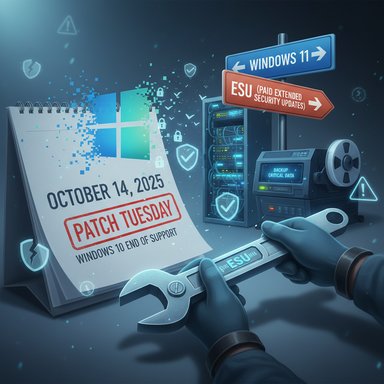
Technician uses a wrench to apply Windows 10 ESU Patch Tuesday on a server.
Windows 10 will reach its official end of support on October 14, 2025, and with that date falling on a Patch Tuesday, the cumulative security roll-up published that day will be the operating system’s final regular update — a last patch that, if it introduces widespread regressions, may leave many users and IT teams without official bug fixes unless they enroll in paid options or accept imperfect workarounds.

Background​

Windows 10 has been a pillar of Microsoft’s OS lineup for more than a decade. The company has now set the formal end-of-support date for Windows 10, version 22H2 (and related Enterprise/IoT LTSB editions) as October 14, 2025. After that date Microsoft will stop providing regular technical support, feature updates, and free security updates for consumer installations. Microsoft is offering an Extended Security Updates (ESU) program to provide security-only updates for a limited time, but that program explicitly excludes non-security bug fixes, product enhancements, and technical support. This creates an unusual and potentially risky transition moment: October 14, 2025 is a scheduled Patch Tuesday (the second Tuesday of the month), meaning Microsoft will still ship its usual monthly cumulative updates that day — and those updates will be the last monthly security roll-up for Windows 10 available through Windows Update for free. If that final cumulative update introduces regressions for some hardware or software configurations, affected users will face constrained remediation options.

What Microsoft is offering: ESU explained​

Microsoft’s consumer ESU program is a time-limited service that provides access to critical and important security updates for Windows 10, version 22H2 for up to one year (consumer ESU) with extended options for enterprises (up to three years via paid tiers). Crucially, Microsoft’s ESU documentation makes two points explicit:
  • ESU covers security updates only — critical and important patches as defined by the Microsoft Security Response Center (MSRC).
  • ESU does not include other types of fixes, feature improvements, product enhancements, or technical support.
In practice this means an organization or consumer can keep receiving security signatures for known vulnerabilities if they pay for or enroll in ESU, but they should not expect Microsoft to issue new bugfixes for reliability, functionality, or compatibility problems that are not categorized as security updates.
Key points about ESU:
  • ESU enrollment windows and eligibility are documented by Microsoft; consumer enrollment covers a single year (ending October 13, 2026 for the consumer ESU program), while enterprise customers can purchase up to three years of ESU under commercial terms.
  • ESU is an explicit stopgap — Microsoft recommends upgrading to Windows 11 where possible or replacing devices that cannot be upgraded.

Why the October 14 Patch Tuesday matters — and why it’s risky​

Patch Tuesday updates are cumulative and platform-wide. Historically, major monthly updates have occasionally introduced regressions that affect a subset of devices, drivers, or third-party software. In recent months Microsoft tracked and publicly disclosed several Windows 10, version 22H2 issues that emerged with the August 2025 update — and it required follow-on fixes and out-of-band patches in August and September to clean things up. Those incidents make clear that even well-tested cumulative updates can cause functional breakage in real-world environments. Why that matters now:
  • October 14, 2025 is the last regular Patch Tuesday for Windows 10. Free monthly updates published that day will be the last ones available through Windows Update for standard Windows 10 customers.
  • After the end-of-support date, Microsoft’s publicly documented ESU policy states it will only provide security updates to ESU customers. Non-security bug fixes and product improvements are explicitly excluded. That reduces Microsoft’s obligation — though not necessarily their ability — to issue functional fixes after EOL.
  • If Microsoft inadvertently introduces a functional regression in the October 14 update, affected users may be left to choose between upgrading, applying third-party workarounds, or rolling back updates — none of which are ideal in all environments.

Real-world precedent: August–September 2025 incidents​

The last few months provide concrete examples of how an update can ripple through users’ setups and how Microsoft responds.

NDI streaming performance regression​

  • Symptom: Severe stuttering, lag, and choppy audio/video when using NDI (Network Device Interface) for streaming or transferring audio/video between PCs after the August 2025 update. The regression was particularly noticeable with applications such as OBS and NDI Tools when using Display Capture.
  • Microsoft action: The problem was tracked on the Windows release health dashboard and marked as resolved with fixes published on September 9, 2025 (the cumulative updates that day included the resolution). The initial issue and subsequent fix were documented in Microsoft’s update KB notes.
  • Third-party reaction: NDI authors and streaming communities recommended temporary workarounds (change Receive Mode from RUDP to TCP/UDP) while Microsoft prepared the fix; media outlets covered the issue and the workarounds widely.

Reset and recovery failures​

  • Symptom: The August 2025 security update introduced a bug that could cause Reset this PC, Fix problems using Windows Update, and some remote wipe operations to fail. For users who rely on these recovery mechanisms, the inability to reset a machine or perform a local repair can be severe.
  • Microsoft action: Microsoft released out-of-band updates (KB5066188 for Windows 10, KB5066189 for Windows 11) on August 19, 2025 to address the reset/recovery failures. These were optional out-of-band (OOB) fixes that admins and users could apply separately from the regular Patch Tuesday roll-up.
These episodes illustrate two important patterns: regressions can affect diverse user groups (from streamers to enterprise admins), and Microsoft has historically issued OOB fixes when a defect is significant enough. But the existence of OOB fixes in the past does not guarantee similar behavior once mainstream support ends.

The practical choices for Windows 10 users after October 14​

When faced with a problem caused by an update released on the very day support ends, affected users have a narrow set of realistic options. Each comes with trade-offs.
  • Upgrade to Windows 11 (or another supported OS)
    • Pros: Continued free security updates, new features, vendor support.
    • Cons: Hardware compatibility requirements, driver/firmware issues, application compatibility, user training and migration costs. Microsoft recommends this path for eligible devices.
  • Enroll in ESU (security updates only)
    • Pros: Continued delivery of critical and important security updates for the ESU period; reduces exposure to known vulnerabilities.
    • Cons: ESU does not include non-security bug fixes or product improvements, and does not include technical support. It’s a temporary and often paid measure for enterprises.
  • Delay installation or rollback updates; use community/third-party workarounds
    • Pros: May avoid newly introduced regressions and keep systems working as before.
    • Cons: Delaying security patches increases exposure to known vulnerabilities; third-party workarounds can be fragile and may not be available for every regression.
  • Remain on unsupported Windows 10 without ESU
    • Pros: No immediate cost, preserves current functionality if updates are blocked.
    • Cons: No security updates and no official support — serious long-term security and compliance risks.
For enterprise environments, staged testing and phased deployment of updates (test rings, pilot groups) remain the best defense against rollout regressions. For consumers, the safest play is to create a full backup or system image before applying large cumulative updates and to verify that critical applications are functioning in the immediate aftermath. These are standard best practices but become essential when support is ending.

What Microsoft’s ESU policy does — and doesn’t — mean​

It’s tempting to assume ESU subscribers will get everything they need, but Microsoft’s published ESU terms are deliberately narrow. ESU provides a controlled set of security updates (as determined by MSRC classifications). The company’s ESU pages state clearly that ESU enrollment “does not provide other types of fixes, feature improvements or product enhancements. It also does not come with technical support.” That language should be read literally: functional or reliability bug fixes that are not security-related are not in scope for ESU. That said, Microsoft retains the option to release out-of-band updates for any supported or unsupported product when a critical situation demands intervention. Historically, the company has pushed OOB fixes for significant problems (including, as noted above, August 2025’s reset/recovery bug). Those actions are discretionary. After October 14 the official obligation is reduced; any post-EOL out-of-band functional fix would be at Microsoft’s discretion, not as a matter of policy or contract for consumers. Caveat: Out-of-band releases after EOL are exceptional and should not be treated as guaranteed. Planning should assume limited Microsoft remediation options for non-security issues.

How to prepare technically and organizationally for the final Patch Tuesday​

Short-term preparation reduces the odds of being blindsided by a post-EOL regression. Practical steps that matter:
  1. Inventory and categorize systems
    • Identify devices running Windows 10, their versions (verify they are 22H2 or earlier), and their roles (end-user workstation, production server, streaming/AV machine, etc..
  2. Test the October 14 updates in a controlled ring before mass deployment
    • Establish a pilot cohort (representative hardware + software stacks). Apply updates to test devices, then monitor critical applications and recovery functions.
  3. Create and validate backups and recovery media today
    • Full disk images, system restore points, and verified recovery media reduce recovery time if an update corrupts functionality. Confirm that Reset this PC and local recovery options work on test machines.
  4. Prepare roll-back plans and update-blocking strategies
    • Know how to uninstall a problematic cumulative update, and have Windows Update deferral or configuration policies in place for enterprise environments.
  5. Consider ESU enrollment if you cannot upgrade quickly
    • ESU buys time for security patches but is not a license to ignore compatibility — it’s solely a security-lifecycle extension.
  6. Review software-critical workflows (streaming, imaging, printing) for known risks
    • If your environment uses specialized workflows (NDI-based streaming, legacy SMB shares, hardware-control software), prioritize testing for those scenarios because they are historically prone to regression.

The likely cost scenarios for enterprises and power users​

Organizations that delay migration or choose ESU should factor in hidden and direct costs:
  • ESU licensing costs and administrative overhead
  • Extended testing and compatibility validation for longer than usual windows
  • Potential productivity losses if a functionality regression slips into production and requires manual remediation or prolonged rollback
  • Third-party support and vendor testing costs where ISVs need to certify their apps on a now-legacy platform
For many enterprises the calculus will revolve around migration timing: accelerate hardware refresh/migration projects, or buy time with ESU and an extended testing window. For small businesses and consumers, the decision comes down to hardware compatibility, upgrade costs, and risk tolerance.

What to watch for on October 14 and afterwards​

  • Microsoft’s monthly release notes and the Windows release health dashboard will be the authoritative first place to check for known issues and “known issue” resolution timelines. Expect those pages to be updated as issues are discovered.
  • Community forums, streaming communities, and technical news outlets often surface new regressions faster than official channels. For specialized use cases (OBS, NDI, virtualization, legacy SMB), community reports can be an early warning.
  • Microsoft’s behavior in the weeks following EOL will set expectations: whether the company publishes out-of-band fixes for major regressions or strictly limits releases to security-only patches. This will indicate how much discretion Microsoft is willing to exercise for the installed base.

Risk assessment: probabilities and impacts​

  • Probability of a regression on any given update is non-zero. Patch Tuesday updates touch deep OS subsystems, drivers, and networking stacks; complex ecosystems mean even narrow code changes can expose latent bugs. Recent months demonstrate that even well-tested cumulative updates can cause localized failures.
  • Impact ranges from minor annoyance to mission-critical failure. For streamers and AV professionals, NDI regressions translate to unusable setups. For IT admins, reset/recovery failures can convert a routine repair into a complex, time-consuming incident.
  • Post-EOL, the impact is aggravated by limited official remediation pathways: ESU covers security, not functionality. The only practical relief for non-security breakages will be out-of-band fixes (discretionary), third-party workarounds, rollbacks, or forced upgrades.

Practical guidance and emergency playbook​

  • If you manage PCs, set an internal policy: do not auto-approve October 14 updates for critical production devices until they pass a validated pilot. Document the testing checklist (applications, printing, streaming, recovery tooling).
  • Keep recovery media ready. Validate that your image-based restore works and that the machine can boot from a USB recovery stick.
  • If you’re a streamer or specialized user, test the October 14 update on a spare machine or a virtual machine that mirrors your production setup. If NDI/OBS or similar tools are critical, prioritize them in validation.
  • Know how to uninstall recent updates and have a rollback window. For enterprise environments, maintain WSUS / SCCM or other update-management controls to block updates that fail validation.
  • If you are unable to migrate immediately, plan for ESU enrollment only as a stopgap. Budget for migration, testing, and eventual hardware replacements where required.

What Microsoft could — but is not required to — do​

Microsoft’s public policy is clear: ESU is for security updates only. Still, the company has historically released out-of-band quality updates when a regression impacts large numbers of customers or critical functionality. Those are discretionary moves. Users should treat such interventions as exceptions rather than guarantees.
Key takeaways:
  • Expect security updates under ESU, not functional bug fixes.
  • Treat any possibility of post-EOL functional fixes as an edge case. Plan accordingly.

Conclusion​

October 14, 2025 represents a definitive turning point for Windows 10: the final scheduled Patch Tuesday update will land on the same day Microsoft formally ends mainstream support. For many users and organizations that date will mark a clean handoff — either to Windows 11, to ESU for short-term security coverage, or to an unsupported life on Windows 10. The risk for those who remain on Windows 10 is not theoretical: recent months have shown that cumulative updates can and do introduce real-world regressions that disrupt streaming, recovery, and other critical functions. With ESU explicitly excluding non-security fixes, the practical burden of preparedness — backups, pilot testing, rollback plans, and migration budgeting — falls squarely on users and administrators.
Act now: inventory, test, and back up. Treat October 14 as a deadline for readiness, not merely a change in calendar. The final Patch Tuesday may pass quietly for most machines, but for those it affects, the consequences can be painful — and the official remedies will be narrower than they were before.
Source: Neowin Windows 10 users may find themselves in tricky situation after upcoming final Patch Tuesday
 

Microsoft will end official support for Windows 10 on October 14, 2025, meaning no more security updates or routine technical fixes for machines left on that platform after the cut-off — although those PCs will still boot and run, they will become progressively more exposed to security threats unless owners take action.

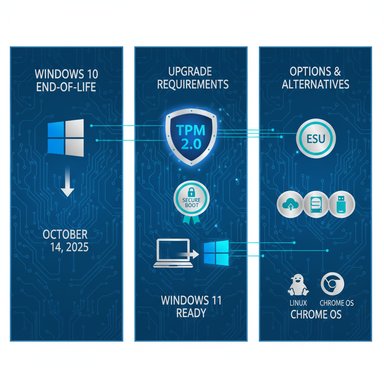
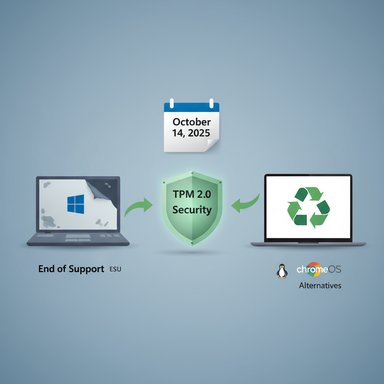
Three-panel infographic about Windows 10 end-of-life, TPM 2.0 upgrade requirements, and OS options.Background​

Microsoft announced that Windows 10 (all editions — Home, Pro, Enterprise, Education and LTSB variants) will reach end of support on October 14, 2025. That announcement is part of Microsoft's product lifecycle process and applies to devices running Windows 10 version 22H2 and other listed editions. The company’s official guidance urges users to move to a supported OS or enroll in its consumer Extended Security Updates (ESU) program if they need more time. This transition is not sudden in behavior — your machine will keep working after October 14 — but it is consequential. Without continued security patches, new vulnerabilities discovered after EOL will remain unpatched on Windows 10 systems, creating long-term exposure for personal users and organisations that delay migration.

What “end of support” actually means​

When Microsoft says “end of support” it means several concrete things for users and IT administrators:
  • No new security updates or bug fixes will be released for Windows 10 after October 14, 2025. This leaves newly discovered vulnerabilities unpatched on affected devices.
  • No official technical support from Microsoft for Windows 10 issues; Microsoft will direct customers to upgrade or replace their device.
  • App and ecosystem impacts can follow: Microsoft has stated that support for certain Microsoft 365 Apps will be affected on that date, though Microsoft will continue delivering security updates for Microsoft 365 on Windows 10 through October 10, 2028.
In short: functionality continues, but security and support vanish. That changes how safe it is to keep sensitive data or network connections on those systems.

The official escape hatch: Extended Security Updates (ESU)​

Microsoft has provided a time-limited consumer ESU program for Windows 10 to give users extra breathing room while they migrate. The consumer ESU program offers critical and important security updates for eligible devices running Windows 10 version 22H2 through October 13, 2026. Enrollment options include a free path for devices that stay signed in to a Microsoft account, a Microsoft Rewards points redemption route, or a one‑time purchase (regional pricing applies, Microsoft shows $30 USD in some markets). ESU is a pragmatic short-term solution but not a permanent one. It fills an operational gap for users who cannot immediately upgrade hardware or migrate workloads, but it does not provide feature updates, performance improvements, or technical support beyond the security patches it delivers.

Why many Windows 10 PCs can’t just “upgrade” to Windows 11​

Windows 11 was designed with stricter hardware and firmware rules than previous Windows versions. The minimum system requirements include:
  • A compatible 64‑bit processor (1 GHz or faster, 2+ cores) that appears on Microsoft’s supported CPU lists
  • 4 GB RAM and 64 GB storage minimum
  • UEFI firmware with Secure Boot
  • Trusted Platform Module (TPM) version 2.0
  • Graphics capability: DirectX 12 / WDDM 2.x
  • Internet and Microsoft account required for Home edition setup in many cases.
Those requirements—especially the combination of Secure Boot, UEFI, and TPM 2.0—exclude a sizeable share of older PCs built before 2018 or those that use legacy BIOS/MBR configurations. While RAM and storage are relatively easy to upgrade on desktops, TPM and CPU compatibility are the real gating factors on many laptops and older systems.

TPM 2.0: What it is and why Microsoft insists on it​

TPM (Trusted Platform Module) is a hardware security chip that securely stores cryptographic keys, enables hardware-based encryption (BitLocker), and underpins modern platform protections like measured boot and credential isolation. TPM 2.0 is the standardized, current version; TPM 1.2 lacks some of the capabilities and modern cryptographic algorithms that TPM 2.0 supports.
Microsoft argues TPM 2.0, together with UEFI Secure Boot and virtualization-based security features, raises the baseline for device security across the Windows ecosystem. That is why Microsoft has made TPM 2.0 a core requirement for Windows 11.

Bypasses and workarounds — and why they are controversial​

A variety of community and third‑party guides demonstrate methods to install Windows 11 on unsupported hardware — registry tweaks during setup, patched installation media, or utilities like Rufus that create "relaxed-requirements" installers. Microsoft previously documented a registry key that could allow upgrades on machines with TPM 1.2 or unsupported CPUs, and third‑party tools continue to present bypass options. However, there are real and well-documented risks:
  • Microsoft does not guarantee updates for systems that do not meet Windows 11 minimum requirements; unsupported installs might receive no updates or only some updates — and that status can change at Microsoft’s discretion. This has been explicitly stated in Microsoft support pages and amplified by independent reporting.
  • Unsupported installations may suffer compatibility, stability, and driver issues. Device manufacturers’ warranties and support policies may not cover damage caused by forcing a non‑supported OS onto unsupported hardware.
  • Bypassing requirements to gain Windows 11 features undermines the very security features (VBS, HVCI and TPM protections) that Microsoft says are needed for Windows 11’s benefits, creating a paradoxical situation where you run a “new” OS without its security foundations.
For many advanced hobbyists the tradeoff may be acceptable, but Microsoft and security experts caution against this route for business-critical or sensitive environments.

Alternatives for systems that can’t or shouldn’t move to Windows 11​

If your PC is blocked from a legitimate Windows 11 upgrade or you do not want to buy new hardware, there are several plausible options:
  • Switch to a mainstream Linux distribution (Ubuntu, Linux Mint, Fedora). Modern Linux distros are increasingly user-friendly and tend to work well on older hardware. For general web browsing, office tasks, and many development or media workflows, a Linux desktop is a viable alternative.
  • Consider Chromium OS / Chrome OS Flex or commercial Chromium‑based builds if your workflow is web-centric; these are lightweight and often revive older laptops.
  • Enroll in the Windows 10 ESU program for up to one year of security patches while you plan migration or hardware replacement.
  • Replace the PC with a new Windows 11‑capable machine. Modern laptops bring improved security, battery life, and performance, though this is the most expensive option.
Each choice carries trade-offs: Linux can mean changing or replacing some apps, Chrome OS limits local software choices, and buying new hardware has environmental and budget impacts.

Practical checklist: What to do before — and after — October 14, 2025​

  • Immediately determine eligibility for Windows 11:
  • Run Microsoft’s PC Health Check app or check Settings > Update & Security > Windows Update to see upgrade eligibility. If eligible, upgrade is free (for qualifying Windows 10 devices running 22H2).
  • Back up everything now:
  • Use an external drive, cloud backup, or Windows Backup. Data protection is the first step before attempting any OS upgrade, clean install, or migration to a new OS.
  • Check firmware and TPM:
  • Reboot to UEFI/BIOS and verify TPM is present and enabled (may be labelled as “PTT” or “fTPM” on some systems). Also ensure UEFI is used with Secure Boot enabled; convert MBR to GPT if needed (Microsoft’s MBR2GPT or GUI guides exist). These changes can turn some previously incompatible devices into eligible ones.
  • Consider ESU if you need time:
  • If you can’t upgrade immediately, enroll eligible devices in the Windows 10 consumer ESU. The program runs through October 13, 2026 — free for devices that sync with a Microsoft account or via a low-cost one‑time purchase for local-account setups.
  • If considering Linux/Chrome OS:
  • Test a live USB first. Try Ubuntu or Linux Mint live images or Chrome OS Flex without installing to assess driver support and app compatibility. Keep Windows intact until you’re confident in the new environment.
  • For businesses, inventory and plan:
  • Create a device inventory, note CPU families and TPM presence, and prioritize upgrades for high-risk endpoints. Consider using ESU for legacy devices that are costly to replace quickly. Microsoft provides lifecycle and migration resources for enterprises.

Enterprise and organisational considerations​

Businesses face tougher constraints than home users because of application compatibility, regulatory requirements, and scale. Microsoft’s guidance for organisations reiterates the same EOL date while recommending migration planning, hardware refresh cycles, and ESU enrollment where necessary. Enterprises should also plan for potential increased costs (hardware refresh, ESU licensing, and migration labour) and consider whether specific line-of-business applications require Windows 10 for compatibility. Large organisations may opt for staged migrations, sandboxed virtualisation strategies, or continuing Windows 10 on isolated networks if regulatory or business constraints prevent immediate upgrades. All of these approaches have trade-offs in complexity and risk.

Security implications and timeline​

The most immediate impact after October 14 is a rapidly rising security risk profile for Windows 10 devices. New exploits disclosed after that date will not be patched by Microsoft for consumer Windows 10 systems unless they are covered under ESU.
Separately, Microsoft has committed to continuing security updates for Microsoft 365 Apps on Windows 10 through October 10, 2028 — but that does not extend the OS-level patches that protect the platform itself. That discrepancy means your productivity suite may still get fixes while the operating system beneath it remains vulnerable. Expect attackers to look for low-hanging fruit: unpatched Windows 10 systems exposed to the internet or used for privileged tasks will become attractive targets. The longer a device stays unpatched, the higher the chance of compromise.

The controversy: forced upgrades, e‑waste and public reaction​

The hardware barrier between Windows 10 and Windows 11—particularly TPM 2.0 and supported CPU lists—has been contentious. Critics argue Microsoft’s policy accelerates device churn and e‑waste and excludes many otherwise capable machines from receiving the latest OS. Lawsuits and advocacy campaigns have been filed alleging the move benefits hardware vendors and Microsoft’s new "Copilot+ PC" narrative. Microsoft’s position is that higher baseline security prevents systemic risk and improves user protection. This debate has practical consequences: some users will pay for ESU or face upgrade costs, while others will migrate to alternatives such as Linux or Chrome OS to extend the useful life of aging hardware.

Final assessment: risks, opportunities and recommended action​

The immediate takeaway is unambiguous: do not delay assessing your machines. There are four sensible paths forward, ranked for most users:
  • Upgrade to Windows 11 if your PC is eligible. This gives you continued security updates, the newest Windows features, and full support. Confirm eligibility with PC Health Check and prepare backups.
  • Enroll in Windows 10 ESU for a controlled extension. This buys time to migrate — not a permanent fix.
  • Move to a supported alternative OS (Linux/Chromium OS) if Windows 11 isn’t viable and you want to keep older hardware secure without buying new devices. Test before committing.
  • Replace the device for the best long-term security, performance and compatibility, especially for business-critical machines.
Avoid unsupported Windows 11 installs on unsupported hardware unless you understand and accept the security and update risks. Microsoft has explicitly warned that updates are not guaranteed for such configurations, and real-world reporting shows those devices may be left behind by future patches.

Quick reference: step-by-step to check upgrade readiness​

  • Back up all files.
  • Run PC Health Check to determine upgrade eligibility.
  • If ineligible, check BIOS/UEFI for TPM/Secure Boot options; convert MBR→GPT if necessary (use MBR2GPT with care).
  • If still ineligible, decide: ESU for 12 months of security updates; migrate to Linux/Chrome OS; or replace hardware.

Conclusion​

October 14, 2025 marks the end of a long and stable era for Windows 10. For many users this will be a practical, low‑urgency event — machines will continue to run — but it is also a clear inflection point where security posture, vendor support, and future compatibility start to diverge sharply between those who move to supported platforms and those who remain behind.
Plan now: inventory devices, back up data, check Windows 11 eligibility, and decide whether ESU, migration to an alternative OS, or purchasing new hardware best serves your needs. The cost of procrastination is not just inconvenience — it is a rising exposure to malware, ransomware and other modern cyber threats.
Source: Gamereactor UK Goodbye Windows 10: What happens after October 14th
 

Microsoft’s decision to end free, automatic security updates for Windows 10 is forcing a fraught choice on millions of users: upgrade to Windows 11 where hardware permits, enroll in a tightly scoped Extended Security Updates (ESU) bridge, or run an increasingly risky, unpatched operating system—and consumer advocates say the company’s plan is unfair, privacy‑invasive, and environmentally irresponsible.

Two monitors show security warnings as a crowd rallies under a banner for extended security updates.Background​

Windows 10’s lifecycle reaches a hard cutoff on October 14, 2025. After that calendar date Microsoft will stop issuing routine monthly security and quality updates for consumer editions of Windows 10 (Home and Pro), and will no longer provide standard technical support for those SKUs. Microsoft is offering a limited consumer ESU program that extends only critical and important security updates for enrolled devices for one additional year—effectively covering updates through October 13, 2026 for enrolled systems—while urging consumers to move to Windows 11 where hardware allows.
This policy shift has provoked public pressure from consumer advocacy groups, repair networks, environmental organizations and some elected officials. The U.S. Public Interest Research Group (PIRG), Consumer Reports and allied coalitions have publicly asked Microsoft to continue providing free security updates for Windows 10 consumers who cannot upgrade in place, citing public‑safety, affordability and e‑waste concerns. Those groups argue Microsoft’s ESU mechanics—an account‑linked free path and a modest paid option—leave many users exposed or forced into replacement hardware.

What Microsoft announced — the technical facts​

The calendar and the ESU bridge​

  • End of mainstream security support for Windows 10: October 14, 2025. After that date, Microsoft’s normal patch cadence for Windows 10 consumer editions ends.
  • Consumer Extended Security Updates (ESU): one additional year of security‑only updates for enrolled Windows 10 devices, covering roughly October 15, 2025 through October 13, 2026 for eligible systems. ESU does not include feature updates, broad technical assistance, or quality rollups beyond security patches.

Enrollment mechanics (consumer ESU)​

Microsoft documented multiple consumer enrollment routes:
  • Free opt‑in by enabling Windows Backup and syncing device settings to a Microsoft Account (this route requires account linkage and cloud sync).
  • Redeem 1,000 Microsoft Rewards points to bind an ESU license.
  • Purchase a one‑time consumer ESU license (press coverage widely reports an approximate $30 USD one‑year price; exact local pricing may vary).
Microsoft also modified ESU mechanics for the European Economic Area (EEA) after advocacy pressure, loosening some of the account‑linkage frictions for EEA residents—an important regional concession but not a global policy change.

Why Windows 11 is not a universal migration path​

Windows 11 raises the hardware baseline by design. The most consequential requirements are:
  • TPM 2.0 (Trusted Platform Module) and UEFI with Secure Boot enabled.
  • A supported 64‑bit CPU family (Microsoft’s CPU compatibility lists exclude many older but serviceable processors).
  • Minimum RAM and storage baselines (nominally 4 GB RAM and 64 GB storage, but practical use commonly requires more).
Because TPM and Secure Boot are hardware/firmware dependent and many older motherboards ship with TPM disabled (or lack TPM 2.0), a meaningful share of Windows 10 devices cannot receive a supported, in‑place upgrade to Windows 11 without hardware changes. Advocates estimate this population in the low‑to‑mid hundreds of millions; those figures are model‑based and vary by methodology.

Why consumer advocates are sounding the alarm​

1. Security at scale​

When a major desktop OS stops receiving security patches, the unpatched population becomes an attractive target to threat actors. Consumer groups argue that converting vendor‑sourced security fixes into a paid or account‑gated safety net increases systemic cyber risk for households, small organisations, public‑service terminals and institutions like libraries or clinics. The concern is not theoretical—historical outbreaks (for example, the 2017 WannaCry ransomware wave) underscore how quickly attackers can weaponize unpatched Windows systems.

2. Affordability and fairness​

A modest per‑device fee or an account‑linkage requirement places an effective cost or privacy tradeoff on basic safety. Consumer Reports and allied groups frame this as a consumer‑protection issue: users who bought a PC in good faith should not face a sudden paywall for essential security patches or be forced to replace otherwise functional hardware. The free ESU path’s Microsoft Account and cloud‑backup condition is particularly contentious for privacy‑minded users.

3. Environmental impact (e‑waste)​

Advocates warn that Microsoft’s hardware‑based upgrade gate incentivizes premature device replacement, producing avoidable e‑waste at scale. Campaign estimates—driven by assumptions about the installed base and upgrade eligibility—have produced high figures (for example, campaigners cited estimates in the hundreds of millions of machines), but these numbers are model outputs and should be treated as indicative rather than precise. The environmental worry remains: large‑scale replacement is a real potential consequence without stronger software‑longevity guarantees.

4. Digital equity and public services​

Lower‑income households, schools, and community service providers are least able to absorb replacement costs or complex migration logistics. Advocates argue that leaving these groups with a time‑boxed, conditional ESU effectively creates zones of insecurity that disproportionately affect already vulnerable users.

What’s verifiable and what’s estimated — a careful read on the numbers​

  • Verifiable: Microsoft’s October 14, 2025 end‑of‑support date and the consumer ESU window through October 13, 2026 for enrolled devices are public, documented facts. The Windows 11 hardware requirements (TPM 2.0, Secure Boot, supported CPUs) are confirmed in Microsoft technical documentation.
  • Estimated: The oft‑quoted headline numbers—“400 million machines” left behind, or precise counts of how many devices cannot upgrade to Windows 11—are estimates based on market share snapshots, device inventories, and varying definitions (installed devices vs. active internet‑connected units). Those estimates are useful for scale but should be treated as model outcomes with substantial uncertainty. Advocacy groups publish such estimates to convey scope; independent market trackers show Windows 10 still accounted for roughly mid‑40s percent of desktop Windows installs in mid‑2025, which supports the argument that hundreds of millions of devices are potentially affected.
Flag: any firm claim of an exact global device count should be caveated—these figures change month to month and differ by data source.

Practical advice for Windows 10 users (actionable checklist)​

  • Inventory first: Run the PC Health Check or use Settings → Update & Security → Windows Update compatibility tools to determine whether a device meets Windows 11 hardware requirements. If TPM is available but disabled, enabling it in UEFI/BIOS may unlock an upgrade path.
  • If eligible, test the Windows 11 upgrade: Back up data, check application and peripheral compatibility, and consider a staged approach rather than in‑place mass upgrades.
  • If ineligible, evaluate ESU enrollment options before October 14, 2025: the free Microsoft Account + Windows Backup route, redeeming Rewards, or the one‑time paid license—understand local pricing and device limits.
  • For devices you intend to keep beyond ESU: harden the system (limit admin accounts, enable strong browser protections, install reputable endpoint protections, and isolate legacy PCs from sensitive networks).
  • Consider alternatives where migration isn’t viable: lightweight Linux distributions, ChromeOS Flex (for supported devices), or refurbished hardware can extend usable life while preserving security and reducing e‑waste—test compatibility before switching.
  • Back up everything: maintain regular offline and cloud backups, export credentials and licenses, and verify restore procedures before making major changes.

Strengths and limitations of Microsoft’s approach​

Notable strengths​

  • Clear timeline: setting an explicit end‑of‑support date allows organisations and individuals to plan migration efforts with a defined deadline. This transparency helps enterprise procurement and support planning.
  • Consumer ESU — a novel safety valve: historically, Extended Security Updates were a commercial offering for enterprises; Microsoft’s consumer ESU is an unusual concession that acknowledges the migration burden on households. It provides a short, documented bridge to reduce immediate exposure.
  • Security rationale for Windows 11: raising the baseline (TPM 2.0, Secure Boot, improved virtualization security) is defensible from a technical perspective because those features support modern mitigations and reduce attack surface in the long run. Microsoft’s security documentation explains the engineering tradeoffs behind these requirements.

Key limitations and risks​

  • Equity and privacy tradeoffs: the free ESU route’s requirement to tie a device to a Microsoft Account and enable cloud backup creates privacy concerns and practical friction for users who prefer local accounts or distrust cloud telemetry. That tradeoff is central to advocates’ objections.
  • Short bridge duration: a single year of security‑only updates for consumers is brief; organizations and households needing time to budget or coordinate upgrades may find one year insufficient. Commercial ESUs exist but are priced for enterprise budgets.
  • Potential for mass e‑waste: by linking essential security to hardware features, the policy could incentivize disposal of otherwise functional devices—especially in the absence of robust trade‑in, refurbishment or targeted subsidy programs. Estimates of environmental impact are model‑dependent but the underlying risk is plausible.
  • Fragmentation and support confusion: multiple timelines for different components (Edge, Defender signature updates, Office servicing) and regional ESU concessions can create a complex public message that confuses non‑technical users.

Policy and public‑interest considerations​

Who decides what “safe” computing means?​

When a dominant platform vendor sets lifecycle and hardware baselines, those choices have distributional effects: corporations can afford hardware churn in large deployments, but households and small institutions may not. Civil‑society groups argue a vendor with market share should consider broader social externalities—cyber hygiene, public‑sector dependencies, and e‑waste—when designing end‑of‑life policies. The current debate places those questions in public view.

Regulatory pressure and regional differences​

Microsoft’s concession for EEA residents—adjusting ESU enrollment mechanics in response to advocacy and regulatory scrutiny—demonstrates how national and regional rules can affect vendor choices. Expect continued regulatory attention on issues such as repairability, software support windows for connected devices, and consumer privacy choices tied to security enrollment mechanics.

What a better transition could look like (advocates’ proposals)​

  • Extend free, vendor‑provided security updates for vulnerable consumer cohorts until a fair migration threshold is met (for example, a multi‑year grace period for devices sold within a recent purchase window).
  • Offer targeted subsidies or vouchers for low‑income households and public institutions to either upgrade hardware or enroll in ESU without privacy tradeoffs.
  • Strengthen trade‑in, refurbishment and certified‑refurb programs to reduce e‑waste and make device replacement less environmentally costly.
  • Provide privacy‑respecting enrollment pathways that do not require cloud backup or commercial telemetry as the sole free option.
These policy moves are not costless for a vendor, but compared to mass insecurity and environmental externalities they represent tradeoffs many advocates consider reasonable and necessary.

Conclusion: measured urgency, not panic​

Microsoft’s decision to end free, automatic security updates for Windows 10 on October 14, 2025, is a consequential lifecycle milestone with real social and technical impacts. The company’s ESU bridge is a pragmatic, if limited, mitigation—but the program’s account‑linkage, one‑year timebox and regional differences have sparked justified criticism from consumer, environmental and equity advocates. The most defensible path for ordinary users is clear: inventory devices, confirm upgrade eligibility, enroll in ESU if necessary, and harden or migrate legacy systems. At the policy level, the debate exposes a broader choice about how long software vendors should be asked to protect devices they sold, and what social supports should exist when hardware requirements change the calculus of device lifetimes.
Practical steps now—backup, verify compatibility, and plan—will minimize disruption. At the same time, the public pressure campaign from Consumer Reports, PIRG and allied groups shows the political debate is not over; vendor concessions and regulatory interventions remain possible as the October date approaches.

Source: YouTube
 

Last edited by a moderator:
Microsoft will stop providing free, automatic security and feature updates for Windows 10 on October 14, 2025, a move that consumer advocates warn could leave millions of PCs exposed unless users act fast, pay for a limited Extended Security Updates (ESU) option, or upgrade to Windows 11 or newer managed alternatives.

A split poster promoting consumer advocacy for sustainable tech and e-waste concerns, dated Oct 14, 2025.Background​

Windows 10 launched in July 2015 and has been a fixture on hundreds of millions of desktops and laptops worldwide. Microsoft has now set a firm end-of-support date for the product: October 14, 2025. After that date, Microsoft will no longer provide regular security patches, bug fixes, or technical support for Windows 10. The company has published an optional consumer ESU program that extends security patches for eligible Windows 10 devices through October 13, 2026, but enrollment comes with conditions and a one-time purchase option priced at $30 (or equivalent local currency) for users who do not meet the free-enrollment criteria.
This announcement has prompted an organized response from consumer and repair rights groups, led in the U.S. by Public Interest Research Group (PIRG) chapters and regional affiliates such as CoPIRG. Their contention: ending automatic, free security updates will strand machines that are still functional, escalate cybersecurity exposure, and accelerate e-waste unless Microsoft offers a broader, no-cost extension.

Why this matters now​

The combination of a fixed end-of-support date, a pay-for-protection ESU option, and the reality that a significant share of PCs cannot run Windows 11 because of hardware checks has created a near-term policy and practical problem for millions of users.
  • Security: Without security updates, vulnerabilities discovered after October 14, 2025, will not be fixed on Windows 10 devices that have not enrolled in ESU. That increases the risk of ransomware, data theft, and automated exploitation.
  • Economic: Consumers and small businesses may be forced either to pay for ESU, buy a new Windows 11-capable PC, or accept the elevated risk of running an unsupported OS.
  • Environmental: Repair and right-to-repair advocates warn of increased electronic waste if consumers choose (or are forced) to discard perfectly usable hardware because it fails a Windows 11 compatibility check.
These are not theoretical concerns: consumer groups point to precedent—historic ransomware outbreaks that exploited unpatched systems—to illustrate how end-of-life policies can translate into real-world harm.

Overview: what Microsoft is offering and what it means​

The official position​

Microsoft’s public guidance is clear and uncompromising: Windows 10 reaches end of support on October 14, 2025. The company recommends upgrading to Windows 11 for a “more modern, secure” experience where possible. For users who cannot or do not want to upgrade immediately, Microsoft is offering a Consumer Extended Security Updates (ESU) program that provides critical and important security updates for devices running Windows 10, version 22H2, through October 13, 2026.
Key points of Microsoft’s ESU program and guidance:
  • Devices will continue to function after end of support, but will not receive technical support, feature updates, or security updates unless enrolled in ESU.
  • Consumer ESU enrollment can be obtained without paying if the device opts into a Microsoft-account-based sync option; alternatively, users can redeem Microsoft Rewards points or pay a one-time $30 fee (local-currency equivalent and tax may apply).
  • ESU enrollment requires signing into a Microsoft account during the process. For the “free” ESU enrollment path, continued sign-in activity is required to keep the entitlement active.
  • Microsoft explicitly warns that installing Windows 11 on devices that do not meet minimum hardware requirements is not recommended and may void eligibility for updates or support.
Microsoft frames ESU as a transitional bridge rather than a long-term substitute for staying on a supported operating system.

What the consumer ESU terms mean in practice​

  • If you enroll under the free path (Microsoft account + device sync), you must remain signed into that Microsoft account on the enrolled device (and in some regions, re-authenticate periodically) or your ESU entitlement may lapse.
  • Paying the $30 one-time fee allows continued use of a local account on the enrolled device while still receiving ESU updates through October 13, 2026.
  • ESU does not include feature updates, new functionality, or general technical support—only security and critical quality patches as defined by Microsoft’s security response criteria.

The advocates’ case: who’s worried and why​

Consumer advocates, repair shops, libraries, schools, and some elected officials have urged Microsoft to extend free, automatic support for Windows 10 beyond the October 14 deadline. Organized campaigns and open letters, coordinated through PIRG chapters and allied organizations, stress three interlocking concerns:
  • Access & equity: Many households and small organizations cannot afford new hardware now. For them, the $30 fee, connectivity requirements, or a forced hardware replacement represent substantial friction.
  • Security externalities: Unsupported devices on the global internet can be used as attack vectors to reach other networks and services, magnifying harm beyond individual users.
  • E‑waste: Forcing millions of devices into obsolescence increases landfill waste and the carbon footprint associated with manufacturing and recycling new hardware.
Advocacy sign-on letters include several hundred repair shops, environmental groups, public libraries, school administrators, and dozens of elected officials. Reported counts of signatories vary by outlet and by the organizing PIRG chapter; some summaries enumerate hundreds of businesses and public figures collectively urging Microsoft to change course or offer broader free protections.
Caveat: the exact tally of signatories reported in media varies depending on whether the count aggregates state-level PIRG affiliates, local chapters, or a larger coalition. Those variances are noted here because they affect the perceived scale of the pressure campaign.

How many PCs are affected, and who cannot upgrade?​

There is no single authoritative global register of Windows installs, so estimates vary. Multiple industry analyses and PIRG estimates suggest that a substantial portion of existing Windows 10 devices will be unable to meet the minimum hardware requirements Microsoft has set for Windows 11.
  • Some industry studies and asset scans indicate around 40–43% of PCs in sampled populations failed to meet Windows 11 hardware checks at the time of their surveys. That figure came from large-scale scans by asset-management vendors, but those studies are sample-based and skewed toward enterprise device fleets.
  • Advocacy groups and some reporting estimate up to ~400 million Windows 10 machines globally could be left behind by Windows 11 hardware requirements. That number is an estimate aggregated from market-share analyses and device age distributions; it should be treated as an approximate scale rather than a precise count.
Important nuance: hardware-compatibility numbers will shift over time as people replace PCs, manufacturers ship newer equipment, and some users attempt unsupported upgrade paths. The compatibility percentage from earlier scans (for example, an industry study from 2022) may not reflect the exact state of the installed base in 2025. Therefore, compatibility claims should be read as indicative rather than definitive.

Security lessons from history: why advocates reference WannaCry​

Advocates frequently cite the 2017 WannaCry ransomware outbreak as a cautionary example. WannaCry exploited unpatched Windows vulnerabilities and rapidly infected systems across many countries. Reported infection counts from reputable incident responders and international organizations ranged in the hundreds of thousands of affected machines, and the attack disrupted hospitals, manufacturers, and public services.
The core lesson advocates draw is simple: large-scale attacks often prey on unpatched systems. Ending automatic security patches increases the number of vulnerable endpoints and therefore the likelihood of opportunistic infections and widescale disruption.
Caveat: while WannaCry is an instructive historical precedent, modern defensive postures (better patching practices, endpoint protections, and industry collaboration) have evolved. That reduces—but does not remove—the risk that an unsupported OS will be the primary vector for next-generation cyberattacks.

The costs: money, privacy, and convenience​

For many households, the choice boils down to a few discrete options—each with tradeoffs.
  • Upgrade to Windows 11 (free if compatible): requires a Windows 11–capable PC. Users with eligible hardware can upgrade at no license cost, but some devices lack the required TPM or CPU generation and therefore are not eligible.
  • Enroll in ESU: free enrollment is available under specific sign-in/sync conditions; otherwise, a $30 one-time payment enables ESU coverage through October 13, 2026. For users with many devices, Microsoft allows an ESU license to be applied to up to 10 devices in some enrollment paths, which can mitigate per-device costs.
  • Replace hardware with a new Windows 11 PC: entails upfront hardware cost, potential data-migration effort, and environmental impacts.
  • Continue using Windows 10 without updates: lowest monetary cost in the short term, but highest security risk and potential future expense if a malware event results in data loss or remediation costs.
There are additional, lesser-known practical costs tied to the ESU process: consumer ESU enrollment often requires a Microsoft account, ongoing sign-in activity to retain free entitlement for accounts that enrolled via sync, and understanding which devices are on version 22H2 to be eligible.

Practical options and a prioritized checklist​

If you or your organization are still on Windows 10, take the following sequence of steps to minimize risk and make a defensible plan.
  • Check whether your PC is eligible for Windows 11:
  • Use Microsoft’s PC Health Check or the built-in upgrade checks in Windows Update to determine eligibility.
  • If eligible, plan and schedule a Windows 11 upgrade:
  • Back up your files first.
  • Confirm drivers and critical applications will run on Windows 11.
  • If not eligible, decide between ESU enrollment and hardware replacement:
  • If you prefer not to buy new hardware, enroll in ESU. If you want to keep a local account without linking to Microsoft account sync, be prepared to pay the $30 one-time fee per qualifying license path.
  • Harden and isolate unsupported systems if you must keep using them:
  • Segregate them from critical networks.
  • Disable unnecessary services.
  • Use strong endpoint protection and maintain offline backups.
  • For businesses and public institutions:
  • Inventory and prioritize devices by function and exposure.
  • Consider managed alternatives such as Windows 365 Cloud PCs or Linux migration for some workloads.
  • Recycle or repurpose hardware responsibly:
  • If buying new devices, use trade-in and certified recycling programs to minimize e-waste.
This sequence balances security, cost, and practicality while recognizing that one-size-fits-all answers won’t work for every household or small business.

Security mitigation for those staying on Windows 10​

If you choose to keep a Windows 10 machine after October 14, 2025—either because you cannot upgrade, cannot pay for ESU, or decide to delay the transition—these hardening steps reduce risk:
  • Keep applications and third-party software (browsers, plugins, productivity apps) up to date.
  • Use modern, layered endpoint protection and enable behavior-based detection features.
  • Restrict administrative privileges and use standard-user accounts for daily work.
  • Segment older machines on separate VLANs or subnets to limit lateral movement.
  • Maintain robust, point-in-time backups stored offline or in immutable cloud storage.
  • Consider running sensitive or high-risk workloads in a patched, supported environment (e.g., a virtual machine on a supported host or a cloud-hosted desktop).
None of these mitigations is a replacement for vendor security updates, but they reduce exposure while you transition.

Broader implications: right to repair, e-waste, and public policy​

The Windows 10 end-of-support debate has crystallized larger policy issues that intersect with environmental and consumer protection goals.
  • Right-to-repair and software support: Repair advocates argue that forcing a security pivot tied to hardware requirements effectively penalizes owners of upgradable, repairable machines and harms local repair businesses.
  • E-waste: Environmental groups warn that accelerating device turnover will produce additional electronic waste and emissions from manufacturing replacements, especially if devices are discarded before the end of their usable lifespans.
  • Regulatory pressure: The coalition of repair shops, community organizations, libraries, and elected officials urging Microsoft to extend free updates reflects a growing public policy conversation around corporate lifecycles for connected devices and the responsibilities of platform vendors.
These issues are not purely technical; they touch on sustainability, consumer rights, and how society manages the lifecycle of embedded digital infrastructure.

Assessing the arguments: strengths and weaknesses​

Strengths of the advocates’ position​

  • The call to extend free support highlights real, demonstrable harms: security exposure, disproportionate impact on vulnerable households, and likely environmental consequences.
  • The coalition-based approach gives voice to small repair shops and public institutions that lack the purchasing power of large enterprises.
  • Using historical incidents like WannaCry to explain systemic risk is persuasive because it shows how unpatched endpoints can lead to cascading damage.

Weaknesses and limitations of the advocates’ position​

  • Some claims—like precise counts of “hundreds of millions” of stranded machines—are estimates derived from sample data and projections; they are useful for scale but not precise.
  • Extending free, indefinite security updates is costly for a vendor and could create precedent and sustainability concerns: vendors must balance resource allocation for legacy products and investment in new platform security.
  • Technical complexity: in many cases, older hardware lacks the security capabilities (for example, modern CPU features and TPM standards) that underpin future OS and app security, meaning indefinite support could be infeasible or incomplete.

Microsoft’s rationale: strengths and risks​

  • Strengths:
  • Encourages modernization and consolidates security engineering effort on a smaller set of supported platforms.
  • Windows 11 incorporates security features that depend on modern hardware—encouraging a safer baseline.
  • Risks:
  • Perceived or real abandonment of a large installed base can erode trust and create adverse public-policy backlash.
  • A paywalled or account-tied ESU program may be seen as unfair, particularly to low-income or privacy-conscious users.

What reporters, advocates, and users should watch next​

  • Whether Microsoft adjusts ESU terms or announces broader, free coverage in response to sign-on letters and public pressure.
  • Whether regional regulators or consumer-protection agencies weigh in on the fairness of account-based ESU enrollment requirements.
  • How quickly the installed base of Windows 10 devices shifts after end of support—are consumers and small businesses upgrading, enrolling in ESU, or simply continuing to run unsupported systems?
  • Any early exploit or widespread attack that leverages newly discovered vulnerabilities on Windows 10 after the end-of-support date. Such an event would rapidly change public perception and policy discussions.

Final assessment and practical verdict​

The October 14, 2025 end-of-support milestone is a real pivot point. For many users, the decision will be straightforward: upgrade if hardware allows, or enroll in ESU if the cost or account requirements are tolerable. For a sizable minority—especially low-income households, public libraries, and small repair operations—the transition is more fraught. They risk increased cyber exposure or the economic and environmental costs of premature disposal and replacement.
Key takeaways:
  • Verify your device’s eligibility for a free Windows 11 upgrade as soon as possible.
  • Back up critical data and document hardware and app compatibility before making any major change.
  • If you cannot upgrade, enroll in ESU or harden and isolate devices—understanding that ESU is a temporary remedy, not a permanent safety net.
  • For policy-minded readers, the situation is a clear signpost: modern software lifecycles have real-world externalities that deserve public attention, from e-waste to cybersecurity for the most vulnerable users.
The coming months will test whether vendor policy, consumer pressure, and public interest advocacy can be aligned to protect security and sustainability—or whether the structural incentives of platform economics will prevail, leaving hard choices for people and organizations that still rely on Windows 10.

Source: NewsBreak: Local News & Alerts CO consumer advocates sounding the alarm as Microsoft ends Windows 10 support - NewsBreak
 

Microsoft has set a firm deadline: Windows 10 will stop receiving security updates, bug fixes and official technical support on 14 October 2025, and every user who cares about data safety and device reliability needs a clear, tested plan now.

A monitor on a desk displays a Windows migration plan with a date and a green checkmark.Overview​

Microsoft’s lifecycle notice is unambiguous: after 14 October 2025 mainstream servicing for Windows 10 ends. The company recommends moving eligible devices to Windows 11, buying a new Windows 11 PC, or enrolling in the short-term Windows 10 Consumer Extended Security Updates (ESU) program if you need more time. The ESU program offers one year of critical and important security updates through 13 October 2026 under specific enrollment paths. This article condenses official guidance, third‑party reporting and practical migration checklists into a single, actionable guide for home users, power users and small IT teams. It explains what the end-of-support date really means, verifies the technical facts you’ll need, rates the realistic options available, and gives step-by-step tasks you can complete in the next 48 hours, the next month, and the next quarter. Along the way it flags common traps, unverifiable claims, and privacy or compliance trade‑offs to watch for.

Background: what “end of support” actually means​

  • No more security updates for Windows 10 (Home, Pro, Enterprise, Education, IoT) after 14 October 2025. That includes fixes for newly discovered vulnerabilities in the OS kernel, networking stack and core drivers.
  • No new feature or quality updates. Windows 10 will not receive functional updates or feature rollouts.
  • No routine Microsoft technical support for Windows 10 issues; Microsoft will direct users toward upgrade or ESU enrollment.
  • Some exceptions at the app layer exist (for example, Microsoft Defender definitions and parts of Microsoft 365 servicing are handled separately), but those do not substitute for OS‑level patching. Treat app‑level updates as partial protections, not a full remedy.
Practical takeaway: machines will still boot and run, but leaving them unpatched raises an evolving security risk profile. Over months and years, that risk compounds and may also create compliance or insurance exposure for small businesses and regulated home setups.

Verify the key technical facts (checked against official sources)​

  • Official end-of-support date: 14 October 2025. Confirmed on Microsoft’s Windows 10 end-of-support pages.
  • Consumer ESU window: until 13 October 2026; enrollment options include a free path tied to signing in with a Microsoft account and syncing PC settings, redeeming Microsoft Rewards points, or a one-time purchase (U.S. price shown at $30 or local equivalent). ESU covers critical and important security updates only—no feature updates, no extended technical support.
  • Windows 11 minimum hardware: 64‑bit CPU with 1 GHz or faster and 2+ cores, 4 GB RAM, 64 GB storage, UEFI with Secure Boot, and TPM 2.0 (plus DirectX 12/WDDM 2.0 GPU). Use Microsoft’s PC Health Check to validate eligibility.
These are the non‑negotiable items to plan around. Any claims that the end date will be extended or that all PCs will automatically be supported past October 2025 should be treated with caution unless confirmed directly by Microsoft. Some articles inflate device counts or offer optimistic upgrade workarounds; those figures are often unverified and can cause false urgency or misplaced confidence.

Your options, ranked and explained​

  • Upgrade your current PC to Windows 11 (best long‑term, if eligible)
  • Free where Microsoft offers it to eligible Windows 10 devices. Use PC Health Check to confirm CPU/TPM/Secure Boot status and the Windows Update page to see availability. Compatibility checks can be re-run after firmware changes if you enable TPM or Secure Boot in firmware/UEFI.
  • Buy a new Windows 11 PC (cleanest and most future‑proof)
  • New hardware ships with current drivers, firmware and a full Windows 11 support lifecycle; it solves the TPM/UEFI/CPU compatibility problem and often delivers better battery life and performance.
  • Enroll in Windows 10 Consumer ESU (short-term bridge)
  • Provides critical security updates for up to one year (through 13 Oct 2026) for eligible Windows 10 version 22H2 devices. Enrollment paths differ by region and carry privacy/activation trade‑offs (the free paths require a Microsoft account and sync). ESU is an explicit bridge — not a migration replacement.
  • Move to an alternative OS (Linux distributions, ChromeOS Flex) or hosted Windows (Windows 365 / Azure Virtual Desktop)
  • Good options for web‑centric devices or single‑purpose machines. Test critical apps (printers, proprietary accounting software, scanners, VPNs) thoroughly before committing. These paths reduce e‑waste but require compatibility checks.
  • Install Windows 11 on unsupported hardware using workarounds (not recommended for most users)
  • Community workarounds exist to bypass TPM/CPU checks, but Microsoft’s guidance is clear: unsupported installs may not receive updates and risk stability/security gaps. Avoid this for production or primary devices.

A practical, prioritized migration playbook​

The following is a step‑by‑step approach that preserves data, minimizes downtime and reduces the chance of activation/licensing headaches.

First 48 hours (stop-gap, high priority)​

  • Run the PC Health Check app and record whether your PC is offered the free Windows 11 upgrade. If you’re eligible, you can plan an in-place upgrade; if not, you’ll likely need new hardware or ESU.
  • Back up everything now — full image + file sync. Create one full system image to an external drive and use cloud sync (OneDrive) for Documents/Pictures. Verify your image by mounting or performing a quick file restore test. Do this for every important device.
  • Export Outlook data for POP/local profiles (.pst files), and document mail server settings. IMAP/Exchange accounts typically re-sync, but local PSTs do not migrate automatically.
  • Gather license keys, subscription credentials and activation details for Office, Adobe and any specialty software. Deactivate or sign out on the old machine where required to allow activation on the new device.

Next 2–4 weeks (plan & pilot)​

  • Choose your route: in‑place Windows 11 upgrade (if eligible), ESU, new PC purchase, or alternative OS. Budget time and money accordingly.
  • If upgrading in place, test critical apps and peripherals on a pilot machine first (drivers, printers, scanners, VPNs). If buying a new PC, set it up and verify apps, email and peripheral compatibility before wiping the old device.
  • If considering ESU, enroll early. Review ESU enrollment options carefully (Microsoft account sign-in vs. paid one-time license) and document the enrollment steps for each device.

1–3 months (execute & validate)​

  • Perform the upgrade or migration during a low-impact window. Use Windows Backup or a tested migration tool (Laplink PCmover, vendor migration tools, or image restore workflows). Validate licenses and sign into Microsoft accounts where required.
  • After migration, do a full validation pass: open your key documents, test mail, check peripheral drivers, run Windows Update and confirm activation status for Microsoft 365/Office.

After migration (cleanup & disposal)​

  • Securely wipe the old device before resale, donation or recycling. Use Windows’ Reset > Remove everything + SSD secure erase or manufacturer tools for best results. Consider trade-in and recycling programs to reduce e‑waste.

Hands‑on checklist (single-page, actionable)​

  • Run PC Health Check.
  • Create a verified full-image backup to external media.
  • Sync Documents/Pictures to OneDrive (or second cloud). Export any local email PSTs.
  • Inventory apps and license keys; deactivate where necessary.
  • Decide: upgrade, buy, ESU, alternative OS, or hosted Windows. Document the plan and timeline.
  • If you’ll keep Windows 10 temporarily, enable Defender, disk encryption, strong credentials and MFA, and isolate the device on segmented network zones where practical.

ESU: what to expect and privacy trade‑offs​

The ESU program is a time‑boxed safety valve, not a long-term support plan. Important points you should verify before enrolling:
  • Duration: ESU security updates are available through 13 October 2026.
  • Enrollment mechanics: Microsoft offers different enrollment paths, including a free route that requires signing into Windows with a Microsoft account and enabling settings sync. If you prefer a local account, a one‑time paid enrollment option is available. ESU licenses can sometimes cover up to 10 devices per purchase depending on the path chosen.
  • No feature updates or broader technical support: ESU supplies security‑only patches and does not restore the full support experience.
Privacy note: the free ESU path ties your upgrade window to a Microsoft account and sync settings — a meaningful consideration for users who prefer strictly local accounts for privacy. For business environments discuss ESU directly with Microsoft or your reseller.

Risks, caveats and common pitfalls​

  • Security exposure grows over time: running an unpatched OS is an increasing risk; attackers and exploit kits systematically scan for known, unpatched targets. ESU narrows the window, but it is temporary.
  • Driver and peripheral support may degrade: vendors may stop providing Windows 10 drivers for newer versions of applications or peripherals. Test printers, scanners and niche hardware early.
  • Unverified “free upgrade” claims and inflated device counts: headlines that claim extremely large numbers of devices will become “useless” or promise easy bypasses for incompatible hardware should be treated skeptically. Some circulation figures are poorly sourced; verify with device‑level checks and Microsoft’s lifecycle pages.
  • Workarounds have consequences: registry or installer hacks that bypass TPM/Secure Boot checks can let you install Windows 11 on unsupported hardware, but they may block future updates or create stability and security gaps. These are not recommended for primary workstations.

Tools and utilities worth knowing​

  • PC Health Check — the official compatibility checker for Windows 11. Use it first.
  • Windows Backup and OneDrive — Microsoft’s first-party file transfer/sync options for moving documents and settings. Useful for home users.
  • Full-image backup tools (built-in or third‑party) — create verified system images before doing any partition or firmware changes. Vendors such as EaseUS provide user‑friendly imaging and partition utilities—useful for the disk prep steps many older PCs need before an upgrade. Always verify image integrity before making destructive changes.
  • Migration utilities — Laplink PCmover and others can help transfer apps and settings, but they aren’t perfect. For mission‑critical software, prefer manual reinstallation and reactivation from vendor installers.

For small IT teams and power users: procurement and policy checklist​

  • Inventory and tag every device with upgrade eligibility. Prioritise business‑critical and high‑risk endpoints for early migration.
  • Pilot group: migrate a representative sample of machines (diverse hardware and app sets) to Windows 11 to surface driver and vendor support issues.
  • Budget for hardware refreshes and ESU where necessary. Model both capital and operational costs. Consider trade‑ins and vendor recycling to offset e‑waste impact.
  • If retaining Windows 10 systems on ESU, apply stricter network segmentation, enhanced endpoint monitoring and tighter least‑privilege policies. Treat ESU machines as temporary high‑risk assets.

Points that could not be independently verified or are frequently misrepresented​

  • Headlines alleging precise global counts of incompatible machines (for example, widely repeated “1.4 billion” figures) are often aggregated from mixed datasets and are not reliably verifiable without raw tracker exports; treat such single‑number claims as illustrative rather than definitive. These numbers are commonly amplified but can conflate installed base with incompatible devices.
  • Vendor claims about “free upgrades for incompatible hardware” or long-term unofficial bypasses may overpromise—verify any such claims against Microsoft’s web pages and official tooling before relying on them. Unsupported installs can break update servicing.

Final verdict and recommended plan​

The deadline is real and fixed: 14 October 2025. For most home users and small organizations, the best long‑term choice is to move to Windows 11 on eligible hardware or to buy a new Windows 11 PC. ESU is a legitimate short‑term bridge for those who need time to plan and budget, but it is not a sustainable long‑term solution. The migration does not need to be chaotic: treat it like a small project, back up thoroughly, test one machine, and then proceed. Concrete recommended sequence (summary):
  • Run PC Health Check and take a backup image today.
  • If eligible, pilot a Windows 11 upgrade on one machine; if incompatible, plan replacement or ESU enrollment.
  • Migrate accounts, export local PSTs, verify app activations and wipe old machines securely after transfer.
Act now: the technical steps are straightforward, but time is finite. A bit of planning and two verified backups will buy you a smooth transition and avoid the rushed, costly, error‑prone moves that happen when deadlines are ignored.

Conclusion
Windows 10’s retirement is not an abstract industry event — it is a deadline with concrete consequences for security, compliance and device functionality. The right approach is practical and measured: verify eligibility, back up, test, and then execute a migration that matches your needs and risk tolerance. Use ESU only as a carefully managed bridge. With the right checklist and a little lead time you can complete the move without lost data or unpleasant surprises.
Source: which.co.uk How to prepare for the end of Windows 10 - Which?
 

Microsoft’s October 14, 2025 deadline is not a magic switch that will make your Windows 10 laptop stop booting, but it does mark a hard end to routine vendor maintenance — and that distinction is where the confusion has come from.

Laptop showing a Windows 11 upgrade plan with ESU, Defender updates, and cloud PC (Oct 14, 2025).Background / Overview​

Microsoft announced that Windows 10 (version 22H2 and many mainstream SKUs) reaches end of support on October 14, 2025. That lifecycle milestone covers Home, Pro, Enterprise, Education and certain IoT/LTSC/LTSB editions and is published on Microsoft’s lifecycle pages and support site. After that date, Microsoft will stop shipping routine OS-level security updates, non-security quality patches, feature updates, and standard technical support for those editions. This announcement has two concrete implications that are easy to conflate:
  • Functionality: Your PC will still boot and you can continue to run applications and access files.
  • Maintenance: Microsoft will no longer issue routine patches or helpdesk-level support for the retired OS unless a device is enrolled in an eligible Extended Security Updates (ESU) program or covered by another support agreement.
The panic you’ve seen in headlines, social posts, and short-form videos mostly stems from people misreading “end of support” as “end of operation.” That’s the core myth this piece debunks while laying out the practical choices, costs, and risks every user should evaluate before — and after — October 14.

What “end of support” actually means​

The headline facts​

  • No more regular OS security updates for mainstream Windows 10 devices after October 14, 2025 unless the device is enrolled in ESU. This includes fixes for kernel, driver, and platform-level vulnerabilities pushed through Windows Update.
  • No more feature or non-security quality updates after that date; the OS becomes static from Microsoft’s servicing perspective.
  • Standard Microsoft technical support ends; Microsoft will direct users toward upgrade or ESU options if they open a support ticket.

What continues (selectively)​

Microsoft has carved out exceptions for some product components and services, creating a layered sunset rather than a single “off” switch:
  • Microsoft 365 (Office) apps on Windows 10 will continue to receive security updates through October 10, 2028, to help users stay secure while they transition. Feature updates for those apps are limited and will be phased to specific version cutoffs.
  • Microsoft Edge and WebView2 runtime support is scheduled to continue on supported Windows 10 builds into the 2028 timeframe, so the browser itself is not immediately abandoned.
  • Security intelligence (definition) updates for Microsoft Defender Antivirus are being maintained for a defined period beyond the OS lifecycle (Microsoft has signaled component-level continuing protection into the same general 2028 window). These protections help, but they do not replace OS-level kernel and platform patches.
These continuations reduce immediate exposure for some scenarios, but they don’t close the crucial gaps that kernel/driver patches would fix if a new exploitation technique appears.

Why people are worried — and why the worry is partially justified​

The fear that “Windows 10 will stop working” is easy to understand: the messaging is new, the date is fixed, and many users see “support ends” and assume immediate danger. The real risk is less dramatic in the short term and more severe over months and years.
  • Attack surface growth: Without OS patches, newly discovered privilege escalation, remote code execution, or driver vulnerabilities may never be fixed on unenrolled Windows 10 machines. Over time attackers weaponize those holes.
  • App and driver drift: Hardware and third‑party software vendors will progressively move testing, drivers, and features to Windows 11 and newer platforms. Compatibility problems can accumulate even when the OS still boots.
  • Compliance and insurance: Organizations that must meet regulatory or insurer mandates may find unsupported Windows 10 devices a liability. ESU can buy time, but it has cost and scope limits.
So yes — the laptop won’t magically die on October 15 — but the risk profile changes materially and permanently for devices left unpatched.

Your practical options (and tradeoffs)​

1) Continue using Windows 10 (short-term, with mitigation)​

You can keep using the machine for day-to-day tasks. If you choose this, do the following to reduce exposure:
  • Keep Microsoft Defender enabled, and use modern browsers that will continue to receive updates.
  • Harden accounts: use strong passwords, enable multi-factor authentication, and switch to a Microsoft account if you intend to enroll in the free ESU path later.
  • Limit risky behavior: avoid unknown attachments, untrusted downloads, and sites prone to exploit kits. Use sandboxing or virtual machines for high-risk tasks.
This is acceptable as a stopgap but not a long-term security strategy.

2) Enroll in Windows 10 Consumer Extended Security Updates (ESU) (one-year bridge)​

Microsoft created a consumer ESU program that provides security-only patches for eligible Windows 10 devices through October 13, 2026. Enrollment options are intentionally simple:
  • Free if you sync PC settings to a Microsoft account or enable Windows Backup (account sign-in requirement applies).
  • Redeem 1,000 Microsoft Rewards points as an alternative no-cost route.
  • One-time paid purchase of $30 USD (or local equivalent) for those who prefer not to use a Microsoft account. Consumer ESU licenses can cover up to 10 devices associated with the same Microsoft account.
For businesses, commercial ESU options exist via volume licensing. Year-one pricing for enterprise devices began at $61 USD per device and typically escalates in subsequent years if multi-year coverage is purchased. ESU supplies critical and important security patches only — no feature updates or broad support. Important constraints:
  • ESU targets eligible consumer or commercial scenarios and requires devices to be on Windows 10 version 22H2 and up-to-date before enrollment.
  • ESU is a bridge, not a long-term solution. It gives breathing room to upgrade but is not intended to be permanent.

3) Upgrade to Windows 11 (recommended when possible)​

Upgrading removes the OS-level risk and gives you access to Microsoft’s current security investments. The free upgrade path is available only for devices that meet Windows 11 minimum hardware requirements (TPM 2.0, Secure Boot, supported CPU, RAM, storage, and firmware). Use the PC Health Check app to verify eligibility, or go to Start → Settings → Update & Security → Windows Update and select Check for updates to see if Windows 11 is offered. Back up your files before proceeding.

4) Replace the PC / buy a Windows 11 or Copilot+ PC​

Microsoft and OEMs are promoting a new hardware wave — Copilot+ PCs — that deliver enhanced local AI features and improved platform security. Those machines often need modern NPUs, ample RAM, and current silicon to deliver promised experiences. For many older laptops, replacement may be the most practical long-term path.

5) Alternative technical workarounds (for advanced users)​

  • Run Windows 11 in a virtual machine on a supported host or use Linux distributions for some tasks.
  • For organizations, shift workloads to Windows 365 Cloud PC or Azure Virtual Desktop where supported environments can be maintained centrally. These cloud-hosted options may be supported beyond the Windows 10 lifecycle.

Step-by-step upgrade checklist (concise, actionable)​

  • Back up everything: files, browser bookmarks, license keys, and system images.
  • Check Windows 11 eligibility with the PC Health Check app or Windows Update.
  • Inventory apps and drivers: verify vendor support for Windows 11 and download updated drivers where available.
  • If eligible, perform the upgrade via Windows Update or a clean install if you prefer. Keep the laptop plugged in and connected to reliable power.
  • Post-upgrade: run Windows Update, verify drivers, reinstall essential apps, and confirm encryption (BitLocker) and Defender status.
  • If not eligible, enroll in ESU or plan hardware replacement timelines and migration of user data to new devices.

Security risks and mitigation if you stay on Windows 10​

Running an unsupported OS increases the likelihood that an unpatched vulnerability will be exploited. Key mitigations if you must remain on Windows 10:
  • Keep Microsoft Defender and other endpoint protection tools updated. Note that Defender’s definitions and some app protections are scheduled to continue into 2028, but these are not substitutes for OS-level patches.
  • Apply strict network controls: put older devices on segmented VLANs, disable unnecessary services, and remove admin privileges for daily accounts.
  • Use application isolation and sandboxing for risky browsing or attachment handling.
  • Maintain offline, encrypted backups and test your restore process regularly.
  • If possible, run sensitive services in a supported environment (cloud VM, newer host OS, or containerized workloads).
These steps reduce risk but cannot eliminate the exposure from missing kernel/driver fixes indefinitely.

Enterprise perspective: ESU, compliance, and fleet migration​

Large organizations face different tradeoffs than single-home users. ESU for enterprises can be purchased for multiple years, but costs rise each year and ESU covers only security fixes. Many IT teams will choose a mixed strategy:
  • Prioritize migration of high-value and internet-facing endpoints to Windows 11.
  • Use ESU selectively for devices that cannot be upgraded immediately (specialized hardware, legacy apps, industrial control endpoints).
  • Consider cloud desktops (Windows 365, AVD) for legacy app access while moving user endpoints to Windows 11.
  • Document decisions for compliance and insureability; running unsupported software may affect breach reporting obligations and insurance claims.

Cost, sustainability and the politics of October 2025​

The transition has political and economic dimensions. Advocacy groups, repair shops and some local officials publicly urged Microsoft for broader concessions, citing e‑waste and consumer burden. The consumer ESU program and limited continuations for apps and browsers eased immediate pressure, but the underlying push to Windows 11 — and to new Copilot+ hardware for AI features — has real environmental and wallet impacts for many users. Expect continued debate as the deadline passes.

Mythbusters — clearing the common misconceptions​

  • “Microsoft will remotely disable Windows 10 machines after October 14.”
    False. Microsoft will stop providing updates and standard support; Windows 10 systems will continue to boot and run.
  • “Microsoft Defender stops immediately.”
    False. Security intelligence (definition) updates for Defender and some Microsoft 365 app protections will continue into the 2028 window, but those updates do not substitute for OS-level patches.
  • “ESU costs $30 per year for all users forever.”
    Partly misleading. Consumer ESU provides a one-year bridge costing $30 (or free via account sync / Rewards redemption) and covers up to 10 devices on an account. Enterprise ESU pricing and multi-year options differ and typically cost more per device with escalations for subsequent years.

Critical analysis — strengths and risks of Microsoft’s approach​

Notable strengths​

  • Clear calendar: Microsoft set a firm date, letting organizations and consumers plan migrations and procurement. That clarity is essential for large-scale IT planning.
  • Targeted lifelines: The mix of consumer ESU, extended app/browser/Defender servicing, and cloud-hosted alternatives provides multiple short-term options rather than a blunt cutoff. This layered approach reduces immediate catastrophic fallout for many users.

Real risks and pain points​

  • Security gap for unpatched kernels/drivers: Defender and app updates help, but they cannot patch kernel-level flaws. Institutions running unsupported OSes remain materially more exposed over time.
  • Economic and environmental cost: The push toward Windows 11 and Copilot+ hardware will force many to buy new devices sooner than they might want, raising e‑waste and expense concerns. Critics argue Microsoft’s hardware-driven AI narrative accelerates turnover.
  • Access and equity: Not all users can meet Windows 11 hardware requirements, and workarounds may be insecure or unsupported. The one-year consumer ESU is helpful but short for users who need more time.

Final takeaway and recommended actions (for everyday users)​

  • Your laptop will not suddenly stop working after October 14, 2025 — but it will lose routine vendor patches and standard support. Treat the date as a permanent change in risk level, not an on/off power event.
  • If your device is eligible for a free upgrade to Windows 11, schedule it, back up first, and verify drivers.
  • If you cannot upgrade immediately, enroll in consumer ESU (free paths exist) or adopt mitigating controls: strong endpoint protection, network segmentation, and conservative browsing behavior.
  • For organizations, prioritize migration of critical endpoints, consider cloud-hosted Windows options, and treat ESU as a time-limited bridge while you modernize.
The October 14 date is a watershed for how Microsoft concentrates its engineering and security investment around newer platforms. The most practical response is neither panic nor paralysis: verify where your machines stand, back up your data, choose the upgrade or ESU path that fits your circumstances, and use the months after October 14 to eliminate single points of failure in your device fleet.

Windows 10’s sunset is a serious maintenance moment — not an immediate catastrophe. Plan deliberately, favor supported software stacks for high‑risk tasks, and use Microsoft’s ESU and app/browser continuations only as they were meant: to buy time, not to delay the inevitable transition indefinitely.
Source: PUNE PULSE Will Your Laptop Stop Working After October 14? Here’s the Truth Behind the Windows 10 Confusion - PUNE PULSE
 

Businesses that leave Windows 10 running after October 14, 2025 will face a clear and immediate set of operational, security, and compliance hazards — and the safest, most future-proof path for most organisations is to plan and complete a migration to Windows 11 now rather than wait until after support ends.

An ultrawide monitor dominates a cluttered desk in a dim, neon-lit room.Background​

Microsoft has confirmed that security updates for Windows 10 will end on October 14, 2025, meaning Microsoft will no longer issue routine security patches, feature updates, or general technical support for the operating system after that date. . In response, Microsoft published Extended Security Updates (ESU) options intended to give organisations a short breathing space, but those options are explicitly temporary and come with conditions and limits — including special enrollment requirements for consumer ESU and a firm program end date in October 2026. .
At the same time, UK government figures show cyber incidents remain widespread: the Cyber Security Breaches Survey 2025 reports that just over four in ten UK businesses (43%) experienced a cyber security breach or attack in the previous 12 months, a reminder that the baseline threat environment for businesses is high and rising. .
Taken together, those two facts — an elevated incidence of attacks and the scheduled end of vendor patching — create a narrow window in which organisations must decide whether to upgrade, pay for temporary protections, or accept escalating risk and regulatory exposure.

Why the October 14, 2025 deadline matters​

Upgrades and end-of-support dates are more than calendar milestones; they change the contractual and practical risk landscape for organisations.
  • Security exposure: After end of support, newly discovered vulnerabilities in Windows 10 will not be fixed in routine updates. That increases the probability that attackers will successfully exploit unpatched systems. Microsoft’s guidance is explicit: devices will still run, but they will no longer receive security updates. .
  • Limited transitional options: Microsoft’s Consumer ESU provides a short extension of critical and important updates through October 13, 2026, but it is a stopgap — not a substitute for a proper migration plan. ESU enrollment has logistic and identity requirements (for example, a Microsoft account tie-in in many scenarios) that can complicate mass enrolment or long-term reliance. .
  • Regulatory and contractual risk: Using unsupported operating systems can be judged by regulators and auditors as an “inadequate security measure.” UK government guidance and data-protection authorities explicitly warn that continuing to run software past its vendor-supported lifecycle increases organisational risk and will make meeting legal and contractual security obligations harder. .
Those are not hypothetical consequences: businesses of all sizes have been penalised or suffered reputational damage after breaches exposed that they were running unsupported or poorly patched systems.

What Windows 11 brings — and what it doesn’t​

Microsoft positions Windows 11 as the secure, modern successor to Windows 10, with hardware-enforced protections and new OS-level controls that reduce common attack vectors. Key differentiators include:
  • Hardware-backed security baseline — Windows 11 requires UEFI firmware with Secure Boot and TPM 2.0, while also enabling virtualization-based security (VBS) features such as Hypervisor-protected Code Integrity (HVCI) by default on compatible devices. These features raise the bar for kernel-level attacks and credential theft. .
  • Application control and proactive blocking — Smart App Control and improved application/driver blocklisting reduce the likelihood of untrusted code executing, particularly on clean installs of Windows 11 where policies are enforced from first boot. .
  • Identity and anti-phishing improvements — Windows 11 integrates stronger identity protections (Windows Hello for Business and Credential Guard) and system-level phishing mitigations in Defender SmartScreen. These reduce the success rate of credential theft and web-based social engineering. .
  • Usability and productivity features — Windows 11 offers Snap Layouts/Snap Groups and other multitasking improvements, plus a generally modernized UI, which Microsoft argues improves user productivity and device responsiveness for current workloads. .
These capabilities provide a genuine security lift versus an unsupported Windows 10 installation. However, there are important caveats.

Important caveats and realities​

  • Hardware eligibility is real and enforced: Windows 11’s requirement for TPM 2.0, Secure Boot, and relatively modern CPUs means a significant portion of older fleet devices may not be eligible for an in-place upgrade without a hardware change. Microsoft’s published system requirements are the authoritative baseline; while technical workarounds exist, they create unsupported configurations and may block future updates or enterprise management features. .
  • Not a silver bullet: Moving to Windows 11 does not replace good security hygiene. Organisations still need patch management, endpoint detection, multi-factor authentication, least privilege, segmentation, and monitoring. Windows 11 provides better tools and a stronger platform for modern security controls — it is not an OMG‑we’re‑secure button.
  • Feature fragmentation: Some Windows 11 conveniences (for example earlier taskbar Teams Chat integration) have evolved or been removed and replaced by separate apps. Expect change in feature packaging as Microsoft iterates. Organisations should plan for user change management and application delivery adjustments. .

Compliance and vendor support: why staying on Windows 10 can be costly​

Regulators, auditors, and many large customers increasingly expect suppliers and vendors to demonstrate a secure, supported software baseline.
  • The UK’s guidance on obsolete platforms and the ICO’s security expectations advise organisations to migrate from unsupported platforms and document mitigations where immediate migration isn’t possible. Maintaining unsupported systems is explicitly presented as a higher risk posture that will require compensating controls and documented exceptions. .
  • Certain industry regulations and contractual clauses require the use of supported software versions. Continuing to run Windows 10 after EOL can complicate insurance claims, third-party audits, and compliance attestation — and, in some sectors, may invalidate contractual security commitments.
  • From a vendor-support perspective, third-party software and device drivers will increasingly target Windows 11 as the primary supported platform. Over time, compatibility issues and degraded application support become an operational cost for organisations still on Windows 10.
Given those pressures, the decision to defer migration can compound costs: ad‑hoc mitigations, segregated networks, additional monitoring and compensating controls, and potential ESU costs.

The practical realities of migration: costs, timelines, and blockers​

Large numbers of businesses will face the same set of practical choices — upgrade the OS on current hardware, replace hardware, buy time via ESU, or adopt alternative strategies like virtualization or cloud desktops. Each has trade-offs.
  • Hardware compatibility checks first — run the PC Health Check tool or manufacturer-provided compatibility tools immediately to identify which devices meet Windows 11 requirements and which do not. For devices that fail TPM or Secure Boot checks, confirm whether a BIOS/UEFI setting or firmware update can enable required features. Expect some devices to be ineligible without physical hardware changes. .
  • Budgeting for hardware refresh — many organisations will need to factor in capital expenditures for device replacement. Historically, the normal refresh cadence for corporate laptops (3–5 years) means many fleets are already near replacement; for older fleets, the incremental cost to replace hardware can be material.
  • ESU as a contingency, not a plan — ESU can buy time but:
  • It ends in October 2026, so it only defers the decision.
  • Consumer ESU enrollment and conditions (including Microsoft account sign-in conditions in some regions) add administrative complexity.
  • ESU does not provide feature updates or long-term support for evolving platform features. .
  • Application compatibility work — test bespoke line-of-business apps, legacy drivers, and peripherals. Some vertical industries run specialised software or legacy hardware that depends on older drivers and may require vendor engagement, validation labs, or even retained Windows 10 devices in isolated segments for specialised functions.
  • Licensing and management considerations — organisations using Microsoft management stacks should validate how Windows 11 images, Autopilot, Intune, and update channels will integrate with existing device management and licencing. Modern deployment tools can reduce per-device migration effort but may require additional admin configuration and licence entitlements. .

Recommended migration playbook for businesses (practical steps)​

Time is limited and the migration should be treated as a coordinated IT project. Below is a pragmatic, phased approach with clear priorities.
  • Inventory and risk triage
  • Create a full inventory of endpoints: hardware model, OS build, TPM status, BIOS/UEFI version, critical apps and peripherals.
  • Flag high-risk devices that access sensitive data or critical systems.
  • Assess hardware eligibility and procurement options
  • Run PC Health Check and OEM compatibility tools.
  • For incompatible but business-critical devices, decide whether to upgrade components (where possible), replace the device, or isolate and re-image with a supported configuration.
  • Pilot upgrades and app compatibility testing
  • Select a representative pilot cohort (power users, knowledge workers, and critical-app teams).
  • Test key LOB applications, drivers, VPN clients, and printing/scanning workflows.
  • Move to broader staged rollouts only after pilot validation.
  • Use modern deployment tooling
  • Leverage Windows Autopilot, Microsoft Intune (or equivalent MDM/PC lifecycle tooling) to automate provisioning, policy enforcement, and feature update management. Autopilot + Intune can dramatically reduce hands-on technician time for new devices and re-images. .
  • Prioritise security hardening
  • Ensure BitLocker or device encryption, VBS/HVCI, Secure Boot, TPM, and Windows Defender protections are enabled where supported.
  • Enforce MFA and passwordless sign-in where possible (Windows Hello for Business, passkeys).
  • Communication and training
  • Prepare short, task-focused communications for end users: what changes to expect, how to use Snap layouts and other productivity tools, and where to find help.
  • Contingency planning and ESU only when necessary
  • Use ESU only as a controlled contingency while migrating remaining devices. Track enrollment and set firm internal deadlines to avoid drifting into a permanent extension posture. .
  • Monitor, measure, iterate
  • Track feature update rollouts, compatibility incidents, and security telemetry. Use those insights to iterate on image builds and policies.
This playbook reduces the most common migration risks: unplanned downtime, late discoveries of incompatibility, and unmanaged security exposure.

Strengths of upgrading now — and the business case​

  • Reduced long-term risk: Running a supported OS lowers the probability of successful exploitation and reduces regulatory and contractual exposure.
  • Tighter integration with modern security stacks: Windows 11’s hardware-backed security and application control features provide a stronger foundation for endpoint protection and EDR solutions.
  • Better user experience and productivity tools: Multitasking improvements such as Snap layouts and ongoing performance tuning can deliver modest productivity gains and user satisfaction improvements.
  • Future compatibility: New applications and updates will increasingly assume Windows 11 as the baseline, especially as Microsoft and third-party vendors shift testing and support focus to the newer platform.
  • Operational realism: Many organisations will replace devices in normal refresh cycles anyway; coordinating upgrades with Windows 11 compatibility checks aligns lifecycle planning with security objectives and can reduce total cost of ownership over a multi-year horizon.
These strengths form the core of a defensible business case: lower risk, operational alignment, and a platform that better supports modern security controls.

Risks and trade-offs — what to watch for​

Upgrading is not risk-free. Organisations must weigh and mitigate the following:
  • Legacy application and hardware compatibility: Specialist software, bespoke integrations, and certain peripherals may not be fully supported on Windows 11. These can require vendor remediations, application modernisation, or hardware replacement.
  • Capital costs: Immediate device replacement programs can be expensive. Accounting and procurement teams should consider leasing, phased refresh, or selective replacement for only the most critical devices.
  • Unsupported workarounds: Community hacks and unofficial bypasses to install Windows 11 on unsupported hardware exist, but they create unsupported configurations that may not receive future updates and may break enterprise management and security features. Avoid using such hacks at scale. .
  • Change management: Any major OS migration imposes user training, helpdesk pressure, and potential short-term productivity impacts. Properly timed pilots and support allocations mitigate these effects.
  • ESU complexity: If relying on ESU, organisations must manage enrollment logistics — including any Microsoft-account or sync requirements for some consumer options — and keep strict timelines so ESU does not become a permanent crutch. .
A measured, well-documented migration plan that anticipates these trade-offs will limit downstream surprises.

A sharper lens on the compliance angle​

Regulators and auditors do not accept indefinite postponement of platform upgrades. In practice:
  • Documented plans and compensating controls matter: If a business must retain some Windows 10 endpoints after October 14, 2025, they must document why, for how long, and what mitigations are in place (network segmentation, additional monitoring, reduced privileged access, or air-gapping). Government guidance calls for precisely this approach when organisations cannot immediately migrate. .
  • Sector-specific rules apply: Healthcare (HIPAA), finance (PCI/DSS), government contracts, and other regulated environments often require demonstrable patch and lifecycle management. Running EOL software can increase the likelihood of regulatory enforcement actions or contractual penalties in the event of a breach. Practically, this can translate into higher insurance premiums or denials of coverage in some cases. Industry guidance emphasises migration and documented compensating controls when migration is delayed. .
  • Auditors will ask for timelines: When auditors or procurement teams review vendor security posture, being able to show a clear migration schedule, pilot results, and incremental mitigation steps is a strong risk-management signal.

Conclusion — time to act, and how to make the decision​

The decision facing IT leaders is a classic risk-management problem with a hard deadline. The combination of a high baseline of attacks, the end of vendor-supplied patches, and the practical limits of ESU means deferring action past October 14, 2025 is a measurable business risk.
For most organisations the recommended course is:
  • Begin or accelerate a staged migration to Windows 11 now, prioritising high-risk and customer-facing machines first.
  • Use ESU only as a controlled, time-limited contingency.
  • Invest in inventory, testing, and modern deployment tooling (Autopilot + Intune or equivalent) to reduce hands-on effort and to enable repeatable provisioning.
  • Document compensating controls and timelines where immediate migration is not feasible, and treat these as temporary exceptions that must be closed down.
The operating system lifecycle is a predictable part of IT; the surprise is not that support ends, it’s that many organisations treat the deadline as an afterthought. Planning and executing a measured migration now reduces security exposure, supports compliance, and positions the business to benefit from the protections and productivity improvements Windows 11 can provide.
For organisations that need immediate help or prefer a managed approach, engaging a reputable IT partner to run compatibility scans, manage staged rollouts, and deliver change management will shorten time-to-compliance and reduce operational risk. The window is small — and the cost of inaction, both financial and reputational, is real.

Source: Northamptonshire Telegraph Opinion: Businesses urged to take action ahead of end in Windows 10 support
 

Microsoft has set an immovable deadline: mainstream support for Windows 10 ends on October 14, 2025, but a narrowly scoped consumer Extended Security Updates (ESU) program gives eligible machines a one‑year security lifeline — in many cases without paying anything — if you enroll before that deadline and meet a short list of prerequisites.

Isometric ESU tech platform with computer, devices, calendar, and three reward options: Free, Microsoft Rewards, Paid License.Background​

For nearly a decade Windows 10 has anchored the PC ecosystem. Microsoft’s official lifecycle pages make the calendar clear: Windows 10 (including Home, Pro, Enterprise and Education variants) moves to end of support on October 14, 2025. After that date Microsoft will stop shipping feature updates, routine quality rollups, and free security patches for consumer editions unless a device is enrolled in a qualifying ESU program. Microsoft recognizes that many users cannot upgrade immediately — either because hardware doesn’t meet Windows 11 minimums (Secure Boot, TPM 2.0, CPU/firmware checks) or because of app and driver compatibility. To reduce risk while people migrate, Microsoft published a consumer ESU pathway that delivers security‑only fixes for eligible Windows 10 devices through October 13, 2026 — essentially a one‑year bridge after the OS goes out of mainstream support. This development has produced two simultaneous reactions: relief from users who can buy time, and criticism from repair and consumer-rights groups who argue the measure is short, conditional, and could push device retirement rather than repair. Some estimates put the number of PCs unable to meet Windows 11 requirements in the hundreds of millions — an imprecise but important scale estimate worth treating cautiously.

What the Consumer ESU actually is​

The essentials — scope, timeframe, and limits​

  • Coverage window: ESU for consumer devices provides security updates from after the Windows 10 end‑of‑support date through October 13, 2026. It only covers the security updates Microsoft classifies as Critical or Important; it does not restore feature updates, non‑security quality fixes, or general technical support.
  • Eligibility baselines: Devices must be running Windows 10, version 22H2 and have required cumulative and servicing‑stack updates installed. The ESU enrollment wizard is rolled out in phases via Windows Update and typically requires those prerequisite patches to be present before the enrollment UI appears.
  • What ESU does not include: No new features, no broad reliability or performance fixes, and no general Microsoft support. ESU is explicitly a temporary security bridge.

Why Microsoft structured ESU this way​

ESU’s narrow design lets Microsoft focus long‑term engineering and security investments on Windows 11 while still offering a pragmatic option for households and individual users who need more time. For organizations, Microsoft has retained a traditional paid ESU channel (multi‑year, tiered pricing) because enterprises require predictable support SLAs that the consumer program does not deliver.

How to tell if your PC is eligible (and why this matters)​

Before you do anything, verify these points — they are the minimum gating factors for consumer ESU:
  • Confirm Windows build: Open Settings → System → About and verify Windows 10, version 22H2. Machines on older feature updates must be upgraded to 22H2 first.
  • Install all pending Windows Updates (including the latest cumulative and servicing stack updates). Microsoft rolled preparatory updates in mid‑2025 that are required for the enrollment wizard to appear reliably.
  • Decide your enrollment route: free (account-tied), Microsoft Rewards (1,000 points), or paid ($30 USD one‑time). The free route typically requires signing in with a Microsoft account and enabling settings sync/Windows Backup in many regions.
If any of these are missing the in‑OS enrollment option may not be visible. The rollout was phased to avoid overwhelming update servers; if your device meets the prerequisites but doesn’t yet show the option, check Windows Update again after applying required updates and rebooting.

Enrollment methods: free, points, or pay — what each path really means​

Microsoft provides three consumer enrollment routes — all deliver the same ESU entitlement (security updates through Oct 13, 2026), but they differ in trade‑offs.
  • Free (no cash): Sign into the device with a Microsoft Account (MSA) and enable Windows Backup / sync your settings (in many markets this ties the device to your Microsoft profile and grants ESU entitlement). You must remain signed in; Microsoft may discontinue ESU updates if the MSA is not used for up to 60 days, requiring re‑enrollment. This route is the lowest immediate cost but has account and privacy implications.
  • Microsoft Rewards (no cash if you have points): Redeem 1,000 Microsoft Rewards points to enroll. Points are earned through the Rewards ecosystem (Bing searches, partner offers). This is functionally free if you already accumulated points; otherwise it requires active participation.
  • Paid one‑time license: Purchase an ESU license (about $30 USD or local currency equivalent plus tax). A purchased license can be used on up to 10 devices tied to the same Microsoft Account. This path lets you stay with local accounts on devices after enrollment and avoids the sign‑in cadence required by the free lane.
Independent reporting confirmed Microsoft’s public guidance while also documenting regional nuances and rollout wrinkles that affected how quickly users saw the enrollment UI. Treat the free paths as real and usable — but conditional.

Step‑by‑step: claim the free ESU pathway inside Windows​

If your PC meets prerequisites and you want the free route, follow these steps now; don’t wait until the cutoff.
  • Back up everything important (file backup, system image, and create recovery media). Do not skip this.
  • Confirm you’re on Windows 10, version 22H2 (Settings → System → About). If not, install the feature update to 22H2.
  • Install all pending Windows Updates (Settings → Update & Security → Windows Update) including Servicing Stack Updates (SSUs). Microsoft’s preparatory cumulative updates were necessary for enrollment to appear reliably.
  • Sign in with a Microsoft Account that has administrator privileges on the PC (create or add one temporarily if you use a local account).
  • Enable Windows Backup / Sync your settings (Settings → Accounts → Windows backup or Sync your settings) where required. In the EEA the strict OneDrive backup requirement was relaxed, but you still need to enroll with an MSA and follow the prompts.
  • Open Windows Update; if your device is eligible you should see an ENROLL or Get Extended Security Updates banner or link. Follow the wizard and pick the free enrollment option. Devices enrolled before October 14, 2025 receive full one‑year coverage; enrollment remains open through October 13, 2026 but getting enrolled earlier is safer.
If the enrollment UI does not appear, re-check for optional preparatory updates and reboot; the rollout was staged in waves. If you prefer not to stay signed into an MSA, consider the one‑time paid license which allows post‑enrollment use of local accounts.

What ESU protects — and what it leaves exposed​

ESU delivers Microsoft’s security fixes for the most severe vulnerabilities, which helps reduce the immediate risk of widespread exploits. However:
  • ESU does not patch feature or non‑security bugs. Over time this can result in stability or interoperability problems that are not covered.
  • Third‑party vendors may drop Windows 10 support sooner. Browsers, drivers, and specialized apps could limit future compatibility on an unsupported OS.
  • Antivirus alone is not enough. Endpoint protections help but they cannot fully replace kernel and platform patches that ESU supplies.
Treat ESU as a time‑boxed mitigation: use the one year to execute a migration plan rather than viewing ESU as a long-term patchwork.

Privacy, account and regional caveats you must know​

The consumer ESU free option is intentionally tied to Microsoft Account sign‑in in most markets. That introduces trade‑offs:
  • Account tethering: The free path requires enrollment with an MSA; Microsoft has said that if that MSA is not used to sign in for up to 60 days the ESU updates may be discontinued for that device until you re‑enroll. This is a real operational constraint for users who prefer local accounts or who rarely sign in online.
  • OneDrive and backup prompts: Outside the EEA Microsoft initially required enabling Windows Backup (which uses OneDrive) as the free trigger in many markets. The free OneDrive tier is 5 GB, so extensive profile backups may trigger a paid storage requirement; however, Microsoft later relaxed some of these rules in Europe following regulatory and advocacy pressure. If you are privacy conscious, weigh the cost of using an MSA and cloud backup against the security benefits of ESU.
  • EEA exceptions: Microsoft adjusted the enrollment flow for the European Economic Area (EEA) after regulatory scrutiny; the EEA path reduces or removes the compulsory OneDrive backup requirement while still requiring MSA sign‑in and periodic authentication to maintain entitlement. Local legal and regulatory frameworks are shaping the exact mechanics, so expect region-specific behavior.
Flag: any headline that says “free forever” or “no strings” oversimplifies reality. The free ESU is real and often immediate — but the account, sign‑in cadence, and regional rules are important operational realities that should influence your choice.

Alternatives if ESU isn’t right for you​

If ESU is not suitable — or you want a long-term plan — consider these options:
  • Upgrade to Windows 11 where supported. For eligible PCs the upgrade remains free and is the recommended long‑term path to keep receiving full feature and security updates. Use the PC Health Check app to test compatibility.
  • Buy a new Windows 11 PC. New devices ship with modern firmware and supported drivers and sample a cleaner upgrade experience. Manufacturers and retailers often run trade‑in and recycling programs.
  • Repurpose older hardware with an alternative OS (ChromeOS Flex, Linux). This extends device life but demands compatibility testing for your apps and peripherals. For single-purpose devices (web browsing, email) this can be cost‑effective.
  • Move legacy workloads to the cloud (Windows 365, Azure Virtual Desktop) and use lightweight endpoints to access supported instances. This is more expensive for consumers but viable for businesses.
  • For organizations: enroll in the commercial ESU offering (paid, multi‑year, with enterprise features and control) and plan a staged migration to Windows 11 or cloud solutions.

Practical security hardening if you must stay on an unsupported Windows 10 install​

Some users will continue on unsupported Windows 10 beyond the ESU window. If that’s the plan, minimize risk:
  • Use a modern, up‑to‑date browser that continues to receive security updates on Windows 10 (but recognize browser sandbox escapes can still be used to attack the OS).
  • Keep Microsoft Defender or a reputable antivirus/EDR product running and fully patched; do not treat AV as a replacement for OS patching.
  • Harden network exposure: disable unneeded services, close unnecessary inbound ports, and use a hardware firewall or secure router.
  • Use least‑privilege accounts for daily work; avoid running as an administrator.
  • Segment legacy devices off sensitive networks; do not use them for online banking or high‑value activities.
  • Maintain frequent offline backups and test restores. If ransomware hits an unsupported machine, recovery options are much more limited and expensive.
These mitigation steps reduce risk but cannot fully compensate for missing vendor patches; migration remains the safest route.

For IT pros and power users: fleet planning checklist​

  • Inventory: identify all Windows 10 devices, their Windows 10 build, and whether they are domain‑joined or managed via MDM. ESU consumer paths are not intended for domain‑joined/professional fleets.
  • Test: pilot Windows 11 upgrades on a representative subset and verify drivers and line‑of‑business app behavior.
  • Decide ESU vs migration timeline: use ESU only to buy time for migration and remediation; don’t treat it as a long‑term solution.
  • If using enterprise ESU, purchase and prepare license mapping; enterprise ESU pricing and terms differ materially from consumer ESU.
  • Communicate: ensure end users understand the enrollment steps, sign‑in cadence (if applicable), and backup requirements.

Independent verification and cautionary notes​

Key technical specifics — the October 14, 2025 end‑of‑support date, ESU coverage through October 13, 2026, the three consumer enrollment paths (MSA + Windows Backup, 1,000 Microsoft Rewards, or one‑time $30 purchase), and the requirement that devices run Windows 10, version 22H2 — were verified directly on Microsoft’s official lifecycle and ESU pages. Independent outlets including Ars Technica, BleepingComputer, Windows Central and others have reported the same facts while adding operational context and noting regional adjustments and consumer reaction. Those independent reports confirm the program’s existence and highlight implementation caveats (phased rollout, account requirements, EEA changes). Where public figures about the scale of affected devices appear (hundreds of millions), treat them as estimates derived from third‑party telemetry and advocacy analysis rather than audited counts. If you encounter headlines that oversell the “free” angle without mentioning the account, version, or update prerequisites, consider them incomplete. The free ESU path is real and often immediate when your PC meets the requirements, but it is conditional and intentionally time‑boxed.

Action plan — what to do in the next 14 days​

  • Verify Windows 10 version and apply updates now (Settings → System → About; Settings → Update & Security → Windows Update). If you’re not on 22H2, upgrade to it today.
  • Back up everything (cloud and an offline image) and create recovery media.
  • Decide which path you’ll take: upgrade to Windows 11, buy a new PC, enroll in ESU, or repurpose the device. If you plan to enroll in ESU, choose whether you will use an MSA (free), redeem Rewards points, or pay the $30 license.
  • If enrolling free, sign in with an MSA, enable Windows Backup or sync settings (as prompted), and claim ESU via the Windows Update enrollment banner when it appears. Re‑authenticate at least once every 60 days to avoid interruption.
  • Use the extra year purposefully: test app compatibility for Windows 11, schedule hardware refreshes where needed, or plan the migration to an alternative OS if that’s the strategy. Treat ESU as breathing space, not a solution.

Final assessment​

Microsoft’s consumer ESU program is both pragmatic and limited. For millions of households this one‑year, security‑only bridge removes an immediate financial barrier and provides a controlled migration window — and for many eligible PCs it can be claimed at no out‑of‑pocket cost. At the same time, ESU’s conditionality (MSA sign‑in, required Windows build and patches, regional variations, and limited scope) means it is not a permanent fix; it is a deliberate, time‑boxed transition designed to nudge users toward a supported modern platform. The responsible consumer response is straightforward: verify your device now, claim ESU if you need time, back up data, and use the year to migrate to a supported environment. For organizations, ESU should be a tactical stopgap not a strategic destination — rigorous migration planning is still the correct approach.
Microsoft’s calendar is fixed: security updates stop for unenrolled Windows 10 machines after October 14, 2025. ESU gives you a measured, short window to stay protected — claim it if you need it, but use the time wisely.
Source: Пепелац Ньюс https://pepelac.news/en/posts/id4317-windows-10-support-ends-stay-safe-with-free-esu-updates/
 

Windows 10 end of support with ESU extended security updates, due Oct 14, 2025.
Microsoft’s planned cutoff for Windows 10 updates on October 14, 2025 is now a hard calendar fact—and the ripple effects reach far beyond patch notes and upgrade wizards, touching consumer budgets, IT plans, repair shops, and the global environment. Environment Georgia and allied groups have amplified that human and environmental cost in a new release urging Microsoft to extend free, broad support rather than forcing owners into paid or account‑linked alternatives.

Background / Overview​

Microsoft officially set a lifecycle end date for mainstream Windows 10: routine security updates, feature and quality patches, and standard technical support will stop on October 14, 2025. That calendar date is non‑negotiable in Microsoft’s lifecycle documentation; after it, the company’s public guidance is to upgrade eligible devices to Windows 11, enroll in Extended Security Updates (ESU), or migrate workloads to supported cloud/hosted environments. This is not a “shutdown” that bricks devices—Windows 10 machines will still boot and run—but it is a vendor maintenance cutoff. Over time, an unsupported OS becomes progressively riskier because newly discovered kernel and platform vulnerabilities will not be patched for unenrolled devices. Microsoft does, however, offer a set of bridges and carve‑outs: a one‑year consumer ESU program, commercial ESU options for organizations (multi‑year, paid), continued Defender definition and some Microsoft 365 app security servicing into 2028, and migration tooling to Windows 11. Environment Georgia’s release frames the late‑stage debate around disposability—arguing Microsoft’s hardware‑first upgrade gates and limited ESU options threaten to convert capable devices into e‑waste, while leaving low‑income and public sector users especially exposed. That advocacy push is mirrored by PIRG chapters and repair‑shop coalitions pressing Microsoft for broader relief.

What Microsoft announced and what it actually means​

The hard dates and the official options​

  • October 14, 2025: Windows 10 mainstream support ends—no more regular OS security updates or feature/quality updates for most consumer and enterprise SKUs.
  • Consumer Extended Security Updates (ESU): a one‑year window runs through October 13, 2026 for eligible devices enrolled in the consumer ESU plan; enrollment routes include a free opt‑in tied to Microsoft account settings sync, redemption of Microsoft Rewards points, or a one‑time paid consumer purchase. Commercial ESU is offered via volume licensing and can extend for up to three years at escalating per‑device prices.
  • Microsoft will continue to provide Defender security intelligence updates and some Microsoft 365 app security updates on Windows 10 for a limited period (into 2028), but those are not substitutes for OS‑level kernel and platform patches.

The practical implications for users and organizations​

A device that continues to run Windows 10 after October 14, 2025 will remain functionally usable—but will not receive vendor patches for newly discovered OS vulnerabilities unless it’s on an approved ESU path. That changes the threat model. End users, schools, nonprofits, and small businesses must therefore choose between:
  1. Upgrading to Windows 11 if the machine meets Microsoft’s hardware requirements.
  2. Enrolling in the consumer ESU (one year) or commercial ESU (paid multi‑year).
  3. Moving workloads to supported cloud solutions or buying new hardware.
  4. Accepting increasing security risk while continuing to use Windows 10 offline or with compensating controls.
Microsoft’s guidance and tooling (PC Health Check, Windows Update eligibility checks) remain the authoritative place to confirm upgrade eligibility and ESU prerequisites.

Why the controversy is sharp this time: hardware gates, scale, and sustainability​

Windows 11’s strict hardware requirements​

Windows 11 tightened the baseline for hardware security: TPM 2.0 (Trusted Platform Module), Secure Boot, and a supported CPU family are among the non‑negotiable requirements Microsoft emphasizes to raise the platform’s security baseline. Those requirements exclude a meaningful slice of older but still serviceable PCs—and while TPM can sometimes be enabled in firmware, many systems lack the necessary hardware or firmware updates to comply. Because Microsoft chose to enforce those hardware‑level protections, the free in‑place upgrade path to Windows 11 is constrained. Plenty of technically capable machines—older corporate fleets, consumer laptops from earlier in the last decade, and many refurbished systems—fall short of the compatibility check. That strictness is a core technical reason the end‑of‑support moment has become politically and environmentally charged.

How many devices are at stake?​

Estimates vary, but industry trackers and advocacy groups converge on a large number: hundreds of millions of Windows 10 devices remain in use as of mid‑2025. Independent asset management scans in 2022 reported that roughly 43% of tested machines could not meet Windows 11 hardware checks; Lansweeper’s dataset widely cited this 43% figure and was reported by multiple outlets. Advocacy groups and some market analyses translate those percentages into headline counts—commonly citing roughly 400 million PCs that may be unable to upgrade to Windows 11 under Microsoft’s compatibility policy. Treat that 400‑million number as an informed estimate, not a precise census: it combines market share tallies with compatibility baselines and varies by dataset and region.

The environmental argument: e‑waste risk and the 1.6 billion‑pound estimate​

Environment groups (PIRG and Environment America) have calculated an upper‑bound environmental scenario: if large numbers of Windows 10 devices are replaced rather than upgraded or refurbished, the aggregated waste could be massive. Their analysis produces an estimate of about 1.6 billion pounds of electronic waste potentially generated by devices that can’t upgrade to Windows 11. That number is an advocacy‑driven projection meant to quantify the scale of the possible impact and to pressure vendors toward less disposable product lifecycles. Important caveat: these e‑waste figures rely on assumptions about device replacement rates, average device weights, and user behavior—variables that are uncertain and regionally variant. They are useful for policy framing but are not exact measurements of what will happen.

What Microsoft is offering, and where advocacy groups find fault​

The consumer ESU mechanics and regional differences​

Microsoft published a consumer ESU program intended to buy time for households and small users. Key elements:
  • Duration: One year of security‑only updates for eligible consumer devices (through October 13, 2026).
  • Enrollment paths: Free option when syncing settings to a Microsoft account or enabling Windows Backup; redeeming Microsoft Rewards points; or a one‑time paid purchase widely reported at around $30 USD (local pricing varies).
  • Regional carve‑out: After regulatory pressure and consumer group engagement in Europe, Microsoft confirmed a free ESU path for consumers in the European Economic Area (EEA) running through October 13, 2026 with relaxed enrollment constraints relative to other markets—though registration with a Microsoft account and periodic re‑authentication remain part of the mechanics. News outlets and consumer organizations in Europe characterized this as a regulatory response to local consumer protection and competition rules.
Advocates object to any pay‑walled or account‑linked approach for essential security updates, arguing that security should not be contingent on commercial upsells or forced cloud linkage. The EEA concession indicates regulators and organized consumers can shift vendor policy, but critics say the concession is regionally limited and leaves many consumers elsewhere exposed.

The criticism in plain terms​

  • Equity: A paid ESU or account linkage imposes a cost and a privacy/trackability decision on those least able to afford hardware refreshes. Repair shops, nonprofits, and local governments have publicly urged Microsoft to provide a broader free extension.
  • Sustainability: Forcing replacement of functioning hardware accelerates e‑waste and the environmental cost of new manufacturing, including additional mining for critical metals. Advocacy estimates quantify the potential tonnage to sharpen the point, even as the exact numbers remain projections.
  • Security tradeoffs: A pay‑for‑security model risks leaving a long tail of vulnerable devices that will be attractive targets for attackers, potentially increasing systemic cyber risk.

Technical realities IT teams and consumers must weigh​

Upgrade eligibility: short checklist​

  1. Confirm processor compatibility (Windows 11 requires specific CPU families and modern microarchitectures).
  2. Check TPM 2.0 availability and enablement in firmware; many motherboards support it but ship with it disabled.
  3. Ensure UEFI with Secure Boot capability is present and enabled.
  4. Confirm RAM (≥4GB) and storage (≥64GB) minima, though these are rarely the limiting factor if CPU and TPM checks pass.
The Microsoft PC Health Check tool remains the quickest way for consumers to test eligibility, while IT asset inventory tools (Lansweeper, ControlUp, vendor MDMs) are used by organizations for fleet assessment.

Mitigations for incompatible hardware​

  • Enable TPM (fTPM or firmware TPM) in BIOS where present.
  • Update UEFI/BIOS when vendors provide fixes that enable required features.
  • Use community tools or supported in‑place bypasses only as a last resort and with clear risk understanding—Microsoft does not guarantee updates for unsupported configurations.
  • Consider moving the workload to a virtual machine on Azure/Windows 365 (some virtualized environments are eligible for ESU differently) or migrating to a lightweight, supported Linux distribution for use cases that tolerate it.

Cost calculus for organizations​

For enterprises, commercial ESU pricing and the doubling‑per‑year renewal model often makes replacement, staged refresh, or cloud migration a more cost‑effective multi‑year strategy than perpetual ESU renewals. For small organizations and households, the consumer ESU’s one‑year window can buy planning time—if the enrollment prerequisites are satisfied.

Environmental and policy responses: what governments, retailers, and repair networks are doing​

  • Some national and regional consumer groups pressed Microsoft and won the EEA concession that supplies a free one‑year ESU path for EEA consumers—illustrating that regulatory pressure can change large vendor behavior, at least regionally.
  • Repair and refurbishment coalitions are mobilizing to capture and extend lifetimes for older hardware through BIOS updates, component upgrades (e.g., SSDs, more RAM), and firmware fixes where feasible. Those interventions lower replacement rates and reduce e‑waste.
  • Retailers and OEMs are promoting trade‑in and recycling programs tied to Windows 11 device purchases; while useful, these programs do not eliminate the lifecycle cost of replacing devices. Microsoft and OEMs publicize trade‑in value and recycling pathways as part of upgrade messaging.
Policy advocates are pushing for stronger vendor commitments on minimum guaranteed update windows, clearer transparency about device lifespans, and publicly funded refurbishment programs to prevent unnecessary disposal. The argument is that software maintenance obligations should be considered a component of product lifetime and environmental footprint.

Practical guidance for readers (short, actionable)​

  • Inventory first: run PC Health Check or an MDM inventory to classify devices into “Windows 11 eligible,” “possibly eligible with firmware updates,” and “incompatible.”
  • Prioritize sensitive endpoints: machines handling sensitive data or running internet‑exposed services should be migrated first.
  • Consider ESU as a tactical bridge, not a permanent solution: buy only the coverage you need while planning replacements or migrations.
  • Don’t toss working hardware: explore firmware updates, TPM enablement, component upgrades, and local refurbishers before buying new devices. This reduces e‑waste and often saves money.
  • If buying new, use manufacturer and retailer recycling and trade‑in programs; consider donating viable devices to local nonprofit refurbishers rather than discarding.

Critical analysis — strengths, weaknesses, and risks of Microsoft’s approach​

Strengths​

  • Security-first rationale: Emphasizing TPM 2.0, Secure Boot, and supported CPUs measurably raises the baseline protections available to Windows users. Hardware‑rooted security is harder to bypass than purely software mitigations, and Microsoft’s position is defensible from a threat‑model perspective.
  • Pragmatic bridge options: ESU, application‑level servicing into 2028, and cloud pathways are pragmatic concessions designed to reduce immediate systemic risk while pushing the ecosystem forward.

Weaknesses and risks​

  • Equity and affordability gap: A pay‑or‑account model for security updates places a burden on users least able to afford replacements. The EEA concession acknowledges this risk but applies regionally. That leaves large populations—especially in lower‑income regions—vulnerable or forced into replacement cycles.
  • Environmental externalities: Hardware‑locked upgrade gates can accelerate device turnover and increase e‑waste. Advocacy projections about billions of pounds of potential waste highlight the scale, even if precise totals are uncertain. This is a legitimate sustainability risk that vendors should factor into product lifecycle decisions.
  • Operational complexity: Strict hardware compatibility and ESU enrollment mechanics introduce friction for IT teams and consumers; the account‑linkage requirement and periodic re‑authentication in some enrollment paths increase administrative burden. Reports suggest Microsoft’s consumer ESU requires Microsoft account binding and periodic sign‑ins to remain active—conditions that deter privacy‑conscious users.

What should Microsoft, policy makers, and the industry do next?​

  • Microsoft should publish clear, transparent data on the number of devices it tracks as incompatible (while respecting privacy) and further detail the lifecycle assumptions behind ESU and upgrade flows. Transparency would reduce guesswork for policymakers and refurbishers.
  • Extend no‑cost ESU options in lower‑income regions or create tiered assistance programs for schools, public sector, and nonprofits to avoid forced obsolescence on budgetary grounds. The EEA outcome shows regulators can influence vendor concessions; wider, equitable measures would reduce the risk of a security and environmental problem exported to less regulated markets.
  • Fund and scale national and regional refurbishment and reuse programs—public‑private partnerships that prioritize keeping devices in service, safe, and patched where possible. This reduces e‑waste and preserves access to computing for underserved communities.

Conclusion​

October 14, 2025 is more than a date on Microsoft’s lifecycle calendar; it is a policy inflection point that forces a tradeoff between improved baseline security and the social, economic, and environmental consequences of stricter hardware gating. Microsoft’s lifecycle decision and ESU framework respond to real security needs, but the rollout—especially the regional differences in free ESU availability—exposes legitimate concerns about equity and sustainability.
The debate now is not solely technical. It is political and civic. Repair shops, nonprofits, consumer advocates, and local governments have sharpened the conversation, demanding that security not become a luxury good. Whether Microsoft alters its global posture beyond the EEA concession remains to be seen. In the meantime, consumers and IT managers must inventory, prioritize, and choose the least‑harmful path forward—ideally one that preserves security without trashing decades of useful hardware.
Source: Environment America RELEASE: Microsoft plans to end support for Windows 10 Oct. 14
 

Microsoft is facing a mounting chorus of requests to soften—or even reverse—its October 14, 2025 end-of-support plan for Windows 10 as consumer groups, journalists, and regional regulators spotlight the security, privacy, and equity consequences of a hard cutoff and a narrowly scoped Extended Security Updates (ESU) program.

Blue illustration of a person at a desk with a laptop, a large October 14, 2025 calendar, and a security shield on a keyboard.Background / Overview​

Microsoft has publicly set October 14, 2025 as the end-of-support date for consumer editions of Windows 10. After that date Microsoft will stop delivering routine feature updates, quality fixes, and standard security patches for affected Home and Pro editions unless a device is enrolled in an approved Extended Security Updates (ESU) program. The company has published a consumer ESU pathway that supplies security‑only fixes for one additional year—through October 13, 2026—subject to enrollment conditions. The immediate news cycle has two overlapping threads: high‑profile calls to extend free Windows 10 support (framed as a consumer‑rights and public‑safety issue) and a string of practical advisories telling users they have days or weeks to act before the deadline. The Windows Central piece reporting pressure on Microsoft’s CEO captures the policy and advocacy side of the debate, while regional reporting—particularly about how ESU enrollment will work—frames the immediate “what you must do” story for individual users.

What Microsoft actually announced​

The hard dates and what they mean​

  • End of mainstream consumer support for Windows 10 (Home/Pro/education/skus): October 14, 2025. After this date, Microsoft will not ship standard security updates to unenrolled Windows 10 devices.
  • Consumer ESU coverage (if enrolled): security‑only updates through October 13, 2026. ESU does not include feature updates, non‑security fixes, or standard tech support.
Microsoft’s published guidance is explicit: devices will continue to run after the EOL date, but lack of OS‑level security patches leaves kernels, drivers, and low‑level components exposed to newly discovered vulnerabilities. That is the operational risk that drives most of the public concern.

How consumer ESU works (concise)​

Microsoft’s consumer ESU program includes multiple enrollment paths that, depending on region and configuration, can produce a no‑cash‑cost outcome for many users:
  • Sign in with a Microsoft account (MSA) on the eligible PC and enable Windows Backup/Sync (the in‑OS enrollment flow ties an ESU entitlement to the account).
  • Redeem 1,000 Microsoft Rewards points (non‑cash option).
  • Make a one‑time paid purchase (widely reported around $30 USD; pricing varies by locale) which can be applied to multiple devices tied to a Microsoft account under Microsoft’s published limits.
Microsoft’s official pages make an account‑persistence requirement clear: users who enroll with an MSA must continue to sign in at least once every 60 days or ESU updates will be discontinued until re‑enrollment. For those who prefer local accounts, a one‑time purchase option preserves local sign‑in while enabling ESU.

Why the controversy is intensifying​

Consumer fairness and public-safety arguments​

Advocacy groups including Consumer Reports and several PIRG chapters argue the current ESU design converts basic, essential security updates into a de facto paywall or a privacy‑compromising account tie. Their central claims:
  • Many households, schools, and small organizations cannot upgrade to Windows 11 because of hardware constraints or financial limits.
  • Charging for or tying security updates to cloud services raises equity and consumer‑protection concerns.
  • A large unpatched installed base increases the global attack surface, with cascading public‑safety implications.
Those demands are framed less as a request to freeze product progress and more as a call for a time‑limited humanitarian or policy exception: a narrowly scoped, free ESU for demonstrably incompatible or vulnerable households until migration channels are broader and cheaper.

Microsoft’s counterpoint​

Microsoft’s engineering and business rationale is also credible: indefinite, multi‑generation support creates operational and security complexity. Windows 11’s hardware baseline (TPM 2.0, UEFI Secure Boot, and a curated CPU compatibility list) enables architectural security changes Microsoft contends are hard to backport to older kernels. The ESU program is Microsoft’s pragmatic compromise—time‑boxed and deliberately limited to security fixes only.

Regional nuance: Europe and regulatory pressure​

Microsoft’s ESU rollout has been adjusted in response to European scrutiny. Reports show Microsoft relaxed the requirement to enable OneDrive-based backup/Rewards redemption as a precondition for the free ESU path in the European Economic Area (EEA)—a carve‑out prompted by pressure from consumer groups and regulators. That regional differentiation matters because it demonstrates how local regulations (for instance, consumer protection and digital markets rules) can alter global product rollouts. Caveat: regional concessions do not uniformly change Microsoft’s global policy. Users outside the EEA still face the original enrollment mechanics unless Microsoft further revises its approach.

The scale of the problem — numbers and uncertainty​

Market‑share telemetry from independent trackers shows Windows 10 remained large enough in mid‑2025 to make the cutoff consequential. StatCounter and similar trackers placed Windows 10’s share in the mid‑40s percentage range in the months before the deadline, a proportion that translates into hundreds of millions of devices globally depending on the inclusion rules used by each dataset. Those figures are estimates—methodologies vary—so treat big rounded numbers as indicative not exact. Why this matters: even if only a fraction of those devices are truly ineligible for Windows 11, the absolute number of machines that would be left without vendor patches remains significant and justifies why advocacy groups and some governments are paying close attention.

Technical barriers to upgrading to Windows 11​

Windows 11’s minimum system requirements intentionally raise the platform’s security baseline:
  • TPM 2.0 is required.
  • UEFI firmware with Secure Boot must be enabled.
  • A compatible 64‑bit processor (modern Intel, AMD, or Qualcomm chips) is needed.
  • Minimum RAM of 4 GB and 64 GB storage are baseline numbers, though real-world upgrades typically need more headroom.
Those constraints are realistic on many machines sold in the last few years but exclude a large population of older PCs whose owners expected a longer usable life. The hardware gate is both a technical and social barrier: enabling TPM in firmware is often possible on modern motherboards, but older devices may lack a compatible TPM module or firmware update path.

Practical guidance: what consumers should do right now​

Quick checklist​

  • Confirm your Windows version and build: Settings → System → About or Settings → Update & Security → Windows Update. You need Windows 10 version 22H2 and current cumulative updates to be eligible for consumer ESU.
  • Back up immediately: create a full disk image and an independent copy (external drive or offline storage).
  • Check compatibility for Windows 11 using the PC Health Check app or your OEM tools; enabling TPM and Secure Boot in firmware may make some systems upgradeable.
  • If you can’t upgrade, evaluate ESU enrollment options now (MSA+Backup, Rewards, or paid purchase). Do not wait until after October 14—some preconditions and staged rollouts mean you may need to act before the cutoff.

Step‑by‑step ESU enrollment (consumer flow, high level)​

  • Ensure Windows 10 is updated to 22H2 and that mandatory servicing stack updates are installed.
  • Sign in to Windows with a Microsoft account (MSA) that you control and make sure it’s an administrator account on the PC.
  • Go to Settings → Update & Security → Windows Update and follow any “Enroll” or “Extended Support” wizard that appears; choose the enrollment method that suits you (MSA backup, Rewards, or purchase).
  • If you choose the MSA + backup route, keep the account signed in at least once every 60 days to avoid interruption. If you prefer a local account, consider the paid one-time purchase path to retain local sign-in.
Practical note: Microsoft has staged the in‑OS enrollment wizard, so visibility may vary. If you do not see the option, confirm prerequisites and check Windows Update over the next several days.

Risks and trade-offs​

Security trade-offs​

  • ESU is security‑only. It does not restore full vendor support or feature improvements. Relying on ESU as a multi‑year strategy is risky; treat it as a short runway to migrate securely.
  • Running an unsupported OS without ESU exposes kernel and driver surfaces to unpatched exploits. Antivirus and endpoint protections help but do not substitute for OS patches.

Privacy and ecosystem trade-offs​

  • The free ESU path frequently requires an active Microsoft account and cloud sync, which raises privacy concerns for some users and organizations.
  • Microsoft’s account tie is purposeful: it eases entitlement management and reduces fraud, but it also nudges users deeper into Microsoft’s cloud ecosystem. That business-by-design trade‑off is part of the public debate.

Economic and environmental trade-offs​

  • Forced hardware refreshes accelerate e‑waste and impose real cost burdens on families, schools, and small nonprofits.
  • The ESU purchase is modest relative to a full hardware replacement, but for many low‑income users even the $30 fee is a meaningful barrier. Advocacy groups argue for targeted free pathways or deeper trade‑in/recycling credits to mitigate the environmental and financial impacts.

Policy implications and legal angles​

The Windows 10 EOL episode highlights the intersection of product lifecycle management, consumer protection, and digital markets regulation.
  • Regional regulators—especially in the EU/EEA—have leverage to shape how global platform vendors implement lifecycle transitions, as the EEA ESU concession shows.
  • Consumer advocates are pushing for rules or voluntary commitments that would guarantee minimum support windows, privacy‑respectful enrollment options, and transparent compatibility data to prevent surprise deprecations.
  • Governments and large public institutions must weigh compliance, procurement cycles, and digital‑inclusion goals when advising constituents about migration or funding pathways.
Cautionary note: some claims circulating in advocacy campaigns—like precise counts of “how many PCs will be left behind”—are inherently estimation‑dependent; they should be framed as ranges rather than headline absolutes. Policy responses should be proportional to verified scale and targeted to protect the most vulnerable users.

Strengths and weaknesses of Microsoft’s approach​

Notable strengths​

  • The ESU program is a pragmatic, time‑boxed compromise that recognizes engineering constraints while offering a safety valve for many consumers.
  • Microsoft’s documentation is explicit about dates and technical prerequisites, which helps IT teams and careful consumers plan.
  • Regional responsiveness (EEA concession) shows Microsoft can and will adapt when regulatory and public pressures reveal practical harms.

Potential risks and weaknesses​

  • The account‑centric free path creates legitimate privacy and fairness concerns; for some users it feels coercive.
  • ESU is short and narrow; it may not meaningfully protect institutions or households that lack upgrade budgets or technical support within a year.
  • Microsoft’s insistence on TPM 2.0 and a strict hardware baseline—while defensible technically—means a nontrivial share of fairly recent machines still cannot be upgraded without hardware changes, driving disposal and cost.

What OEMs, ISPs, and community organizations should consider​

  • OEMs and retailers should expand and clearly promote trade‑in and recycling credits tied to affordable upgrade paths for low‑income customers.
  • ISPs and community centers can offer migration assistance drives—imaging/backup, OS compatibility checks, and low‑cost hardware replacement programs.
  • Libraries, schools, and non‑profits should inventory devices now and prioritize high‑risk, public‑facing endpoints for immediate upgrade or ESU enrollment.

Final recommendations (practical, prioritized)​

  • Inventory — identify every Windows 10 device in the household or organization and note whether it is eligible for Windows 11.
  • Back up — create full disk images and independent copies immediately.
  • Test upgrade paths — use PC Health Check and, where feasible, enable firmware TPM and secure boot after following OEM guidance.
  • Enroll if necessary — take the ESU window if you genuinely cannot migrate within a year, and choose the enrollment route that preserves your privacy or budget preferences.
  • Plan migration — use the ESU year as a firm deadline for a deliberate, documented migration plan; do not treat it as indefinite extension.

Conclusion​

The debate over Windows 10’s sunset is more than a product lifecycle footnote. It exposes the friction between engineering-driven security upgrades and consumer expectations of product longevity, while illuminating the ripple effects across privacy, environmental policy, and regional regulation. Microsoft’s ESU program provides a short, practical runway for many users—but its design choices (account‑linking, a one‑year window, and paid options) have provoked a predictable backlash from consumer advocates and public‑interest groups who see genuine harms in the transition. The EEA concession shows that targeted pressure can yield concessions, and the coming weeks will likely determine whether Microsoft offers broader remedies, regulators intervene, or the company holds firm on its timeline.
For WindowsForum readers and anyone with Windows 10 devices, the immediate takeaway is concrete: verify your device, back up your data, and choose a migration or ESU path now. The calendar is fixed; the choices are not.
Source: Windows Central Calls to extend Windows 10 support pile up for Microsoft CEO
Source: Techish Kenya Windows 10 end of support is in a week - Techish Kenya
 

Microsoft’s hard deadline is real: on October 14, 2025 Microsoft will stop issuing regular security updates for Windows 10, and the ripple effects — security risk, political pressure, and a potential environmental headache measured in hundreds of millions of devices — are now playing out in public debate and policy campaigns.

October 14, 2025 marks End of Support for Windows ESU, with TPM 2.0 security guiding ChromeOS alternatives.Background / Overview​

For more than a decade Windows 10 was the platform millions relied on for work, school and personal computing. Microsoft has now set a firm end‑of‑support (end‑of‑life) date: October 14, 2025. After that day Microsoft says Home, Pro, Enterprise and Education editions of Windows 10 will no longer receive security updates, feature updates, or official technical support unless a device is enrolled in an Extended Security Updates (ESU) program. The company has framed the move as part of a security pivot toward Windows 11 and modern hardware: Windows 11 includes hardware‑backed protections such as TPM 2.0, Secure Boot and virtualization‑based security that Microsoft says raises the baseline for consumer safety. But those same hardware requirements are the practical barrier pushing millions of older, otherwise serviceable PCs off the official upgrade path. This is not an abstract problem. Advocacy groups, repair networks and consumer advocates are calling the scale “staggering,” and many analysts now estimate that hundreds of millions of Windows 10 machines will either need paid temporary support, a hardware upgrade, or replacement — with all the security and environmental consequences that implies.

The numbers: what’s verifiable, what’s estimated​

The headline figure — that “up to 400 million” Windows 10 devices can’t upgrade to Windows 11 — is an estimate that has been widely repeated by campaigners and press outlets. It is not an official Microsoft inventory number; instead it is derived from combining global install base figures with compatibility analyses and industry device surveys. Multiple advocacy groups and reporters use similar methodology, so the 400‑million figure is important as a policy talking point but should be treated as an estimate rather than a precise count. Market share data shows that, as of the late summer and early autumn 2025 reporting cycle, Windows 11 overtook Windows 10 in some global statistics while Windows 10 remained widely used on a large share of PCs. StatCounter’s global Windows‑version dashboard reported Windows 11 as the largest single Windows version in mid‑2025, with Windows 10 still representing roughly four in ten Windows PCs in the months before end‑of‑support — a non‑trivial population. Those platform metrics help explain why the sunset matters at scale. Put plainly:
  • Microsoft has publicly announced the Windows 10 end‑of‑support date and the ESU option. Those dates and enrollment mechanics are verifiable on Microsoft’s support pages.
  • The size of the affected population (hundreds of millions) is an estimate produced by campaign groups and media based on market share numbers and compatibility analyses; different sources produce different totals. Treat “400 million” as a high‑end estimate that captures the scale, not a precise census.

What Microsoft is offering: the Consumer ESU program explained​

Microsoft’s consumer ESU program is a time‑limited bridge, not a long‑term policy shift. Key facts you can verify on Microsoft’s pages:
  • ESU provides security‑only updates (critical and important fixes as defined by Microsoft) for eligible Windows 10 devices through October 13, 2026. It does not include feature updates, general technical support, or new functionality.
  • Enrollment routes: Microsoft published three enrollment mechanisms for consumer ESU:
  • Automatic/no additional cost if you are syncing PC settings (Windows Backup) while signed into a Microsoft account.
  • Redeem 1,000 Microsoft Rewards points.
  • A one‑time purchase of $30 USD (or local equivalent) per device for the ESU license. One ESU license may cover up to 10 devices via a Microsoft account.
  • Practical caveats: MSRC/ESU requires devices to be running Windows 10 version 22H2, and enrollment may need a Microsoft account to bind the license. Some regional adjustments were made (notably in the European Economic Area) after advocacy pressure. Enrollment windows and conditional details are explicitly spelled out on Microsoft’s ESU pages.
These are the facts about the program. The tradeoffs are immediately clear: ESU buys time at scale, but it is a temporary, conditional, paid or account‑tied safety net — not a permanent fix.

Why so many PCs can’t just “upgrade” to Windows 11​

The technical requirements for Windows 11 are the core of the upgrade barrier. Microsoft’s published minimums require:
  • A compatible 64‑bit processor (commonly interpreted as relatively recent Intel/AMD CPU generations),
  • 4 GB RAM and 64 GB storage minimum,
  • UEFI firmware with Secure Boot,
  • TPM 2.0 (Trusted Platform Module version 2.0) enabled,
  • DirectX 12 / WDDM2.x compatible graphics, and other standard checks.
Many OEM systems shipped in the mid‑2010s or earlier lack TPM 2.0 chips, or were shipped with firmware defaults that leave TPM disabled; many corporate and education fleets also use hardware profiles that fail the CPU generation whitelist. While some PCs can be enabled for TPM via firmware updates or BIOS toggles, that is not universally possible or practical. The result: a large share of otherwise functioning machines are blocked from the official Windows 11 upgrade path without hardware changes or buying new machines. Independent workarounds and registry hacks exist to bypass the hardware checks, but Microsoft does not support those configurations and they carry operational and security caveats — including the possibility of losing updates or running in an unsupported state. For many users, those hacks are not a durable solution.

The security argument: why end of support matters​

When Microsoft stops delivering security updates, newly discovered vulnerabilities become permanent exposures on unpatched Windows 10 machines. The consequence is straightforward: attackers — from ransomware gangs to state‑sponsored actors — prefer large pools of unpatched machines because the ROI of weaponizing a single exploit against many identical targets is high.
Security agencies and security vendors repeatedly warn that end‑of‑support creates a predictable target set. For consumers and small organizations especially, relying on antivirus alone is insufficient — platform patches mitigate entire classes of attacks that endpoint defenses may not fully block. The practical security calculus is: without updates, risk increases and the attack surface becomes easier to exploit.

The social and environmental angle: e‑waste, affordability and equity​

Activists and right‑to‑repair advocates have framed the policy decision as more than a technical migration: it is a question of affordability, fairness and sustainability.
  • Environmental risk: Campaigners argue that if large numbers of perfectly working PCs are declared “unsupported,” many consumers — especially low‑income households, schools, and public institutions — will be pushed to replace hardware, generating a sudden surge of e‑waste. PIRG and other groups have estimated the potential impact in the hundreds of millions of devices and pointed to recycling shortfalls as a major concern.
  • Affordability and access: Consumer groups (including Consumer Reports and Euroconsumers) have publicly urged Microsoft to provide a free ESU path or broader relief for consumers who can’t afford upgrades, arguing a paid buffer does not solve inequity. Microsoft’s concession to offer no‑cost ESU mechanics in the EEA after regulatory pressure is evidence of the political sensitivity. But globally, the ESU routes involve account tie‑ins, rewards programs or a purchase — not the blanket free extension some advocates demand.
Those are policy debates with real costs: security, repair economies and municipal budgets for device replacement all intersect here.

Clear, practical steps for Windows 10 users today​

This is a short checklist any Windows 10 user can follow now. The sequence is pragmatic and prioritizes security and data safety.
  • Back up your data immediately — use an external disk, cloud backup, or Windows Backup. A full backup protects you during any migration or reinstallation.
  • Check Windows Update and the PC Health Check app to confirm Windows 11 eligibility; note the exact model and CPU generation.
  • If your PC is eligible for a free Windows 11 upgrade, plan and perform the upgrade after backing up.
  • If you cannot upgrade and you want Microsoft updates through 2026, enroll in the Consumer ESU program before Oct 14, 2025. Options include signing in and syncing settings (free path), redeeming Rewards, or a one‑time $30 purchase; enrollment rules and device eligibility are explicit on Microsoft’s ESU page.
  • If ESU is not suitable, isolate high‑risk devices from sensitive networks, keep third‑party software up to date, use strong endpoint protection, and consider switching to a lightweight Linux distribution or ChromeOS Flex on older hardware. Consumer Reports and others have published guides on alternative OS choices for older PCs.
If you manage multiple devices (schools, small businesses, libraries), compile an inventory and prioritize mission‑critical assets for patching, ESU enrollment, or device replacement. The clock is real and enrollment mechanics can require time to verify accounts and settings.

Risks, tradeoffs and what to watch for​

  • Security cliff vs. temporary bandage: ESU does reduce risk for a year, but it does not solve the long‑term problem; heavy reliance on successive short extensions is neither strategic nor cost‑effective for many organizations.
  • Privacy and account tradeoffs: Microsoft’s consumer ESU options link ESU licenses to Microsoft accounts and cloud sync for the free route, which triggered pushback in some markets and led to the EEA concession. Users who deliberately avoid cloud sign‑ins face a choice between paying or remaining unsupported. That’s a design decision with privacy and access implications.
  • Environmental externalities: Even if only a fraction of affected users replace hardware, the additional e‑waste and embedded carbon costs are material at scale. Advocacy groups are likely to keep pressure on Microsoft and lawmakers to consider regulatory responses.
  • Fragmentation and attacker incentives: A mixed market — some machines fully patched, many unpatched, some on workarounds — creates complex defensive challenges for enterprises and Internet defenders. Attackers thrive in mixed ecosystems where predictable unpatched targets exist.

Alternatives and mitigation: not all users must buy a new PC​

For many users, there are pragmatic alternatives to immediately buying a new machine:
  • Use ESU for a year while planning a replacement or migration. This is often the least disruptive path for households and small organizations that need time.
  • Migrate the device to a supported alternative OS (Linux distributions such as Fedora, Ubuntu, or Mint; or ChromeOS Flex for certain use cases). These options can extend device life and eliminate the Microsoft update dependency, though they require some familiarity and may not support all Windows applications. Consumer Reports and other outlets have published practical migration guides.
  • For technically capable users, consider enabling TPM in firmware, updating BIOS, or investigating whether a hardware add‑on is possible for your motherboard. This can sometimes open the official Windows 11 upgrade path, but it depends on model support. Verify manufacturer guidance first.
  • Avoid unsupported registry or install hacks to force Windows 11 on incompatible hardware if you need reliable, secure updates. Those workarounds may work short term but leave you in an unsupported, potentially unstable configuration.

How regulators and advocacy groups are responding​

The policy pushback has been swift and visible: PIRG, Consumer Reports, Euroconsumers, repair networks and local officials have petitioned Microsoft and publicized petitions and letters urging either a free ESU path or extended timelines to avoid mass obsolescence and protect vulnerable users. In Europe, regulatory pressure led to adjustments in how ESU enrollment is implemented for EEA residents; global calls for parity continue. Watch for continued lobbying, possible regulatory scrutiny and local procurement decisions in public sectors (schools, libraries) that may seek alternative procurement routes or temporary budgets for ESU purchases.

Final analysis: strengths, weaknesses and likely near‑term outcomes​

  • Notable strengths of Microsoft’s approach: Microsoft is prioritizing a higher security baseline in Windows 11 and offering a documented, time‑limited ESU path that protects consumers who take the steps to enroll. The company has explicitly published enrollment mechanics and timeline. That clarity helps organizations plan transitions.
  • Key weaknesses and risks:
  • The hardware‑driven upgrade model leaves a significant, uneven population unable to access the official upgrade path.
  • ESU’s account tie‑ins and paid option create friction for privacy‑conscious or low‑income users.
  • The environmental and social externalities are real; even partial device retirement at scale is a measurable cost and a reputational risk for vendors.
  • Likely near‑term outcomes:
  • Many cautious users will enroll in ESU or use the free account‑linked path where available.
  • A non‑trivial portion of the market will explore alternative OS options or tape‑over security with third‑party tools and segmented networking.
  • Advocacy groups will continue pressure campaigns; regulatory scrutiny (already visible in the EEA decision) may expand and could lead to further regional adjustments or public procurement exceptions.

What to do now — a final checklist for readers​

  • Back up everything immediately.
  • Check Windows Update and PC Health Check for upgrade eligibility.
  • If eligible and you want to stay on Windows under Microsoft support, upgrade to Windows 11.
  • If not eligible and you need Microsoft patches through Oct 2026, enroll in ESU before Oct 14, 2025.
  • If ESU isn’t right for you, isolate the PC from sensitive networks and consider migrating to Linux or ChromeOS Flex.

Microsoft’s Windows 10 end‑of‑support is not a hypothetical: the calendar is fixed, the ESU bridge exists and the policy debate over fairness, security and sustainability is active and consequential. The immediate imperative is plain — protect your data and plan your path forward now, because the choices you make in the coming days will determine whether your device remains secure, obsolete, or on an emergency footing for the next 12 months.
Source: Forbes Microsoft ‘Security Disaster’ Looms—400 Million Windows Users Must Act
 

Microsoft’s calendar is no longer a rumor: Windows 10 reaches end of support on October 14, 2025, and for most home and small‑business users the safest, lowest‑effort route is a supported in‑place upgrade to Windows 11 — free when your PC meets Microsoft’s published requirements.

Old PC upgrading to Windows 11 with TPM 2.0 and Secure Boot checks.Background​

Microsoft’s lifecycle policy for Windows 10 is definitive: after October 14, 2025 Microsoft will stop providing routine security updates, quality fixes and standard technical assistance for mainstream Windows 10 editions. Devices will continue to boot and run, but operating an internet‑connected PC without vendor patches creates an escalating security and compliance risk. Microsoft’s official advice is to upgrade eligible devices to Windows 11, take advantage of the Consumer Extended Security Updates (ESU) bridge if necessary, or retire unsupported hardware. Why this matters now: security patches address newly discovered critical and high‑severity vulnerabilities. Once a platform reaches end of support, newly found bugs are unlikely to be fixed for the general consumer base, increasing exposure to ransomware, data theft, and targeted exploits. For organizations and regulated users the timeline also has compliance implications.

Overview: What Microsoft requires and what “free upgrade” means​

The compatibility baseline​

Windows 11 enforces a higher baseline of platform security than Windows 10. The minimum, non‑negotiable requirements for a supported installation include:
  • A 64‑bit processor at 1 GHz or faster with 2 or more cores and listed on Microsoft’s supported CPU list.
  • TPM 2.0 (Trusted Platform Module) — discrete or firmware/fTPM.
  • UEFI firmware with Secure Boot capability enabled.
  • At least 4 GB RAM and 64 GB storage.
  • DirectX 12 / WDDM 2.x compatible GPU.
These hardware gates are why many otherwise serviceable Windows 10 machines are flagged “incompatible.” In a large number of cases the blocker is simply that TPM or Secure Boot is disabled in firmware — enabling the feature in UEFI often resolves the problem. For genuine hardware shortfalls (missing TPM or unsupported CPU) you’ll need alternative approaches.

What “free upgrade” actually means​

If your PC runs an activated copy of Windows 10 (Home or Pro) and meets Windows 11 system requirements, Microsoft provides a supported, no‑cost upgrade path. The device’s Windows 10 digital license is converted to a Windows 11 digital license during an official upgrade, so you typically do not need to buy a new product key. This free entitlement applies to official upgrade channels only.

Check your PC compatibility — practical first steps​

Before doing anything else, inventory and confirm eligibility.
  • Run PC Health Check (PC Integrity Check) to receive a precise report on which requirement — TPM, Secure Boot, CPU, RAM, or storage — is blocking the upgrade. Use the “Check now” button after installing or opening the app.
  • Alternatively, open Settings > Privacy & security > Windows Update and click Check for updates; Microsoft will surface an upgrade offer via Windows Update when your device is eligible.
  • If PC Health Check shows TPM or Secure Boot disabled, consult your PC or motherboard documentation and enable Intel PTT or AMD fTPM and Secure Boot in UEFI/BIOS. For older devices, confirm whether a discrete TPM header exists (and whether a compatible module can be added).
Quick diagnostic checklist:
  • Do you have at least 4 GB RAM and 64 GB free storage?
  • Is the CPU on Microsoft’s supported list?
  • Is UEFI with Secure Boot available and enabled?
  • Is TPM 2.0 present and enabled?
If the answer is “yes” to all, you’re likely eligible for a supported upgrade and should plan a backup and upgrade timeline. If “no” to any, read the sections below for remediation options.

Official upgrade paths (recommended)​

Microsoft provides three supported methods to upgrade to Windows 11 while keeping your files and most apps intact. These are the paths that preserve your entitlement to future security updates and are the least risky.

1) Windows Update — simplest and safest​

This is the easiest method. Open Settings > Privacy & security > Windows Update and click Check for updates. If Microsoft has staged the rollout to your device, you’ll see an “Upgrade to Windows 11” option; click Download and install. This method is minimally intrusive and typically preserves apps, files and settings. Pros:
  • Lowest technical risk.
  • Keeps your update entitlement intact.
  • Minimal manual work.
Cons:
  • Rollout is staged — it may not appear immediately even for eligible devices.

2) Windows 11 Installation Assistant — guided in‑place upgrade​

If Windows Update hasn’t offered the upgrade yet but your PC is eligible, Microsoft’s Windows 11 Installation Assistant downloads and applies the upgrade in place. Download the assistant from the official Windows 11 download page, run Windows11InstallationAssistant.exe and follow prompts to Accept and install. You can keep using the PC while files download; restart when installation completes.

3) Media Creation Tool / ISO — flexible for multiple machines or clean installs​

Use the Media Creation Tool (or download an official ISO) to build a bootable USB or ISO for one or many PCs. This method is preferred for clean installs, offline upgrades, or reinstallation on repaired hardware.
  • Download the Media Creation Tool from Microsoft’s Windows 11 download page.
  • Create a bootable USB (8 GB+) or save an ISO.
  • Either run setup.exe from the mounted ISO inside Windows 10 (choose to keep personal files/apps) or boot the target PC from the USB for a fresh install.
Practical note: always back up full images and your critical data before a clean install.

If your PC does not meet requirements: options and trade‑offs​

Not every device can or should be upgraded to Windows 11. Here are the practical options and the risks associated with each.

Option A — Adjust firmware or add hardware​

Some systems only need firmware toggles (enable fTPM or Secure Boot) or a BIOS update from the OEM. Others may accept an add‑on discrete TPM module or a RAM/SSD upgrade to meet minimums. These changes can be cost‑effective compared with buying a whole new PC, but compatibility and warranty impacts vary by OEM. Always check the motherboard or OEM support documents before installing hardware.

Option B — Consumer Extended Security Updates (ESU)​

Microsoft offers a one‑year Consumer ESU program that provides critical and important security patches for Windows 10 through October 13, 2026. Consumer enrollment options include syncing Windows Backup to a Microsoft account (free), redeeming Microsoft Rewards points, or a one‑time paid license (reported in guidance as roughly $30 USD covering multiple devices under the same account). ESU is explicitly a time‑boxed safety valve — a one‑year runway to migrate, not a long‑term alternative. Strengths:
  • Buys time for careful migration.
  • Multiple enrollment paths for consumers.
Risks:
  • Temporary only — leaves systems unsupported beyond the ESU window.
  • May complicate compliance for regulated environments.

Option C — Unsupported workarounds (Rufus, registry hacks, community ISOs)​

Third‑party tools and community workarounds can bypass Microsoft’s hardware checks to install Windows 11 on unsupported machines. The most commonly used tool for this purpose is Rufus, which offers an “Extended Windows 11 installation” mode that can remove TPM, Secure Boot and RAM checks from the installer flow. Documented registry tweaks during setup can also bypass checks. These methods are technically feasible and widely used by enthusiasts, but they are explicitly unsupported by Microsoft and carry important caveats. Risks and caveats for unsupported installs:
  • Microsoft may limit or block certain updates for unsupported hardware.
  • You run a configuration that Microsoft does not guarantee — no official support, potential driver/compatibility problems, and possible security implications.
  • Some OEM warranties or vendor support agreements could be affected.
  • Tools like Rufus are third‑party utilities with no formal Microsoft endorsement; behavior and compatibility can change with new ISOs and installer guardrails.
Cautionary note: community success stories are plentiful, but outcomes vary by hardware and ISO release. If you choose an unsupported route, maintain full backups, be prepared to roll back, and accept that you are operating outside official support. Flagged claims on the web about “permanent activation” or “full update parity” on unsupported installs should be treated skeptically unless verified by reputable testing.

Rufus and bypass methods — what the evidence shows​

Rufus is a popular USB creation utility that introduced an “extended” Windows 11 installation mode in recent releases. Reporting from technical outlets documents that Rufus can produce installation media that bypasses TPM, Secure Boot and some CPU/RAM checks — making Windows 11 installable on many older machines. Tom’s Hardware and Lifewire have published step‑throughs showing how Rufus’s extended mode is used and its implications. GitHub issue threads and community posts confirm that the feature exists but that UI/option locations have changed over time as Rufus evolved; users sometimes report differences between Rufus versions and Windows 11 ISO builds. What to keep in mind:
  • Rufus’s functionality has changed across versions; the bypass option can be in a post‑start dialog or in Image Options depending on release.
  • Microsoft has not blessed these bypasses; they are community workflows that may work today and break tomorrow as Microsoft tightens setup guardrails.
Practical recommendation: avoid unsupported installs on critical systems. For experimentation or non‑critical machines, document the process, confirm driver availability, and test Windows Update behavior post‑install.

Step‑by‑step upgrade checklist (practical, low‑risk)​

Follow this checklist to minimize surprises and data loss when upgrading.
  • Back up everything. Create a full disk image plus a second copy of personal data to external storage or cloud. Do not rely on a single backup.
  • Confirm eligibility with PC Health Check and Windows Update.
  • Update firmware/BIOS and device drivers from your OEM — that reduces upgrade hiccups.
  • If eligible: try Windows Update first. If not visible, use the Windows 11 Installation Assistant or Media Creation Tool from Microsoft’s download page.
  • If you must perform a clean install: use official ISO created by Microsoft’s Media Creation Tool and keep installation media for recovery.
  • After upgrade: verify activation (Settings > System > Activation), rejoin Microsoft account, and confirm Windows Update is functioning.
  • For unsupported hardware: only proceed if you accept the unsupported risk profile and have tested backups and rollback plans. Document exact steps and keep original installation media for recovery.

Enterprise and power‑user considerations​

  • Organizations should treat unpatched endpoints as risk items and prioritize migration based on business impact and regulatory constraints. ESU is a narrow bridge, not a strategic solution.
  • Test mission‑critical applications on Windows 11 in a staging environment before broad deployment; confirm third‑party vendor support for Windows 11 and updated drivers.
  • For license transfer scenarios or major hardware changes (motherboard swaps), ensure the device’s digital license is linked to a Microsoft account to simplify reactivation.

Strengths, weaknesses and the real security trade-offs​

Strengths (why upgrade)​

  • Ongoing security updates and feature improvements on Windows 11 maintain platform resilience.
  • Hardware‑backed security (TPM 2.0, Secure Boot, VBS) reduces attack surface for modern threats.
  • For many users, a supported in‑place upgrade is free and preserves applications and settings.

Weaknesses and risks​

  • Compatibility friction: stricter hardware requirements mean a meaningful portion of older devices are excluded. Enabling firmware options solves some but not all cases.
  • Unsupported installations create long‑term uncertainty about updates, telemetries and vendor support. Community bypasses can work but are not guaranteed or endorsed.
  • False security comfort: installing an unsupported Windows 11 build does not purchase you vendor guarantees or Microsoft support — that trade‑off should be explicit in any decision to use workarounds.

Final, practical advice and an action plan​

  • Treat October 14, 2025 as a hard deadline for planning. Don’t wait until the last week to act. Microsoft’s lifecycle page and support guidance are explicit about the date and the options (upgrade, ESU, or new hardware).
  • Start with PC Health Check. If your device is eligible, schedule the upgrade during a low‑risk window, and follow the Windows Update or Installation Assistant route.
  • If your PC is blocked only by firmware settings, enable fTPM/PTT and Secure Boot — that often fixes the problem without hardware changes.
  • Use ESU only as a short, deliberate bridge for transition planning — enroll early if you need the full 12 months.
  • Reserve unsupported workarounds like Rufus for secondary machines where you accept the risk and can tolerate potential update or driver gaps. Confirm the latest Rufus documentation and test before committing.

Conclusion​

Windows 10’s end of support is real and scheduled for October 14, 2025. For most users with eligible hardware the best path is a supported, free upgrade to Windows 11 using Windows Update, the Windows 11 Installation Assistant, or official Media Creation Tool media — all approaches that preserve activation and entitlement to future updates. If hardware blocks the upgrade, consider firmware fixes, limited ESU coverage as a temporary bridge, or, for long‑term safety and feature support, replacing the device. Community bypasses exist and can extend older hardware life, but they carry real risks and should be treated as experimental rather than production solutions. Plan, back up, and migrate deliberately before the cut‑off to avoid unnecessary exposure and last‑minute stress.
Source: BizzBuzz Windows 10 Support Ending Soon: How to Upgrade to Windows 11 for Free
 

Back
Top