

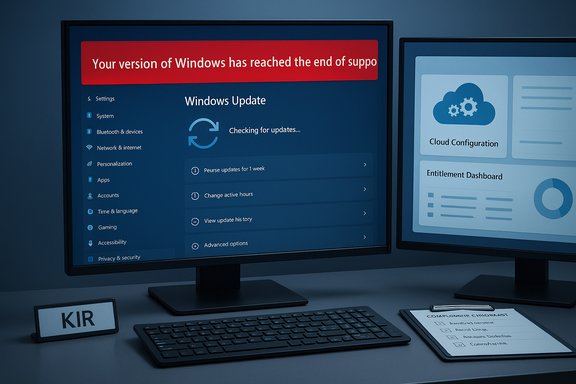
A misleading “Your version of Windows has reached the end of support” banner began appearing in Settings > Windows Update on a subset of Windows 10 PCs after the October cumulative update, alarming administrators and home users even though many of those machines remain entitled to security updates through Extended Security Updates (ESU) or are running supported LTSC/IoT Enterprise builds; Microsoft has acknowledged the display error and delivered a two-track remediation (a cloud configuration correction for connected devices and a Known Issue Rollback for managed or disconnected environments).
Background
Microsoft designated October 14, 2025 as the formal end of mainstream servicing for Windows 10, marking the close of the decade‑long mainstream update cadence for most consumer and commercial branches. The October Patch Tuesday rollup (delivered under the KB5066791 family) was the last broadly distributed cumulative update for mainstream channels; in parallel Microsoft published extension paths including consumer and commercial Extended Security Updates (ESU) and maintained separate lifecycles for Long‑Term Servicing Channel (LTSC) and IoT Enterprise SKUs.Those lifecycle facts are the authoritative baseline: the scheduled end of mainstream updates is real, but it does not automatically remove entitlements for devices legitimately enrolled in ESU programs or those running LTSC/IOT Enterprise releases that retain published support windows extending beyond October 14, 2025. The alarming UI banner that began appearing on some systems after the October update conflated a lifecycle milestone with a diagnostic/display regression, producing unnecessary help‑desk tickets and operational confusion.
What happened: the UI regression explained
The visible symptom
After the October 14 cumulative (tracked as KB5066791 in Microsoft’s release nomenclature), Settings → Windows Update surfaced a red banner reading “Your version of Windows has reached the end of support.” In many observed cases that banner appeared on devices that were still configured to receive security updates — including Windows 10, version 22H2 installations enrolled in ESU and certain LTSC/IOT Enterprise builds — even though the underlying update plumbing continued to deliver security fixes.Where the banner showed up
- Windows 10 version 22H2 (Pro, Education, Enterprise) devices that had ESU product keys and were otherwise correctly configured.
- Windows 10 Enterprise LTSC 2021 installations and Windows 10 IoT Enterprise LTSC 2021 builds.
- Some cloud‑hosted workloads (reports surfaced for Azure VMs and Azure Virtual Desktop hosts showing the banner despite Azure‑hosted ESU entitlements).
What the banner actually represented
Crucially, Microsoft characterized the problem as a cosmetic diagnostic/UI error — a presentation flag that was set or interpreted incorrectly — rather than a revocation of ESU entitlements or LTSC servicing commitments. Devices that were properly entitled and whose update components were functioning continued to receive security updates. Microsoft’s remediation approach reflected that diagnosis: a server‑side cloud configuration update for connected devices and a Known Issue Rollback (KIR) for locked‑down or disconnected enterprise environments.Why this happened: the technical hypothesis
The Windows Update UI determines which banner or messaging to show by combining local metadata from installed update packages with cloud‑delivered configuration flags and diagnostic signals (OneSettings/Configuration Service Provider, telemetry/configuration endpoints and dynamic feature/diagnostic flags). When KB5066791 and related metadata propagated, a server‑side diagnostic flag or presentation metadata appears to have been set or misinterpreted for a subset of SKUs, producing a false end‑of‑support indicator. In environments that block dynamic configuration endpoints (for compliance or security reasons) the cloud correction could not reach the device, leaving the erroneous banner visible until the local KIR policy was applied.This combination of local static metadata plus remote feature flags is a standard industry pattern to allow vendors to toggle UI behavior without shipping a binary update. It reduces the need for immediate hotfix releases but increases operational coupling between cloud configuration infrastructure and device UI behavior — a brittle dependency that showed through in this incident.
Microsoft’s response and remediation options
Microsoft deployed two parallel remedies tailored to different environment types:- Cloud configuration correction: a server‑side update that removes the incorrect banner automatically for connected devices that permit OneSettings CSP and dynamic configuration updates. Devices meeting connectivity and policy conditions should receive the fix without administrator intervention.
- Known Issue Rollback (KIR) package: a Group Policy / administrative template / MSI that enterprises can deploy to neutralize the specific erroneous UI flag for managed fleets or devices that do not accept cloud configuration changes. The KIR does not uninstall KB5066791 or roll back the cumulative; it simply suppresses the incorrect diagnostic/UI presentation.
Practical impact: what to check right now
When that banner appears, treat it as an operational trigger for verification — not as an automatic escalator to dramatic remediation. Follow this concise, prioritized checklist:- Confirm SKU and entitlement: verify that the device SKU is one that Microsoft documents as still supported (ESU enrolled, LTSC, IoT Enterprise). Check ESU activation or product key assignment.
- Verify update history: open Update History and confirm recent cumulative/patch deliveries still appear for Critical and Important updates. If updates are present, patch plumbing is likely intact.
- Check connectivity and cloud configuration acceptance: ensure OneSettings CSP and dynamic update endpoints are not blocked by firewall or Group Policy. Connected devices that accept dynamic flags should receive the cloud correction automatically.
- Apply KIR if needed: for locked‑down environments, deploy Microsoft’s Known Issue Rollback package to remove the erroneous banner until a permanent update is available.
- Audit Azure-hosted workloads: confirm Azure VM/AVD entitlements and verify whether the AZURE‑side automatic ESU enablement (if applicable) is reflected in the instance’s update history. Reports indicated some Azure-hosted VMs displayed the banner despite being ESU‑entitled.
Who was affected — and who was not
This was not a universal outage. The incident disproportionately affected:- ESU‑enrolled Windows 10, version 22H2 devices (Pro, Education, Enterprise) that were otherwise receiving updates.
- Windows 10 Enterprise LTSC 2021 and Windows 10 IoT Enterprise LTSC 2021 in certain configurations.
- Some systems in restricted/update‑blocked environments where the cloud correction could not be accepted.
Why this matters: operational and reputational risk
The issue is more than a UI quirk. It reveals three important, larger risks:- Operational fragility: modern servicing and UI presentation now depends on a blend of local binaries and cloud configuration flags. If the cloud layer or the flagging logic misbehaves, a cosmetic message can cascade into hundreds or thousands of help‑desk tickets and emergency audits.
- Decision noise: a single in‑OS banner should not be the sole input for enterprise remediation actions. Organizations that automated major changes based on that banner alone risk unnecessary disruption — for example, triggering expensive and unnecessary mass migrations or rollback operations.
- Trust and communication: lifecycle messaging is a trust contract between vendor and customers. Displaying false “end of support” warnings undermines confidence in lifecycle transparency at precisely the moment Microsoft is trying to execute a large, globally significant transition away from Windows 10 mainstream servicing. The incident points to the need for clearer multi‑signal confirmations (entitlement checks, update history, vendor dashboards) before users or admins assume a device is truly unsupported.
Guidance for IT teams: a step‑by‑step response playbook
Short-term (first 24–72 hours)
- Triage by impact: collect telemetry on which devices show the banner. Focus on high‑risk devices (domain controllers, internet edge servers, regulatory or high‑availability endpoints).
- Verify entitlements and update history on a representative sample. If updates are still being applied, de‑prioritize emergency OS upgrades.
- If your environment permits cloud configuration, verify connectivity to OneSettings/Configuration Service Provider endpoints and allow the cloud correction to apply.
- For air‑gapped or policy‑restricted fleets, obtain and deploy Microsoft’s Known Issue Rollback (KIR) package via your standard software distribution mechanisms. The KIR removes the banner without reverting the cumulative update.
Medium-term (1–8 weeks)
- Audit and document your Windows 10 estate: SKU, ESU enrollment status, LTSC/IOT designation, update channels (Windows Update, WSUS, SCCM/ConfigMgr, Intune). This baseline will reduce future confusion and speed incident response.
- Harden update pipelines: where possible, allow devices to accept vendor cloud configuration flags used for diagnostic and UI corrections. If policy reasons preclude that, maintain a lightweight, approved channel to push vendor mitigation packages like KIR packages.
- Communicate clearly: provide an internal statement explaining the banner, the diagnostic nature of the bug, and the verification checklist. Clear communication reduces ticket storms and prevents knee‑jerk escalations.
Long-term (quarterly posture)
- Plan migration: ESU is a bridge, not a destination. Map a phased migration to supported platforms (Windows 11 or supported server OS), prioritizing high‑risk endpoints and regulatory workloads. ESU and LTSC timelines vary — use published lifecycle dates to create a schedule.
- Instrument independent signals: ensure monitoring and automation decisions rely on multiple independent signals before taking system‑wide actions — e.g., entitlement verification, update history, vendor dashboard confirmation, and support case validation. This reduces the risk of a single UI bug driving sweeping responses.
Guidance for home users and small businesses
- Don’t panic: if you see the banner, first check Update History and Windows’ activation/ESU status. In many cases, updates are still being applied correctly and the banner is cosmetic.
- If eligible for Consumer ESU and you need more time before upgrading, enroll in the consumer ESU program (one‑year bridge through October 13, 2026 for eligible devices) via Microsoft’s documented enrollment options. ESU provides security‑only updates but not feature updates or full technical support. Treat it as a short‑term mitigation.
- Consider upgrade or replacement: plan for an upgrade to Windows 11 if your hardware meets the requirements and your apps/drivers are compatible. If not, schedule a replacement plan. ESU buys time, but migration remains the long‑term safety path.
Strengths and shortcomings of Microsoft’s handling
What Microsoft did well
- Rapid triage and transparent characterization: Microsoft acknowledged the banner as a display/diagnostic error and communicated remedial steps (cloud configuration correction and KIR) quickly, reducing long‑term confusion for affected customers.
- Two‑track fix model: offering both an automatic cloud correction for connected devices and a KIR for locked‑down managed environments is operationally pragmatic and respects enterprise security postures.
Where risks remain
- Overreliance on cloud flags: the incident demonstrates the fragility of tying critical lifecycle messaging to remotely delivered flags — a misconfiguration or transient server issue can create outsized operational impact.
- Messaging friction at an important lifecycle moment: Microsoft is managing a global migration away from Windows 10 mainstream servicing. A false “end of support” banner at this precise moment damages clarity and trust. More robust, multi‑channel confirmation methods (vendor dashboards, entitlement APIs, clearer in‑OS entitlement pages) would lower the risk of misinterpretation.
- Potential downstream automation hazards: automated systems or runbooks that act on single UI indicators need re‑engineering to require multiple confirmations; organizations that lacked this safeguard experienced ticket storms and unnecessary escalations.
Final analysis and recommendations
This incident is a textbook case of how a cosmetic UI regression can create outsized operational pain during a major vendor lifecycle transition. The root cause appears to be a metadata/flagging mismatch between locally installed cumulative update metadata and cloud‑delivered presentation flags; the fix path (cloud configuration correction + Known Issue Rollback) is appropriate and proportionate for the mix of consumer and enterprise environments impacted.Actionable recommendations to reduce future risk:
- For administrators: instrument verification scripts that check entitlement, update history, and applied KBs before taking remediation action. Use the KIR where cloud configuration is intentionally blocked.
- For procurement and lifecycle planners: treat ESU as a temporary bridge and accelerate migrations for high‑risk assets; document LTSC and IoT Enterprise timelines separately and make them visible to stakeholders.
- For software vendors and platform engineers: minimize single‑point dependencies between cloud flags and user‑visible lifecycle messaging; consider defensive UI behavior that points users to multiple verification routes (e.g., “Check entitlement” button, link to vendor lifecycle dashboard, or a confirmation dialog that details why the banner is shown).
- For home users: verify Update History and ESU enrollment status before panicking; if you need time, enroll in the consumer ESU program as a deliberate, time‑boxed mitigation while you plan an upgrade.
Conclusion
The false “end of support” banner on Windows 10 is an operational alarm bell more than a structural failure: it exposed brittle couplings in update‑and‑diagnostic infrastructure at an awkward moment in Microsoft’s lifecycle calendar. The immediate danger was limited because entitlements and update delivery continued for correctly configured ESU and LTSC devices, but the incident nonetheless produced real help‑desk churn and credibility damage that could have been avoided by more conservative UI behavior and clearer multi‑signal verification. Microsoft’s two‑track remediation was effective and proportionate, and the episode should be a prompt for administrators to harden decision logic, verify entitlements before responding, and treat the banner as a diagnostic trigger rather than a definitive statement of support status.Source: TechPowerUp False "End of Support" Warning Appears in Windows 10 Despite Extended Support
