

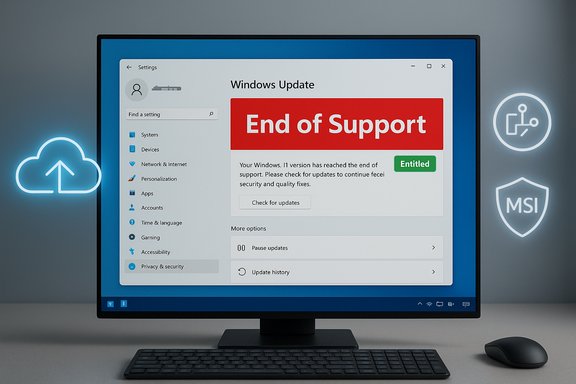
Microsoft has confirmed a display bug that caused some Windows 10 PCs enrolled in the Extended Security Updates (ESU) program — and certain LTSC/IoT LTSC SKUs — to show a startling “Your version of Windows has reached the end of support” banner in Settings → Windows Update, even though those devices remained entitled to and continued receiving security updates.
Windows 10’s mainstream servicing officially ended on October 14, 2025. That milestone signaled the end of routine, broadly distributed monthly cumulative updates for most consumer and standard commercial branches of Windows 10. Microsoft offered extension paths for customers who needed more time: the Extended Security Updates (ESU) program for eligible 22H2 devices and continued servicing lifecycles for certain Long-Term Servicing Channel (LTSC) and IoT Enterprise LTSC SKUs. These programmatic exceptions mean an in‑OS banner does not automatically equate to a true loss of update entitlement.
Shortly after Microsoft’s October cumulative release (identified in community tracking as the KB5066791 family), a subset of devices began showing the red end‑of‑support banner in the Windows Update UI. The scope included Windows 10, version 22H2 Pro, Education and Enterprise devices that were properly enrolled and activated for ESU, as well as Windows 10 Enterprise LTSC 2021 and Windows 10 IoT Enterprise LTSC 2021 in certain deployments. Microsoft characterized the incident as a diagnostic/UI display error and deployed a two‑track remediation: an automatic server‑side configuration correction and an enterprise Known Issue Rollback (KIR) package for locked‑down networks.
Source: SSBCrack News Microsoft addresses bug causing Windows 10 PCs in ESU program to incorrectly show out of support message - SSBCrack News
 Background / Overview
Windows 10’s mainstream servicing officially ended on October 14, 2025. That milestone signaled the end of routine, broadly distributed monthly cumulative updates for most consumer and standard commercial branches of Windows 10. Microsoft offered extension paths for customers who needed more time: the Extended Security Updates (ESU) program for eligible 22H2 devices and continued servicing lifecycles for certain Long-Term Servicing Channel (LTSC) and IoT Enterprise LTSC SKUs. These programmatic exceptions mean an in‑OS banner does not automatically equate to a true loss of update entitlement.Shortly after Microsoft’s October cumulative release (identified in community tracking as the KB5066791 family), a subset of devices began showing the red end‑of‑support banner in the Windows Update UI. The scope included Windows 10, version 22H2 Pro, Education and Enterprise devices that were properly enrolled and activated for ESU, as well as Windows 10 Enterprise LTSC 2021 and Windows 10 IoT Enterprise LTSC 2021 in certain deployments. Microsoft characterized the incident as a diagnostic/UI display error and deployed a two‑track remediation: an automatic server‑side configuration correction and an enterprise Known Issue Rollback (KIR) package for locked‑down networks.
What went wrong: the technical anatomy of the bug
How the Windows Update UI decides lifecycle messaging
The lifecycle banner shown in Settings → Windows Update is produced by a blend of signals — not a single flag. Key inputs include:- locally installed update metadata and installed KB manifests,
- cloud‑delivered configuration and diagnostic flags (OneSettings / Configuration Service Provider),
- entitlement telemetry (ESU activation state, Azure/VM entitlement metadata),
- and management policy overlays (Intune, Group Policy, WSUS).
Why this was more than cosmetic for enterprises
Although the defect was primarily a UI/display problem, the impact extended beyond impatience and alarm:- Compliance tooling and vulnerability scanners ingest lifecycle metadata and can auto‑flag unsupported devices.
- Automated incident playbooks may isolate or escalate devices based on a lifecycle assertion.
- Helpdesk churn can spike when many users report the same ominous message.
- Procurement and migration decisions can be rushed or misinformed when lifecycle status appears to change overnight.
Who was affected
The observable surface of affected devices included:- Windows 10, version 22H2 — Pro, Education, and Enterprise editions enrolled in ESU and configured with active ESU product keys.
- Windows 10 Enterprise LTSC 2021 and Windows 10 IoT Enterprise LTSC 2021 installations in specific configurations.
- Some Azure‑hosted Virtual Machines and Azure Virtual Desktop session hosts that were reporting the banner despite documented Azure ESU entitlement mechanisms.
Microsoft’s remediation: two tracks
Microsoft responded with a pragmatic two‑track approach designed to span both connected consumer devices and tightly controlled enterprise networks.1) Server‑side (cloud) configuration correction
For devices that accept dynamic OneSettings CSP configuration and are connected to the internet, Microsoft pushed a server‑side configuration update to clear the incorrect banner automatically. This is the path that resolves the issue for most consumer PCs and many managed devices that permit cloud‑delivered configuration changes. Devices must, however, allow dynamic updates and not block the OneSettings endpoints for the change to reach them.2) Known Issue Rollback (KIR) for managed environments
For air‑gapped, WSUS‑only, or otherwise locked‑down networks that block cloud configuration changes, Microsoft published a Known Issue Rollback (KIR) package distributed as an MSI/Group Policy administrative template tied to the October cumulative. IT teams can deploy the KIR using standard management tooling (Group Policy, SCCM/Endpoint Manager) to neutralize the erroneous presentation while leaving the security fixes in place. The KIR is a surgical, non‑destructive mitigation — it does not uninstall KB5066791 — and is intended as a fast path to restore correct UI messaging in environments that cannot or will not accept the cloud fix.Concrete steps to verify entitlement and avoid unnecessary alarms
Administrators and informed users should validate entitlement independently of the Settings banner. Follow this checklist in order:- Check the Windows Update page: look for the red banner and note exact wording. Then check for any side message explicitly stating ESU enrollment or similar enrollment status.
- Confirm update history: open Settings → Update & Security → Windows Update → View update history and verify recent cumulative/monthly updates are listed. If monthly LCUs continue to appear, update delivery is functioning.
- Use activation checks (enterprise): run slmgr.vbs /dlv to inspect activation status and confirm an ESU MAK key is installed and active where applicable. This is the authoritative local verification for purchased ESU keys.
- Cross‑check management consoles: validate the last applied KB numbers in Intune, WSUS, SCCM, or third‑party patching dashboards. For Azure VMs, verify update compliance via Azure Update Manager.
- For environments that block cloud configuration: plan to deploy the Microsoft‑published KIR package via normal change control and pilot before broad rollout.
Step‑by‑step: how to apply the Known Issue Rollback (KIR)
For administrators who prefer a checkable KIR path instead of waiting for cloud propagation, the high‑level deployment steps are:- Retrieve the KIR package published by Microsoft (delivered as MSI / Administrative Template tied to KB5066791).
- Test the KIR in a small pilot group to validate removal of the banner and ensure no adverse interactions with your management tooling.
- Deploy via Group Policy, SCCM/Endpoint Manager, or your chosen software distribution system to the affected organizational units.
- Reboot target systems as documented to ensure the KIR takes effect and the Settings UI reflects the corrected state.
- Monitor update history and compliance dashboards to verify monthly security updates continue to apply.
What this incident reveals about Windows servicing and enterprise risk
Strengths exposed by Microsoft’s response
- Two‑track remediation model (cloud fix + KIR) demonstrates maturity in addressing both connected and air‑gapped scenarios.
- Non‑destructive mitigation: the KIR does not remove security updates; it only neutralizes the erroneous diagnostic/banner, preserving patch integrity.
- Transparent diagnosis: Microsoft publicly characterized the issue as a diagnostic/display regression, reducing ambiguity about entitlement.
Persistent risks and weaknesses
- Over-reliance on UI signals: Organizations that treat in‑OS banners as a primary signal for lifecycle and automation are vulnerable to false positives that drive expensive remediation. Automated systems should ingest authoritative license and update data instead of UI screenshots.
- Dynamic configuration dependencies: The cloud fix relies on OneSettings/dynamic configuration which some enterprise networks intentionally block. That mismatch creates a support differential between connected and locked environments.
- Potential erosion of trust: Repeated or highly visible miscommunications around end‑of‑support can reduce user and admin trust in Microsoft’s messaging, increasing helpdesk noise and friction during legitimate lifecycle transitions.
Practical recommendations for IT leaders and power users
- Treat in‑OS lifecycle banners as an alert, not an authority. Always cross‑verify with activation status, update history, and management console telemetry before triggering wide remediation.
- Ensure your update channels and endpoints are correctly configured. Allow necessary dynamic configuration endpoints (OneSettings CSP) where security policy permits, so server‑side corrections can propagate quickly.
- Keep an incident playbook for lifecycle anomalies. Include steps to verify ESU activation, locate the relevant KB (e.g., KB5066791), and deploy KIR if needed. A clear runbook avoids knee‑jerk procurement or migrations.
- Communicate proactively with end users. A short, factual message to staff explaining the banner is a known display bug and that security updates remain flowing (if verified) prevents panic and reduces ticket volume.
- Audit automation rules. Modify monitoring thresholds to require multiple corroborating signals before flagging devices as “unsupported,” such as license validation + missed cumulative updates.
SEO-friendly quick reference (for sysadmins and curious users)
- Windows 10 ESU bug: cosmetic “end of support” banner after October cumulative KB5066791.
- Affected SKUs: Windows 10 22H2 Pro/Education/Enterprise (ESU enrolled), Windows 10 Enterprise LTSC 2021, Windows 10 IoT Enterprise LTSC 2021.
- Immediate mitigations: server‑side config update (automatic) and Known Issue Rollback (KIR) for locked environments.
- Verification steps: verify ESU activation via slmgr.vbs, check Windows Update history, cross‑check management console compliance.
Caveats and unverifiable claims
Some community posts speculated about the precise internal change that triggered the misapplied banner (for example, a specific presentation flag or an appraiser/appcompat cache interaction). Those low‑level root‑cause hypotheses remain partially anecdotal and are not fully verifiable from public documentation; they should be treated as plausible community analysis rather than confirmed facts. Microsoft’s public statements classify the incident as a display/diagnostic regression and describe the remediation steps outlined above, but detailed internal telemetry traces and exact code-level causes have not been published for public consumption. Where such internal assertions are cited in community threads they should be treated with caution.Longer‑term lessons: lifecycle communications and operational resilience
This episode underlines two enduring truths:- Lifecycle communication is both a technical and a trust problem. Clear, accurate, and verifiable signals are essential when millions of endpoints depend on them. Companies must build multi‑signal verification into automation to avoid single‑point failures based on UI text.
- The coexistence of cloud‑delivered configuration and air‑gapped enterprise policy will always produce edge cases. Vendors need robust fallbacks (like KIR) and administrators need straightforward, trusted verification commands to determine true entitlement. Microsoft’s two‑track response was sensible; organizations should bake such contingencies into their lifecycle playbooks.
Conclusion
The October servicing wave produced a high‑visibility but primarily cosmetic regression: a misleading “end of support” banner that affected a subset of Windows 10 systems still entitled to updates through ESU or LTSC lifecycles. Microsoft acknowledged the issue, rolled out a server‑side correction for connected devices, and published a Known Issue Rollback (KIR) for locked‑down environments — preserving security updates while removing the erroneous UI indicator. Administrators and discerning users should verify entitlement and update history using authoritative checks (slmgr.vbs, update history, management console telemetry) rather than relying on the Settings banner alone, and treat the Microsoft fixes as adequate short‑term mitigations while watching for any permanent code corrections in future servicing releases.Source: SSBCrack News Microsoft addresses bug causing Windows 10 PCs in ESU program to incorrectly show out of support message - SSBCrack News
