

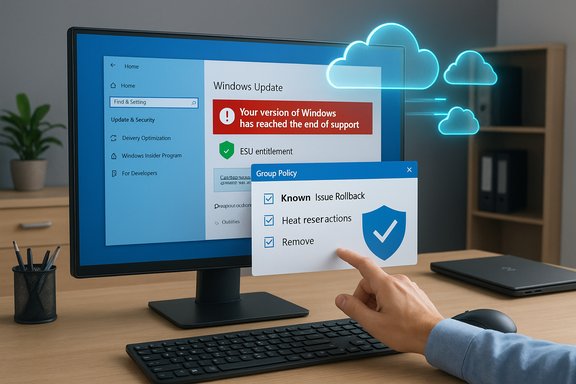
Microsoft has confirmed a Windows Update bug that caused some Windows 10 PCs enrolled in the Extended Security Updates (ESU) program to display a misleading “Your version of Windows has reached the end of support” banner — even though those systems remain entitled to and are still receiving security updates. Microsoft says the message is a display/diagnostic error introduced after the October cumulative update (tracked as KB5066791) and has deployed a cloud-side configuration fix with an option for administrators to apply a Known Issue Rollback (KIR) for immediate remediation.
Windows 10 reached its formal end-of-support milestone on October 14, 2025, which means mainstream consumer support and freely distributed monthly cumulative updates ended on that date. Microsoft made clear that organizations and consumers who need extra time to migrate can enroll in the Extended Security Updates (ESU) program to continue receiving critical security-only fixes for an additional term. The October 14, 2025 cumulative update — KB5066791 — is widely reported as the final broadly distributed cumulative for mainstream Windows 10 branches, and the problematic “end of support” banner appeared following that update on a subset of devices. The error produced high levels of concern because the Settings → Windows Update UI is the first place users look for support and update status. For organizations that rely on visual cues in the OS to validate lifecycle state, a false “end of support” banner can trigger helpdesk tickets, unnecessary escalations, or the mistaken belief that security protections have been revoked. Microsoft’s official diagnosis, however, is that the issue is superficial — a UI/diagnostic regression rather than a withdrawal of ESU entitlements — and that affected systems continue to receive security updates if their ESU activation is valid.
Source: El-Balad.com Microsoft Confirms Windows 10 Support Error; Offers Solution
 Background / Overview
Windows 10 reached its formal end-of-support milestone on October 14, 2025, which means mainstream consumer support and freely distributed monthly cumulative updates ended on that date. Microsoft made clear that organizations and consumers who need extra time to migrate can enroll in the Extended Security Updates (ESU) program to continue receiving critical security-only fixes for an additional term. The October 14, 2025 cumulative update — KB5066791 — is widely reported as the final broadly distributed cumulative for mainstream Windows 10 branches, and the problematic “end of support” banner appeared following that update on a subset of devices. The error produced high levels of concern because the Settings → Windows Update UI is the first place users look for support and update status. For organizations that rely on visual cues in the OS to validate lifecycle state, a false “end of support” banner can trigger helpdesk tickets, unnecessary escalations, or the mistaken belief that security protections have been revoked. Microsoft’s official diagnosis, however, is that the issue is superficial — a UI/diagnostic regression rather than a withdrawal of ESU entitlements — and that affected systems continue to receive security updates if their ESU activation is valid. What went wrong: the bug in plain terms
The trigger and symptoms
After the October 14, 2025 Patch Tuesday cumulative (KB5066791), some Windows 10 installations began to show the prominent red banner in Settings that reads: “Your version of Windows has reached the end of support.” In several reports, that banner also disabled or hid the “Check for updates” button in Settings, adding to the confusion. The condition has been observed not only on consumer systems but — crucially — on devices that are correctly enrolled in ESU and on Long-Term Servicing Channel (LTSC) SKUs that remain in their published servicing windows.Which SKUs and editions were affected
Microsoft’s release-health statement enumerates the affected editions explicitly:- Windows 10, version 22H2 — Pro, Education, and Enterprise editions that are correctly enrolled in ESU and configured with an ESU product key.
- Windows 10 Enterprise LTSC 2021.
- Windows 10 IoT Enterprise LTSC 2021.
Microsoft’s mitigation: server-side fix and Known Issue Rollback (KIR)
Two-track remediation
Microsoft has taken a two-track approach to remediation:- A cloud configuration update was deployed to the update servers to correct the diagnostic logic that drives the banner. This server-side fix will propagate automatically to devices that can receive dynamic updates and are not blocked by restrictive local policies or network controls.
- For environments that block dynamic updates, are offline, or have restricted OneSettings downloads via Group Policy, Microsoft published a Known Issue Rollback (KIR) package and corresponding Group Policy guidance administrators can deploy to remove the erroneous banner immediately. Microsoft’s guidance includes a KIR Group Policy template and instructions to set the KIR value to Disabled (apply the rollback) and reboot the devices.
Practical caveats for the server-side fix
The cloud fix depends on the device being able to fetch dynamic configuration updates from Microsoft. Devices that meet any of the following conditions might not receive the cloud configuration patch and therefore may still show the banner until the KIR is applied or the device receives the update later:- The device is offline or behind a network that blocks the dynamic update endpoints.
- OneSettings downloads have been disabled by Group Policy.
- Firewall, proxy, or corporate appliance rules block the dynamic update domains.
Verifying entitlement and immediate checks (what admins and power users should do)
When the OS displays a lifecycle message that looks wrong, the primary goal is to verify entitlement and delivery of security updates — not to panic. The Settings UI can lie; use authoritative checks instead.Confirm ESU or LTSC entitlement (recommended order)
- Check Windows Update history: Settings → Windows Update → View update history. If monthly ESU-labeled security cumulatives (or the expected October/November security rollups) are applied, that is the first sign the system is still being serviced.
- Run slmgr.vbs /dlv from an elevated Command Prompt (for MAK-based ESU activations). The slmgr output will list installed license products and their License Status; a licensed ESU entry confirms activation.
- For cloud/Windows 365 entitlements, confirm the registry and event evidence:
- Registry: HKLM\SOFTWARE\Microsoft\Windows NT\CurrentVersion\SoftwareProtectionPlatform\ESU\Win10CommercialW365ESUEligible (REG_DWORD) — a value of 1 indicates eligibility via the cloud path.
- Event Viewer: Applications and Services Logs → Microsoft → Windows → ClipESU → Operational. Look for Event ID 113, which indicates successful ESU application in the Cloud/ClipESU workflow.
- If devices are managed with Intune or Configuration Manager, query your inventory for the ESU Activation ID entries and LicenseStatus using built-in reporting or a baseline/Script that checks the SoftwareLicensingProduct class.
Quick commands and checks (copy-ready)
- Elevated Command Prompt (MAK activation verification):
- slmgr.vbs /dlv
- Registry check (PowerShell elevated):
- Get-ItemProperty -Path 'HKLM:\SOFTWARE\Microsoft\Windows NT\CurrentVersion\SoftwareProtectionPlatform\ESU' -Name Win10CommercialW365ESUEligible
- Event Viewer: Applications and Services Logs → Microsoft → Windows → ClipESU → Operational → look for Event ID 113
Why the banner matters beyond panic: operational risks and edge cases
False reassurance vs. false alarm
The immediate risk with the erroneous banner is a false alarm — users or helpdesk staff may treat the message as authoritative and escalate or take remedial actions (reimaging, forced upgrades, or unnecessary purchases). That carries direct operational overhead and a potential for misconfiguration. Conversely, a false reassurance risk exists in the opposite direction: if administrators assume the banner is harmless without checking entitlements, they might miss actual activation or delivery problems in environments where ESU was never properly applied. The correct response balances calm verification with rapid remediation.Managed environments and update pipelines
Environments that route updates through WSUS, SCCM/ConfigMgr, or third-party update proxies may block the cloud configuration fix. If those environments do not implement the KIR and are not configured to allow Microsoft’s dynamic updates, the banner will persist even while security patches continue to flow through managed channels. The lesson: verify update delivery at the source (WSUS sync status, SCCM compliance reports) and use Microsoft’s KIR guidance for managed fleets that can’t receive the cloud change.Potential long-term trust erosion
UI regressions that misrepresent support state can erode user trust in the platform’s lifecycle messaging. For IT teams responsible for compliance and proof-of-support, a misleading OS banner is an exponential nuisance: it generates tickets, increases audit friction, and forces IT to provide extra confirmations for end-users. Microsoft’s prompt acknowledgement and KIR are the right procedural steps, but the incident surfaces how fragile lifecycle messaging can be when multiple entitlement paths (consumer ESU, MAK key-based ESU, cloud Windows 365 entitlements, LTSC lifecycles) exist simultaneously.What Microsoft confirmed (summary of the official position)
- The message “Your version of Windows has reached the end of support” may erroneously display in Settings for certain ESU-enrolled 22H2 Pro/Education/Enterprise devices and for LTSC 2021 SKUs after installing updates released on or after October 14, 2025 (KB5066791).
- The issue is a display/diagnostic error only; devices with valid ESU license activation will continue to receive security updates.
- Microsoft rolled out a cloud configuration fix to remove the banner automatically for devices that can receive dynamic updates, and published a Known Issue Rollback (KIR) with Group Policy guidance for environments that need immediate remediation.
Practical checklist: steps to take right now
- Don’t panic. Confirm update delivery and ESU activation using authoritative checks (slmgr /dlv, registry key, ClipESU Event 113, Update History). If those checks show ESU is active and security cumulatives are applying, you are protected.
- If the device is unmanaged and online, allow time for Microsoft’s cloud configuration fix to arrive; a restart may be required.
- If your environment blocks dynamic updates, or you need immediate remediation across a managed fleet, download and deploy Microsoft’s Known Issue Rollback (KIR) and apply the Group Policy change Microsoft published for KB5066791’s KIR. Then reboot affected devices.
- Use your management tooling to detect devices that still display the banner after remediation and escalate those for deeper troubleshooting (proxy/firewall restrictions, disabled OneSettings downloads, or other network blocks).
- For regulatory or compliance documentation, capture evidence of ESU activation (slmgr /dlv output or ClipESU event logs) to prove continuing entitlement while the UI is corrected.
Broader context and analysis
Why this happened (what’s plausible)
Microsoft’s Settings UI pulls lifecycle and entitlement signals from multiple sources — local license state, cloud entitlement data, and update‑server‑side configuration flags. When the October cumulative changed the servicing baseline and the update client logic was refreshed, a diagnostic path that assembles those signals appears to have regressed for particular entitlement combinations (commercial key-based ESU, Windows 365/Cloud PC entitlements, and LTSC SKUs). Microsoft’s public notes stop short of an engineering post‑mortem; therefore, while the immediate root cause looks like a logic regression in the update/diagnostic stack, the exact telemetry that flipped the banner has not been fully explained. Treat any deeper causal claims as unverified until Microsoft publishes a detailed post‑mortem.Strengths in Microsoft’s response
- Microsoft acknowledged the issue promptly and updated the Windows Release Health dashboard to explain the scope and mitigation steps, which is the appropriate public‑facing channel for reliability incidents.
- The two-track remediation (cloud config + KIR) is the correct operational approach for a mixed estate: it ensures quick fixes where possible and a managed rollback path for locked environments.
Weaknesses and risks
- The UI regression demonstrates how fragile lifecycle messaging can be when multiple entitlement paths exist; it creates operational confusion.
- The cloud fix depends on dynamic update channels that some enterprises intentionally restrict for security reasons; that increases the workload on IT teams to push and validate the KIR manually.
- Microsoft’s public updates do not yet include a detailed technical post‑mortem; organizations that require root-cause detail for compliance or audit remediation will have to rely on the evidence in logs and the KIR implementation until Microsoft publishes more information. Flag this as a transparency gap.
Recommendations for IT teams and power users
- Prioritize verification over action: use slmgr /dlv and ClipESU event checks to establish whether ESU is active before making disruptive changes.
- Push the Known Issue Rollback via Group Policy, SCCM, or Intune for managed fleets that don’t or can’t accept the cloud configuration change. Microsoft’s KIR details should be followed precisely — set rollback value to Disabled to apply the fix and instruct users to reboot.
- Audit your WSUS/SCCM servers, proxy appliances, and firewall rules to ensure dynamic update endpoints aren’t blocked; where blocking is intentional, plan scripted KIR deployment.
- Keep a compliance packet ready: capture slmgr output, update‑history screens, and ClipESU event logs so you can demonstrate continuing protection during audits or vendor escalations.
- Use this event to harden update‑pipeline observability: implement baseline checks that validate both entitlement (ESU license) and update delivery (latest cumulative installed) in a nightly or weekly report to reduce noise.
The long view: lifecycle complexity and the migration imperative
This incident underscores a broader reality: as Microsoft shifts the majority of its ecosystem to Windows 11 and cloud-managed entitlement models, the interplay between consumer flows (in‑OS enrollment, Microsoft Account sync, paid ESU) and enterprise flows (MAK keys, Windows 365/Cloud PC entitlements, LTSC lifecycles) will remain a source of complexity. UI messaging must reconcile those paths without creating ambiguity. For most organizations, the practical takeaway is unchanged: continue to prioritize moving supported workloads to Windows 11 where feasible, and where that’s not possible, ensure ESU or LTSC entitlements are correctly deployed and verifiable.Conclusion
The incorrect “Your version of Windows has reached the end of support” banner in Windows Update was a worrying but ultimately non‑catastrophic regression: Microsoft confirmed it is a display error and has both pushed a server-side repair and made a Known Issue Rollback available for immediate remediation. Organizations should verify ESU or LTSC entitlements with authoritative checks (slmgr, ClipESU events, registry flags, update history), deploy the KIR where necessary, and treat this incident as a reminder to tighten update‑pipeline visibility and entitlement auditing. The OS remains protected where ESU is validated, but the confusion this bug caused is a useful case study in the operational friction that hybrid entitlement and lifecycle systems can generate.Source: El-Balad.com Microsoft Confirms Windows 10 Support Error; Offers Solution
