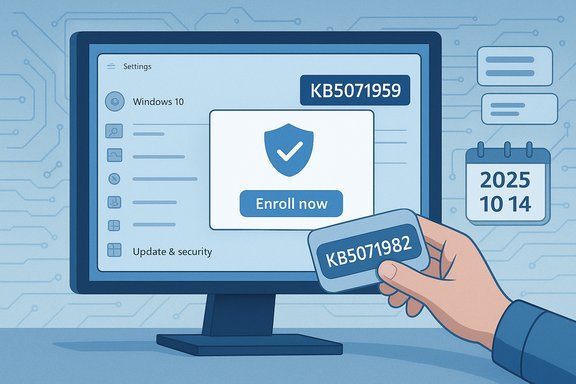
Microsoft has issued an out‑of‑band Windows 10 update, KB5071959, to repair a bug that was preventing eligible consumer PCs from enrolling in the Extended Security Updates (ESU) program — a timely fix that restores the update path for machines that otherwise could not receive November’s critical security rollups, including a confirmed kernel zero‑day that was being exploited in the wild.
Windows 10 reached its official end of mainstream support on October 14, 2025. Microsoft offered a one‑year Consumer Extended Security Updates (ESU) program to give eligible devices running Windows 10, version 22H2, a safety net through October 13, 2026. ESU enrollment is required for consumer devices that want to continue receiving security-only updates after the end‑of‑support date; enrollment options include syncing settings with a Microsoft account, redeeming Microsoft Rewards points, or a modest one‑time purchase to activate ESU coverage for up to ten devices.
Because ESU acts as the gating mechanism for post‑EOL security fixes, any problem that interrupts enrollment also interrupts the delivery of critical and urgent updates. That is exactly what happened for a subset of consumer devices: the built‑in ESU enrollment wizard either never appeared or failed at runtime with opaque errors, effectively blocking those PCs from receiving security fixes — including updates that addressed actively exploited vulnerabilities. Microsoft addressed the enrollment failure by shipping KB5071959 as an emergency, out‑of‑band cumulative update on November 11, 2025.
Key implications:
If KB5071959 appears on your machine, install it; it’s effectively required to restore ESU enrollment and access to subsequent security rollups. If you are already enrolled in ESU or you’ve already started receiving ESU rollups, the KB5071959 OOB package is not necessary and will not be offered.
Strengths
At the same time, the episode exposes ongoing tensions in how legacy platform support is handled for consumers. Relying on cloud‑driven enrollment, staged rollouts, and non‑transparent error messaging created a fragile experience for users who simply wanted to remain protected after Windows 10 left mainstream support. The technical fix is now in place for eligible devices, but the broader lessons are about improving diagnostics, clarifying regional rules, and smoothing the path for consumers who must choose between upgrading, paying for ESU, or accepting increased risk.
For anyone who still runs Windows 10 22H2 and needs continued protection, the practical takeaway is simple: check Windows Update, install KB5071959 if offered, enroll in ESU, and then install the ESU rollups without delay. That sequence restores the security posture for affected machines and closes the window attackers were exploiting.
Source: PCWorld Microsoft releases emergency Windows 10 fix for blocked ESU updates
 Background
Windows 10 reached its official end of mainstream support on October 14, 2025. Microsoft offered a one‑year Consumer Extended Security Updates (ESU) program to give eligible devices running Windows 10, version 22H2, a safety net through October 13, 2026. ESU enrollment is required for consumer devices that want to continue receiving security-only updates after the end‑of‑support date; enrollment options include syncing settings with a Microsoft account, redeeming Microsoft Rewards points, or a modest one‑time purchase to activate ESU coverage for up to ten devices.Because ESU acts as the gating mechanism for post‑EOL security fixes, any problem that interrupts enrollment also interrupts the delivery of critical and urgent updates. That is exactly what happened for a subset of consumer devices: the built‑in ESU enrollment wizard either never appeared or failed at runtime with opaque errors, effectively blocking those PCs from receiving security fixes — including updates that addressed actively exploited vulnerabilities. Microsoft addressed the enrollment failure by shipping KB5071959 as an emergency, out‑of‑band cumulative update on November 11, 2025.
What KB5071959 actually fixes
KB5071959 is a targeted, out‑of‑band (OOB) cumulative update for Windows 10, version 22H2, that advances affected consumers to OS Build 19045.6466. The package was published specifically for consumer devices that were unable to enroll in the ESU program, and it includes the following elements:- A fix for the ESU enrollment wizard that could fail during registration, producing unhelpful error dialogs such as “Something went wrong” or a region‑gating message like “Enrollment for Windows 10 Extended Security Updates is temporarily unavailable in your region.”
- The October rollup LCU (previous cumulative updates) bundled so devices that were blocked do not miss prior security fixes.
- A servicing stack update (SSU) packaged alongside the LCU (listed as KB5071982, OS Build 19045.6465) to improve update reliability.
Why this mattered: timing, risk and the zero‑day
The timing of KB5071959 was not incidental. Microsoft’s November security release addressed a number of vulnerabilities across Windows and related components, including an actively exploited Windows kernel elevation‑of‑privilege vulnerability that required rapid patching. Because consumer devices that could not enroll in ESU were blocked from receiving ESU security rollups, the enrollment bug left at‑risk systems unable to receive fixes for vulnerabilities that attackers were already exploiting.Key implications:
- The enrollment failure left eligible consumer devices in a precarious state: functionally supported but no longer able to receive security patches unless enrollment completed.
- With at least one kernel zero‑day being exploited in the wild at the time of the November release, the blocked enrollment was an immediate operational security problem for those consumers.
- Microsoft’s decision to ship KB5071959 as an out‑of‑band fix — rather than waiting for the regular monthly cycle — underscores the severity of the delivery failure and the urgency of restoring the update path.
How the ESU enrollment bug presented in the wild
Reports and community troubleshooting showed two distinct failure modes that prevented successful ESU enrollment:- The ESU enrollment option did not appear at all in Settings → Update & Security → Windows Update, leaving users without any clear path to enroll.
- The enrollment wizard launched but terminated with non‑diagnostic errors such as “Something went wrong” or displayed a regional gating banner along the lines of “Enrollment for Windows 10 Extended Security Updates is temporarily unavailable in your region.”
Who should get KB5071959 — and how it’s delivered
KB5071959 is targeted at consumer devices running Windows 10, version 22H2 that are eligible for the Consumer ESU program but have not successfully enrolled. The update is delivered via Windows Update and will only appear on systems that Microsoft’s delivery logic determines are blocked from enrollment.If KB5071959 appears on your machine, install it; it’s effectively required to restore ESU enrollment and access to subsequent security rollups. If you are already enrolled in ESU or you’ve already started receiving ESU rollups, the KB5071959 OOB package is not necessary and will not be offered.
Step‑by‑step: check enrollment status and install KB5071959
Below is a practical checklist to determine whether you need KB5071959 and how to install it safely.- Check your Windows version and build
- Open Settings → System → About and confirm you’re on Windows 10, version 22H2 (OS build in the 19045 family).
- Verify ESU enrollment status
- Open Settings → Update & Security → Windows Update.
- Look for an “Enroll now” link or a status that indicates ESU is active. If you see ESU already enrolled and updates downloading, you don’t need KB5071959.
- If ESU enrollment is missing or fails
- Click Check for updates and let Windows Update search for offers. The out‑of‑band update KB5071959 will be surfaced automatically on devices that are blocked.
- Install the update
- Follow the normal Windows Update workflow: download, install, and restart when prompted. The update includes a servicing stack that may require a restart to complete installation.
- Retry ESU enrollment
- After the reboot, return to Settings → Update & Security → Windows Update and select the Enroll option. Follow the wizard and sign in with a Microsoft account that has the required privileges.
- Confirm ESU and install ESU rollups
- Once enrolled, Windows Update should begin offering Extended Security Updates (ESU rollups). Check for updates again and install the ESU LCU that corresponds to the latest month.
- The update will not appear on machines already enrolled in ESU; it’s intentionally targeted.
- Ensure you are signed in as a local administrator and, if prompted, sign in to a Microsoft account during the ESU enrollment flow.
- If automatic Windows Update does not offer KB5071959, a manual install via the Microsoft Update Catalog can be an option — but manual installs require correct ordering (SSU before LCU) and are riskier for typical consumers.
Troubleshooting: when KB5071959 doesn’t resolve the problem
KB5071959 fixes the enrollment wizard failure itself, but it will not magically bypass other factors that can prevent enrollment. If the problem persists, try the following steps:- Confirm prerequisites: ensure the latest servicing stack update (SSU) and the most recent monthly cumulative update (LCU) that apply to your build are installed. Windows Update’s “Check for updates” will usually handle this automatically, but managed or offline systems may need manual intervention.
- Check account type: consumer ESU enrollment requires signing into a Microsoft account; local accounts or certain AD‑joined profiles may not be eligible for the consumer wizard and might require an organization‑level enrollment path.
- Review device classification: devices flagged as enterprise‑managed or under certain policies may not show the consumer enrollment UI. In those cases, contact your IT admin or review any group policy settings that could block consumer enrollment.
- Network and telemetry services: ensure the Windows Update service and related telemetry/diagnostic services are running. Some privacy‑focused configurations that disable telemetry may inadvertently block the enrollment flow.
- Regional gating: if you see a message saying enrollment is temporarily unavailable in your region, the rollout may still be staged for your locality. Waiting a short period and retrying or ensuring all prerequisites are met is recommended.
- Manual catalog install: if Windows Update refuses to offer the OOB update and you are confident the device is eligible, a carefully ordered manual install from the Update Catalog is possible — but this is best handled by experienced users or support technicians because mismatched SSUs can prevent future updates from installing correctly.
Analysis: strengths and shortcomings of Microsoft’s response
The rapid release of KB5071959 demonstrates several positive aspects of Microsoft’s response model — but it also exposes friction points in how post‑EOL protections are delivered to consumers.Strengths
- Fast, targeted response: Microsoft recognized the enrollment failure was preventing the delivery of critical security updates and shipped an out‑of‑band cumulative update rather than waiting for the monthly cycle.
- Bundled remediation: the OOB update includes prior rollups and a servicing stack update, reducing the chance that previously missed updates remain on the device after enrollment.
- Targeted delivery: the update is offered only to devices that need it, minimizing churn for already compliant machines.
- Opaque error messages: the enrollment wizard returned ambiguous messages that gave users no clear path to correct the issue; “Something went wrong” is poor UX for a security gating flow and increased support demand.
- Regional rollout complexity: staged and region‑gated enrollment led to confusion and inconsistent experiences, particularly where the UI displayed “temporarily unavailable in your region” without a clear timeline.
- Dependence on cloud‑linked accounts: consumer ESU enrollment requires a Microsoft account sign‑in or synchronization of settings in many cases; privacy‑minded users who prefer local accounts are left with a more complicated path to stay secure.
- Manual recovery risk: users who attempted unsupported workarounds (registry hacks, resets) to force enrollment risked system instability and may still have been blocked from receiving ESUs until the OOB fix arrived.
Practical advice for home users and small organizations
- Install KB5071959 if offered. If your device is eligible for consumer ESU and you see KB5071959 in Windows Update, install it immediately and follow the enrollment wizard instructions.
- Prioritize the ESU rollups once enrolled. After ESU enrollment completes, run Windows Update again and install the ESU cumulative packages — they contain fixes for actively exploited vulnerabilities and high‑severity issues.
- Use a Microsoft account for ESU enrollment. Consumer ESU enrollment expects a Microsoft account for the sign‑in path. If you have no Microsoft account, create one and ensure you use an administrative sign‑in when enrolling.
- Don’t ignore prerequisites. Make sure your device is on Windows 10, version 22H2 and has the latest servicing stack and cumulative updates installed before attempting enrollment.
- Consider upgrading where possible. ESU is a stopgap. If your device can run Windows 11, evaluate upgrading to remain on a fully supported platform beyond ESU’s one‑year window.
- Backup before making big changes. If you plan to perform manual update installations or major system changes, ensure you have a current system backup and a recovery plan.
What administrators and power users should do differently
- Verify fleet eligibility: for organizations supporting employees or customers on Windows 10 consumer builds, identify which devices are running 22H2 and are candidates for consumer ESU versus those that should be handled via volume licensing.
- Automate checks and notifications: configure monitoring that alerts when a device is not reporting ESU enrollment or is missing required servicing stack updates.
- Test update sequences: where manual installs are required, validate the correct SSU → LCU ordering in a test environment to avoid servicing failures.
- Communicate with users: if you manage consumer machines or assist customers, make it clear which account types and settings are required for consumer ESU enrollment and provide step‑by‑step assistance for the wizard.
- Maintain incident readiness: because zero‑day exploits may be part of the update mix, have procedures to expedite patch deployment and fallback containment measures (network segmentation, least privilege, user education).
What remains uncertain and what to watch for
While KB5071959 addresses the enrollment wizard failure, a few open items deserve attention:- Regional availability: some regions experienced staged rollout behavior; users seeing “temporarily unavailable in your region” should confirm prerequisites and check back later if the OOB update did not appear.
- Attribution and exploit details: public reporting confirmed in‑the‑wild exploitation of a kernel vulnerability around the November updates, but detailed public attribution and complete exploit mechanics remained limited. Organizations should assume motivated adversaries may combine this flaw with other techniques and prioritize mitigations accordingly.
- Boot/secure boot certificate timing: Microsoft’s update notices also reminded users that Secure Boot certificates used by many Windows devices have upcoming expirations (noted for mid‑2026 in vendor advisories). Administrators should review those notices to prepare for certificate updates and avoid unintended boot failures.
- User experience changes: the ESU enrollment workflow exposed friction that Microsoft may improve in future rollouts (clearer diagnostics, an eligibility checker, or a dedicated enrollment website). Watch for future guidance or tooling that makes enrollment diagnostics easier.
Final assessment
KB5071959 was a pragmatic, necessary fix: Microsoft closed a delivery hole that, if left open, would have left a swath of consumer Windows 10 devices unable to receive urgent security updates. The out‑of‑band release — bundled with the servicing stack — both repaired enrollment flow failures and ensured blocked machines could catch up on previously issued patches.At the same time, the episode exposes ongoing tensions in how legacy platform support is handled for consumers. Relying on cloud‑driven enrollment, staged rollouts, and non‑transparent error messaging created a fragile experience for users who simply wanted to remain protected after Windows 10 left mainstream support. The technical fix is now in place for eligible devices, but the broader lessons are about improving diagnostics, clarifying regional rules, and smoothing the path for consumers who must choose between upgrading, paying for ESU, or accepting increased risk.
For anyone who still runs Windows 10 22H2 and needs continued protection, the practical takeaway is simple: check Windows Update, install KB5071959 if offered, enroll in ESU, and then install the ESU rollups without delay. That sequence restores the security posture for affected machines and closes the window attackers were exploiting.
Source: PCWorld Microsoft releases emergency Windows 10 fix for blocked ESU updates