

Microsoft formally ended mainstream support for Windows 10 on October 14, 2025, but the OS continues to be usable in 2026 — with important caveats: Microsoft offered a one‑year consumer Extended Security Updates (ESU) bridge that provides security‑only patches through October 13, 2026, while other limited protections (Defender signatures, Microsoft 365 Apps updates, and browser servicing) continue on separate timelines.
Windows 10 arrived in 2015 and became the dominant desktop platform for a decade. Microsoft announced a firm end‑of‑support date for mainstream Windows 10 editions — October 14, 2025 — meaning routine OS security updates, quality fixes, and standard technical support would stop on that date for devices not enrolled in an Extended Security Updates (ESU) program.
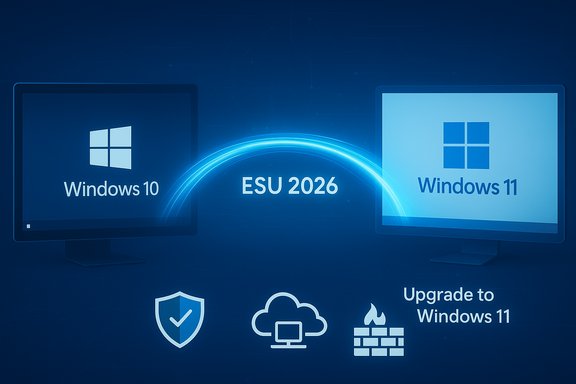
To ease the transition Microsoft introduced a consumer ESU option as a time‑boxed bridge. The consumer ESU supplies security‑only updates for eligible Windows 10 devices through October 13, 2026, and commercial (enterprise) ESU options remain available under traditional licensing channels. Microsoft also continued to provide selective servicing for some product layers — notably Microsoft Defender security intelligence and Microsoft 365 Apps — on a longer timetable into 2028.
Pros:
Conclusion
Windows 10 did not abruptly stop working when Microsoft ended mainstream servicing on October 14, 2025, but its long‑term viability now depends on deliberate choices: enroll in ESU if you need time, upgrade eligible devices to Windows 11, or migrate to supported alternatives. For most users and organizations, the safest path is to treat ESU as a time‑boxed bridge and to execute a migration plan that restores full vendor servicing and reduces operational and compliance risk.
Source: 9meters Is Windows 10 Still Usable In 2026? - 9meters
 Background / Overview
Windows 10 arrived in 2015 and became the dominant desktop platform for a decade. Microsoft announced a firm end‑of‑support date for mainstream Windows 10 editions — October 14, 2025 — meaning routine OS security updates, quality fixes, and standard technical support would stop on that date for devices not enrolled in an Extended Security Updates (ESU) program.To ease the transition Microsoft introduced a consumer ESU option as a time‑boxed bridge. The consumer ESU supplies security‑only updates for eligible Windows 10 devices through October 13, 2026, and commercial (enterprise) ESU options remain available under traditional licensing channels. Microsoft also continued to provide selective servicing for some product layers — notably Microsoft Defender security intelligence and Microsoft 365 Apps — on a longer timetable into 2028.
What actually changed on October 14, 2025
- No more routine OS security updates for mainstream Windows 10 editions unless a device is enrolled in ESU. This includes kernel, driver, and platform fixes normally delivered via Windows Update.
- No more feature or quality updates. Windows 10 will not receive new features or general quality rollups after the cutoff.
- Official Microsoft technical support ends for Windows 10 consumer editions; Microsoft directs affected users to upgrade or to ESU.
- Selective app and signature servicing continues: Microsoft Defender definition updates and some Microsoft 365 Apps security servicing were scheduled to continue into 2028, but these do not replace OS‑level fixes.
Extended Security Updates (ESU) — the short lifeline
What ESU is and who it helps
The Extended Security Updates (ESU) program is a time‑limited way to keep receiving critical and important security patches for Windows 10 after the official end‑of‑support date. For consumers, Microsoft created a one‑year ESU window covering eligible devices running Windows 10 version 22H2 — Oct 15, 2025 through Oct 13, 2026. For organizations, commercial ESU contracts have longer multi‑year options under volume licensing and CSP arrangements.Enrollment paths and costs (consumer vs commercial)
- Consumer ESU enrollment offered three practical paths: enabling a Microsoft account‑based sync/backup (a free path in many regions), redeeming Microsoft Rewards points, or paying a one‑time fee (commonly reported around $30 USD, regionally variable). The free enrollment options had account and sign‑in conditions.
- Commercial ESU (for enterprises and education) has different pricing and multi‑year renewal models; Year 1 commercial pricing was commonly reported in public summaries (for planning purposes) and enterprises enroll through volume licensing.
What ESU does — and does not — provide
- ESU provides security‑only updates (Critical and Important). It does not restore feature updates, broader quality rollups, or general technical support beyond the security patches it supplies.
- ESU does not change compatibility: third‑party apps and new drivers can still drop Windows 10 support over time, even for ESU‑enrolled devices.
Is Windows 10 safe to use in 2026?
Short answer: It depends. A Windows 10 PC can remain usable in 2026, but its safety depends on whether it is enrolled in ESU, how it is configured, and what the device is used for.Secure-ish scenarios (acceptable risk profiles)
- ESU‑enrolled devices: Enrolled machines that receive the security patches Microsoft backports will be substantially safer for standard day‑to‑day use, especially for internet‑connected tasks. ESU buys time for migration planning.
- Isolated or offline machines: Systems taken off the network, used for testing, legacy hardware appliances, or air‑gapped duties can continue to run Windows 10 with less immediate risk — though physical security and removable media hygiene remain critical.
- Cloud / VM usage: Running Windows 10 workloads inside a patched cloud VM (Windows 365, Azure Virtual Desktop) provides a managed environment where Microsoft controls OS servicing, reducing exposure on local hardware.
High‑risk scenarios (not recommended)
- Unenrolled, internet‑connected systems: By mid‑2026, a Windows 10 device that isn’t receiving OS security updates becomes a progressively easier target as new kernel and driver vulnerabilities are discovered and weaponized. Antivirus and Defender signatures help but cannot patch kernel or platform exploits.
- Business or compliance‑sensitive systems: Running unsupported OS instances in regulated environments (healthcare, finance, government) creates compliance and audit failures, and may void cyber insurance coverages. Enterprises are advised to either migrate or buy commercial ESU.
Key risks if you stick with an unsupported Windows 10
- Unpatched kernel and driver vulnerabilities — these enable privilege escalation, remote code execution, and ransomware attacks that antivirus cannot fully mitigate.
- Third‑party software and driver abandonment — browser vendors, hardware OEMs, and application vendors may stop testing or supporting new releases on Windows 10, causing compatibility and stability issues.
- Compliance and legal exposure — organizations could fail audits or contractual security obligations by using unsupported platforms in production.
- Rising total cost of ownership — forced hardware refreshes, paid ESU fees, or outsourced migration projects can be more expensive if delayed.
How to stay reasonably safe on Windows 10 in 2026 (practical checklist)
If you must keep using Windows 10, follow this layered defense plan:- Enroll in ESU if eligible — this is the single best mitigation for internet‑connected systems through Oct 13, 2026.
- Keep Microsoft Defender and other security tools updated — Defender signature updates were scheduled to continue into 2028, but signatures are not a substitute for OS patches. Use reputable third‑party endpoint protection where appropriate.
- Use modern browsers and sandboxing — avoid legacy browsers; use the latest Chromium‑based browsers while they still support Windows 10.
- Isolate legacy systems — place unsupported devices behind strict network segmentation, VPNs, and firewalls; block unnecessary inbound/outbound services.
- Run sensitive workloads in virtual machines or cloud desktops — this isolates the host and can offload patching responsibility.
- Maintain offline backups and recovery plans — assume eventual compromise and ensure you can restore critical systems.
Upgrade and migration options — which path to choose
1) Upgrade to Windows 11 — recommended for eligible hardware
Microsoft recommends upgrading eligible Windows 10 devices to Windows 11, which continues to receive full feature and security servicing. Windows 11’s minimum baseline includes a compatible 64‑bit CPU, 4 GB RAM, 64 GB storage, UEFI Secure Boot, and TPM 2.0, plus other platform checks. Use Microsoft’s PC Health Check or the Windows Update upgrade prompt to confirm eligibility.Pros:
- Free in‑place upgrade for eligible devices.
- Restores vendor servicing and modern hardware‑backed security features.
- Many older PCs fail the TPM/Secure Boot/CPU checks; firmware updates may help but are not guaranteed.
2) Migrate to Linux or ChromeOS Flex — a practical alternative for older hardware
Modern Linux distributions (Ubuntu, Linux Mint, Fedora) and ChromeOS Flex extend the usable life of older PCs with active security updates and lightweight footprints. These are especially attractive for web‑centric users, education, and lightweight productivity. Test from a USB live environment before committing.3) Move to managed cloud desktops (Windows 365, Azure Virtual Desktop)
Cloud or hosted Windows sessions let you keep Windows‑specific apps while shifting patching and security responsibility to a cloud provider. This is a strong option for organizations that need continuity without replacing every endpoint.4) Keep Windows 10 but isolate or limit usage
If upgrading or switching isn’t immediately possible, combine ESU enrollment (if available), strict network isolation, and migration timelines so Windows 10 becomes a temporary, controlled stopgap rather than a permanent platform.Special case: Windows 10 LTSC/LTSC/IoT and enterprise timelines
Long‑Term Servicing Channel (LTSC) builds and some IoT SKUs follow different servicing lifecycles. Some LTSC versions have extended support windows separate from the mainstream Windows 10 EoS date; enterprises should consult their volume licensing and lifecycle documentation to confirm dates and ESU applicability. Commercial ESU options are available under volume licensing for enterprise customers who need multi‑year coverage.Enterprise considerations: compliance, auditing, and procurement
Organizations face additional obligations beyond individual security: regulatory compliance, insurance terms, and supply‑chain risk can all mandate migration or paid ESU coverage. For enterprises, the calculus should include:- Quantify the device estate and identify which endpoints can upgrade, be replaced, or require ESU.
- Assess compliance exposure for regulated workloads; unsupported OS use can trigger audit failures.
- Budget for migration — factor hardware costs, staff time, and potential ESU licensing into multi‑year forecasts.
Cost and timeline planning
- Consumer ESU was offered as a low‑friction bridge (free regional paths and a small one‑time fee option); commercial ESU pricing and renewal increases over subsequent years mean enterprises face higher long‑term costs. Use ESU only as breathing room to migrate.
- Upgrading to Windows 11 is free for eligible devices, but hardware incompatibility remains the real gating factor. Where upgrades aren’t feasible, Linux or cloud desktops often present cheaper long‑term alternatives than repeated ESU renewals.
Practical migration checklist — 10 steps for a controlled exit from Windows 10
- Inventory all Windows 10 devices and record OS build, edition, and hardware specs.
- Run the PC Health Check on representative devices to determine Windows 11 eligibility.
- Classify devices by role: critical, general office, test, kiosk, and offline.
- Decide: upgrade to Windows 11, migrate to Linux/ChromeOS Flex, move to cloud desktop, or enroll in ESU.
- If using ESU, enroll eligible devices early and track account sign‑in requirements.
- Harden network access for remaining Windows 10 systems (segmentation, least privilege, EDR).
- Ensure Defender and any third‑party security agents remain up to date; schedule signature update monitoring.
- Back up critical data and test recovery plans.
- Communicate timelines and training for users affected by OS changes.
- Audit and adjust procurement policies to prevent future mass unsupported deployments.
Strengths, trade‑offs, and risks — critical analysis
- Strength: Windows 10 remains familiar, stable, and supported by many legacy applications — a low‑friction platform for legacy workflows.
- Strength: Microsoft’s consumer ESU provides a short, pragmatic bridge for households and small organizations that need time.
- Trade‑off: ESU is intentionally limited and time‑boxed; it patches security issues but does not replace the feature, quality updates, or long‑term vendor support model. Relying on ESU beyond planning horizons increases technical debt.
- Risk: Unsupported kernels and drivers present attack vectors that signatures and AV cannot fully mitigate. The longer a device remains unpatched, the higher the probability of exploitation.
- Policy risk: Large‑scale continuation on Windows 10 can create regulatory and insurance exposure for organizations, potentially increasing liability and incident response costs.
Final verdict — is Windows 10 still usable in 2026?
Yes — but only under controlled conditions. If you want a concise decision tree:- If your device is eligible for and enrolled in ESU, Windows 10 can be used for everyday tasks during the ESU coverage window (through Oct 13, 2026 for consumer ESU), assuming you keep other protections up to date.
- If your device can upgrade to Windows 11, upgrading is the best long‑term choice to restore full vendor support and modern security features.
- If your device cannot upgrade, consider Linux, ChromeOS Flex, or cloud desktops as sustainable alternatives rather than running an unpatched OS indefinitely.
- If you choose to keep Windows 10 without ESU, restrict the device to offline or tightly isolated roles only; do not expose it to internet‑connected or critical work without accepting substantial risk.
Conclusion
Windows 10 did not abruptly stop working when Microsoft ended mainstream servicing on October 14, 2025, but its long‑term viability now depends on deliberate choices: enroll in ESU if you need time, upgrade eligible devices to Windows 11, or migrate to supported alternatives. For most users and organizations, the safest path is to treat ESU as a time‑boxed bridge and to execute a migration plan that restores full vendor servicing and reduces operational and compliance risk.
Source: 9meters Is Windows 10 Still Usable In 2026? - 9meters
