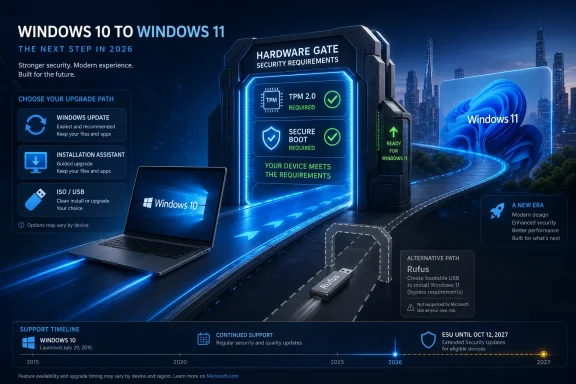
Microsoft still lets many Windows 10 PCs move to Windows 11 for free in 2026 through Windows Update, the Installation Assistant, installation media, or an ISO file, while unsupported machines can be upgraded unofficially with tools such as Rufus. That is the practical answer behind PCMag’s latest how-to, but it is not the whole story. The real story is that Microsoft’s Windows 11 transition has become less like a clean operating-system migration and more like a long negotiation with hardware reality. For users and IT admins, the choice is no longer simply “upgrade or don’t”; it is whether to accept Microsoft’s security line, bend it, or buy time.
The surprising part of the Windows 11 upgrade story is not that the upgrade remains free. Microsoft has spent years treating Windows as a continuously serviced platform rather than a boxed product, and Windows 11’s no-cost upgrade path from Windows 10 fits that model. If a Windows 10 PC meets the Windows 11 requirements, the cleanest route is still the boring one: check Windows Update and install the upgrade when it appears.
That path matters because it preserves user data, installed applications, activation status, and the support story. A supported Windows 11 upgrade is not merely a technical success; it is a machine that remains inside Microsoft’s intended servicing channel. That distinction becomes important once you start comparing the official upgrade tools with the workarounds now circulating among users with older hardware.
PCMag’s guide walks through the familiar ladder: PC Health Check, Windows Update, the Windows 11 Installation Assistant, the Media Creation Tool, and direct ISO downloads. Those are not hacks. They are Microsoft’s own routes for moving a qualifying Windows 10 system to Windows 11, and they remain the safest recommendation for anyone whose hardware passes the test.
But the presence of those tools also underscores a frustration Microsoft has never fully solved. If a machine is compatible, upgrading is usually straightforward. If it is not, the upgrade story immediately becomes a debate about whether Microsoft’s hardware floor is a security necessity, an artificial cutoff, or both.
Microsoft’s argument has been consistent: modern Windows needs a modern security baseline. TPM-backed identity, measured boot, virtualization-based security, and stronger firmware protections are easier to defend when the platform can assume certain hardware exists. In enterprise environments, that argument is not theoretical. Credential theft, bootkits, ransomware, and firmware-level compromise are exactly the kinds of threats that make platform security more than a checkbox.
The problem is that Windows 10 ran acceptably on a vast population of machines that Windows 11 officially rejects. Many of those systems are not museum pieces. They are office desktops, family laptops, point-of-sale spares, home lab machines, classroom PCs, and hand-me-down systems that still do the work asked of them. When the operating system says “no” to a machine that still feels fast enough, users understandably hear a sales pitch even when Microsoft is making a security argument.
That tension has shaped the entire Windows 11 adoption curve. The stricter requirements may make sense in Redmond’s security architecture diagrams, but they collide with the economics of real households and IT budgets. A free upgrade is not free if the price of admission is a new PC.
Some failures are fixable. A system may have TPM 2.0 support in the processor or motherboard firmware but ship with it disabled. Secure Boot may be available but turned off because the machine was installed in a legacy boot configuration years ago. In those cases, the right answer is not Rufus or a registry bypass; it is a BIOS or UEFI settings visit, followed by a supported upgrade.
Other failures are not so forgiving. Older processors can fall outside Microsoft’s supported list even when they have enough cores, memory, and storage to run Windows 11 comfortably. Those systems are where the conversation changes from “how do I enable the requirement?” to “do I accept being unsupported?”
That is why compatibility checking should be treated as diagnosis, not destiny. Before users assume a PC is hopeless, they should verify whether TPM exists but is disabled, whether the system boots in UEFI mode, and whether Secure Boot can be enabled safely. Admins managing fleets should treat those checks as inventory data, not merely upgrade prompts.
The assistant’s value is that it removes the ambiguity of waiting. Windows Update rollouts have historically been staged, compatibility-gated, and sometimes opaque. A user may have a qualifying PC and still not see the upgrade immediately. The Installation Assistant is Microsoft’s way of saying: if you are eligible and impatient, here is the front door.
That front door is still bounded by the same hardware rules. It is not meant to launder an unsupported machine into compliance. It is a convenience tool, not a loophole.
For many Windows 10 users, that will be enough. If PC Health Check passes and the Installation Assistant runs cleanly, the sensible path is to upgrade, let Windows 11 settle, then spend time removing unwanted defaults rather than fighting the operating system’s existence.
The key difference is control. With installation media, users can choose whether to keep apps and files, keep personal files only, or wipe the system. That matters when a Windows 10 installation is already cluttered, unstable, or carrying years of OEM utilities and abandoned drivers. Sometimes the best Windows 11 upgrade is not an upgrade at all, but a clean installation after a verified backup.
For IT pros, media-based deployment is also easier to document and repeat. Even in small environments, a known USB installer and a written checklist beat improvising on every machine. The upgrade itself may be free, but downtime, data loss, and post-upgrade troubleshooting are not.
That is also where the consumer how-to and the admin reality diverge. A home user can click through setup and hope the apps survive. An admin needs to know which machines are supported, which line-of-business applications have been tested, which drivers are available, and whether rollback is realistic.
Often, yes. Many unsupported PCs can install and run Windows 11 after requirement checks are removed. The desktop appears, applications launch, and the machine feels familiar enough that the whole controversy can look overblown.
But “it boots” is not the same as “it is a good long-term platform.” Unsupported installations may not receive the same assurances around updates, driver compatibility, future feature releases, or vendor support. Microsoft has left enough ambiguity in this area to discourage the practice without always technically blocking it.
That ambiguity is the risk. A user who bypasses the hardware floor is accepting responsibility for the machine in a way many do not fully understand. If a future Windows 11 release refuses to install, if a driver stack behaves badly, or if an app vendor declines support, the user owns the mess.
The argument against it is less dramatic but more durable. Unsupported Windows 11 creates a machine that may be fine today and awkward tomorrow. The monthly security update may install. The next annual feature update may not. A driver may work until it does not. A user may forget the machine is outside support until a problem appears at the worst possible moment.
For enthusiasts, that trade-off can be acceptable. WindowsForum readers running labs, test boxes, and secondary machines know what they are signing up for. They can image a disk, recover a bootloader, reinstall from scratch, and shrug off a failed update as part of the hobby.
For primary work machines, shared family PCs, medical office desktops, school systems, and small-business endpoints, the calculus changes. A workaround that is clever on a spare laptop can be reckless on the only machine that prints invoices, runs payroll, or stores client records.
That extension changes the tone of the decision. Before, Windows 10 holdouts faced a sharper deadline: upgrade, replace, or accept a widening security gap. With extended security updates available, the pressure is lower, but it has not disappeared. ESU is a bridge, not a renovation.
The program’s limits matter. Extended Security Updates are about security fixes, not new Windows 10 features, design improvements, or a revival of the platform. Microsoft is not returning Windows 10 to first-class status. It is reducing the danger of a hard cliff while continuing to steer users toward Windows 11 and new hardware.
For users with incompatible but reliable PCs, ESU may be the most rational choice. It avoids the unsupported Windows 11 gamble while buying time to plan a replacement, wait out hardware pricing, or migrate specific workflows elsewhere.
A Windows 11-ready machine is not just an operating-system purchase. It is a household expense, a school expense, or a capital planning line item. For consumers, that may mean delaying a replacement another year. For small businesses, it may mean stretching a fleet beyond the planned refresh cycle. For nonprofits and schools, it may mean choosing between imperfect security and unaffordable modernization.
Microsoft can argue, correctly, that unsupported hardware is a risk. Users can argue, also correctly, that forced replacement has costs Microsoft does not bear. The environmental cost is real, too. A PC that is rejected by Windows 11 but still perfectly adequate for browsing, Office work, remote access, and light productivity does not become worthless because a support matrix says so.
This is where Windows 11’s security story loses some moral clarity. A higher baseline may be good for the ecosystem, but the transition has pushed a large installed base into awkward choices. Microsoft has softened the landing with ESU, yet the underlying message remains: the future of Windows assumes newer hardware.
A supported three-year-old business laptop with current firmware, vendor drivers, and tested applications is an obvious Windows 11 candidate. A six-year-old desktop that technically passes but relies on a fragile peripheral or legacy app deserves more scrutiny. An unsupported machine running a noncritical kiosk workload may belong on ESU until retirement. An unsupported machine handling sensitive data should not be kept alive by clever installation media unless there is a very deliberate risk decision behind it.
The mistake is treating Windows 11 as a single project with a single answer. The better model is segmentation. Some systems upgrade. Some are replaced. Some stay on Windows 10 under ESU. Some are retired, repurposed, or moved to another operating system. The migration is not a morality play; it is asset management.
That segmentation also needs dates attached to it. “We will deal with it later” is not a plan. ESU buys time only if someone uses that time to budget, test, and replace.
Still, the best first move is mundane: back up the machine, run PC Health Check, inspect the specific blockers, and see whether TPM or Secure Boot can be enabled. If the PC qualifies after a firmware setting change, use the official upgrade path. If it does not qualify, decide whether the machine is important enough to keep on the safest supported track.
That supported track may be Windows 10 with ESU rather than Windows 11. For a parent’s laptop, a tax-prep machine, or a system used for banking and medical portals, boring security updates are better than an unsupported upgrade performed for cosmetic modernity. Windows 11 is not magic. Its value comes from the support and security model around it as much as from the code itself.
Enthusiasts can still experiment. The Windows ecosystem has always had room for tinkerers who image first and ask questions later. But a how-to should not be mistaken for a universal recommendation.
Microsoft wanted Windows 11 to mark a cleaner, safer baseline for the PC. Instead, the migration has exposed just how uneven the Windows hardware estate really is, and how many people still depend on machines that fall outside the company’s preferred future. The free upgrade remains useful, Rufus remains tempting, and ESU now gives holdouts more breathing room. The next year will show whether users spend that breathing room modernizing carefully — or simply postponing the same argument until the next deadline arrives.
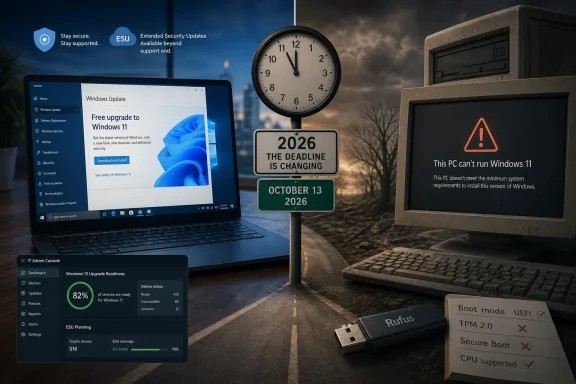 Microsoft’s Free Upgrade Path Is Still Open, but the Clock Has Changed
The surprising part of the Windows 11 upgrade story is not that the upgrade remains free. Microsoft has spent years treating Windows as a continuously serviced platform rather than a boxed product, and Windows 11’s no-cost upgrade path from Windows 10 fits that model. If a Windows 10 PC meets the Windows 11 requirements, the cleanest route is still the boring one: check Windows Update and install the upgrade when it appears.That path matters because it preserves user data, installed applications, activation status, and the support story. A supported Windows 11 upgrade is not merely a technical success; it is a machine that remains inside Microsoft’s intended servicing channel. That distinction becomes important once you start comparing the official upgrade tools with the workarounds now circulating among users with older hardware.
PCMag’s guide walks through the familiar ladder: PC Health Check, Windows Update, the Windows 11 Installation Assistant, the Media Creation Tool, and direct ISO downloads. Those are not hacks. They are Microsoft’s own routes for moving a qualifying Windows 10 system to Windows 11, and they remain the safest recommendation for anyone whose hardware passes the test.
But the presence of those tools also underscores a frustration Microsoft has never fully solved. If a machine is compatible, upgrading is usually straightforward. If it is not, the upgrade story immediately becomes a debate about whether Microsoft’s hardware floor is a security necessity, an artificial cutoff, or both.
The Hardware Line Was Always the Political Decision
Windows 11’s most consequential feature was never the centered Start menu. It was the line Microsoft drew under older PCs. TPM 2.0, Secure Boot, UEFI firmware, and supported CPU lists turned the Windows 11 launch into a referendum on how much hardware churn a mainstream operating system should require.Microsoft’s argument has been consistent: modern Windows needs a modern security baseline. TPM-backed identity, measured boot, virtualization-based security, and stronger firmware protections are easier to defend when the platform can assume certain hardware exists. In enterprise environments, that argument is not theoretical. Credential theft, bootkits, ransomware, and firmware-level compromise are exactly the kinds of threats that make platform security more than a checkbox.
The problem is that Windows 10 ran acceptably on a vast population of machines that Windows 11 officially rejects. Many of those systems are not museum pieces. They are office desktops, family laptops, point-of-sale spares, home lab machines, classroom PCs, and hand-me-down systems that still do the work asked of them. When the operating system says “no” to a machine that still feels fast enough, users understandably hear a sales pitch even when Microsoft is making a security argument.
That tension has shaped the entire Windows 11 adoption curve. The stricter requirements may make sense in Redmond’s security architecture diagrams, but they collide with the economics of real households and IT budgets. A free upgrade is not free if the price of admission is a new PC.
PC Health Check Is the Gatekeeper Microsoft Wants You to Trust
The PC Health Check app plays a deceptively important role in this migration. It translates a set of firmware, CPU, security, and configuration requirements into a simple verdict: this PC can upgrade, or it cannot. For nontechnical users, that clarity is useful. For enthusiasts, it can feel maddeningly reductive.Some failures are fixable. A system may have TPM 2.0 support in the processor or motherboard firmware but ship with it disabled. Secure Boot may be available but turned off because the machine was installed in a legacy boot configuration years ago. In those cases, the right answer is not Rufus or a registry bypass; it is a BIOS or UEFI settings visit, followed by a supported upgrade.
Other failures are not so forgiving. Older processors can fall outside Microsoft’s supported list even when they have enough cores, memory, and storage to run Windows 11 comfortably. Those systems are where the conversation changes from “how do I enable the requirement?” to “do I accept being unsupported?”
That is why compatibility checking should be treated as diagnosis, not destiny. Before users assume a PC is hopeless, they should verify whether TPM exists but is disabled, whether the system boots in UEFI mode, and whether Secure Boot can be enabled safely. Admins managing fleets should treat those checks as inventory data, not merely upgrade prompts.
The Installation Assistant Is the Least Interesting Tool, Which Is Why It Matters
For supported PCs that do not see Windows 11 in Windows Update, Microsoft’s Installation Assistant remains the most direct upgrade tool. It downloads Windows 11, performs the upgrade, and keeps the process within Microsoft’s official workflow. It is not glamorous, but for a single home PC or a small office machine, boring is a feature.The assistant’s value is that it removes the ambiguity of waiting. Windows Update rollouts have historically been staged, compatibility-gated, and sometimes opaque. A user may have a qualifying PC and still not see the upgrade immediately. The Installation Assistant is Microsoft’s way of saying: if you are eligible and impatient, here is the front door.
That front door is still bounded by the same hardware rules. It is not meant to launder an unsupported machine into compliance. It is a convenience tool, not a loophole.
For many Windows 10 users, that will be enough. If PC Health Check passes and the Installation Assistant runs cleanly, the sensible path is to upgrade, let Windows 11 settle, then spend time removing unwanted defaults rather than fighting the operating system’s existence.
Installation Media Still Belongs in the Admin’s Toolkit
The Media Creation Tool and direct ISO downloads are more flexible because they decouple the upgrade from a single machine. A USB installer can upgrade one PC, repair another, or support a clean install when an in-place upgrade is the wrong call. That makes installation media the more professional option, even for households with multiple PCs.The key difference is control. With installation media, users can choose whether to keep apps and files, keep personal files only, or wipe the system. That matters when a Windows 10 installation is already cluttered, unstable, or carrying years of OEM utilities and abandoned drivers. Sometimes the best Windows 11 upgrade is not an upgrade at all, but a clean installation after a verified backup.
For IT pros, media-based deployment is also easier to document and repeat. Even in small environments, a known USB installer and a written checklist beat improvising on every machine. The upgrade itself may be free, but downtime, data loss, and post-upgrade troubleshooting are not.
That is also where the consumer how-to and the admin reality diverge. A home user can click through setup and hope the apps survive. An admin needs to know which machines are supported, which line-of-business applications have been tested, which drivers are available, and whether rollback is realistic.
Rufus Turns the Upgrade from Supported to Merely Possible
PCMag’s most provocative section is the one many readers will jump to first: using Rufus to create Windows 11 installation media that bypasses checks for TPM 2.0, Secure Boot, memory, and other requirements. Rufus has become the folk tool of the Windows 11 transition because it answers the question Microsoft would prefer users not ask: can this system run Windows 11 anyway?Often, yes. Many unsupported PCs can install and run Windows 11 after requirement checks are removed. The desktop appears, applications launch, and the machine feels familiar enough that the whole controversy can look overblown.
But “it boots” is not the same as “it is a good long-term platform.” Unsupported installations may not receive the same assurances around updates, driver compatibility, future feature releases, or vendor support. Microsoft has left enough ambiguity in this area to discourage the practice without always technically blocking it.
That ambiguity is the risk. A user who bypasses the hardware floor is accepting responsibility for the machine in a way many do not fully understand. If a future Windows 11 release refuses to install, if a driver stack behaves badly, or if an app vendor declines support, the user owns the mess.
Unsupported Windows 11 Is a Bet Against Future Friction
The argument for installing Windows 11 on unsupported hardware is easy to understand. It keeps a useful PC alive, avoids e-waste, preserves a familiar Windows environment, and sidesteps the cost of replacement. In a year when component prices and memory costs are painful, that is not a trivial consideration.The argument against it is less dramatic but more durable. Unsupported Windows 11 creates a machine that may be fine today and awkward tomorrow. The monthly security update may install. The next annual feature update may not. A driver may work until it does not. A user may forget the machine is outside support until a problem appears at the worst possible moment.
For enthusiasts, that trade-off can be acceptable. WindowsForum readers running labs, test boxes, and secondary machines know what they are signing up for. They can image a disk, recover a bootloader, reinstall from scratch, and shrug off a failed update as part of the hobby.
For primary work machines, shared family PCs, medical office desktops, school systems, and small-business endpoints, the calculus changes. A workaround that is clever on a spare laptop can be reckless on the only machine that prints invoices, runs payroll, or stores client records.
ESU Is No Longer Just an Enterprise Escape Hatch
The other half of the story is Microsoft’s Extended Security Updates program for Windows 10. Windows 10 reached the end of mainstream support on October 14, 2025, but Microsoft has offered consumers a way to keep receiving security updates for enrolled devices. Recent reporting and Microsoft’s own updated messaging indicate that the consumer ESU window has been extended further, giving personal Windows 10 users more time than the original one-year runway.That extension changes the tone of the decision. Before, Windows 10 holdouts faced a sharper deadline: upgrade, replace, or accept a widening security gap. With extended security updates available, the pressure is lower, but it has not disappeared. ESU is a bridge, not a renovation.
The program’s limits matter. Extended Security Updates are about security fixes, not new Windows 10 features, design improvements, or a revival of the platform. Microsoft is not returning Windows 10 to first-class status. It is reducing the danger of a hard cliff while continuing to steer users toward Windows 11 and new hardware.
For users with incompatible but reliable PCs, ESU may be the most rational choice. It avoids the unsupported Windows 11 gamble while buying time to plan a replacement, wait out hardware pricing, or migrate specific workflows elsewhere.
The RAM Crisis Makes Microsoft’s Upgrade Pitch Sound Tone-Deaf
PCMag’s nod to the RAM crisis is more than a throwaway line. Hardware affordability is now part of the Windows 11 adoption story. When memory prices rise and budget laptops become less attractive, Microsoft’s “buy a new PC” message lands differently.A Windows 11-ready machine is not just an operating-system purchase. It is a household expense, a school expense, or a capital planning line item. For consumers, that may mean delaying a replacement another year. For small businesses, it may mean stretching a fleet beyond the planned refresh cycle. For nonprofits and schools, it may mean choosing between imperfect security and unaffordable modernization.
Microsoft can argue, correctly, that unsupported hardware is a risk. Users can argue, also correctly, that forced replacement has costs Microsoft does not bear. The environmental cost is real, too. A PC that is rejected by Windows 11 but still perfectly adequate for browsing, Office work, remote access, and light productivity does not become worthless because a support matrix says so.
This is where Windows 11’s security story loses some moral clarity. A higher baseline may be good for the ecosystem, but the transition has pushed a large installed base into awkward choices. Microsoft has softened the landing with ESU, yet the underlying message remains: the future of Windows assumes newer hardware.
Admins Should Separate Upgrade Eligibility from Upgrade Wisdom
For IT departments, the Windows 10-to-11 decision should not be reduced to a pass-fail compatibility scan. Eligibility answers whether a device can move. It does not answer whether it should move now, whether it should be replaced, or whether it should be isolated and enrolled in ESU.A supported three-year-old business laptop with current firmware, vendor drivers, and tested applications is an obvious Windows 11 candidate. A six-year-old desktop that technically passes but relies on a fragile peripheral or legacy app deserves more scrutiny. An unsupported machine running a noncritical kiosk workload may belong on ESU until retirement. An unsupported machine handling sensitive data should not be kept alive by clever installation media unless there is a very deliberate risk decision behind it.
The mistake is treating Windows 11 as a single project with a single answer. The better model is segmentation. Some systems upgrade. Some are replaced. Some stay on Windows 10 under ESU. Some are retired, repurposed, or moved to another operating system. The migration is not a morality play; it is asset management.
That segmentation also needs dates attached to it. “We will deal with it later” is not a plan. ESU buys time only if someone uses that time to budget, test, and replace.
The Home User’s Best Move Is Usually the Least Clever One
For home users, the temptation to use Rufus is strongest when the PC is otherwise working well. Nobody wants to be told that a laptop that streams video, handles email, and runs Office is obsolete. The workaround feels like justice.Still, the best first move is mundane: back up the machine, run PC Health Check, inspect the specific blockers, and see whether TPM or Secure Boot can be enabled. If the PC qualifies after a firmware setting change, use the official upgrade path. If it does not qualify, decide whether the machine is important enough to keep on the safest supported track.
That supported track may be Windows 10 with ESU rather than Windows 11. For a parent’s laptop, a tax-prep machine, or a system used for banking and medical portals, boring security updates are better than an unsupported upgrade performed for cosmetic modernity. Windows 11 is not magic. Its value comes from the support and security model around it as much as from the code itself.
Enthusiasts can still experiment. The Windows ecosystem has always had room for tinkerers who image first and ask questions later. But a how-to should not be mistaken for a universal recommendation.
The Sensible Path Through Microsoft’s Messy Middle
The practical decision tree is narrower than the noise suggests. Microsoft has left the free Windows 11 door open, third-party tools have left a side door open, and ESU has propped open the old Windows 10 door a little longer. The trick is knowing which door fits which machine.- Use Windows Update or the Installation Assistant if PC Health Check says the device meets Windows 11 requirements.
- Check firmware settings before giving up on a machine, because TPM 2.0 and Secure Boot may exist but be disabled.
- Use the Media Creation Tool or ISO files when you need reusable installation media, a cleaner upgrade process, or a controlled reinstall.
- Treat Rufus-based bypasses as unsupported workarounds suitable for test systems, secondary PCs, and enthusiasts who can recover from breakage.
- Enroll eligible Windows 10 machines in Extended Security Updates if they cannot move safely to Windows 11 and still need to remain in service.
- Do not let ESU become an excuse for permanent drift, because it extends security coverage but does not make Windows 10 the future again.
Microsoft wanted Windows 11 to mark a cleaner, safer baseline for the PC. Instead, the migration has exposed just how uneven the Windows hardware estate really is, and how many people still depend on machines that fall outside the company’s preferred future. The free upgrade remains useful, Rufus remains tempting, and ESU now gives holdouts more breathing room. The next year will show whether users spend that breathing room modernizing carefully — or simply postponing the same argument until the next deadline arrives.
References
- Primary source: PCMag
Published: Fri, 26 Jun 2026 16:14:30 GMT
Still Stuck on Windows 10? There Are Ways to Upgrade Your PC to Windows 11 for Free, Even If It's Incompatible | PCMag
Dragging your feet on an OS upgrade? Microsoft is giving you more time with Windows 10, but here are some easy ways to check out Windows 11.www.pcmag.com - Official source: learn.microsoft.com
Windows 10 reaching end of support - Microsoft Lifecycle | Microsoft Learn
Announcing Windows 10 reaching end of support.learn.microsoft.com - Official source: microsoft.com
End of support for Windows 10, Windows 8.1, and Windows 7 | Microsoft Windows
Make a smooth transition to Windows 11 from your unsupported operating system with help from Microsoft. Enjoy the benefits of upgrading to a Windows 11 PC.www.microsoft.com - Official source: support.microsoft.com
Enable TPM 2.0 on your PC | Microsoft Support
Learn how to check if your PC is capable of running TPM 2.0 or how to enable TPM 2.0 to upgrade to Windows 11.support.microsoft.com - Related coverage: windowscentral.com
Windows 10 support has ended: Discover how to keep your device secure beyond October 2025 | Windows Central
Mainstream support for Windows 10 ended in October 2025. That means the OS no longer receives security updates automatically, and you must take action to ensure your devices remain secure when connected to the internet.www.windowscentral.com - Related coverage: dir.md

Windows 11 System Requirements 2026: Check If Your PC Is Compatible (Avoid Upgrade Failures!)
Can your PC run Windows 11? Discover official system requirements, compatibility checks, and expert tips before upgrading. Check your device now!
dir.md
- Related coverage: tomshardware.com
Microsoft no longer permits local Windows 10 accounts if you want Consumer Extended Security Updates — support beyond EOL requires a Microsoft Account link-up even if you pay $30 | Tom's Hardware
$30 covers up to 10 machines for one yearwww.tomshardware.com - Related coverage: tomsguide.com
Windows 10 support officially ends — are you upgrading to Windows 11? | Tom's Guide
Windows 10 has reached its end of life, but millions of PCs are still using Microsoft's older OS. Tell us if you're upgrading to Windows 11 or keeping your Windows 10 PC!www.tomsguide.com - Related coverage: cincodias.elpais.com
Cómo conseguir el soporte extendido para tu ordenador con Windows 10 | Lifestyle | SmartLife | Cinco Días
Es muy fácilcincodias.elpais.com - Related coverage: euroconsumers.org
- Related coverage: causeofamerica.org
- Related coverage: pcworld.com
Surprise! Microsoft gives Windows 10 users another year of free support | PCWorld
Microsoft has quietly extended its Windows 10 Extended Security Updates (ESU) program until 2027, giving users more time to buy a new PC.www.pcworld.com - Official source: techcommunity.microsoft.com
Windows 10's extended support ends in eight months | Microsoft Community Hub
Windows 10’s extended support ends in eight months, but users are still rejecting Windows 11, at least in Germany.Windows 10 support officially ended on... techcommunity.microsoft.com
- Related coverage: thurrott.com
Microsoft Quietly Extends Windows 10 ESU For One More Year - Thurrott.com
Microsoft will extend the Windows 10 Extended Security Updates (ESU) for one more year, it appears.www.thurrott.com - Related coverage: lowyat.net
- Related coverage: techradar.com
Hate Windows 11 and don't want to upgrade? You can now extend the life of Windows 10 until October 2026 – here's how | TechRadar
Free updates for another year with Microsoft's ESU schemewww.techradar.com - Related coverage: aha.org
</rdf:Alt> </dc:title> <dc:description> <rdf:Alt> <rdf:li xml:lang="x-default"/> </rdf:Alt> </dc:description> <dc:creator> <rdf:Seq> <rdf:li>Katheri
</rdf:Alt> </dc:description> <dc:creator> <rdf:Seq> <rdf:li>Katherine Higgins (SLALOM INC)www.aha.org