

For Windows users in 2026, the humble PC microphone is no longer just a conferencing accessory: it can drive dictation, desktop navigation, smart-assistant control, transcription workflows, and accessibility features across Windows 11. That shift matters because the microphone has quietly become an input device, not merely an audio device. BGR’s recent guide to “clever uses” for a PC mic gets the consumer framing right, but the deeper story is more interesting: Microsoft has spent years turning speech from a novelty into a parallel control surface for the PC.
The keyboard is not going away, and neither is the mouse. But the microphone is now good enough, integrated enough, and OS-aware enough to deserve a place beside them. Voice control is still awkward in public, imperfect in noisy rooms, and occasionally comic in its misunderstandings. Yet for accessibility, fatigue reduction, note capture, and hands-free computing, the mic is becoming one of the most underused pieces of hardware most people already own.
The pandemic made webcams and microphones feel like office survival gear. Millions of people bought headsets, USB mics, speakerphones, and better laptops because a bad microphone could make a competent employee sound like they were calling from the bottom of a storage bin. That history still shapes how most people think about the device: the mic is for Zoom, Teams, Discord, or the occasional voice memo.
But that view is too narrow. A microphone is an input sensor, and Windows increasingly treats it as one. It captures intent, not just sound. When paired with speech recognition, dictation, and command systems, it can replace bursts of typing, reduce repetitive motion, and make the PC useful in situations where touching the keyboard is inconvenient or impossible.
That is why a small consumer tip piece about using a mic outside Zoom points to a larger platform story. The important development is not that Windows can type what you say; that has been possible in some form for decades. The important development is that voice is now stitched into more ordinary computing tasks, with lower setup friction and enough command vocabulary to be useful beyond the demo stage.
The microphone is also benefiting from the same cultural shift that made people comfortable talking to phones, cars, TVs, and smart speakers. A decade ago, speaking commands to a desktop PC felt theatrical. In 2026, it feels merely situational. You may not dictate a confidential email in a crowded office, but you might dictate notes at home, control playback from across the room, or navigate Windows while your hands are busy.
This is not glamorous technology, but it is often the highest-value use case. Most people speak faster than they type, especially when they are drafting rough ideas rather than polishing final copy. Dictation can turn the microphone into a capture tool for meeting notes, journal entries, outlines, emails, scripts, or reminders that would otherwise die in the gap between thought and keyboard.
The trick is to treat dictation as composition, not transcription magic. The best results usually come from speaking in short, deliberate phrases and editing afterward. Users who expect perfect punctuation, tone, and formatting will be disappointed; users who want a fast first draft may find that voice input changes the rhythm of writing.
There is also a cognitive difference between typing and speaking. Typing encourages revision mid-sentence. Speaking encourages flow. That can be useful for brainstorming, especially when paired with a blank document or note-taking app. The PC microphone becomes less like a telephone accessory and more like a cheap personal stenographer.
Still, dictation exposes the first hard boundary of voice computing: language and context matter. Windows can only recognize what its speech systems are configured to understand, and multilingual users may need to install additional language packs or change settings. Domain-specific vocabulary, names, acronyms, and code snippets remain more fragile than ordinary prose. Voice is powerful, but it is not neutral; it works best when the system has been taught enough about the speaker’s world.
This is where the microphone stops being a convenience and starts becoming an accessibility technology. For users with motor impairments, temporary injuries, repetitive strain, tremors, or fatigue, voice control can keep a PC usable when conventional input is painful or unavailable. That is not a niche feature in the moral sense, even if it is underused statistically. Accessibility features often become mainstream productivity tools once people discover them.
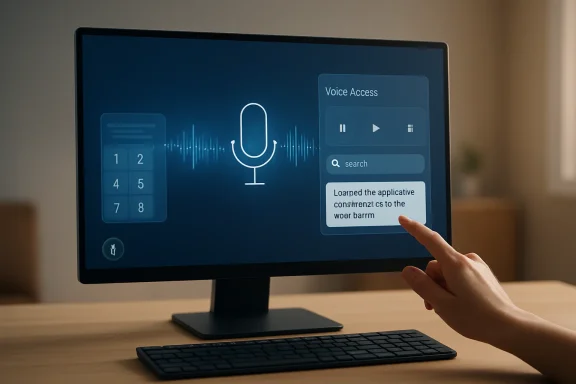
Voice Access also changes the way we should think about the Windows interface. A graphical UI assumes that visible objects can be pointed at. Voice control must translate those same objects into names, numbers, grids, and actions. When a user says “open Firefox,” “click Recycle Bin,” or “show numbers,” the operating system is building a bridge between visible affordances and spoken intent.
The numbered overlay and grid model are especially revealing. They are inelegant, but practical. If an item does not have a convenient spoken name, Windows can number the interactive elements on screen. If the pointer needs to move somewhere ambiguous, a grid can divide the display into spoken coordinates. It is a workaround, but it is also a reminder that the desktop was never designed primarily for voice. Microsoft is retrofitting speech onto a world built for hands.
That retrofit is more successful than skeptics might expect. Users can command keyboard shortcuts by voice, or use more natural commands such as copying and pasting selected text. They can move between windows, scroll through long pages, and interact with common controls without physically touching a mouse. The experience is not as fast as an expert with keyboard shortcuts, but speed is not always the point. Sometimes the win is simply that the PC remains operable.
A sysadmin with a hand injury, a developer fighting wrist pain, a gamer eating lunch at the desk, a parent holding a child, or a technician working from a cramped bench can all benefit from hands-free operation. Voice is not always the best input method, but it is a valuable fallback. The real productivity gain comes from having another mode available when the default mode fails.
This is especially relevant for WindowsForum readers because power users often undervalue “consumer” input features. The instinct is to reach for PowerShell, AutoHotkey, Stream Deck macros, or remote-management tools. Those are excellent, but they solve different problems. Voice Access solves the immediate physical problem of interacting with the current screen when hands are occupied, tired, or unavailable.
It also pairs well with other forms of automation. A spoken command can launch an app, trigger a shortcut, or select text that is then handled by a macro or script. The result is not science-fiction computing; it is layered computing. The keyboard, mouse, microphone, clipboard, shell, and accessibility layer all become part of the same workflow.
The caution is that voice control requires patience and practice. Users must learn the command vocabulary, speak clearly, and tolerate occasional failure. That makes it unlike a mouse, whose basic operation is visually obvious. Voice computing has a discoverability problem: the best commands are invisible until you know them. “Show numbers” and “show grid” are powerful precisely because they reveal a hidden control structure.
Yet the use case remains sensible. A desktop or laptop with a microphone can answer quick queries, set timers, control some smart-home devices, play audio, create reminders, and perform simple web-driven tasks. For a kitchen laptop, family-room mini PC, or desk setup with speakers, that can make the computer behave more like a room appliance.
The catch is ecosystem fragmentation. Smart-assistant usefulness depends less on the microphone than on account integrations, app support, privacy settings, and whether the assistant still receives meaningful platform investment. A mic can capture the request; the assistant ecosystem determines whether anything useful happens afterward.
This is where Windows’ own speech features may have an advantage over branded assistants. Dictation and Voice Access do not need to be charming. They do not need a personality, a wake word, or a smart-home strategy. They need to reliably turn speech into text and commands. In practice, that narrower mission may be more durable than the broader assistant fantasy.
Still, the assistant idea should not be dismissed. A PC can be the most capable device in the room, with a large display, local files, browser sessions, and productivity apps already open. If voice assistants ever become less siloed and more context-aware on Windows, the microphone could become the front door to a much richer kind of ambient computing.
This is one of the places where the value of even an ordinary PC mic has increased because software has improved around it. A mediocre microphone once produced mediocre audio and little else. Now, with better noise suppression and stronger speech-to-text models, the same audio can become searchable notes or structured drafts. The mic is the capture point for a pipeline that may end in a document, task list, article, ticket, or knowledge-base entry.
For IT pros, transcription has practical uses beyond personal convenience. It can help document troubleshooting sessions, capture verbal walkthroughs, record training material, or turn a spoken explanation into a draft procedure. A technician can narrate what they are doing during a repair, then clean up the transcript later. A team lead can record a post-incident debrief and extract action items.
The danger is overtrust. Transcription looks authoritative because text looks stable. But speech-to-text systems can mishear names, commands, version numbers, product SKUs, and security-sensitive details. Anyone using transcription for operational work should verify the final text, especially when it involves commands, addresses, registry paths, or policy settings.
There is also a privacy dimension. Voice data can be intimate. It may include bystanders, confidential business information, medical details, or household conversations. Users should know which app is listening, where audio is processed, how recordings are stored, and whether microphone permissions are broader than expected. A microphone-centered workflow is only clever if it is controlled.
At the consumer level, that means checking which apps have microphone permission and paying attention to the system’s microphone indicators. At the enterprise level, it means deciding which apps should be allowed to access audio input, whether online speech recognition is appropriate, and how those decisions interact with accessibility requirements. A blanket ban may simplify risk management, but it can also remove essential functionality for users who depend on speech input.
This tension is familiar to IT departments. The same feature can be both a productivity aid and a data-exposure risk. Dictation may send voice data to cloud services depending on configuration. Assistant apps may connect to external accounts. Transcription tools may upload recordings. Browser-based apps may request mic access for legitimate reasons and then retain permissions long after the original need has passed.
The right posture is not “never use the microphone.” That is unrealistic and increasingly counterproductive. The right posture is least privilege, visible status, user education, and periodic review. If the microphone is now an input device, it deserves the same seriousness as the keyboard. Nobody would give every app unrestricted keyboard logging rights; audio input should be considered with similar care.
Hardware controls help, too. A physical mute switch on a headset, USB mic, or laptop provides confidence that software indicators cannot fully supply. For high-sensitivity environments, external microphones that can be unplugged remain appealing for the oldest security reason in the book: disconnected hardware cannot listen.
That unevenness is why voice has not replaced the keyboard despite decades of prediction. The keyboard is private, precise, and silent. It works in a library, on a plane, during a meeting, and while someone else is asleep nearby. The mouse remains a superb instrument for spatial selection. Voice is excellent for some tasks and terrible for others.
But the right comparison is not voice versus keyboard. The better comparison is a PC with voice available versus a PC without it. In that framing, the microphone’s value is obvious. It creates optionality. It lets users shift input modes based on context, ability, and task.
Microsoft’s challenge is to make that optionality feel less like a separate accessibility island and more like a native part of Windows. Voice Access has already moved in that direction, but discoverability, reliability, and app compatibility still matter. Users should not have to become accessibility experts to use a feature that could help them every day.
For dictation and control, consistency is king. The system needs a clean signal and predictable speech. Users should reduce background audio, avoid talking over music or video, and choose a mic position that does not drift. A boom mic or decent USB mic can help, but the point is not audiophile fidelity. The point is intelligibility.
There is also a learning curve in how to speak to a computer. Natural language is improving, but command systems still reward concise phrasing. “Open Settings,” “scroll down,” “select that,” “copy that,” and “show grid” are not how people talk to people. They are closer to keyboard shortcuts spoken aloud. That is not a failure; it is a grammar.
Once users accept that grammar, the experience becomes less frustrating. Voice computing is not about pretending the PC is a person. It is about giving the OS another structured input stream. The more predictable the user, the better the machine appears.
That stealthy evolution explains why many users still underuse the mic. They bought it for meetings and mentally left it there. They may not know that Windows can dictate into almost any text field, that Voice Access can click and scroll, or that numbered overlays can make ambiguous screen elements reachable by speech.
This is a classic Windows problem. The operating system contains more capability than its interface successfully advertises. Power users discover features through articles, forums, accidents, or necessity. Everyone else keeps doing things the old way because the old way is visible.
The opportunity for Microsoft is to surface voice as part of ordinary onboarding without making Windows feel naggy or gimmicky. A subtle prompt after microphone setup, a better command discovery panel, or contextual hints in accessibility settings could help. The opportunity for users is simpler: spend 20 minutes learning what the microphone can do before deciding it is only for meetings.
The useful takeaways are refreshingly practical:
Source: bgr.com 4 Clever Uses For Your PC's Microphone (Outside Of Zoom Calls) - BGR
The keyboard is not going away, and neither is the mouse. But the microphone is now good enough, integrated enough, and OS-aware enough to deserve a place beside them. Voice control is still awkward in public, imperfect in noisy rooms, and occasionally comic in its misunderstandings. Yet for accessibility, fatigue reduction, note capture, and hands-free computing, the mic is becoming one of the most underused pieces of hardware most people already own.
 The PC Microphone Has Escaped the Meeting Room
The pandemic made webcams and microphones feel like office survival gear. Millions of people bought headsets, USB mics, speakerphones, and better laptops because a bad microphone could make a competent employee sound like they were calling from the bottom of a storage bin. That history still shapes how most people think about the device: the mic is for Zoom, Teams, Discord, or the occasional voice memo.But that view is too narrow. A microphone is an input sensor, and Windows increasingly treats it as one. It captures intent, not just sound. When paired with speech recognition, dictation, and command systems, it can replace bursts of typing, reduce repetitive motion, and make the PC useful in situations where touching the keyboard is inconvenient or impossible.
That is why a small consumer tip piece about using a mic outside Zoom points to a larger platform story. The important development is not that Windows can type what you say; that has been possible in some form for decades. The important development is that voice is now stitched into more ordinary computing tasks, with lower setup friction and enough command vocabulary to be useful beyond the demo stage.
The microphone is also benefiting from the same cultural shift that made people comfortable talking to phones, cars, TVs, and smart speakers. A decade ago, speaking commands to a desktop PC felt theatrical. In 2026, it feels merely situational. You may not dictate a confidential email in a crowded office, but you might dictate notes at home, control playback from across the room, or navigate Windows while your hands are busy.
Dictation Is the Gateway Drug for Voice Computing
The most obvious non-meeting use for a PC microphone is dictation, and it remains the place where most users should start. Windows’ voice typing shortcut, Windows key plus H, turns any text field into a target for speech-to-text. Click in a document, message box, search field, or browser form, trigger dictation, and Windows listens.This is not glamorous technology, but it is often the highest-value use case. Most people speak faster than they type, especially when they are drafting rough ideas rather than polishing final copy. Dictation can turn the microphone into a capture tool for meeting notes, journal entries, outlines, emails, scripts, or reminders that would otherwise die in the gap between thought and keyboard.
The trick is to treat dictation as composition, not transcription magic. The best results usually come from speaking in short, deliberate phrases and editing afterward. Users who expect perfect punctuation, tone, and formatting will be disappointed; users who want a fast first draft may find that voice input changes the rhythm of writing.
There is also a cognitive difference between typing and speaking. Typing encourages revision mid-sentence. Speaking encourages flow. That can be useful for brainstorming, especially when paired with a blank document or note-taking app. The PC microphone becomes less like a telephone accessory and more like a cheap personal stenographer.
Still, dictation exposes the first hard boundary of voice computing: language and context matter. Windows can only recognize what its speech systems are configured to understand, and multilingual users may need to install additional language packs or change settings. Domain-specific vocabulary, names, acronyms, and code snippets remain more fragile than ordinary prose. Voice is powerful, but it is not neutral; it works best when the system has been taught enough about the speaker’s world.
Voice Access Turns Speech Into a Control Layer
Dictation is only half the story. Windows 11’s Voice Access feature pushes the microphone into a more ambitious role: controlling the computer itself. Instead of using speech merely to enter text, users can open apps, switch windows, click buttons, scroll pages, select text, copy, paste, and operate parts of the desktop by command.This is where the microphone stops being a convenience and starts becoming an accessibility technology. For users with motor impairments, temporary injuries, repetitive strain, tremors, or fatigue, voice control can keep a PC usable when conventional input is painful or unavailable. That is not a niche feature in the moral sense, even if it is underused statistically. Accessibility features often become mainstream productivity tools once people discover them.
Voice Access also changes the way we should think about the Windows interface. A graphical UI assumes that visible objects can be pointed at. Voice control must translate those same objects into names, numbers, grids, and actions. When a user says “open Firefox,” “click Recycle Bin,” or “show numbers,” the operating system is building a bridge between visible affordances and spoken intent.
The numbered overlay and grid model are especially revealing. They are inelegant, but practical. If an item does not have a convenient spoken name, Windows can number the interactive elements on screen. If the pointer needs to move somewhere ambiguous, a grid can divide the display into spoken coordinates. It is a workaround, but it is also a reminder that the desktop was never designed primarily for voice. Microsoft is retrofitting speech onto a world built for hands.
That retrofit is more successful than skeptics might expect. Users can command keyboard shortcuts by voice, or use more natural commands such as copying and pasting selected text. They can move between windows, scroll through long pages, and interact with common controls without physically touching a mouse. The experience is not as fast as an expert with keyboard shortcuts, but speed is not always the point. Sometimes the win is simply that the PC remains operable.
The Accessibility Feature Is Also a Power-User Feature
The history of computing is full of accessibility tools escaping their original categories. Curb cuts helped wheelchair users first, then helped parents with strollers, travelers with rolling luggage, and workers pushing carts. Captions help deaf and hard-of-hearing viewers, then help everyone watching video in noisy rooms. Voice control belongs to the same family.A sysadmin with a hand injury, a developer fighting wrist pain, a gamer eating lunch at the desk, a parent holding a child, or a technician working from a cramped bench can all benefit from hands-free operation. Voice is not always the best input method, but it is a valuable fallback. The real productivity gain comes from having another mode available when the default mode fails.
This is especially relevant for WindowsForum readers because power users often undervalue “consumer” input features. The instinct is to reach for PowerShell, AutoHotkey, Stream Deck macros, or remote-management tools. Those are excellent, but they solve different problems. Voice Access solves the immediate physical problem of interacting with the current screen when hands are occupied, tired, or unavailable.
It also pairs well with other forms of automation. A spoken command can launch an app, trigger a shortcut, or select text that is then handled by a macro or script. The result is not science-fiction computing; it is layered computing. The keyboard, mouse, microphone, clipboard, shell, and accessibility layer all become part of the same workflow.
The caution is that voice control requires patience and practice. Users must learn the command vocabulary, speak clearly, and tolerate occasional failure. That makes it unlike a mouse, whose basic operation is visually obvious. Voice computing has a discoverability problem: the best commands are invisible until you know them. “Show numbers” and “show grid” are powerful precisely because they reveal a hidden control structure.
Smart Assistants Make the PC a Room Device Again
BGR also points to smart assistants as another use for a PC microphone, and that category is more complicated. The dream of the voice assistant on the desktop has had a bruising decade. Cortana retreated from its original consumer-assistant ambitions, Alexa’s Windows presence has shifted over time, and Google Assistant never became a first-class Windows citizen. The PC, unlike the phone or smart speaker, has not settled on a single assistant identity.Yet the use case remains sensible. A desktop or laptop with a microphone can answer quick queries, set timers, control some smart-home devices, play audio, create reminders, and perform simple web-driven tasks. For a kitchen laptop, family-room mini PC, or desk setup with speakers, that can make the computer behave more like a room appliance.
The catch is ecosystem fragmentation. Smart-assistant usefulness depends less on the microphone than on account integrations, app support, privacy settings, and whether the assistant still receives meaningful platform investment. A mic can capture the request; the assistant ecosystem determines whether anything useful happens afterward.
This is where Windows’ own speech features may have an advantage over branded assistants. Dictation and Voice Access do not need to be charming. They do not need a personality, a wake word, or a smart-home strategy. They need to reliably turn speech into text and commands. In practice, that narrower mission may be more durable than the broader assistant fantasy.
Still, the assistant idea should not be dismissed. A PC can be the most capable device in the room, with a large display, local files, browser sessions, and productivity apps already open. If voice assistants ever become less siloed and more context-aware on Windows, the microphone could become the front door to a much richer kind of ambient computing.
Transcription Is Where the Microphone Meets the AI Boom
The modern microphone story is also inseparable from transcription. Voice notes, interviews, lectures, podcasts, meetings, screen recordings, and rough ideas can all be captured and converted into text. That text can then be searched, summarized, edited, translated, or fed into other workflows.This is one of the places where the value of even an ordinary PC mic has increased because software has improved around it. A mediocre microphone once produced mediocre audio and little else. Now, with better noise suppression and stronger speech-to-text models, the same audio can become searchable notes or structured drafts. The mic is the capture point for a pipeline that may end in a document, task list, article, ticket, or knowledge-base entry.
For IT pros, transcription has practical uses beyond personal convenience. It can help document troubleshooting sessions, capture verbal walkthroughs, record training material, or turn a spoken explanation into a draft procedure. A technician can narrate what they are doing during a repair, then clean up the transcript later. A team lead can record a post-incident debrief and extract action items.
The danger is overtrust. Transcription looks authoritative because text looks stable. But speech-to-text systems can mishear names, commands, version numbers, product SKUs, and security-sensitive details. Anyone using transcription for operational work should verify the final text, especially when it involves commands, addresses, registry paths, or policy settings.
There is also a privacy dimension. Voice data can be intimate. It may include bystanders, confidential business information, medical details, or household conversations. Users should know which app is listening, where audio is processed, how recordings are stored, and whether microphone permissions are broader than expected. A microphone-centered workflow is only clever if it is controlled.
The Privacy Indicator Is Not a Decoration
The more useful the PC microphone becomes, the more important microphone governance becomes. Windows gives users and administrators ways to manage microphone access, and those controls should not be treated as paranoia toggles. They are basic hygiene.At the consumer level, that means checking which apps have microphone permission and paying attention to the system’s microphone indicators. At the enterprise level, it means deciding which apps should be allowed to access audio input, whether online speech recognition is appropriate, and how those decisions interact with accessibility requirements. A blanket ban may simplify risk management, but it can also remove essential functionality for users who depend on speech input.
This tension is familiar to IT departments. The same feature can be both a productivity aid and a data-exposure risk. Dictation may send voice data to cloud services depending on configuration. Assistant apps may connect to external accounts. Transcription tools may upload recordings. Browser-based apps may request mic access for legitimate reasons and then retain permissions long after the original need has passed.
The right posture is not “never use the microphone.” That is unrealistic and increasingly counterproductive. The right posture is least privilege, visible status, user education, and periodic review. If the microphone is now an input device, it deserves the same seriousness as the keyboard. Nobody would give every app unrestricted keyboard logging rights; audio input should be considered with similar care.
Hardware controls help, too. A physical mute switch on a headset, USB mic, or laptop provides confidence that software indicators cannot fully supply. For high-sensitivity environments, external microphones that can be unplugged remain appealing for the oldest security reason in the book: disconnected hardware cannot listen.
Voice Still Fails in the Places Humans Need It Most
For all the progress, voice input has stubborn limitations. Background noise can wreck recognition. Shared offices make dictation socially awkward. Accents, speech differences, code-switching, and specialized vocabulary can reduce accuracy. Commands that work in one app may stumble in another. The system can feel magical for five minutes, then maddening when one word is repeatedly misunderstood.That unevenness is why voice has not replaced the keyboard despite decades of prediction. The keyboard is private, precise, and silent. It works in a library, on a plane, during a meeting, and while someone else is asleep nearby. The mouse remains a superb instrument for spatial selection. Voice is excellent for some tasks and terrible for others.
But the right comparison is not voice versus keyboard. The better comparison is a PC with voice available versus a PC without it. In that framing, the microphone’s value is obvious. It creates optionality. It lets users shift input modes based on context, ability, and task.
Microsoft’s challenge is to make that optionality feel less like a separate accessibility island and more like a native part of Windows. Voice Access has already moved in that direction, but discoverability, reliability, and app compatibility still matter. Users should not have to become accessibility experts to use a feature that could help them every day.
The Best Microphone Upgrade May Be Behavioral
A better microphone can improve recognition, but users should not assume hardware is the only bottleneck. Placement, room noise, input level, and habits often matter more than raw mic quality. A laptop mic across the desk in a reverberant kitchen will struggle; a modest headset mic close to the mouth may perform far better.For dictation and control, consistency is king. The system needs a clean signal and predictable speech. Users should reduce background audio, avoid talking over music or video, and choose a mic position that does not drift. A boom mic or decent USB mic can help, but the point is not audiophile fidelity. The point is intelligibility.
There is also a learning curve in how to speak to a computer. Natural language is improving, but command systems still reward concise phrasing. “Open Settings,” “scroll down,” “select that,” “copy that,” and “show grid” are not how people talk to people. They are closer to keyboard shortcuts spoken aloud. That is not a failure; it is a grammar.
Once users accept that grammar, the experience becomes less frustrating. Voice computing is not about pretending the PC is a person. It is about giving the OS another structured input stream. The more predictable the user, the better the machine appears.
The Mic Is Becoming a First-Class Peripheral by Stealth
The odd thing about the PC microphone’s rise is how quiet it has been. There was no single launch moment when the mic became a serious input device. Instead, it arrived through a series of incremental changes: better laptop hardware, better Bluetooth headsets, pandemic-driven adoption, improved Windows speech features, smarter transcription, and broader comfort with voice assistants.That stealthy evolution explains why many users still underuse the mic. They bought it for meetings and mentally left it there. They may not know that Windows can dictate into almost any text field, that Voice Access can click and scroll, or that numbered overlays can make ambiguous screen elements reachable by speech.
This is a classic Windows problem. The operating system contains more capability than its interface successfully advertises. Power users discover features through articles, forums, accidents, or necessity. Everyone else keeps doing things the old way because the old way is visible.
The opportunity for Microsoft is to surface voice as part of ordinary onboarding without making Windows feel naggy or gimmicky. A subtle prompt after microphone setup, a better command discovery panel, or contextual hints in accessibility settings could help. The opportunity for users is simpler: spend 20 minutes learning what the microphone can do before deciding it is only for meetings.
The Clever Part Is Not the Microphone, It Is the Control Shift
The most concrete lesson from BGR’s guide is that the microphone’s value comes from shifting control away from the hands. That sounds small until you need it. Anyone who has worked through wrist pain, tried to cook from an on-screen recipe, held a sleeping child while answering messages, or navigated a PC with limited mobility understands that input flexibility is not a luxury.The useful takeaways are refreshingly practical:
- Windows voice typing is the fastest place to start because it works anywhere a normal text field accepts input.
- Voice Access is the more powerful feature because it can operate apps, windows, mouse actions, text selection, scrolling, and on-screen controls.
- Numbered overlays and screen grids matter because they make voice control possible even when an interface was designed only for pointing and clicking.
- Smart assistants remain useful on PCs, but their long-term value depends on ecosystem support more than microphone quality.
- Transcription workflows can turn spoken notes and recordings into searchable work product, but the output still needs human verification.
- Microphone permissions, privacy indicators, and physical mute controls deserve regular attention because a useful input device is also a sensitive sensor.
Source: bgr.com 4 Clever Uses For Your PC's Microphone (Outside Of Zoom Calls) - BGR
