

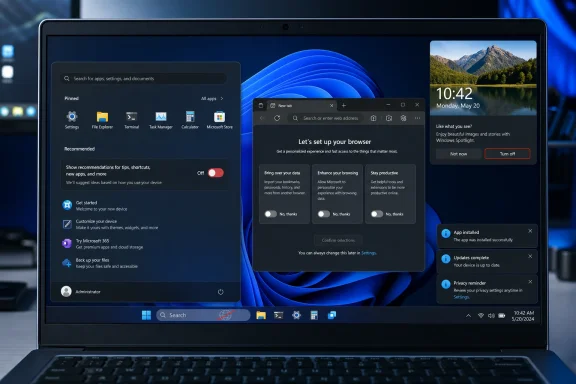
TweakTown’s latest Windows 11 setup guide argues that a fresh Windows 11 install in 2026 still arrives with Start menu recommendations, Search highlights, Edge prompts, lock-screen promotions, advertising identifiers, notification nags, and optional diagnostics enabled unless users turn them off manually. The piece is useful not because the eight toggles are exotic, but because they reveal Microsoft’s larger operating-system bargain: Windows is no longer merely configured for use; it is configured for persuasion. The modern out-of-box Windows experience assumes that every idle surface is a place to recommend, remind, personalize, or upsell. For enthusiasts and administrators, the first job after installation is no longer installing apps — it is reclaiming the interface.
The old complaint about Windows defaults was that they were clumsy. The modern complaint is sharper: they are strategic.
A clean Windows 11 desktop does not merely present a taskbar, Start menu, Settings app, browser, and lock screen. It presents a web of defaults that steer the user toward Microsoft accounts, Microsoft Edge, Microsoft 365, OneDrive, Bing, Copilot, Microsoft Store apps, Game Pass, and telemetry-backed personalization. Each prompt can be defended in isolation. Together, they form a house style.
That is why the TweakTown list lands. It is not a “debloat Windows” manifesto in the old sense, with unsupported scripts ripping out packages and breaking future updates. It is more mundane, and therefore more damning: these are ordinary Settings toggles and policy switches that many experienced users now treat as day-one maintenance.
The most revealing part is that none of the suggested changes makes Windows less functional. Turning off recommendations does not break the Start menu. Disabling Search highlights does not prevent local search. Declining Edge prompts does not stop Edge from existing. Reducing optional diagnostic data does not make Windows Update collapse. The machine remains a Windows 11 PC — just one that interrupts less often.
Microsoft has spent years trying to turn Start into a hybrid of app launcher, file recents, cloud surface, mobile companion pane, recommendations feed, and promotional shelf. Some of that is defensible. Recently opened documents are genuinely useful. Pinned apps are useful. A redesigned app list can be useful. But the problem with recommendation systems inside productivity surfaces is that they blur the difference between helpful recall and commercial insertion.
That is why the first move in the TweakTown guide is to open Settings, go to Personalization, then Start, and shut off the recommendation-related toggles. In current Windows 11 builds, that includes controls for tips, shortcuts, new apps, recently added apps, recommended files, and related suggestions. The advice to use “More pins” is not an aesthetic preference. It is a statement about what Start should be for.
The Start menu is prime real estate because it is habitual. Users open it without thinking. That makes it valuable not only for launching apps, but for shaping behavior. If a Microsoft 365 prompt, OneDrive file, Store recommendation, or “finish setup” suggestion appears there often enough, it becomes part of the user’s mental model of Windows.
For a home user, that may be merely annoying. For an IT department, it is a support variable. Every recommendation surface is a chance for a user to click into a workflow the organization did not plan for: signing into a personal account, syncing content to the wrong place, launching an app the help desk does not support, or assuming a consumer upsell is an approved corporate path.
Search highlights are easy to dismiss as decorative. The rotating icon in the taskbar search box can show seasonal imagery, trending topics, or Bing-fed content. Microsoft frames this as discovery; many users experience it as motion in a place that should be quiet. When you are looking for Device Manager, a control panel, a local file, or a command-line utility, the last thing you need is ambient internet garnish.
The deeper issue is web search in Start. Microsoft has never given Windows 11 Home users a clean, prominent Settings toggle that says, in plain language, “Search this PC only.” On Pro editions, Group Policy can block web results from Search. On Home, the workaround remains a registry policy value under the current user’s Explorer policy branch.
That distinction matters. Microsoft knows how to expose friendly toggles when it wants users to change behavior. The absence of a simple switch is itself a product decision.
Local search should be boring. Its job is to find the thing on the machine. The moment it becomes a web search client, it inherits Bing ranking, web latency, sponsored-adjacent affordances, cloud account context, and all the ambiguity that comes from mixing files, apps, settings, websites, and AI-inflected answers into one box. Power users have been pushing back against that convergence for years because the value proposition is backwards: the PC becomes less predictable so that the ecosystem becomes more integrated.
Edge is a capable browser. It is fast, standards-compliant, and deeply integrated with Microsoft’s security and management stack. In enterprise contexts, it has real advantages: policy control, compatibility features, identity integration, and a long-term support story that Chrome-only shops should not casually ignore. The issue is not Edge’s engineering. The issue is Edge’s manners.
A fresh Windows 11 install tends to treat first launch as a funnel. The user is asked to sign in, import data, accept recommended settings, use Microsoft services, and in many cases reconsider their default browser choice. Later Windows updates can revive some of those prompts, especially when Microsoft wants to advertise a new browser feature or reset the emotional weather around Edge adoption.
That is why the practical recommendation is simple: open Edge once, explicitly decline the prompts, then set your real default browser in Settings under Apps and Default apps. It is less a tweak than a boundary-setting exercise. Edge can remain installed. It can handle WebView2. It can be available when Windows needs it. It does not need to be the user’s daily driver by attrition.
Microsoft’s problem is that every browser nudge taxes the goodwill created by Edge’s actual technical improvements. The company spent years rebuilding Edge on Chromium and making it viable. Then it undercut that work by making users feel managed even on machines they own.
Windows Spotlight can be beautiful. Its rotating photography gives Windows some visual life, and for many users it is harmless. But Spotlight also creates a channel for text overlays, promotional copy, service recommendations, and “fun facts” that are not always as neutral as the phrase suggests. The lock screen becomes another place where Microsoft can insert itself before the user has even reached the desktop.
The TweakTown advice is to set lock screen status to None and, if desired, switch away from Spotlight to a static picture or slideshow. If Spotlight stays enabled, the key move is disabling the extra tips and tricks overlay. That preserves the aesthetic while reducing the promotional payload.
This is a small change with symbolic weight. The lock screen is supposed to be a threshold, not a billboard. On a personal laptop, the difference may be a matter of taste. On shared devices, kiosks, education machines, or conference-room PCs, it can be the difference between a controlled experience and an unexplained consumer marketing panel.
That page gathers several toggles that sound innocuous until you read them as a system. Advertising ID lets apps identify the user for ad personalization. Language-list access lets websites infer local language preferences. Personalized or improved recommendations can use device and usage context to shape what Windows suggests. Settings notifications allow the Settings app itself to show recommendation-style messages.
The Settings app used to be a place where the user told Windows what to do. Increasingly, Windows uses Settings to tell the user what Microsoft thinks they should do. That reversal is subtle, but it changes the relationship between person and machine.
For enthusiasts, disabling these toggles is common sense. For administrators, it is baseline hygiene. An operating system control panel should not be treated as a campaign surface unless the organization explicitly wants that behavior. If Microsoft wants to recommend Microsoft 365, OneDrive, or account features, it should do so in a place whose purpose is communication — not inside the machinery room of the OS.
Modern Windows continues onboarding after installation through notifications, post-update screens, account prompts, “finish setting up this device” flows, and tips about getting more from Windows. These prompts may be useful for a novice who skipped setup steps too quickly. They are irritating for anyone who has already made deliberate choices.
The two notification controls called out in the guide are especially important. One disables tips and suggestions while using Windows. The other blocks the recurring “suggest ways to get the most out of Windows and finish setting up this device” behavior that can appear after updates or restarts.
This is where Microsoft’s consumer instincts collide with professional expectations. A managed PC should not wake up after a feature update and ask the user to revisit consumer setup choices. A workstation should not behave like a newly unboxed tablet every time Microsoft wants to reintroduce an account or cloud feature.
The persistence is the point. Microsoft knows that users decline prompts under one set of circumstances and accept them under another. Maybe they are tired. Maybe they are rushing. Maybe the wording changed. Maybe the “not now” button is less prominent this time. The operating system gets endless chances to ask again; the user has to stay vigilant.
Windows runs on an absurd range of hardware, drivers, peripherals, firmware versions, regional configurations, and enterprise policies. Diagnostic data helps Microsoft detect crashes, compatibility failures, rollout problems, security issues, and performance regressions. Anyone who wants Windows to be more reliable should understand why telemetry exists.
But understanding telemetry is not the same as accepting every diagnostic default. Optional diagnostic data is, by definition, optional. It can include richer information about app usage, browsing in Microsoft contexts, feature interactions, and system behavior. Microsoft says this data helps improve Windows and personalize experiences. Users are entitled to decide that the improvement is not worth the visibility.
The guide’s recommendation is modest: turn off optional diagnostic data and delete existing diagnostic data from the Diagnostics & feedback page. It does not claim to make Windows invisible. It does not disable required security or update telemetry. It simply narrows the channel.
That distinction matters because privacy advice often collapses into fantasy. Windows 11 is a cloud-connected commercial operating system. It is not OpenBSD on an air-gapped workstation. The realistic goal for most users is not perfect silence; it is reducing unnecessary collection and personalization while preserving updates, compatibility, and security.
The registry remains powerful, but it is not a consumer interface. It is unforgiving, poorly discoverable, and easy to misuse. Telling Windows 11 Home users to create a DWORD named DisableSearchBoxSuggestions under a policy path is not elegant customization. It is evidence that Microsoft’s visible settings do not cover reasonable user intent.
Group Policy on Windows 11 Pro is better, but even that reveals the same pattern. Microsoft often makes serious control available to administrators while leaving individual consumers with partial toggles and softer language. Enterprises can say no at scale. Home users are asked to negotiate.
There is a security dimension here, too. When users learn that common preferences require registry edits, they become more likely to download random “debloat” tools, PowerShell scripts, and one-click privacy packs from the internet. Microsoft’s reluctance to expose clean toggles creates demand for unsupported tooling. That is not safer for anyone.
A Windows Settings page that says “Search mode: local only, local plus web, local plus web and highlights” would be understandable. A privacy dashboard that says “Use my activity for recommendations across Windows” would be understandable. The current model is fragmented enough that guides like TweakTown’s are necessary, and that necessity is the indictment.
A company image exists to reduce variation. It defines which apps are present, which accounts are used, which services are approved, which data leaves the device, and which support paths the help desk will honor. Windows defaults that promote consumer features complicate that contract. Even when they are harmless technically, they create ambiguity.
A user who sees OneDrive recommendations may assume personal cloud sync is endorsed. A user who sees Edge import prompts may migrate data outside the company’s browser standard. A user who sees post-update setup screens may click through account options the administrator did not intend. A user who sees Microsoft Store app recommendations may install software that is outside procurement and compliance.
This is why the same settings that look like quality-of-life tweaks on a gaming desktop become baseline policy decisions in business. Disable consumer experiences. Control web search. Manage Edge first-run behavior. Define diagnostic levels. Remove suggestion surfaces. Suppress post-update consumer onboarding. None of this is radical in a managed environment. It is the difference between an operating system and a sales floor.
Microsoft would argue, fairly, that many of these experiences can be managed through policy, Intune, provisioning packages, and enterprise licensing. But that answer also proves the point. The cleanest Windows experience increasingly belongs to organizations with the tools and knowledge to suppress the default one.
Windows 11 is built for an era in which operating systems are no longer static products. They are service platforms. They ship features continuously, promote cloud subscriptions, integrate AI assistants, mediate identity, sync user state, and collect telemetry to steer development. Microsoft’s business incentives point toward deeper engagement, not quieter defaults.
That explains why so many of the settings in the TweakTown guide involve suggestions rather than hard requirements. Microsoft does not need to force every user into a behavior. It only needs to make the preferred behavior frequent, visible, and easy to accept. Defaults do the rest.
The company also benefits from ambiguity. A recommendation is not an ad, unless it feels like one. A tip is not a promotion, unless it points to a paid service. A diagnostic setting is not tracking, unless it feeds personalization. An onboarding screen is not a nag, unless it returns after the user already declined. The vocabulary softens the edges of the transaction.
For users, the practical response is not outrage. It is configuration. Treat Windows 11 like any other complex platform whose defaults serve the vendor’s goals first and yours second. Then change the defaults.
The most concrete lessons are straightforward:
Source: TweakTown The first 8 settings I disable on every fresh Windows 11 install in 2026
 Windows 11’s Real Default Is Microsoft’s Preferred Behavior
The old complaint about Windows defaults was that they were clumsy. The modern complaint is sharper: they are strategic.A clean Windows 11 desktop does not merely present a taskbar, Start menu, Settings app, browser, and lock screen. It presents a web of defaults that steer the user toward Microsoft accounts, Microsoft Edge, Microsoft 365, OneDrive, Bing, Copilot, Microsoft Store apps, Game Pass, and telemetry-backed personalization. Each prompt can be defended in isolation. Together, they form a house style.
That is why the TweakTown list lands. It is not a “debloat Windows” manifesto in the old sense, with unsupported scripts ripping out packages and breaking future updates. It is more mundane, and therefore more damning: these are ordinary Settings toggles and policy switches that many experienced users now treat as day-one maintenance.
The most revealing part is that none of the suggested changes makes Windows less functional. Turning off recommendations does not break the Start menu. Disabling Search highlights does not prevent local search. Declining Edge prompts does not stop Edge from existing. Reducing optional diagnostic data does not make Windows Update collapse. The machine remains a Windows 11 PC — just one that interrupts less often.
The Start Menu Became a Negotiation
The Start menu used to be a launcher. In Windows 11, it became a negotiation over attention.Microsoft has spent years trying to turn Start into a hybrid of app launcher, file recents, cloud surface, mobile companion pane, recommendations feed, and promotional shelf. Some of that is defensible. Recently opened documents are genuinely useful. Pinned apps are useful. A redesigned app list can be useful. But the problem with recommendation systems inside productivity surfaces is that they blur the difference between helpful recall and commercial insertion.
That is why the first move in the TweakTown guide is to open Settings, go to Personalization, then Start, and shut off the recommendation-related toggles. In current Windows 11 builds, that includes controls for tips, shortcuts, new apps, recently added apps, recommended files, and related suggestions. The advice to use “More pins” is not an aesthetic preference. It is a statement about what Start should be for.
The Start menu is prime real estate because it is habitual. Users open it without thinking. That makes it valuable not only for launching apps, but for shaping behavior. If a Microsoft 365 prompt, OneDrive file, Store recommendation, or “finish setup” suggestion appears there often enough, it becomes part of the user’s mental model of Windows.
For a home user, that may be merely annoying. For an IT department, it is a support variable. Every recommendation surface is a chance for a user to click into a workflow the organization did not plan for: signing into a personal account, syncing content to the wrong place, launching an app the help desk does not support, or assuming a consumer upsell is an approved corporate path.
Search Is Where Local Computing Keeps Losing Ground
Windows Search is the second battleground because it sits at the seam between the PC and the web.Search highlights are easy to dismiss as decorative. The rotating icon in the taskbar search box can show seasonal imagery, trending topics, or Bing-fed content. Microsoft frames this as discovery; many users experience it as motion in a place that should be quiet. When you are looking for Device Manager, a control panel, a local file, or a command-line utility, the last thing you need is ambient internet garnish.
The deeper issue is web search in Start. Microsoft has never given Windows 11 Home users a clean, prominent Settings toggle that says, in plain language, “Search this PC only.” On Pro editions, Group Policy can block web results from Search. On Home, the workaround remains a registry policy value under the current user’s Explorer policy branch.
That distinction matters. Microsoft knows how to expose friendly toggles when it wants users to change behavior. The absence of a simple switch is itself a product decision.
Local search should be boring. Its job is to find the thing on the machine. The moment it becomes a web search client, it inherits Bing ranking, web latency, sponsored-adjacent affordances, cloud account context, and all the ambiguity that comes from mixing files, apps, settings, websites, and AI-inflected answers into one box. Power users have been pushing back against that convergence for years because the value proposition is backwards: the PC becomes less predictable so that the ecosystem becomes more integrated.
Edge Is Not Just a Browser Here — It Is an Onboarding Funnel
The TweakTown piece is blunt about Edge, and the bluntness is earned.Edge is a capable browser. It is fast, standards-compliant, and deeply integrated with Microsoft’s security and management stack. In enterprise contexts, it has real advantages: policy control, compatibility features, identity integration, and a long-term support story that Chrome-only shops should not casually ignore. The issue is not Edge’s engineering. The issue is Edge’s manners.
A fresh Windows 11 install tends to treat first launch as a funnel. The user is asked to sign in, import data, accept recommended settings, use Microsoft services, and in many cases reconsider their default browser choice. Later Windows updates can revive some of those prompts, especially when Microsoft wants to advertise a new browser feature or reset the emotional weather around Edge adoption.
That is why the practical recommendation is simple: open Edge once, explicitly decline the prompts, then set your real default browser in Settings under Apps and Default apps. It is less a tweak than a boundary-setting exercise. Edge can remain installed. It can handle WebView2. It can be available when Windows needs it. It does not need to be the user’s daily driver by attrition.
Microsoft’s problem is that every browser nudge taxes the goodwill created by Edge’s actual technical improvements. The company spent years rebuilding Edge on Chromium and making it viable. Then it undercut that work by making users feel managed even on machines they own.
The Lock Screen Is the Quietest Ad Surface
The lock screen is not where most people expect to make a privacy or advertising decision. That is precisely why it deserves attention.Windows Spotlight can be beautiful. Its rotating photography gives Windows some visual life, and for many users it is harmless. But Spotlight also creates a channel for text overlays, promotional copy, service recommendations, and “fun facts” that are not always as neutral as the phrase suggests. The lock screen becomes another place where Microsoft can insert itself before the user has even reached the desktop.
The TweakTown advice is to set lock screen status to None and, if desired, switch away from Spotlight to a static picture or slideshow. If Spotlight stays enabled, the key move is disabling the extra tips and tricks overlay. That preserves the aesthetic while reducing the promotional payload.
This is a small change with symbolic weight. The lock screen is supposed to be a threshold, not a billboard. On a personal laptop, the difference may be a matter of taste. On shared devices, kiosks, education machines, or conference-room PCs, it can be the difference between a controlled experience and an unexplained consumer marketing panel.
The Settings App Became Part of the Marketing Stack
The most important Windows 11 ad controls are not the loud ones. They are the ones hidden in places with names like Recommendations & offers.That page gathers several toggles that sound innocuous until you read them as a system. Advertising ID lets apps identify the user for ad personalization. Language-list access lets websites infer local language preferences. Personalized or improved recommendations can use device and usage context to shape what Windows suggests. Settings notifications allow the Settings app itself to show recommendation-style messages.
The Settings app used to be a place where the user told Windows what to do. Increasingly, Windows uses Settings to tell the user what Microsoft thinks they should do. That reversal is subtle, but it changes the relationship between person and machine.
For enthusiasts, disabling these toggles is common sense. For administrators, it is baseline hygiene. An operating system control panel should not be treated as a campaign surface unless the organization explicitly wants that behavior. If Microsoft wants to recommend Microsoft 365, OneDrive, or account features, it should do so in a place whose purpose is communication — not inside the machinery room of the OS.
Notification Nags Are the New Setup Wizard
The Windows setup process no longer ends when the desktop appears.Modern Windows continues onboarding after installation through notifications, post-update screens, account prompts, “finish setting up this device” flows, and tips about getting more from Windows. These prompts may be useful for a novice who skipped setup steps too quickly. They are irritating for anyone who has already made deliberate choices.
The two notification controls called out in the guide are especially important. One disables tips and suggestions while using Windows. The other blocks the recurring “suggest ways to get the most out of Windows and finish setting up this device” behavior that can appear after updates or restarts.
This is where Microsoft’s consumer instincts collide with professional expectations. A managed PC should not wake up after a feature update and ask the user to revisit consumer setup choices. A workstation should not behave like a newly unboxed tablet every time Microsoft wants to reintroduce an account or cloud feature.
The persistence is the point. Microsoft knows that users decline prompts under one set of circumstances and accept them under another. Maybe they are tired. Maybe they are rushing. Maybe the wording changed. Maybe the “not now” button is less prominent this time. The operating system gets endless chances to ask again; the user has to stay vigilant.
Diagnostics Remain the Line Between Trust and Extraction
Telemetry is the hardest part of this debate because Microsoft can make the strongest legitimate case for it.Windows runs on an absurd range of hardware, drivers, peripherals, firmware versions, regional configurations, and enterprise policies. Diagnostic data helps Microsoft detect crashes, compatibility failures, rollout problems, security issues, and performance regressions. Anyone who wants Windows to be more reliable should understand why telemetry exists.
But understanding telemetry is not the same as accepting every diagnostic default. Optional diagnostic data is, by definition, optional. It can include richer information about app usage, browsing in Microsoft contexts, feature interactions, and system behavior. Microsoft says this data helps improve Windows and personalize experiences. Users are entitled to decide that the improvement is not worth the visibility.
The guide’s recommendation is modest: turn off optional diagnostic data and delete existing diagnostic data from the Diagnostics & feedback page. It does not claim to make Windows invisible. It does not disable required security or update telemetry. It simply narrows the channel.
That distinction matters because privacy advice often collapses into fantasy. Windows 11 is a cloud-connected commercial operating system. It is not OpenBSD on an air-gapped workstation. The realistic goal for most users is not perfect silence; it is reducing unnecessary collection and personalization while preserving updates, compatibility, and security.
Registry Tweaks Are a Symptom of Bad Product Design
The web-search tweak exposes the most awkward truth in the whole list: normal users should not need Registry Editor for this.The registry remains powerful, but it is not a consumer interface. It is unforgiving, poorly discoverable, and easy to misuse. Telling Windows 11 Home users to create a DWORD named DisableSearchBoxSuggestions under a policy path is not elegant customization. It is evidence that Microsoft’s visible settings do not cover reasonable user intent.
Group Policy on Windows 11 Pro is better, but even that reveals the same pattern. Microsoft often makes serious control available to administrators while leaving individual consumers with partial toggles and softer language. Enterprises can say no at scale. Home users are asked to negotiate.
There is a security dimension here, too. When users learn that common preferences require registry edits, they become more likely to download random “debloat” tools, PowerShell scripts, and one-click privacy packs from the internet. Microsoft’s reluctance to expose clean toggles creates demand for unsupported tooling. That is not safer for anyone.
A Windows Settings page that says “Search mode: local only, local plus web, local plus web and highlights” would be understandable. A privacy dashboard that says “Use my activity for recommendations across Windows” would be understandable. The current model is fragmented enough that guides like TweakTown’s are necessary, and that necessity is the indictment.
The Enterprise Version of This Argument Is Not About Annoyance
For IT pros, these settings are not merely personal preferences. They are governance issues.A company image exists to reduce variation. It defines which apps are present, which accounts are used, which services are approved, which data leaves the device, and which support paths the help desk will honor. Windows defaults that promote consumer features complicate that contract. Even when they are harmless technically, they create ambiguity.
A user who sees OneDrive recommendations may assume personal cloud sync is endorsed. A user who sees Edge import prompts may migrate data outside the company’s browser standard. A user who sees post-update setup screens may click through account options the administrator did not intend. A user who sees Microsoft Store app recommendations may install software that is outside procurement and compliance.
This is why the same settings that look like quality-of-life tweaks on a gaming desktop become baseline policy decisions in business. Disable consumer experiences. Control web search. Manage Edge first-run behavior. Define diagnostic levels. Remove suggestion surfaces. Suppress post-update consumer onboarding. None of this is radical in a managed environment. It is the difference between an operating system and a sales floor.
Microsoft would argue, fairly, that many of these experiences can be managed through policy, Intune, provisioning packages, and enterprise licensing. But that answer also proves the point. The cleanest Windows experience increasingly belongs to organizations with the tools and knowledge to suppress the default one.
Microsoft Is Optimizing for the User It Wants
The charitable reading is that Microsoft is trying to help users discover value. The less charitable reading is that Microsoft is monetizing attention inside a paid operating system. The truth is probably more uncomfortable: both are happening at once.Windows 11 is built for an era in which operating systems are no longer static products. They are service platforms. They ship features continuously, promote cloud subscriptions, integrate AI assistants, mediate identity, sync user state, and collect telemetry to steer development. Microsoft’s business incentives point toward deeper engagement, not quieter defaults.
That explains why so many of the settings in the TweakTown guide involve suggestions rather than hard requirements. Microsoft does not need to force every user into a behavior. It only needs to make the preferred behavior frequent, visible, and easy to accept. Defaults do the rest.
The company also benefits from ambiguity. A recommendation is not an ad, unless it feels like one. A tip is not a promotion, unless it points to a paid service. A diagnostic setting is not tracking, unless it feeds personalization. An onboarding screen is not a nag, unless it returns after the user already declined. The vocabulary softens the edges of the transaction.
For users, the practical response is not outrage. It is configuration. Treat Windows 11 like any other complex platform whose defaults serve the vendor’s goals first and yours second. Then change the defaults.
A Ten-Minute Ritual Says More Than Microsoft Intended
The useful thing about TweakTown’s eight-setting ritual is that it is finite. It does not require replacing the shell, gutting the OS, or turning Windows into a hobby project before it can be used. It is the sane middle ground between passive acceptance and reckless debloating.The most concrete lessons are straightforward:
- A clean Windows 11 install should be treated as Microsoft’s preferred configuration, not a neutral starting point.
- The Start menu and taskbar search deserve immediate attention because they are high-frequency surfaces where recommendations have the most leverage.
- Edge should be configured deliberately instead of allowed to win through repeated first-run prompts and default-app friction.
- Lock-screen content, Settings notifications, and post-update setup nags are small individually but meaningful as a pattern.
- Optional diagnostic data and advertising-related personalization should be disabled unless the user has a specific reason to keep them on.
- Registry or Group Policy workarounds for basic search behavior show that Microsoft still withholds simple consumer-facing controls where they would conflict with its ecosystem goals.
Source: TweakTown The first 8 settings I disable on every fresh Windows 11 install in 2026
