

PCMag’s latest Windows 11 feature roundup, updated around the Windows 11 24H2 era and credited to Michael Muchmore with Jason Cohen contributing, catalogs 35 built-in or Microsoft-adjacent tools that many users overlook, from Snap Layouts and Clipboard History to Copilot, PowerToys, passkeys, Phone Link, and File Explorer compression. The list is useful, but the more interesting story is what it says about Windows in 2026: Microsoft’s operating system is not short on capability, it is short on coherence. Windows 11 has become a warehouse of genuinely clever utilities, half-promoted AI experiments, legacy control panels, and productivity affordances that reward people who already know where to dig. The hidden-features genre exists because Microsoft has spent years adding power without making that power feel obvious.
The central irony of Windows 11 is that many of its best improvements are not the headline features Microsoft tends to advertise. PCMag’s roundup is nominally a tips article, but it doubles as an indictment of discoverability. If an operating system contains dozens of practical features that users need a third-party publication to uncover, the problem is not merely user education.
This is especially true because many of the items are not obscure registry tweaks or sysadmin-only controls. Clipboard History, virtual desktops, Snap Layouts, Nearby Sharing, Focus Sessions, Phone Link, passkeys, File Explorer tabs, battery usage graphs, and title-bar shake are mainstream productivity features. They are the kinds of things Microsoft should want ordinary users to encounter naturally.
Instead, Windows 11 often behaves like two operating systems sharing one desktop. One layer is the consumer-facing system Microsoft markets: centered taskbar, Widgets, Copilot, Microsoft account integration, cloud backup, and a Start menu shaped by recommendations. The other is the power-user system Windows loyalists actually value: keyboard shortcuts, file-management upgrades, PowerToys, startup controls, passkeys, local sharing, compression formats, and accessibility customization.
That split is not fatal. In fact, it is part of Windows’ enduring appeal. But Microsoft’s challenge is no longer whether Windows 11 has enough features; it is whether users can trust the company to surface the right ones at the right time without turning every surface into an ad slot, AI prompt, or cloud onboarding flow.
That small act captures Windows 11’s broader design posture. Microsoft wanted a cleaner, calmer, more modern desktop, and the centered taskbar helped distinguish Windows 11 from Windows 10 at a glance. But the company also knew decades of muscle memory would not disappear because a design team preferred symmetry.
The result is a desktop that often feels like it is negotiating with its own past. Live Tiles are gone, but the Start menu still wants to be a launcher, recommendation panel, search gateway, app list, and cloud document surface at once. The “All apps” list became an extra click away, then Microsoft began experimenting with bringing a fuller app list back into view. That back-and-forth says more than any keynote slide.
The Start menu is not just a place to open apps. It is where Microsoft’s competing priorities collide: simplicity, monetizable recommendations, Microsoft 365 integration, app discovery, nostalgia, and enterprise manageability. When PCMag points users to Start folders, pinned apps, app folders, recommendations, and alternative launchers, it is really describing a system in which the default experience still does not satisfy everyone.
That is why third-party launchers and PowerToys utilities remain so popular among Windows enthusiasts. The best Windows setup is often not the one Microsoft ships out of the box. It is the one users assemble after turning several things off, pinning several things back, and installing the tools Microsoft keeps adjacent to the OS rather than fully inside it.
The reason PowerToys feels beloved is not only that it is useful. It is that it is honest. It does not pretend every user needs every tool, and it does not try to turn utility into a funnel. You install it because you want more control; it gives you more control.
That is a different bargain from much of modern Windows. Widgets want attention. Copilot wants invocation. The Start menu wants to recommend. OneDrive wants to sync known folders. Edge wants to be the default. PowerToys, by contrast, behaves like a toolbox.
There is a lesson here for Microsoft. Windows’ strongest constituency has never been people who want the operating system to dazzle them. It has been people who want the operating system to get out of the way while remaining deep enough to solve odd problems. PowerToys understands that contract better than many of Windows 11’s marquee surfaces.
The company’s decision to keep adding PowerToys modules is therefore both encouraging and frustrating. Encouraging, because Microsoft still knows how to build small, practical, high-leverage utilities. Frustrating, because so many of those ideas feel like they belong in Windows proper, or at least in a first-run experience that says: here is how to make this PC yours.
The problem is not that these features are useless. Copilot Vision, in particular, points toward a genuinely new model of help: an assistant that can look at what is on screen, understand context, and guide a user through a task in an unfamiliar application. For users who struggle with settings mazes, creative tools, or software jargon, that could become one of the most important accessibility and support advances Windows has seen.
But Microsoft’s AI story has repeatedly run ahead of user trust. Recall’s rocky debut made privacy and control unavoidable parts of the Copilot+ PC conversation. Copilot’s shifting role — sidebar, app, taskbar button, hardware key, voice assistant, screen-aware helper — has also made it difficult for users and administrators to understand what exactly is built into Windows, what is a Store-delivered app, what depends on a Microsoft account, and what requires specialized hardware.
That ambiguity matters in enterprises. A consumer may treat Copilot as another app to try or ignore. An IT department has to ask where data goes, what policies apply, what can be disabled, what is logged, what is retained, and whether a feature changes after a Store update rather than an OS feature update.
PCMag’s description of Copilot as a useful assistant sits comfortably beside the practical reality that many Windows users are still more excited about Snap Layouts, File Explorer tabs, and startup-app controls than about another AI entry point. Microsoft may be right that AI will become a normal part of PC interaction. But the company has not yet proved that every Windows surface becomes better when Copilot is nearby.
That is the difference between evolution and interruption. Clipboard History works the same way. Copy and paste remain copy and paste, but Windows+V reveals a time-saving layer that can store recent snippets and pinned items. File Explorer tabs follow the same pattern: users understand browser tabs, so bringing that model to folders reduces desktop clutter without requiring a new mental model.
Virtual desktops are another example of a feature that rewards gradual discovery. A user can ignore them forever, or begin using them to separate work, personal browsing, remote sessions, and project contexts. Different wallpapers per desktop may sound cosmetic, but visual context is often what makes the feature usable.
Focus Sessions, title-bar shake, keyboard shortcuts, and Game Bar recording all fit this category too. They are not platform strategies. They are small interventions that help people do things faster. Windows needs more of that kind of confidence.
The lesson for Microsoft is straightforward: users tolerate change when the old path still works and the new path is clearly additive. They resist change when the old path is hidden, deprecated, or turned into a scavenger hunt through Settings, Microsoft account prompts, and cloud services. Windows 11 is at its best when it adds power beneath familiar gestures.
The addition of native compression to ZIP, 7z, and TAR formats in the Windows 11 24H2 generation is especially meaningful. Enthusiasts have long installed 7-Zip or similar utilities as a matter of habit, and many still will for advanced workflows. But native archive support narrows the gap between a fresh Windows install and a usable workstation.
This matters for admins as much as consumers. Every utility that does not need to be installed, patched, licensed, or explained is one fewer maintenance variable. Built-in support for common archive formats makes Windows more capable in locked-down or freshly imaged environments.
The newer AI Actions in File Explorer, such as background removal for images or document summarization where supported, are more complicated. They may be convenient, but they also turn the file manager into another surface for Microsoft’s AI strategy. Whether that feels like a useful shortcut or an intrusion will depend on performance, transparency, policy controls, and whether the feature respects local workflows.
File Explorer’s future should be judged by a simple standard: does it make local work faster? Tabs and archive support clearly do. AI context actions may, but only if Microsoft avoids turning right-click menus into billboards for services.
Windows 11’s passkey support, tied into Windows Hello with face recognition, fingerprint, or PIN authentication, reflects the industry’s move toward phishing-resistant sign-in. The best security improvements are the ones users adopt because they are easier, not because a compliance memo told them to suffer through them.
Windows Hello was already a step in that direction. Passkeys extend the model beyond device unlock into websites and apps that support them. For home users, that means fewer passwords to type. For organizations, it means another path toward reducing credential theft, help-desk resets, and password fatigue.
Nearby Sharing and Phone Link also belong in this security-adjacent conversation. Moving files directly between PCs without sending them through random personal cloud accounts can be safer when used appropriately. Phone Link’s cross-device features are convenient, though they also require organizations to think carefully about data boundaries, notifications, and personal-device integration.
Security in Windows has often been experienced as friction: prompts, warnings, blocked apps, forced restarts, and policy restrictions. The better path is security that feels like convenience. Passkeys are one of the clearest examples of Microsoft and the broader ecosystem finally aligning those incentives.
But Microsoft’s cloud-first instincts also create confusion. PCMag notes that Nearby Sharing may be interrupted when a file is inside a OneDrive-synced folder, pushing users into a OneDrive sharing flow instead of local transfer. That is a small example of a larger problem: Windows increasingly assumes that the cloud is the normal location of user data, while many users still think in terms of folders on a PC.
This mismatch is visible in known-folder backup, desktop sync, document recovery, Microsoft account prompts, and restore flows. The cloud can protect users from hardware failure, theft, and migration pain. It can also blur the line between local and remote storage in ways that surprise people later.
Administrators already know the tradeoff. Cloud sync can reduce endpoint dependency and improve continuity, but it also introduces policy, retention, compliance, bandwidth, and user-training questions. Consumers encounter the same issues in softer form when they discover that deleting a file from one device can remove it elsewhere, or that their desktop is not quite as local as they thought.
Microsoft does not need to retreat from cloud integration. It needs to be more explicit about it. A PC operating system can be cloud-connected without making users feel tricked into a storage model they did not understand.
For many users, personalization is usability. A larger high-contrast cursor is not decoration for someone who loses the pointer across multiple monitors. Mono audio is not a novelty for someone with hearing loss in one ear. Better battery usage charts are not a gadget for laptop users trying to identify the app draining their workday.
Touch gestures matter for convertibles and tablets, where Windows has spent years trying to balance desktop precision with mobile-style interaction. Quick Settings matter because they determine whether changing Wi-Fi, Bluetooth, projection, or battery saver feels instant or buried. Even theme and dark-mode improvements matter because people now spend entire workdays inside the OS.
The important distinction is between personalization that gives users agency and personalization that funnels them into Microsoft’s preferences. Letting users move the Start button left is agency. Letting them tune accessibility affordances is agency. Showing recommendations in Start becomes more contentious because it mixes personalization with promotion.
Windows succeeds when it remembers that personal computing is supposed to be personal. The more Microsoft respects that idea, the less resistance it will face when changing the desktop.
Startup app management is a good example. A slow boot or cluttered notification area is rarely caused by a single villain. It is the accumulated consequence of apps assuming they deserve to launch at sign-in. Giving users a simple Settings page to disable that behavior is basic housekeeping, but basic housekeeping is what keeps a PC feeling new.
Default app management remains more controversial. Windows 11’s file-type-by-file-type model can be precise, but it can also feel punitive when users simply want one browser, media player, or image editor to handle a category of tasks. Microsoft has improved parts of the experience over time, but default-app friction remains a trust issue because users suspect, often reasonably, that Microsoft benefits when changing defaults is harder than it should be.
Sound settings show Windows at its best and worst. The modern Settings app now exposes more device pairing and audio controls than older versions did, and Windows 11 24H2’s Bluetooth LE Audio work is important for assistive hearing devices. Yet many users still know that the old Control Panel lurks nearby because some advanced settings, driver panels, and device quirks refuse to fit neatly into the new model.
This is the Windows maintenance paradox. The OS is full of improvements, but the migration from old interfaces to new ones is never quite finished. For enthusiasts, that is familiar terrain. For everyone else, it is why “hidden features” articles keep thriving.
That makes the OS more adaptable, but also harder to explain. A feature may depend on Windows version, region, hardware class, Store app version, Microsoft account status, rollout phase, or whether the machine is managed. Two users can both say they are running Windows 11 and still have meaningfully different experiences.
For journalists, this makes feature coverage more caveated. For IT departments, it makes validation harder. For users, it creates the unsettling sense that Windows changes when they are not looking.
The benefit is that Microsoft can fix, iterate, and ship faster. File Explorer can gain new context actions. Copilot can change behavior without waiting for a named OS release. Widgets, Photos, Paint, Designer, Phone Link, and PowerToys can evolve through app updates.
The cost is that Windows feels less like a stable product and more like a subscription-shaped environment, even when the license model has not changed in the way Microsoft 365 has. That is not inherently bad. But it raises the bar for communication, policy controls, and user consent.
But the list also reveals a platform still fighting itself. Microsoft wants Windows to be simple, but keeps decades of depth. It wants Windows to be cloud-connected, but must preserve local workflows. It wants Windows to be AI-native, but has not fully earned user trust. It wants the Settings app to replace Control Panel, but cannot yet bury the old machinery. It wants the Start menu to be calmer, but keeps loading it with strategic priorities.
This tension is not new. Windows has always been a compromise between consumer product, enterprise platform, developer target, gaming machine, kiosk base, and compatibility museum. What is new is the speed at which Microsoft now layers services on top of that compromise.
For enthusiasts, the answer is often to customize aggressively. Move the Start button. Install PowerToys. Disable startup apps. Learn shortcuts. Tune File Explorer. Use passkeys. Pick a launcher. Strip the system down until it behaves.
For mainstream users, the answer is less obvious. They need Microsoft to make better defaults, not merely provide escape hatches. Hidden power is still power, but hidden usability is a missed opportunity.
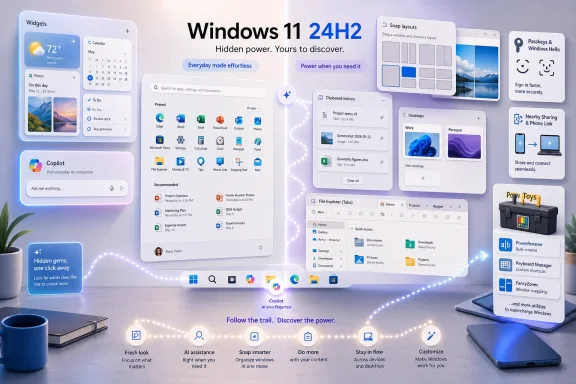 Windows 11 Is Better Than Its Reputation, and Messier Than Its Marketing
The central irony of Windows 11 is that many of its best improvements are not the headline features Microsoft tends to advertise. PCMag’s roundup is nominally a tips article, but it doubles as an indictment of discoverability. If an operating system contains dozens of practical features that users need a third-party publication to uncover, the problem is not merely user education.This is especially true because many of the items are not obscure registry tweaks or sysadmin-only controls. Clipboard History, virtual desktops, Snap Layouts, Nearby Sharing, Focus Sessions, Phone Link, passkeys, File Explorer tabs, battery usage graphs, and title-bar shake are mainstream productivity features. They are the kinds of things Microsoft should want ordinary users to encounter naturally.
Instead, Windows 11 often behaves like two operating systems sharing one desktop. One layer is the consumer-facing system Microsoft markets: centered taskbar, Widgets, Copilot, Microsoft account integration, cloud backup, and a Start menu shaped by recommendations. The other is the power-user system Windows loyalists actually value: keyboard shortcuts, file-management upgrades, PowerToys, startup controls, passkeys, local sharing, compression formats, and accessibility customization.
That split is not fatal. In fact, it is part of Windows’ enduring appeal. But Microsoft’s challenge is no longer whether Windows 11 has enough features; it is whether users can trust the company to surface the right ones at the right time without turning every surface into an ad slot, AI prompt, or cloud onboarding flow.
The Start Menu Still Carries the Burden of Microsoft’s Design Ambivalence
PCMag begins with the most emotionally loaded Windows 11 change: the centered Start button. The fix is simple enough — right-click the taskbar, open Taskbar Settings, and move the alignment back to the left — but the symbolism still matters. Microsoft moved the most recognizable affordance in desktop computing, then buried the reversal in settings.That small act captures Windows 11’s broader design posture. Microsoft wanted a cleaner, calmer, more modern desktop, and the centered taskbar helped distinguish Windows 11 from Windows 10 at a glance. But the company also knew decades of muscle memory would not disappear because a design team preferred symmetry.
The result is a desktop that often feels like it is negotiating with its own past. Live Tiles are gone, but the Start menu still wants to be a launcher, recommendation panel, search gateway, app list, and cloud document surface at once. The “All apps” list became an extra click away, then Microsoft began experimenting with bringing a fuller app list back into view. That back-and-forth says more than any keynote slide.
The Start menu is not just a place to open apps. It is where Microsoft’s competing priorities collide: simplicity, monetizable recommendations, Microsoft 365 integration, app discovery, nostalgia, and enterprise manageability. When PCMag points users to Start folders, pinned apps, app folders, recommendations, and alternative launchers, it is really describing a system in which the default experience still does not satisfy everyone.
That is why third-party launchers and PowerToys utilities remain so popular among Windows enthusiasts. The best Windows setup is often not the one Microsoft ships out of the box. It is the one users assemble after turning several things off, pinning several things back, and installing the tools Microsoft keeps adjacent to the OS rather than fully inside it.
PowerToys Is the Shadow Windows Microsoft Should Study
PowerToys may be the most revealing item in the entire PCMag list. Officially, it is an optional package of utilities for power users. In practice, it is a parallel design laboratory where Microsoft ships the kinds of pragmatic features that make Windows feel sharper: bulk rename, image resizing, advanced window management, keyboard remapping, color picking, file locksmithing, mouse utilities, and more.The reason PowerToys feels beloved is not only that it is useful. It is that it is honest. It does not pretend every user needs every tool, and it does not try to turn utility into a funnel. You install it because you want more control; it gives you more control.
That is a different bargain from much of modern Windows. Widgets want attention. Copilot wants invocation. The Start menu wants to recommend. OneDrive wants to sync known folders. Edge wants to be the default. PowerToys, by contrast, behaves like a toolbox.
There is a lesson here for Microsoft. Windows’ strongest constituency has never been people who want the operating system to dazzle them. It has been people who want the operating system to get out of the way while remaining deep enough to solve odd problems. PowerToys understands that contract better than many of Windows 11’s marquee surfaces.
The company’s decision to keep adding PowerToys modules is therefore both encouraging and frustrating. Encouraging, because Microsoft still knows how to build small, practical, high-leverage utilities. Frustrating, because so many of those ideas feel like they belong in Windows proper, or at least in a first-run experience that says: here is how to make this PC yours.
Copilot Is the Feature Microsoft Talks About, Not Always the One Users Asked For
The PCMag roundup gives Copilot a large role, and rightly so: Microsoft has made AI the defining Windows story of the last several years. The company’s own Windows and Copilot blogs have positioned Windows 11 as the home for AI on the PC, with Copilot Voice, Copilot Vision, Copilot+ PC features, Recall, Click to Do, semantic search, and AI-assisted Settings all part of the expanding pitch. Microsoft’s current Windows marketing also says Copilot can be launched with the Copilot key, Windows+C, the taskbar, or the “Hey Copilot” wake phrase when enabled.The problem is not that these features are useless. Copilot Vision, in particular, points toward a genuinely new model of help: an assistant that can look at what is on screen, understand context, and guide a user through a task in an unfamiliar application. For users who struggle with settings mazes, creative tools, or software jargon, that could become one of the most important accessibility and support advances Windows has seen.
But Microsoft’s AI story has repeatedly run ahead of user trust. Recall’s rocky debut made privacy and control unavoidable parts of the Copilot+ PC conversation. Copilot’s shifting role — sidebar, app, taskbar button, hardware key, voice assistant, screen-aware helper — has also made it difficult for users and administrators to understand what exactly is built into Windows, what is a Store-delivered app, what depends on a Microsoft account, and what requires specialized hardware.
That ambiguity matters in enterprises. A consumer may treat Copilot as another app to try or ignore. An IT department has to ask where data goes, what policies apply, what can be disabled, what is logged, what is retained, and whether a feature changes after a Store update rather than an OS feature update.
PCMag’s description of Copilot as a useful assistant sits comfortably beside the practical reality that many Windows users are still more excited about Snap Layouts, File Explorer tabs, and startup-app controls than about another AI entry point. Microsoft may be right that AI will become a normal part of PC interaction. But the company has not yet proved that every Windows surface becomes better when Copilot is nearby.
The Best Productivity Features Are the Ones That Respect Muscle Memory
Snap Layouts are one of Windows 11’s clearest wins because they extend an old behavior rather than replacing it. Windows users already understood dragging windows to the side of the screen. Windows 11 added a hover menu over the maximize button, richer layouts, and keyboard access without breaking the original model.That is the difference between evolution and interruption. Clipboard History works the same way. Copy and paste remain copy and paste, but Windows+V reveals a time-saving layer that can store recent snippets and pinned items. File Explorer tabs follow the same pattern: users understand browser tabs, so bringing that model to folders reduces desktop clutter without requiring a new mental model.
Virtual desktops are another example of a feature that rewards gradual discovery. A user can ignore them forever, or begin using them to separate work, personal browsing, remote sessions, and project contexts. Different wallpapers per desktop may sound cosmetic, but visual context is often what makes the feature usable.
Focus Sessions, title-bar shake, keyboard shortcuts, and Game Bar recording all fit this category too. They are not platform strategies. They are small interventions that help people do things faster. Windows needs more of that kind of confidence.
The lesson for Microsoft is straightforward: users tolerate change when the old path still works and the new path is clearly additive. They resist change when the old path is hidden, deprecated, or turned into a scavenger hunt through Settings, Microsoft account prompts, and cloud services. Windows 11 is at its best when it adds power beneath familiar gestures.
File Explorer Is Quietly Becoming a Real Power Tool Again
For years, File Explorer was treated like plumbing: essential, unglamorous, and slow to change. Windows 11 has not solved every complaint, especially around performance and context-menu complexity, but the feature set is now substantially more capable than many users realize. Tabs, a simplified command bar, context-aware buttons, improved dark-mode consistency, and broader archive support all make everyday file handling less dependent on third-party tools.The addition of native compression to ZIP, 7z, and TAR formats in the Windows 11 24H2 generation is especially meaningful. Enthusiasts have long installed 7-Zip or similar utilities as a matter of habit, and many still will for advanced workflows. But native archive support narrows the gap between a fresh Windows install and a usable workstation.
This matters for admins as much as consumers. Every utility that does not need to be installed, patched, licensed, or explained is one fewer maintenance variable. Built-in support for common archive formats makes Windows more capable in locked-down or freshly imaged environments.
The newer AI Actions in File Explorer, such as background removal for images or document summarization where supported, are more complicated. They may be convenient, but they also turn the file manager into another surface for Microsoft’s AI strategy. Whether that feels like a useful shortcut or an intrusion will depend on performance, transparency, policy controls, and whether the feature respects local workflows.
File Explorer’s future should be judged by a simple standard: does it make local work faster? Tabs and archive support clearly do. AI context actions may, but only if Microsoft avoids turning right-click menus into billboards for services.
Security Is Finally Moving From Punishment to Convenience
Passkeys are one of the most important features in PCMag’s list because they point toward a better security bargain. For decades, users were told to create longer passwords, rotate them, avoid reuse, store them carefully, and recognize phishing attempts. That advice was correct, but it placed too much burden on human memory and vigilance.Windows 11’s passkey support, tied into Windows Hello with face recognition, fingerprint, or PIN authentication, reflects the industry’s move toward phishing-resistant sign-in. The best security improvements are the ones users adopt because they are easier, not because a compliance memo told them to suffer through them.
Windows Hello was already a step in that direction. Passkeys extend the model beyond device unlock into websites and apps that support them. For home users, that means fewer passwords to type. For organizations, it means another path toward reducing credential theft, help-desk resets, and password fatigue.
Nearby Sharing and Phone Link also belong in this security-adjacent conversation. Moving files directly between PCs without sending them through random personal cloud accounts can be safer when used appropriately. Phone Link’s cross-device features are convenient, though they also require organizations to think carefully about data boundaries, notifications, and personal-device integration.
Security in Windows has often been experienced as friction: prompts, warnings, blocked apps, forced restarts, and policy restrictions. The better path is security that feels like convenience. Passkeys are one of the clearest examples of Microsoft and the broader ecosystem finally aligning those incentives.
The Cloud Is Helpful Until It Becomes the Default Assumption
Windows Backup and OneDrive integration are useful features, especially for users moving to a new PC. Saving files, settings, credentials, and app preferences can turn migration from an afternoon of reconstruction into a sign-in flow. For families, small businesses, and less technical users, that is a real improvement.But Microsoft’s cloud-first instincts also create confusion. PCMag notes that Nearby Sharing may be interrupted when a file is inside a OneDrive-synced folder, pushing users into a OneDrive sharing flow instead of local transfer. That is a small example of a larger problem: Windows increasingly assumes that the cloud is the normal location of user data, while many users still think in terms of folders on a PC.
This mismatch is visible in known-folder backup, desktop sync, document recovery, Microsoft account prompts, and restore flows. The cloud can protect users from hardware failure, theft, and migration pain. It can also blur the line between local and remote storage in ways that surprise people later.
Administrators already know the tradeoff. Cloud sync can reduce endpoint dependency and improve continuity, but it also introduces policy, retention, compliance, bandwidth, and user-training questions. Consumers encounter the same issues in softer form when they discover that deleting a file from one device can remove it elsewhere, or that their desktop is not quite as local as they thought.
Microsoft does not need to retreat from cloud integration. It needs to be more explicit about it. A PC operating system can be cloud-connected without making users feel tricked into a storage model they did not understand.
Accessibility and Personalization Are Not Side Quests
Several of PCMag’s tips sit under the broad umbrella of personalization: themes, mouse pointer visibility, mono audio, enhanced audio, touch gestures, taskbar alignment, Start folders, quick settings, and battery visualization. It is tempting to treat these as cosmetic tweaks. That would be a mistake.For many users, personalization is usability. A larger high-contrast cursor is not decoration for someone who loses the pointer across multiple monitors. Mono audio is not a novelty for someone with hearing loss in one ear. Better battery usage charts are not a gadget for laptop users trying to identify the app draining their workday.
Touch gestures matter for convertibles and tablets, where Windows has spent years trying to balance desktop precision with mobile-style interaction. Quick Settings matter because they determine whether changing Wi-Fi, Bluetooth, projection, or battery saver feels instant or buried. Even theme and dark-mode improvements matter because people now spend entire workdays inside the OS.
The important distinction is between personalization that gives users agency and personalization that funnels them into Microsoft’s preferences. Letting users move the Start button left is agency. Letting them tune accessibility affordances is agency. Showing recommendations in Start becomes more contentious because it mixes personalization with promotion.
Windows succeeds when it remembers that personal computing is supposed to be personal. The more Microsoft respects that idea, the less resistance it will face when changing the desktop.
Windows 11’s Hidden Strength Is Its Boring Middle
The least glamorous PCMag entries may be the most valuable: startup app controls, default app settings, battery charts, Sound settings, input and output device pairing, Sound Recorder, Media Player, and Game Bar utilities. These features will not sell a new generation of hardware. They will, however, determine whether Windows feels competent on a Tuesday afternoon.Startup app management is a good example. A slow boot or cluttered notification area is rarely caused by a single villain. It is the accumulated consequence of apps assuming they deserve to launch at sign-in. Giving users a simple Settings page to disable that behavior is basic housekeeping, but basic housekeeping is what keeps a PC feeling new.
Default app management remains more controversial. Windows 11’s file-type-by-file-type model can be precise, but it can also feel punitive when users simply want one browser, media player, or image editor to handle a category of tasks. Microsoft has improved parts of the experience over time, but default-app friction remains a trust issue because users suspect, often reasonably, that Microsoft benefits when changing defaults is harder than it should be.
Sound settings show Windows at its best and worst. The modern Settings app now exposes more device pairing and audio controls than older versions did, and Windows 11 24H2’s Bluetooth LE Audio work is important for assistive hearing devices. Yet many users still know that the old Control Panel lurks nearby because some advanced settings, driver panels, and device quirks refuse to fit neatly into the new model.
This is the Windows maintenance paradox. The OS is full of improvements, but the migration from old interfaces to new ones is never quite finished. For enthusiasts, that is familiar terrain. For everyone else, it is why “hidden features” articles keep thriving.
The 24H2 Era Is Less About One Big Feature Than a Thousand Small Defaults
Windows 11 version 24H2 is often discussed through specific additions — Wi-Fi 7 support, Bluetooth LE Audio enhancements, File Explorer refinements, archive improvements, energy and platform changes, and the continuing Copilot+ PC push. But its broader significance is that Microsoft is shifting Windows through continuous delivery rather than relying solely on old-style monolithic launches.That makes the OS more adaptable, but also harder to explain. A feature may depend on Windows version, region, hardware class, Store app version, Microsoft account status, rollout phase, or whether the machine is managed. Two users can both say they are running Windows 11 and still have meaningfully different experiences.
For journalists, this makes feature coverage more caveated. For IT departments, it makes validation harder. For users, it creates the unsettling sense that Windows changes when they are not looking.
The benefit is that Microsoft can fix, iterate, and ship faster. File Explorer can gain new context actions. Copilot can change behavior without waiting for a named OS release. Widgets, Photos, Paint, Designer, Phone Link, and PowerToys can evolve through app updates.
The cost is that Windows feels less like a stable product and more like a subscription-shaped environment, even when the license model has not changed in the way Microsoft 365 has. That is not inherently bad. But it raises the bar for communication, policy controls, and user consent.
The Feature List Reveals a Platform Still Fighting Itself
The 35-feature roundup is generous to Windows 11, and it should be. There is real value here. A user who learns even five of these features will likely have a better time with the OS.But the list also reveals a platform still fighting itself. Microsoft wants Windows to be simple, but keeps decades of depth. It wants Windows to be cloud-connected, but must preserve local workflows. It wants Windows to be AI-native, but has not fully earned user trust. It wants the Settings app to replace Control Panel, but cannot yet bury the old machinery. It wants the Start menu to be calmer, but keeps loading it with strategic priorities.
This tension is not new. Windows has always been a compromise between consumer product, enterprise platform, developer target, gaming machine, kiosk base, and compatibility museum. What is new is the speed at which Microsoft now layers services on top of that compromise.
For enthusiasts, the answer is often to customize aggressively. Move the Start button. Install PowerToys. Disable startup apps. Learn shortcuts. Tune File Explorer. Use passkeys. Pick a launcher. Strip the system down until it behaves.
For mainstream users, the answer is less obvious. They need Microsoft to make better defaults, not merely provide escape hatches. Hidden power is still power, but hidden usability is a missed opportunity.
The Windows 11 Features Worth Finding First
The practical value in PCMag’s list is that it gives users a map through the sprawl. Not every feature matters to every person, and some are more mature than others. The best starting point is not the flashiest tool, but the one that removes a daily annoyance.- Clipboard History is one of the fastest upgrades for anyone who copies repeated text, links, screenshots, or small snippets during the day.
- PowerToys remains the most useful optional Microsoft download for users who want Windows to behave more like a configurable workstation.
- Startup app controls are worth checking on every PC because background clutter quietly degrades performance and battery life.
- Snap Layouts, virtual desktops, and File Explorer tabs form the core productivity trio that makes Windows 11 feel meaningfully better than older desktop habits.
- Passkeys and Windows Hello are the security improvements most likely to stick because they reduce password pain rather than adding more of it.
- Copilot is worth treating as an optional assistant rather than the center of the OS, especially until Microsoft’s AI features become more consistent across hardware, accounts, and managed environments.
References
- Primary source: PCMag
Published: Mon, 06 Jul 2026 17:02:02 GMT
Loading…
www.pcmag.com - Related coverage: windowscentral.com
Microsoft Copilot OS revealed in LEAKED video: Lightweight Windows OS exploration features new desktop UI built entirely around Copilot and agentic AI | Windows Central
A leaked video from 2024 has revealed all about Microsoft's internal explorations for a Copilot OS running on a stripped back Windows codebase.www.windowscentral.com - Related coverage: techradar.com
Microsoft suggests Copilot is the 'button you can press to fix everything' in Windows 11 — here's hoping it can fix the company's marketing department | TechRadar
It's key to bring the PR back under (right) controlwww.techradar.com - Official source: microsoft.com
Loading…
www.microsoft.com - Related coverage: techspot.com
Loading…
www.techspot.com - Official source: support.microsoft.com
Windows 11, version 24H2 update history - Microsoft Support
 support.microsoft.com
- Official source: blogs.microsoft.com
Loading…
blogs.microsoft.com - Official source: learn.microsoft.com
Updated Windows and Microsoft 365 Copilot Chat experience | Microsoft Learn
Learn about changes to the Copilot in Windows experience for commercial environments and how to configure it for your organization.learn.microsoft.com - Related coverage: tomsguide.com
Loading…
www.tomsguide.com - Official source: blogs.windows.com
Loading…
blogs.windows.com - Official source: adoption.microsoft.com