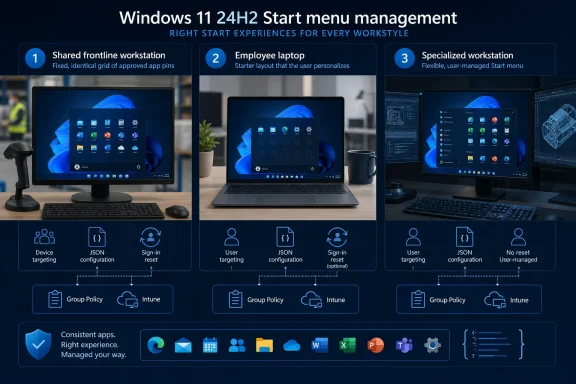
Windows 11’s redesigned Start menu should not receive one organization-wide policy by default. IT should use persistent control for shared and frontline devices, a one-time pinning baseline for most managed knowledge-worker PCs, and full user choice where Start customization has little operational consequence.
Microsoft’s new controls make that tiered approach practical. The redesigned menu combines apps into a scrollable All section with Category and Grid views, while Windows 11 version 24H2 now supports policies that can suppress Category view and either seed or repeatedly enforce a JSON-defined pin layout.
The immediate task is not deciding whether Category view looks cleaner than an alphabetical grid. Administrators need to classify devices according to how Start functions in the user’s workflow, then assign the least restrictive policy that still delivers a predictable launcher.
A workable deployment sequence is:
Microsoft introduced Group Policy support for the JSON-based Configure Start Pins policy in Windows 11 version 24H2 with KB5062660, OS Build 26100.4770, released as a preview on July 22, 2025. The equivalent policy can also be delivered through the Start Policy CSP.
Hide Category view arrived later for Windows 11 version 24H2 with KB5067036, OS Build 26100.7019, released as a preview on October 28, 2025. Microsoft’s documentation says enabling the policy removes Category as an available option and makes Grid the default.
Those requirements should be part of deployment targeting rather than assumed from the Windows 11 version label alone. A 24H2 device without the necessary servicing level does not provide the same policy surface as an updated 24H2 endpoint.
For these systems,
That behavior fits reception desks, training rooms, lab systems, and other shared PCs where repeatability outweighs personalization. It also gives support teams a stable reference point: an instruction such as “open the pinned application from Start” continues to describe the managed experience.
Category view deserves a separate assessment. Hiding it may reduce variation by forcing everyone into the alphabetical Grid view, but it does not create a custom enterprise taxonomy. Microsoft generates the All section from installed applications, and the documented policy surface does not let administrators define, rename, or reorder Category groups.
That limitation is central to the decision. An organization cannot create categories such as “Clinical,” “Warehouse,” or “Approved Finance Tools” and expect Start to become a managed departmental portal. If Category’s automatic grouping does not suit the environment, Hide Category view is an opt-out control, not a category-management system.
Frontline devices may call for persistent pins for the same reason, although the need depends on how narrowly the PC is used. A task-oriented endpoint with a small set of important applications benefits from enforced placement; a frontline PC used for varied duties may become harder to use if every worker’s adjustments disappear at sign-in.
That is the purpose of
This model offers a useful compromise for new-device provisioning and profile creation. Corporate applications remain discoverable on first use, but the Start menu can evolve with the employee’s working habits.
It also avoids an easily underestimated support problem. With
One-time application requires its own operational discipline. Desktop engineering must decide when the baseline is considered delivered and how later revisions will reach existing users. The policy’s value is precisely that it stops reapplying the layout, so it should not be treated as a constantly updated software catalog.
For broader discussion of the interface itself, WindowsForum’s coverage of the Windows 11 24H2 and 25H2 Start redesign examines the scrollable layout, Category browsing, and changes to Recommended. The enterprise question sits one layer above that user-interface debate: whether the organization should preserve, initialize, or continuously override the user’s choices.
That distinction prevents policy overreach. Hiding Category does not remove an installed application, block its execution, or transform Start into a restricted software catalog. It merely removes Category as a selectable view and makes Grid the default.
For knowledge workers, leaving Category available is generally the lower-friction choice. Users can decide whether automatic grouping or alphabetical scanning better matches how they locate software. IT gains little from suppressing that choice unless support, training, or task consistency depends on everyone seeing the same presentation.
There are still legitimate reasons to enforce Grid. An organization may maintain instructions based on alphabetical app names, operate shared workstations where predictable navigation is important, or find that automatically generated categories complicate rather than simplify application discovery.
The policy should therefore be justified by a workflow, not a preference from the desktop engineering team. “We prefer Grid” is weak governance; “our shared-device instructions require a stable alphabetical inventory” is an operational reason.
WindowsForum’s earlier examination of customization and enhanced user control reflects why the interface has attracted strong reactions. For managed environments, however, visual preference is secondary to whether a support procedure remains consistent across sessions and devices.
A tightly controlled pooled environment may justify
A user-oriented virtual desktop may be better served by
Testing must include at least one complete sign-out and new sign-in. Looking at Start immediately after policy delivery confirms the JSON can be processed, but it does not prove that the chosen enforcement model matches the intended experience.
Administrators should also test absent or removed applications. A pinning baseline is only useful when its entries correspond to the software actually delivered to that cohort. The Start policy should follow application assignment and device role rather than become a universal JSON file copied across every Windows deployment.
The largest risk is assigning persistent JSON pinning to all managed PCs because it appears administratively tidy. That choice transfers ownership of everyday launcher organization to IT and creates an ongoing obligation to maintain a layout suitable for every role.
The opposite risk is ignoring the new controls until the redesigned Start menu reaches users. Shared and task-oriented devices may then adopt a presentation that support teams have not documented, while administrators lose the opportunity to test policy behavior before it affects production sign-ins.
A pilot should therefore compare the three governance models, not just Category against Grid. If IT can state who owns the launcher after deployment—and what should happen at the next sign-in—the policy choice is probably sound. If that answer remains unclear, the organization is still debating appearance when it should be defining control.
Microsoft’s new controls make that tiered approach practical. The redesigned menu combines apps into a scrollable All section with Category and Grid views, while Windows 11 version 24H2 now supports policies that can suppress Category view and either seed or repeatedly enforce a JSON-defined pin layout.
 Build the Governance Plan Before the Interface Arrives
The immediate task is not deciding whether Category view looks cleaner than an alphabetical grid. Administrators need to classify devices according to how Start functions in the user’s workflow, then assign the least restrictive policy that still delivers a predictable launcher.A workable deployment sequence is:
- Inventory Windows 11 version 24H2 devices and confirm that they have the updates required for the intended policies.
- Divide devices into shared or frontline PCs, tightly standardized task devices, managed knowledge-worker endpoints, VDI sessions, and user-directed systems.
- Decide whether each cohort needs a persistent pin layout, an initial layout that users can later change, or no managed pins.
- Decide separately whether Category view should remain available or be removed in favor of Grid.
- Create and validate the JSON pin list on a pilot group before assigning it broadly through CSP or Group Policy.
- Test the policy across sign-out and sign-in cycles, because that is where the difference between one-time and persistent pinning becomes visible.
- Document which cohort owns subsequent Start changes: central IT, application owners, desktop engineering, or the user.
Microsoft introduced Group Policy support for the JSON-based Configure Start Pins policy in Windows 11 version 24H2 with KB5062660, OS Build 26100.4770, released as a preview on July 22, 2025. The equivalent policy can also be delivered through the Start Policy CSP.
Hide Category view arrived later for Windows 11 version 24H2 with KB5067036, OS Build 26100.7019, released as a preview on October 28, 2025. Microsoft’s documentation says enabling the policy removes Category as an available option and makes Grid the default.
Those requirements should be part of deployment targeting rather than assumed from the Windows 11 version label alone. A 24H2 device without the necessary servicing level does not provide the same policy surface as an updated 24H2 endpoint.
Shared PCs Need a Launcher, Not a Personal Canvas
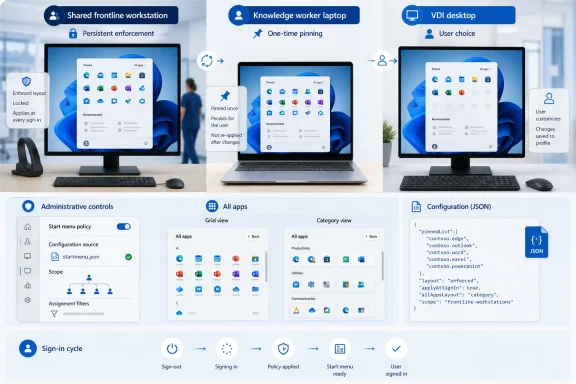
A shared workstation benefits most from consistent pins because the device is expected to present the same entry points to multiple people. If every sign-in can leave behind a different arrangement, support instructions become less reliable and the next user may inherit a launcher that no longer reflects the device’s purpose.For these systems,
applyOnce:false is the defensible default. Configure Start Pins then reapplies the JSON pin list at every sign-in, undoing user rearrangements and returning Start to the managed state.That behavior fits reception desks, training rooms, lab systems, and other shared PCs where repeatability outweighs personalization. It also gives support teams a stable reference point: an instruction such as “open the pinned application from Start” continues to describe the managed experience.
Category view deserves a separate assessment. Hiding it may reduce variation by forcing everyone into the alphabetical Grid view, but it does not create a custom enterprise taxonomy. Microsoft generates the All section from installed applications, and the documented policy surface does not let administrators define, rename, or reorder Category groups.
That limitation is central to the decision. An organization cannot create categories such as “Clinical,” “Warehouse,” or “Approved Finance Tools” and expect Start to become a managed departmental portal. If Category’s automatic grouping does not suit the environment, Hide Category view is an opt-out control, not a category-management system.
Frontline devices may call for persistent pins for the same reason, although the need depends on how narrowly the PC is used. A task-oriented endpoint with a small set of important applications benefits from enforced placement; a frontline PC used for varied duties may become harder to use if every worker’s adjustments disappear at sign-in.
One-Time Pins Fit the Managed Knowledge Worker
Most knowledge-worker deployments need a baseline rather than a permanent reset. IT can place required business applications in predictable positions without claiming lifelong ownership of every shortcut.That is the purpose of
applyOnce:true. The policy establishes the initial JSON-defined layout but does not reset later user changes at every sign-in. Employees can unpin applications they rarely use, add tools relevant to their role, and reorganize Start after the baseline has been applied.This model offers a useful compromise for new-device provisioning and profile creation. Corporate applications remain discoverable on first use, but the Start menu can evolve with the employee’s working habits.
It also avoids an easily underestimated support problem. With
applyOnce:false, a user may successfully rearrange pins during the day and then discover after the next sign-in that all changes have vanished. Unless the enforced behavior is intentional and clearly communicated, users are likely to interpret that reset as a roaming-profile failure, synchronization problem, or Windows bug.One-time application requires its own operational discipline. Desktop engineering must decide when the baseline is considered delivered and how later revisions will reach existing users. The policy’s value is precisely that it stops reapplying the layout, so it should not be treated as a constantly updated software catalog.
For broader discussion of the interface itself, WindowsForum’s coverage of the Windows 11 24H2 and 25H2 Start redesign examines the scrollable layout, Category browsing, and changes to Recommended. The enterprise question sits one layer above that user-interface debate: whether the organization should preserve, initialize, or continuously override the user’s choices.
Category View Is a Consistency Choice, Not an App-Control Boundary
Category view groups applications by type, while Grid lists them alphabetically. Both are presentations of the All inventory generated from installed applications, not competing application allowlists.That distinction prevents policy overreach. Hiding Category does not remove an installed application, block its execution, or transform Start into a restricted software catalog. It merely removes Category as a selectable view and makes Grid the default.
For knowledge workers, leaving Category available is generally the lower-friction choice. Users can decide whether automatic grouping or alphabetical scanning better matches how they locate software. IT gains little from suppressing that choice unless support, training, or task consistency depends on everyone seeing the same presentation.
There are still legitimate reasons to enforce Grid. An organization may maintain instructions based on alphabetical app names, operate shared workstations where predictable navigation is important, or find that automatically generated categories complicate rather than simplify application discovery.
The policy should therefore be justified by a workflow, not a preference from the desktop engineering team. “We prefer Grid” is weak governance; “our shared-device instructions require a stable alphabetical inventory” is an operational reason.
WindowsForum’s earlier examination of customization and enhanced user control reflects why the interface has attracted strong reactions. For managed environments, however, visual preference is secondary to whether a support procedure remains consistent across sessions and devices.
VDI Turns Sign-In Behavior Into the Main Test
VDI requires careful validation because Start behavior intersects with profile lifecycle and session expectations. The relevant question is not simply whether a virtual desktop is persistent, but whether the organization expects each session to begin from a standardized launcher or preserve the user’s accumulated customization.A tightly controlled pooled environment may justify
applyOnce:false, especially when sessions are intended to feel interchangeable. Reapplying pins creates a known starting point regardless of where the user lands.A user-oriented virtual desktop may be better served by
applyOnce:true. If personalization is expected to persist, repeatedly resetting pins undermines that promise even when the rest of the profile behaves normally.Testing must include at least one complete sign-out and new sign-in. Looking at Start immediately after policy delivery confirms the JSON can be processed, but it does not prove that the chosen enforcement model matches the intended experience.
Administrators should also test absent or removed applications. A pinning baseline is only useful when its entries correspond to the software actually delivered to that cohort. The Start policy should follow application assignment and device role rather than become a universal JSON file copied across every Windows deployment.
The Safest Default Is Selective Management
The redesigned Start menu does not require IT to choose between total lockdown and total freedom. Its policies support three distinct operating models:- Persistent enforcement is appropriate when every sign-in must restore a controlled launcher.
- One-time application is appropriate when IT wants to establish a corporate baseline while allowing later customization.
- No pin policy is appropriate when users already receive applications through other managed workflows and Start arrangement has no support or operational value.
The largest risk is assigning persistent JSON pinning to all managed PCs because it appears administratively tidy. That choice transfers ownership of everyday launcher organization to IT and creates an ongoing obligation to maintain a layout suitable for every role.
The opposite risk is ignoring the new controls until the redesigned Start menu reaches users. Shared and task-oriented devices may then adopt a presentation that support teams have not documented, while administrators lose the opportunity to test policy behavior before it affects production sign-ins.
A pilot should therefore compare the three governance models, not just Category against Grid. If IT can state who owns the launcher after deployment—and what should happen at the next sign-in—the policy choice is probably sound. If that answer remains unclear, the organization is still debating appearance when it should be defining control.
References
- Primary source: learn.microsoft.com
Start Policy CSP | Microsoft Learn
Learn more about the Start Area in Policy CSP.learn.microsoft.com - Primary source: WindowsForum
Windows 11 Start Menu Update: Customization and Enhanced User Control | Windows Forum
Windows 11 is once again refining its user experience with a fresh update to the Start menu that puts customization and app management at the forefront...windowsforum.com