

Microsoft Turns the Simplest Windows App Into a Strategy Statement
For decades, Notepad’s value was not that it did much. Its value was that it did almost nothing. It opened quickly, stripped formatting, showed text plainly, and served as the neutral ground between the clipboard, a config file, a log snippet, and a panicked administrator trying to paste something without invisible styling.
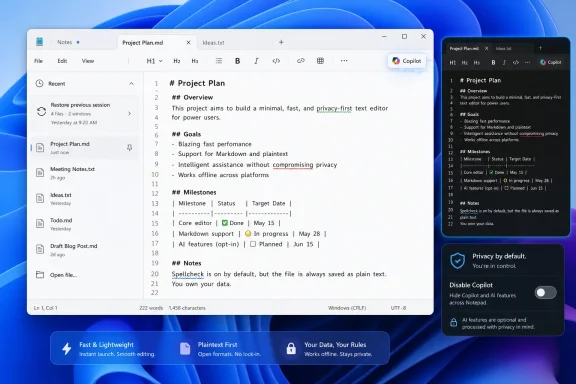
Windows 11 has changed that contract. The modern Notepad now behaves less like a throwaway accessory and more like a small productivity app: it remembers sessions, opens documents in tabs, exposes recent files, checks spelling, offers autocorrect, renders lightweight formatting, and puts AI writing help within reach. That is a profound shift for an app whose identity was built on restraint.
The Thurrott.com excerpt captures the tension well. Microsoft has dramatically expanded Notepad, but it has also exposed granular controls for many of the additions. Users can disable Copilot integration, turn off formatting, suppress recent files, change startup behavior, choose whether files open in tabs or windows, and adjust the app’s appearance.
That makes the new Notepad neither a simple betrayal nor a clean modernization. It is a compromise product. Microsoft wants a default Windows text editor that fits the way the company now talks about productivity, AI, and continuity across sessions. Many Windows users still want a tool that behaves like a glass of water: plain, fast, and free of ideas.
Tabs Were the First Crack in the Old Notepad Myth
The most visible change is tabs. Modern Notepad opens multiple documents in a single window, much as a browser does, rather than launching a new instance for each text file. For anyone who juggles logs, notes, code snippets, or copied commands, that is obviously useful.
It is also a psychological break. Classic Notepad treated every file as a separate object. The new model treats Notepad as a workspace. Once an app becomes a workspace, session restore, recents, and document state management follow naturally.
That is exactly what happened. Close Notepad with saved or unsaved documents open, and the app can bring them back later in the same state. The feature is convenient, especially for users who treat Notepad as a scratchpad. It also changes the old warning rhythm: the classic “do you want to save this?” moment no longer necessarily appears when the app closes, because the app assumes continuity instead of finality.
That design is familiar from browsers, editors, and modern productivity tools. It is less familiar from Notepad. The old app was disposable by default; the new one is persistent by default. That difference matters for anyone who relies on Notepad precisely because it used to forget.
Administrators and privacy-conscious users will immediately see the trade-off. Session restore and recent files can reduce lost work, but they also leave more visible traces of what someone opened or drafted. On a personal PC, that may be a welcome convenience. On shared systems, lab machines, jump boxes, or sensitive administrative environments, it is a behavior worth disabling.
The Settings Page Is Microsoft’s Pressure Valve
The new Notepad settings page is more important than it first appears. It is where Microsoft acknowledges that not all users want the same Notepad, and that the app’s historical simplicity is still a constituency. The gear icon is not merely a preference panel; it is the pressure valve for a product that now serves conflicting audiences.
The most basic options are cosmetic. Users can let Notepad follow the Windows theme or force light or dark mode. They can change the editing font without changing the underlying document, since Notepad remains fundamentally a plain-text editor. Those are harmless upgrades, and few people will object to them.
The more consequential settings govern behavior. Users can choose whether new documents open in tabs or separate windows. They can decide whether Notepad resumes the previous session or starts clean and discards unsaved changes. They can disable the recent files list. They can turn off formatting support. They can hide Copilot tools.
This is the right instinct, even if it does not fully restore the past. Microsoft has learned, sometimes painfully, that Windows users resent forced workflow changes in utilities they use reflexively. A modernized Notepad that lets users disable most new behavior is easier to defend than one that insists the future is mandatory.
But there is a catch. The mere presence of toggles does not make the default neutral. Defaults are policy. If tabs, session restore, recent files, AI commands, spell checking, autocorrect, and formatting arrive enabled, Microsoft is saying that the mainstream Notepad user is no longer a sysadmin editing a hosts file or a power user stripping rich text from the clipboard. The imagined user is now someone drafting, organizing, revising, and maybe asking Copilot for help.
Markdown Is the Clever Compromise That Still Annoys Purists
Markdown support is the most interesting addition because it lets Microsoft modernize Notepad without turning it into WordPad. Markdown is still plain text. A file with headings, bold markers, lists, and links can remain readable in any editor. That makes Markdown an elegant fit for a text editor that wants to grow up without becoming a full word processor.
Microsoft’s implementation, however, is not just raw Markdown syntax. Notepad now presents formatting buttons in the toolbar and renders formatted text in a more WYSIWYG-like way. That means users who do not know Markdown can select text and apply headings, bold, italics, strikethrough, links, lists, and tables through familiar controls.
This is a defensible product decision. Most Windows users are not Markdown devotees. If Microsoft wants lightweight formatting to be broadly useful, toolbar buttons make sense. A user who knows Ctrl+B from Word can apply bold text without learning double asterisks.
The cost is conceptual purity. Markdown enthusiasts expect a text editor to respect the syntax first and the rendering second. According to the Thurrott.com material, Notepad can display existing Markdown documents, but many familiar Markdown elements do not behave the way experienced users may expect. Instead, Microsoft steers users toward Word-like keyboard shortcuts and toolbar commands.
That makes Notepad’s Markdown feel less like a developer-first Markdown editor and more like Microsoft’s own lightweight document layer. The app remains text-based, but its interface language borrows heavily from word processors. For casual note takers, that may be perfect. For people who already live in Obsidian, VS Code, Typora, MarkText, or plain Vim, it will feel oddly constrained.
Tables Push Notepad Right Up to the WordPad Line
Tables are the feature that makes the philosophical argument impossible to ignore. A table in a text editor is not inherently wrong; Markdown tables are common in documentation, README files, and technical notes. But a graphical grid for inserting and editing tables makes Notepad feel less like Notepad and more like the ghost of WordPad wearing a smaller coat.
That matters because Microsoft has already removed WordPad from the Windows future. WordPad was the modest rich-text editor that sat between Notepad and Word, and its disappearance left a gap. Rather than preserve that middle tier as a separate app, Microsoft appears to be letting Notepad absorb some of its most common lightweight writing scenarios.
There is logic here. Maintaining fewer bundled apps reduces clutter. Markdown is more portable than WordPad’s old RTF-centered identity. A modern Notepad that handles simple formatting can serve everyday users better than two aging utilities with overlapping audiences.
Still, Windows users are right to be wary of role creep. The historical brilliance of Notepad was that it had a sharply bounded job. Every new formatting affordance, table tool, session feature, and AI command makes that boundary fuzzier. Eventually the question is not whether Notepad can remain technically plain text, but whether it still behaves like the plain-text emergency tool people expect to find on every Windows system.
Copilot in Notepad Is Convenient, Commercial, and Symbolic
The Copilot button is the most culturally loaded part of the redesign. Microsoft has put AI writing tools into Notepad for drafting, rewriting, summarizing, lengthening, shortening, changing tone, and changing format. The function set mirrors the broader Copilot pitch across Microsoft 365: let the machine help you get from rough text to usable prose faster.
For some users, this will be genuinely useful. Notepad is often where rough thoughts begin. A quick summary, a cleaner rewrite, or a tone adjustment could save time, especially for nonprofessional writers or employees drafting routine internal text. If the app is already open, the convenience is obvious.
But the placement is also symbolic. Notepad was one of the last places in Windows that felt untouched by account systems, subscriptions, credits, and cloud services. Adding Copilot changes that emotional calculus. Even if the feature can be disabled, its default presence tells users that no surface is too small for Microsoft’s AI strategy.
The economics matter too. The Thurrott.com excerpt notes that AI writing tools require signing in with a Microsoft account and having access through a Microsoft 365 subscription with monthly AI credits, unless a Copilot+ PC can use a local model for unlimited generation. That means Notepad is not just receiving an editing feature. It is becoming another endpoint for Microsoft’s account, subscription, and AI-credit machinery.
This is the broader Windows 11 story in miniature. Microsoft increasingly treats the operating system as a distribution platform for services. Sometimes those services are useful. Sometimes they are intrusive. Often they are both, depending on who is sitting at the keyboard.
Local AI Could Make the Feature Less Objectionable
The Copilot+ PC angle complicates the debate. If AI writing assistance can run locally, without spending cloud credits and without sending text off-device for every generation, some objections soften. Local models are typically less capable than the best cloud models, but they can be faster, more private, and less entangled with subscriptions.
For Notepad, local AI may be the difference between an annoying upsell and a genuinely modern utility. A local rewrite or summary feature inside a lightweight editor could be useful on laptops, in classrooms, and in organizations that want assistance without constant cloud dependency. It could also give Microsoft a stronger answer to users who see Copilot branding as synonymous with surveillance or monetization.
The problem is that the Windows ecosystem is split. Not every Windows 11 PC is a Copilot+ PC, and not every organization will standardize on hardware with the required neural processing capabilities. That leaves Microsoft balancing two experiences: cloud-powered AI for the broad installed base and local AI for newer machines.
This split risks making Notepad yet another Windows feature whose behavior depends on hardware generation, account state, subscription status, and policy configuration. The old app had one great virtue: it worked the same way everywhere. The new Notepad is more powerful, but also more conditional.
The Classic Notepad Escape Hatch Is Real but Imperfect
One of the more surprising details in the Thurrott.com excerpt is that Windows 11 still includes the classic Notepad executable. Users can disable the modern Notepad app execution alias, browse to the Windows directory, and launch the older executable directly. They can even pin it to Start or create a shortcut.
That is an important concession. It means Microsoft has not fully removed the old tool from the system, at least not yet. For users who dislike the modern interface, tabs, session behavior, or Copilot-era design language, classic Notepad remains accessible with a bit of digging.
But the escape hatch is intentionally incomplete. The excerpt says users cannot make classic Notepad the default app for text files, nor can they simply choose it through the normal “Open with” flow. That limits its usefulness. A pinned shortcut helps if you deliberately launch the app first, but it does not restore the old system-wide text-file association model.
This is classic Microsoft compromise architecture. The old thing remains present enough to defuse some complaints, but not integrated enough to compete with the new default. Power users can find it. Average users will live in the modern app.
Whether that is acceptable depends on what one thinks Notepad is for. If it is a consumer-facing productivity app, Microsoft is right to move forward and keep the old binary as a courtesy. If it is a core operating-system utility with decades of muscle memory behind it, burying the classic path while preventing normal default-app association feels heavy-handed.
Enterprise IT Will Care Less About Nostalgia Than Data Flow
The consumer debate around Notepad tends to fixate on purity. Enterprise IT will care about something colder: data flow, user confusion, and policy surface area. A text editor that once opened local files and did little else now includes recent-document tracking, session persistence, spell checking, autocorrect, Markdown rendering, links, tables, and AI writing actions tied to account and subscription state.
None of those features is inherently disqualifying. But each adds a question. Where is unsaved session content stored? Can recent files be disabled reliably? Are Copilot actions blocked by existing tenant controls? Does local policy suppress AI features? How does Markdown link handling interact with security baselines? Do help desks now need to explain why Notepad looks different across Windows builds?
The security angle is not hypothetical. Once Notepad handles richer document structures and clickable links, it becomes a more interesting target. A minimalist plain-text viewer has a smaller attack surface than an app that renders formatting, manages links, and integrates additional services. Microsoft can patch vulnerabilities, but the strategic point remains: feature growth changes risk.
For managed environments, the answer may be to disable what is not needed. Turn off Copilot where AI use is not approved. Disable recent files and session restore on shared systems. Consider whether formatting belongs in the default text editor on administrative workstations. Document the settings so support staff are not surprised when Notepad behaves differently after an app update.
This is where Microsoft’s granular controls become genuinely valuable. They are not just personal preferences. They are operational controls for organizations that need Notepad to stay boring.
Notepad’s Identity Crisis Is Really Windows 11’s Identity Crisis
It is tempting to treat this as a small story about a small app. It is not. Notepad’s evolution says a great deal about Windows 11’s broader design philosophy: modernize legacy surfaces, make continuity the default, add cloud-connected intelligence, and provide enough toggles to preserve plausible user choice.
That philosophy produces better software in many cases. Tabs are useful. Session restore prevents lost work. Spell check and autocorrect help ordinary people. Markdown support gives Windows a built-in way to handle a format that has become central to technical writing, documentation, and online publishing. Even AI tools, controversial as they are, can help users draft and revise faster.
The problem is not any single feature. The problem is accumulation. Notepad used to be the app users opened when they wanted to escape complexity. Now users may open it and see a formatting toolbar, a Copilot button, restored unsaved documents, tab state, recent files, spell suggestions, and Markdown rendering. Each addition has a rationale; together they alter the product’s soul.
Microsoft’s defenders will argue that nostalgia should not freeze software in amber. They are right. The classic Notepad was too limited for many modern workflows, and third-party editors filled gaps Microsoft could reasonably address. A built-in lightweight Markdown editor is not an absurd idea.
Microsoft’s critics will argue that not every Windows surface needs to become a service-aware productivity canvas. They are also right. The operating system still needs simple, predictable tools that do not assume an account, a subscription, or a writing workflow. Not every text box needs AI. Not every editor needs to remember your last session.
Choice Helps, but Defaults Still Decide the Future
The most generous reading of the new Notepad is that Microsoft has done the responsible thing: it modernized the app while making most changes optional. Users who want Markdown, tabs, spell check, recents, session restore, and Copilot can have them. Users who want less can turn much of it off.
The less generous reading is that Microsoft knows defaults shape behavior, so it turns new capabilities on first and lets dissenters clean up afterward. That is not unique to Notepad. It is a familiar pattern across modern software: expansion by default, opt-out for the motivated.
For power users, the immediate path is straightforward. Open Notepad’s settings and make the app match your workflow. If you want the classic feel, disable formatting, Copilot, recent files, and session restore; set new documents to open in separate windows if that better matches your habits. If you want the old executable, disable the app execution alias and pin classic Notepad manually.
For Microsoft, the harder task is restraint. The company has already shown that it can add features. The question is whether it can stop before Notepad becomes a confused halfway house: not powerful enough to replace Word, not developer-focused enough to replace VS Code, and no longer minimal enough to satisfy the people who loved it for doing almost nothing.
The New Notepad Bargain Comes With Fine Print
The practical lesson is not that everyone should reject the new Notepad. It is that Windows users should treat it as a configurable productivity app now, not as the inert utility they remember. That means reviewing its defaults is no longer optional for anyone who cares about workflow predictability, privacy, or administrative consistency.
- Users who want the old Notepad rhythm should disable session restore, recent files, Copilot, and formatting support before assuming the app will behave like it did in earlier Windows releases.
- Markdown support makes Notepad more useful for lightweight writing, but Microsoft’s implementation is more toolbar-driven and Word-like than purist Markdown users may expect.
- Copilot integration turns Notepad into another Microsoft account and subscription-adjacent surface, even if local AI on Copilot+ PCs may reduce some cloud concerns.
- The classic Notepad executable remains available in Windows 11, but Microsoft does not make it easy to restore as the normal default handler for text files.
- Enterprise administrators should evaluate Notepad settings as part of endpoint policy, because session state, recent files, AI tools, and link-capable formatting all change the app’s risk profile.
- Microsoft’s customization options are welcome, but the enabled-by-default posture shows where the company wants mainstream Windows behavior to go.
The new Notepad is not a catastrophe, and it is not a triumph. It is a useful, conflicted, very Windows compromise: a plain-text editor carrying the ambitions of a platform company that wants every surface to be smarter, stickier, and more connected. The best outcome would be for Microsoft to keep the knobs, respect the classic escape hatch, and remember that sometimes the most valuable Windows feature is the one that knows when to stay quiet.
References
- Notepad - Thurrott.com Thurrott.com · Sat, 20 Jun 2026 17:32:41 GMT
- blogs.windows.com blogs.windows.com