

Microsoft’s official line — that it is not forcing Windows 11 on users — sits uneasily beside a rising chorus of hands-on reports and system-behavior changes that make accidental or effectively unavoidable upgrades more likely for some Windows 10 PCs. What began as a subtle UI nudge has become, for a meaningful subset of Windows 10 devices, a server-driven push that can disable the usual pause controls and offer a single, prominent “Download and install” path to Windows 11 version 25H2 — a set of behaviors that many users experience as a removal of choice rather than a simple recommendation.
Microsoft’s servicing and lifecycle policy has been evolving toward a security-first model: when a consumer build falls out of servicing, devices on Home and Pro SKUs are increasingly steered — by UI changes, server-side flags, and Windows Update client logic — toward a supported branch so they continue to receive monthly security patches. That logic underpins the recent rollout mechanics for Windows 11 version 25H2 and is the root cause of the push users are noticing.
At the same time, Microsoft published an enablement-package pathway (the eKB model) for 25H2 that lets many devices flip dormant features already present in previous monthly updates into an active release with a tiny activation package and a single restart. That technical model makes feature updates faster and lower-friction, but it also changes the upgrade surface: small toggles, UI CTAs, or an accidental click can trigger a sequence that downloads and readies a large feature update with fewer visible steps than older, full-feature-install workflows.
This behavior often coincides with:
A practical consequence of that decision is that the Windows Update service and server-side rollout controls now differentiate between:
What’s missing is clarity. The field evidence that pause controls become inactive for some non-ESU Windows 10 devices is strong, but there isn’t a single, definitive Microsoft statement acknowledging the UI symptom or explaining whether it is a deliberate enforcement choice or an inadvertent side effect of rollout logic. Until Microsoft clarifies intent and publishes specific guidance about the pause control behavior on post‑EOL Windows 10 systems, users and administrators must treat the behavior conservatively: assume the upgrade flow can proceed, protect data proactively, and plan migration or ESU enrollment where appropriate.
For the Windows community and consumer advocates, the policy and product lesson is straightforward: security-driven update enforcement can be justified, but it must be paired with transparent communications and robust, reliable recovery paths. For now, the safe course for cautious users is to prepare (back up), control (deferrals or ESU where necessary), and upgrade on their own schedule whenever possible.
Conclusion
The headline—Microsoft denies forcing Windows 11—doesn’t end the conversation. What matters more to users is the lived experience: UI prompts, greyed-out pause controls, and an expedited install path that sometimes leaves little room for second thoughts. Those behaviors are a natural consequence of Microsoft’s lifecycle enforcement and the enablement-package delivery model, but they also create legitimate frustration and risk for people who prefer to control when and how their systems change. Until Microsoft explicitly addresses the greyed-out pause behavior and clarifies the boundaries of its server-driven remediation logic, the most prudent path for Windows 10 holdouts is to assume upgrades can be expedited, act to protect data and workflows, and if necessary enroll in ESU or schedule a controlled migration to Windows 11 on their terms.
Source: Букви Microsoft denies forced Windows 11 upgrade but Windows 10 users face automatic updates | Ukraine news - #Mezha
 Background / Overview
Microsoft’s servicing and lifecycle policy has been evolving toward a security-first model: when a consumer build falls out of servicing, devices on Home and Pro SKUs are increasingly steered — by UI changes, server-side flags, and Windows Update client logic — toward a supported branch so they continue to receive monthly security patches. That logic underpins the recent rollout mechanics for Windows 11 version 25H2 and is the root cause of the push users are noticing.At the same time, Microsoft published an enablement-package pathway (the eKB model) for 25H2 that lets many devices flip dormant features already present in previous monthly updates into an active release with a tiny activation package and a single restart. That technical model makes feature updates faster and lower-friction, but it also changes the upgrade surface: small toggles, UI CTAs, or an accidental click can trigger a sequence that downloads and readies a large feature update with fewer visible steps than older, full-feature-install workflows.
What users are seeing in the wild
The greyed-out pause button and the “expedite” path
Multiple hands-on community reports show a recurring pattern: on Windows 10 systems that are not enrolled in Extended Security Updates (ESU) and that are otherwise compatible with Windows 11, the standard pause controls in Settings → Windows Update either disappear or become inactive. In their place some users encounter an “Install updates as soon as possible” or “Expedite this session” path that will immediately download and schedule a restart — and crucially, cannot be reliably paused from the Settings UI once the expedited workflow starts.This behavior often coincides with:
- a relocated “Join Extended Security Updates” control moved to the corner of the Windows Update pane and
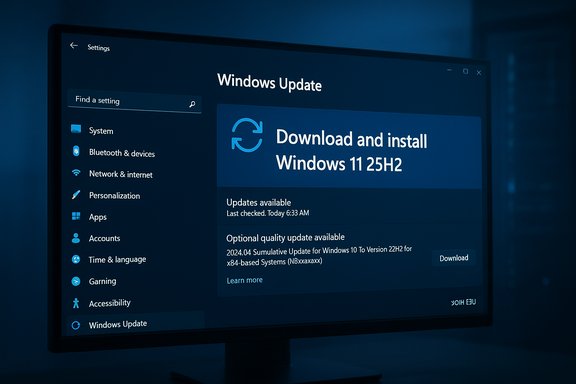
- a large, prominent “Download and install” CTA for Windows 11 25H2 where there used to be a subtler offer.
The accidental-click upgrade vector
Because 25H2 uses enablement packages on already-current Windows 11 builds (or a streamlined feature-update flow for some older builds), the user experience can be simpler: a single CTA, an immediate download, and a short restart can move many systems onto 25H2 quickly. On Windows 10 the offer to “Download and install” Windows 11 can appear in the same update flow; if a user clicks that CTA (even accidentally), the subsequent steps can be hard to cancel from the Settings UI. Community reports show users who click what they believe is an innocuous prompt later finding their machine is mid-upgrade or scheduled for restart with little recourse.The mechanics behind the push: lifecycle, server flags, and client logic
Why Microsoft is nudging more aggressively
The technical reality is straightforward: Microsoft will not keep shipping monthly cumulative security updates to consumer builds that have reached the end of their servicing window. Once a build becomes “unsupported” for Home and Pro SKUs the company faces a choice: accept a large population of unpatched, internet-connected PCs, or use Windows Update to move eligible devices to a supported release. The latter is what we’re witnessing. This is a lifecycle-driven decision framed as security stewardship.A practical consequence of that decision is that the Windows Update service and server-side rollout controls now differentiate between:
- devices eligible for continued servicing (ESU-enrolled),
- devices that are compatible but not enrolled, and
- incompatible devices (blocked by safeguard holds).
How the enablement package (eKB) changes the UX
Windows 11 25H2 broadly follows the shared-servicing-branch model: many features were shipped dormant in 24H2 and are flipped by a small enablement package. Microsoft’s KB documentation explains that for eligible 24H2 devices the 25H2 enablement package will be delivered via Windows Update and install automatically if the device is eligible. For older builds the update is a fuller feature update. The combination of eKBs and staged server-side rollouts reduces friction but can also shorten the window in which a user can safely change their mind.Verifying the key claims — what’s confirmed and what isn’t
- The existence of a 25H2 enablement package (KB5054156) and its delivery model is documented by Microsoft. The eKB approach and prerequisites are listed in Microsoft’s support information.
- Independent reporting and hands-on community tests confirm that Microsoft is moving unmanaged Home and Pro devices off older consumer builds and toward 25H2 once those builds reach end-of-servicing — and that the rollout is staged and conditional. Multiple outlets and forum summaries describe automatic delivery for out-of-support Windows 11 builds and an optional but now more prominent upgrade offer for Windows 10.
- The practical user-facing issue — pause controls becoming inactive on certain non-ESU Windows 10 devices — is well-reported by users and community testers. Those reports are consistent across multiple independent community threads and technical writeups, suggesting the phenomenon is real in at least some update client/server states. However, whether this behavior is a deliberate permanent policy change from Microsoft or an emergent side effect of server-client classification logic remains ambiguous. Microsoft has not published a single, clear public policy statement that says “we will disable pause for non-ESU devices” and independent confirmation of intent is lacking. Treat the claim that “Microsoft intentionally disabled pause as a policy” as plausible but not yet definitively confirmed.
- The headline figure — that roughly 500 million Windows 10 systems are technically capable of running Windows 11 but have not upgraded — is widely quoted in industry commentary and traced back to vendor remarks and market estimates. Major outlets have reported similar half-billion figures based on PC-vendor disclosures and market analysis; while plausible and repeated across outlets, this aggregate number should be treated as an informed estimate rather than precise telemetry published by Microsoft. Cross-checking multiple industry reports supports the ballpark but not an exact count.
What Microsoft says publicly (and what’s missing)
Microsoft’s public documentation emphasizes lifecycle rules: when a consumer build reaches its end of support, Home and Pro devices will no longer receive monthly cumulative updates for that build and Microsoft recommends upgrading eligible devices to Windows 11 or enrolling eligible devices in ESU where available. Microsoft’s KBs explain the enablement package process for 25H2 and the staged rollout mechanics for feature updates. Those materials make it clear Microsoft intends to keep devices on a supported code path — but they stop short of acknowledging every client-side UI symptom or a blanket policy of removing pause controls on non-ESU machines. The lack of a single, direct statement addressing the greyed-out pause reports leaves a gap where company policy and field behavior intersect. Because of that gap, it’s appropriate to flag uncertainty: where users report disabled pause controls and forced-feel upgrades, existing evidence supports both interpretations — that this is an intended lifecycle enforcement and that at least some of the behavior could be an implementation mismatch or rollout bug rather than a carefully announced policy. Until Microsoft explicitly explains the UI changes and whether they are deliberate enforcement, cautious language is warranted.Risks and impacts for Windows 10 users without ESU
Immediate risks
- Loss of local control and potential data loss: A sudden restart triggered after an expedited installation can cause unsaved work to be lost and workflows disrupted. Users who click what looks like a small UI element could find their PC mid-upgrade with limited options to cancel.
- Compatibility regressions: Feature updates can surface driver, firmware, and software compatibility problems. Forced or expedited installations increase the chance a user will reach a problematic state without time to plan driver updates or backups. The Windows Update rollout history includes examples where cumulative updates impacted recovery environments or peripheral support.
- Perceived monetization of control: For users who can avoid upgrading only by enrolling in ESU or by purchasing newer hardware, the interplay of UI/UX nudges and paid ESU options can feel like coercion to spend money to retain choice. Whether that interpretation is fair depends on Microsoft’s broader support and ESU pricing context, but it’s a real trust and perception risk.
Longer-term consequences
- Device fragmentation pressure: If many users upgrade because the path has been simplified or the pause controls are limited, vendors and software publishers will face a compressed compatibility window to support older versions. That reduces testing time and can lead to increased breakage in the field.
- Support burden: Unexpected forced-feel upgrades can increase customer support volumes for Microsoft and OEMs as rollback and recovery scenarios spike, especially for machines with vendor-specific drivers or older recoveries.
- Security calculus: The counter-argument in Microsoft’s favor is strong: leaving a large population of consumer PCs on unpatched OS code is a systemic security risk. Moving devices to a supported branch reduces attack surface at scale, which is a defensible engineering choice — albeit one that must be balanced against user trust and upgrade quality.
What to do if you’re using Windows 10 and want to avoid an accidental or unwanted upgrade
Below are practical, prioritized steps drawn from community-tested mitigations and official guidance. They balance short-term avoidance with longer-term safety.- Pause updates (if possible): Go to Settings → Windows Update and use “Pause updates” while you evaluate options. If the pause control is greyed out this step may be unavailable.
- Mark your network as metered: Setting your active connection as a metered connection can prevent large background downloads, including some feature updates. It’s not a permanent block but it can buy time.
- Back up before you click anything: Create a full system image or at minimum back up critical data and documents. If the upgrade proceeds and breaks your workflow, image-based restores are the fastest recovery path.
- Enroll in Consumer ESU if eligible and you cannot upgrade now: Consumer ESU provides a time-boxed bridge for eligible Windows 10 devices — useful for hardware that can’t run Windows 11 or where a staged migration is necessary. ESU is not permanent and is a stopgap, but it preserves security patches for a limited timeframe.
- Use Group Policy / Windows Update for Business (if on Pro or higher): Pro, Education and Enterprise editions have more robust deferral and ring controls. Administrators can configure long deferral windows and block feature upgrades via GPO or Intune.
- If the UI is mid-upgrade, disconnect and attempt recovery: Several community reports suggest that disconnecting from the network, stopping the Windows Update service, or booting to recovery and restoring an image can halt in-flight downloads on occasion — but these are stopgaps, not guaranteed solutions.
Strengths and weaknesses of Microsoft’s approach
Notable strengths
- Security-first consistency: Getting consumer PCs off unsupported branches reduces cumulative exploit risk. At scale, moving vulnerable machines back into the updating pipeline reduces the chance of mass exploitation of unpatched kernels.
- Lower friction for good updates: The enablement-package model reduces downtime and simplifies the update process for well-patched machines, making it faster and less disruptive under normal conditions.
Notable risks and trade-offs
- Erosion of user trust: Unexpected or hard-to-cancel upgrade flows undermine an important user expectation: local control over major system behavior. If users feel choice is being taken away subtly, trust can be difficult to rebuild.
- Edge-case breakage: Staged rollouts and compatibility holds help, but rapid background delivery increases the likelihood that unexplored device/driver permutations will run into regressions. Recovery stack regressions (e.g., WinRE issues) are particularly dangerous.
- Opaque intent: Without an explicit, clear Microsoft statement describing whether the greyed-out pause behavior is intended policy or a rollout quirk, the ambiguity fuels speculation that Microsoft is “forcing” upgrades. That perception problem matters as much as the technical merits of the policy.
Editorial assessment and concluding perspective
The tension at the heart of this story is real: Microsoft is trying to reconcile ecosystem-level security obligations with the principle of local user autonomy. The company’s lifecycle framework and the technical mechanisms it uses (server-driven rollouts, enablement packages, and classification of ESU status) are credible and defensible from a security standpoint. They also produce a UX that can feel coercive in the field, especially when local pause controls are inactive and a single “Download and install” CTA can trigger a near-automatic migration.What’s missing is clarity. The field evidence that pause controls become inactive for some non-ESU Windows 10 devices is strong, but there isn’t a single, definitive Microsoft statement acknowledging the UI symptom or explaining whether it is a deliberate enforcement choice or an inadvertent side effect of rollout logic. Until Microsoft clarifies intent and publishes specific guidance about the pause control behavior on post‑EOL Windows 10 systems, users and administrators must treat the behavior conservatively: assume the upgrade flow can proceed, protect data proactively, and plan migration or ESU enrollment where appropriate.
For the Windows community and consumer advocates, the policy and product lesson is straightforward: security-driven update enforcement can be justified, but it must be paired with transparent communications and robust, reliable recovery paths. For now, the safe course for cautious users is to prepare (back up), control (deferrals or ESU where necessary), and upgrade on their own schedule whenever possible.
Conclusion
The headline—Microsoft denies forcing Windows 11—doesn’t end the conversation. What matters more to users is the lived experience: UI prompts, greyed-out pause controls, and an expedited install path that sometimes leaves little room for second thoughts. Those behaviors are a natural consequence of Microsoft’s lifecycle enforcement and the enablement-package delivery model, but they also create legitimate frustration and risk for people who prefer to control when and how their systems change. Until Microsoft explicitly addresses the greyed-out pause behavior and clarifies the boundaries of its server-driven remediation logic, the most prudent path for Windows 10 holdouts is to assume upgrades can be expedited, act to protect data and workflows, and if necessary enroll in ESU or schedule a controlled migration to Windows 11 on their terms.
Source: Букви Microsoft denies forced Windows 11 upgrade but Windows 10 users face automatic updates | Ukraine news - #Mezha
