

Microsoft has confirmed Windows 11 version 26H2 as the next annual feature update, with preview work already visible in Insider builds and a broader rollout expected in the second half of 2026. The important part is not the size of the download, but the direction of the operating system. If the current previews hold, 26H2 looks less like a marketing release and more like Microsoft admitting that Windows 11’s best upgrade path is to undo some of its own rigidity.
That is the thread running through the seven features highlighted by Windows Central’s Mauro Huculak: a smarter Copilot entry point, a more flexible taskbar, a Start menu that finally bends, cleaner local search, less obnoxious updating, stronger admin protection, and a modernized Run dialog. Some of these are still in the Windows Insider Program’s Experimental channel, which means Microsoft can delay, reshape, or discard them. But taken together, they show a Windows team that appears to have learned a basic lesson from the past five years: users do not want a more theatrical desktop; they want a desktop that gets out of the way.
The first mistake in reading Windows 11 version 26H2 is treating the enablement package as evidence that nothing meaningful is happening. Microsoft has used this model before, including for Windows 11 version 25H2, where features could sit dormant until a small switch flipped the version forward. That approach reduces installation drama, but it also makes Windows releases look smaller than they are.
The old feature-update model trained users to expect a single moment of visible change: a large download, a long reboot, and a desktop that looked meaningfully different afterward. Windows 11 no longer works that way. Features now arrive across monthly cumulative updates, controlled rollouts, Insider flights, and staged enablement, with the annual version acting as a support milestone as much as a product milestone.
That is less exciting, but it is also more honest. Windows is no longer a consumer gadget operating system with a new personality every year. It is infrastructure, and infrastructure is judged by whether it improves without breaking everything around it.
For IT departments, the enablement package model is also a risk-management tool. A smaller installation footprint can mean fewer deployment headaches, faster reboots, and a cleaner servicing baseline. The tradeoff is that change becomes harder to narrate, because the features may already be present on some machines before the annual update formally arrives.
Version 26H2’s most interesting expected changes are not radical new inventions. They are reversals, restorations, and refinements. The taskbar may become movable again. The Start menu may become more configurable. Search may finally let users silence web results without registry workarounds or policy spelunking.
That matters because Windows users are not a single audience. A student on a Copilot+ laptop, a sysadmin on a domain-joined workstation, a developer with three monitors, and a retiree using one local account all have different ideas of what “simple” means. A desktop OS earns loyalty by accommodating those differences rather than pretending they do not exist.
This is where 26H2 could become more important than its modest delivery mechanism suggests. It does not need to reinvent Windows 11. It needs to make Windows 11 feel less like a showroom configuration and more like a tool the user actually owns.
That is why Ask Copilot, as described by Windows Central and previewed through Microsoft’s Insider work, is more interesting than another generic AI sidebar. Its pitch is simple: let users find files, open apps, locate settings, and ask questions from a search-like entry point. If it works, Copilot becomes less of a personality and more of a routing system.
The word “optional” is doing a lot of work here. Windows users have been burned by features that arrive as helpers and behave like defaults waiting to consume the workflow. If Ask Copilot can live beside traditional Windows Search rather than replacing it, Microsoft may avoid turning a useful tool into another culture-war toggle.
The practical value is obvious. Finding a buried setting in Windows can still feel absurd in 2026, especially when Control Panel, Settings, legacy dialogs, and app-specific configuration pages overlap. A fast natural-language layer that takes you to the right place could be genuinely useful — provided it does not bury local results beneath cloud suggestions and subscription prompts.
The expected 26H2 taskbar changes are therefore bigger than they look. The ability to position the taskbar on different edges of the display, combined with a smaller taskbar size, would restore some of the spatial flexibility that power users missed immediately after Windows 11 shipped. Microsoft’s own Windows Insider blog has acknowledged that moving the taskbar has been one of the most requested features.
This is not nostalgia for its own sake. Vertical taskbars make sense on ultrawide monitors. Top-aligned taskbars make sense for users who prefer browser-like motion. Smaller taskbars make sense for compact laptops, remote sessions, and anyone who values screen real estate over touch-friendly padding.
The best desktop customization is not decorative. It changes how quickly the user can move through a day. If Microsoft follows through here, 26H2 will mark a quiet but meaningful retreat from the idea that the Windows 11 taskbar should have one canonical shape.
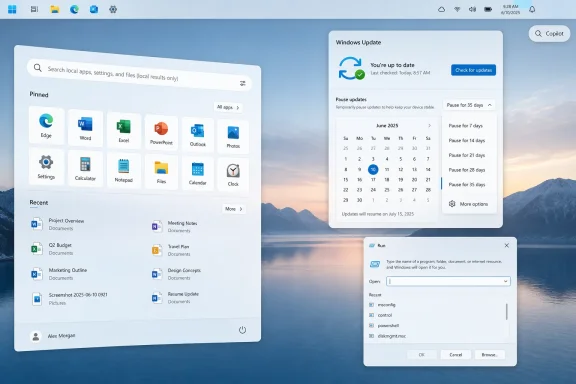
The expected 26H2 changes address that by giving users more control over size and sections. Windows Central notes options to choose smaller or larger menu sizes, independently show or hide Pinned, Recent, and All, and better control what appears in the former Recommended area. That is exactly the kind of customization Windows 11 should have had from the beginning.
The renaming of Recommended to Recent also matters more than it sounds. “Recommended” has always carried the smell of algorithmic interference, even when the contents were mundane. “Recent” is more descriptive, less presumptuous, and easier to understand as a user-controlled convenience rather than a Microsoft-controlled suggestion surface.
There is also a privacy angle. The ability to hide the user’s name and profile picture from the Start menu may sound minor until you have presented from a personal laptop, shared a screen in a meeting, or recorded a tutorial. Modern operating systems leak identity in small ways, and those small leaks add up.
The better Start menu is not the one with the most widgets. It is the one that lets a user decide whether Start is an app launcher, a recent-documents surface, an installed-program browser, or some mix of all three.
Microsoft has spent years blurring that boundary. Search became a place for Bing results, Store suggestions, web answers, and cloud hooks. Sometimes that integration is useful. Often, it turns a direct local action into a noisy page of distractions.
A clean toggle for web results would be a win for users and administrators alike. It would reduce clutter, improve perceived speed, and make Windows feel less like it is constantly trying to convert local behavior into online engagement. For managed environments, it could also simplify the job of keeping search experiences predictable.
This is one of those changes that sounds small only inside a product-planning meeting. In real use, Windows Search is invoked dozens of times a day by people who want to get somewhere quickly. Every irrelevant web card is a tiny tax on attention.
The expected 26H2-era update controls point in the right direction. Windows Central describes a calendar-based pause option of up to 35 days, repeatable pauses, clearer grouping of available updates, better driver labels, and independent power commands that allow shutdown or restart without installing updates. Microsoft is also reportedly working to align driver, firmware, product, and quality-update timing to reduce monthly reboot churn.
That is the kind of change that matters more in offices than launch demos. A single unwanted reboot during a maintenance window, exam, recording session, deployment job, or remote support call can erase any goodwill Microsoft earns from faster patching. Control is not the enemy of security; unpredictability is.
There is a balance to strike, of course. Microsoft cannot allow consumer PCs to remain indefinitely unpatched without consequence. But a calendar-based model is more intelligible than a vague pause button. It lets users plan instead of simply plead.
The real test will be whether these controls remain clear across Home, Pro, Enterprise, managed, and unmanaged devices. Windows Update has too often exposed different behavior depending on SKU, policy, and cloud management state. If 26H2 makes update timing easier to understand, it will do more for user trust than another redesigned settings page ever could.
That is a meaningful shift. Traditional administrator workflows in Windows have long depended on User Account Control prompts, consent dialogs, and the assumption that elevation is an event the user can understand in the moment. The problem is that malware, malicious scripts, and living-off-the-land attacks thrive in environments where admin rights are durable and predictable.
If Microsoft replaces or meaningfully reworks UAC behavior with Windows Hello-backed Administrator Protection, the usability details will matter enormously. Security prompts that appear too often become wallpaper. Prompts that appear without clear context train users to approve blindly. Stronger privilege boundaries are only useful if the human side of the flow remains comprehensible.
For enterprises, this could intersect with least-privilege strategies, endpoint detection, and identity-based security. For home users, it could reduce the blast radius of a bad installer or compromised process. In both cases, the promise is the same: administrator power should be borrowed for a task, not worn all day like a badge.
Microsoft has been moving Windows toward a more identity-aware security model for years. Administrator Protection fits that arc. The question is whether it can improve real-world safety without making legitimate maintenance feel like a fight with the OS.
Modernizing it with a wider input field, recent commands, app suggestions, and Windows 11 styling is not going to sell a single PC. But it shows respect for a workflow Microsoft could easily have ignored. The best version of Windows is not the one that deletes old tools in the name of simplification; it is the one that modernizes them without breaking their speed.
The optional toggle between classic and modern Run is also the right call. Microsoft should assume that some users rely on exact behavior, muscle memory, and minimal UI. A command launcher is not the place to spring unnecessary novelty on administrators and technicians.
This is the broader lesson Microsoft should apply everywhere in Windows. Legacy does not automatically mean obsolete. Sometimes legacy is just a feature that kept working long enough to become infrastructure.
That is a healthier place for Windows to be. The operating system does not need to be the star of the show. It needs to launch apps quickly, find files reliably, patch safely, protect credentials, and let users arrange the workspace in ways that match their habits.
There is still plenty that could go wrong. Copilot could become too pushy. Start menu customization could ship half-finished. Taskbar movement could be delayed. Search controls could be limited by region, edition, or policy. Administrator Protection could prove too noisy for everyday users.
But even those risks show why this release matters. These are not abstract platform changes buried in kernel release notes. They touch the daily contract between Windows and the people who use it.
That is the thread running through the seven features highlighted by Windows Central’s Mauro Huculak: a smarter Copilot entry point, a more flexible taskbar, a Start menu that finally bends, cleaner local search, less obnoxious updating, stronger admin protection, and a modernized Run dialog. Some of these are still in the Windows Insider Program’s Experimental channel, which means Microsoft can delay, reshape, or discard them. But taken together, they show a Windows team that appears to have learned a basic lesson from the past five years: users do not want a more theatrical desktop; they want a desktop that gets out of the way.
 The Enablement Package Is Not the Story
The first mistake in reading Windows 11 version 26H2 is treating the enablement package as evidence that nothing meaningful is happening. Microsoft has used this model before, including for Windows 11 version 25H2, where features could sit dormant until a small switch flipped the version forward. That approach reduces installation drama, but it also makes Windows releases look smaller than they are.The old feature-update model trained users to expect a single moment of visible change: a large download, a long reboot, and a desktop that looked meaningfully different afterward. Windows 11 no longer works that way. Features now arrive across monthly cumulative updates, controlled rollouts, Insider flights, and staged enablement, with the annual version acting as a support milestone as much as a product milestone.
That is less exciting, but it is also more honest. Windows is no longer a consumer gadget operating system with a new personality every year. It is infrastructure, and infrastructure is judged by whether it improves without breaking everything around it.
For IT departments, the enablement package model is also a risk-management tool. A smaller installation footprint can mean fewer deployment headaches, faster reboots, and a cleaner servicing baseline. The tradeoff is that change becomes harder to narrate, because the features may already be present on some machines before the annual update formally arrives.
Microsoft Is Quietly Walking Back Windows 11’s Original Stubbornness
Windows 11 launched with a visual confidence that sometimes crossed into inflexibility. The centered taskbar, simplified Start menu, reduced context menus, and pared-back customization options all pointed toward a cleaner, more controlled design. It looked polished, but it often felt as if Microsoft had mistaken restraint for usability.Version 26H2’s most interesting expected changes are not radical new inventions. They are reversals, restorations, and refinements. The taskbar may become movable again. The Start menu may become more configurable. Search may finally let users silence web results without registry workarounds or policy spelunking.
That matters because Windows users are not a single audience. A student on a Copilot+ laptop, a sysadmin on a domain-joined workstation, a developer with three monitors, and a retiree using one local account all have different ideas of what “simple” means. A desktop OS earns loyalty by accommodating those differences rather than pretending they do not exist.
This is where 26H2 could become more important than its modest delivery mechanism suggests. It does not need to reinvent Windows 11. It needs to make Windows 11 feel less like a showroom configuration and more like a tool the user actually owns.
Ask Copilot Works Best When It Stops Trying to Be the Center of Windows
Microsoft’s AI push has been uneven because the company has often treated Copilot as a destination rather than a utility. A chatbot bolted onto the desktop is not automatically useful just because it is visible. The more promising version of Copilot is the one that behaves like a fast, optional command layer.That is why Ask Copilot, as described by Windows Central and previewed through Microsoft’s Insider work, is more interesting than another generic AI sidebar. Its pitch is simple: let users find files, open apps, locate settings, and ask questions from a search-like entry point. If it works, Copilot becomes less of a personality and more of a routing system.
The word “optional” is doing a lot of work here. Windows users have been burned by features that arrive as helpers and behave like defaults waiting to consume the workflow. If Ask Copilot can live beside traditional Windows Search rather than replacing it, Microsoft may avoid turning a useful tool into another culture-war toggle.
The practical value is obvious. Finding a buried setting in Windows can still feel absurd in 2026, especially when Control Panel, Settings, legacy dialogs, and app-specific configuration pages overlap. A fast natural-language layer that takes you to the right place could be genuinely useful — provided it does not bury local results beneath cloud suggestions and subscription prompts.
The Taskbar’s Return to Flexibility Is a Small Rebellion
The taskbar is not glamorous, but it is muscle memory made visible. When Microsoft removed long-standing positioning options in Windows 11, it was not merely trimming a feature. It was telling a large class of users that years of workflow preference mattered less than visual uniformity.The expected 26H2 taskbar changes are therefore bigger than they look. The ability to position the taskbar on different edges of the display, combined with a smaller taskbar size, would restore some of the spatial flexibility that power users missed immediately after Windows 11 shipped. Microsoft’s own Windows Insider blog has acknowledged that moving the taskbar has been one of the most requested features.
This is not nostalgia for its own sake. Vertical taskbars make sense on ultrawide monitors. Top-aligned taskbars make sense for users who prefer browser-like motion. Smaller taskbars make sense for compact laptops, remote sessions, and anyone who values screen real estate over touch-friendly padding.
The best desktop customization is not decorative. It changes how quickly the user can move through a day. If Microsoft follows through here, 26H2 will mark a quiet but meaningful retreat from the idea that the Windows 11 taskbar should have one canonical shape.
The Start Menu Finally Looks Like It Belongs to the User Again
The redesigned Start menu may be the clearest sign that Microsoft has heard the complaints. Windows 11’s Start menu has always been attractive in screenshots and mildly aggravating in daily use. It never fully reconciled pinned apps, recommendations, recent files, account identity, search, and app discovery into a layout that felt efficient.The expected 26H2 changes address that by giving users more control over size and sections. Windows Central notes options to choose smaller or larger menu sizes, independently show or hide Pinned, Recent, and All, and better control what appears in the former Recommended area. That is exactly the kind of customization Windows 11 should have had from the beginning.
The renaming of Recommended to Recent also matters more than it sounds. “Recommended” has always carried the smell of algorithmic interference, even when the contents were mundane. “Recent” is more descriptive, less presumptuous, and easier to understand as a user-controlled convenience rather than a Microsoft-controlled suggestion surface.
There is also a privacy angle. The ability to hide the user’s name and profile picture from the Start menu may sound minor until you have presented from a personal laptop, shared a screen in a meeting, or recorded a tutorial. Modern operating systems leak identity in small ways, and those small leaks add up.
The better Start menu is not the one with the most widgets. It is the one that lets a user decide whether Start is an app launcher, a recent-documents surface, an installed-program browser, or some mix of all three.
Local Search Without the Web Is the Feature Windows Users Have Been Asking for Since Bing Moved In
The expected option to turn off web results in Windows Search may be the least flashy feature on the list, and one of the most consequential for daily sanity. When a user opens Start and types the name of a file, app, or setting, the operating system should not treat that as an invitation to perform a web search. Local intent should be respected by default, or at least be easy to enforce.Microsoft has spent years blurring that boundary. Search became a place for Bing results, Store suggestions, web answers, and cloud hooks. Sometimes that integration is useful. Often, it turns a direct local action into a noisy page of distractions.
A clean toggle for web results would be a win for users and administrators alike. It would reduce clutter, improve perceived speed, and make Windows feel less like it is constantly trying to convert local behavior into online engagement. For managed environments, it could also simplify the job of keeping search experiences predictable.
This is one of those changes that sounds small only inside a product-planning meeting. In real use, Windows Search is invoked dozens of times a day by people who want to get somewhere quickly. Every irrelevant web card is a tiny tax on attention.
Windows Update Becomes Less Hostile When It Respects the Calendar
Windows Update has improved dramatically since the worst days of surprise reboots and chaotic driver delivery, but it still carries a reputation problem. Users do not hate security updates. They hate losing control at the wrong moment.The expected 26H2-era update controls point in the right direction. Windows Central describes a calendar-based pause option of up to 35 days, repeatable pauses, clearer grouping of available updates, better driver labels, and independent power commands that allow shutdown or restart without installing updates. Microsoft is also reportedly working to align driver, firmware, product, and quality-update timing to reduce monthly reboot churn.
That is the kind of change that matters more in offices than launch demos. A single unwanted reboot during a maintenance window, exam, recording session, deployment job, or remote support call can erase any goodwill Microsoft earns from faster patching. Control is not the enemy of security; unpredictability is.
There is a balance to strike, of course. Microsoft cannot allow consumer PCs to remain indefinitely unpatched without consequence. But a calendar-based model is more intelligible than a vague pause button. It lets users plan instead of simply plead.
The real test will be whether these controls remain clear across Home, Pro, Enterprise, managed, and unmanaged devices. Windows Update has too often exposed different behavior depending on SKU, policy, and cloud management state. If 26H2 makes update timing easier to understand, it will do more for user trust than another redesigned settings page ever could.
Administrator Protection Is the Security Change Power Users Should Not Ignore
Administrator Protection is the feature in this set that deserves more attention from technically minded users. According to Windows Central’s description, the feature changes how Windows handles elevated operations by creating a temporary administrator context for a task and then removing it when the work is complete. The idea is to make elevated privilege less persistent and therefore less useful to malware.That is a meaningful shift. Traditional administrator workflows in Windows have long depended on User Account Control prompts, consent dialogs, and the assumption that elevation is an event the user can understand in the moment. The problem is that malware, malicious scripts, and living-off-the-land attacks thrive in environments where admin rights are durable and predictable.
If Microsoft replaces or meaningfully reworks UAC behavior with Windows Hello-backed Administrator Protection, the usability details will matter enormously. Security prompts that appear too often become wallpaper. Prompts that appear without clear context train users to approve blindly. Stronger privilege boundaries are only useful if the human side of the flow remains comprehensible.
For enterprises, this could intersect with least-privilege strategies, endpoint detection, and identity-based security. For home users, it could reduce the blast radius of a bad installer or compromised process. In both cases, the promise is the same: administrator power should be borrowed for a task, not worn all day like a badge.
Microsoft has been moving Windows toward a more identity-aware security model for years. Administrator Protection fits that arc. The question is whether it can improve real-world safety without making legitimate maintenance feel like a fight with the OS.
The Run Dialog Gets Modernized Because Legacy Still Matters
The redesigned Run dialog is almost comically modest compared with AI agents and privilege isolation, but it is symbolically perfect. Run is one of those Windows features that casual users may never touch and power users invoke constantly. It is old, plain, and useful.Modernizing it with a wider input field, recent commands, app suggestions, and Windows 11 styling is not going to sell a single PC. But it shows respect for a workflow Microsoft could easily have ignored. The best version of Windows is not the one that deletes old tools in the name of simplification; it is the one that modernizes them without breaking their speed.
The optional toggle between classic and modern Run is also the right call. Microsoft should assume that some users rely on exact behavior, muscle memory, and minimal UI. A command launcher is not the place to spring unnecessary novelty on administrators and technicians.
This is the broader lesson Microsoft should apply everywhere in Windows. Legacy does not automatically mean obsolete. Sometimes legacy is just a feature that kept working long enough to become infrastructure.
The Windows 11 26H2 Pattern Is Control, Not Spectacle
The strongest argument for 26H2 is not that every previewed feature will ship exactly as described. It is that the direction is coherent. Microsoft appears to be spending less energy on another grand redesign and more energy on pressure points that users encounter every day.That is a healthier place for Windows to be. The operating system does not need to be the star of the show. It needs to launch apps quickly, find files reliably, patch safely, protect credentials, and let users arrange the workspace in ways that match their habits.
There is still plenty that could go wrong. Copilot could become too pushy. Start menu customization could ship half-finished. Taskbar movement could be delayed. Search controls could be limited by region, edition, or policy. Administrator Protection could prove too noisy for everyday users.
But even those risks show why this release matters. These are not abstract platform changes buried in kernel release notes. They touch the daily contract between Windows and the people who use it.
The Seven Changes Point to a More Livable Windows
If the current Insider work survives the trip to general availability, Windows 11 version 26H2 will be remembered less for one flagship feature than for a cluster of practical concessions. That is not a weakness. It may be exactly what Windows 11 needs.- Ask Copilot looks most useful when it behaves as an optional search-and-command layer rather than a forced replacement for existing workflows.
- The taskbar changes would restore flexibility that many Windows 11 users felt should never have been removed.
- The redesigned Start menu appears to give users meaningful control over size, layout, visibility, and privacy.
- A built-in way to suppress web results in Windows Search would make local search feel cleaner and more trustworthy.
- The Windows Update improvements could reduce reboot friction by making update timing more calendar-driven and less opaque.
- Administrator Protection may become one of the most important security changes if Microsoft can make temporary elevation understandable and unobtrusive.
References
- Primary source: Windows Central
Published: 2026-07-05T13:06:14.018426
Windows 11 version 26H2 is packed with surprising upgrades, and these 7 features might change how you use your PC | Windows Central
The Windows 11 2026 Update isn't about a major redesign. It's about giving users more control, better customization, and smarter everyday features.www.windowscentral.com - Official source: support.microsoft.com
Getting started with Copilot on Windows | Microsoft Support
Discover how Microsoft Copilot, your everyday AI companion, can help you achieve anything you can imagine.support.microsoft.com - Official source: learn.microsoft.com
Experimental Preview Build 26300.8493 - Windows Insider Program | Microsoft Learn
Release notes for Experimental Preview Build 26300.8493learn.microsoft.com - Related coverage: allthings.how
Windows 11 Build 26300.8553 brings a resizable, modular Start menu
The Experimental build adds Small, Large, and Automatic Start layouts, section toggles, account-hiding privacy options, and substring search.allthings.how - Related coverage: notebookcheck.net
Windows 11 Insider Build 26300.8553 finally lets you customize the Start menu - Notebookcheck News
Windows 11 Insider Preview Build 26300.8553 brings a modular Start menu with Small, Large, and Automatic size presets and new privacy tools to the Experimental channel. www.notebookcheck.net
- Official source: blogs.windows.com
Improving Windows quality: Making Taskbar and Start more personal
In our commitment to Windows quality, we outlined our plans to deliver improvements in performance, reliability, and craft. We are also committed toblogs.windows.com
- Related coverage: windowslatest.com
Microsoft is force-installing Windows 11 25H2 on every PC before 26H2, but it's actually painless
Microsoft is force installing Windows 11 25H2 on all eligible Home and Pro PCs, as it clears the decks ahead of the 26H2 release this fall. www.windowslatest.com
- Related coverage: techspot.com
Microsoft begins testing Windows 11 26H2 with major fixes and Copilot changes | TechSpot
Build 26300.7674 is the first public test of what's expected to become the major feature update for 2026. Unlike routine quality improvements, this new release is designed...www.techspot.com
