

Windows 11 hides a surprising amount of polish and productivity under its rounded corners — and the popular “31 hidden tricks” round‑up that’s been circulating is a useful cheat‑sheet for squeezing real value out of the OS. The tips range from tiny convenience toggles (realign the Start button, shake a title bar to clear other windows) to platform‑level changes that reshape security and workflows (passkeys, Copilot Vision, one‑click compression into 7z/TAR). Read smartly, enable selectively, and you’ll get faster task switching, safer sign‑ins, and genuinely useful AI help — but there are important rollout, compatibility, and privacy caveats you should know before flipping every switch. rview
Windows 11 has evolved well beyond the cosmetic redesign that defined its launch. Over successive feature updates (notably 23H2 and 24H2), Microsoft has layered deeper multitasking tools, native AI, modern authentication, and new file and backup primitives into the platform. The “31 tricks” list collected by PCMag is a practical catalog of those changes — from taskbar and Start tweaks to Copilot, File Explorer improvements, compression formats, and the OneDrive‑backed Windows Backup — but using them wisely requires understanding which are device‑ or build‑dependent and where privacy or enterprise policies might limit or alter behavior.
Why it matters:
Practical tip:
Important note:
Windows 11 today is a pragmatic platform: not all the new features are revolutionary on their own, but together they reshape common desktop workflows, harden authentication, and add a surprisingly capable AI assistant to the desktop toolbox. The “31 tricks” checklist is an excellent starting point — but the real wins come from measured adoption: verify your build, back up before you change defaults, and treat Copilot Vision and cloud sync features with the same caution you’d use for any third‑party cloud service. Do that, and you’ll stop using Windows 11 like a beginner and start using it like a power user.
Source: PCMag UK Stop Using Windows 11 Like a Beginner: 31 Hidden Tricks Microsoft Never Taught You
Windows 11 has evolved well beyond the cosmetic redesign that defined its launch. Over successive feature updates (notably 23H2 and 24H2), Microsoft has layered deeper multitasking tools, native AI, modern authentication, and new file and backup primitives into the platform. The “31 tricks” list collected by PCMag is a practical catalog of those changes — from taskbar and Start tweaks to Copilot, File Explorer improvements, compression formats, and the OneDrive‑backed Windows Backup — but using them wisely requires understanding which are device‑ or build‑dependent and where privacy or enterprise policies might limit or alter behavior.
- Microsoft’s recenH2 / 24H2 and monthly cumulative updates) is where many of these features landed, so check your build before expecting everything to be available.
- A few features (Copilot Voice/wake word, Copilot Vision desktop share, File Explorer AI actions, and compression) are rolling out gradually and can be gated by Insider channels, region, subscription tier, or hardware capability.
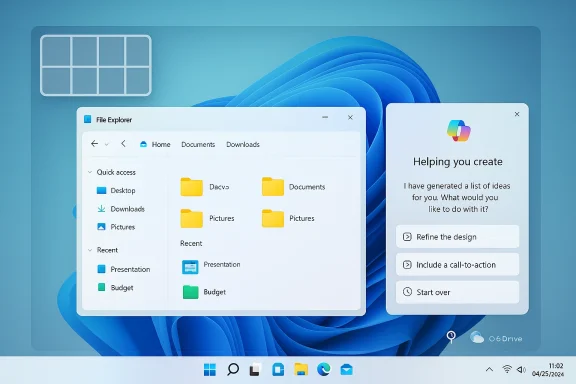 The big themes: AI, identity, multitasking, and safer file management
Copilot: a built‑in, conversation‑aware assistant (and now a screen‑aware one)
Windows 11 now ships with Copilot as a core desktop presence: an always‑reachable assistant that understands context, supports voice interactions, and — with the recent evolution called Copilot Vision — can see and highlight parts of apps you share with it. You can summon Copilot from the taskbar or with the keyboard; in supported markets you can opt in to the wake phrase “Hey Copilot.” Microsoft documents these features and continues to expand them via the Copilot app updates.Why it matters:
- Copilot can summarize documents, draft text, search files on your PC, generate images, and guide you through UI tasks by highlighting where to click without taking control of your system.
- For real productivity gains, Copilot’s value is in reducing context switches: ask it to summarize a long slide deck while you keep coding, or to extract action items from a meeting recording.
- Copilot Vision requires your explicit consent to share an app or screen. Microsoft’s documentation explains how Vision sessions work and the opt‑in privacy model, but remember: sending visual context to cloud services raises exposure risk for sensitive information. Use Vision only when you trust the environment and have reviewed privacy settings.
Modern, phishing‑resistant sign‑in: passkeys and Windows Hello
Windows 11 is embracing passkeys — device‑bound, FIDO‑based credentials that replace passwords with public/private key pairs unlocked via Windows Hello (face, fingerprint, or PIN). Microsoft provides native passkey management in Settings and supports saving passkeys locally, to Microsoft Password Manager, or to third‑party credential managers. Passkeys reduce phishing and credential‑reuse risks and are now a first‑class option on Windows.Practical tip:
- Start by setting up Windows Hello (if your device supports it) and then try creating a passkey for a non‑critical account to get comfortable with the flow. The Settings > Accounts > Passkeys pane lists saved passkeys and management options.
File Explorer modernized: tabs, AI actions, and native compression
File Explorer is no longer just a tree view. Recent updates added:- Tabs and a cleaner ribbon for faster navigation and multi‑folder workflows.
- Contextual AI actions (for example, “Remove Background” on image files and “Summarize” for Microsoft 365 documents) that can simplify common content tasks.
- Native creation of compressed archives in 7z, TAR, and ZIP formats from the right‑click menu (24H2 feature), plus additional compression options (gzip, BZip2, xz, Zstandard) for advanced workflows. These additions make Explorer more capable without installing third‑party tools.
- Native 7z/TAR support is convenient but not a full replacement for mature tools (7‑Zip, WinRAR) when it comes to encryption, advanced updating, or edge case compatibility. In some early reports users noticed inconsistencies when Explorer handles password‑protected or exotic archives — keep a third‑party archiver for heavy archive work.
Backup and recovery: Windows Backup (OneDrive integration)
Windows 11’s Windows Backup app (introduced in 23H2) centralizes OneDrive‑based backup of files, settings, and a list of installed apps so you can restore them during OOBE (out‑of‑box experience) when moving to a new PC. Enterprises gained a tailored “Windows Backup for Organizations” variant in subsequent updates to support Entra‑joined devices and restore workflows for managed fleets. The tool is convenient for consumer migrations, though its restore model differs from traditional file-level backups: it leans on OneDrive and on-demand reinstall for apps.Important note:
- The Backup app is treated as a system component and may be hidden or disabled on certain enterprise‑managed configurations; it’s also not a full system image tool. Consider pairing it with a local disk image or third‑party backup for complete disaster recovery.
Practical walk‑throughs and high‑value tweaks
Taskbar and Start: left align, pin apps, and customize Start tiles
One of the first visual differences new users notice is the centered taskbar. If you prefer the classic left alignment, go to Taskbar Settings and change Taskbar Alignment to Left. Pin apps you use daily to the Start or to the taskbar for single‑keystroke access; you can now also group pinnelders. These are low‑risk, immediate productivity changes that save seconds dozens of times a day.Snap Layouts, Snap Groups, and virtual desktops — tame the chaos
Windows 11’s Snap Layouts (Win+Z) reduces the friction of arranging multiple windows. Combine Snap Layouts with Snap Groups (the OS remembers the grouping) and with virtual desktops to create project‑specific workspaces. Pro tip: use distinct wallpapers per desktowhich workspace you’re in at a glance.Quick Settings, Widgets, and the redesigned Action Center
Quick Settings is now separate from notifications and groups toggles like Wi‑Fi, Bluetooth, color profiles, and battery saver. Widgets remain a personalizable pane for weather, calendar, and feed items — useful for glanceable information but optional for users who want a quieter desktop. If you prefer less noise, hide Widgets and customize Quick Settings to surface the toggles you actually use.Phone Link: your Android phone on the desktop
Phone Link (formerly “Your Phone”) lets Android users read SMS, take calls, stream audio, and — on supported phones — run multiple phone apps inside a window. This is a true productivity multiplier for those who constantly switch between devices, but features vary by phone model and Android version. Verify your handset’s compatibility before relying on it for mission‑critical workflows.Security, privacy, and enterprise considerations — don’t skip this section
- Copilot and Copilot Vision raise data‑handling questions.
- Copilot Vision only becomes active when you initiate a Vision session, and Microsoft says it deletes the images and audio after a session ends, but the service still processes that content in the cloud to generate helpful responses. For sensitive or regulated data, treat Vision and other AI features cautiously and check your organization’s policy before using them.
- Passkeys are more secure, but account recovery models differ.
- Passkeys reduce phishing risk substantially, but you must understand recovery options (backup to Microsoft Password Manager, third‑party manager, or companion device QR flow) and ensure you have a recovery path before fully retiring passwords for important accounts. Microsoft’s documentation explains management and cross‑device options.
- Cloud‑backed convenience centralizes risk.
- Features that lean on a Microsoft Account and OneDrive (Windows Backup, Copilot file search, cloud passkey sync) trade convenience for concentration of risk: a compromised Microsoft account would expose more than just email. Use strong account protections (multi‑factor authentication, hardware security keys) and review what you sync.
- Enterpriseoverride personal settings.
- Many features are disabled, hidden, or overridden on domain‑joined or Entra‑joined machines. IT admins can block Copilot, passkey syncing, or the Backup app; test changes on a BYOD or lab machine before standardizing them across a fleet.
Step‑by‑step: safely adopt the high‑value changes
- Verify your Windows build and update channel.
- Settings > Windows Update will show whether you’re on 23H2, 24H2, or a later build. Newer features like File Explorer compression and some Copilot updates require 24H2 or specific cumulative updates.
- Back up before you change system defaults.
- Create a System Restore point or a full disk image, and enable a OneDrive backup profile if you plan to test Windows Backup. This safety net makes it trivial to revert changes.
- Try one major tweak at a time.
- Start with low‑risk wins: align the taskbar, pin apps, enable File Explorer tabs, learn Win+Z for Snap Layouts. Use each change for a week to measure benefit before proceeding.
- Be cautious with AI and cloud sync.
- Use Copilot Vision only for non‑sensitive tasks at first. For corporate workflows, get explicit policy sign‑off and understand logging and retention policies. Consider disabling cross‑device file search for sensitive systems.
- Adopt passkeys methodically.
- Set up Windows Hello, then register passkeys for low‑risk consumer services. Confirm cross‑device recovery (Microsoft Password Manager or a trusted third‑party manager) before migrating critical accounts away from passwords.
The tricks that deliver the biggest daily ROI
- Snap Layouts + Snap Groups + virtual desktops: multiply the effectiveness of app switching for heavy multitaskers.
- File Explorer tabs + native compression: reduce context switches and third‑party tool dependency for routine file work.
- Passkeys + Windows Hety and phishing reduction for accounts that support them.
- Copilot (text + voice) for drafting, summarizing, and quick troubleshooting: measurable time savings if you make Copilot part of frequent workflows.
- Windows Backup (consumer OneDrive flow): excellent for new‑PC restores and migrating your personal setup quickly.
Risks, bugs, and the “it depends” list
- Feature rollout fragmentation: some Copilot and File Explorer features are still being staged to Insiders, regions, or specific builds; don’t assume availability.
- Explorer’s new archive handling is usefuarly reports and forum threads flagged edge cases (password‑protected archives and ehere Explorer’s native handling behaves inconsistently; keep r for complex needs.
- Copilot data handling: while Microsoft describes an opt‑in model and post‑session deletion in documentation, the assistant still relies on cloud processing for richer responses; treat it like any cloud service and avoid sending highly regulated or confidential material.
- Centralized dependency on a Microsoft Account/OneDrive can be convenient but concentrates an organization’s attack surface — mitigate with strong account security and separate backup strategies.
Verdict: who should enable what, and when
- Power users and productivity seekers: enable Snap Layouts, File Explorer tabs, taskbar alignment, aoard shortcuts (Win+Z, Win+W, Win+A). These give the biggest daily time return with the least risk.
- Security‑minded users: adopt passkeys where supported, keep Windows Hello enabled, add hardware MFA for Microsoft Accounts, and be judicious about what Copilot Vision sees.
- Enterprises and IT admins: test Copilot, Windows Backup for Organizations, and passkey workflows in pilot groups, verify regulatory compliance for Copilot Vision and cloud sync, and use policy controls to disable features that conflict with governance.
- Multimedia and gaming users: try the updated Media Player, Game Bar, and new sound modes; check driver and hardware compatibility for Bluetooth LE Audio and HDR improvements introduced around the 24H2 timeframe.
Quick checklist to stop using Windows 11 like a beginner
- Confirm your Windows build (Settings > Windows Update).
- Align the taskbar if you want classic layout (Taskbar Settings).
- Pin your most used apps to the taskbar and Start (drag or right‑click > Pin).
- Learn Win+Z, Win+W, Win+A, and Win+V for faster flows.
- Enable and test Windows Hello and create a passkey.
- Try Copilot for drafting and summarizing (use Vision only for non‑sensitive tasks).
- Use File Explorer tabs and try compressing to 7z/TAR for archiving needs, keeping a full archiver for advanced options.
- Configure Windows Backup (OneDrive) and keep a local disk image for full recovery.
Windows 11 today is a pragmatic platform: not all the new features are revolutionary on their own, but together they reshape common desktop workflows, harden authentication, and add a surprisingly capable AI assistant to the desktop toolbox. The “31 tricks” checklist is an excellent starting point — but the real wins come from measured adoption: verify your build, back up before you change defaults, and treat Copilot Vision and cloud sync features with the same caution you’d use for any third‑party cloud service. Do that, and you’ll stop using Windows 11 like a beginner and start using it like a power user.
Source: PCMag UK Stop Using Windows 11 Like a Beginner: 31 Hidden Tricks Microsoft Never Taught You
