

Windows 11’s future should be defined by practical fixes that improve everyday productivity, not just another round of Copilot polishing — here are five immediate features Microsoft should prioritize, how to enable or approximate them today, and why these changes matter for both home users and IT professionals.
The push to make Windows a more AI-driven, Copilot-centered platform has produced headline features — voice interactions, semantic search, and “Copilot+” device integrations — but it hasn’t erased a quieter truth: many users are still asking for the basics to work better. From restoring muscle-memory UI options to making recovery tools easier to use and exposing simple file details in File Explorer, small changes would deliver outsized benefits.
Windows 10 reached its official end-of-support on October 14, 2025, leaving devices that stay on that platform more exposed and pushing millions to consider Windows 11. That makes the quality of the Windows 11 experience central to both security and customer satisfaction. Microsoft’s priorities should include reliability, discoverability, and regainable control for users — areas that matter far more broadly than another cosmetic Copilot update.
At the same time, Microsoft’s cadence of yearly feature updates (24H2, 25H2 and rolling enablement packages) has blended UX tweaks with major platform investments that sometimes outpace the attention consumers and admins want for day-to-day stability and configurability. That mismatch is the root of many complaints: Copilot gets new capabilities; the Start menu and taskbar retain irritants.
Microsoft should not pause innovation, but it must do more to ensure the foundation keeps pace: prioritize ergonomics and recovery over cosmetic AI refinements until the basics are stable and clearly controllable for both consumers and administrators. Users and admins benefit more from a predictable, secure, and customizable desktop today than from another incremental Copilot feature that only a subset of users will ever adopt.
Source: MakeUseOf Windows 11 needs these 5 features far more than another Copilot update
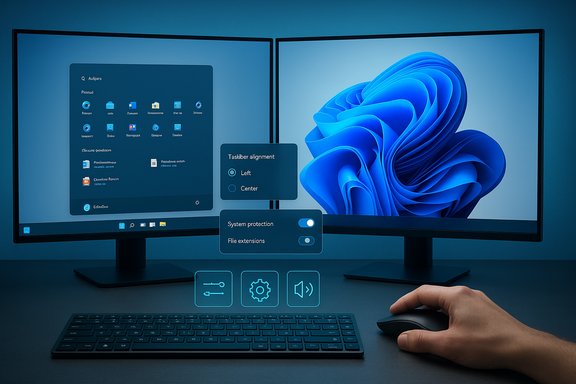 Overview
The push to make Windows a more AI-driven, Copilot-centered platform has produced headline features — voice interactions, semantic search, and “Copilot+” device integrations — but it hasn’t erased a quieter truth: many users are still asking for the basics to work better. From restoring muscle-memory UI options to making recovery tools easier to use and exposing simple file details in File Explorer, small changes would deliver outsized benefits.Windows 10 reached its official end-of-support on October 14, 2025, leaving devices that stay on that platform more exposed and pushing millions to consider Windows 11. That makes the quality of the Windows 11 experience central to both security and customer satisfaction. Microsoft’s priorities should include reliability, discoverability, and regainable control for users — areas that matter far more broadly than another cosmetic Copilot update.
Background: Where Windows 11 Landed and Why it Still Frustrates Users
Windows 11 modernized the OS with a centered taskbar, refreshed UI, and deepening AI hooks. For some users those changes were welcome; for many others they introduced friction: reduced customization, confusing Start behavior, and features that feel intrusive rather than helpful. Community feedback and forum analysis repeatedly show users prefer practical control (taskbar placement, Start layout, more transparent restore/backup tools) over incremental AI feature drops in the absence of polish on core workflows.At the same time, Microsoft’s cadence of yearly feature updates (24H2, 25H2 and rolling enablement packages) has blended UX tweaks with major platform investments that sometimes outpace the attention consumers and admins want for day-to-day stability and configurability. That mismatch is the root of many complaints: Copilot gets new capabilities; the Start menu and taskbar retain irritants.
The Five Features Windows 11 Needs Now
1) Full, native control over Taskbar placement and behavior
Windows 10 users instinctively placed the Start button at the left edge of the screen. Windows 11’s centered taskbar was a visible break with that pattern. Microsoft has added an alignment toggle — but the change has been inconsistent across versions and was implemented in a way that feels like a cosmetic imposition rather than a user choice. The fix is simple in principle: expose left, center, and top/side taskbar placement (where hardware/UX makes sense), and make alignment and sizing persistent across user profiles and multi-monitor layouts.- Why this matters: muscle memory and workspace ergonomics. Power users and people with multiple monitors rely on predictable taskbar behavior to reduce friction.
- Current reality: you can change alignment to Left or Center through Taskbar behaviors in Settings, or with registry tweaks for specific scenarios; but support for top/side placements and robust per-display control remains limited.
- Open Settings → Personalization → Taskbar.
- Expand Taskbar behaviors and change Taskbar alignment to Left (or Center).
- For more advanced tweaks (sizing, top/side placement), users still rely on registry edits or community tools until Microsoft offers native options for every placement.
- Continued user resentment and fragmentation of custom workflows.
- Increased reliance on third-party tweaks that can clash with updates and enterprise policies.
2) A genuinely customizable Start menu with the ability to remove or replace “Recommended”
The Start menu is the single most visible area a user sees after signing in. Windows 11 introduced a streamlined Start, but the “Recommended” area — which surfaces recently used files and app suggestions and can include promotional items — has been a sticking point. The demand is not for the removal of contextual assistance but for the ability to choose what’s shown, where, and whether the region itself exists.- Why this matters: users want predictable space for pinned apps or a compact launcher, not an advertising-like or auto-populated list that displaces pins.
- Current reality: Windows 11 allows you to reduce or empty the Recommended content by toggles (Show recently added apps; Show most used apps; Show recommended files in Start, recent files in File Explorer, and items in Jump Lists), but the section header remains visible even when empty. Group Policy or PowerShell methods exist for enterprise editions to suppress recommendations entirely, but consumer-level controls are limited and sometimes linked to other system-wide features (recent items engine).
- Add a simple “Hide Recommended section” toggle that removes both content and the header without breaking File Explorer recent lists.
- Add a “Pinned-first” layout that uses all Start real-estate for pins and folders, so users can regain the classic, compact app grid.
- Open Settings → Personalization → Start.
- Choose the layout (More pins) to prioritize pinned apps.
- Turn off the three Recommended-related toggles to empty the section (note: the header still remains). Advanced users can use Group Policy (Pro/Enterprise) or PowerShell tricks for more forceful removal.
- Tightening the Recommended controls must avoid breaking the OS-wide “recent activity” index, which multiple features depend on. Microsoft needs to decouple presentation from the system index or provide per-area toggles for privacy and UX.
3) System Protection and a modern, discoverable recovery UX
Recovery and backups are foundational to trust. Restore points (System Protection) are a blunt but useful safety net that can put a user on a known-good configuration after a bad driver or problematic update. Yet System Protection is not always enabled by default and can be confusing to find and configure for non-technical users.- Why this matters: recovery features mitigate update fallout, accidental configuration problems, and provide a low-friction path to repair — a must as more security updates and feature updates roll out.
- Make “System Protection (restore points)” visible and easier to enable from the Settings → Recovery surface and the Windows Backup flow, not buried under Control Panel or arcane system properties.
- Offer a simple “Enable Auto Restore Points” toggle that creates daily or pre-update snapshots with clear storage budgeting and retention controls.
- Type Create a restore point in the Start menu search and open it.
- Under Protection Settings select your system drive and click Configure.
- Choose Turn on System Protection, set the Max Usage, and click Apply. You can then Create... a restore point immediately.
- Recovery capability improves platform resilience for everyone, from home users to enterprise fleets.
- It reduces helpdesk calls and the need to reimage devices after common issues.
- Relying only on restore points is not a substitute for robust backup strategies (image backups, cloud sync). Microsoft should make that distinction clear in the UI.
4) Developer Mode: make the switch safe, discoverable, and better documented
Developer Mode opens sideloading, SSH for deployment, the Windows Device Portal, and other development conveniences. For developers and power users it’s essential. For others, it’s invisible. The problem is discoverability and risk communication.- Why this matters: enabling Developer Mode should be a considered choice that’s straightforward for developers and benign for normal users, with clear documentation about the features and network-facing services that are enabled.
- Settings → System → Advanced → For developers (or System → Advanced → For developers in 25H2+), toggle Developer Mode and accept the dialog. Administrator privileges are required. The setting installs optional packages and can enable SSH/Device Portal, so transparency is important.
- Add a “scoped” Developer Mode: default to enabling only local developer tools, require explicit toggles for network-facing services like Device Portal and SSH, and show a succinct security summary of what enabling will expose and how to disable it.
- Provide an “enterprise-safe” policy template for admins that want to allow development features without loosening remote deployment protections.
- Better defaults protect non-developer users accidentally enabling services that widen attack surface.
- Developers retain the convenience without increasing helpdesk load.
5) Show file name extensions by default — or make the toggle more obvious
This is a usability and security win that should not be controversial: file extensions communicate file type and potential risk. Currently the File Explorer View → Show → File name extensions option is a few clicks away and not visible enough to many users.- Why this matters: users can better identify attachments or files that might be executables masquerading as documents (.pdf.exe vs .pdf). For power users, extensions are essential metadata.
- Consider enabling file name extensions by default, or surface the toggle in the File Explorer toolbar and in a first-run productivity tip.
- Educate users briefly on why extensions matter when the toggle is first exposed.
- Open File Explorer.
- Select View → Show → File name extensions. The extension will appear after the file name.
- Little risk, big win: more visible file types reduce accidental execution of harmful files and improve file management.
Practical analysis: Why these five beat another Copilot update — and where Copilot still belongs
- Immediate user value vs. platform optics
These five changes are about usability, safety, and control — concrete benefits that users feel every time they open their PC. Copilot improvements deliver long-term automation and AI productivity gains, but they are not a substitute for functional regressions or missing controls. Prioritizing core UX fixes gives Copilot a stable foundation to build on. - Adoption and trust
With Windows 10 end-of-support completed, many organizations and consumers are evaluating whether to upgrade, pay for extended support, or migrate off Windows. Improving the basic experience reduces friction for migrations and reassures cautious admins who worry about updates breaking workflows. - Security and recoverability
Restore points and clearer Developer Mode controls reduce differential risk introduced by aggressive feature rollouts or experimental builds. The trade-off between quick innovation and platform stability should bias towards greater safety for the installed base. - The Copilot angle
Copilot and the AI features are important — they represent the long-term vision for how people will interact with their computers. But AI is strongest on top of a predictable, configurable OS. The best approach is to treat Copilot as a high-level service layered above a robust UX rather than a replacement for attention to basics.
Enterprise perspective: policy, manageability, and migration
Enterprises need:- Clear Group Policy and MDM controls for Start menu behavior, taskbar alignment, and restore point policy.
- A reliable, documented path to enable conservative defaults for Developer Mode and to prevent accidental exposure of services like Device Portal.
- Simple telemetry and compatibility reports that explain the impact of enabling/disabling recent activity indexes when administrators want to turn off Recommended content without disabling File Explorer’s recent lists.
Short checklist: What power users and admins can do right now
- Move the taskbar back to the left
- Settings → Personalization → Taskbar → Taskbar behaviors → Taskbar alignment → Left. For advanced customizations use established registry keys or community guides if acceptable in your environment.
- Reduce or hide Start “Recommended”
- Settings → Personalization → Start → choose “More pins” layout and toggle off the recommended-related switches. Use Group Policy for Pro/Enterprise for stricter control.
- Enable System Protection / restore points
- Type Create a restore point → System Properties → System Protection → Configure → Turn on System Protection → set disk usage and Apply → Create a restore point now. Consider automated policies for enterprise snapshots.
- Enable Developer Mode responsibly
- Settings → System → Advanced → For developers → toggle Developer Mode (accept prompt). If enabling for development, explicitly toggle off Device Portal and SSH unless needed. Use policy for enterprise control.
- Show file name extensions in File Explorer
- File Explorer → View → Show → File name extensions. Consider deploying a sitre-specific policy or image that exposes extensions for all users.
Strengths and potential risks of prioritizing these features
Strengths- Immediate UX wins that increase user satisfaction and reduce helpdesk volume.
- Low technical complexity relative to novel AI features; many changes are UI and policy enhancements rather than large engineering efforts.
- Builds trust: improving basic controls signals Microsoft is listening to user needs, improving long-term adoption.
- Perceived feature creep: adding many toggles can overwhelm casual users if not designed with sensible defaults.
- Implementation fragmentation: if Microsoft releases partial fixes in preview channels but fails to standardize them across branches, users and admins may experience inconsistent behavior.
- Dependency coupling: some “removal” features (like taking out Recommended) tie into shared systems for recent activity which other features rely on — decoupling these safely takes thoughtful API and index changes.
Final verdict: A clear roadmap for Microsoft — and what users should demand
Windows 11’s roadmap should balance the long game (AI, Copilot, semantic indexing) with near-term, high-impact fixes that improve everyday productivity, safety, and control. The five items above are low-friction, high-value improvements that would reduce churn, increase trust, and make upgrades more appealing after Windows 10’s end-of-support. Each request is practical: better taskbar control, a genuinely configurable Start menu, easier restore point access, safer Developer Mode defaults, and more visible file extensions.Microsoft should not pause innovation, but it must do more to ensure the foundation keeps pace: prioritize ergonomics and recovery over cosmetic AI refinements until the basics are stable and clearly controllable for both consumers and administrators. Users and admins benefit more from a predictable, secure, and customizable desktop today than from another incremental Copilot feature that only a subset of users will ever adopt.
Conclusion
Windows 11’s future should be a blend: powerful AI services layered on top of a stable, user-controlled core. The five features detailed here are practical, achievable, and would deliver immediate benefits to millions of users — from the everyday consumer to the enterprise admin. Microsoft has the technical means and the telemetry to make these changes; doing so would turn incremental goodwill into durable momentum for Windows 11’s next chapter.Source: MakeUseOf Windows 11 needs these 5 features far more than another Copilot update
