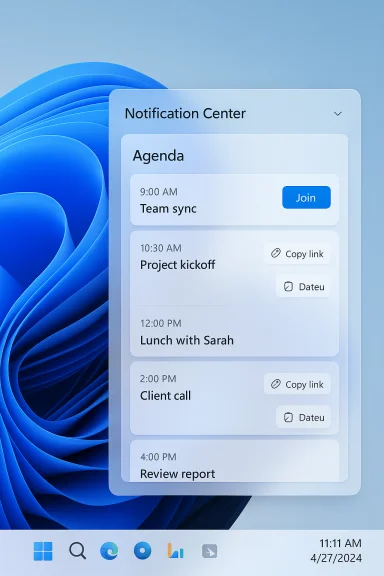
Microsoft’s promised Agenda view is back in Windows 11’s Notification Center, and the early previews confirm a useful, glanceable calendar surface — but one report argues Microsoft built it as a web-based WebView2 component rather than a native shell control, raising fresh questions about performance, resource use, and manageability for both consumers and IT teams.
Microsoft announced the return of a Windows 10–style Agenda view to Windows 11 at Ignite 2025; the company said the feature would appear in preview for Windows Insiders in December 2025 and would include interactive actions such as one‑click meeting joins and hooks into Microsoft 365 Copilot. This restoration is explicitly framed as a practical productivity fix: a compact, chronological list of upcoming events surfaced in the Notification Center flyout that you open from the taskbar clock. The new Agenda view addresses a long‑standing UX gap left when Windows 11 reworked the taskbar and calendar flyout. Windows 10 users benefited from a tightly integrated mini‑agenda directly from the taskbar; Windows 11 removed that functionality, driving many users to third‑party utilities. Microsoft’s reintroduction restores that quick‑glance surface and folds in modern Microsoft 365 integrations and optional Copilot actions for meeting prep. But implementation details matter. A recent writeup from a technology publication observed that, in preview builds, the Agenda appears to render inside a WebView2 shell (the embedded Edge/Chromium engine Microsoft exposes to apps), causing multiple WebView2‑related processes to start under the Windows Shell Experience Host and a measurable spike in CPU and memory while the Notification Center is open. That claim — if accurate — would make the Agenda another web‑hosted shell element in the Windows UI rather than a platform‑native control. This article summarizes the facts, examines the evidence, explains why that choice matters, and offers practical guidance and risk mitigation for users and IT.
Source: Windows Latest Windows 11's "Agenda" view in the Notification Center is a WebView2 (web app component), not native
 Background / Overview
Microsoft announced the return of a Windows 10–style Agenda view to Windows 11 at Ignite 2025; the company said the feature would appear in preview for Windows Insiders in December 2025 and would include interactive actions such as one‑click meeting joins and hooks into Microsoft 365 Copilot. This restoration is explicitly framed as a practical productivity fix: a compact, chronological list of upcoming events surfaced in the Notification Center flyout that you open from the taskbar clock. The new Agenda view addresses a long‑standing UX gap left when Windows 11 reworked the taskbar and calendar flyout. Windows 10 users benefited from a tightly integrated mini‑agenda directly from the taskbar; Windows 11 removed that functionality, driving many users to third‑party utilities. Microsoft’s reintroduction restores that quick‑glance surface and folds in modern Microsoft 365 integrations and optional Copilot actions for meeting prep. But implementation details matter. A recent writeup from a technology publication observed that, in preview builds, the Agenda appears to render inside a WebView2 shell (the embedded Edge/Chromium engine Microsoft exposes to apps), causing multiple WebView2‑related processes to start under the Windows Shell Experience Host and a measurable spike in CPU and memory while the Notification Center is open. That claim — if accurate — would make the Agenda another web‑hosted shell element in the Windows UI rather than a platform‑native control. This article summarizes the facts, examines the evidence, explains why that choice matters, and offers practical guidance and risk mitigation for users and IT.What Microsoft actually announced
The official feature description
- The Agenda view lives inside Notification Center (the calendar flyout opened from the taskbar clock) and presents a scrollable, chronological list of upcoming events.
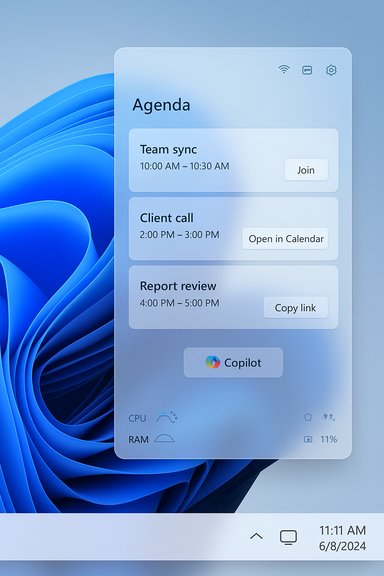
- Items are interactive: quick actions include Join (meeting links), Open in Calendar/Outlook, Copy link, and optional Microsoft 365 Copilot actions such as meeting briefs or contextual prep — subject to tenant controls and licensing.
- Preview availability: Microsoft targeted a December 2025 Insider preview, with broader rollout to follow in a staged manner. Server‑side gating and tenant targeting are likely, meaning not every Insider device will see the feature immediately.
Why this is useful (the UX rationale)
- Restores a familiar, low‑friction place to check “what’s next” without opening a separate app.
- Reduces app switching and time-to-join for meetings — small per‑meeting savings that add up across a busy workday.
- Provides a logical surface to host context‑aware Copilot actions at the moment of need (right before a meeting).
The WebView2 claim: what’s being reported and why it matters
What Windows Latest reported (the observable behavior)
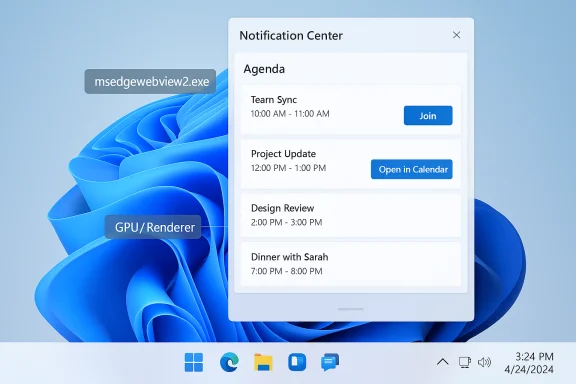
A recent hands‑on report noted the Agenda UI in preview attempts to load Outlook meeting details inside a WebView2 shell. The reporter opened the Notification Center and observed multiple WebView2 sub‑processes spawn (items like GPU Process, Renderer, Utility), all nested under Windows Shell Experience Host in Task Manager. When the flyout opened, a sharp CPU jump and memory increase were visible; when the flyout closed, Windows placed many of the WebView2 processes into Suspended state. The article concluded the Agenda UI is rendered via WebView2 rather than a purely native shell view. The writeup used task‑manager traces and visual clues (fonts and emoji rendering) to support the claim.Is that plausible?
Yes — and there’s precedent. Microsoft has embedded WebView2 into multiple Windows surfaces and apps (and some shell elements have historically leveraged web rendering for content). Community and official threads show WebView2 is a common way for Windows components and companion apps to render remote or dynamic HTML content, and Windows’ own search and other surfaces have been observed launching WebView2 processes even when web search is disabled. Microsoft’s public community responses explain WebView2 is a normal design choice for some system-hosted surfaces.What Microsoft has not said publicly (yet)
Microsoft’s official materials about the Agenda feature describe behavior and integrations but do not explicitly disclose the implementation technology (native XAML/WinUI vs WebView2 vs hybrid). Microsoft generally documents UI behavior and admin controls in follow‑on pages rather than implementation internals, so the absence of an implementation statement is not proof either way. Until Microsoft or independent reverse‑engineering confirms the rendering stack, the WebView2 assertion remains an observational claim supported by process traces and UI evidence rather than an official technical guarantee. Treat the WebView2 claim as plausible and partially corroborated by system behavior, but still technically unverified pending an official statement or deeper inspection.Technical implications of a WebView2-based Agenda
Performance and resource use
- WebView2 runs an embedded Chromium engine; opening a WebView2 surface commonly spawns renderer, GPU, and utility processes. That creates additional CPU and memory overhead compared with a lightweight native control, particularly when multiple instances are active. Observers have reported perceptible CPU/memory spikes while the Notification Center renders the Agenda. If WebView2 is used, expect an initial resource cost when the flyout is opened and lower but nonzero resident memory while suspended.
- Microsoft has worked to mitigate WebView2 overhead in many scenarios (suspending background components, sharing runtime instances), but the embedded Chromium architecture is still heavier than a purely native, GPU-accelerated shell control implemented in WinUI/Win32. That difference matters on low‑power devices, constrained VDI images, and older machines.
Responsiveness and perceived “nativeness”
- Web‑rendered interfaces can be visually and functionally indistinguishable from native UIs when well implemented. However, many Windows power users and enthusiasts perceive WebView2/Electron UIs as less native (differences in font rendering, DPI scaling, animation smoothness, or keyboard behavior). The Agenda’s success hinges in part on feeling snappy and tightly integrated — a perception that can be harmed if developers use web paradigms without careful native integration.
Manageability, security, and privacy
- Any web-based component that surfaces calendar metadata and integrates with Microsoft 365 introduces an extra attack surface and additional telemetry/permission considerations. Admins will want to confirm where meeting metadata and Copilot requests flow (client‑side only, tenant‑grounded, or cloud‑routed), how DLP and Purview apply to inline Copilot summaries, and whether logs/audit trails capture agentic activity. Microsoft’s documentation indicates Copilot actions depend on tenant opt‑in and licensing, but the operational specifics for Agenda are subject to policy and admin controls that should be validated during preview piloting.
Updatability and runtime dependencies
- WebView2 uses a shared runtime — Microsoft Edge WebView2 Runtime — that is updated independently of the OS. That can be a benefit (security patches, improved standards), but it also means the Agenda experience depends on the runtime version and update cadence. Some enterprise scenarios prefer component bundling for predictability, while others favor a shared runtime for smaller footprints and centralized updates. The choice affects testing, imaging, and support. Community threads and GitHub issues show developers frequently raise versioning and compatibility concerns with WebView2 and Windows.
Strengths of the Agenda implementation (regardless of rendering tech)
- Restores a highly demanded productivity feature with minimal context switching; the UI is small, focused, and situationally valuable.
- Integrates Microsoft 365 Copilot where permitted, which — if implemented carefully — can offer real productivity wins (briefs, attachments, talking points) right before meetings. That’s the kind of contextual assistance Microsoft has been promising for the desktop.
- A web-based implementation can accelerate iteration and parity across services (Outlook/Outlook on the web, Teams, Calendar) because the same rendering and UI logic can be re-used across companion experiences.
Risks and trade-offs — what to watch for
- Performance on low‑end hardware: WebView2’s Chromium engine may introduce CPU and memory spikes on older laptops, tablets, or in constrained VDI pools.
- Perception of “web crapper” UI: users sensitive to fluidity and native look/feel may view Agenda as less integrated or polished compared with a WinUI control.
- Governance and telemetry: Copilot integrations raise questions about data flow, storage, and audit trails — important for regulated industries and privacy‑conscious organizations.
- Dependency management: reliance on a shared WebView2 runtime introduces a separate dependency that can complicate imaging and application compatibility.
- Hidden behavior via server flags: Microsoft’s staged rollouts and server-side feature flags can lead to inconsistent availability across devices even after an OS update is installed. That affects pilot planning and support.
Practical guidance: what IT leaders should do now
- Pilot in a controlled ring
- Enroll a small set of devices (non‑production) in the Windows Insider channel and test Agenda behavior under real workloads and with your enterprise calendars. Validate join flows for Teams, Zoom, and third‑party conferencing providers.
- Verify Copilot entitlements and DLP
- Map which Copilot features require payable licenses and tenant opt‑ins. Update Purview/DLP controls to ensure meeting content surfaced into Copilot actions is captured or blocked according to policy.
- Monitor performance telemetry
- Track Windows Shell Experience Host CPU and memory when Notification Center is opened; collect logs and set baselines before and after enabling Agenda to quantify impact. If WebView2 processes are observed, note resident memory and suspension behavior.
- Prepare a rollback/opt‑out plan
- Keep documentation and user guidance ready in case Agenda is unsuitable for a given device class. Confirm whether admin controls (Group Policy/Intune) allow disabling the Agenda surface or Copilot integrations. Microsoft typically exposes controls for tenant‑gated features; watch for those docs during preview.
- Validate third‑party calendar parity
- If your organization uses Google Calendar, iCloud, or other non‑Microsoft calendar providers, test how events and join links appear in Agenda and whether interactive actions behave as expected. Gaps here could push users back toward third‑party flyouts.
Practical guidance: what end users should do
- Try Agenda on a non‑critical machine (Insider preview) to judge responsiveness and the usefulness of Copilot actions before enabling on your daily driver.
- Treat Copilot outputs as drafts — verify generated briefs or suggested notes before sharing or using them in meetings.
- If you care about the absolute lowest resource use, observe Task Manager while opening the Notification Center and decide if the tradeoff is acceptable for your workflow. Community reports show WebView2 surfaces can spawn visible processes, but suspension reduces active CPU once closed.
Should Microsoft have built Agenda natively?
There is no categorical right answer; both approaches have trade‑offs.- Native implementation (WinUI/Win32) typically yields lower runtime overhead and tighter "feel" on the desktop, but it can be slower to iterate and harder to reuse across web‑first services.
- WebView2 enables rapid feature parity with web/Outlook experiences and leverages existing web code, but it tends to add runtime footprint and sometimes a perceptible non‑native feel if not carefully integrated.
How to validate the WebView2 claim (for curious tech teams)
- Enable the Agenda preview on an Insider device.
- Open Task Manager, expand “Windows Shell Experience Host,” and observe child processes when Notification Center opens.
- Look for child processes named or associated with WebView2 (GPU Process, Renderer, Utility) and note whether they appear and how long they remain active/suspended.
- Use Process Explorer or similar to inspect module names and command lines; WebView2‑hosted renderers commonly reveal msedge‑related command lines and Chromium‑style process flags.
- Capture logs and reproduce on multiple machines to rule out an isolated build artifact. Community posts show users performing similar checks; share findings with IT teams and public discussion forums for broader confirmation.
Final assessment and what to expect next
- The Agenda view is a pragmatic and welcome restoration of a small-but-important productivity surface in Windows 11. It solves a day‑to‑day pain point for many users and is well aligned with Microsoft’s larger plan to bring Copilot into contextual surfaces across the OS.
- The claim that Agenda is implemented via WebView2 is plausible and supported by observable process behavior in at least one preview report, but it has not been officially confirmed by Microsoft. Treat that implementation detail as an important caveat — it changes the operational calculus for IT teams, especially those managing low‑end hardware, VDI images, or strict governance controls.
- IT teams should pilot aggressively during the Insider preview window, validate Copilot entitlements and DLP coverage, and monitor performance and telemetry before broader rollout. Users who are sensitive to resource use or who run on older hardware should test the feature for responsiveness and perceived “nativeness” before adopting it broadly.
Quick checklist (actionable next steps)
- Join Windows Insider (Dev/Beta) on non‑critical devices to preview Agenda.
- Pilot Agenda and Copilot actions with a controlled user group; test Teams, Zoom, and third‑party links.
- Audit DLP/Purview coverage for Copilot-generated content; map licensing requirements for Copilot features.
- Monitor ShellExperienceHost and WebView2 processes in Task Manager/Process Explorer to quantify resource use.
- Prepare admin guidance for users (how to disable or opt out if needed) and a rollback plan for problematic device classes.
Source: Windows Latest Windows 11's "Agenda" view in the Notification Center is a WebView2 (web app component), not native