Closing a frozen app on Windows 11 can be a two‑second fix or a data‑loss disaster — knowing the right tool for the job, when to use it, and the risks involved is the difference between a smooth recovery and hours of troubleshooting.
Windows 11 provides multiple built‑in ways to close running applications, from polite window messages to forceful process termination. Each method trades off between graceful shutdown (apps get a chance to save state) and immediate resource reclamation (RAM/CPU freed right away). The operating system’s Task Manager remains the central visual tool for process control, but keyboard shortcuts, Settings toggles, the taskbar, and command‑line tools are all valid options depending on the scenario.
This feature guide explains the available methods, shows step‑by‑step actions, highlights when to prefer one technique over another, and warns about build‑dependent behaviors and possible side effects that merit caution. It draws on community testing and widely shared troubleshooting practices to present a practitioner’s playbook for closing apps on Windows 11.
Steps:
Important caveats:
taskkill /IM notepad.exe /F
PowerShell equivalents:
Note: these issues are build‑ and update‑specific. Do not assume every Windows 11 machine will exhibit this behavior; verify your environment and apply vendor guidance if a regression is suspected.
For enterprise remediation, prefer scripted PowerShell runbooks (Get‑Process | Stop‑Process) integrated with remote management tools (Intune/SCCM/WinRM) so remediation is auditable and reversible where possible.
However, feature rollout variability — especially for conveniences like the taskbar End Task toggle — creates inconsistency across devices and Windows builds. Known regressions (for example, orphaned Task Manager processes in certain preview updates) highlight the danger of relying on optional/insider builds on production machines. Administrators should validate updates in pilots, and users should apply caution when using forceful termination methods because they can cause data loss or file corruption in edge cases.
Where claims include quantitative figures (memory usage, percentages of success for Task Manager), treat those as situational and confirm them against system‑specific telemetry rather than assuming they apply universally. Community-sourced statistics are useful signals but must be validated in context.
Source: Windows Report Easy Ways to Close Running Apps on Windows 11
 Background
Windows 11 provides multiple built‑in ways to close running applications, from polite window messages to forceful process termination. Each method trades off between graceful shutdown (apps get a chance to save state) and immediate resource reclamation (RAM/CPU freed right away). The operating system’s Task Manager remains the central visual tool for process control, but keyboard shortcuts, Settings toggles, the taskbar, and command‑line tools are all valid options depending on the scenario.This feature guide explains the available methods, shows step‑by‑step actions, highlights when to prefer one technique over another, and warns about build‑dependent behaviors and possible side effects that merit caution. It draws on community testing and widely shared troubleshooting practices to present a practitioner’s playbook for closing apps on Windows 11.
Quick overview: When to use which method
- Use Alt + F4 first for a polite close; it gives the app a chance to save.
- Use Task Manager (End task) when the app is unresponsive or consuming huge resources.
- Use the taskbar End Task shortcut (if available) for fast kills — but only when necessary because it behaves like a force kill. Availability varies by Windows build.
- Use taskkill / Stop‑Process from the terminal for scripting, automation, or remote remediation.
Task Manager — the surgical tool
Why Task Manager first
Task Manager is the most flexible, user‑friendly tool for inspecting and terminating processes. It shows CPU, Memory, Disk, and GPU usage, identifies the offending process, and allows targeted termination. For most non‑responsive applications this is the recommended first responder because it gives visibility before action.How to open and use Task Manager
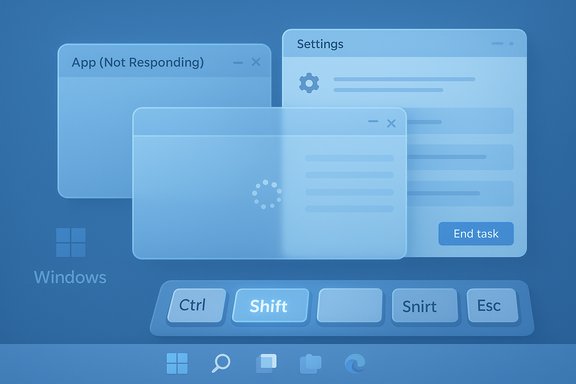
- Press Ctrl + Shift + Esc to open Task Manager instantly.
- In the Processes tab, locate the application that’s unresponsive or consuming resources. Sort by CPU/Memory/Disk to identify culprits.
- Select the process and click End task. Wait a few seconds for Windows to terminate the process and release resources.
Advanced Task Manager tips
- Use the Details tab to see executable names and PIDs (e.g., chrome.exe, WINWORD.EXE) when multiple instances exist.
- Use Efficiency mode to throttle a resource‑hungry process rather than killing it outright; this preserves state while reducing CPU and power usage. Efficiency mode is a newer Windows 11 capability and is often a safer intermediate step.
Polite first step: Alt + F4
Pressing Alt + F4 sends the standard window‑close message (WM_CLOSE) to the focused application. It is the least disruptive option because the app can prompt to save files and perform cleanup. Try this before forceful measures when the UI still responds.- Bring the window into focus, press Alt + F4 once. If the app accepts window messages, it will begin its normal shutdown routine.
- If the window does not respond to Alt + F4, it likely means the UI thread is blocked and a force termination is necessary.
Close background apps via Settings (battery and privacy management)
Some apps run background tasks even when not in active use. Reducing background activity prevents unnecessary battery usage and reduces the need to forcibly terminate processes.Steps:
- Press Windows + I to open Settings. Go to Apps → Installed apps. Select the app and choose Advanced options. Set Background apps permissions to Never to stop it from launching background tasks.
The taskbar “End Task” convenience — fast but build‑dependent
Windows 11 includes a taskbar right‑click option that can present End task directly in an app’s jump list. That allows a quick kill without opening Task Manager. It behaves like a force kill and will not prompt to save work.Important caveats:
- The feature’s availability is build‑dependent and rolled out progressively. Some machines have it exposed under Settings → System → For developers as a toggle; other systems or enterprise devices may not show it at all.
- Because it performs an immediate termination, treat it like running taskkill /F. Use it only for genuinely unresponsive apps.
Command line — tasklist, taskkill, and PowerShell
When to use the terminal
The terminal is essential for automation, remote troubleshooting, or when the GUI is unavailable. It is also the right choice for administrators who need to script recoveries across a fleet.Useful commands
- View running processes: tasklist (Command Prompt).
- Kill by image name (gentle): taskkill /IM notepad.exe
- Force kill by image name: taskkill /IM notepad.exe /F
- Kill by PID: taskkill /PID 1234 /F
taskkill /IM notepad.exe /F
PowerShell equivalents:
- Stop-Process -Name chrome -Force
- Stop-Process -Id 1234 -Force
Warnings
Using /F or Stop‑Process -Force immediately terminates the process and may cause unsaved work to be lost or, in extreme cases, corrupt files or databases. Always confirm the right image name or PID before using force flags.Force‑closing frozen apps: checklist and escalation
When an app is clearly hung, follow a disciplined escalation to reduce the chance of data loss:- Wait 30–60 seconds — some hangs are temporary and resolve themselves.
- Try Alt + F4 for a polite close.
- Open Task Manager (Ctrl + Shift + Esc) and End task. If that fails, use Details → End process tree.
- If Task Manager is unavailable or fails to respond, use the secure sequence Ctrl + Alt + Delete to access Task Manager or sign out.
- As a last resort, use shutdown /r /f /t 0 to force immediate restart (this closes all apps system‑wide and will lose unsaved work). Only use this when other options fail.
When Task Manager itself misbehaves — known regressions and mitigations
There have been documented regressions where closing Task Manager with the Close (X) button fails to terminate its process, leaving orphaned taskmgr.exe instances running. Reopening Task Manager can spawn additional instances that consume memory and CPU. Community testing and vendor advisories demonstrate this behavior in specific preview updates and builds. Practical mitigations include using Task Manager’s End task command on its own process or running taskkill /IM taskmgr.exe /F in an elevated prompt to clear instances. Rebooting clears lingering processes and is a reliable safety valve.Note: these issues are build‑ and update‑specific. Do not assume every Windows 11 machine will exhibit this behavior; verify your environment and apply vendor guidance if a regression is suspected.
Risks and data integrity: what can go wrong
Forceful termination methods (End task, taskkill /F, Stop‑Process -Force, taskbar End Task) do not allow an application to save state. Consequences include:- Lost unsaved work — most common and immediate.
- Partial writes or corruption — rare but possible for database‑backed or heavily stateful apps. Use caution with editors, databases, and long‑running write operations.
- Unexpected side effects in multi‑process apps — killing a parent process without its children can leave helpers orphaned or in invalid states. Prefer process‑tree kills when an app spawns many helpers.
Prevention: how to reduce occurrences of freezes
- Keep Windows, device drivers (especially GPU and storage) and apps up to date to avoid known bugs. Many hangs are fixed in driver or app updates.
- Enable autosave and version history where available (Office, OneDrive, many editors and cloud apps). This reduces the impact of forced kills.
- Monitor recurring culprits with Task Manager or Resource Monitor, and consider uninstalling or replacing poorly behaving apps.
- On low‑RAM systems, close unnecessary background apps or consider a memory upgrade to reduce pressure and prevent frequent hangs.
Enterprise considerations and admin controls
Corporate environments often restrict tools such as Task Manager, the developer toggles, or the ability to run powerful command line tools. Policies may hide the taskbar End Task option or block taskkill to prevent accidental termination of managed services. In managed fleets, coordinate with IT before applying aggressive recovery techniques; escalate to helpdesk if necessary.For enterprise remediation, prefer scripted PowerShell runbooks (Get‑Process | Stop‑Process) integrated with remote management tools (Intune/SCCM/WinRM) so remediation is auditable and reversible where possible.
Advanced troubleshooting after forced termination
If a process is repeatedly hanging or the system shows residual instability after multiple forced kills:- Boot to Safe Mode to isolate driver or startup software conflicts.
- Run system integrity checks: sfc /scannow and DISM /Online /Cleanup-Image /RestoreHealth. These check and repair system files.
- Run chkdsk if disk errors are suspected.
- Use Process Explorer (Sysinternals) to inspect handles, loaded DLLs, and thread stacks — it’s more powerful than Task Manager for deep diagnostics.
Practical cheat sheet (copyable)
- Open Task Manager: Ctrl + Shift + Esc.
- Gentle close (focused window): Alt + F4.
- Force quit (Task Manager): Select process → End task.
- Taskbar quick kill: Right click taskbar app → End task (where available).
- Command line (force): taskkill /IM app.exe /F.
- PowerShell (scripted): Get-Process -Name app | Stop-Process -Force.
- Emergency restart: shutdown /r /f /t 0. Use only when necessary.
Final analysis — strengths and risks
Windows 11 offers a strong, layered toolbox for closing apps that fits different user skill levels: keyboard shortcuts for speed, Task Manager for inspection, Settings for prevention, and command‑line tools for power users and automation. The addition of features like Efficiency mode provides middle grounds between killing and tolerating resource hogs. These combined capabilities let users reclaim control quickly and adapt mitigation to the urgency of the situation.However, feature rollout variability — especially for conveniences like the taskbar End Task toggle — creates inconsistency across devices and Windows builds. Known regressions (for example, orphaned Task Manager processes in certain preview updates) highlight the danger of relying on optional/insider builds on production machines. Administrators should validate updates in pilots, and users should apply caution when using forceful termination methods because they can cause data loss or file corruption in edge cases.
Where claims include quantitative figures (memory usage, percentages of success for Task Manager), treat those as situational and confirm them against system‑specific telemetry rather than assuming they apply universally. Community-sourced statistics are useful signals but must be validated in context.
Conclusion
Closing running apps on Windows 11 is straightforward when the right technique is chosen: try Alt + F4 for a polite shutdown, Task Manager for controlled termination, Settings to prevent background churn, and command‑line tools for power users and scripted remediation. Use Efficiency mode where available to throttle instead of killing. Treat force‑kill tools as emergency measures because they can result in unsaved data loss or rare file corruption. Verify unusual behaviors or regressions against your specific Windows build before assuming a fix, and involve IT when working on managed devices. Armed with these steps and the escalation checklist, restoring a responsive system can be fast and safe without sacrificing important data.Source: Windows Report Easy Ways to Close Running Apps on Windows 11

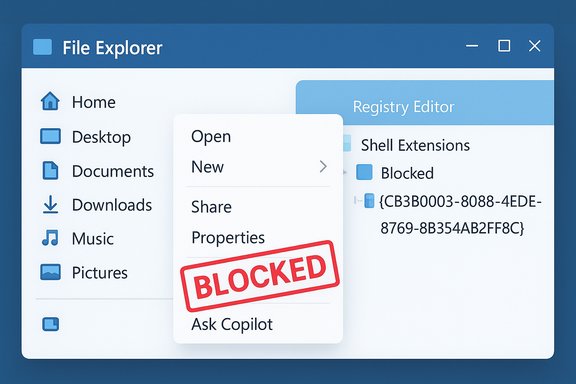
 , and File Explorer context‑menu actions such as Ask Copilot that appear when you right‑click document and image files. For users who prefer a less noisy context menu, the fastest, lowest‑risk approach is to block the specific shell extension that provides the right‑click action. That is done by adding the Copilot extension’s CLSID to the Shell Extensions\Blocked registry key. Multiple independent how‑to guides and community investigations identify the Packaged COM CLSID for the Copilot File Explorer extension as {CB3B0003-8088-4EDE-8769-8B354AB2FF8C} and recommend adding it under the Blocked key to hide the entry. This feature article walks through the practical options — from the simple registry block to complete app removal and enterprise‑grade enforcement — and explains the tradeoffs, durability concerns, and safety precautions every user and admin should heed.