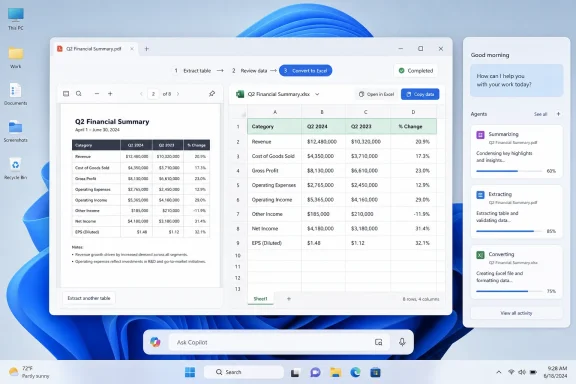
Microsoft’s newly published Windows 11 AI e-book says Ask Copilot on the taskbar, taskbar agents, and Click to Do’s table-to-Excel feature are expected in mid-2026, with availability aimed first at Microsoft 365 Copilot and Copilot+ PC business users rather than every consumer PC. The date matters less as a calendar entry than as a declaration of intent. After a year of backing away from some of its noisier Copilot placements, Microsoft is not abandoning AI in Windows. It is moving the battlefield from “chatbot button” to operating-system workflow.
That is the more consequential shift. Microsoft has learned, slowly and sometimes painfully, that users do not want a floating assistant interrupting every app, nor do administrators want another unmanaged surface that behaves like a sales experiment. The company’s new pitch is that Windows 11 can become the execution layer for AI work: less app-hopping, fewer manual conversions, more agents doing background tasks, and a taskbar that becomes a status board for delegated work. It is an attractive vision, but it also raises the old Windows question in a new form: when Microsoft says it is reducing friction, whose friction is it reducing?
The most revealing thing about Microsoft’s mid-2026 roadmap is that it does not describe Ask Copilot as a novelty for people who enjoy chatting with a machine. It describes the feature as part of a larger workplace model for what Microsoft calls “Frontier Firms,” organizations that are supposed to weave AI directly into daily operations rather than bolt another tool onto the side of Outlook, Teams, Excel, and the browser.
That language is not accidental. “Tool sprawl” has become the polite enterprise term for a familiar corporate mess: too many dashboards, too many chat interfaces, too many automation portals, and too many disconnected pilots that impress executives but exhaust employees. Microsoft’s answer is to make Windows itself the place where these capabilities surface.
Ask Copilot on the taskbar is the flagship example. In Microsoft’s scenario, a compliance lead does not open a browser, search a knowledge base, switch to a dashboard, and dig through a shared folder. They invoke Ask Copilot from the taskbar and ask about policy changes, open compliance items, and upcoming deadlines from the current working context.
This is a different promise from the original Copilot-in-Windows pitch. In 2023 and 2024, Microsoft often presented Copilot as an assistant you could summon from the side of the screen. In 2026, the ambition is more infrastructural: Copilot becomes the connective tissue between Windows, Microsoft 365, enterprise data, and background agents.
That may sound like marketing varnish, but the distinction matters. A chatbot is optional until Microsoft shoves it into the wrong place. An operating model is much harder to avoid, because it changes how files are found, how work is summarized, how data is extracted, and how the taskbar reports progress.
That is why the mid-2026 Ask Copilot plan is more important than the old Copilot button. A pinned app can be ignored, unpinned, or buried. A replacement or companion to taskbar search sits directly in one of Windows’ most habitual gestures. If users already press the Windows key or click search to find a file, an app, or a setting, Microsoft has a natural opportunity to intercept that intent and broaden it.
The company’s e-book describes the taskbar and Start menu as places where Microsoft 365 Copilot and AI agents can appear through a new Composer experience. That phrasing suggests a unified input layer: type, ask, search, delegate, summarize, and perhaps act from the same UI. The dream is that Windows no longer makes users decide whether they are “searching,” “prompting,” or “automating.” They simply express intent.
For enthusiasts and IT pros, that dream has a shadow. Windows Search is already one of the most contested parts of Windows 11, not because users dislike search, but because they dislike Microsoft treating search as a funnel for web results, promos, and services they did not ask for. A cleaner Ask Copilot panel could genuinely improve the experience. But if it becomes another distribution channel for Microsoft 365 upsell, Bing behavior, or poorly governed AI suggestions, it will inherit every grievance users already have about Search and multiply them.
Microsoft appears to know this. Recent reporting and preview behavior suggest the company has been trying to make local files and apps appear more reliably ahead of web suggestions. That is the right direction. But enterprise credibility will depend on whether Ask Copilot behaves like a professional tool or a consumer growth surface wearing a badge lanyard.
That is exactly the kind of problem AI should solve. It is tedious, common, and easy to explain. Nobody wants to retype figures from a supplier report, rebuild columns from a screenshot, or copy malformed rows from a PDF into Excel and then spend twenty minutes cleaning the result. If local vision models can turn a visible table into usable spreadsheet data with a single action, that is not “AI magic.” It is workflow debt being paid down.
Microsoft says this capability is expected in mid-2026 for Copilot+ PCs, which is an important limitation. The feature depends on on-device AI hardware and local models, not just a cloud prompt box. That makes the pitch stronger for privacy-sensitive workflows, but it also narrows the initial audience to newer machines with the right silicon and configuration.
This is where Microsoft’s Copilot+ PC strategy becomes clearer. The company needs reasons for businesses to refresh hardware beyond the traditional cadence of security, manageability, and performance. Local AI features like table extraction, writing assistance, semantic search, and offline summaries give Microsoft a story that is more concrete than “this laptop has an NPU.”
For data analysts, operations specialists, finance teams, and anyone who lives between reports and spreadsheets, table-to-Excel is the sort of capability that could become invisible in the best way. If it works, users will stop thinking of it as AI. They will think of it as a normal desktop action, like snapping a window or copying text.
This is the lesson Microsoft keeps relearning across Office and Windows. When AI blocks cells in Excel, inserts itself into lightweight utilities, or appears as a floating button with no clear reason to exist, users revolt. When AI removes a manual step without changing the user’s mental model, users are much more forgiving.
The mid-2026 roadmap gestures toward the second path. Ask Copilot is described as reducing context switching. Agents on the taskbar are described as making background work visible without forcing users to babysit it. Click to Do is described as cutting the gap between what is visible and what is actionable. These are all sensible ideas because they start from existing pain.
The hard part is restraint. Microsoft has a long history of turning good integration ideas into clutter by adding promotional surfaces, ambiguous defaults, or too many overlapping entry points. Windows 11 already contains Search, Start recommendations, Widgets, Copilot, Microsoft 365 app surfaces, File Explorer hooks, and browser-adjacent service prompts. Adding AI to the desktop will only feel elegant if Microsoft removes or disciplines other surfaces at the same time.
That is why the reported rollback of some Copilot placements matters. If Microsoft truly is cutting unnecessary AI appearances in apps and focusing on deeper, fewer, better-integrated workflows, it may be learning the correct lesson. If “less Copilot” simply means “Copilot somewhere users cannot ignore,” the backlash will return with sharper teeth.
By bringing AI into managed Windows and Microsoft 365 surfaces, Microsoft can argue that administrators get policy, licensing, identity, compliance, and auditability in a familiar ecosystem. The taskbar becomes not just a user convenience but a managed access point. Frontier features can be enabled, withheld, previewed, and governed through admin settings.
That is the optimistic reading. The more cautious reading is that Microsoft is expanding the Windows management burden into a fast-moving layer that many organizations are still not ready to operationalize. AI agents that can research, summarize, extract, and act across business data are not just productivity tools. They are permissioned actors. They need lifecycle management, data boundaries, logging, and a clear answer to the question of who is responsible when an automated workflow produces the wrong result.
This is especially relevant for Ask Copilot. The more useful it becomes, the more it will need access to organizational context: documents, policies, tickets, meetings, email, chats, reports, and line-of-business systems. That context is what makes the assistant valuable. It is also what makes administrators nervous.
Microsoft’s governance story is stronger than most rivals because the company already owns identity, endpoint management, productivity apps, and much of the enterprise data estate. But that same breadth creates concentration risk. If Copilot becomes the interface to everything, then misconfiguration, over-permissioning, hallucinated summaries, or poorly scoped agent actions become Windows problems, not just AI problems.
That distinction will not stop consumer anxiety, because Windows users have been trained to expect Microsoft experiments to leak across editions, channels, and default settings over time. But it does mean the immediate story is less “Microsoft is forcing AI onto every home PC” and more “Microsoft is turning Windows into a managed AI workbench for organizations already buying into Microsoft 365 Copilot.”
For home users, the implications are indirect but still important. Enterprise features often shape the design language and architecture of Windows before consumer versions receive lighter-weight variants. Semantic search, local models, improved dictation, File Explorer summaries, and on-screen actions all have obvious consumer uses. Microsoft may start with compliance leads and operations specialists, but the underlying desktop patterns will not stay confined to conference-room personas forever.
The question is whether Microsoft can maintain meaningful boundaries. A feature that makes sense for a licensed enterprise tenant with admin controls, compliance policies, and managed data access may be inappropriate as a default consumer experience. Conversely, consumer-grade Copilot behavior that prioritizes engagement and service discovery would be unacceptable in serious business environments.
Windows has to serve both worlds, and Copilot makes that balancing act harder. Microsoft can no longer hide behind a single “Windows experience” when AI features depend on hardware class, license tier, geography, language, tenant policy, and user role. Mid-2026 will not be one launch. It will be a matrix.
Ask Copilot cannot afford that reputation. A taskbar-integrated assistant that misunderstands settings, retrieves the wrong files, invents policy details, or produces unreliable summaries will not be treated as a cute beta. It will be treated as a regression in a core operating system surface. The closer Copilot moves to Windows’ center of gravity, the less tolerance users will have for chatbot-style error.
This is why Microsoft’s examples focus on specific business roles and tasks. Compliance leads need current policy information. Engagement managers need background research status. Operations specialists need tables converted into spreadsheets. Project managers need file summaries before meetings. These scenarios are narrow enough to test, govern, and improve.
They also let Microsoft sidestep the hardest consumer question: “Why do I need this?” In the enterprise, Microsoft can answer with time saved, fewer context switches, better data reuse, and reduced tool sprawl. On a personal PC, the answer is less obvious unless the feature is genuinely faster and less annoying than what it replaces.
Microsoft’s challenge is not to prove that AI can be placed in Windows. It has already done that. The challenge is to prove that AI can make Windows feel calmer, more capable, and more respectful of user intent. That is a much higher bar than adding another icon.
A better search box with natural-language understanding could be a major improvement. Users should be able to type “the budget deck from last week,” “that PDF about supplier pricing,” or “settings for larger text” and get the right result. Semantic search on Copilot+ PCs and Microsoft 365-connected devices could make Windows feel dramatically more modern.
But if Ask Copilot treats every query as an invitation to chat, browse, upsell, or route through services, it will repeat the mistakes of modern Windows Search. The taskbar is not a billboard. It is not a content portal. It is a control surface.
The distinction between search and assistant behavior must be crisp. Sometimes the user wants an answer. Sometimes the user wants a file. Sometimes the user wants a setting. Sometimes the user wants to delegate a task. A unified Composer can support all of that only if it is very good at understanding mode and intent.
Microsoft’s own preview and documentation language suggests it wants “faster action” and “less context switching.” That is the right standard. The user should reach the destination sooner than before. If Ask Copilot adds explanation where a direct result would do, or opens a conversational loop where a single click used to work, it will fail the Windows test.
This is a natural extension of the Windows desktop. We already expect the taskbar to show whether apps are open, whether downloads are running, whether Teams is calling, whether something needs attention, and whether background work has finished. AI agents fit that model better than they fit a chat window. If an agent is researching a market, preparing a summary, checking documents, or gathering project material, the user should not have to stare at a prompt box.
The power of this model is that it normalizes asynchronous AI work. The user starts a job, returns to normal work, and receives status when something meaningful happens. That is closer to how professionals already handle builds, exports, renders, deployments, backups, and long-running scripts.
The risk is notification creep. If every agent, companion app, summary, and recommendation wants taskbar presence, Windows could become a blinking cockpit of partial automation. Microsoft will need clear rules for priority, silence, failure states, and user control. Background intelligence that constantly asks for attention is not background intelligence. It is another meeting.
For sysadmins, the agent status model also raises practical management questions. Which agents can run? What resources do they consume? Can they access local files, cloud files, or both? Are results cached? Are prompts logged? Can users delegate actions that cross compliance boundaries? These are not edge cases. They are the operational reality of making agents part of the desktop.
People already have workflows. They copy from PDFs, search folders, ask colleagues in Teams, skim email threads, open too many browser tabs, and maintain private systems of naming files just well enough to find them later. These workflows are inefficient, but they are trusted because users understand their failure modes.
AI in Windows has to beat those habits without making users feel less in control. Click to Do beats retyping if the spreadsheet is accurate. File Explorer summaries beat opening five documents if the summary is reliable. Ask Copilot beats a knowledge-base search if it surfaces the right policy and makes provenance clear. Agents beat manual research if they can show what they did and let the user inspect the result.
This is where Microsoft’s “Frontier Firm” language can sound too executive and not enough desktop. Workers do not experience transformation as an operating model. They experience it as whether the thing in front of them saves five minutes or wastes ten.
The best version of this roadmap is not a grand AI rebranding of Windows. It is a set of boringly useful reductions in clerical work. Less retyping. Less hunting. Less switching. Less waiting. Less opening documents just to decide whether they matter. If Microsoft stays focused there, it has a chance to make AI feel native rather than imposed.
That trust cannot be won with launch videos. It will be won through defaults, admin policies, opt-in behavior, local processing where appropriate, transparent licensing, and a willingness to remove features that do not earn their place. Microsoft’s recent willingness to scale back some Copilot placements suggests the company understands the problem, but understanding is not the same as discipline.
The mid-2026 timing is therefore both opportunity and warning. Microsoft has months to improve reliability, align the experience across Insider builds and managed devices, and clarify which features require Microsoft 365 Copilot, Copilot+ hardware, Entra identity, Intune, or regional support. That clarity matters because nothing kills enterprise enthusiasm faster than a feature that looks available in a keynote but collapses into licensing footnotes in deployment.
For Windows enthusiasts, the story is more personal. The taskbar is sacred real estate. File Explorer is muscle memory. Search is already a sore spot. Microsoft is proposing to alter all three in the name of AI productivity. It may be right. But it has to prove it one interaction at a time.
That is the more consequential shift. Microsoft has learned, slowly and sometimes painfully, that users do not want a floating assistant interrupting every app, nor do administrators want another unmanaged surface that behaves like a sales experiment. The company’s new pitch is that Windows 11 can become the execution layer for AI work: less app-hopping, fewer manual conversions, more agents doing background tasks, and a taskbar that becomes a status board for delegated work. It is an attractive vision, but it also raises the old Windows question in a new form: when Microsoft says it is reducing friction, whose friction is it reducing?
 Microsoft Stops Selling a Chatbot and Starts Selling an Operating Model
The most revealing thing about Microsoft’s mid-2026 roadmap is that it does not describe Ask Copilot as a novelty for people who enjoy chatting with a machine. It describes the feature as part of a larger workplace model for what Microsoft calls “Frontier Firms,” organizations that are supposed to weave AI directly into daily operations rather than bolt another tool onto the side of Outlook, Teams, Excel, and the browser.That language is not accidental. “Tool sprawl” has become the polite enterprise term for a familiar corporate mess: too many dashboards, too many chat interfaces, too many automation portals, and too many disconnected pilots that impress executives but exhaust employees. Microsoft’s answer is to make Windows itself the place where these capabilities surface.
Ask Copilot on the taskbar is the flagship example. In Microsoft’s scenario, a compliance lead does not open a browser, search a knowledge base, switch to a dashboard, and dig through a shared folder. They invoke Ask Copilot from the taskbar and ask about policy changes, open compliance items, and upcoming deadlines from the current working context.
This is a different promise from the original Copilot-in-Windows pitch. In 2023 and 2024, Microsoft often presented Copilot as an assistant you could summon from the side of the screen. In 2026, the ambition is more infrastructural: Copilot becomes the connective tissue between Windows, Microsoft 365, enterprise data, and background agents.
That may sound like marketing varnish, but the distinction matters. A chatbot is optional until Microsoft shoves it into the wrong place. An operating model is much harder to avoid, because it changes how files are found, how work is summarized, how data is extracted, and how the taskbar reports progress.
The Taskbar Becomes Microsoft’s New AI Beachhead
The Windows taskbar has always been more than a strip of icons. It is the operating system’s trust surface, the place users go when they want to launch, switch, recover, search, and regain control. By putting Ask Copilot and agent status there, Microsoft is not merely adding another entry point. It is asking users to treat AI activity as part of the desktop’s basic machinery.That is why the mid-2026 Ask Copilot plan is more important than the old Copilot button. A pinned app can be ignored, unpinned, or buried. A replacement or companion to taskbar search sits directly in one of Windows’ most habitual gestures. If users already press the Windows key or click search to find a file, an app, or a setting, Microsoft has a natural opportunity to intercept that intent and broaden it.
The company’s e-book describes the taskbar and Start menu as places where Microsoft 365 Copilot and AI agents can appear through a new Composer experience. That phrasing suggests a unified input layer: type, ask, search, delegate, summarize, and perhaps act from the same UI. The dream is that Windows no longer makes users decide whether they are “searching,” “prompting,” or “automating.” They simply express intent.
For enthusiasts and IT pros, that dream has a shadow. Windows Search is already one of the most contested parts of Windows 11, not because users dislike search, but because they dislike Microsoft treating search as a funnel for web results, promos, and services they did not ask for. A cleaner Ask Copilot panel could genuinely improve the experience. But if it becomes another distribution channel for Microsoft 365 upsell, Bing behavior, or poorly governed AI suggestions, it will inherit every grievance users already have about Search and multiply them.
Microsoft appears to know this. Recent reporting and preview behavior suggest the company has been trying to make local files and apps appear more reliably ahead of web suggestions. That is the right direction. But enterprise credibility will depend on whether Ask Copilot behaves like a professional tool or a consumer growth surface wearing a badge lanyard.
Click to Do Shows the AI Feature Users Actually Asked For
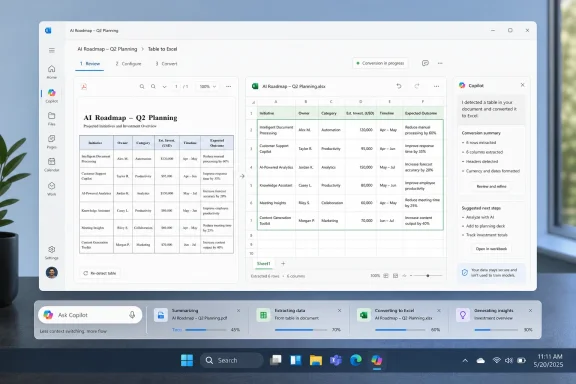
The Click to Do table-to-Excel feature may be less flashy than Ask Copilot, but it is probably the clearest example of useful desktop AI in the roadmap. The premise is simple: if a table is visible on screen but trapped inside an image, PDF, webpage, or other static surface, Click to Do can recognize the table and convert it into a structured Excel spreadsheet.That is exactly the kind of problem AI should solve. It is tedious, common, and easy to explain. Nobody wants to retype figures from a supplier report, rebuild columns from a screenshot, or copy malformed rows from a PDF into Excel and then spend twenty minutes cleaning the result. If local vision models can turn a visible table into usable spreadsheet data with a single action, that is not “AI magic.” It is workflow debt being paid down.
Microsoft says this capability is expected in mid-2026 for Copilot+ PCs, which is an important limitation. The feature depends on on-device AI hardware and local models, not just a cloud prompt box. That makes the pitch stronger for privacy-sensitive workflows, but it also narrows the initial audience to newer machines with the right silicon and configuration.
This is where Microsoft’s Copilot+ PC strategy becomes clearer. The company needs reasons for businesses to refresh hardware beyond the traditional cadence of security, manageability, and performance. Local AI features like table extraction, writing assistance, semantic search, and offline summaries give Microsoft a story that is more concrete than “this laptop has an NPU.”
For data analysts, operations specialists, finance teams, and anyone who lives between reports and spreadsheets, table-to-Excel is the sort of capability that could become invisible in the best way. If it works, users will stop thinking of it as AI. They will think of it as a normal desktop action, like snapping a window or copying text.
The Best AI in Windows May Be the Least Visible
Microsoft’s own examples reveal a tension inside its Windows AI strategy. The company wants Copilot to be prominent enough to justify its platform investment, but the most persuasive features are the ones that stay out of the way until summoned. Click to Do is useful because it acts on what the user is already looking at. File Explorer summaries are useful if they preview meaning without forcing a document open. Writing assistance is useful if it appears inside a text field when the user needs polish, not as a mascot hovering over the app.This is the lesson Microsoft keeps relearning across Office and Windows. When AI blocks cells in Excel, inserts itself into lightweight utilities, or appears as a floating button with no clear reason to exist, users revolt. When AI removes a manual step without changing the user’s mental model, users are much more forgiving.
The mid-2026 roadmap gestures toward the second path. Ask Copilot is described as reducing context switching. Agents on the taskbar are described as making background work visible without forcing users to babysit it. Click to Do is described as cutting the gap between what is visible and what is actionable. These are all sensible ideas because they start from existing pain.
The hard part is restraint. Microsoft has a long history of turning good integration ideas into clutter by adding promotional surfaces, ambiguous defaults, or too many overlapping entry points. Windows 11 already contains Search, Start recommendations, Widgets, Copilot, Microsoft 365 app surfaces, File Explorer hooks, and browser-adjacent service prompts. Adding AI to the desktop will only feel elegant if Microsoft removes or disciplines other surfaces at the same time.
That is why the reported rollback of some Copilot placements matters. If Microsoft truly is cutting unnecessary AI appearances in apps and focusing on deeper, fewer, better-integrated workflows, it may be learning the correct lesson. If “less Copilot” simply means “Copilot somewhere users cannot ignore,” the backlash will return with sharper teeth.
Enterprise IT Gets a New Control Plane and a New Headache
Microsoft’s enterprise pitch is that Windows 11, Intune, Microsoft 365 Copilot, and Agent 365 can give organizations a governed way to deploy AI. In theory, that is exactly what IT departments want. They do not need every employee signing up for random AI tools, pasting sensitive material into unapproved services, and then asking security to clean up the mess after procurement has already lost track.By bringing AI into managed Windows and Microsoft 365 surfaces, Microsoft can argue that administrators get policy, licensing, identity, compliance, and auditability in a familiar ecosystem. The taskbar becomes not just a user convenience but a managed access point. Frontier features can be enabled, withheld, previewed, and governed through admin settings.
That is the optimistic reading. The more cautious reading is that Microsoft is expanding the Windows management burden into a fast-moving layer that many organizations are still not ready to operationalize. AI agents that can research, summarize, extract, and act across business data are not just productivity tools. They are permissioned actors. They need lifecycle management, data boundaries, logging, and a clear answer to the question of who is responsible when an automated workflow produces the wrong result.
This is especially relevant for Ask Copilot. The more useful it becomes, the more it will need access to organizational context: documents, policies, tickets, meetings, email, chats, reports, and line-of-business systems. That context is what makes the assistant valuable. It is also what makes administrators nervous.
Microsoft’s governance story is stronger than most rivals because the company already owns identity, endpoint management, productivity apps, and much of the enterprise data estate. But that same breadth creates concentration risk. If Copilot becomes the interface to everything, then misconfiguration, over-permissioning, hallucinated summaries, or poorly scoped agent actions become Windows problems, not just AI problems.
The Consumer PC Is Not the First-Class Target This Time
One of the easiest mistakes to make with this roadmap is to assume every Windows 11 user will wake up in mid-2026 with an AI-powered taskbar. The material points in a more targeted direction. Ask Copilot and related agent experiences are positioned around Microsoft 365 Copilot users, business workflows, and Frontier-style early access. Click to Do’s table-to-Excel conversion is tied to Copilot+ PCs.That distinction will not stop consumer anxiety, because Windows users have been trained to expect Microsoft experiments to leak across editions, channels, and default settings over time. But it does mean the immediate story is less “Microsoft is forcing AI onto every home PC” and more “Microsoft is turning Windows into a managed AI workbench for organizations already buying into Microsoft 365 Copilot.”
For home users, the implications are indirect but still important. Enterprise features often shape the design language and architecture of Windows before consumer versions receive lighter-weight variants. Semantic search, local models, improved dictation, File Explorer summaries, and on-screen actions all have obvious consumer uses. Microsoft may start with compliance leads and operations specialists, but the underlying desktop patterns will not stay confined to conference-room personas forever.
The question is whether Microsoft can maintain meaningful boundaries. A feature that makes sense for a licensed enterprise tenant with admin controls, compliance policies, and managed data access may be inappropriate as a default consumer experience. Conversely, consumer-grade Copilot behavior that prioritizes engagement and service discovery would be unacceptable in serious business environments.
Windows has to serve both worlds, and Copilot makes that balancing act harder. Microsoft can no longer hide behind a single “Windows experience” when AI features depend on hardware class, license tier, geography, language, tenant policy, and user role. Mid-2026 will not be one launch. It will be a matrix.
Microsoft’s Timing Is a Confession as Much as a Roadmap
The mid-2026 date gives Microsoft room to polish, but it also acknowledges that the first wave of Copilot enthusiasm outran the product. The company has already endured criticism for AI demos that failed at basic Windows guidance, for intrusive buttons in productivity apps, and for a general sense that Copilot was being distributed more aggressively than it was being refined.Ask Copilot cannot afford that reputation. A taskbar-integrated assistant that misunderstands settings, retrieves the wrong files, invents policy details, or produces unreliable summaries will not be treated as a cute beta. It will be treated as a regression in a core operating system surface. The closer Copilot moves to Windows’ center of gravity, the less tolerance users will have for chatbot-style error.
This is why Microsoft’s examples focus on specific business roles and tasks. Compliance leads need current policy information. Engagement managers need background research status. Operations specialists need tables converted into spreadsheets. Project managers need file summaries before meetings. These scenarios are narrow enough to test, govern, and improve.
They also let Microsoft sidestep the hardest consumer question: “Why do I need this?” In the enterprise, Microsoft can answer with time saved, fewer context switches, better data reuse, and reduced tool sprawl. On a personal PC, the answer is less obvious unless the feature is genuinely faster and less annoying than what it replaces.
Microsoft’s challenge is not to prove that AI can be placed in Windows. It has already done that. The challenge is to prove that AI can make Windows feel calmer, more capable, and more respectful of user intent. That is a much higher bar than adding another icon.
Windows Search Is the Canary in the Copilot Mine
If Ask Copilot partly replaces or reimagines taskbar search, then Windows Search becomes the proving ground for Microsoft’s sincerity. Users have complained for years that search in Windows 11 is too willing to prioritize web suggestions, promotions, and irrelevant noise over the local files, apps, and settings they actually want. That frustration is not anti-AI. It is anti-distraction.A better search box with natural-language understanding could be a major improvement. Users should be able to type “the budget deck from last week,” “that PDF about supplier pricing,” or “settings for larger text” and get the right result. Semantic search on Copilot+ PCs and Microsoft 365-connected devices could make Windows feel dramatically more modern.
But if Ask Copilot treats every query as an invitation to chat, browse, upsell, or route through services, it will repeat the mistakes of modern Windows Search. The taskbar is not a billboard. It is not a content portal. It is a control surface.
The distinction between search and assistant behavior must be crisp. Sometimes the user wants an answer. Sometimes the user wants a file. Sometimes the user wants a setting. Sometimes the user wants to delegate a task. A unified Composer can support all of that only if it is very good at understanding mode and intent.
Microsoft’s own preview and documentation language suggests it wants “faster action” and “less context switching.” That is the right standard. The user should reach the destination sooner than before. If Ask Copilot adds explanation where a direct result would do, or opens a conversational loop where a single click used to work, it will fail the Windows test.
Agents on the Taskbar Turn Waiting Into a Managed State
The agent story is less visible than Ask Copilot, but it may be more strategically important. Microsoft’s e-book describes agents running long tasks in the background while progress appears from the taskbar. That makes the taskbar a kind of operations console for delegated work.This is a natural extension of the Windows desktop. We already expect the taskbar to show whether apps are open, whether downloads are running, whether Teams is calling, whether something needs attention, and whether background work has finished. AI agents fit that model better than they fit a chat window. If an agent is researching a market, preparing a summary, checking documents, or gathering project material, the user should not have to stare at a prompt box.
The power of this model is that it normalizes asynchronous AI work. The user starts a job, returns to normal work, and receives status when something meaningful happens. That is closer to how professionals already handle builds, exports, renders, deployments, backups, and long-running scripts.
The risk is notification creep. If every agent, companion app, summary, and recommendation wants taskbar presence, Windows could become a blinking cockpit of partial automation. Microsoft will need clear rules for priority, silence, failure states, and user control. Background intelligence that constantly asks for attention is not background intelligence. It is another meeting.
For sysadmins, the agent status model also raises practical management questions. Which agents can run? What resources do they consume? Can they access local files, cloud files, or both? Are results cached? Are prompts logged? Can users delegate actions that cross compliance boundaries? These are not edge cases. They are the operational reality of making agents part of the desktop.
The Real Competition Is the Old Desktop Workflow
It is tempting to frame Microsoft’s move as a race against Google, OpenAI, Apple, or any other AI platform vendor. That competition is real, but it is not the immediate test for Windows users. The immediate competition is muscle memory.People already have workflows. They copy from PDFs, search folders, ask colleagues in Teams, skim email threads, open too many browser tabs, and maintain private systems of naming files just well enough to find them later. These workflows are inefficient, but they are trusted because users understand their failure modes.
AI in Windows has to beat those habits without making users feel less in control. Click to Do beats retyping if the spreadsheet is accurate. File Explorer summaries beat opening five documents if the summary is reliable. Ask Copilot beats a knowledge-base search if it surfaces the right policy and makes provenance clear. Agents beat manual research if they can show what they did and let the user inspect the result.
This is where Microsoft’s “Frontier Firm” language can sound too executive and not enough desktop. Workers do not experience transformation as an operating model. They experience it as whether the thing in front of them saves five minutes or wastes ten.
The best version of this roadmap is not a grand AI rebranding of Windows. It is a set of boringly useful reductions in clerical work. Less retyping. Less hunting. Less switching. Less waiting. Less opening documents just to decide whether they matter. If Microsoft stays focused there, it has a chance to make AI feel native rather than imposed.
The Mid-2026 Windows Bet Comes Down to Trust
Microsoft’s roadmap is ambitious, but its success will be determined by trust at three levels. Users must trust the interface not to get in the way. Administrators must trust the controls and data boundaries. Organizations must trust that AI outputs are useful enough to change workflows without creating a new class of invisible errors.That trust cannot be won with launch videos. It will be won through defaults, admin policies, opt-in behavior, local processing where appropriate, transparent licensing, and a willingness to remove features that do not earn their place. Microsoft’s recent willingness to scale back some Copilot placements suggests the company understands the problem, but understanding is not the same as discipline.
The mid-2026 timing is therefore both opportunity and warning. Microsoft has months to improve reliability, align the experience across Insider builds and managed devices, and clarify which features require Microsoft 365 Copilot, Copilot+ hardware, Entra identity, Intune, or regional support. That clarity matters because nothing kills enterprise enthusiasm faster than a feature that looks available in a keynote but collapses into licensing footnotes in deployment.
For Windows enthusiasts, the story is more personal. The taskbar is sacred real estate. File Explorer is muscle memory. Search is already a sore spot. Microsoft is proposing to alter all three in the name of AI productivity. It may be right. But it has to prove it one interaction at a time.
The Windows 11 AI Roadmap Finally Gets Specific
The most useful way to read Microsoft’s mid-2026 plan is not as a single feature announcement, but as a map of where the company thinks desktop work is going. The old model asked users to move between apps. The new model asks Windows to understand the work surface and bring the next action closer.- Ask Copilot on the taskbar is expected in mid-2026 and is positioned primarily around Microsoft 365 Copilot, business workflows, and managed enterprise scenarios.
- Taskbar agents are expected to make long-running AI work visible from the desktop instead of trapping progress inside a chat session or browser tab.
- Click to Do’s table-to-Excel conversion is expected in mid-2026 for Copilot+ PCs and targets a practical, high-friction task that many office workers still perform manually.
- Microsoft is framing these features as a response to tool sprawl, but the Windows community will judge them by speed, accuracy, defaults, and whether they reduce clutter.
- The strongest features are the ones that behave like quiet utilities rather than attention-seeking assistants.
- IT departments should treat the roadmap as an endpoint, identity, data-governance, and licensing project, not merely a Windows UX update.
References
- Primary source: Windows Latest
Published: Tue, 26 May 2026 19:04:06 GMT
Microsoft confirms Ask Copilot is coming to the Windows 11 taskbar in mid-2026
Footnotes in a new Microsoft e-book confirm Ask Copilot and Click to Do are launching in mid-2026 for enterprise "Frontier Firms." www.windowslatest.com
- Related coverage: windowscentral.com
I tested Windows 11’s return of taskbar positioning and resizing, and it’s not the classic Windows 10 experience | Windows Central
Windows 11 finally brings back classic Taskbar features, but the experience still falls short of Windows 10.www.windowscentral.com - Related coverage: techradar.com
Microsoft is fixing one of the most baffling things about Windows 11 — 'spam' in search results | TechRadar
Why didn't this happen long before now? Search mewww.techradar.com - Related coverage: techspot.com
Microsoft begins testing Windows 11 26H2 with major fixes and Copilot changes | TechSpot
Build 26300.7674 is the first public test of what's expected to become the major feature update for 2026. Unlike routine quality improvements, this new release is designed...www.techspot.com - Related coverage: pcworld.com
Windows 11 26H2 is coming: Meet all the new features | PCWorld
Windows 11 26H2 is the next major free update for all Windows users. Among other things, it brings improvements to Explorer, camera control, and AI. Here's an overview.www.pcworld.com - Official source: learn.microsoft.com
Pin Microsoft 365 Copilot and its companion apps to the Windows taskbar | Microsoft Learn
Learn how to improve the use of Microsoft 365 Copilot across your organization by pinning the Copilot app to the Windows taskbar.learn.microsoft.com
- Official source: support.microsoft.com
- Official source: blogs.microsoft.com
How Frontier Firms are rebuilding the operating model for the age of AI - The Official Microsoft Blog
Updated May 11, 2026: The post was updated to reflect that third-party plugins will be available starting May 12, 2026. Spend time with any software engineering team right now and you’ll see something worth paying attention to. Over the last few years, the way software gets built has moved...blogs.microsoft.com - Official source: news.microsoft.com