Microsoft's third Technical Preview of Azure Stack (TP3) arrives as the last major pre‑GA milestone, bringing a wider slice of Azure's IaaS and PaaS surface to on‑premises environments, a clearer pay‑as‑you‑use model for local consumption, and practical refinements for disconnected and edge scenarios that enterprise teams have been asking for.
Azure Stack is Microsoft's attempt to offer a cloud‑consistent platform inside customer datacenters: the same APIs, resource model, and developer toolchain as Azure but running on validated, partner‑delivered hardware in locations that require locality, sovereignty, or offline operation. The program launched as a sequence of technical previews and iterative updates that steadily expanded functionality and reliability, with the promise that integrated systems from OEM partners would follow once the software reached production readiness. TP3 is presented as the final major Technical Preview before general availability, and Microsoft framed it as a turning point where the on‑premises Azure experience moved closer to parity with cloud Azure for developers and operators alike. That positioning underpins three explicit hybrid scenarios Microsoft highlights: consistent hybrid application development, Azure services available on‑premises, and purpose‑built integrated systems for operational excellence.
Azure Stack TP3 narrowed the gap between public Azure and on‑premises deployments and clarified Microsoft’s commercial thinking for hybrid cloud. Its arrival marked a transition out of experiment mode toward partner‑delivered, supportable integrated systems—an important shift for organizations that must balance innovation velocity with regulatory, latency, and sovereignty constraints. The technical achievements and the commercial model were compelling, but the real success of Azure Stack would depend on careful piloting, firm vendor agreements, and disciplined lifecycle operations before IT organizations could treat it as a dependable piece of their hybrid cloud fabric.
Source: BetaNews Microsoft Azure Stack Technical Preview 3 is now available
 Background
Azure Stack is Microsoft's attempt to offer a cloud‑consistent platform inside customer datacenters: the same APIs, resource model, and developer toolchain as Azure but running on validated, partner‑delivered hardware in locations that require locality, sovereignty, or offline operation. The program launched as a sequence of technical previews and iterative updates that steadily expanded functionality and reliability, with the promise that integrated systems from OEM partners would follow once the software reached production readiness. TP3 is presented as the final major Technical Preview before general availability, and Microsoft framed it as a turning point where the on‑premises Azure experience moved closer to parity with cloud Azure for developers and operators alike. That positioning underpins three explicit hybrid scenarios Microsoft highlights: consistent hybrid application development, Azure services available on‑premises, and purpose‑built integrated systems for operational excellence. What TP3 actually delivers
Key functional additions and platform parity
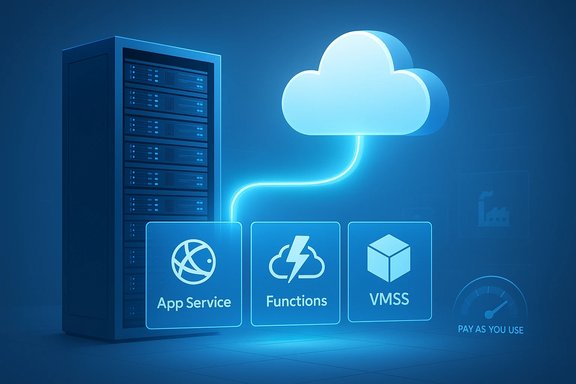
TP3 fills several practical gaps between earlier previews and the full Azure experience:- PaaS services on‑premises: TP3 (and its immediate refreshes) brings App Service (Web/API/Mobile Apps) and preview releases of Azure Functions to Azure Stack, along with updated SQL and MySQL resource providers. This expands the set of cloud‑native patterns that can run locally without re‑architecting apps.
- Improved IaaS capabilities: TP3 added support for Azure Virtual Machine Scale Sets (VMSS) and D‑series VM sizes, plus temporary disks consistent with Azure behavior. These moves were intended to reduce friction when moving VM‑based workloads between public Azure and Azure Stack.
- Disconnected and ADFS scenarios: Enterprises that operate in high‑latency, intermittent, or classified networks can deploy TP3 with ADFS and run in disconnected modes—critical for industrial, government, and remote ‑site use cases.
- Marketplace syndication: Administrators can syndicate content from the Azure Marketplace into Azure Stack so that common VM images and templates become available locally. This improves developer self‑service and reduces manual artifact management.
- Security and operations: TP3 includes enhancements to the infrastructure, an isolated administrator portal, and broader alerting and management improvements aimed at operational predictability.
Pricing and commercial models
One of TP3’s headline announcements was the intention to extend Azure’s cloud economics on‑premises via a pay‑as‑you‑use model for services consumed from an Azure Stack system. Microsoft committed to metering services similarly to Azure and offering the same subscription/invoice model. For customers that cannot or will not send metering telemetry to Azure, Microsoft proposed a capacity model (fixed price) based on system cores. Microsoft also emphasized lower on‑prem service prices in scenarios where customers operate their own hardware and facilities, though explicit retail pricing depended on partner packaging and regional offers.Why TP3 matters: practical benefits for enterprises and developers
1) True developer portability
By shipping the same resource providers, portal experience, PowerShell, ARM templates, and Visual Studio tooling that developers know from public Azure, Azure Stack reduces friction for teams that split workloads between cloud and on‑premises environments. That portability makes it easier to hire or re‑skill developers and to apply DevOps pipelines consistently across deployment targets. For organizations that require hybrid deployment patterns—think latency‑sensitive edge compute or regulatory data residency—this consistency is the core value proposition.2) Expanded PaaS on premises
App Service and Functions on Azure Stack bring higher‑level abstractions to on‑premises application platforms. Developers can deploy web apps, APIs, and serverless functions without maintaining full VM stacks for each workload. In practice, this reduces operational overhead for application teams and accelerates modernization projects where partial cloud migration or staged modernization is necessary. Microsoft’s TP3 refresh explicitly focused on making these PaaS primitives practical for early adopters.3) A feasible path for remote, regulated, and edge scenarios
TP3’s support for disconnected operation, ADFS deployment, and isolated administrative surfaces makes it a candidate for industrial installations, branch offices, government enclaves, and even vessels or mining sites where connectivity and sovereignty constraints prevent public cloud use. The Marketplace syndication further helps deliver a repeatable developer experience in these constrained contexts.Critical analysis — strengths and real risks
Strengths
- Platform consistency: Azure Stack’s strongest asset is the degree of API and tooling alignment with Azure. This is not mere marketing — it materially reduces the learning curve and makes CI/CD pipelines portable.
- Concrete PaaS expansion: Adding App Service and Functions on‑premises is a step change. It enables more application patterns locally and simplifies containerless modernization strategies for legacy apps.
- Partner hardware strategy: Microsoft’s insistence on validated, integrated systems from partners (Dell EMC, HPE, Lenovo, and later others) aims to offload the lifecycle complexity of hardware selection and bring a predictable support story for production use. This model helps organizations avoid the combinatorial nightmare of DIY hardware/software stacks.
Risks and limitations
- Preview status and re‑deploy caveats: TP3 and its PaaS previews were explicitly preview code. Microsoft advised that the TP3 refresh required redeployment to use some PaaS components. That means early production bets carried upgrade and deployment work risk until GA and sustained updates stabilized. Administrators should treat TP3 as a pilot platform, not a production replacement, until supported release milestones.
- Operational complexity and skills: Running Azure Stack means operating a mini‑cloud: metering, patch cadence, hardware lifecycle, network design, and integration with enterprise identity and monitoring. Organizations need cloud engineering skills as well as hardware operations processes, or they must adopt managed variants from partners. The hybrid model shifts some cloud responsibilities back onto customer ops teams.
- Procurement and supply constraints: The validated system approach reduces variability but introduces procurement dependencies and lead times. For time‑sensitive rollouts—particularly those needing specialized accelerators or large footprints—supply chain timing can be a gating factor.
- Metering, privacy, and sovereignty: The pay‑as‑you‑use model presumes sending some metering data to Microsoft (or using an equivalent partner‑managed path). For highly regulated environments or air‑gapped deployments, the capacity model can be used, but it removes the elasticity value of true metered consumption. Teams must evaluate telemetry, contractual obligations, and local compliance before adopting the metered model. Microsoft’s promise of lower regional prices is directional and not a substitute for careful TCO modelling.
- Vendor lock and long‑term portability: While Azure Stack aims for cloud consistency, embedding Azure APIs and Azure management models into on‑premises infrastructure creates a commercial and operational affinity. Organizations that later seek to exit the Microsoft ecosystem will face migration costs—not purely technical but also procedural and contractual. Independent coverage at the time emphasized that Azure Stack is as much a commercial product as a technical one.
Technical verification and cross‑checks
Microsoft’s own blog posts set out the TP3 features, deployment guidance, and roadmap milestones; they are the authoritative source for what Microsoft shipped and what it expected next steps to be (for example, GA in mid‑calendar‑2017 and the rebranding of the single‑server development kit). Independent press coverage corroborated the core claims: third technical preview availability, the pay‑as‑you‑use model, PaaS previews, and the partner hardware story. Outlets that covered the announcement noted the practical implications for edge and disconnected scenarios and flagged TP3’s preview state as a reason to pilot cautiously rather than rush to production. This second voice is useful because it provides pragmatic context about where the preview left off and the kinds of operational headaches organizations actually encountered. Where Microsoft stated pricing positioning (lower local prices compared with public Azure in some cases), the company did not publish a universal price table for TP3—pricing would be driven by partner packaging and local offers. Organizations should therefore treat “lower price” as a directional promise and require concrete quotes as part of procurement negotiations. That specific pricing detail is not readily verifiable from public posts and was deliberately left to partner engagements.Deployment and operational checklist (recommended)
- Inventory and classification
- Classify applications by data gravity, latency requirement, compliance posture, and modernization complexity. Use this to decide which workloads are appropriate for Azure Stack pilots and which should remain in public Azure.
- Pilot on representative hardware
- Acquire an integrated system from a partner or use the Development Kit for functional validation. Test the full lifecycle: provisioning, scaling (VMSS), patching, backup, and marketplace syndication. Validate the redeploy requirement if you plan to enable PaaS previews.
- Identity and connectivity design
- For connected deployments use Entra/AD integration patterns and for disconnected sites validate ADFS/AD flow. Plan certificate lifecycles and secret management for edge sites.
- Metering, billing, and compliance
- Decide metered vs capacity model. If you choose metering, plan how metering telemetry will be shipped to Microsoft and verify contractual terms and data handling practices. For capacity models, negotiate core counts and support SLAs.
- Backup, DR and patching plan
- Define backup windows and test recovery. Because Azure Stack receives continuous innovation updates, make an upgrade/rollback plan and test it against representative hardware and storage controllers.
- Developer and DevOps enablement
- Ensure CI/CD pipelines and ARM templates work against the Azure Stack resource provider endpoints, and validate App Service/Functions behavior in the local environment. Train development teams on any subtle resource SKU differences and marketplace syndication steps.
Practical scenarios where TP3 made sense (and where it didn’t)
- Best fits:
- Edge compute for data preprocessing with periodic aggregation to the cloud.
- Regulated industries needing local control with cloud‑consistent management.
- Organizations modernizing monolithic apps incrementally using App Service on‑premises.
- Proof‑of‑concepts that require a true Azure API surface without public cloud residency.
- Poor fit:
- Organizations that lack cloud engineering skills or cannot commit to hardware lifecycle management.
- Workloads that require global cloud scale, rapid capacity bursts, or economies tied to hyperscaler elasticity.
- Teams requiring immediate GA‑level support and predictable long‑term SLAs (TP3 was preview code and best treated as an exploratory platform).
Longer‑term outlook and strategic implications
TP3 signaled Microsoft’s strategic bet that hybrid—not public cloud only—would be the enterprise steady state for many organizations. By extending Azure’s operational model onto validated hardware, Microsoft created an on‑ramp for enterprises to adopt cloud patterns without surrendering locality or regulatory control. However, this strategy also bundles Microsoft’s management model and APIs into customers’ on‑premises operations, shaping long‑term procurement and integration choices for IT organizations. For partners, Azure Stack represented a new product channel: validated systems, managed services, and capacity offerings. For vendors like Dell EMC, HPE and Lenovo, the platform created an opportunity to deliver pre‑integrated clouds with lifecycle services, at the cost of deeper technical co‑engineering and support responsibilities. From a market perspective, analysts and independent coverage framed TP3 as the last major checkpoint before Microsoft shifted from proof‑of‑concept to partner‑driven ordering and broader commercial availability.Final assessment
Azure Stack TP3 was a meaningful technical and commercial milestone: it expanded on‑premises PaaS options, introduced practical disconnected deployment patterns, and spelled out the economic models that would govern on‑premises Azure consumption. For organizations that needed cloud parity with strict locality, TP3 opened the door to local modernization without wholesale re‑engineering. At the same time, TP3 remained preview software with important caveats: redeployment requirements for PaaS previews, integration complexity, procurement dependencies, and nuanced billing options that required careful procurement work. The prudent course for IT leaders was therefore to pilot deliberately: validate the scenarios that matter, measure operational load, and negotiate hardware, metering, and support terms with partners before migrating critical workloads. Independent coverage at the time reinforced that view—Azure Stack was promising, but not a drop‑in solution for every hybrid challenge.Quick reference — where to look for more technical detail
- Microsoft’s Azure Stack product blog and TP3 posts provide the authoritative feature list, deployment notes, and roadmap framing for TP3 and the refresh. These posts explain the intended GA timing and partner strategies.
- Independent technology coverage summarized practical implications and cautions for enterprises evaluating TP3; those articles are useful for operational lessons learned and procurement considerations.
Azure Stack TP3 narrowed the gap between public Azure and on‑premises deployments and clarified Microsoft’s commercial thinking for hybrid cloud. Its arrival marked a transition out of experiment mode toward partner‑delivered, supportable integrated systems—an important shift for organizations that must balance innovation velocity with regulatory, latency, and sovereignty constraints. The technical achievements and the commercial model were compelling, but the real success of Azure Stack would depend on careful piloting, firm vendor agreements, and disciplined lifecycle operations before IT organizations could treat it as a dependable piece of their hybrid cloud fabric.
Source: BetaNews Microsoft Azure Stack Technical Preview 3 is now available