Windows 11 App updates in Settings signal move toward unified update orchestration

  • Thread Author
Microsoft's quiet move to surface a dedicated App updates pane inside Windows 11 Settings marks a meaningful shift: for the first time, the operating system itself can discover and manage updates for Store-managed apps without relying on the Microsoft Store client UI, and Microsoft is explicitly positioning this as a step toward a broader, unified update orchestration that could eventually treat apps, drivers, and OS patches as one coordinated update pipeline.

Blue illustration of an app update prompt with gears and a 'Check for updates' button.Background​

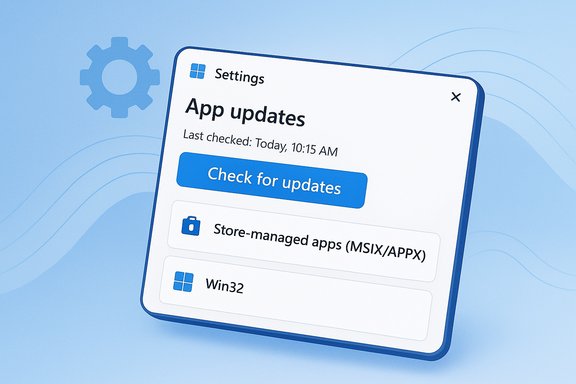
Windows has long split update responsibilities across multiple surfaces: Windows Update for the OS and drivers, the Microsoft Store for Store-distributed apps, and a diverse array of vendor-specific updaters for traditional Win32 applications. That fragmentation creates real operational and security challenges for both consumers and IT administrators: it’s harder to audit what’s patched, scheduling is inconsistent, and managed environments sometimes block the Store entirely—preventing Store-dependent apps from receiving updates. Microsoft has publicly signaled an intent to address that fragmentation with a single orchestration platform that exposes integration points for developers and management tools. What surfaced in Insider preview builds late in November 2025 is the UI manifestation of that ambition: a new Settings → Apps → App updates page that exposes a Last checked timestamp and a Check for updates button intended to discover and apply updates for apps that the Store can manage—without launching the full Microsoft Store front end. The capability is presently gated and limited in scope, but its existence signals Microsoft’s intent to decouple the update mechanism (the plumbing) from the Store’s storefront experience (the UI).

What Microsoft shipped in preview (quick summary)​

  • A new App updates pane in Settings (Settings → Apps → App updates) that lists eligible Store-managed apps and shows when the system last checked for app updates.
  • A Check for updates control that aims to trigger discovery and installation flows without launching the Store client—though in current Insider/Release Preview builds the control may be present while backend services remain server-gated and partially non-functional for many testers.
  • A change to the Microsoft Store client’s “Update apps automatically” behavior: rather than offering a permanent Off, the consumer-facing toggle now opens a Pause dialog allowing delays of 1–5 weeks, after which automatic updates resume. Managed devices remain controllable through Group Policy / Intune / MDM.
  • These changes were observed in Release Preview builds labeled 26100.7309 (Windows 11 24H2) and 26200.7309 (Windows 11 25H2), delivered as part of KB5070311 to Insider channels.

Decoupling updates from the Microsoft Store client: what it means technically​

A split between front-end and orchestration services​

The modern Microsoft Store is composed of two conceptual layers:
  • The visible Store client (the storefront you launch), which provides browsing, Library UI, and manual controls.
  • Background platform services—InstallService, scheduled tasks and OS-integrated APIs—that perform manifest checks, retrieve packages, and install/repair app packages without requiring the Store front end to be open.
By moving an update discovery surface into Settings, Microsoft is leveraging those background services directly from the OS control plane. That allows the system to query manifests and drive installs via the same install infrastructure the Store uses, even when the Store client is blocked by policy or omitted from an image. Early reporting and Insider tests confirm the presence of the Settings UI while the backend orchestration is still staged for many testers—indicating server-side gating and incremental rollout.

Packaging and scope: what's covered (and what's not)​

  • Supported: APPX / MSIX packaged apps and Store-packaged Win32 apps that the Microsoft Store tracks; apps that adopt the orchestration integration APIs will be first-class citizens.
  • Partial / future: Packaged Win32 apps where publishers opt into the “Provided and updated by” model (publisher hosts payloads but integrates with Store metadata) can appear in Store/Settings-managed flows for manual or orchestrated updates.
  • Not covered (for now): Traditional MSI/.exe installers, independent vendor updaters (Steam, many Adobe products, Chrome, etc., and software that does not adopt the orchestration APIs will continue to rely on their in-app updaters or third-party package managers. Microsoft’s platform will expand only as publishers integrate their update logic.

The ‘grand plan’: unified, intelligent update orchestration​

Microsoft has publicly described a vision for an update orchestration platform that treats updates as a single, intelligent pipeline—scheduled and prioritized based on device state, network conditions, battery level, and admin policy. The plan includes:
  • A registration model for update providers (publishers and vendors) to integrate their metadata and installation semantics with Windows Update.
  • Intelligent scheduling so that app updates can be orchestrated alongside OS updates (idle windows, AC power, energy-aware timing).
  • Unified telemetry, diagnostics, and auditing to give IT teams visibility across apps, drivers, and the OS.
This is a significant strategic pivot: rather than leaving each publisher to run their own updater, Microsoft is offering a platform-level orchestration service that can be adopted voluntarily. The short-term effect is limited to Store-managed apps; the long-term plan is broader but depends on publisher adoption and careful platform engineering.

Why Microsoft is doing this: benefits and motivations​

  • Security baseline improvement. Centralized update discovery reduces the chance that widely distributed Store apps remain unpatched on consumer devices, shrinking exploit windows. Automatic re-enablement after a short pause helps ensure eventual patching.
  • Operational simplicity. For non-technical users, a single, familiar Settings surface reduces friction; for IT teams, unified orchestration promises consistent scheduling and logging.
  • Resilience in managed environments. When the Microsoft Store client is blocked by policy—common in enterprise settings—the Settings-based path lets devices keep certain in-box or Store-linked apps updated without reinstating the full Store UI.
These are defensible goals: fragmentation complicates incident response, and forced fragmentation leaves too many endpoints vulnerable. Microsoft frames the move as an incremental, pragmatic consolidation rather than an attempt to forcibly subsume every update mechanism.

What administrators and enterprises need to know​

The immediate operational win​

IT admins who have historically disabled the Store client to prevent unauthorized installs now have a path to keep critical in-box and Store-managed apps updated even when the front-end Store is blocked. That reduces the need for workarounds like re-imaging or re-enabling Store access solely for updates. Insider reporting shows the Settings surface can be visible and usable even when the Store app is absent, though the backend service gating varies across Insider rings and releases.

Policy controls remain authoritative​

Microsoft’s consumer UI changes (pause-only behavior) primarily affect unmanaged consumer devices. For managed environments, Group Policy and MDM remain the authoritative controls:
  • Group Policy / ADMX templates (Store controls such as “Turn off Automatic Download and Install of updates”) can prevent automatic updates where desired.
  • Intune and MDM CSPs retain the ability to enforce update windows, logging, and deprovisioning for inbox Store apps. New device-level policies in Windows 11 25H2 also allow curated deprovisioning of selected in‑box Store packages.

Recommended admin checklist​

  • Inventory which critical applications on endpoints are Store-managed (APPX / MSIX / Store-packaged Win32).
  • Review Group Policy and MDM profiles to ensure desired behavior for automatic Store updates is preserved.
  • Test the new Settings → App updates surface in a controlled Insider or Release Preview pilot before broad deployment, and validate that backend orchestration works for your environment.
  • Retain installation assets and pinned installers for critical apps that must not auto-upgrade; where appropriate, use enterprise deployment tools to manage approved versions.
  • Monitor Microsoft’s documentation and the Windows Update orchestration private preview program for changes to supported packaging and API availability.

Risks, trade-offs, and open questions​

Microsoft’s consolidation is attractive, but centralizing update control brings trade-offs that require scrutiny.
  • Single point of failure. Centralizing discovery and delivery increases the impact of any outage or bug in the orchestration pipeline. A faulty app update issued through a unified channel could propagate widely and simultaneously, possibly causing systemic disruption. This is the core of the “bork your system” concern voiced by developers.
  • Loss of durable local control for consumers. The Store’s UI no longer offers a permanent Off position for auto-updates on many consumer devices; it only allows pauses (1–5 weeks). Power users and home-based small IT teams lose a simple, on-device lever to pin versions indefinitely. For many pros, the option to freeze a version while evaluating an update is essential.
  • Adoption lag among major publishers. The platform’s utility depends on publishers adopting the orchestration APIs or packaging models. Large vendors with entrenched updaters (Adobe, Valve/Steam, Google) may resist or delay integration, limiting early benefits to Store-native apps.
  • Privacy and telemetry questions. Centralized telemetry about app installation and update status improves admin visibility but raises questions about what metadata is collected and how it’s shared across tenant boundaries. Administrators should expect to review telemetry controls as orchestration APIs mature.
  • Complexity of rollback and staged rollouts. Windows Update has refined staged deployments and rollback primitives for OS updates; extending these semantics to third-party apps increases orchestration complexity and requires robust developer tooling to support staged rollouts and emergency rollbacks.

Timeline and current availability​

  • The Settings-based App updates UI appeared in Insider preview and Release Preview builds identified as 26100.7309 (24H2) and 26200.7309 (25H2), packaged as KB5070311 in Release Preview rings. These builds are being flighted gradually and have server-side gating, meaning visibility and functionality differ between testers.
  • The architecture for a unified update orchestration platform has been publicly announced and is accepting private-preview participants; however, broad developer onboarding and general availability will be phased and are contingent on integration work and publisher adoption. Expect a staged rollout across Insider channels before features reach mainstream production channels.

Practical guidance for everyday users​

  • If you rely on specific versions for workflows, continue to preserve installers and confirm whether your apps are Store-managed. For critical pinned apps, consider installing them using vendor MSI/exe installers (with the trade-off of losing Store-origin benefits) or managing versions through enterprise deployment tools.
  • Home users who want to delay updates can use the Store’s pause option (1–5 weeks) or mark a network as metered to limit automatic downloads, but these are temporary workarounds that do not permanently opt you out.
  • Power users and admins should pilot the Settings → App updates surface in a controlled environment and test the interplay with existing update policies before committing to broad changes.

Final analysis: measured step or the start of platform centralization?​

This Settings-based App updates surface is a pragmatic, incremental move that delivers measurable wins—especially for managed environments that block the Store client yet still need to keep inbox and Store-linked apps patched. The change aligns with Microsoft’s broader, publicly stated goal of delivering a unified, intelligent update orchestration platform that would let Windows schedule and audit updates for apps, drivers, and OS components from a single control plane. At the same time, centralization raises valid concerns: operational risk from a single delivery pipeline, loss of a durable consumer opt-out in the Store UI, and the reality that many desktop ecosystems will continue to use independent updaters for the foreseeable future. For enterprises, the arrival of Settings-level update controls—paired with existing Group Policy and MDM levers—offers pragmatic benefits without stripping away policy-based authority. For consumers and power users, the change requires a reevaluation of how to manage and preserve app versions.
Microsoft’s current approach—introducing a Settings surface while keeping major behaviors server-gated and preserving enterprise policy controls—looks intentionally cautious. It makes sense as a staged engineering rollout: deliver convenience and improved security posture for the many, but preserve the escape hatches and tooling enterprises depend on. The critical next phase to watch is developer adoption: the orchestration platform’s real value will be revealed only when major publishers integrate their update mechanisms and when robust staging, rollback, and vetting processes are in place.

Microsoft’s move to decouple app updates from the Store client is not a finished product; it’s the opening act of a longer conversation about where Windows places update control and how the platform balances security, reliability, and user agency. The Settings → App updates pane is small in UI footprint but large in implication: centralization offers convenience and better baseline security, while also demanding tighter engineering, clearer telemetry controls, and careful policy design to avoid unintended consequences.
Source: WinBuzzer Microsoft Decouples App Updates from Store Client in Latest Windows 11 Preview - WinBuzzer
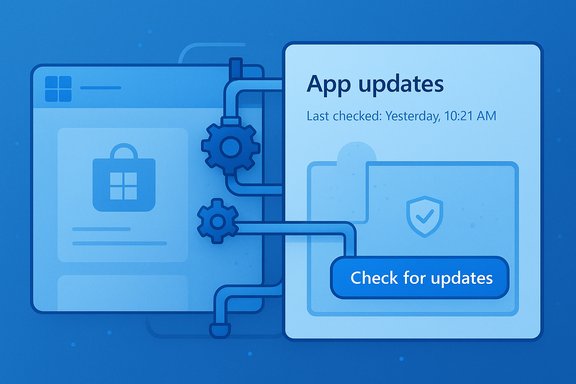
 

Illustration of a settings screen with a big 'Check for updates' button.
Microsoft’s quiet addition of an “App Updates” page inside Windows 11’s Settings app signals a meaningful shift in how the OS may handle application maintenance — moving routine app patches out of the Microsoft Store and into the same centralized update surface that already manages Windows itself.

Background​

For years Windows has presented a fragmented picture when it comes to updates. System updates arrive through Windows Update, driver updates may come from hardware vendors or Windows Update, and applications are a mixed bag: some are updated via the Microsoft Store, many use bespoke updaters, and heavyweight ecosystems like Steam, Chrome, and Adobe maintain their own update pipelines. That fragmentation has been a persistent headache for both end users and IT administrators who want a single, reliable place to check and enforce patch status.
Microsoft has been publicly describing a future where updates are orchestrated more intelligently and centrally — an update orchestration platform that can schedule and manage updates for the OS, drivers, and apps together. The recent discovery of a Settings → Apps → App updates page in Windows 11 Insider builds appears to be the first user-facing step in that broader strategy.

What was discovered: the App Updates page in Settings​

A new page named App updates has appeared in the Settings app on Windows 11 Insider preview builds. The UI is minimal but clear: it sits under Settings → Apps, shows a Last checked timestamp, and exposes a Check for updates button. On visible builds the page is deliberately lightweight — it does not yet enumerate every installed program, and the button’s behavior is inconsistent in early flights.
Key takeaways from the discovery:
  • The App updates page is present in Insider preview builds, indicating Microsoft is experimenting with surfacing app update controls in Settings.
  • The controls appear aimed at apps that are Store-managed or otherwise integrated with Microsoft’s update infrastructure.
  • In early builds the Check for updates button may show the last-check time without triggering a visible update flow, which suggests the UI has been shipped ahead of full backend activation.
This surfaced UI is less about replacing every single updater on Windows today and more about centralizing the management of apps that are already integrated with Microsoft’s update mechanisms.

Why this matters: toward a unified update experience​

The addition of App updates inside Settings should be read in the context of Microsoft’s broader goals. The company has discussed building a unified, intelligent update orchestrator that would allow Windows Update to handle not just Windows code and drivers, but app updates as well. Centralizing these controls has several immediate benefits:
  • Convenience: Users could update Store-managed apps without opening the Microsoft Store app, creating one fewer step in the routine of keeping software current.
  • Consistency: Organizations can more easily align patch policies when app updates are visible in the same system that shows Windows Update history and status.
  • Resilience: A single orchestrator can retry failed updates, schedule updates around user activity and battery state, and reduce fragmentation caused by diverse third-party updaters.
  • Less dependency on the Store UI: If app updates can be initiated from Settings, users who avoid the Microsoft Store for policy or preference reasons won’t need to keep the Store open just to check for app patches.
These are the kinds of outcomes Microsoft has publicly described as goals for its orchestration effort, and the new Settings page looks to be the first visible sign of movement toward that vision.

Technical scope: what App updates can — and cannot — do (so far)​

It’s important to be precise about the current capabilities and limitations visible in preview builds.
What the App updates page can do (current evidence):
  • Surface update status for Store-managed packages (APPX/MSIX and Store-packaged Win32 apps).
  • Provide a single UI to check for updates for apps integrated with Microsoft’s Store/update infrastructure.
  • Expose a Last checked timestamp and a manual Check for updates control, aligning app update visibility with other Settings-based system controls.
What the App updates page does not (yet) do:
  • It is not a universal updater for arbitrary Win32 or MSI-installed applications that use their own update engines.
  • It does not, at present, fully control or replace vendor-provided updaters such as those used by Steam, Google Chrome, or Adobe.
  • In early Insider flights the backend behavior is partially gated; the UI may exist on-device while server-side orchestration is still being activated for test rings.
Put simply: the new page appears designed to centralize and simplify Store-managed app updates — a logical first step — rather than immediately attempting to manage every update mechanism on Windows.

How this links to the Windows Update orchestration platform​

Microsoft has been developing a Windows Update orchestration platform intended to let Windows Update handle a wider array of updates, including third-party apps and drivers. The orchestration platform promises features such as:
  • Scheduling updates around idle/battery/activity windows to reduce user disruption.
  • Retry logic and rescheduling for failed updates.
  • A unified update history and delivery pipeline so that apps benefit from improvements to Windows Update.
The App updates page is likely the user-facing control for the portions of that platform which have been enabled for Store-managed apps. In practice, the orchestrator and the Settings UI are complementary: the orchestrator handles scheduling and delivery, while Settings surfaces status and provides manual controls.
This design allows Microsoft to roll out orchestration support incrementally — first for Store-packaged formats and then, potentially, for additional packaging formats or vendor integrations. Vendor participation remains key: third-party developers will need to opt in or integrate to fully leverage the orchestrator’s capabilities.

User impact: convenience vs. control​

Moving app updates into Settings and under the Windows Update umbrella offers clear convenience but raises questions about user control and individual preferences.
Benefits for everyday users:
  • A single place to check for system and app updates reduces friction and makes it easier to stay secure.
  • People who avoid the Microsoft Store for any reason can still receive Store-managed app updates without re-enabling or opening the Store client.
  • Consistent update timing and retry behavior reduces partial update failures that leave apps in inconsistent states.
Potential downsides and concerns:
  • The trend toward centralization may reduce the ability of power users to selectively block updates or hold specific app versions for compatibility testing.
  • Recent policy changes indicate Microsoft is already aligning app updates with Windows Update behavior — for example, restricting permanent disabling of automatic Store app updates and allowing only finite pause periods. That can frustrate users who prefer total control over app versions.
  • If Microsoft or the orchestrator enforces updates more aggressively, users with limited bandwidth or strict compatibility needs could see disruptions.
This is a classic trade-off between security and convenience on one side, and granular user control on the other.

Enterprise and IT administration implications​

For IT professionals, a unified update platform has meaningful advantages. Centralized orchestration can simplify patch management and reporting and reduce the number of separate mechanisms administrators must monitor:
  • Simplified patch visibility: Having app updates visible in the same place as Windows Update makes it easier to assess device compliance.
  • Policy alignment: Orchestration can let organizations enforce update windows aligned to user activity and power policies.
  • Reduced fragmentation: Fewer independent updaters reduces the surface area of update-related failures or conflicts.
Still, enterprises will raise two primary questions:
  1. Does the orchestrator respect existing management tools? Microsoft needs to ensure the platform integrates cleanly with established management systems such as endpoint management suites, WSUS, or other enterprise deployment tools.
  2. How does vendor adoption affect scope? If major vendors do not integrate, the orchestrator’s value in managed environments will be limited.
The initial scope — Store-provisioned apps — is more immediately useful in controlled environments where enterprise apps are packaged and distributed through Store-managed pipelines. Full enterprise value, however, depends on broader packaging support and enterprise-grade controls exposed to IT administrators.

Security implications: stronger patching, but new risks​

Centralizing update delivery into Windows’ update pipeline can reduce the window of exposure for vulnerabilities: fewer missed updates and better retry/rescheduling logic mean fewer systems running outdated, vulnerable app versions.
Security benefits:
  • Faster coverage: Centralized update checks increase the likelihood that patches reach devices promptly.
  • Unified telemetry: Administrators and Microsoft can track update status more reliably, reducing blind spots.
  • Automated recovery: Orchestration can automatically reschedule failed updates and report errors for remediation.
Security caveats and potential risks:
  • Concentration of update channels increases the impact of any failure in the orchestration or delivery pipeline; a misconfiguration could affect many apps at once.
  • Central control can be used to push updates more aggressively; while good for security, it may cause regressions if updates are buggy.
  • Vendor and packaging diversity means third-party apps that don’t integrate with the orchestrator still pose fragmentation risks.
Overall, a unified approach improves baseline security for the majority of integrated apps — but it also increases the importance of rigorous validation and careful rollout procedures at Microsoft and among participating vendors.

Developer adoption and ecosystem challenges​

The orchestrator’s ultimate success depends on developer participation. Microsoft’s orchestration platform and the App updates Settings UI are more valuable the more apps integrate with the system.
Technical adoption considerations:
  • Supported packaging formats: Native support for MSIX/APPX is straightforward; bringing traditional Win32 apps into the fold requires packaging changes or custom integration layers.
  • Integration effort: Developers will need to adopt APIs or packaging steps to enable orchestration features like activity-aware scheduling.
  • Control trade-offs: Some developers may prefer their own update engines to tightly control release cadence and distribution, particularly for apps with complex licensing or enterprise-specific delivery requirements.
Ecosystem friction points:
  • Large vendors with mature update systems (Adobe, Google, Valve) may be slow to integrate if they perceive no net benefit or risk loss of control.
  • The diversity of Windows software — from modern UWP apps to legacy Win32 titles — creates complexity for a single orchestrator to cover all scenarios seamlessly.
  • Customers will expect clear opt-out or control surfaces for critical enterprise use-cases; the orchestrator needs to support management hooks.
Microsoft can nudge adoption by offering clear technical benefits (retry logic, telemetry, reduced distribution overhead) and by simplifying packaging and integration paths for developers.

What’s unverified or uncertain​

Several important points remain unconfirmed and should be treated cautiously:
  • Whether Microsoft will extend orchestrator control to all third-party apps by default, or keep adoption optional and developer-driven.
  • Precise timelines for wider rollout beyond Insider preview channels — no formal public release date has been announced.
  • How quickly major independent vendors will integrate their apps with the orchestrator, if at all.
  • Full functionality and behavior of the App updates page in a mature, server-enabled release versus the limited Experience seen in early Insider flights.
These are realistic unknowns in a staged deployment: a user-visible Settings page can appear in preview builds while server-side systems and vendor integrations are still being validated.

How to try this now (Insider guidance and hands-on testing)​

For enthusiasts and IT pros who want to see the App updates page today, the path is straightforward:
  1. Join the Windows Insider Program and enroll a test device in a flight ring where recent preview builds are distributed.
  2. Install the latest preview build that includes the Settings → Apps → App updates UI.
  3. Open Settings → Apps and look for the App updates entry.
  4. Observe the Last checked timestamp and attempt the Check for updates control. Expect inconsistent behavior in early builds.
Important testing notes:
  • Run these experiments on non-production devices — early Insider builds can be flaky.
  • Don’t expect the UI to update all app types; focus testing on Store-managed packages (APPX/MSIX and Store-packaged Win32).
  • Document behaviors: whether the Check for updates triggers the Store, updates the timestamp only, or returns visible pending updates.
This limited path respects the staged nature of Microsoft’s rollout and the fact that server-side orchestrator components often get enabled gradually.

Practical recommendations for users and admins​

Until this feature is fully rolled out and its scope is clear, the following pragmatic steps will serve most users and administrators well:
  • Regular users: Rely on the Microsoft Store for app updates today, but watch Settings → Apps → App updates in preview builds if interested in a more centralized experience.
  • Power users: Maintain local control by keeping vendor updaters where necessary and use system images or restore points before large update windows.
  • IT admins: Test the orchestrator in lab environments and verify integration with existing management tools. Ensure you have rollback and compatibility test plans for business-critical apps.
  • Vendors and developers: Evaluate packaging in MSIX/APPX and consider a phased integration plan if your app needs to be part of a centralized update pipeline.
These recommendations balance the potential gains from centralization with the practical need for reliability and compatibility in production environments.

Critical analysis: strengths, limitations, and the path ahead​

Strengths:
  • The App updates page is an intuitive, user-facing indicator that Microsoft is serious about reducing fragmentation in the Windows update story.
  • Centralizing Store-managed app updates into Settings will remove friction for many users and provide a more coherent update UX.
  • The orchestration platform’s promised scheduling, retry, and telemetry features are beneficial for reliability and security.
Limitations and risks:
  • The initial scope appears narrow (Store-managed apps), which limits immediate impact for users whose key apps rely on independent updaters.
  • Centralization increases dependency on Microsoft’s delivery pipeline; a large-scale failure or a problematic update could affect many users simultaneously.
  • The shift toward automatic enforcement of updates — as seen in recent changes that restrict permanent disabling of Store app updates — may alienate users who require strict version control for compatibility or performance reasons.
The path ahead will likely be incremental. Microsoft can expand coverage and developer adoption over time, but the success of a unified update model depends on thoughtful rollout mechanics, robust testing, and clear management APIs for enterprise control.

Final assessment and what to watch for next​

The App updates page in Settings is an important signal: Microsoft intends to make app maintenance more integrated, more visible, and — ultimately — more centralized. For users, that should mean less friction when keeping apps current. For administrators and developers, the orchestrator offers promising capabilities but requires careful integration, testing, and management planning.
Watch the following indicators for how this effort evolves:
  • The elements and behavior exposed in non-Insider release builds and official release notes that define the feature’s production capabilities.
  • Whether Microsoft expands orchestrator documentation and provides enterprise controls, APIs, and integration guides.
  • Vendor adoption patterns — how quickly and broadly third-party developers package and integrate apps to be manageable via the orchestrator.
  • Any changes to user controls around pausing or disabling updates and how Microsoft balances security with user choice.
If the orchestrator and the Settings App updates page deliver on their promise, Windows 11 will feel noticeably less fragmented when it comes to patching apps and system components. If the rollout is rushed or lacks management hooks, it could create new headaches for users who rely on fine-grained control. The coming months will reveal whether this quiet Settings change becomes a major step forward or merely the first, cautious step in a much longer migration.

Source: Dagens.com Microsoft is working to simplify app updates in Windows 11
 

Back
Top