

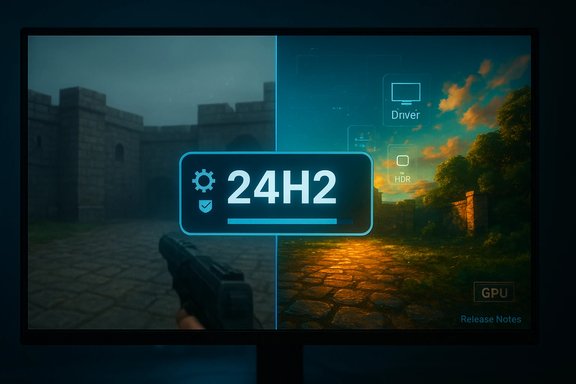
Windows 11’s Auto HDR quietly rewired how older games look — and for a brief, chaotic window during the 24H2 rollout it also reminded everyone how fragile big-OS feature launches can be. What began as an elegant convenience — an automatic SDR→HDR treatment intended to give legacy DirectX games a visual refresh — turned into a high-profile compatibility snag when the 24H2 feature update interacted badly with certain display/driver combinations. Microsoft ultimately applied a compatibility hold, advised people to disable Auto HDR as a workaround, and shipped fixes across January–February 2025; the episode is a useful case study in platform-level graphics features, risk management, and the trade-offs of doing “visual surgery” at the OS layer rather than in-game.
Auto HDR is an operating-system feature that automatically converts Standard Dynamic Range (SDR) content into High Dynamic Range (HDR) output for compatible displays. The goal is simple: let older DirectX 11 and DirectX 12 games benefit from a wider luminance and color volume without the developer having to ship an HDR pass. Microsoft documents Auto HDR as an OS-level enhancement controlled through Settings → System → Display (Use HDR → Auto HDR) and exposes an intensity slider in the Game Bar for runtime adjustments. The feature depends on an HDR-capable panel and modern graphics drivers. When it works, Auto HDR can make skies pop, highlights sing, and shadows resolve with more perceived depth — effectively giving older titles a fresh coat of visual paint. But the conversion from SDR to HDR is not trivial: it involves remapping color spaces, expanding luminance ranges, and selectively boosting highlights while preserving shadow detail. Those transformations must be accurate across a wide range of GPU drivers, monitor color calibrations, and game rendering paths, and that is where platform-level approaches impose risk.
Microsoft acknowledged the issue on the Windows release-health dashboard, applied a safeguard hold (safeguard ID 55382406) to prevent affected systems from receiving the 24H2 update via Windows Update, and advised affected users to disable Auto HDR as a workaround. That advice was pragmatic — toggling Auto HDR off restored stable, predictable behavior — but it also stripped users of the visual enhancement and underscored the brittleness of applying complex visual processing at the operating-system level.
Microsoft addressed the breakage with a sensible containment strategy and subsequent patches, and its documentation records the problem and resolution. That transparency matters. The long-term success of Auto HDR depends on more robust compatibility testing, smarter rollout mechanics, and clearer tooling for developers and device makers. For now, Auto HDR remains an important, useful option — but one that should be combined with cautious update behavior and per-game controls until every corner case is tamed.
Auto HDR will continue to be a selling point for Windows 11’s gaming story, but the real win will be when visual upgrades at the OS level are indistinguishable from native game intent: enhancing immersion without ever interrupting play.
Source: PlayStation Universe Auto HDR Everywhere: How Windows 11 Quietly Upgraded Old Games - PlayStation Universe
 Background / Overview
Auto HDR is an operating-system feature that automatically converts Standard Dynamic Range (SDR) content into High Dynamic Range (HDR) output for compatible displays. The goal is simple: let older DirectX 11 and DirectX 12 games benefit from a wider luminance and color volume without the developer having to ship an HDR pass. Microsoft documents Auto HDR as an OS-level enhancement controlled through Settings → System → Display (Use HDR → Auto HDR) and exposes an intensity slider in the Game Bar for runtime adjustments. The feature depends on an HDR-capable panel and modern graphics drivers. When it works, Auto HDR can make skies pop, highlights sing, and shadows resolve with more perceived depth — effectively giving older titles a fresh coat of visual paint. But the conversion from SDR to HDR is not trivial: it involves remapping color spaces, expanding luminance ranges, and selectively boosting highlights while preserving shadow detail. Those transformations must be accurate across a wide range of GPU drivers, monitor color calibrations, and game rendering paths, and that is where platform-level approaches impose risk.What Happened During the 24H2 Rollout
The symptoms: color corruption, crashes, and hangs
Beginning in December 2024, a wave of reports surfaced from gamers seeing incorrect colors, over‑saturated or washed-out visuals, and, in some cases, games freezing or crashing when Auto HDR was enabled after upgrading to Windows 11 version 24H2. The problem manifested inconsistently across titles and hardware: some players saw only color inaccuracies, while others experienced outright failures to launch or infinite load loops. The issue touched both AAA and older DirectX games; forum and community logs captured affected titles and anecdotal troubleshooting that pointed to the interaction between Auto HDR, GPU drivers, and certain displays.Microsoft acknowledged the issue on the Windows release-health dashboard, applied a safeguard hold (safeguard ID 55382406) to prevent affected systems from receiving the 24H2 update via Windows Update, and advised affected users to disable Auto HDR as a workaround. That advice was pragmatic — toggling Auto HDR off restored stable, predictable behavior — but it also stripped users of the visual enhancement and underscored the brittleness of applying complex visual processing at the operating-system level.
Timeline of remediation
- Microsoft placed a compatibility hold during the initial problem window to prevent widespread breakage for Auto HDR–enabled systems. The hold was tracked as safeguard ID 55382406.
- Microsoft released updates that addressed Auto HDR display/coloring issues. Public release notes indicate fixes landed with optional and cumulative updates across late January and early February 2025 (KB5050094 and KB5051987 are two of the items referenced in the resolved-issues entries). The company marked the Auto HDR problem as resolved with the February 11, 2025 update (KB5051987) and similar rollouts in late January 2025.
How Auto HDR Works (Concise Technical Primer)
What the OS is doing for developers and players
Auto HDR is not a one-size-fits-all filter; it’s an adaptive remapping engine that:- Identifies SDR rendering paths in eligible DirectX 11/12 games.
- Applies a tone-mapping and color remapping pipeline that expands the brightness range and recovers highlight detail where possible.
- Outputs to the display’s HDR pipeline, allowing the monitor to light up spec-compliant highlights that SDR would normally clip.
Limits and failure modes
- Auto HDR produces algorithmic HDR, not a handcrafted artistic pass. That means textures, tone-mapped assets, and UI elements can be misinterpreted by the remapper, leading to oversaturation or washed-out blacks on certain scenes.
- Accuracy depends on correct display metadata, driver support for HDR color spaces, and how the game exposes its rendering pipeline (exclusive fullscreen, HDR metadata handling, overlays, etc..
- Low-end HDR panels with poor color volume or incorrect HDR handling are more likely to show artifacts. The same transformation that looks excellent on a calibrated OLED can look garish on a budget VA panel.
What Microsoft Did — and Why Those Steps Matter
Microsoft took three pragmatic steps that together reveal how platform vendors manage large-scale compatibility:- Safeguard hold (preventing 24H2 from landing on Auto HDR systems) — This is a conservative tool that prevents users already configured in a particular way from getting an update that could break them. It’s a blunt but effective way to contain impact while an engineering fix is developed. The presence of safeguard ID 55382406 is explicitly noted in the Windows health dashboard.
- Public guidance to disable Auto HDR — Because toggling Auto HDR off reduces the attack surface (the transformation pipeline no longer runs), Microsoft recommended disabling Auto HDR for affected systems. That guidance restored stability quickly but was a user-level concession.
- Patching the graphics stack — Microsoft shipped fixes in optional and cumulative updates (KB5050094 and KB5051987 are among the referenced packages) and updated the health dashboard to mark the issue resolved. Once those patches were available, Microsoft began lifting the safeguard and encouraging users to update. Independent outlets confirmed the hold’s removal and urged users to apply the fixes.
Strengths: Why Auto HDR Is Worth Keeping
- Immediate visual uplift for legacy titles. Auto HDR’s biggest win is its convenience. For players with HDR-capable displays, older games can suddenly feel modern without requiring developer time. That yields real perceived value, especially for vast libraries of classic titles.
- Lower friction for HDR adoption. Auto HDR reduces the cost of entry for HDR on PC. Rather than depending entirely on native game support, the OS can enable HDR-like benefits broadly. That helps adoption of HDR-capable monitors and encourages a richer visual ecosystem.
- OS-level controls and tuning. Microsoft exposes an intensity slider and per-game toggles in Game Bar and Settings, which lets players dial the effect to taste or disable it on a per-title basis — a practical design that helps when a single game misbehaves.
- Platform consolidation. By centralizing remapping in the OS, hardware vendors and game developers have one less thing to support individually. In principle this reduces duplication of effort across the ecosystem.
Risks and Weaknesses: What the 24H2 Incident Revealed
- Fragility across a vast hardware matrix. Windows runs on millions of configurations. A system-level image-processing pipeline has to be correct across GPUs, drivers, display firmware, capture tools, overlays, and anti-cheat subsystems — a tall order. The 24H2 incident made that fragility visible.
- User experience regressions are high-impact. When a cosmetic enhancement leads to crashes or broken visuals, the perceived harm is much larger than the benefit, because crashes and game-breaking bugs directly affect playability. That raises questions about the testing surface and whether more granular rollout mechanisms are needed for such features.
- Hard-to-specify failure modes. Because Auto HDR’s quality depends on monitor color volume, driver metadata, and per-game rendering idioms, it’s difficult to produce a deterministic compatibility matrix. That means some users will always be edge cases and experience regression.
- Communication complexity. The fix required coordination between Microsoft release channels, Windows Update safeguards, and messaging to end users. Miscommunication or delayed fixes risk eroding trust among gamers who rely on stability. The rollout demonstrated the importance of transparency: Microsoft’s release-health entries and public guidance were essential to containing the story.
Practical Guidance for Players and Admins
If you saw problems after 24H2
- Check Windows Update for the latest cumulative patches and optional updates (install KB5051987 or later and related updates if offered). Microsoft marked the issue resolved with updates in late January–February 2025.
- If you need an immediate stopgap, disable Auto HDR: Settings → System → Display → Graphics → turn Auto HDR off globally, or use per-app custom settings to disable it only for specific titles. That removes the conversion pipeline and typically restores stability.
If you haven’t upgraded to 24H2 yet
- Consider waiting until Windows Update offers the patched builds automatically, especially if you rely on Auto HDR for gameplay. Microsoft placed safeguard holds to prevent problematic updates from reaching affected configurations — don’t circumvent those holds with manual ISOs unless you accept the risk.
For system administrators
- Track the safeguard ID 55382406 via Windows Update for Business reports to see whether machines in your fleet are blocked from 24H2 and why. Prioritize updating drivers and confirming display firmware, then apply Microsoft’s fixes once they’re validated in your environment.
Broader Analysis: Platform-Level Enhancements vs. Developer-Led Work
Auto HDR is emblematic of a broader strategic choice: should operating systems provide high-level visual enhancements for legacy content, or should developers handle fidelity improvements at the application level? There are tradeoffs in either direction.- OS-level features (like Auto HDR) provide broad reach and convenience. They can uplift many titles at once and simplify the user experience. However, they must contend with heterogeneous hardware and software stacks and therefore face stiff compatibility and testing challenges.
- Developer-led HDR support yields more consistent, art-directed outcomes. Hand-tuned HDR can preserve artistic intent but requires time and resources from studios; many older games will never receive such attention.
Recommendations: How Microsoft, OEMs, and Gamers Can Reduce Future Risk
- For Microsoft
- Implement broader staged rollouts with telemetry-based health checks for visual-processing features before enabling them at scale.
- Provide richer diagnostic logs and a dedicated troubleshooting flow for Auto HDR that collects driver/display metadata automatically for failed cases.
- Expand documentation on per-game opt-out hooks and encourage game developers to expose what the OS can use to avoid treating certain rendering paths as HDR candidates.
- For GPU vendors and monitor makers
- Coordinate on metadata fidelity (EDID/HDR metadata) and test common driver/monitor pairings with Auto HDR enabled under real-world loads.
- Ship display firmware updates that clarify PQ/HLG handling and dynamic range behavior where applicable.
- For game developers
- Consider adding an in-game toggle that signals whether the app’s rendering path is safe for OS-level SDR→HDR remapping.
- Expose metadata and HDR-capability hints that allow the OS to make smarter per-game decisions.
- For gamers
- Keep GPU drivers and monitor firmware up to date, and install Microsoft cumulative updates when fixes are released.
- Use per-game Auto HDR toggles if a specific title is misbehaving, and consider toggling back to SDR if you regularly use capture tools or overlays that don’t handle HDR well.
Final Verdict: Auto HDR Is a Net Positive — But It Needs Better Delivery
Auto HDR’s premise remains compelling: breathe new life into vast libraries of legacy games without forcing developer effort. When it functions correctly, it’s a delightful, low-friction upgrade for anyone with an HDR-capable display. The Windows 11 24H2 episode was a painful reminder that platform-driven enhancements need exceptional end-to-end engineering and rollout practices because the visible surface area of graphics issues is unforgiving — it’s immediately obvious and deeply disruptive.Microsoft addressed the breakage with a sensible containment strategy and subsequent patches, and its documentation records the problem and resolution. That transparency matters. The long-term success of Auto HDR depends on more robust compatibility testing, smarter rollout mechanics, and clearer tooling for developers and device makers. For now, Auto HDR remains an important, useful option — but one that should be combined with cautious update behavior and per-game controls until every corner case is tamed.
Auto HDR will continue to be a selling point for Windows 11’s gaming story, but the real win will be when visual upgrades at the OS level are indistinguishable from native game intent: enhancing immersion without ever interrupting play.
Source: PlayStation Universe Auto HDR Everywhere: How Windows 11 Quietly Upgraded Old Games - PlayStation Universe
