

Windows 11 quietly includes a cloud-first backup feature that will rescue your files, preferences, and even your installed-app list—if you actually turn it on and understand what it does (and what it doesn’t). ([support.microsoft.icrosoft.com/en-us/windows/back-up-and-restore-with-windows-backup-87a81f8a-78fa-456e-b521-ac0560e32338)
Microsoft has rethought consumer backup on Windows away from local, image-style backups and toward a cloud-synced profile model. The result is the built-in Windows Backup experience: a simple app and Settings page that syncs selected user folders to OneDrive, stores a catalog of installed apps and many personalization and system preferences in your Microsoft account, and offers to restore these items during device sesigned to make device replacement and resets less painful for typical home users.
That cloud-first approach is deliberate: files you choose are synced to OneDrive, and settings are tied to the Microsoft account you use to sign in. The upside is speed and convenience; the downside is that this is not a one-click, bare-metal recovery solution—you won't get a full system image back from Microsoft if your drive dies.
Many users confuse “backing up files to OneDrive” with “backing up the whole PC.” That misunderstanding is why someone might think their machine is fully recoverable after a hard drive failure—only to discover important data or program states are missing. Education and plain-language labeling within Settings could reduce these false assumptions.
However, it is not—and should not be sold to you as—a complete disaster-recovery solution. If your needs include bare-metal restores, compliance-grade retention, or full application-state preservation, you will need a secondary backup strategy that includes local imaging and secure offline copies. Community experts and documentation all point to a hybrid approach: use the convenience of Windows Backup for day‑to‑day resilience and a separate image/archive workflow for full-system protection.
Windows 11’s built-in Backup is not a marketing novelty—it's a practical, low-friction tool that will save data for many users who otherwise do no backups at all. But it is only one piece in a robust backup strategy: pair it with local imaging, versioning, and good account security to cover every plausible recovery scenario.
The convenience is real; the limitations are also real. Use both to your advantage.
Source: MakeUseOf Windows 11 has a built-in backup tool most people ignore
 Background
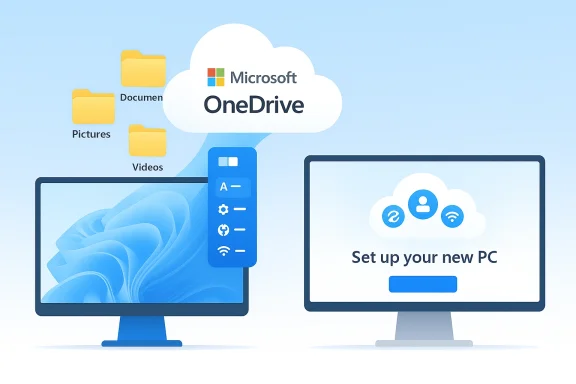
Microsoft has rethought consumer backup on Windows away from local, image-style backups and toward a cloud-synced profile model. The result is the built-in Windows Backup experience: a simple app and Settings page that syncs selected user folders to OneDrive, stores a catalog of installed apps and many personalization and system preferences in your Microsoft account, and offers to restore these items during device sesigned to make device replacement and resets less painful for typical home users.That cloud-first approach is deliberate: files you choose are synced to OneDrive, and settings are tied to the Microsoft account you use to sign in. The upside is speed and convenience; the downside is that this is not a one-click, bare-metal recovery solution—you won't get a full system image back from Microsoft if your drive dies.
What Windows Backup actually protects
Files and folders (the easy win)
Windows Backup lets you sync your most important user folders—Desktop, Documents, Pictures, Music, and Videos—to your OneDrive account. That means those folders are continuously available (subject to OneDrive sync rules) and accessible from any other PC where you sign in with the same Microsoft account. For many users, this alone prevents the majority of the catastrophic data-loss scenarios.Apps and app pins
Windows Backup saves a list of installed apps, and it preserves Microsoft Store app pins so that during a restore you'll be offered the ability to reinstall Store apps in a familiar layout. This eases the pain of rebuilding a PC after a reset or migration, although note this is a reinstall list rather than a binary snapshot of every app and its internal configuration.Settings, personalizathe tool can back up a suite of Windows settings: personalization (wallpapers, themes, start layout), accessibility choices, language preferences, some File Explorer and notification settings, and saved Wi‑Fi networks and credentials. Those bits of state significantly shrink the amount of manual fiddling you need to do on a new PC.
OOBE restoration
If you sign into a new Windows 11 device using the same Microsoft account used for backups, the Out‑of‑Box Experience will detect available backups and offer to restore the synced files, settings, and apps list—making first-time setup far less tedious for home users.Equally important: what Windows Backup does NOT protect
- Not a disk image: Windows Backup is not a system-image tool. It will not produce a block-level clone of your OS partition, nor will it capture installed non‑Store applications in a restorable binary form. If you need a bare-metal restore that recreates a machine exactly as it was (OS, drivers, installed Win32 apps, and all), you must use a dedicated imaging tool or Windows’ legacy imaging utilities.
- No drivers or low-level system files: Hardware drivers, custom kernel modules, and low-level system components are not included in the sync. These must be reinstalled or restored separately.
- Partial app configuration: For many non‑Store Win32 apps, Windows Backup will only remember that the app existed and where it was pinned; it won’t reliably capture deep configuration files, registries, or license states.
- Limited to selected folders: Only content in the chosen user folders is synced automatically. Data stored elsewhere on the drive—custom folders, alternative partitions, databases, VHDs, container images or application data located outside user-profile paths—won’t be part of the default backup unless you manually move or include them.
- Storage limit constraints: A personal Microsoft account gets 5 GB of OneDrive cloud storage with no additional charge; if your selected folders exceed that, backups won’t complete unless you purchase more storage or subscribe to Microsoft 365 plans that include larger quotas. This is a practical blocker for many users with photo libraries, video collections, or large document stores.
- Personal accounts only (for full features): Windows Backup’s full consumer experience is designed for personal Microsoft accounts. Work or school accounts (Azure AD or Microsoft Entra) are not supported for the consumer-focused flows unless an organization explicitly enables related enterprise features (like Enterprise State Roaming).
Why Windows Backup matters — are it
Strengths: frictionless and integrated
Windows Backup addresses the most common user needs: protecting documents and photos and preserving the “look and feel” of a device. It’s built into Settings and the Setup flow, so it removes the onboarding friction that traditionally prevents people from backing things up—no separate app install, no external drive required for basic protection. For casual and mainstream users, that’s often “good enough.”Weaknesses: lock-in, limits, and scope confusion
Microsoft’s cloud-first philosophy ties the feature tightly to OneDrive. Critics argue this nudges users toward Microsoft cloud subscriptions and blurs the line between helpful integration and product funneling. The company’s UI nudges and prompts to sign into OneDrive or enable backups can feel persistent to power users who prefer local control. Independent reporting and community discussion have highlighted that tension: while the feature is convenient, it can push users into a paid storage model if they actually rely on it for full protection.Many users confuse “backing up files to OneDrive” with “backing up the whole PC.” That misunderstanding is why someone might think their machine is fully recoverable after a hard drive failure—only to discover important data or program states are missing. Education and plain-language labeling within Settings could reduce these false assumptions.
How to set up Windows Backup (quick, practical walkthrough)
Follow these steps to enable Windows Backup on a Windows 11 device so that your key folders, app list, and preferences are synced to OneDrive.- Sign in to Windows with a Microsoft account (MSA). Windows Backup requires an MSA for the consumer flow. If you use a local account, switch to your Microsoft account in Settings → Accounts → Your info.
- Open Settings → Accounts → Windows backup. Alternatively, search the Start menu for “Windows Backup.”
- Under “Folders,” toggle on the user folders you want to sync (Desktop, Documents, Pictures, Videos, Music). Check the space estimate and compare it to your OneDrive quota.
- Under “Remember my apps” and “Remember my preferences,” turn on the toggles to back up the app list and selected system settings. Expand “Remember my preferences” to fine-tune what is captured (accessibility, language, accounts and passwords, personalization, and more).
- Click Back up (or the equivalent button in the Windows Backup app) to start the initial sync. If OneDrive sign-in or storage is insufficient, the UI will prompt you to resolve those issues.
How to restore: real-world scenarios
Restoring during OOBE (new PC or reset)
When you set up a new Windows 11 device or perform a system Reset, sign in with your Microsoft account during the out-of-box experience (OOBE). Windows will detect backups tied to that account and offer a restore option. The process will restore synced files via OneDrive, apply the restored personalization and select app reinstallation steps from the stored app list. This is the fastest path back to a usable desktop for average users.Restoring on an existing PC
If you keep the same hardware and simply sign into OneDrive or the Windows Backup settings, files remain accessible via OneDrive and you can reapply preferences. However, note that restoring a full machine state (including non-Store apps and drivers) usually requires manual reinstall or the use of a separate imaging restore if you have one.Practical recommendations — build a two-layer backup strategy
Windows Backup is excellent as the first layer of a backup strategy, but it shouldn’t be your only layer. Here’s a recommended, pragmatic approach.- Primary layer (cloud sync): Use Windows Backup to sync your Desktop, Documents, Pictures and other user folders. It’s immediate, automatic, and tied into OOBE. This protects against user-folder loss and simplifies migration.
- Secondary layer (local image + offline copy): For full recovery (bootable OS, drivers, non-Store apps, and complex configurations), keep at least one periodic full system image on an external drive or NAS. Use Windows’ legacy imaging tools (where suitable) or a third-party imaging product that supports UEFI, GPT, and modern WinRE restore workflows. Community experts still recommend third‑party imaging for reliability on modern hardware.
- Versioning and quick file recovery: Consider enabling File History or a similar versioning backup to keep multiple file revisions. File History complements cloud sync by giving you quick access to older versions without relying on cloud snapshot retention policies.
- Offsite encrypted backups for sensitive data: If you store sensitive documents, add an encrypted offline copy (external drive in a secure location) or use an encrypted cloud vault. Relying on a single cloud provider for everything increases exposure topolicy changes.
Security, privacy, and policy considerations
Account security is critical
Because Windows Backup stores settings and pointers to your files under your Microsoft account, the security of that accounof failure. Enable strong, unique passwords and multi-factor authentication (MFA) for your Microsoft account. If an attacker compromises your account, they could potentially access backed-up settings and files.Data residency and enterprise constraints
Windows Backup’s consumer flows were not designed for organizational accounts. Enterprises typically use managed solutions—Intune, OneDrive for Business, or third-party backup suites—with different retention, compliance, and access controls. If you’re on a work or school account, ask IT whether Windows Backup is supported or if your organization uses alternative sync policies.Privacy trade-offs
By design, the feature uploads personalization and some credentials (like Wi‑Fi networks) to Microsoft’s cloud. Some privacy-minded users will want to limit which elements get synced or stick with a local account and offline backups. Independent coverage and commentary have flagged this as a meaningful trade-off between convenience and data minimization.Troublems
- Backup not starting: Confirm you are signed in to both Windows and OneDrive with the same Microsoft account, and verify OneDrive sync status; insufficient OneDrive storage often prevents sync.
- Backed-up settings missing on restore: Some options are only stored if you enabled them before the backup; double-check the Windows Backup settings on the source machine to confirm which toggles were on.
- Work or school account won’t back up: The consumer Windows Backup experience is scoped to personal Microsoft accounts; contact your IT admin about supported migration or enterprise roaming features.
- Large data sets and photo libraries: If your files exceed the free 5 GB OneDrive allocation, either buy more storage, reduce the synced set, or use a separate local backup strategy for large media collections.
Advanced users: what to use in addition to Windows Backup
- Create periodic full system images with a robust imaging tool (Macrium Reflect, Acronis, Veeam, or Clonezilla for more DIY setups). These tools capture boot, EFI, and recovery partitions and provide a bare-metal restore path. Community threads consistently recommend third-party imaging for reliable restores on modern UEFI/TPS systems.
- Use File History or a versioned backup service for fine-grained file versioning and asynchronous restores. File History is free and built into Windows and works well alongside cloud sync.
- Use encrypted containers (VeraCrypt, BitLocker-protected external volumes) for archiving sensitive backups offline. This reduces exposure if backups are lost or stolen.
- Keep a recovery USB with a trustworthy imaging tool and test your restore process periodically—restores fail for many reasons, and a cold test is the only way to be sure your backups are usable.
The final verdict: practical utility balanced against clear limits
Windows Backup is a very useful safety net for a large number of Windows users. It addresses the most common loss vectors—deleted documents, laptop theft, device replacement—by syncing files and restoring an approachable device state during setup. For the mainstream consumer who primarily needs Documents, Photos, and a familiar environment on a new PC, it’s a win.However, it is not—and should not be sold to you as—a complete disaster-recovery solution. If your needs include bare-metal restores, compliance-grade retention, or full application-state preservation, you will need a secondary backup strategy that includes local imaging and secure offline copies. Community experts and documentation all point to a hybrid approach: use the convenience of Windows Backup for day‑to‑day resilience and a separate image/archive workflow for full-system protection.
Quick checklist: what to do today
- Turn on Windows Backup for your Desktop and Documents folder if you haven’t already. It takes minutes and protects the files you touch daily.
- Check your OneDrive storage: confirm you have sufficient quota (free accounts get 5 GB). Consider a storage upgrade or local backups if you exceed that.
- Add a periodic full‑system image to an external drive or NAS for bare‑metal recoveries. Test your restore at least once.
- Secure your Microsoft account with MFA and a recovery email/phone—account compromise is the biggest risk to cloud-based backups.
Windows 11’s built-in Backup is not a marketing novelty—it's a practical, low-friction tool that will save data for many users who otherwise do no backups at all. But it is only one piece in a robust backup strategy: pair it with local imaging, versioning, and good account security to cover every plausible recovery scenario.
The convenience is real; the limitations are also real. Use both to your advantage.
Source: MakeUseOf Windows 11 has a built-in backup tool most people ignore
