

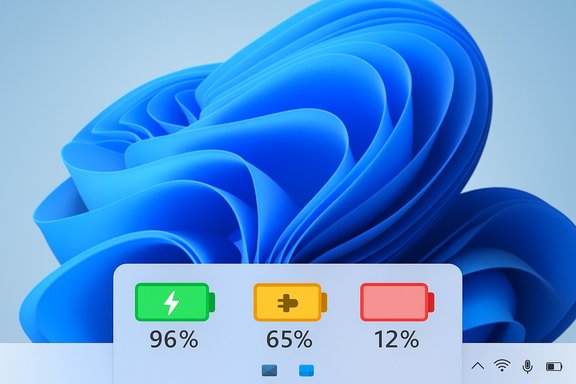
Microsoft is quietly making one of Windows 11’s tiniest UI elements far more useful: the battery icon on the taskbar is being redesigned with color, clearer overlays, and an option to show the numeric battery percentage directly in the system tray — a small change that solves a long-standing annoyance and has material benefits for usability, accessibility, and day‑to‑day device reliability.
Background
For years the Windows taskbar battery indicator has been functional but minimal — a monochrome symbol that required clicks or hovering to get precise detail. Insiders and users repeatedly requested two things: (1) clearer, at‑a‑glance visual cues about charging state and urgency, and (2) a persistent battery percentage next to the icon. Microsoft tested both ideas in Insider Preview builds earlier in 2025 and has begun rolling them into public cumulative updates and Patch Tuesday packages. The change was first visible in Dev and Release Preview flights and is now being deployed more broadly. This isn’t a purely cosmetic tweak. It aims to reduce “battery anxiety” — the moments when users are mid‑call or mid‑presentation and suddenly discover their laptop is about to die. The new indicator communicates more meaning in a single glance, which is especially useful on small screens, in busy workflows, and for people who rely on fast visual scanning rather than digging for details inside Quick Settings.What’s changing: the new battery indicator, in plain language
Microsoft’s updated battery UI introduces several concrete changes that are rolling out across different builds and channels:- Color‑coded icon states — the taskbar battery icon now changes color to signal status:
- Green for charging/good state.
- Yellow (or orange in some builds/reports) when Energy Saver / battery saving mode is active.
- Red when the battery is at a critically low level.
- Larger, clearer graphic — the new battery glyph is wider and uses more pixels so color and percentage can be legible without hovering. This design choice reduces ambiguity and makes the charge level easier to read at a glance.
- Simplified overlays — charging overlays (lightning bolt) were previously placed in ways that could obscure the progress bar. Microsoft simplified the overlays so users can see both the charging status and the progress indicator without obstruction.
- Smart charging/plug icon — when smart charging (charging paused around ~80% to preserve battery health) is active, a plug icon appears over the battery to indicate charging is paused to preserve longevity, instead of the green lightning bolt. Some previews show the plug icon appearing when charge is above 80%.
- Battery percentage toggle — a highly requested option to display the numeric battery percentage in the system tray is available under Settings > System > Power & battery and can be toggled on without a reboot. Microsoft and several community guides confirm the path and behavior.
How to get and enable the new indicator
There are three practical routes depending on how adventurous you are:- Install the official cumulative update when it reaches your machine (recommended).
- Check: Settings > Windows Update > Check for updates. Microsoft is rolling this change as part of targeted cumulative updates and Patch Tuesday releases.
- Join Windows Insider (Dev / Beta / Release Preview) to see the feature earlier.
- The colored icon and percentage toggle were available to Insiders before broad rollout. Microsoft’s Insider announcements show the feature in Dev/Release Preview flights.
- Power‑user route (unsupported): use ViVeTool or specific preview packages to enable flags in Insider builds.
- This was used by enthusiasts during early testing but is risky and not recommended for production or corporate devices.
- Open Settings (Win + I).
- Go to System > Power & battery.
- Toggle Battery percentage to On.
Cross‑checking the technical claims (what Microsoft says vs. the press)
Official Microsoft Insider posts and major tech outlets largely agree on the core mechanics: colored icons, simpler overlays, and a battery percentage toggle. The Windows Insider Blog and Release Preview notes explicitly describe the color meanings and the settings path to enable the percentage. Independent coverage from outlets like The Verge and Windows Central corroborates those details and adds context about staged deployment. That said, a few specifics have varied between early previews and some press reports:- Thresholds and exact colors: Microsoft’s documentation and Insider posts specify that Energy Saver will trigger at or below 20% (yellow), while the critical red state is described as “low” / “critically low” in official notes. Some early press or aggregated blog posts cite slightly different percentage thresholds (for example, a 6% red threshold appears in a few summaries). These numbers are not consistently reported across sources and may reflect testing variations between different builds or misinterpretation in secondary coverage. Treat precise numeric thresholds (e.g., “red = under 6%”) as potentially variable until Microsoft posts a single, definitive update or a KB article with exact thresholds for the public build.
- Build numbers: Insider builds that showed the feature include Build 26120.x and Release Preview builds like 26100.x in early 2025. Some outlets reference later cumulative numbers (for example, community posts mention Build 26200.7019 / KB5067036). Because Microsoft uses staged, cumulative update labeling and different branch builds, specific build IDs may differ by channel and region. If you need to match an exact build number (for support or documentation), verify it on your own device after update or consult the official Windows Update history page for the KB in question.
Why this matters: benefits for everyday users
Those seemingly small changes bring several measurable usability improvements:- Faster situational awareness — color communicates urgency immediately; green/yellow/red maps intuitively to “OK / be cautious / act now.”
- Reduced clicks and interruptions — the battery percentage in the tray eliminates a extra hover or click to see exact charge.
- Better accessibility — larger icons and color with numeric backup reduce cognitive load for users who need quick visual signals.
- Cleaner charging UX — simplified overlays mean you can see the actual fill level and charging state at once, reducing false confidence about whether a device is charging.
- Battery longevity awareness — smart charging cues (plug icon) make it clearer when the system is pausing charging to preserve cycle life.
Design and accessibility analysis
The color approach is effective because it leverages visual primitives people already understand (traffic‑light semantics). But good design requires more than color:- Color dependence — color alone is insufficient for accessibility. Microsoft pairs color with structural changes (larger icon, percentage toggle) to supply redundant cues. Still, designers should ensure contrast and secondary indicators for users with color vision deficiencies. Official notes and community coverage suggest Microsoft made size and overlay changes with accessibility in mind, but this remains an area to watch during rollout.
- Consistency across contexts — the goal is consistent behavior in system tray, Quick Settings, Settings pages, and eventual Lock screen support. Microsoft already indicates lock screen support will come in a later flight. Consistency matters: users must be able to trust that yellow means the same thing everywhere.
- Localization and theming — dark/light theme interplay and high‑contrast themes need to render the color cues legibly; Microsoft’s Insider guidance notes address theme sensitivity, but enterprise-managed high contrast modes could require additional QA.
Battery health and the smart‑charging cue
The plug icon for smart charging is a welcome transparency play. Many OEMs and platforms offer battery health modes that pause charging at roughly 80% to reduce chemical stress and prolong lifespan. Making the system pause visible in the UI does two things:- It prevents confusion (“Why isn’t my battery at 100%?”).
- It educates users about battery health tradeoffs.
Enterprise considerations and group policy
Administrators should note a few realities:- Staged rollouts may cause heterogeneity in fleets** — not every managed device will see the battery UI at the same time, complicating documentation and support scripts. Microsoft’s staged deployment model means some machines on the same patch level may show the UI while others do not immediately.
- Group policy / MDM restrictions — in some managed environments, the battery percentage toggle or visual changes may be hidden via policy, or the smart charging behavior may be overridden by OEM/firmware policies. Admins should verify their configuration baselines and update internal support documentation. Community guides note enterprise editions sometimes do not show the toggle due to policy or system image restrictions.
- Support scripts and monitoring — endpoint management tools that parse tray icons or rely on older visuals for automation should be updated. If your helpdesk uses screenshots or visual cues to triage battery issues, update training to reflect the color states and percentage location.
Potential risks, gotchas and unanswered questions
No rollout is risk‑free. Here are the principal concerns and how to mitigate them:- Inconsistent reporting between sources — some press and community posts report different numeric thresholds (e.g., 6% vs 20%) for the red/critical state. Rely on Microsoft’s official documentation for production decisions, and test on representative hardware for your fleet. Flag any discrepancy as potentially variable by build.
- Color‑only signals — despite improved size and numeric display, color remains the fastest cue; ensure secondary signals (text/shape) are available for visually impaired users. Confirm high‑contrast and colorblind modes properly reflect the state.
- OEM firmware interactions — battery reporting depends on ACPI and OEM battery firmware. Some devices may report inaccurate percentages or the system may misinterpret smart charging; OEM drivers and firmware must be kept current. Deploy new OS visuals only after verifying OEM driver compatibility in test groups.
- Staged rollout surprises — a machine that should show percentage may not if Microsoft is still rolling out. Avoid assuming absence equals misconfiguration — check update history and release notes.
- Support overhead for early adopters — enabling Insider builds or ViVeTool to access features can increase support tickets. Only guide power users or test groups to those routes; production users should wait for official cumulative releases.
Practical recommendations for users and admins
- For most users: wait for the official cumulative update delivered via Windows Update and enable the percentage toggle in Settings > System > Power & battery when available. This is the most stable approach and preserves warranty/support paths.
- For admins: pilot the update in a controlled group, confirm OEM driver compatibility, and update internal documentation and screenshots to reflect the color states and percentage toggle. Confirm any group policies that might hide the toggle.
- For power users and testers: use the Windows Insider channels if you want early access, but avoid enabling preview flags via unofficial tools on production systems. If using ViVeTool in a non‑production environment, document the changes and maintain strict backups.
Where coverage and community reporting disagrees (and why you should be careful)
Multiple reputable outlets — Microsoft’s Insider Blog, The Verge, and Windows Central — align on the high‑level behavior: color coding, simplified overlays, and battery percentage toggle. Community blogs and aggregated posts sometimes quote slightly different thresholds or build numbers. Differences typically stem from:- Testing across different Insider channels (Dev vs Release Preview).
- OEM implementation differences.
- Early preview toggles being changed during iterative testing.
Final assessment: smart, overdue, low risk — but test first
This update is an example of small, targeted UX work that yields outsized benefits. By combining color, size, and an explicit percentage toggle, Microsoft reduces friction, improves accessibility, and aligns the desktop battery UX more closely with the intuitive behavior users expect from mobile devices. For most users the rollout will be seamless and welcome; for organizations, a short pilot and communication to support staff will be sufficient to avoid confusion.Key takeaways:
- High utility, low complexity — the change fixes a concrete pain point without requiring changes to workflows.
- Test in context — because battery reporting touches firmware and OEM drivers, validate on representative hardware.
- Watch for policy and rollout differences — enterprise devices may not see the toggle due to group policy or staged rollout timing; plan for that in helpdesk documentation.
Source: PCMag Windows 11 Battery Indicators Will Get More Colorful (and Useful) in Next Update
