

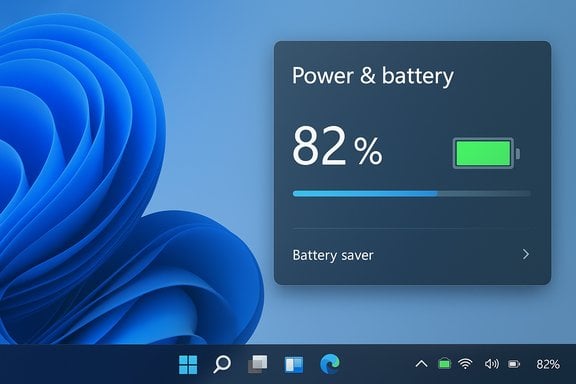
Microsoft has quietly restored one of the simplest — and most requested — taskbar niceties to Windows 11: the ability to display your battery percentage directly on the taskbar, alongside a set of redesigned, color-coded battery icons that make charge state readable at a glance.
Background
Windows' taskbar has long been the OS's most tactile surface: pinned apps, notifications, system icons and quick status cues live there. Since Windows 11 launched, Microsoft received steady user feedback about a few conspicuous usability gaps — small but meaningful quality‑of‑life items that other modern platforms had long offered by default. Chief among them was the inability to always show a numeric battery percentage next to the battery icon, forcing users to hover or click to see a precise value. That omission became an oft-cited complaint in forums, beta discussions and product feedback threads.Microsoft’s Insider program has been the testing ground for incremental fixes and experiments to address these complaints. Over the past year, a stream of Insider builds introduced several taskbar refinements — from keyboard-first navigation and smaller taskbar icons to improvements in notification and system tray behavior — as the company iterates on Windows 11’s shell.
What Microsoft announced (and where it appears)
Microsoft disclosed the battery changes in Insider release notes: the update includes redesigned, color‑aware battery icons and a new toggle to show battery percentage next to the system tray icon. The toggle is accessible from Settings > System > Power & battery. The change was rolled out to Windows Insiders in the Dev and Canary channels as part of recent preview builds (notably around Build 26120.3000 and later Canary builds like 27802), where Microsoft is evaluating feedback and telemetry before any wider release. Key user‑facing details Microsoft and press coverage have highlighted:- Color‑coded battery icons — green when charging/healthy, yellow when energy saver is active (typically at or below 20%), and red at critical levels. These colors appear in the system tray, Quick Settings flyout and Settings.
- Battery Percentage toggle — a simple on/off option in Settings that, when enabled, places a numeric percentage next to the battery icon in the taskbar system tray.
How to get the feature now (practical steps and caveats)
If you want to try the battery percentage today, there are two routes: the official Insider path and the unsupported “tweak” path previously used by enthusiasts.- Official (recommended for testers)
- Join the Windows Insider Program and enroll the device in the Dev or Canary channel via Settings > Windows Update > Windows Insider Program.
- Update Windows until you reach the preview build that contains the battery UI changes (Insider notes mention the 26120.x family in Dev and 27xxx series in Canary).
- Open Settings > System > Power & battery, and toggle Battery Percentage. A reboot may be necessary if the option doesn’t immediately appear.
- Unsupported / advanced (not recommended for most users)
- Enthusiasts previously used third‑party utilities like ViVeTool to enable hidden or gated features in preview builds. While this can surface features earlier, using such tools is unsupported by Microsoft, can break expected behaviors after updates, and may leave your system in a mixed state when features are gated or rolled back. Publications that tracked the early availability of the feature documented both the Vivetool path and Microsoft’s later official enabling. Use caution.
- The feature is being rolled out using staged deployments and server-side gating; not every Insider will see the option at the same time, even on the same build number. Expect staggered exposure.
- Some community threads and Microsoft Q&A posts report the toggle appearing and then disappearing after subsequent updates — an expected consequence of A/B testing and branch gating during preview testing.
Why this matters: UX and accessibility benefits
At face value the change is small. In practice it addresses three common usability pain points:- Immediate, precise feedback: A numeric percentage removes guesswork and reduces micro‑interruptions (no more hover‑and‑wait). That matters when making quick decisions during meetings, flights, or when you’re away from a charger.
- Faster battery management: Knowing that you’re at 19% vs 29% can change whether you close background apps, enable energy saver, or look for power immediately. The color‑coding provides additional visual context for energy states at a glance.
- Alignment with modern UX expectations: Mobile OSes and macOS long offered numeric battery readouts by default; parity reduces cognitive friction for users who move between devices and platforms.
Technical and rollout analysis
Microsoft’s approach illustrates its modern feature‑delivery model:- Features are shipped into the Windows binaries but enabled selectively through Controlled Feature Rollouts (CFRs), server flags or enablement packages. This lets Microsoft collect feedback and telemetry without forcing unfinished experiences on every device. The Insider channels are the primary feedback loop.
- That staged rollout explains the oscillation some users report — toggles that appear temporarily and vanish are symptoms of the gating process, not necessarily bugs in every case. This model is powerful for safe experimentation but frustrating for enthusiasts who want deterministic access.
- Microsoft’s changes are intentionally conservative in design: the battery icon overlay behavior was simplified so overlays do not obscure the progress bar, and the percentage is just a small toggle rather than a sweeping redesign. This minimizes regressions in scenarios where applications or OEMs customize status areas.
Risks, limitations, and things to watch
No change is risk‑free. Consider these points before chasing the feature early:- Gated rollouts and instability: As the Microsoft Q&A and community threads indicate, the toggle’s availability can be inconsistent; enabling early through tweaks may be reversed by updates, leaving the UI in an unexpected state.
- Third‑party tweaks are unsupported: Tools like ViVeTool are useful for experimentation, but they bypass Microsoft’s gating and support structure. They can result in unsupported configurations and should be avoided on primary production devices.
- Enterprise and OEM variability: Corporate-managed devices, OEM customization layers and certain enterprise policies can block Insider enrollment or hide new toggles. IT admins should evaluate the feature before broad deployment. Microsoft’s staged rollout model also means IT managers may not be able to guarantee availability across fleets.
- Accessibility nuance: Color coding (green/yellow/red) helps at a glance but must be paired with textual percentage for users with color‑vision deficiencies. Thankfully the numeric toggle addresses this, but it’s dependent on the user enabling the setting. Designers must ensure color is not the sole conveyance of state.
- Fragmentation of features: A small but growing tension in the Windows ecosystem is the presence of third‑party utilities (Start11, Explorer mods etc. that fill customization gaps when Microsoft moves slowly. Those tools remain necessary for users who prefer older behaviors (vertical taskbar, compact button modes), creating a fragmented ecosystem where some users always rely on third‑party patches. Microsoft’s gradual reintroduction of small customization options reduces that friction but won’t eliminate third‑party demand.
Broader taskbar roadmap: more than a percentage
The battery percentage change sits alongside other incremental taskbar and shell improvements Microsoft has tested:- Smaller taskbar icons and dynamic resizing options to free screen real estate for power users. These have been surfaced in Insider builds and are a clear nod to user requests for denser taskbar configurations.
- First‑letter taskbar navigation and keyboard improvements, enabling faster app switching via keyboard focus. This is part of a subtle shift to support keyboard-first productivity workflows.
- Taskbar & System Tray polish: improved notification alignment, jump list improvements and options for showing or hiding certain icons, all aiming to reduce clutter and make the tray more predictable.
Recommendations for users and IT pros
- Casual users: Wait for the feature to reach the Stable or Beta channel for a reliable, supported experience. The toggle will appear in Settings > System > Power & battery once the rollout reaches your device.
- Enthusiasts / power users: If you’re comfortable with Insider volatility, join the Dev or Canary channel on a non‑critical test device to access the toggle earlier. Be prepared for changes across updates and don’t rely on ViVeTool or similar hacks on production machines.
- IT administrators: Treat this as a low‑risk UI enhancement, but test deployments in controlled groups before mass enablement. Evaluate whether your management tooling or OEM customizations might hide or conflict with the new taskbar behavior. Expect staggered availability due to Microsoft’s CFR approach.
What this reveals about Microsoft’s priorities
This change is emblematic of Microsoft’s current posture toward Windows 11: incremental fixes guided by user feedback rather than sweeping, monolithic redesigns. Microsoft is focusing on polishing everyday interactions — those micro‑moments that cumulatively shape perception of the OS.The company’s use of Insider channels, staged rollouts and telemetry-driven gating suggests a priority on stability and measured exposure. The tradeoff is that some Insiders will see features earlier and then feel whiplash when features are adjusted or pulled during the test cycle. Still, the end result is more likely to be a refined and broadly compatible feature set.
Conclusion
What might have felt like a trivial omission — the numeric battery percentage on the taskbar — turns out to be one of those small features that significantly improves daily life for laptop users. Microsoft’s official introduction of color‑aware battery icons and a simple Battery Percentage toggle marks a welcome correction to Windows 11’s early UX choices. The change is pragmatic, minimally invasive, and consistent with broader efforts to incrementally restore power-user options while keeping Windows 11’s visual language intact. The path to general availability will be measured and staged. Users who want the feature today can experiment via the Insider program, but should plan for the occasional inconsistency inherent in preview builds and resist using unsupported tools on primary devices. For everyone else, the percentage will almost certainly arrive in mainstream releases in the months following the preview cycle — a small but welcome update that makes the taskbar just a bit more pragmatic and useful.Source: Neowin Microsoft is finally bringing a missing piece to Windows 11's taskbar
