

Microsoft has pushed Windows 11 Insider Preview Build 26220.7653 (KB5074157) to the Beta Channel, a focused quality update that mixes a small set of user-facing improvements with a batch of bug fixes and a few active known issues that Insiders and IT professionals should evaluate before upgrading widely.
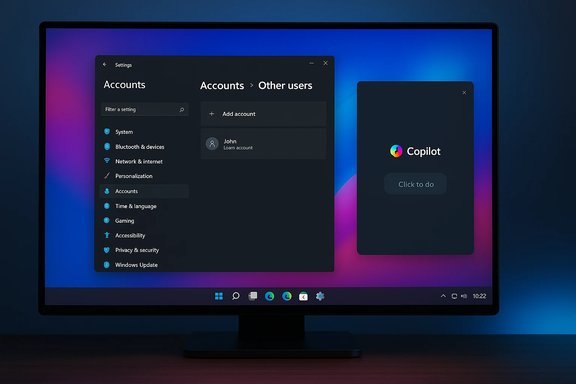
This Beta Channel release is delivered as a cumulative quality update for Windows 11, version 25H2 (Build 26220.xxxx) and continues Microsoft’s pattern of shipping iterative improvements via controlled feature rollouts. The update introduces interface refinements—most notably modernized dialogs in Account Settings with WinUI support and dark mode compatibility—adds small but practical features such as .webp support for desktop backgrounds, and tweaks Copilot-powered experiences in Click to Do. Alongside those changes, the build addresses numerous stability issues affecting the Start menu, taskbar autohide behavior, Settings crashes related to audio devices, and several smaller UX regressions reported by Insiders.
At the same time, Microsoft is transparent about persisting known issues: a recently reported secondary-monitor black-screen problem affecting a small number of devices, quirks with the Xbox Full Screen Experience (FSE), and intermittent system tray visibility problems for certain apps. The release is being rolled out gradually to Insiders who enable the “get the latest updates as soon as they are available” toggle, with features ramping up as telemetry and feedback permit.
For enterprise environments, the WinUI migration can have subtle impacts: group policy and management tooling that automated interactions with older dialogs may require retesting if any automation relies on control tree identities. Microsoft notes that some of the dialog option visibility depends on domain join state, a critical detail for IT admins.
However, the release is not without risk. The newly reported secondary-monitor black-screen issue, ongoing Xbox FSE quirks, and intermittent system-tray visibility problems mean this build is best suited for testing and validation rather than broad deployment in critical production environments. IT professionals should validate multi-monitor and GPU-dependent scenarios, keep drivers up to date, and maintain clear rollback plans.
For Insiders eager to help shape Windows, this build offers meaningful fixes and incremental features to test and critique—provided you follow standard precautions and report issues through Feedback Hub so Microsoft can prioritize fixes in subsequent releases.
Source: Microsoft - Windows Insiders Blog Announcing Windows 11 Insider Preview Build 26220.7653 (Beta Channel)
 Overview
This Beta Channel release is delivered as a cumulative quality update for Windows 11, version 25H2 (Build 26220.xxxx) and continues Microsoft’s pattern of shipping iterative improvements via controlled feature rollouts. The update introduces interface refinements—most notably modernized dialogs in Account Settings with WinUI support and dark mode compatibility—adds small but practical features such as .webp support for desktop backgrounds, and tweaks Copilot-powered experiences in Click to Do. Alongside those changes, the build addresses numerous stability issues affecting the Start menu, taskbar autohide behavior, Settings crashes related to audio devices, and several smaller UX regressions reported by Insiders.At the same time, Microsoft is transparent about persisting known issues: a recently reported secondary-monitor black-screen problem affecting a small number of devices, quirks with the Xbox Full Screen Experience (FSE), and intermittent system tray visibility problems for certain apps. The release is being rolled out gradually to Insiders who enable the “get the latest updates as soon as they are available” toggle, with features ramping up as telemetry and feedback permit.
Background
What this build represents for the Beta Channel
This update is part of the 26220.* build series associated with Windows 11, version 25H2, delivered via an enablement package model. The enablement package approach means the underlying components and platform changes have largely been prepared; the enablement package merely flips features on for broader visibility. Microsoft uses Controlled Feature Rollout to release new experiences to a subset of Insiders first and then expand availability, which is why some changes are only visible to Insiders who have the “Get the latest updates as soon as they are available” toggle enabled in Settings > Windows Update.Target audience and testing scope
- Windows Insiders (Beta Channel) who want earlier, but still relatively stable, previews of changes targeted for mainstream Windows 11.
- IT pros and enthusiasts tracking UX refinements and bug fixes that could affect productivity workflows, multi-monitor setups, and peripheral integrations.
- Developers and app vendors monitoring OS-level behavioral changes—especially for features like Click to Do, Copilot integrations, and FSE—that can alter app interaction models.
What’s new and rolling out gradually
Account Settings: modernized dialogs and dark-mode support
Microsoft is updating the dialogs under Settings > Accounts > Other users using a modern WinUI framework implementation. The refresh standardizes experience with other Windows 11 UI elements and adds explicit dark-mode support where those dialogs previously had inconsistent visual behavior.- Why it matters: A consistent WinUI-based dialog reduces visual jank and accessibility differences across themes, and prepares the area for future feature work around account management.
- Caveat: Visibility of the updated dialogs depends on whether a device has a domain-joined work or school account configured—so some Insiders will see the new UI while others will not.
Click to Do: faster Copilot prompt suggestions
The Copilot prompt suggestions in Click to Do now load instantly for Insiders who receive the change, trimming latency in a productivity workflow that relies on contextual prompts and automated actions. This improvement is not available yet to Insiders in the EEA or China.- Important note: “Instant” is a qualitative claim from the release notes and may vary by hardware, network conditions, and whether the Microsoft 365 Copilot app is present and running. Users in the EEA and China should expect a delayed rollout.
Desktop Background: .webp image support
You can now set .webp images as desktop backgrounds from Settings > Personalization > Desktop Background. Adding .webp support aligns Windows 11 with a wider web ecosystem where .webp is commonly used for efficient image compression and higher-quality visuals at smaller file sizes.- Practical impact: Users who prefer smaller, higher-quality wallpaper files or rely on web-sourced images in .webp format no longer need to convert them before use.
Notable fixes in this build
The release tackles a number of reported regressions and long-running annoyances. Highlights include:- Taskbar autohide behavior: Fixed an issue where the taskbar could appear prematurely when set to autohide, interfering with controls that live at the bottom of the screen.
- Start menu reliability and memory: Fixed a memory leak triggered by opening the Start menu and corrected cases where Start, notification center, or quick settings would not open via clicks (keyboard shortcuts still worked).
- Right-to-left (RTL) language adjustment: Fixed a bug for Arabic and Hebrew users where the Start menu could open on the wrong side of the screen when taskbar icons weren’t centered.
- Settings app crashes: Fixed crashes when interacting with audio devices in Settings.
- Bluetooth battery level display: Restored battery level reporting for some Bluetooth devices that previously lost that capability in the latest builds.
- Login and Lock Screen: Fixed a case where the password icon could appear blank.
- Explorer and startup hangs: Addressed an underlying issue that could make explorer.exe hang during first login if certain apps were configured to start automatically.
- Notepad display bug: Resolved a display glitch where underscores were not visible with certain fonts at 125% scaling.
- .appinstaller/MSIX installation: Fixed an invalid argument error that blocked installation from .appinstaller files for some Insiders.
- msinfo32 scaling: Fixed clipped text behavior at high display scaling factors.
Known issues and risks
No preview release is risk-free. Microsoft lists several active known issues with varying severity and user impact:1. Xbox Full Screen Experience (FSE)
- Some apps and games can behave unexpectedly under FSE, especially apps expecting to be fixed to a certain size or that spawn additional windows.
- Impact: Gamers and users of certain UWP/Win32 apps may see crashes, resizing, or focus issues.
- Status: Microsoft has implemented fixes for some FSE behaviors in this build but retains the known issue while validations continue.
2. Taskbar & System Tray visibility issues
- Some Insiders report that apps do not show in the system tray as expected.
- Impact: Background utilities and communication apps that rely on the tray may appear to be stopped or inaccessible.
- Recommended short-term mitigation: Check app-specific settings and confirm app’s process is running; consider restarting Explorer if icons are missing.
3. Display & Graphics — secondary monitor black screens (NEW)
- A small number of Insiders are experiencing secondary monitors that fail to display correctly and instead show black screens after recent updates.
- Impact: Multi-monitor users (productivity setups, docking station users, and power users) can be severely affected; this may interrupt work and require troubleshooting or rolling back updates.
- Risk note: Because the issue is isolated to a subset of configurations, the root cause could be driver compatibility, GPU driver interactions, or specific hardware/firmware combos.
- Suggested remediation steps if affected:
- Update GPU drivers to the latest vendor release (NVIDIA/AMD/Intel).
- Use Win+P to cycle projection modes.
- Disconnect and reconnect external displays or docking stations.
- Boot to Safe Mode to remove or roll back problematic drivers.
- Uninstall the KB update from Settings > Windows Update > Update history > Uninstall updates if necessary.
- Use System Restore if previously created restore points exist.
4. Click to Do / Microsoft 365 Copilot integration
- The Copilot prompt box on selected images may not function unless the Microsoft 365 Copilot app is running. This dependency reduces the seamlessness of Click to Do in some scenarios.
- Impact: Users expecting quick image-context prompts when the Copilot app is closed will not receive full functionality until the app is running.
Technical analysis: Why these changes matter
WinUI updates and the migration path for Settings
Updating Settings dialogs to WinUI is a long-term, extensible investment. WinUI provides consistent theming, better animation handling, and improved accessibility primitives. Replacing older XAML or legacy dialog code helps reduce drift across the OS and third-party apps, ensuring future features are easier to integrate and maintain.For enterprise environments, the WinUI migration can have subtle impacts: group policy and management tooling that automated interactions with older dialogs may require retesting if any automation relies on control tree identities. Microsoft notes that some of the dialog option visibility depends on domain join state, a critical detail for IT admins.
Copilot & Click to Do latency improvements
Reducing latency for Copilot suggestions is important for adoption. When prompts appear instantly, human-in-the-loop workflows feel natural and users are more inclined to rely on the assistant for quick tasks like summarizing text, drafting replies, or extracting actions from images and selections. However, cloud dependencies, regional availability, and app-process dependencies (like requiring the Microsoft 365 Copilot app to be running) still limit a frictionless experience..webp support for desktop backgrounds
The addition of .webp support is low risk but high utility. WebP’s efficient compression reduces storage and bandwidth for synchronizing wallpapers and allows higher fidelity images to be used without notable storage or performance penalties. Because .webp is widely used on the web, this eliminates a minor but annoying friction point for users who previously had to convert images before setting them as wallpapers.Deployment guidance for Insiders and IT admins
For Insiders who want early features
- Enable the toggle: Settings > Windows Update > Get the latest updates as soon as they are available.
- Expect gradual rollout: new features might appear only for a subset of machines.
- Report feedback: use Feedback Hub (WIN + F) and select the appropriate category (for example, Settings > User Profile Account Settings for account dialog feedback).
For power users and IT professionals in test environments
- Evaluate risk tolerance. Beta Channel builds are generally stable but can introduce device- or driver-specific issues.
- Test multi-monitor and GPU-heavy workflows in a lab environment before broad deployment—especially given the current, isolated reports of secondary-monitor black screens.
- Update GPU drivers first if you plan to install this build on multi-monitor workstations or gaming rigs.
- If using enterprise deployment tooling, validate any automation that interacts with Settings dialogs or Start menu behavior.
- Maintain rollback plans: create system images or enable System Restore before updating, and document steps to uninstall the KB if required.
How to get the build
- Preferred path: Settings > Windows Update for devices enrolled in the Beta Channel. Insiders who have the “Get the latest updates as soon as they are available” toggle on may receive the update faster.
- Alternative: Community-maintained tools (UUPDump) often surface ISOs for Insider builds; these can be used for fresh installs or testing scenarios but require additional steps and are not Microsoft-sanctioned deployment paths for production systems.
Practical troubleshooting checklist (if you see issues after updating)
- Confirm the build: Verify Settings > System > About shows Build 26220.7653 and the update listed as KB5074157.
- Update display drivers: Use manufacturer tools or Device Manager to update GPU drivers.
- Reboot and check peripherals: Reconnect monitors and docking stations after a reboot.
- Cycle projection modes: Press Win+P and choose the desired projection (Duplicate/Extend/Second screen only).
- Restart Explorer: Open Task Manager, find "Windows Explorer", right-click and choose Restart to restore taskbar/tray icons if missing.
- Use Safe Mode: Boot to Safe Mode to determine if third-party drivers or utilities are causing conflicts.
- Uninstall the update: Settings > Windows Update > Update history > Uninstall updates if the issue is severe and reproducible.
- Submit feedback: Capture repro steps and file a detailed report through Feedback Hub to accelerate triage.
Strengths and limitations — an impartial assessment
Strengths
- Targeted fixes in this build address several high-impact usability regressions: Start menu memory leaks, autohide taskbar interference, and Settings crashes tied to audio devices.
- Incremental UX modernization (WinUI migrations) improves visual consistency and accessibility, which benefits users across the board.
- .webp wallpaper support and Click to Do speed improvements are pragmatic, user-focused changes that eliminate friction in everyday workflows.
Limitations and risks
- The known issue affecting secondary monitors is a real concern for multi-monitor and docking-station users; because the problem can render a screen unusable, this significantly raises the risk for production workstations.
- Controlled Feature Rollouts mean you cannot rely on feature parity across machines, making internal QA more complex—some dev/test machines may see features others do not.
- Dependencies on the Microsoft 365 Copilot app for some Click to Do behaviors reduce the frictionless nature of built-in Copilot experiences; users without the app or in restricted regions will not see parity.
- Insufficient public detail on rollout percentages and telemetry thresholds leaves organizations guessing about exposure and remediation windows.
What to watch next
- Driver vendor responses: Watch NVIDIA, AMD, and Intel driver releases closely. If secondary-monitor black-screen reports are driver-related, vendors typically issue rapid hotfixes or guidance.
- Microsoft’s follow-ups to the known issues: Microsoft has marked the display issue as “NEW” and promises a fix—Insiders should monitor official channels and Flight Hub for a resolution timeline.
- Broader rollout of WinUI-based Settings changes: Track whether more Settings dialogs receive the WinUI migration, as this can alter long-standing workflows or automation dependencies.
- Copilot regional rollouts and enterprise Copilot behavior: Microsoft continues to iterate on Copilot integration; changes to dependencies (for example, decoupling Click to Do’s prompt box from the Microsoft 365 Copilot process) would materially improve usability.
Conclusion
Build 26220.7653 (KB5074157) for the Beta Channel is a pragmatic update: it tightens up stability, modernizes a chunk of the Settings UI, and delivers small but welcome features like .webp wallpaper support and faster Copilot suggestions in Click to Do. For Insiders and testers, it represents a useful combination of polish and practical improvements.However, the release is not without risk. The newly reported secondary-monitor black-screen issue, ongoing Xbox FSE quirks, and intermittent system-tray visibility problems mean this build is best suited for testing and validation rather than broad deployment in critical production environments. IT professionals should validate multi-monitor and GPU-dependent scenarios, keep drivers up to date, and maintain clear rollback plans.
For Insiders eager to help shape Windows, this build offers meaningful fixes and incremental features to test and critique—provided you follow standard precautions and report issues through Feedback Hub so Microsoft can prioritize fixes in subsequent releases.
Source: Microsoft - Windows Insiders Blog Announcing Windows 11 Insider Preview Build 26220.7653 (Beta Channel)
