

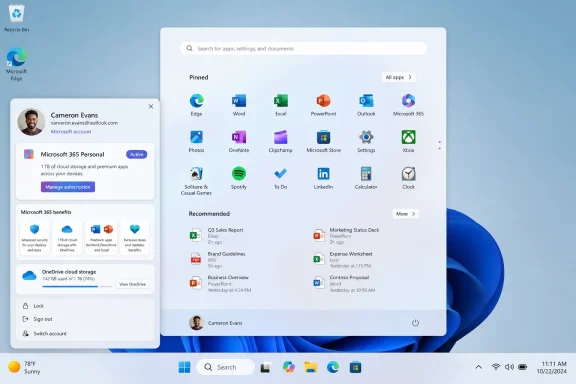
Microsoft is giving one of Windows 11’s smallest menus a strategically important makeover. Insider Preview Build 26220.8925 introduces a redesigned Account Control flyout in the Start menu, adding a prominent subscription badge alongside Microsoft account benefits, cloud-storage information, and upgrade options. The interface is cleaner and more informative, but it also illustrates Microsoft’s broader effort to turn Windows into a visible gateway for Microsoft 365, OneDrive, and other recurring services.
Windows has long treated the user menu as a largely functional piece of the desktop. Click the profile picture in Start, and the operating system traditionally presents straightforward session controls such as locking the PC, signing out, or switching users.
Windows 11 gradually expanded that simple menu into an account-management surface. Microsoft began displaying reminders, Microsoft account information, OneDrive storage, rewards, backup status, and service recommendations, depending on the user’s configuration and the features being tested at the time.
Windows 8 started pushing Microsoft accounts more prominently, while Windows 10 made cloud identity increasingly important for the Microsoft Store, OneDrive, settings synchronization, and digital licenses. Windows 11 took that direction further by tightly connecting the setup process, Windows Backup, Microsoft 365, OneDrive, device recovery, and other features to the Microsoft account.
The result is that the profile icon in Start no longer represents only the person currently signed in. It has become an entry point into a larger ecosystem of subscriptions, storage quotas, security settings, benefits, and service relationships.
User Account Control is the security mechanism that asks for consent or administrator credentials when software attempts to make elevated system changes. The Account Control flyout discussed here is the profile menu opened by selecting the user picture in the Start menu.
Build 26220.8925 does not redesign UAC elevation prompts or change Windows administrator security behavior. It changes the Microsoft account and session-management interface exposed through Start.
Microsoft says the redesign is intended to let users identify their plan, discover included benefits, and explore potential upgrades. The accompanying interface also exposes account benefits and storage details without requiring the user to begin in the Settings application or visit a separate account portal.
That sounds modest, but subscription identity can be surprisingly opaque. A user may know that Word and Excel are installed without knowing whether they are covered by Microsoft 365 Personal, Microsoft 365 Family, a trial, a perpetual Office license, an employer-provided plan, or some other entitlement.
Placing a plan badge in Start reduces at least part of that ambiguity. It also gives Microsoft a prominent location for notifying users about expiring services, unused benefits, or upgrade paths.
Work and school accounts may also produce a different experience from personal Microsoft accounts. Organizational licensing, Microsoft Entra ID policies, device management, and enterprise subscription rules do not always map neatly to the consumer-focused Microsoft 365 information shown in Windows.
Availability may vary even among eligible Insider systems. Microsoft frequently deploys Windows features through controlled rollouts, enabling an experience for a subset of devices before expanding it more broadly. Installing the correct build therefore does not always guarantee that every newly documented interface will appear immediately.
That context matters because the build number alone does not tell the entire story. Microsoft now tests overlapping feature sets across multiple servicing branches, and features can move between Beta, Experimental, Release Preview, and production servicing without following a simple linear path.
In Release Preview Build 26100.8968 for version 24H2 and Build 26200.8968 for version 25H2, Microsoft lists the change as part of a gradual rollout. Those release notes specify that the experience is for users signed in with a Microsoft account and that availability may vary by device.
This broader testing footprint suggests Microsoft considers the flyout more than an early design prototype. Its appearance in Release Preview means it is being evaluated close to the normal servicing path, although Microsoft still reserves the right to alter, delay, or remove Insider features.
For users, that can mean a relatively quick transition between supported Windows versions. For administrators, it can simplify testing because the underlying system files may already be substantially aligned.
The model also makes Windows version labels less useful as a perfect guide to feature availability. Two PCs that report the same version may temporarily expose different features because of staged deployment, region, account type, hardware eligibility, or controlled feature flags.
Visual consistency is valuable. Windows 11 has often been criticized for combining polished modern surfaces with older dialogs, Control Panel components, and inconsistent menus inherited from several generations of Windows.
Good information hierarchy can reduce confusion, particularly on shared family PCs or devices where several Microsoft products have been installed over time. Users should be able to distinguish the signed-in identity from the subscription attached to that identity more quickly.
The flyout also creates a clearer route from status to action. A user who sees limited storage, an inactive plan, or an available benefit can move directly toward the corresponding management surface.
The design encourages users to understand what they already have, but it can also encourage them to buy more. Microsoft explicitly describes the experience as helping users explore upgrades, which means commercial conversion is part of the feature’s purpose.
That dual role does not automatically make the interface harmful. A clear subscription indicator can be useful, especially when it prevents users from purchasing a product they already own. The quality of the feature will depend on whether Windows prioritizes relevant account information over persistent promotional messaging.
The refreshed Account Control flyout gives that relationship a permanent place inside Start. It therefore advances a strategic shift that has been developing for years: Windows is becoming the operating-system front end for a broader services business.
A visible plan badge can help expose those mismatches. It may also reduce confusion about why OneDrive storage differs between accounts or why a desktop Office application reports that it is unlicensed.
The flyout could be particularly useful when diagnosing situations such as:
If the flyout devotes too much space to upgrades, rewards, backup prompts, or subscription marketing, locking or signing out could feel secondary. That would reinforce criticism that Windows increasingly uses paid operating-system surfaces to promote other Microsoft products.
Microsoft must therefore maintain a clear boundary between account status and advertising. A badge that says which plan is active is informative. Repeated calls to purchase a more expensive plan are promotional, even when presented as account recommendations.
The value will be greatest when the information is accurate, current, and actionable. A stale storage figure or ambiguous plan label would undermine the entire point of bringing this data into Start.
A family PC may also contain several Windows profiles. The new badge could help each person confirm which account is active and whether that account has access to the expected plan.
However, Microsoft will need to use careful wording. Being a member of a shared subscription is not the same as owning or administering it, and the flyout should not imply that every entitled family member can modify billing or control other members.
That creates a philosophical divide. Cloud-account users gain synchronization, recovery, integrated subscriptions, and a richer account panel, while local-account users preserve greater separation between the device and Microsoft’s online ecosystem.
The redesign does not eliminate the reasons some users prefer local accounts. If anything, putting more services and upgrade options into Start may strengthen the preference of privacy-conscious users who want account controls to remain strictly local.
Even so, the change matters to administrators because consumer Microsoft accounts and promotional content can appear on devices that are not configured consistently.
A sensible validation process includes:
These additions show how Microsoft increasingly bundles interface experiments, accessibility work, reliability fixes, and productivity refinements into the same Insider flight.
Users also receive section-level controls for showing or hiding Pinned, Recent, and All. That is a meaningful improvement because Start menu complaints often concern not the entire menu but Microsoft’s decision to reserve space for sections an individual does not use.
A choice between small, large, and automatic Start menu sizing provides additional flexibility. Microsoft is also adding an option to hide the user’s name and profile picture, an interesting contrast to the expanded account flyout: Windows is simultaneously making account details easier to access and letting users reduce their constant visual presence in Start.
That can improve navigation through long documents, spreadsheets, websites, and code files. Touchpad behavior is highly subjective, so exposing speed controls is preferable to forcing every user into the same acceleration curve.
Microsoft notes that complete support in WinUI 3 applications depends on corresponding Windows App SDK work. This caveat highlights a recurring challenge: an operating-system input improvement is only fully useful when application frameworks and individual apps handle it consistently.
Middle-clicking can now open folders in new tabs from the address bar and Home page. The interaction brings File Explorer closer to established browser behavior and makes tabbed navigation feel less like an added feature and more like a coherent input model.
Screen-reader announcements have also been improved for conflict-resolution dialogs encountered during file moves and copies. That change is less visible than a redesigned flyout, but it directly affects whether a user can confidently decide which version of a conflicting file to keep.
HID braille support also extends into the initial Windows setup experience over USB. This can allow a deaf-blind user to begin setting up a PC independently from the first screen rather than requiring assistance before accessibility software or vendor drivers become available.
Microsoft lists devices including the Orbit Reader 20, Orbit Slate 340, Freedom Scientific Focus 40, and APH Mantis Q40 as compatible examples. Wider standards-based support should reduce dependency on custom driver packages and create a more predictable baseline for manufacturers.
Microsoft has also improved persistence for the selected mouse-cursor size. Accessibility preferences should survive restarts and updates reliably; when they do not, the problem can turn a minor inconvenience into a recurring usability barrier.
The company wants Windows to explain not only who is signed in but also what that identity owns, what it can access, and what else it could buy. That is a substantial expansion of the account button’s original role.
Integrating plan status into Start helps keep that relationship visible. It also gives Microsoft a direct communication channel that does not depend on a user opening Word, visiting an account portal, or reading an email.
This approach can make the operating system more helpful when it consolidates genuinely relevant information. It becomes less welcome when consolidation turns into relentless cross-selling.
Trust declines when the operating system labels optional purchases as problems, repeatedly resurfaces dismissed prompts, or uses alarming presentation for nonessential upgrades. The redesigned flyout will therefore be judged not only by its appearance but by the frequency, tone, and dismissibility of its recommendations.
Microsoft should also avoid making local session controls harder to reach. Locking, signing out, and switching users are primary operating-system actions and must remain obvious regardless of subscription state.
That does not guarantee an identical public release. Microsoft can modify wording, remove upgrade cards, change badge behavior, or adjust eligibility based on Insider feedback and service-side experimentation.
It will also be important to see how the design behaves for Microsoft 365 Family members, trial users, expired subscribers, perpetual Office owners, and people with separate personal and organizational identities. Those edge cases will determine whether the badge truly clarifies licensing or merely simplifies the easiest scenarios.
Microsoft’s treatment of those controls will indicate whether it views the flyout primarily as user account infrastructure or as a service-discovery channel. The two roles can coexist, but they should not be inseparable on managed PCs.
Account and subscription terminology can also become lengthy when translated. A layout that looks clean in English may truncate plan names or action labels in other languages, especially at increased text sizes.
WindowsForum users should watch for changes in badge color, notification behavior, dismissal controls, and whether recommendations return after being rejected. Those details will determine whether the redesign feels helpful or intrusive.
The new Account Control flyout in Windows 11 Build 26220.8925 is a polished convenience feature with consequences beyond its compact dimensions. It can make Microsoft account plans, benefits, and storage easier to understand, yet it also gives Microsoft another prominent place to promote subscriptions inside Windows. If the company keeps session controls accessible, distinguishes information from advertising, supports managed-device policies, and presents accurate account data, the flyout could become a genuinely useful dashboard; if upgrade messaging dominates, it will instead deepen concerns that the Windows 11 Start menu is evolving from an application launcher into a persistent storefront.
 Background
Windows has long treated the user menu as a largely functional piece of the desktop. Click the profile picture in Start, and the operating system traditionally presents straightforward session controls such as locking the PC, signing out, or switching users.Windows 11 gradually expanded that simple menu into an account-management surface. Microsoft began displaying reminders, Microsoft account information, OneDrive storage, rewards, backup status, and service recommendations, depending on the user’s configuration and the features being tested at the time.
From local identity to cloud identity
Earlier Windows releases generally regarded the local user account as the center of the PC experience. Online accounts were available, but the operating system did not depend as heavily on them for synchronization, backup, licensing, settings restoration, or access to integrated services.Windows 8 started pushing Microsoft accounts more prominently, while Windows 10 made cloud identity increasingly important for the Microsoft Store, OneDrive, settings synchronization, and digital licenses. Windows 11 took that direction further by tightly connecting the setup process, Windows Backup, Microsoft 365, OneDrive, device recovery, and other features to the Microsoft account.
The result is that the profile icon in Start no longer represents only the person currently signed in. It has become an entry point into a larger ecosystem of subscriptions, storage quotas, security settings, benefits, and service relationships.
An important naming distinction
Microsoft calls the redesigned interface the Account Control flyout, but Windows users should not confuse it with User Account Control, commonly abbreviated as UAC. The two components have very different purposes.User Account Control is the security mechanism that asks for consent or administrator credentials when software attempts to make elevated system changes. The Account Control flyout discussed here is the profile menu opened by selecting the user picture in the Start menu.
Build 26220.8925 does not redesign UAC elevation prompts or change Windows administrator security behavior. It changes the Microsoft account and session-management interface exposed through Start.
What Is New in Build 26220.8925
The central change is a refreshed presentation for Microsoft account information. The new flyout uses a more modern layout and places greater emphasis on the account holder’s active subscription status.Microsoft says the redesign is intended to let users identify their plan, discover included benefits, and explore potential upgrades. The accompanying interface also exposes account benefits and storage details without requiring the user to begin in the Settings application or visit a separate account portal.
The subscription badge
The most immediately visible addition is a badge showing the user’s subscription status. For someone with an eligible Microsoft 365 plan, the badge should make the relationship between the Windows account and that subscription easier to understand.That sounds modest, but subscription identity can be surprisingly opaque. A user may know that Word and Excel are installed without knowing whether they are covered by Microsoft 365 Personal, Microsoft 365 Family, a trial, a perpetual Office license, an employer-provided plan, or some other entitlement.
Placing a plan badge in Start reduces at least part of that ambiguity. It also gives Microsoft a prominent location for notifying users about expiring services, unused benefits, or upgrade paths.
More information in fewer clicks
The updated flyout is designed to surface information that otherwise may be scattered across Windows Settings, OneDrive, Microsoft 365 applications, and web-based account pages. Depending on account eligibility and configuration, the menu can provide quicker visibility into:- The flyout can show the Microsoft account associated with the current Windows session.
- The subscription badge can identify an eligible active plan.
- Storage information can provide a clearer view of cloud capacity or usage.
- Benefit cards can direct attention to services included with the account.
- Upgrade prompts can present alternatives when the user does not have a qualifying subscription.
- Session controls remain available for tasks such as signing out or locking the computer.
How to Find the New Account Control Flyout
The Account Control flyout remains attached to the Start menu. Users do not need to open Settings or search for a separate application.Opening the menu
The basic sequence is simple:- Open the Start menu.
- Select the account picture or profile icon in the lower-left area of Start.
- Review the displayed account, subscription, benefits, and storage information.
- Select the relevant item to manage the account or investigate an available service.
- Use the session commands when locking, signing out, or changing users is the actual goal.
Who can see it
Microsoft indicates that the subscription-focused experience is available to users signed in to Windows with a Microsoft account. A local account does not have the same cloud identity or subscription relationship to display.Work and school accounts may also produce a different experience from personal Microsoft accounts. Organizational licensing, Microsoft Entra ID policies, device management, and enterprise subscription rules do not always map neatly to the consumer-focused Microsoft 365 information shown in Windows.
Availability may vary even among eligible Insider systems. Microsoft frequently deploys Windows features through controlled rollouts, enabling an experience for a subset of devices before expanding it more broadly. Installing the correct build therefore does not always guarantee that every newly documented interface will appear immediately.
The Build and Channel Context
Build 26220.8925 was released to Windows Insiders in the Beta Channel on July 20, 2026. Microsoft describes this Beta branch as being based on Windows 11 version 25H2 and delivered through an enablement-package model.That context matters because the build number alone does not tell the entire story. Microsoft now tests overlapping feature sets across multiple servicing branches, and features can move between Beta, Experimental, Release Preview, and production servicing without following a simple linear path.
Not confined to one Insider build
Although Build 26220.8925 is the focus of the Beta announcement, the redesigned account control is not an isolated experiment found only in that build. Microsoft has also documented the refreshed Start menu account control in Release Preview builds for Windows 11 versions 24H2 and 25H2.In Release Preview Build 26100.8968 for version 24H2 and Build 26200.8968 for version 25H2, Microsoft lists the change as part of a gradual rollout. Those release notes specify that the experience is for users signed in with a Microsoft account and that availability may vary by device.
This broader testing footprint suggests Microsoft considers the flyout more than an early design prototype. Its appearance in Release Preview means it is being evaluated close to the normal servicing path, although Microsoft still reserves the right to alter, delay, or remove Insider features.
Why enablement packages matter
An enablement package activates features already staged within a shared Windows code base instead of installing an entirely separate operating-system upgrade. This approach lets Microsoft maintain closely related releases while selectively switching on newer functionality.For users, that can mean a relatively quick transition between supported Windows versions. For administrators, it can simplify testing because the underlying system files may already be substantially aligned.
The model also makes Windows version labels less useful as a perfect guide to feature availability. Two PCs that report the same version may temporarily expose different features because of staged deployment, region, account type, hardware eligibility, or controlled feature flags.
A Fluent Design Refresh With a Commercial Purpose
The new flyout follows Microsoft’s ongoing attempt to standardize Windows 11 around modern visual materials, spacing, typography, iconography, and layered surfaces. It should look more at home alongside the current Start menu than older account-management interfaces did.Visual consistency is valuable. Windows 11 has often been criticized for combining polished modern surfaces with older dialogs, Control Panel components, and inconsistent menus inherited from several generations of Windows.
Better hierarchy
The redesigned interface appears to make important account information easier to scan. A subscription badge provides a strong visual cue, while storage and benefits are presented as structured account data rather than undifferentiated links.Good information hierarchy can reduce confusion, particularly on shared family PCs or devices where several Microsoft products have been installed over time. Users should be able to distinguish the signed-in identity from the subscription attached to that identity more quickly.
The flyout also creates a clearer route from status to action. A user who sees limited storage, an inactive plan, or an available benefit can move directly toward the corresponding management surface.
Fluent Design is only part of the story
It would be incomplete to describe the update as purely cosmetic. The flyout is also a commercial discovery surface embedded in one of Windows’ most frequently opened interfaces.The design encourages users to understand what they already have, but it can also encourage them to buy more. Microsoft explicitly describes the experience as helping users explore upgrades, which means commercial conversion is part of the feature’s purpose.
That dual role does not automatically make the interface harmful. A clear subscription indicator can be useful, especially when it prevents users from purchasing a product they already own. The quality of the feature will depend on whether Windows prioritizes relevant account information over persistent promotional messaging.
Microsoft 365 Moves Deeper Into Windows
Microsoft increasingly treats Windows and Microsoft 365 as interconnected parts of one user experience. The operating system supplies the identity, device-management, recovery, synchronization, and notification layers, while Microsoft 365 provides productivity applications, cloud storage, security features, and subscription benefits.The refreshed Account Control flyout gives that relationship a permanent place inside Start. It therefore advances a strategic shift that has been developing for years: Windows is becoming the operating-system front end for a broader services business.
Subscription visibility can solve real problems
Consumers frequently struggle to understand digital entitlements. A family may have several Microsoft accounts, only one of which owns the Microsoft 365 Family subscription. Another user may have activated Office with an old account and signed into Windows with a newer one.A visible plan badge can help expose those mismatches. It may also reduce confusion about why OneDrive storage differs between accounts or why a desktop Office application reports that it is unlicensed.
The flyout could be particularly useful when diagnosing situations such as:
- A user is signed into Windows with a different Microsoft account from the one that owns Microsoft 365.
- A Microsoft 365 Family member has not accepted or correctly activated a shared subscription.
- OneDrive is approaching its storage limit.
- An Office installation is linked to an expired or inactive plan.
- A user is unaware that an existing subscription includes services or storage they are not using.
The risk of account-menu advertising
The same placement makes promotional behavior more intrusive. The Start menu is a core operating-system component, not a storefront, and many users expect the account button to perform local session tasks.If the flyout devotes too much space to upgrades, rewards, backup prompts, or subscription marketing, locking or signing out could feel secondary. That would reinforce criticism that Windows increasingly uses paid operating-system surfaces to promote other Microsoft products.
Microsoft must therefore maintain a clear boundary between account status and advertising. A badge that says which plan is active is informative. Repeated calls to purchase a more expensive plan are promotional, even when presented as account recommendations.
Consumer Impact
For consumers who already use a Microsoft account and Microsoft 365, the flyout could become a convenient dashboard. It offers a quicker way to verify subscription state and understand the services tied to the current Windows identity.The value will be greatest when the information is accurate, current, and actionable. A stale storage figure or ambiguous plan label would undermine the entire point of bringing this data into Start.
Families and multi-account households
Microsoft 365 Family creates a particularly complicated identity scenario. The subscription owner can share benefits with other people, but each member uses an individual Microsoft account and manages personal files separately.A family PC may also contain several Windows profiles. The new badge could help each person confirm which account is active and whether that account has access to the expected plan.
However, Microsoft will need to use careful wording. Being a member of a shared subscription is not the same as owning or administering it, and the flyout should not imply that every entitled family member can modify billing or control other members.
Local-account users
People using local Windows accounts will not receive the same subscription-aware experience because Windows lacks the connected identity needed to retrieve personal service information. Microsoft may use the space to encourage a switch to a Microsoft account, as it already does in several parts of Windows.That creates a philosophical divide. Cloud-account users gain synchronization, recovery, integrated subscriptions, and a richer account panel, while local-account users preserve greater separation between the device and Microsoft’s online ecosystem.
The redesign does not eliminate the reasons some users prefer local accounts. If anything, putting more services and upgrade options into Start may strengthen the preference of privacy-conscious users who want account controls to remain strictly local.
Enterprise and Managed-PC Impact
The direct value to enterprises is more limited because large organizations usually manage identity and software entitlements through Microsoft Entra ID, Microsoft 365 administration tools, Intune, group policy, and dedicated support systems. Employees generally should not need a consumer-style Start menu badge to determine whether an organization has licensed Word or OneDrive.Even so, the change matters to administrators because consumer Microsoft accounts and promotional content can appear on devices that are not configured consistently.
Personal and organizational identities can overlap
A managed Windows PC may contain several account relationships at once:- The user can sign in to Windows with an organizational identity.
- Office applications can use a separately licensed work account.
- The Microsoft Store can contain a personal Microsoft account.
- OneDrive can run both personal and business synchronization clients.
- A browser profile can use yet another identity.
Deployment testing remains necessary
Organizations testing Beta or Release Preview builds should not interpret the flyout as a reason to accelerate production deployment. The account change arrives alongside other shell, input, accessibility, and File Explorer work, and Insider builds remain pre-release software.A sensible validation process includes:
- Confirming the exact Windows version and Insider channel.
- Testing Microsoft account, local account, and organizational sign-in scenarios.
- Checking whether commercial recommendations appear on managed devices.
- Verifying keyboard navigation and screen-reader behavior.
- Reviewing Start menu and cloud-content policies.
- Recording differences caused by gradual feature rollout.
- Submitting reproducible issues through Feedback Hub.
Other Changes in Build 26220.8925
The Account Control flyout is the most visually marketable addition, but Build 26220.8925 includes several changes that may have a larger practical impact. The Beta release touches the Start menu, precision touchpads, File Explorer, Narrator, Windows Update, and pointer settings.These additions show how Microsoft increasingly bundles interface experiments, accessibility work, reliability fixes, and productivity refinements into the same Insider flight.
Start menu customization
Microsoft is adding broader Start menu controls first outlined through its work on making Start and the taskbar more personal. The familiar Recommended label is being renamed Recent, which more accurately describes a section that can contain recently opened or interacted-with items.Users also receive section-level controls for showing or hiding Pinned, Recent, and All. That is a meaningful improvement because Start menu complaints often concern not the entire menu but Microsoft’s decision to reserve space for sections an individual does not use.
A choice between small, large, and automatic Start menu sizing provides additional flexibility. Microsoft is also adding an option to hide the user’s name and profile picture, an interesting contrast to the expanded account flyout: Windows is simultaneously making account details easier to access and letting users reduce their constant visual presence in Start.
Precision-touchpad controls
Build 26220.8925 introduces more detailed gesture settings for precision touchpads. Users can adjust baseline scrolling and zoom speed, while accelerated scrolling increases movement speed when a gesture is repeated.That can improve navigation through long documents, spreadsheets, websites, and code files. Touchpad behavior is highly subjective, so exposing speed controls is preferable to forcing every user into the same acceleration curve.
Microsoft notes that complete support in WinUI 3 applications depends on corresponding Windows App SDK work. This caveat highlights a recurring challenge: an operating-system input improvement is only fully useful when application frameworks and individual apps handle it consistently.
File Explorer refinements
File Explorer’s Details view now displays file sizes using suitable units such as KB, MB, and GB rather than presenting everything in kilobytes. This makes large-file comparisons faster and avoids forcing users to mentally convert unwieldy numbers.Middle-clicking can now open folders in new tabs from the address bar and Home page. The interaction brings File Explorer closer to established browser behavior and makes tabbed navigation feel less like an added feature and more like a coherent input model.
Screen-reader announcements have also been improved for conflict-resolution dialogs encountered during file moves and copies. That change is less visible than a redesigned flyout, but it directly affects whether a user can confidently decide which version of a conflicting file to keep.
Narrator and HID braille support
One of the build’s most important accessibility improvements is support for refreshable braille displays using the HID standard. Compatible displays can connect through USB without requiring the same degree of specialized setup, while Bluetooth devices can be paired through normal Windows device settings.HID braille support also extends into the initial Windows setup experience over USB. This can allow a deaf-blind user to begin setting up a PC independently from the first screen rather than requiring assistance before accessibility software or vendor drivers become available.
Microsoft lists devices including the Orbit Reader 20, Orbit Slate 340, Freedom Scientific Focus 40, and APH Mantis Q40 as compatible examples. Wider standards-based support should reduce dependency on custom driver packages and create a more predictable baseline for manufacturers.
Reliability fixes
The build fixes an issue that could cause recent Insider flights to fail with error 0xc0000409. Installation reliability is especially important in the Insider Program because a failed flight can leave testers unable to evaluate the features the program is meant to validate.Microsoft has also improved persistence for the selected mouse-cursor size. Accessibility preferences should survive restarts and updates reliably; when they do not, the problem can turn a minor inconvenience into a recurring usability barrier.
Why This Small Flyout Matters
A Start menu flyout occupies little screen space, yet it sits at the intersection of identity, local session control, cloud services, and commerce. Changes to that surface reveal more about Microsoft’s direction than their visual size might suggest.The company wants Windows to explain not only who is signed in but also what that identity owns, what it can access, and what else it could buy. That is a substantial expansion of the account button’s original role.
Windows as a services dashboard
Microsoft’s business increasingly depends on relationships that continue after a PC or Windows license is purchased. Microsoft 365, OneDrive storage, Game Pass, security services, Copilot offerings, and cloud-backed device features all benefit from persistent account awareness.Integrating plan status into Start helps keep that relationship visible. It also gives Microsoft a direct communication channel that does not depend on a user opening Word, visiting an account portal, or reading an email.
This approach can make the operating system more helpful when it consolidates genuinely relevant information. It becomes less welcome when consolidation turns into relentless cross-selling.
A test of user trust
Users generally accept status indicators when they are transparent and proportional. Battery warnings, storage alerts, security notifications, and license-expiration notices can prevent disruption.Trust declines when the operating system labels optional purchases as problems, repeatedly resurfaces dismissed prompts, or uses alarming presentation for nonessential upgrades. The redesigned flyout will therefore be judged not only by its appearance but by the frequency, tone, and dismissibility of its recommendations.
Microsoft should also avoid making local session controls harder to reach. Locking, signing out, and switching users are primary operating-system actions and must remain obvious regardless of subscription state.
Strengths and Opportunities
The refreshed Account Control flyout has several practical advantages if Microsoft keeps the experience focused and respectful.- The subscription badge can reduce licensing confusion. Users can identify an eligible plan without opening several applications or account pages.
- Centralized information can improve supportability. Storage, benefits, and account identity are easier to diagnose when presented together.
- The redesign improves visual consistency. A Fluent-style flyout better matches the current Start menu and other Windows 11 surfaces.
- Relevant benefit discovery can prevent wasted purchases. Users may learn that their existing plan already includes cloud storage or applications they were about to buy separately.
- The feature creates a useful warning surface. Accurate renewal or storage information could help users act before service interruption or synchronization failure.
- Gradual rollout gives Microsoft room to adjust the design. Insider and Release Preview feedback can expose usability, localization, and account-detection problems before broad deployment.
- The broader build contains substantive improvements. Touchpad controls, File Explorer refinements, and standards-based braille support give Build 26220.8925 value beyond the account redesign.
Risks and Concerns
The redesign also raises legitimate concerns about advertising, identity complexity, privacy, and consistency.- The Start menu may become more commercial. Upgrade prompts can make a core Windows control feel like a storefront.
- Session commands could lose visual priority. Subscription cards should not overshadow locking, signing out, or switching users.
- Multiple-account setups may remain confusing. Windows, Microsoft 365, OneDrive, Store, and browser identities can differ on the same PC.
- Local-account users may face additional conversion prompts. Microsoft could use the flyout to encourage cloud sign-in rather than preserve a neutral local experience.
- Subscription information may be stale or incomplete. Delayed synchronization could show the wrong plan, storage state, or entitlement.
- Managed devices may display irrelevant consumer content. Enterprises need dependable policies to control promotional account experiences.
- Controlled rollout complicates troubleshooting. Two machines on the same build may show different interfaces.
- Insider status still carries risk. Build 26220.8925 is pre-release software, and documented features can change or disappear before general availability.
What to Watch Next
The most immediate question is how quickly Microsoft expands the gradual rollout. Because the account redesign is documented in both Beta and Release Preview branches, it may be heading toward broader availability through a future Windows 11 cumulative update rather than waiting for a major annual feature release.That does not guarantee an identical public release. Microsoft can modify wording, remove upgrade cards, change badge behavior, or adjust eligibility based on Insider feedback and service-side experimentation.
Rollout and eligibility
Users should watch whether the flyout becomes available consistently across Windows 11 versions 24H2 and 25H2. Account type, region, subscription product, cloud-service availability, and feature flags may all influence what appears.It will also be important to see how the design behaves for Microsoft 365 Family members, trial users, expired subscribers, perpetual Office owners, and people with separate personal and organizational identities. Those edge cases will determine whether the badge truly clarifies licensing or merely simplifies the easiest scenarios.
Administrative controls
Enterprise customers will look for documentation covering policy management. Administrators need to know whether they can hide consumer account recommendations, prevent personal subscription promotion, or retain basic session controls without exposing commercial content.Microsoft’s treatment of those controls will indicate whether it views the flyout primarily as user account infrastructure or as a service-discovery channel. The two roles can coexist, but they should not be inseparable on managed PCs.
Accessibility and keyboard behavior
The new visual hierarchy must work with more than a mouse. Keyboard navigation, focus order, high-contrast themes, text scaling, screen readers, localization, and right-to-left languages all need careful validation.Account and subscription terminology can also become lengthy when translated. A layout that looks clean in English may truncate plan names or action labels in other languages, especially at increased text sizes.
The balance between status and promotion
The decisive factor will be how often the flyout asks users to upgrade. A subtle link shown when a user intentionally examines account benefits is different from a recurring warning badge designed to attract attention.WindowsForum users should watch for changes in badge color, notification behavior, dismissal controls, and whether recommendations return after being rejected. Those details will determine whether the redesign feels helpful or intrusive.
The new Account Control flyout in Windows 11 Build 26220.8925 is a polished convenience feature with consequences beyond its compact dimensions. It can make Microsoft account plans, benefits, and storage easier to understand, yet it also gives Microsoft another prominent place to promote subscriptions inside Windows. If the company keeps session controls accessible, distinguishes information from advertising, supports managed-device policies, and presents accurate account data, the flyout could become a genuinely useful dashboard; if upgrade messaging dominates, it will instead deepen concerns that the Windows 11 Start menu is evolving from an application launcher into a persistent storefront.
References
- Primary source: thewincentral.com
Published: 2026-07-22T06:14:41+00:00
Loading…
thewincentral.com - Official source: learn.microsoft.com
Loading…
learn.microsoft.com - Official source: support.microsoft.com
Loading…
support.microsoft.com - Related coverage: betawiki.net
Loading…
betawiki.net - Related coverage: windowsarchive.orangera.in