

Microsoft has released Windows 11 Insider Preview Build 26300.8935 to the Experimental channel, delivering a quality-focused update for testers running the 26H2 development branch. Arriving on Monday, July 20, after Microsoft skipped its more familiar Friday flight window, the build concentrates on practical refinements: faster File Explorer operations, better desktop-background persistence, touch support in Explorer Home, expanding animated Widgets content, taskbar-positioning fixes, more reliable input preferences, and a repair for update failures carrying error 0xc0000409. None of these changes radically redefines Windows 11, but together they illustrate Microsoft’s increasingly explicit effort to improve the operating system’s performance, reliability, and everyday polish before 26H2 moves closer to mainstream availability.
Windows 11 Build 26300.8935 belongs to the Experimental channel’s 26H2 branch, which Microsoft introduced as part of a significant reorganization of the Windows Insider Program. The Experimental channel replaces much of the role previously associated with the Dev channel while also giving Microsoft room to test unfinished concepts that may change, disappear, or ship through a different Windows release.
The channel name is important. Microsoft is not promising that every feature seen here will appear in the final Windows 11 26H2 release, nor does the presence of an improvement in Build 26300 guarantee that it will remain exclusive to 26H2. Windows development now relies heavily on servicing technology and controlled feature activation, allowing Microsoft to move individual components between preview and production branches without treating each build as a fixed snapshot of a future retail release.
An enablement package activates features and version identifiers already supported by the underlying servicing branch. For compatible devices, that approach can make the move between annual releases considerably faster because Windows does not need to replace the entire operating-system image. A single restart can be enough to advance the version when the required components are already installed.
Notably, devices on the separate 26H1 core cannot simply use the same enablement-package route into this 26H2 branch. That distinction demonstrates why WindowsForum members should check both the version and build number before attempting channel changes, troubleshooting an update, or comparing features with another Insider.
The changelog covers File Explorer, desktop personalization, Widgets, Windows Update, Run, the taskbar, Search, and input handling. That breadth is meaningful because the affected components sit directly in the path of routine Windows use, even if each individual change appears small in isolation.
Performance improvements to file deletion and Explorer Home address measurable friction. Persistence fixes for backgrounds, cursor size, and voice-typing preferences target the equally frustrating problem of Windows failing to remember what the user selected.
The delay should not automatically be interpreted as evidence of a serious last-minute defect. Preview builds can be held for validation, servicing checks, deployment readiness, or internal scheduling, and Microsoft does not provide a detailed public explanation for every shift in timing.
These improvements address separate parts of the Explorer experience, but they share a common theme: reducing the moments when Windows appears to resist an otherwise simple request.
Modern solid-state drives do not suffer the same mechanical seek penalties associated with fragmented data on traditional hard drives. However, deletion can still require Windows to process file-system metadata, security information, links, allocation records, cloud states, indexing interactions, and other bookkeeping. A large file with a complex allocation layout can therefore create more work than its apparent single-file representation suggests.
Microsoft has not published a detailed benchmark or explained the exact internal optimization. The improvement should consequently be treated as scenario-dependent rather than a promise that every delete operation will become instantly faster.
A long delay can also create uncertainty. If Explorer remains busy without clear feedback, users may assume it has frozen, retry the deletion, terminate the process, or restart the computer. Improving the operation can therefore reduce both waiting time and the risk of disruptive troubleshooting.
That expanded role provides convenience, particularly for Microsoft 365 users, but it also creates more opportunities for delays. Explorer may need to gather information from local history, account services, cloud storage, organizational recommendations, and cached metadata before it can finish rendering the page.
A faster Home experience could make Explorer feel significantly healthier even when no individual file operation changes. The initial window is often the user’s first impression of system responsiveness, and a sluggish landing page can make an otherwise capable PC feel burdened.
A carousel that displays content but does not respond naturally to a swipe undermines the touch model of the surrounding interface. Adding touch scrolling does not solve every criticism of Recommended content, but it ensures the feature behaves more like users expect from a horizontally navigable collection.
Persistence fixes rarely generate the attention given to new visual effects, yet they can have a greater impact on trust. A personalization setting is not useful if Windows unpredictably reverts, duplicates, or misapplies it.
If those assignments fail to persist after a restart, update, sign-in, synchronization event, or desktop reconfiguration, the organizational signal disappears. Build 26300.8935 is intended to make the selected background more resilient across such transitions.
The wording “across multiple scenarios” suggests a collection of related state-management fixes rather than one narrowly defined bug. Insiders who have encountered disappearing or incorrectly shared backgrounds should test sleep, restart, sign-out, desktop creation, desktop deletion, and monitor reconnection separately.
Small cosmetic changes can still matter in Settings, where Windows 11 continues to absorb functionality historically housed in Control Panel and older dialogs. Visual consistency helps users distinguish intentional design from partially migrated interfaces.
This is a controlled expansion, not a guarantee that every device will display new animations immediately. Availability can depend on rollout assignment, Widgets settings, provider support, account configuration, region, and experimentation groups.
When used carefully, motion can make urgent or timely information easier to notice. A weather transition, sports update, market movement, calendar reminder, or breaking-news indicator can communicate freshness more effectively than a static icon.
Microsoft will need to maintain meaningful limits on frequency, duration, and provider behavior. It should also ensure that users can disable animations without losing the underlying Widget functionality.
Accessibility is another concern. Motion-sensitive users may find repeated animation uncomfortable, while people with attention-related conditions may experience it as an unnecessary distraction. Windows should respect relevant animation settings and provide transparent controls rather than making taskbar motion an unavoidable consequence of enabling Widgets.
The opportunity also raises governance questions. If attention becomes a scarce resource controlled through animation, Microsoft will need to prevent promotional abuse and ensure that useful information receives priority over engagement-driven content.
The hexadecimal code is commonly associated with a stack buffer overrun or fast-fail condition at the Windows application level. In an update context, however, the visible code does not necessarily identify the original root cause; it may simply represent the way a setup or servicing process terminated.
Repeated failures also consume bandwidth, storage, battery power, and user time. Windows can download or stage packages again, attempt installation during restart, roll back unsuccessful changes, and then repeat the cycle later.
Repairing the flight-installation path is therefore essential to the health of the Experimental channel itself. Microsoft depends on a sufficiently broad and current test population to identify regressions before changes move closer to production.
If the failure continues, the code may have a different cause on that device. Storage corruption, incompatible security software, driver problems, damaged system files, or a separate setup crash can produce superficially similar symptoms.
The sensible escalation path is to:
Run remains one of Windows’ oldest and most efficient launch surfaces. Administrators, support professionals, developers, and power users rely on it for commands, management consoles, environment paths, shell locations, and direct executable names.
Using the key to expand Run suggestions preserves a recognizable Windows convention. It also improves discoverability for users who expect function keys to expose history or completion options.
A Run dialog that takes noticeable time to open would be a regression regardless of its appearance. The best outcome is a modern surface that preserves instant keyboard activation through Windows key + R, supports accessible navigation, and does not turn a direct command launcher into another search-heavy panel.
These changes are notable because Windows 11 launched with fewer taskbar-positioning choices than earlier Windows versions. Native placement has traditionally been limited compared with Windows 10, leading enthusiasts to use registry experiments or third-party customization utilities.
Experimental builds often contain infrastructure and interface work long before Microsoft commits to public release. The company may be testing one alternate location, preparing a gradual feature, or improving internal behavior used only by selected feature flags.
Even with that caveat, the Notification Center fix is encouraging. Correctly anchoring flyouts is one of the fundamental requirements for a movable taskbar, along with system-tray layout, app previews, jump lists, drag targets, multi-monitor behavior, and touch interaction.
Vertical taskbars create additional complications because app labels, notification icons, clock layouts, and touch targets must fit a narrow column. Multi-monitor arrangements add different scaling levels, rotations, resolutions, and primary-display rules.
Microsoft’s incremental fixes suggest that it is treating alternate placement as a system-level layout problem rather than merely rotating or translating the existing taskbar. That is the correct technical approach, even if it takes longer than enthusiasts would prefer.
Testers using such tools should reproduce taskbar bugs on a clean configuration before reporting them to Microsoft. Otherwise, it becomes difficult to determine whether Build 26300.8935 introduced the problem or simply exposed an incompatibility in the customization layer.
Four pixels may improve vertical balance, align the field with nearby controls, create a more comfortable touch target, or support revised content inside the box. It may also appear unnecessarily large to users who prefer a compact taskbar.
On high-resolution displays with scaling enabled, the physical difference may be subtle. On smaller screens or compact layouts, it may feel more pronounced, particularly if the search box already consumes substantial horizontal space.
Some launch nearly everything by typing after opening Start. Others prefer pinned applications, Run, PowerToys Run, terminal commands, or third-party launchers. Microsoft should continue improving the built-in search experience without assuming that one persistent taskbar presentation suits every workflow.
The mouse cursor reportedly blinked repeatedly for some Insiders after recent flights. A flickering pointer can be visually distracting, can make the system appear unstable, and may interfere with precision when selecting text or controls.
Users with low vision may depend on a larger pointer to operate the computer independently. An unreliable accessibility preference forces them to navigate the same interface that has just become harder to see in order to restore the setting.
Persistence must work across local accounts, Microsoft accounts, Remote Desktop sessions, display changes, and update migrations. Build 26300.8935 represents progress, although affected Insiders should test their own transition scenarios rather than assuming every reset path has been eliminated.
These preferences shape the entire dictation workflow. A user who disables automatic punctuation because it produces unwanted formatting should not have to repeat that choice, while someone who relies on the launcher for quick access needs its selected behavior to remain stable.
Reliable preference storage becomes increasingly important as Windows adds more adaptive and AI-assisted input. Intelligence cannot compensate for a system that forgets the user’s explicit decisions.
The update may be especially relevant to enthusiasts using touch devices, multiple virtual desktops, custom cursor sizes, or experimental taskbar positions. Users who do not rely on those configurations may notice little beyond the taller search box and occasional Widgets animation.
A build that improves these tasks can have a larger cumulative effect than a prominent feature used once a week. Microsoft’s challenge is to carry the improvements into stable releases without introducing new regressions during later servicing.
Families sharing one computer, students approaching deadlines, and anyone without a tested recovery plan should remain on a stable Windows release. Curiosity about a taller search box or alternate taskbar work does not justify risking a device needed for daily obligations.
The enablement-package model is strategically important. If Windows 11 26H2 reaches supported production devices through the same shared servicing foundation, organizations may face a shorter installation experience than with a full operating-system replacement.
Administrators should compare:
IT teams should confirm successful installation under their normal management stack, including update policies, encryption, endpoint detection, VPN software, firmware controls, and provisioning packages. A fix validated on an unmanaged home PC may behave differently in a tightly controlled enterprise image.
Organizations should record feature-state differences where possible and avoid treating a missing experimental feature as an installation failure. This discipline will become increasingly necessary as Windows servicing separates component availability from traditional monolithic release milestones.
Insiders should watch not only for new features but also for the stability of the fixes introduced here. A correction that survives several later builds is more significant than one that appears briefly and regresses under the next component update.
Until that happens, the feature remains experimental evidence rather than a confirmed 26H2 promise. Future changelogs mentioning vertical layout, taskbar alignment, flyout anchoring, or multi-monitor placement would strengthen the case.
Insiders can help by filing reports with actual timings, storage type, file count, file size, cloud status, and security configuration. “Explorer feels slow” is understandable feedback, but reproducible workload details are much more useful to engineers.
That clarity will matter for businesses planning validation and for consumers deciding whether an Insider feature is worth waiting for. The Experimental channel is most useful when its uncertainty is explicit rather than hidden behind familiar version branding.
Build 26300.8935 is not the kind of Windows 11 update designed to dominate a launch presentation, yet it targets exactly the areas that shape long-term confidence in an operating system. Faster file operations, a more responsive Explorer, reliable personalization, stable input settings, correctly positioned system surfaces, and a working update path are not glamorous achievements; they are the foundation on which every more ambitious Windows feature depends. If Microsoft continues applying this quality-first discipline throughout the 26H2 cycle—and carries the results into stable releases—Windows 11 could emerge more coherent not because of one transformative addition, but because the daily friction users have learned to tolerate finally starts disappearing.
The redesign also returns Windows Security to the familiar Security category after it was repositioned in an earlier version of the interface. The changes favor clearer navigation and quicker access to commonly adjusted permissions over a more visually prominent layout.
This remains experimental work and may not appear for every Insider due to controlled feature rollouts. Microsoft could revise or remove the design before it reaches broader Insider channels or stable Windows 11 releases.
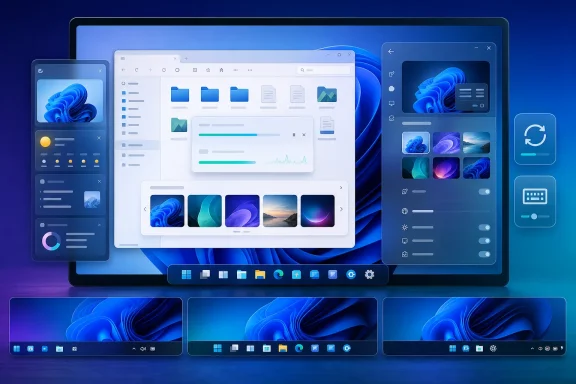 Background
Windows 11 Build 26300.8935 belongs to the Experimental channel’s 26H2 branch, which Microsoft introduced as part of a significant reorganization of the Windows Insider Program. The Experimental channel replaces much of the role previously associated with the Dev channel while also giving Microsoft room to test unfinished concepts that may change, disappear, or ship through a different Windows release.The channel name is important. Microsoft is not promising that every feature seen here will appear in the final Windows 11 26H2 release, nor does the presence of an improvement in Build 26300 guarantee that it will remain exclusive to 26H2. Windows development now relies heavily on servicing technology and controlled feature activation, allowing Microsoft to move individual components between preview and production branches without treating each build as a fixed snapshot of a future retail release.
The transition from 25H2 to 26H2
The Build 26300 branch originally previewed work associated with Windows 11 version 25H2. On June 19, Microsoft changed the version displayed by this Experimental branch to Windows 11 version 26H2, delivered through an enablement package rather than a conventional full operating-system upgrade.An enablement package activates features and version identifiers already supported by the underlying servicing branch. For compatible devices, that approach can make the move between annual releases considerably faster because Windows does not need to replace the entire operating-system image. A single restart can be enough to advance the version when the required components are already installed.
Why the branch structure matters
Windows 11’s current Insider landscape contains multiple development lines, and build numbers alone no longer tell the complete story. Microsoft has maintained separate branches for 26H1, 26H2, and future-platform experimentation, reflecting differences in servicing foundations as well as feature readiness.Notably, devices on the separate 26H1 core cannot simply use the same enablement-package route into this 26H2 branch. That distinction demonstrates why WindowsForum members should check both the version and build number before attempting channel changes, troubleshooting an update, or comparing features with another Insider.
A Maintenance Build with a Clear Purpose
Build 26300.8935 does not arrive with a headline feature such as a redesigned Start menu or a new artificial-intelligence experience. Its value instead lies in the number of ordinary interactions it attempts to make faster or more dependable.The changelog covers File Explorer, desktop personalization, Widgets, Windows Update, Run, the taskbar, Search, and input handling. That breadth is meaningful because the affected components sit directly in the path of routine Windows use, even if each individual change appears small in isolation.
Quality work is becoming more visible
Microsoft has spent much of 2026 emphasizing Windows quality, including the responsiveness, consistency, and visual craft of familiar system surfaces. Build 26300.8935 fits that agenda more convincingly than an update packed with experimental interface concepts would.Performance improvements to file deletion and Explorer Home address measurable friction. Persistence fixes for backgrounds, cursor size, and voice-typing preferences target the equally frustrating problem of Windows failing to remember what the user selected.
A Monday flight rather than the usual Friday release
The build arrived on Monday, July 20, following a skipped Friday release window. Insider flights do not operate under a binding weekly schedule, but regular testers often organize backups, test sessions, and feedback around Microsoft’s habitual release patterns.The delay should not automatically be interpreted as evidence of a serious last-minute defect. Preview builds can be held for validation, servicing checks, deployment readiness, or internal scheduling, and Microsoft does not provide a detailed public explanation for every shift in timing.
What Insiders should verify before installing
Anyone preparing to install the build should first confirm the branch shown under Settings > Windows Update > Windows Insider Program. The following sequence can reduce avoidable confusion:- Confirm that the device is enrolled in the Experimental channel and the 26H2 branch.
- Open Settings > System > About or run
winverto record the current version and build. - Back up irreplaceable files and any configuration needed to restore the test environment.
- Check that sufficient storage is available for downloading, staging, and rolling back the update.
- After installation, compare enabled features with Microsoft’s rollout notes rather than assuming every announced experience must appear immediately.
File Explorer Receives the Most Important Improvements
File Explorer accounts for three of the most consequential changes in Build 26300.8935. Microsoft says file deletion can be faster in certain large-file scenarios, Explorer Home launches more quickly, and the Recommended carousel now supports touch scrolling.These improvements address separate parts of the Explorer experience, but they share a common theme: reducing the moments when Windows appears to resist an otherwise simple request.
Faster deletion of large, fragmented files
Microsoft says deletion is now faster in certain scenarios involving large, fragmented files. Fragmentation describes a condition in which a file’s data or its associated storage records are distributed across multiple locations rather than represented as one simple contiguous allocation.Modern solid-state drives do not suffer the same mechanical seek penalties associated with fragmented data on traditional hard drives. However, deletion can still require Windows to process file-system metadata, security information, links, allocation records, cloud states, indexing interactions, and other bookkeeping. A large file with a complex allocation layout can therefore create more work than its apparent single-file representation suggests.
Microsoft has not published a detailed benchmark or explained the exact internal optimization. The improvement should consequently be treated as scenario-dependent rather than a promise that every delete operation will become instantly faster.
Why deletion performance matters
Users often encounter slow deletion when cleaning up virtual-machine disks, game installations, large archives, video projects, disk images, development outputs, or temporary data. In enterprise environments, similar behavior can appear during workstation reimaging, build-pipeline cleanup, profile maintenance, or automated retention tasks.A long delay can also create uncertainty. If Explorer remains busy without clear feedback, users may assume it has frozen, retry the deletion, terminate the process, or restart the computer. Improving the operation can therefore reduce both waiting time and the risk of disruptive troubleshooting.
Faster and more responsive Explorer Home
Build 26300.8935 also improves the speed and responsiveness of File Explorer Home. Home has evolved from a straightforward Quick Access landing page into a more dynamic surface containing pinned locations, recent activity, recommended files, and cloud-aware content.That expanded role provides convenience, particularly for Microsoft 365 users, but it also creates more opportunities for delays. Explorer may need to gather information from local history, account services, cloud storage, organizational recommendations, and cached metadata before it can finish rendering the page.
A faster Home experience could make Explorer feel significantly healthier even when no individual file operation changes. The initial window is often the user’s first impression of system responsiveness, and a sluggish landing page can make an otherwise capable PC feel burdened.
Touch scrolling for Recommended files
The Recommended section on Explorer Home now supports touch scrolling through its carousel. This corrects an interaction gap that was especially noticeable on tablets, convertibles, touch-enabled laptops, and handheld Windows devices.A carousel that displays content but does not respond naturally to a swipe undermines the touch model of the surrounding interface. Adding touch scrolling does not solve every criticism of Recommended content, but it ensures the feature behaves more like users expect from a horizontally navigable collection.
Desktop Personalization Becomes More Dependable
Microsoft has improved desktop-background persistence across multiple scenarios, including configurations that use more than one virtual desktop. Build 26300.8935 also contains minor cosmetic adjustments under Settings > Personalization > Background.Persistence fixes rarely generate the attention given to new visual effects, yet they can have a greater impact on trust. A personalization setting is not useful if Windows unpredictably reverts, duplicates, or misapplies it.
Better behavior across virtual desktops
Windows 11 lets users assign backgrounds while organizing work across multiple desktops. That capability can act as more than decoration: distinct images help users identify whether they are in a work, gaming, communication, or research environment.If those assignments fail to persist after a restart, update, sign-in, synchronization event, or desktop reconfiguration, the organizational signal disappears. Build 26300.8935 is intended to make the selected background more resilient across such transitions.
The wording “across multiple scenarios” suggests a collection of related state-management fixes rather than one narrowly defined bug. Insiders who have encountered disappearing or incorrectly shared backgrounds should test sleep, restart, sign-out, desktop creation, desktop deletion, and monitor reconnection separately.
Cosmetic refinements in Settings
The background-personalization page also receives small visual improvements. Microsoft has not positioned these as a redesign, so users should expect alignment, spacing, preview, or consistency work rather than an entirely new workflow.Small cosmetic changes can still matter in Settings, where Windows 11 continues to absorb functionality historically housed in Control Panel and older dialogs. Visual consistency helps users distinguish intentional design from partially migrated interfaces.
Widgets Become More Animated
Microsoft is expanding animated taskbar icons for Widgets. Insiders may begin seeing a broader range of dynamically updated animated content supplied by supported widget providers, extending beyond the notification-related animations already available to users with dashboard notifications enabled.This is a controlled expansion, not a guarantee that every device will display new animations immediately. Availability can depend on rollout assignment, Widgets settings, provider support, account configuration, region, and experimentation groups.
Microsoft wants live information to attract attention
The Widgets taskbar entry point already acts as an ambient information surface, commonly surfacing weather and notification cues. More animation gives providers a way to signal that something has changed without requiring the user to open the board first.When used carefully, motion can make urgent or timely information easier to notice. A weather transition, sports update, market movement, calendar reminder, or breaking-news indicator can communicate freshness more effectively than a static icon.
Engagement versus distraction
The same technique can become intrusive if too many providers compete for attention. A taskbar is persistent workspace infrastructure, and motion in that area can interrupt concentration even when the information is not important.Microsoft will need to maintain meaningful limits on frequency, duration, and provider behavior. It should also ensure that users can disable animations without losing the underlying Widget functionality.
Accessibility is another concern. Motion-sensitive users may find repeated animation uncomfortable, while people with attention-related conditions may experience it as an unnecessary distraction. Windows should respect relevant animation settings and provide transparent controls rather than making taskbar motion an unavoidable consequence of enabling Widgets.
A platform opportunity for widget providers
For developers and content providers, animated taskbar states create a more visible distribution channel. That visibility could encourage investment in the Widgets platform, which has struggled to establish the same central role once occupied by older Windows gadget concepts or modern mobile widgets.The opportunity also raises governance questions. If attention becomes a scarce resource controlled through animation, Microsoft will need to prevent promotional abuse and ensure that useful information receives priority over engagement-driven content.
Windows Update Error 0xc0000409 Is Addressed
Build 26300.8935 fixes a problem that could cause recent Insider flights to fail with error 0xc0000409. This may be the most immediately valuable correction for testers who were unable to progress to newer builds.The hexadecimal code is commonly associated with a stack buffer overrun or fast-fail condition at the Windows application level. In an update context, however, the visible code does not necessarily identify the original root cause; it may simply represent the way a setup or servicing process terminated.
Why installation failures are particularly serious for Insiders
A preview feature that misbehaves can often be ignored, disabled, or documented. A broken update path is more disruptive because it prevents the device from receiving the build that might contain the repair.Repeated failures also consume bandwidth, storage, battery power, and user time. Windows can download or stage packages again, attempt installation during restart, roll back unsuccessful changes, and then repeat the cycle later.
Repairing the flight-installation path is therefore essential to the health of the Experimental channel itself. Microsoft depends on a sufficiently broad and current test population to identify regressions before changes move closer to production.
What affected users should do
Insiders who previously encountered 0xc0000409 should allow Windows Update to check again and observe whether Build 26300.8935 downloads and completes normally. Before attempting aggressive servicing repairs, they should record the previous failure stage and preserve any useful Feedback Hub diagnostic data.If the failure continues, the code may have a different cause on that device. Storage corruption, incompatible security software, driver problems, damaged system files, or a separate setup crash can produce superficially similar symptoms.
The sensible escalation path is to:
- Retry once after a normal restart, avoiding repeated forced shutdowns.
- Confirm that the system drive has adequate free space for staging and rollback.
- Disconnect unnecessary external hardware if setup consistently fails during device migration.
- Review Windows Update history and Reliability Monitor for matching timestamps.
- Submit or update Feedback Hub reports with reproducible details rather than relying on the hexadecimal code alone.
Run Gains a Keyboard-Friendly Completion Shortcut
The redesigned Run dialog now expands its command-completion suggestions when the user presses F4. This is a modest addition, but it gives keyboard-focused users a predictable way to inspect available completions without reaching for the mouse.Run remains one of Windows’ oldest and most efficient launch surfaces. Administrators, support professionals, developers, and power users rely on it for commands, management consoles, environment paths, shell locations, and direct executable names.
Why F4 is a logical choice
F4 has long been associated with address and location lists in Windows applications. In File Explorer, for example, it has historically interacted with the address bar or its history, depending on the version and focus state.Using the key to expand Run suggestions preserves a recognizable Windows convention. It also improves discoverability for users who expect function keys to expose history or completion options.
The redesigned Run dialog must remain fast
Modernizing Run creates a difficult design balance. Microsoft can add completion, visual polish, theme support, and richer history, but every new layer risks slowing a tool whose primary value is immediacy.A Run dialog that takes noticeable time to open would be a regression regardless of its appearance. The best outcome is a modern surface that preserves instant keyboard activation through Windows key + R, supports accessible navigation, and does not turn a direct command launcher into another search-heavy panel.
Taskbar Positioning Fixes Reveal Broader Work
Build 26300.8935 corrects several visual issues when the taskbar is placed in an alternate position. It also fixes Notification Center appearing in the wrong location when the taskbar is positioned at the top of the screen.These changes are notable because Windows 11 launched with fewer taskbar-positioning choices than earlier Windows versions. Native placement has traditionally been limited compared with Windows 10, leading enthusiasts to use registry experiments or third-party customization utilities.
Evidence of alternate-position development
The changelog indicates that Microsoft is actively validating taskbar layouts beyond the standard bottom position. It does not, by itself, guarantee that all retail users will receive unrestricted top, left, and right placement in Windows 11 26H2.Experimental builds often contain infrastructure and interface work long before Microsoft commits to public release. The company may be testing one alternate location, preparing a gradual feature, or improving internal behavior used only by selected feature flags.
Even with that caveat, the Notification Center fix is encouraging. Correctly anchoring flyouts is one of the fundamental requirements for a movable taskbar, along with system-tray layout, app previews, jump lists, drag targets, multi-monitor behavior, and touch interaction.
Why relocating the taskbar is technically complicated
Moving a bar sounds simple, but the taskbar coordinates several independent subsystems. Its position affects available screen geometry, maximized-window boundaries, flyout direction, icon alignment, overflow behavior, animation origins, accessibility focus, and application assumptions about the work area.Vertical taskbars create additional complications because app labels, notification icons, clock layouts, and touch targets must fit a narrow column. Multi-monitor arrangements add different scaling levels, rotations, resolutions, and primary-display rules.
Microsoft’s incremental fixes suggest that it is treating alternate placement as a system-level layout problem rather than merely rotating or translating the existing taskbar. That is the correct technical approach, even if it takes longer than enthusiasts would prefer.
Third-party customization remains a compatibility risk
Utilities that restore legacy taskbar behavior can be valuable, but they often depend on undocumented implementation details. Insider builds can change those details without notice, causing crashes, missing icons, broken Explorer sessions, or startup loops.Testers using such tools should reproduce taskbar bugs on a clean configuration before reporting them to Microsoft. Otherwise, it becomes difficult to determine whether Build 26300.8935 introduced the problem or simply exposed an incompatibility in the customization layer.
Search Grows by Four Pixels
Microsoft has increased the taskbar search box’s height by four pixels. This is likely the smallest visible change in the build, but it offers a useful example of how interface refinement can provoke outsized debate.Four pixels may improve vertical balance, align the field with nearby controls, create a more comfortable touch target, or support revised content inside the box. It may also appear unnecessarily large to users who prefer a compact taskbar.
Small dimensions have system-wide consequences
The taskbar sits on screen for much of the day, so even slight dimensional changes receive repeated exposure. A four-pixel increase can alter perceived density, spacing around icons, alignment with Start, and the overall visual weight of the search control.On high-resolution displays with scaling enabled, the physical difference may be subtle. On smaller screens or compact layouts, it may feel more pronounced, particularly if the search box already consumes substantial horizontal space.
Search remains optional in several forms
Users who dislike the full search field can generally choose a reduced icon or hide the taskbar entry, depending on the options available in their build. That flexibility matters because Windows users have sharply different search habits.Some launch nearly everything by typing after opening Start. Others prefer pinned applications, Run, PowerToys Run, terminal commands, or third-party launchers. Microsoft should continue improving the built-in search experience without assuming that one persistent taskbar presentation suits every workflow.
Input Settings Should Finally Stick More Reliably
Build 26300.8935 fixes a cursor-blinking problem and improves persistence for mouse-pointer size and voice-typing preferences. These changes are particularly important because input configuration directly affects usability and accessibility.The mouse cursor reportedly blinked repeatedly for some Insiders after recent flights. A flickering pointer can be visually distracting, can make the system appear unstable, and may interfere with precision when selecting text or controls.
Cursor-size persistence is an accessibility issue
Windows allows users to enlarge the mouse pointer for visibility. If that choice resets or fails to survive a restart, update, session transition, or account synchronization event, the problem is not merely cosmetic.Users with low vision may depend on a larger pointer to operate the computer independently. An unreliable accessibility preference forces them to navigate the same interface that has just become harder to see in order to restore the setting.
Persistence must work across local accounts, Microsoft accounts, Remote Desktop sessions, display changes, and update migrations. Build 26300.8935 represents progress, although affected Insiders should test their own transition scenarios rather than assuming every reset path has been eliminated.
Voice typing remembers punctuation and launcher preferences
Microsoft has improved persistence for voice typing’s automatic punctuation and launcher settings. Voice typing can convert speech into text across many Windows applications, while automatic punctuation attempts to insert punctuation without requiring every mark to be dictated manually.These preferences shape the entire dictation workflow. A user who disables automatic punctuation because it produces unwanted formatting should not have to repeat that choice, while someone who relies on the launcher for quick access needs its selected behavior to remain stable.
Reliable preference storage becomes increasingly important as Windows adds more adaptive and AI-assisted input. Intelligence cannot compensate for a system that forgets the user’s explicit decisions.
Consumer Impact
For most home users, Build 26300.8935 will feel like a collection of corrections rather than a feature upgrade. The most noticeable gains are likely to come from faster Explorer Home loading, smoother deletion of certain large files, and fewer irritating resets of personalization or input preferences.The update may be especially relevant to enthusiasts using touch devices, multiple virtual desktops, custom cursor sizes, or experimental taskbar positions. Users who do not rely on those configurations may notice little beyond the taller search box and occasional Widgets animation.
Better daily behavior matters more than novelty
Windows 11 has accumulated numerous visible features since its 2021 launch, but user satisfaction often depends on basic operations behaving consistently. Opening Explorer, removing files, retaining a wallpaper, finding notifications, and keeping accessibility preferences should not require troubleshooting.A build that improves these tasks can have a larger cumulative effect than a prominent feature used once a week. Microsoft’s challenge is to carry the improvements into stable releases without introducing new regressions during later servicing.
This is still not a build for a primary household PC
The Experimental label should be taken literally. Features can be incomplete, localization may lag, and a future flight can introduce issues not present in Build 26300.8935.Families sharing one computer, students approaching deadlines, and anyone without a tested recovery plan should remain on a stable Windows release. Curiosity about a taller search box or alternate taskbar work does not justify risking a device needed for daily obligations.
Enterprise and IT Impact
Organizations should view Build 26300.8935 primarily as an early compatibility and quality signal. It is not a deployment target for ordinary production fleets, but it can help IT teams identify how the 26H2 servicing branch behaves with business applications, security controls, device-management policies, and specialized hardware.The enablement-package model is strategically important. If Windows 11 26H2 reaches supported production devices through the same shared servicing foundation, organizations may face a shorter installation experience than with a full operating-system replacement.
File operations deserve targeted testing
Enterprises working with large engineering data, virtual disks, media assets, local synchronization caches, or generated build artifacts should test Microsoft’s deletion-performance claim against representative workloads. A generic benchmark may not reveal the scenarios that matter to a specific organization.Administrators should compare:
- Deletion time for one large fragmented file and for many small files.
- Local NTFS storage and synchronized cloud locations.
- Operations performed with endpoint security enabled and temporarily isolated test baselines.
- Interactive Explorer deletion and scripted cleanup through enterprise tools.
- Standard user and elevated administrative contexts.
Update reliability must be measured across managed environments
The fix for 0xc0000409 should interest organizations maintaining Insider validation rings. Update failures can produce misleading results if test devices stop advancing through the preview sequence.IT teams should confirm successful installation under their normal management stack, including update policies, encryption, endpoint detection, VPN software, firmware controls, and provisioning packages. A fix validated on an unmanaged home PC may behave differently in a tightly controlled enterprise image.
Feature variation complicates support
Controlled Feature Rollout means build parity does not always equal interface parity. Help-desk documentation based only on the OS build may therefore be insufficient for Insider test devices.Organizations should record feature-state differences where possible and avoid treating a missing experimental feature as an installation failure. This discipline will become increasingly necessary as Windows servicing separates component availability from traditional monolithic release milestones.
Strengths and Opportunities
Build 26300.8935 advances Windows 11 through several modest but strategically useful improvements.- File Explorer receives attention where users feel delay most directly. Faster startup and deletion can improve the perceived performance of the entire operating system.
- Microsoft is addressing state persistence rather than merely adding options. Background, cursor, and voice-typing settings are only valuable when Windows remembers them.
- Alternate taskbar-position fixes suggest meaningful layout engineering. This work could eventually restore flexibility that many Windows 10 users still miss.
- The Windows Update repair protects the Insider testing pipeline. Test devices must remain capable of receiving new flights for the program to produce useful feedback.
- Touch support in Explorer Home improves device adaptability. Windows needs consistent interactions across desktops, convertibles, tablets, and handheld systems.
- The Run shortcut respects keyboard-centric workflows. Microsoft can modernize legacy tools without discarding their efficiency.
- Widget animation gives providers a richer notification surface. With careful governance, the taskbar could communicate timely information more effectively.
- The enablement-package foundation creates a faster potential upgrade path. Shared servicing can reduce disruption when an annual update does not require a new Windows core.
Risks and Concerns
The build also exposes several areas where Microsoft must proceed carefully.- Animated Widgets may become distracting or promotional. Persistent taskbar motion needs strict controls, accessibility compliance, and an obvious off switch.
- Controlled rollouts can confuse testers. Users may install the same build yet receive different experiences, complicating support and comparison.
- Taskbar-positioning work remains unconfirmed for general release. Enthusiasts should not interpret bug fixes as a shipping commitment.
- Performance claims lack public measurements. Faster deletion may apply only to narrowly defined storage conditions and should be tested independently.
- Experimental builds can disrupt primary devices. A quality-focused changelog does not make the branch production-ready.
- Third-party shell utilities may conflict with evolving taskbar code. Insider regressions should be reproduced without customization tools before attribution.
- Preference-persistence bugs can have accessibility consequences. Microsoft must validate fixes across accounts, sessions, displays, and device-management configurations.
- A taller search box may worsen density for some layouts. Visual polish should not come at the cost of user choice.
What to Watch Next
The next Experimental flights should show whether Build 26300.8935 begins a sustained run of quality improvements or merely clears a backlog before larger 26H2 features arrive. File Explorer, Search, the taskbar, and Windows Update are all active development areas, and each can change independently through feature servicing.Insiders should watch not only for new features but also for the stability of the fixes introduced here. A correction that survives several later builds is more significant than one that appears briefly and regresses under the next component update.
Taskbar placement could become a major 26H2 story
The most intriguing long-term signal is the continued work around alternate taskbar positions. If Microsoft is preparing supported top placement—or broader movement options—it will need to expose a user-facing control and demonstrate robust behavior across multiple displays, scaling modes, touch devices, accessibility tools, and application flyouts.Until that happens, the feature remains experimental evidence rather than a confirmed 26H2 promise. Future changelogs mentioning vertical layout, taskbar alignment, flyout anchoring, or multi-monitor placement would strengthen the case.
Explorer performance needs measurable follow-through
Microsoft should continue targeting Explorer latency, particularly Home loading, context-menu response, archive handling, network navigation, cloud-file status, and high-volume operations. These are areas where small pauses accumulate into a general perception that Windows is slower than the hardware underneath it.Insiders can help by filing reports with actual timings, storage type, file count, file size, cloud status, and security configuration. “Explorer feels slow” is understandable feedback, but reproducible workload details are much more useful to engineers.
Microsoft must clarify the road to stable 26H2
The 26H2 identifier is now visible in this branch, but the complete consumer feature set, deployment timing, and final servicing details remain subject to development. Microsoft will need to distinguish between branch-level engineering, controlled experiments, and features actually committed to the annual release.That clarity will matter for businesses planning validation and for consumers deciding whether an Insider feature is worth waiting for. The Experimental channel is most useful when its uncertainty is explicit rather than hidden behind familiar version branding.
Build 26300.8935 is not the kind of Windows 11 update designed to dominate a launch presentation, yet it targets exactly the areas that shape long-term confidence in an operating system. Faster file operations, a more responsive Explorer, reliable personalization, stable input settings, correctly positioned system surfaces, and a working update path are not glamorous achievements; they are the foundation on which every more ambitious Windows feature depends. If Microsoft continues applying this quality-first discipline throughout the 26H2 cycle—and carries the results into stable releases—Windows 11 could emerge more coherent not because of one transformative addition, but because the daily friction users have learned to tolerate finally starts disappearing.
Update: Build 26300.8935 reshapes Privacy & Security settings (July 21, 2026)
TheWinCentral reports that Build 26300.8935 also introduces another iteration of Windows 11’s upcoming Privacy & Security page. Microsoft has removed the previously tested hero control and replaced it with a simpler “Core Privacy Settings” section offering direct access to location, camera, and microphone permissions.The redesign also returns Windows Security to the familiar Security category after it was repositioned in an earlier version of the interface. The changes favor clearer navigation and quicker access to commonly adjusted permissions over a more visually prominent layout.
This remains experimental work and may not appear for every Insider due to controlled feature rollouts. Microsoft could revise or remove the design before it reaches broader Insider channels or stable Windows 11 releases.
References
- Primary source: Neowin
Published: 2026-07-20T21:12:57+00:00
Microsoft rolls out build 26300.8935 to Windows 11 Insiders in the Experimental channel | Neowin
Check out what's included in the new build 26300.8935 for the Experimental channel of the Windows 11 Insider program. www.neowin.net
- Official source: learn.microsoft.com
Windows 11 Insider Experimental Preview Build 26300.8697 - Windows Insider Program | Microsoft Learn
Release notes for Windows 11 Insider Experimental Preview Build 26300.8697learn.microsoft.com - Official source: blogs.windows.com
Announcing new builds for 19 June 2026, version 26H2 for Experimental
Hello Windows Insiders, We have new releases today with builds across Beta and Experimental, including Windows 11, version 26H2 for Experimental. Windows 11, version 26H2 Windows 11, version 26H2 represents our yearly second halfblogs.windows.com - Official source: techcommunity.microsoft.com
- Related coverage: windowscentral.com
Microsoft vows to make "behind-the-scenes platform changes" as it begins testing next phase of Windows 11 | Windows Central
After a rough few weeks, Microsoft has promised to make behind-the-scenes platform changes to Windows 11 as it begins testing the next wave of features.www.windowscentral.com - Official source: download.microsoft.com
Last edited:
