

Microsoft’s latest Canary build for Windows 11 makes one of the platform’s most aggravating power‑management quirks go away: global power settings set from the Settings app now actually apply across every power plan, not just the active one, and a handful of ancillary Settings and reliability fixes come along for the ride in Build 29550.1000.
For years Windows has let you create and switch between power plans—collections of settings that determine how aggressively a device saves energy versus preserving performance. Those plans control things such as display turn‑off timeouts, sleep and hibernate behavior, what the power button and lid close do, and a raft of lower‑level subsystem timeouts. Historically, however, Windows’ modern Settings UI and the legacy power‑scheme model didn’t always play nice: settings you expected to be global sometimes applied only to the currently active plan, forcing users to repeat configuration steps when switching plans or rebuilding profiles after an update.
That friction is particularly painful on laptops, convertibles, and devices used in mixed contexts (docked versus mobile), where users want a single consistent baseline for things like lid close action or power‑button behavior regardless of whether they pick “Balanced,” “Better Battery,” or a custom plan. The Canary‑channel update that surfaced recently changes that behavior and smooths a few other rough edges in the Settings experience.
The company appears to be standardizing the Settings experience and slowly migrating behavior that historically lived in multiple places (Control Panel, OEM apps, command line) into a more coherent modern interface. That’s good for discoverability but does raise transition questions for existing scripts and management processes; administrators should track Insider releases and test configuration baselines proactively.
Because the change is in the Canary channel and is narrowly scoped, most users won’t see it immediately on production machines, and Microsoft could refine its behavior before wider release. Still, when the change ships to Beta and Release Preview channels, it will reduce one of those small, repetitive tasks that have long annoyed Windows users—especially laptop owners who move between plugged and battery use frequently.
If you’re an advanced user or admin, take this as a cue to re‑test your workflows and scripts. For everyone else, it’s an unobtrusive quality‑of‑life win: a single, predictable place to set the display, sleep, and lid behaviors you expect, across every power plan on your PC.
Conclusion
Windows 11 Build 29550.1000’s move to make certain Settings truly global is a straightforward, user‑centric improvement that reduces configuration friction and simplifies troubleshooting—just the kind of small evolution that compounds into much smoother day‑to‑day device management once it reaches the mainstream channels.
Source: XDA Windows 11's new Canary feature makes setting up power plans a lot easier
 Background
For years Windows has let you create and switch between power plans—collections of settings that determine how aggressively a device saves energy versus preserving performance. Those plans control things such as display turn‑off timeouts, sleep and hibernate behavior, what the power button and lid close do, and a raft of lower‑level subsystem timeouts. Historically, however, Windows’ modern Settings UI and the legacy power‑scheme model didn’t always play nice: settings you expected to be global sometimes applied only to the currently active plan, forcing users to repeat configuration steps when switching plans or rebuilding profiles after an update.That friction is particularly painful on laptops, convertibles, and devices used in mixed contexts (docked versus mobile), where users want a single consistent baseline for things like lid close action or power‑button behavior regardless of whether they pick “Balanced,” “Better Battery,” or a custom plan. The Canary‑channel update that surfaced recently changes that behavior and smooths a few other rough edges in the Settings experience.
What changed in Build 29550.1000 (Canary)
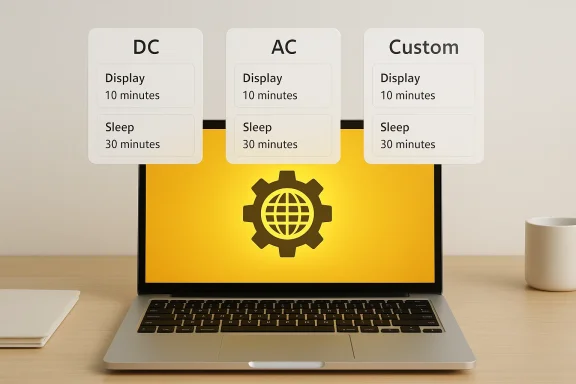
Microsoft’s Canary release identified as 29550.1000 includes a short, practical list of changes that affect everyday power management and Settings usability. The important highlights are:- Global power settings are now truly global. Actions made in Settings for the following items are applied to all power plans:
- Display timeout values
- Sleep timeout values
- Hibernate timeout values
- Power/Sleep button actions
- Lid close actions
- Settings performance and navigation improvements. Opening the Settings home page is faster in this build, and navigation to Privacy & Security should behave more reliably.
- Reliability and tool fixes. The update also addresses assorted reliability problems:
- Fixes while updating File Explorer components from System > Advanced > File Explorer.
- Improvements for configuring custom tools in Bluetooth & Devices > Wheel.
- Better behavior when sending large files with Nearby Sharing.
- Reliability tweaks touching sfc /scannow and other system maintenance flows.
Why this matters: practical benefits for users
This is not a glamour update, but it fixes a persistent usability bug that cost time and caused confusion. Here’s why the change is meaningful:- One configuration, many plans. If you prefer the lid close action to always "Sleep" and want consistent display and sleep timers regardless of whether you’re on battery or plugged in, you can now set those once and have them apply across the board. That reduces configuration drift and the “why did my settings reset?” support tickets.
- Less chance of battery surprises. Laptop users who switch between custom performance plans and battery‑optimized plans will be less likely to leave a critical timeout misconfigured on one plan and then discover it later while mobile.
- Cleaner troubleshooting. When diagnosing sleep or battery issues, support staff and power users won’t have to check every custom plan to confirm the same global setting was accidentally left different.
- Smarter defaults for OEMs and admins. Although OEMs and enterprise management tools still retain the ability to enforce policies, this change reduces accidental inconsistencies that happen when users or scripts adjust Settings interactively.
How this actually works (technical perspective)
To understand the improvement, a short primer on Windows power plumbing helps:- Windows stores power settings in named power schemes (power plans), each identified by a GUID. Each scheme includes nested subgroups and individual settings (also identified by GUIDs).
- Historically, changing certain values via the modern Settings UI affected only the active scheme or only the UI‑facing mapping of those settings—leaving other schemes unchanged. Power configuration tools like powercfg.exe have always operated at the scheme level, which meant command‑line or policy changes could still be required for broad consistency.
- The Canary change shifts the Settings app so that specific high‑level values (display/sleep/hibernate timeouts, button and lid actions) are written in a way that updates those entries across the existing schemes rather than only the active one. From a configuration management viewpoint, Settings is now behaving more like an atomic "apply globally" operation for those keys.
How to try it now (Insider Canary guidance and risks)
If you want to try this behavior immediately, you’ll need to be in the Windows Insider Canary channel and receive this optional 29500‑series build. A few practical points:- The Canary channel is the earliest public test tier. Builds there are experimental and may contain bugs that can affect stability, drivers, or battery life. Expect to report issues and be prepared to recover or roll back if an instability impacts critical work.
- Microsoft recently created a 29500‑series optional stream in Canary to surface earlier platform work. If your device is already in Canary, you may need to opt into that optional update to land on the 29550.xxxx track.
- For production or mission‑critical devices, do not use Canary builds. Test in a secondary device or a virtual machine.
Step‑by‑step checks and quick troubleshooting
If you install the Canary build and want to confirm the global settings take effect, follow this short checklist:- Open an elevated terminal and run:
powercfg /listpowercfg /query SCHEME_CURRENT(replace SCHEME_CURRENT with the GUID of specific schemes if needed)- Note the current values for display/sleep/hibernate timeouts and lid/power button actions for each scheme.
- In Settings > System > Power & battery, change a global item (for example, set Display to 5 minutes on battery, 10 minutes on AC).
- Re-run the
powercfg /querychecks for the other schemes; the value should now reflect the change across schemes. - If a value doesn’t update, check for OEM software or Group Policy that may be enforcing different values.
powercfg /list— show all schemes.powercfg /query <scheme_GUID>— query values for a scheme.powercfg /change -monitor-timeout-dc 5— set display timeout on battery to 5 minutes.powercfg /change -standby-timeout-ac 15— set AC sleep timeout to 15 minutes.
Enterprise considerations: Intune, Group Policy, OEM overrides
While the Settings app now behaves more predictably for typical users, enterprises and device manufacturers still have central levers that can override Settings behavior:- Intune / Configuration Profiles. Organizations that deploy power settings through Intune configuration profiles or configuration service providers will still have that centralized control. The Canary change does not replace management tooling; it simply reduces one source of user‑side drift.
- Group Policy / Local Policy. Domain policies can lock down power settings and take precedence over local changes. If your environment enforces a lid‑close action or a particular sleep timeout, users will not be able to overwrite those settings.
- OEM and driver firmware. Some OEM utilities continue to provide power profiles or throttling logic that behave outside Windows’ standard schemes. Verify whether OEM tools still enforce different behavior and test accordingly.
- Imaging and provisioning. If an organization images devices with preconfigured schemes or scripts, make sure your imaging process accounts for the new global apply behavior so duplicates or conflicts do not occur.
Strengths and limitations — a balanced analysis
Strengths- User experience improvement. This is a pragmatic fix to a long‑standing confusion point. Applying display/sleep and lid/button actions globally reduces repetitive work and misconfiguration incidents.
- Easier troubleshooting. When identical settings apply across plans, diagnosing sleep and display problems becomes simpler.
- Incremental and low‑risk. The change is tightly scoped to a handful of Settings keys; it does not overhaul the power model or remove existing admin controls.
- Canary instability. Because this is a Canary build change, the behavior and implementation could evolve before it reaches general release. Don’t assume the behavior in 29550.1000 is final.
- Not a substitute for centralized control. Enterprises relying on managed policies will still need explicit configuration to guarantee device behavior across fleets.
- Edge cases remain. Hardware‑specific behavior, driver bugs, and legacy apps that probe power settings directly may still produce inconsistent outcomes. OEM and firmware layers can still override or override differently on certain devices.
- Scripting and automation blind spots. If you maintain scripts that previously iterated across schemes to apply consistent values, those scripts may need to be reviewed—both because the Settings app now applies changes differently and because the sequence of writes may be different.
Troubleshooting tips for common pitfalls
If you try the Canary build and encounter problems, these pragmatic steps will help:- If you see no change after editing Settings:
- Check for enterprise or OEM policy enforcement.
- Reboot or sign out/sign in; some settings require a session refresh to propagate.
- Use
powercfg /queryto confirm whether values truly changed at the scheme level. - If sleep/hibernate behavior is worse after the update:
- Run
sfc /scannowto check system file integrity (note: the Canary patch includes reliability fixes for sfc but that command remains useful). - Inspect Event Viewer for Kernel‑Power messages and the Kernel‑PnP logs for driver timeouts.
- Temporarily disable third‑party sleep management utilities to isolate the issue.
- If Nearby Sharing or Bluetooth Wheel features misbehave:
- Restart the related services and re‑pair devices.
- Remove any custom wheel tools and reconfigure them in Settings to confirm the Bluetooth & Devices > Wheel fix is in effect.
- When all else fails, roll back from Canary or use a recovery image. Don’t try Canary builds on a single, mission‑critical machine.
How this fits into Microsoft’s broader power strategy
Over the past couple of years Microsoft has iteratively modernized power controls in Settings, added options for different charging and battery scenarios, and experimented with adaptive battery‑saver features. This Canary change is consistent with that trajectory: small, user‑facing quality‑of‑life fixes that reduce friction while Microsoft builds larger power management features such as Adaptive Energy Saver and finer granular States for charging vs battery usage.The company appears to be standardizing the Settings experience and slowly migrating behavior that historically lived in multiple places (Control Panel, OEM apps, command line) into a more coherent modern interface. That’s good for discoverability but does raise transition questions for existing scripts and management processes; administrators should track Insider releases and test configuration baselines proactively.
Recommendations
For everyday users- If you frequently switch power plans and are tired of reapplying button or lid actions, this change will be a relief—consider testing in Canary on a secondary device if you’re comfortable with early builds.
- Keep a record of your current power schemes (
powercfg /list) before testing, so you can compare and revert if needed.
- Audit any automation or imaging scripts that iterate over schemes to enforce values; you may be able to simplify those scripts, but validate they still behave deterministically.
- Test the Canary behavior in a lab environment before changing organizational baselines or documentation.
- Continue to manage fleets through Intune/Group Policy where compliance is required—this change doesn’t replace centralized control.
- Verify that firmware and vendor utilities still observe Windows’ power model and don’t reintroduce inconsistent behavior across plans.
Final thoughts and outlook
This is the kind of small, practical fix that rarely makes headlines but tangibly improves the Windows user experience: a Settings toggle now doing what users naturally expect when they read “global.” It’s a tidy example of product refinement—one that makes everyday laptop life a little less error‑prone.Because the change is in the Canary channel and is narrowly scoped, most users won’t see it immediately on production machines, and Microsoft could refine its behavior before wider release. Still, when the change ships to Beta and Release Preview channels, it will reduce one of those small, repetitive tasks that have long annoyed Windows users—especially laptop owners who move between plugged and battery use frequently.
If you’re an advanced user or admin, take this as a cue to re‑test your workflows and scripts. For everyone else, it’s an unobtrusive quality‑of‑life win: a single, predictable place to set the display, sleep, and lid behaviors you expect, across every power plan on your PC.
Conclusion
Windows 11 Build 29550.1000’s move to make certain Settings truly global is a straightforward, user‑centric improvement that reduces configuration friction and simplifies troubleshooting—just the kind of small evolution that compounds into much smoother day‑to‑day device management once it reaches the mainstream channels.
Source: XDA Windows 11's new Canary feature makes setting up power plans a lot easier
