

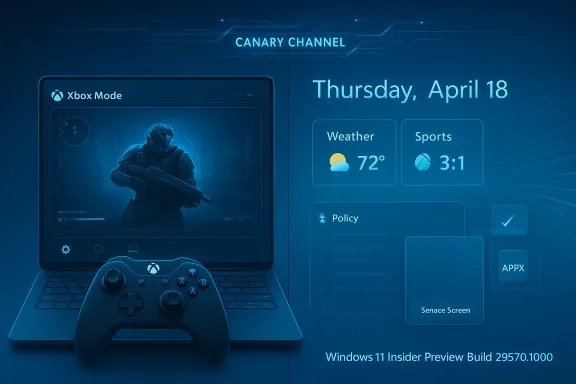
Windows 11 Insider Preview Build 29570.1000 lands in the Canary Channel as more than another routine flight: it is a small but revealing snapshot of where Microsoft wants Windows to go next. The new build adds an Xbox mode for more PC form factors, expands lock screen widgets beyond the European Economic Area, gives IT administrators a more flexible way to remove Microsoft apps, and introduces a touchpad control that many laptop users will likely appreciate. Just as important, it arrives amid Microsoft’s broader Insider Program overhaul, which is attempting to make preview channels clearer, more purposeful, and more predictable. (blogs.windows.com)
Microsoft’s Canary Channel has always been the company’s most experimental public Windows track, but the last few weeks have made that identity even more explicit. On April 10, Microsoft said the old Dev and Canary model was being replaced by Experimental and Beta channels, with Canary 29500-series builds mapped into the new Experimental path under the “Future Platforms” option. That matters because build 29570.1000 is arriving right as Microsoft is rethinking how early Windows development should be packaged, described, and consumed by Insiders. (blogs.windows.com)
That broader context helps explain the tone of this release. Microsoft is no longer treating preview builds as a simple stream of feature drops. Instead, it is trying to separate what is a platform experiment, what is a near-term ship candidate, and what is still only a concept. In practical terms, Canary has become the place where Microsoft can test ideas that may never reach retail Windows, while still getting feedback from users willing to tolerate instability. (blogs.windows.com)
This is also why the April 17 build is notable even if it does not look large on paper. The additions are not random filler. They fit a clear pattern: gaming-centric refinement, enterprise manageability, UI polish, and input-device flexibility. Those are exactly the kinds of features that can shape Windows’ longer-term identity without requiring a splashy keynote moment. (blogs.windows.com)
The Insider cadence also matters. Microsoft released 29560.1000 on April 3, then followed it with 29570.1000 on April 17, which suggests the 29500 branch is still moving steadily while the company adjusts its channel language and rollout mechanics. For Insiders, that means the build number is only part of the story; the bigger story is the direction of the platform and the testing model around it. (blogs.windows.com)
That matters because the company has been steadily blurring the line between PC and console gaming for years. The Xbox app, Game Bar, PC Game Pass, and the broader Xbox ecosystem have already created a layer of software continuity. Xbox mode pushes that idea further by changing how the PC itself behaves when gaming is the focus. It is less about branding than about session design: reducing friction when a controller is in hand and a keyboard is not the primary input device.
Microsoft’s support documentation says the gaming full screen experience optimizes the Windows user interface for gamepad navigation and can even avoid loading some background processes when configured to start on login. That gives the feature a performance story as well as a usability story. On handhelds, this is obvious. On laptops and tablets, it is potentially more interesting because it suggests Microsoft sees more than one class of Windows device benefiting from a console-like shell. (support.microsoft.com)
There is also a device-market angle. Handheld gaming PCs have pushed Microsoft to rethink what a good Windows gaming surface looks like, but Xbox mode is not just about handhelds. Extending the same approach to desktops and tablets hints at a broader ambition: a single gaming shell that can follow the user across device classes. That is an appealing pitch in a market where users increasingly expect continuity, not separate modes for every machine.
For power users, the significance is broader. If Microsoft can make Xbox mode feel natural on a desktop tower with a couch controller or on a 2-in-1 tablet in tent mode, it turns a niche handheld feature into a broader Windows UI pattern. That would be very Microsoft: a feature born from gaming hardware that slowly migrates into the wider OS design language.
At a glance, this feels like a modest personalization tweak. In reality, it reflects Microsoft’s continued push to make Windows surfaces more dynamic and service-connected. The lock screen has become prime real estate for quick-glance information, and widgets are one of Microsoft’s preferred ways to keep users inside its ecosystem without requiring a full desktop session. (blogs.windows.com)
The regional expansion is also worth watching. Microsoft often uses the EEA as a proving ground for features that involve data, customization, or regulatory sensitivity. Expanding the lock screen widgets globally suggests the company is comfortable with the experience and wants to collect a broader range of feedback before finalizing how much control users should have over it. (blogs.windows.com)
For enterprise environments, the question is different. IT admins tend to care less about weather tiles and more about predictability, policy, and support burden. If the lock screen becomes more customizable for consumers, Microsoft will need to keep the management story clean enough that organizations can control the experience without fighting consumer-centric defaults. (blogs.windows.com)
That is a meaningful refinement. One recurring complaint in managed Windows environments is that devices ship with more consumer-oriented software than administrators want to support. Being able to remove a broader set of packaged apps gives organizations a cleaner starting point, reduces image noise, and may lower the amount of post-deployment remediation needed in classrooms and business deployments. (blogs.windows.com)
The catch is equally important. Microsoft says the dynamic list is not currently available in the Intune Settings Catalog, so validation must happen through Group Policy or custom OMA-URI. That means the feature is useful, but not yet as turnkey as many modern endpoint teams would prefer. In other words, Microsoft has taken a step toward better manageability, but it has not fully aligned the new control with its cloud-first management story. (blogs.windows.com)
This also reflects a long-running Microsoft balancing act. The company wants Windows to remain consumer-friendly, but it cannot ignore the reality that a large share of Windows devices are managed by IT. If the company wants administrators to trust newer Windows builds, it must keep improving the knobs that matter in deployment and compliance scenarios. (blogs.windows.com)
In the short term, this means the feature is likely to be most useful for more hands-on Windows teams. In the longer term, it may help shape Microsoft’s future deployment defaults if the company sees strong uptake and few compatibility issues. (blogs.windows.com)
Microsoft has spent years tuning context menus, right-click behavior, and default app associations as part of broader shell modernization work. Even when the visual difference is small, aligning the verb and icon can reduce confusion and make the experience feel more coherent, especially for users who switch between apps and file types all day. (blogs.windows.com)
The change also reflects how much of Windows UX quality comes down to trust. If a context menu says “Open” but visually suggests one thing while actually doing another, users feel the shell is inconsistent. Fixing those mismatches is not glamorous, but it is exactly the kind of craft work Microsoft has recently said it wants to emphasize across Windows. (blogs.windows.com)
This kind of cleanup also hints at a broader modernization effort. Microsoft is clearly still sanding down older shell edges while it introduces newer experiences like widgets, gaming mode, and more flexible personalization. The result is a Windows that increasingly mixes legacy behaviors with newer design expectations. (blogs.windows.com)
This is exactly the kind of input refinement that can make a laptop feel more personal without changing the operating system’s overall shape. The right-click zone is a small area, but for people who rely on touchpad gestures every day, the size of that zone directly affects comfort, speed, and accidental-click rates. (blogs.windows.com)
Microsoft also notes that if a manufacturer already exposes its own customization app, Windows will preserve that choice with a Custom option in the dropdown. That detail matters because it avoids the usual collision between OEM tools and OS-level settings. In other words, Microsoft is trying to add control without stomping on partner customization. (blogs.windows.com)
It also fits a wider trend in Windows toward better support for laptop ergonomics. Whether the user is on a budget notebook, a premium ultraportable, or a business device, input behavior is one of the first things people notice about device quality. Small control surfaces can have outsized influence on the overall experience. (blogs.windows.com)
That said, the presence of a built-in fallback is still welcome. It signals that Microsoft recognizes the value of centralizing at least some of the most common touchpad adjustments inside Windows itself. (blogs.windows.com)
In practical terms, this is about shortcut consistency. If a user has a favorite AI, launcher, or productivity action tied to the Copilot key, the pen can now mirror that behavior. For pen-centric users, that removes one more layer of cognitive friction and gives the stylus a more meaningful role in the overall Windows interaction model. (blogs.windows.com)
There is also a branding story here. Microsoft continues to push Copilot as a hardware-level as well as software-level concept, and aligning the pen tail button with the Copilot key strengthens that identity. Whether users think of Copilot as an app, a service, or a productivity entry point, the company clearly wants the label to appear in more places on the device. (blogs.windows.com)
It also underscores how much modern Windows is about endpoint personality. A tablet with a pen should not feel identical to a desktop tower with a mouse and keyboard, yet both should still feel like Windows. These refinements help Microsoft stay in that middle ground. (blogs.windows.com)
The company is trying to reset expectations after years of Insider confusion. On April 10, Microsoft acknowledged that gradual rollout behavior has been a major source of frustration, and it promised clearer channel definitions plus more control over feature access. That broader move makes the April 17 Canary build feel like one more data point in a program that is being reorganized around clarity and experimentation. (blogs.windows.com)
There is still a hard truth, though: the Canary Channel remains the least predictable part of Windows development. Microsoft explicitly says features may change, disappear, or never ship. That makes the channel invaluable for experimentation, but it also means users need to understand that excitement today does not guarantee permanence tomorrow. (blogs.windows.com)
That is a defensible engineering practice, but it is also one of the reasons preview channels can feel inconsistent. Microsoft’s recent Insider redesign tries to address that, yet the underlying tension remains: a build can be public, current, and still not fully deterministic. (blogs.windows.com)
In gaming, Xbox mode is a response to the growing expectation that Windows should feel more console-like when playing on a handheld or controller-equipped PC. Competitors in the handheld space have shown that a streamlined shell matters, and Microsoft is clearly trying to make sure Windows is not seen as the obstacle to that experience.
In enterprise, the app-removal policy is a reminder that Microsoft still has to earn trust with administrators who want cleaner, more predictable deployments. Windows remains dominant in managed environments, but dominance is not the same thing as satisfaction. Small improvements in policy control can have outsized effects on how organizations view the platform. (blogs.windows.com)
Enterprise features are about control, standardization, and supportability. The dynamic app-removal list and the broader Insider channel restructuring both signal that Microsoft understands how much modern Windows usage depends on governance as much as on UX. If the company gets this balance right, it can reduce friction on both sides. (blogs.windows.com)
Microsoft’s Insider channel restructuring also means future builds may be read through a different lens. Users will increasingly compare Experimental, Beta, and version-specific previews rather than treating “Insider” as one broad category. That could make Windows development feel more understandable, but only if Microsoft keeps the messaging tight and the rollout behavior consistent. (blogs.windows.com)
Source: Microsoft - Windows Insiders Blog Announcing Windows 11 Insider Preview Build for Canary Channel 29570.1000
 Overview
Microsoft’s Canary Channel has always been the company’s most experimental public Windows track, but the last few weeks have made that identity even more explicit. On April 10, Microsoft said the old Dev and Canary model was being replaced by Experimental and Beta channels, with Canary 29500-series builds mapped into the new Experimental path under the “Future Platforms” option. That matters because build 29570.1000 is arriving right as Microsoft is rethinking how early Windows development should be packaged, described, and consumed by Insiders. (blogs.windows.com)That broader context helps explain the tone of this release. Microsoft is no longer treating preview builds as a simple stream of feature drops. Instead, it is trying to separate what is a platform experiment, what is a near-term ship candidate, and what is still only a concept. In practical terms, Canary has become the place where Microsoft can test ideas that may never reach retail Windows, while still getting feedback from users willing to tolerate instability. (blogs.windows.com)
This is also why the April 17 build is notable even if it does not look large on paper. The additions are not random filler. They fit a clear pattern: gaming-centric refinement, enterprise manageability, UI polish, and input-device flexibility. Those are exactly the kinds of features that can shape Windows’ longer-term identity without requiring a splashy keynote moment. (blogs.windows.com)
The Insider cadence also matters. Microsoft released 29560.1000 on April 3, then followed it with 29570.1000 on April 17, which suggests the 29500 branch is still moving steadily while the company adjusts its channel language and rollout mechanics. For Insiders, that means the build number is only part of the story; the bigger story is the direction of the platform and the testing model around it. (blogs.windows.com)
Xbox Mode Comes to More PCs
The headliner in build 29570.1000 is Xbox mode, a full-screen gaming interface that Microsoft says is now available on Windows 11 PCs including laptops, desktops, and tablets. The idea is straightforward: strip away as much desktop distraction as possible and put the game library, controller navigation, and gaming workflows front and center. Microsoft describes it as a console-inspired experience that makes the PC feel more like a lean-back gaming device when you want it to. (blogs.windows.com)That matters because the company has been steadily blurring the line between PC and console gaming for years. The Xbox app, Game Bar, PC Game Pass, and the broader Xbox ecosystem have already created a layer of software continuity. Xbox mode pushes that idea further by changing how the PC itself behaves when gaming is the focus. It is less about branding than about session design: reducing friction when a controller is in hand and a keyboard is not the primary input device.
Microsoft’s support documentation says the gaming full screen experience optimizes the Windows user interface for gamepad navigation and can even avoid loading some background processes when configured to start on login. That gives the feature a performance story as well as a usability story. On handhelds, this is obvious. On laptops and tablets, it is potentially more interesting because it suggests Microsoft sees more than one class of Windows device benefiting from a console-like shell. (support.microsoft.com)
Why Microsoft Wants This
The strategic logic is hard to miss. Windows gaming has long been powerful but fragmented, with launchers, overlays, desktop notifications, and background processes all competing for attention. By promoting Xbox mode across more form factors, Microsoft is trying to make the Windows gaming experience feel more coherent, especially for controller-first play.There is also a device-market angle. Handheld gaming PCs have pushed Microsoft to rethink what a good Windows gaming surface looks like, but Xbox mode is not just about handhelds. Extending the same approach to desktops and tablets hints at a broader ambition: a single gaming shell that can follow the user across device classes. That is an appealing pitch in a market where users increasingly expect continuity, not separate modes for every machine.
What It Means for Players
For consumers, the value proposition is convenience. Entering a dedicated gaming shell can reduce the sense that Windows is always “doing something else” in the background. That should help with accessibility, controller-driven navigation, and the simple desire to start a game quickly without wrestling with desktop clutter. (support.microsoft.com)For power users, the significance is broader. If Microsoft can make Xbox mode feel natural on a desktop tower with a couch controller or on a 2-in-1 tablet in tent mode, it turns a niche handheld feature into a broader Windows UI pattern. That would be very Microsoft: a feature born from gaming hardware that slowly migrates into the wider OS design language.
- Xbox mode is now being tested on laptops, desktops, and tablets.
- It is designed around controller-first navigation.
- Entry points include Xbox app, Game Bar settings, and Win + F11.
- The feature is part of a broader full-screen gaming experience strategy. (blogs.windows.com)
A More Flexible Lock Screen
Another important part of the build is the expanded lock screen widget experience, previously known as “Weather and more.” Microsoft says users can now add, remove, and rearrange lock screen widgets such as Weather, Watchlist, Sports, Traffic, and other widgets that support the small size option. The feature had already launched with Insiders in the EEA, but is now expanding to all regions. (blogs.windows.com)At a glance, this feels like a modest personalization tweak. In reality, it reflects Microsoft’s continued push to make Windows surfaces more dynamic and service-connected. The lock screen has become prime real estate for quick-glance information, and widgets are one of Microsoft’s preferred ways to keep users inside its ecosystem without requiring a full desktop session. (blogs.windows.com)
The regional expansion is also worth watching. Microsoft often uses the EEA as a proving ground for features that involve data, customization, or regulatory sensitivity. Expanding the lock screen widgets globally suggests the company is comfortable with the experience and wants to collect a broader range of feedback before finalizing how much control users should have over it. (blogs.windows.com)
Personalization or Surface Area?
This is one of those Windows features that looks purely cosmetic until you think about the strategic layer underneath. A more configurable lock screen can improve convenience, but it also increases the amount of Microsoft-owned content users encounter before logging in. That can be useful for engagement, but it can also be perceived as another surface for ecosystem nudging. (blogs.windows.com)For enterprise environments, the question is different. IT admins tend to care less about weather tiles and more about predictability, policy, and support burden. If the lock screen becomes more customizable for consumers, Microsoft will need to keep the management story clean enough that organizations can control the experience without fighting consumer-centric defaults. (blogs.windows.com)
Practical Impact
For everyday users, the benefit is simple: the lock screen is less static and more useful. For Microsoft, the value lies in reinforcing the modern Windows pattern of at-a-glance information spread across widgets, surfaces, and personalized entry points. It is not dramatic, but it is consistent with the company’s broader UI strategy. (blogs.windows.com)- Widgets can now be added, removed, and rearranged.
- Supported examples include Weather, Watchlist, Sports, and Traffic.
- The feature has moved from EEA-only to all regions.
- Lock screen personalization remains a major Windows surface for Microsoft services. (blogs.windows.com)
Enterprise App Removal Gets Smarter
For IT departments, the most consequential item in build 29570.1000 may be the new support for a dynamic app removal list tied to the “Remove Default Microsoft Store packages” policy. Microsoft says Enterprise and Education administrators can now remove additional MSIX/APPX-packaged apps by specifying package family names through Group Policy. (blogs.windows.com)That is a meaningful refinement. One recurring complaint in managed Windows environments is that devices ship with more consumer-oriented software than administrators want to support. Being able to remove a broader set of packaged apps gives organizations a cleaner starting point, reduces image noise, and may lower the amount of post-deployment remediation needed in classrooms and business deployments. (blogs.windows.com)
The catch is equally important. Microsoft says the dynamic list is not currently available in the Intune Settings Catalog, so validation must happen through Group Policy or custom OMA-URI. That means the feature is useful, but not yet as turnkey as many modern endpoint teams would prefer. In other words, Microsoft has taken a step toward better manageability, but it has not fully aligned the new control with its cloud-first management story. (blogs.windows.com)
Why This Matters to Admins
The significance here is not just “remove more apps.” It is about making the Windows provisioning model more adaptable to different organization types. Schools, libraries, healthcare groups, and regulated enterprises often have very different tolerance levels for preinstalled software, and a dynamic policy list gives them more room to standardize devices. (blogs.windows.com)This also reflects a long-running Microsoft balancing act. The company wants Windows to remain consumer-friendly, but it cannot ignore the reality that a large share of Windows devices are managed by IT. If the company wants administrators to trust newer Windows builds, it must keep improving the knobs that matter in deployment and compliance scenarios. (blogs.windows.com)
The Management Gap
The absence of immediate Intune Settings Catalog support is the biggest caveat. Many modern admins want policy surfaces that are easy to audit, easy to deploy, and easy to standardize across fleets. Requiring Group Policy or custom OMA-URI is workable, but it adds complexity at exactly the point where Microsoft is trying to simplify the Insider experience more broadly. That tension is not new, but it remains visible in this build. (blogs.windows.com)In the short term, this means the feature is likely to be most useful for more hands-on Windows teams. In the longer term, it may help shape Microsoft’s future deployment defaults if the company sees strong uptake and few compatibility issues. (blogs.windows.com)
- Supports removal of additional MSIX/APPX-packaged apps.
- Admins use Group Policy with package family names.
- Intune Settings Catalog support is not yet available.
- Validation currently requires Group Policy or custom OMA-URI. (blogs.windows.com)
File Explorer and Context Menu Polish
Build 29570.1000 also contains a subtle but welcome File Explorer change: when right-clicking a .exe, .bat, or .cmd file, the context menu’s “Open” verb now matches the icon associated with the file’s default app. That sounds tiny, but these are the sorts of consistency details that shape whether Windows feels polished or slightly off. (blogs.windows.com)Microsoft has spent years tuning context menus, right-click behavior, and default app associations as part of broader shell modernization work. Even when the visual difference is small, aligning the verb and icon can reduce confusion and make the experience feel more coherent, especially for users who switch between apps and file types all day. (blogs.windows.com)
The change also reflects how much of Windows UX quality comes down to trust. If a context menu says “Open” but visually suggests one thing while actually doing another, users feel the shell is inconsistent. Fixing those mismatches is not glamorous, but it is exactly the kind of craft work Microsoft has recently said it wants to emphasize across Windows. (blogs.windows.com)
Why Small UI Fixes Matter
Windows is an operating system built on muscle memory. That means tiny inconsistencies can be surprisingly expensive in user confidence, especially for power users who expect the shell to behave predictably. A cleaner context menu icon association helps preserve the mental model that the UI is describing what it will actually do. (blogs.windows.com)This kind of cleanup also hints at a broader modernization effort. Microsoft is clearly still sanding down older shell edges while it introduces newer experiences like widgets, gaming mode, and more flexible personalization. The result is a Windows that increasingly mixes legacy behaviors with newer design expectations. (blogs.windows.com)
Power User Perspective
For casual users, this is barely noticeable. For admins, developers, and long-time Windows users, it is the sort of polish that signals whether the platform team is paying attention to core workflows. In that sense, the change is less about the icon itself and more about Microsoft showing that it still cares about the basics. (blogs.windows.com)- Applies to .exe, .bat, and .cmd files.
- The Open verb now matches the default app icon.
- It is a small but meaningful consistency fix.
- The change improves the feeling of a coherent Windows shell. (blogs.windows.com)
Touchpad Control for the Right-Click Zone
Microsoft is also adding a new touchpad setting that lets users choose the size of the right-click zone on supported precision touchpads with pressable surfaces. The available choices are default, small, medium, and large, and the setting appears in Settings under Bluetooth & Devices > Touchpad. (blogs.windows.com)This is exactly the kind of input refinement that can make a laptop feel more personal without changing the operating system’s overall shape. The right-click zone is a small area, but for people who rely on touchpad gestures every day, the size of that zone directly affects comfort, speed, and accidental-click rates. (blogs.windows.com)
Microsoft also notes that if a manufacturer already exposes its own customization app, Windows will preserve that choice with a Custom option in the dropdown. That detail matters because it avoids the usual collision between OEM tools and OS-level settings. In other words, Microsoft is trying to add control without stomping on partner customization. (blogs.windows.com)
Why It’s a Good Addition
Touchpad tuning is one of the most underrated quality-of-life improvements in Windows. A feature like this does not make headlines, but it can noticeably reduce frustration for users who are constantly triggering a right-click when they meant to scroll, tap, or drag. (blogs.windows.com)It also fits a wider trend in Windows toward better support for laptop ergonomics. Whether the user is on a budget notebook, a premium ultraportable, or a business device, input behavior is one of the first things people notice about device quality. Small control surfaces can have outsized influence on the overall experience. (blogs.windows.com)
OEM and Ecosystem Considerations
Preserving manufacturer customization is smart, but it also reinforces a fragmented reality. Some users will see Windows settings, others will see OEM settings, and some will see both. The more Microsoft adds device-specific control, the more important it becomes to keep the experience understandable. Good flexibility can become bad complexity very quickly. (blogs.windows.com)That said, the presence of a built-in fallback is still welcome. It signals that Microsoft recognizes the value of centralizing at least some of the most common touchpad adjustments inside Windows itself. (blogs.windows.com)
- Available on supported pressable touchpads.
- Users can choose default, small, medium, or large.
- OEM customization remains respected through a Custom entry.
- The feature should reduce accidental right-clicks for many users. (blogs.windows.com)
Pen Settings and Copilot-Key Parity
The build also refines the Pen settings page, including adjustments to the options for the pen tail button. A new choice, “Same as Copilot key,” allows the pen tail button to launch the same app as the Copilot key. That is a small but revealing sign of how Microsoft is trying to unify input across different hardware affordances. (blogs.windows.com)In practical terms, this is about shortcut consistency. If a user has a favorite AI, launcher, or productivity action tied to the Copilot key, the pen can now mirror that behavior. For pen-centric users, that removes one more layer of cognitive friction and gives the stylus a more meaningful role in the overall Windows interaction model. (blogs.windows.com)
There is also a branding story here. Microsoft continues to push Copilot as a hardware-level as well as software-level concept, and aligning the pen tail button with the Copilot key strengthens that identity. Whether users think of Copilot as an app, a service, or a productivity entry point, the company clearly wants the label to appear in more places on the device. (blogs.windows.com)
Input Unification
The best way to read this feature is not as a pen-only tweak, but as part of a broader input unification effort. Windows increasingly has to accommodate keyboard users, touch users, pen users, and controller users without making each path feel like a separate operating system. That is a difficult design challenge, and this build shows Microsoft iterating on the problem one control at a time. (blogs.windows.com)It also underscores how much modern Windows is about endpoint personality. A tablet with a pen should not feel identical to a desktop tower with a mouse and keyboard, yet both should still feel like Windows. These refinements help Microsoft stay in that middle ground. (blogs.windows.com)
A Small but Telling Signal
The Copilot-key parity is a reminder that Microsoft is still trying to make AI-adjacent actions feel native to hardware, not just software menus. That can be useful if done tastefully, but it also means the company will be judged on whether these mappings feel empowering or merely promotional. The difference is subtle, but users will notice it. (blogs.windows.com)- New pen-tail option: Same as Copilot key.
- The setting aims to make pen input more consistent with hardware shortcuts.
- It strengthens Microsoft’s Copilot-oriented hardware story.
- It is another example of Windows input unification. (blogs.windows.com)
What This Says About the Insider Program
Build 29570.1000 is also a useful case study in how Microsoft now talks about Windows previewing. The Canary Channel reminder section is almost as important as the feature list. Microsoft stresses that these builds can be unstable, may be lightly documented, and are not tied to a specific retail Windows release. That message is not just legal caution; it is a product strategy statement. (blogs.windows.com)The company is trying to reset expectations after years of Insider confusion. On April 10, Microsoft acknowledged that gradual rollout behavior has been a major source of frustration, and it promised clearer channel definitions plus more control over feature access. That broader move makes the April 17 Canary build feel like one more data point in a program that is being reorganized around clarity and experimentation. (blogs.windows.com)
There is still a hard truth, though: the Canary Channel remains the least predictable part of Windows development. Microsoft explicitly says features may change, disappear, or never ship. That makes the channel invaluable for experimentation, but it also means users need to understand that excitement today does not guarantee permanence tomorrow. (blogs.windows.com)
Control Feature Rollout Still Shapes the Experience
Microsoft continues to use Controlled Feature Rollout technology in Canary, starting with subsets of Insiders and gradually expanding based on feedback. This approach lets the company test stability and response before committing to broader rollout, but it also means two people on the same build may see different things. (blogs.windows.com)That is a defensible engineering practice, but it is also one of the reasons preview channels can feel inconsistent. Microsoft’s recent Insider redesign tries to address that, yet the underlying tension remains: a build can be public, current, and still not fully deterministic. (blogs.windows.com)
Why Canary Still Matters
For enthusiasts, Canary is still the earliest place to see where Windows is heading. For Microsoft, it is a low-risk way to test ideas that may influence future versions of Windows without promising anything too early. That makes the channel valuable, but it also makes every build a kind of signal rather than a guarantee. (blogs.windows.com)- Canary builds are early, unstable, and not tied to a specific release.
- Features may be changed, removed, or never ship.
- Microsoft still uses Controlled Feature Rollout inside the channel.
- The Insider Program is being reshaped around clarity and predictability. (blogs.windows.com)
Competitive and Market Implications
The most interesting thing about build 29570.1000 is that it sits at the intersection of three markets: consumer Windows PCs, gaming devices, and enterprise-managed endpoints. Microsoft is trying to improve all three at once, and that reveals how central Windows still is to the company’s hardware and software strategy. (blogs.windows.com)In gaming, Xbox mode is a response to the growing expectation that Windows should feel more console-like when playing on a handheld or controller-equipped PC. Competitors in the handheld space have shown that a streamlined shell matters, and Microsoft is clearly trying to make sure Windows is not seen as the obstacle to that experience.
In enterprise, the app-removal policy is a reminder that Microsoft still has to earn trust with administrators who want cleaner, more predictable deployments. Windows remains dominant in managed environments, but dominance is not the same thing as satisfaction. Small improvements in policy control can have outsized effects on how organizations view the platform. (blogs.windows.com)
Consumer vs. Enterprise Priorities
Consumer features in this build are about delight, flow, and personalization. Xbox mode, lock screen widgets, touchpad sizing, and pen settings all target the day-to-day feel of the device. These are the details that shape whether a Windows laptop feels premium, playful, or frustrating. (blogs.windows.com)Enterprise features are about control, standardization, and supportability. The dynamic app-removal list and the broader Insider channel restructuring both signal that Microsoft understands how much modern Windows usage depends on governance as much as on UX. If the company gets this balance right, it can reduce friction on both sides. (blogs.windows.com)
The Bigger Picture
Taken together, these changes suggest Microsoft wants Windows to be more modular. A user can lean into gaming mode, personalize the lock screen, fine-tune touch input, map pen behavior, and strip out unwanted apps in managed settings. That is not a flashy unified theme, but it is a practical one. Windows is becoming a platform that adapts more cleanly to context. (blogs.windows.com)- Xbox mode strengthens PC gaming differentiation.
- Enterprise app removal improves deployment hygiene.
- Lock screen widgets extend Microsoft’s personalization surface.
- Touch and pen controls improve device-specific usability.
- The build reflects a broader push toward a more context-aware Windows. (blogs.windows.com)
Strengths and Opportunities
The strengths of build 29570.1000 lie in how coherently it fits Microsoft’s current Windows strategy. Rather than chasing a single big headline, it nudges multiple high-value areas forward at once: gaming, manageability, personalization, and input quality. That kind of breadth is useful because it improves the odds that at least one part of the build will resonate strongly with each audience. (blogs.windows.com)- Xbox mode could make Windows more appealing for couch gaming and handheld-style use.
- Lock screen personalization gives users more immediate control over glanceable information.
- Enterprise app removal helps IT teams standardize devices more cleanly.
- Touchpad sizing reduces friction on everyday laptop interactions.
- Pen/Copilot parity makes hardware shortcuts feel more consistent.
- Context menu polish improves the overall sense of shell coherence.
- The build reinforces Microsoft’s broader push toward a more adaptive Windows experience. (blogs.windows.com)
Risks and Concerns
The biggest concern with Canary builds is always the same: usefulness does not equal permanence. Microsoft explicitly says features may change, disappear, or never ship, which means users and enthusiasts can easily overinterpret a preview as a commitment. That risk is especially high when a feature looks polished enough to feel final. (blogs.windows.com)- Feature volatility could lead to disappointment if users expect retail release.
- Xbox mode fragmentation may create confusion if behavior differs by device class.
- Policy complexity remains for admins because Intune support is not yet available.
- Channel confusion may persist despite Microsoft’s Insider redesign.
- Gradual rollouts can still make the same build feel inconsistent across users.
- OEM customization overlap may create duplicate or competing input settings.
- Lock screen surface expansion could be viewed as ecosystem nudging rather than pure utility. (blogs.windows.com)
Looking Ahead
The next few Canary flights will tell us whether build 29570.1000 is the start of a broader feature wave or simply a marker of Microsoft’s current experimentation phase. The most important question is not whether each feature is impressive on its own, but whether they collectively point to a more focused Windows identity. If Xbox mode, lock screen personalization, and input refinements keep advancing together, that would suggest Microsoft is building a more coherent story around how Windows should feel on modern PCs. (blogs.windows.com)Microsoft’s Insider channel restructuring also means future builds may be read through a different lens. Users will increasingly compare Experimental, Beta, and version-specific previews rather than treating “Insider” as one broad category. That could make Windows development feel more understandable, but only if Microsoft keeps the messaging tight and the rollout behavior consistent. (blogs.windows.com)
What to Watch Next
- Whether Xbox mode expands beyond preview behavior and gains deeper launcher or controller integration.
- Whether the dynamic app-removal list reaches the Intune Settings Catalog.
- Whether more lock screen widgets gain broad regional support and customization depth.
- Whether touchpad and pen refinements expand into a wider input personalization story.
- Whether Microsoft continues to separate Experimental and Beta experiences more clearly. (blogs.windows.com)
Source: Microsoft - Windows Insiders Blog Announcing Windows 11 Insider Preview Build for Canary Channel 29570.1000
