

One of the most useful Windows 11 quality-of-life features is also one of the easiest to overlook from a privacy standpoint: clipboard history. Microsoft’s clipboard panel makes it simple to pull up recent copies with Win + V, but the same feature can also be set to sync across devices through your Microsoft account. That convenience is real, yet so is the risk: the text you copy can include exactly the kinds of sensitive snippets you would never want floating around a cloud service by accident. Microsoft’s own documentation confirms that clipboard history can be enabled independently from cross-device sync, and that the sync feature is tied to your account.
Windows clipboard history is not new, but it has become more important as people spend more of their day juggling browser tabs, chat apps, office documents, and cloud-based workflows. The feature keeps a rolling list of copied items and lets you paste older entries instead of constantly recopying the same text. Microsoft says the history can hold up to 25 items, supports text, HTML, and bitmap images up to 4 MB per item, and clears on restart except for pinned items.
That makes clipboard history a productivity booster for both consumers and professionals. It reduces friction when you need to reuse a URL, a paragraph, an address, or a code snippet. It also makes Windows feel a little more modern, because the clipboard stops being a one-slot temporary buffer and starts acting more like a lightweight productivity log. Microsoft’s support pages position it as a core Windows capability, not a niche add-on.
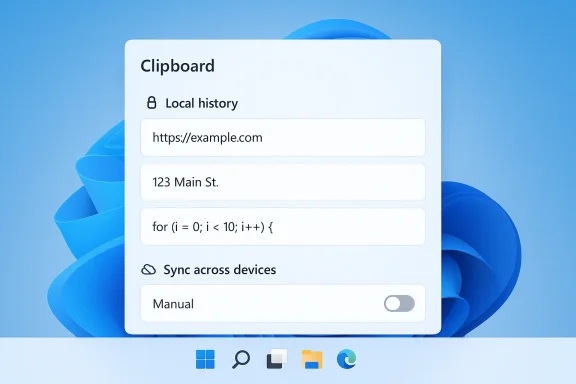
But the moment clipboard history became useful across devices, it also became a privacy-sensitive cloud feature. Microsoft’s settings allow users to enable Sync across devices, with options for automatic syncing or manual syncing of copied text. In automatic mode, copied text is sent so it can be available on other authorized devices; in manual mode, you choose when to sync an item from the clipboard panel. That distinction matters because the feature is designed for convenience, not for secret-keeping.
This is where the MakeUseOf piece lands on a very practical truth: many users turn on clipboard history for the first time and don’t immediately realize that cloud sync is a separate, potentially broader setting. The feature does not only exist locally. It has a cloud-facing layer that can move copied text between devices tied to the same account, which is exactly why the safest default for many people is to keep history on but control sync more carefully. Microsoft documents that the sync feature is tied to your Microsoft account or work account, underscoring that this is not just a local Windows convenience anymore.
The feature is especially helpful because it is low-friction. You do not need to open a separate app or navigate a full manager interface. It appears right where you are working, which makes it far more useful than classic single-item clipboards. That also explains why many users quickly become dependent on it once they discover it. It feels like a small UI tweak, but it changes daily workflow in a big way.
The short list of supported data types is worth noting too. Microsoft documents support for text, HTML, and bitmap formats, with the 4 MB size limit. Anything bigger still copies normally, but it simply does not show up in history. In other words, clipboard history is not a universal archive; it is a bounded convenience layer.
For many people, this feature becomes part of a broader productivity stack. It is the sort of capability you forget exists until you switch to a machine without it, and then you miss it immediately. That emotional dependence is part of why privacy settings around it deserve extra attention.
That is the setting that changes the privacy equation. If sync is enabled automatically, copied text can be sent to Microsoft’s infrastructure so it can appear on your other signed-in devices. Microsoft says the feature is tied to your Microsoft account or work account, which means the clipboard data becomes part of a synchronized service model rather than remaining a purely local convenience.
That difference is not cosmetic. Automatic sync is great when you are moving harmless text between a desktop and a laptop. It is not as great when you are copying confidential data, customer information, account numbers, or one-time verification codes. Manual sync gives you a compromise: you keep the feature, but you add a gate between copy and cloud transfer.
The practical implication is simple: anything you copy is potentially part of your workflow, unless you deliberately constrain it. That includes items you may not think twice about in the moment, like a bank routing number, a password pasted into the wrong place, or a support ticket containing personal details. The cloud feature is designed to reduce friction, but friction is sometimes the thing that protects us from ourselves.
Sensitive data is the obvious risk category. Passwords, banking details, 2FA codes, client information, medical snippets, and internal notes can all be copied during a normal day. If automatic sync is on, those items may be sent to Microsoft’s services so they can appear on other devices tied to the account. That is not necessarily unsafe in a technical sense, but it is absolutely a choice with consequences.
That makes this feature less like a firewall and more like a reminder to practice situational awareness. The system will happily do what you told it to do, even if you forgot you told it to do that. In a world where people copy secrets without thinking, that matters.
Enterprises have a more complicated equation. Work and school accounts can use the feature too, and Microsoft frames cloud clipboard as a connected experience. That means organizations need to think about data governance, device trust, and acceptable-use policies. In regulated environments, a convenient sync feature is only an asset if IT can explain where data goes and who can access it.
This is the middle path that preserves the upside without inviting unnecessary exposure. You still get quick access to recent copies, pinned items, and the ability to clear the list on demand. But you avoid making every copied text fragment part of a synchronized cloud trail. That is a reasonable trade-off for most users, especially people who work alone on one primary PC.
The value of this control is not just privacy. It also keeps the clipboard from becoming a cluttered mini-archive of things you no longer need. You can reduce noise, protect sensitive snippets, and make the history more useful overall.
That means pinning should be intentional. If you pin too much, you make the clipboard less dynamic. If you pin too little, you lose the advantage of quick reuse. The sweet spot is usually a handful of recurring items, not a long list of semi-permanent fragments.
The cloud-sync layer is what makes the feature feel modern, but it also turns productivity into an account-level policy question. If a text fragment can show up on another device, then the clipboard is no longer purely local state. It becomes part of your broader ecosystem of signed-in services, synchronized preferences, and cross-device continuity. That is powerful, but it is also a reason to be deliberate.
The lesson here is not to avoid the feature. The lesson is to use it with a little workflow discipline. If you know a copied item is destined for another computer, sync it. If you do not know, let it stay local.
That strategy has a clear logic. The more seamlessly your Windows devices share state, the more valuable the platform feels. A copied snippet on one PC and a pasted snippet on another is a small but convincing example of why users stay inside the ecosystem. Convenience becomes retention, and retention becomes platform gravity.
The downside is equally obvious: the more services you connect, the more attention you must pay to what travels with your account. Clipboard sync is a small example of a much larger trend in operating systems, where local features increasingly become cloud-backed by default or near-default. That is useful, but never neutral.
That balancing act is why the manual sync option matters so much. It acknowledges that not every user wants the same level of cloud integration. In a world where privacy preferences vary widely, flexibility is not a luxury; it is the feature.
The broader trend is also unlikely to reverse. Operating systems are moving toward more connected, cross-device experiences, and users increasingly expect that continuity. The challenge is to keep that continuity useful without making privacy decisions feel hidden or irreversible. Microsoft has the pieces already; the next step is making the defaults, prompts, and explanations more explicit.
Source: MakeUseOf I enabled Windows 11 clipboard history and immediately turned off the cloud sync I didn't know was on
 Background
Windows clipboard history is not new, but it has become more important as people spend more of their day juggling browser tabs, chat apps, office documents, and cloud-based workflows. The feature keeps a rolling list of copied items and lets you paste older entries instead of constantly recopying the same text. Microsoft says the history can hold up to 25 items, supports text, HTML, and bitmap images up to 4 MB per item, and clears on restart except for pinned items.That makes clipboard history a productivity booster for both consumers and professionals. It reduces friction when you need to reuse a URL, a paragraph, an address, or a code snippet. It also makes Windows feel a little more modern, because the clipboard stops being a one-slot temporary buffer and starts acting more like a lightweight productivity log. Microsoft’s support pages position it as a core Windows capability, not a niche add-on.
But the moment clipboard history became useful across devices, it also became a privacy-sensitive cloud feature. Microsoft’s settings allow users to enable Sync across devices, with options for automatic syncing or manual syncing of copied text. In automatic mode, copied text is sent so it can be available on other authorized devices; in manual mode, you choose when to sync an item from the clipboard panel. That distinction matters because the feature is designed for convenience, not for secret-keeping.
This is where the MakeUseOf piece lands on a very practical truth: many users turn on clipboard history for the first time and don’t immediately realize that cloud sync is a separate, potentially broader setting. The feature does not only exist locally. It has a cloud-facing layer that can move copied text between devices tied to the same account, which is exactly why the safest default for many people is to keep history on but control sync more carefully. Microsoft documents that the sync feature is tied to your Microsoft account or work account, underscoring that this is not just a local Windows convenience anymore.
What Windows 11 Clipboard History Actually Does
At its core, clipboard history is a short-term memory system for copied content. Press Win + V, and Windows opens an inline panel showing recently copied items. You can select an entry, paste it, pin it, or delete it. Microsoft says the list retains up to 25 copied entries, after which older entries are pushed out unless pinned.The feature is especially helpful because it is low-friction. You do not need to open a separate app or navigate a full manager interface. It appears right where you are working, which makes it far more useful than classic single-item clipboards. That also explains why many users quickly become dependent on it once they discover it. It feels like a small UI tweak, but it changes daily workflow in a big way.
The basic mechanics
The clipboard panel is built around speed and recall. You can use the arrow keys to move through the history, and Microsoft’s support content shows that the panel can be used to paste previous text entries quickly. Pinned items remain available even after a reboot, while ordinary entries do not survive a restart. That gives the feature a practical split between ephemeral and persistent clipboard content.The short list of supported data types is worth noting too. Microsoft documents support for text, HTML, and bitmap formats, with the 4 MB size limit. Anything bigger still copies normally, but it simply does not show up in history. In other words, clipboard history is not a universal archive; it is a bounded convenience layer.
- Win + V opens the clipboard history panel.
- Up to 25 items are retained in the rolling history.
- Pinned items survive reboots and clear operations.
- Restarting Windows clears ordinary clipboard history.
- Large items over 4 MB do not appear in history.
Why users like it
The appeal is obvious once you use it for a week. It saves you from the annoying copy-paste-copy-paste dance that fills the modern desktop day. It also helps when you are moving between apps that do not preserve formatting well, or when you need to go back to a copied item from a few steps ago. That is why clipboard history tends to become habit-forming rather than merely useful.For many people, this feature becomes part of a broader productivity stack. It is the sort of capability you forget exists until you switch to a machine without it, and then you miss it immediately. That emotional dependence is part of why privacy settings around it deserve extra attention.
The Cloud Sync Layer Is the Real Story
The important distinction is that clipboard history and clipboard sync are not the same thing. You can turn on the local history feature without necessarily enabling automatic cross-device syncing. Microsoft’s support guidance separates the two and shows a dedicated Sync across devices toggle under Settings > System > Clipboard.That is the setting that changes the privacy equation. If sync is enabled automatically, copied text can be sent to Microsoft’s infrastructure so it can appear on your other signed-in devices. Microsoft says the feature is tied to your Microsoft account or work account, which means the clipboard data becomes part of a synchronized service model rather than remaining a purely local convenience.
Automatic vs manual syncing
Microsoft provides two modes: Automatically sync text that I copy and Manually sync text that I copy. Automatic mode is the convenience-first choice, where every copied text item is eligible to travel to your other devices. Manual mode requires a deliberate action from the clipboard menu before an entry is synced.That difference is not cosmetic. Automatic sync is great when you are moving harmless text between a desktop and a laptop. It is not as great when you are copying confidential data, customer information, account numbers, or one-time verification codes. Manual sync gives you a compromise: you keep the feature, but you add a gate between copy and cloud transfer.
- Automatic sync favors convenience.
- Manual sync favors discretion.
- Both modes rely on the same underlying clipboard history.
- The cloud-linked behavior is account-based, not anonymous.
- The safest default for many users is manual sync or sync off entirely.
What Microsoft says, and what that implies
Microsoft says the feature is encrypted, which is reassuring, but encryption is not the same thing as invisibility. The data still exists in an account-linked service model and is still reachable from your devices if you are signed in. For many enterprise users, that is normal and manageable. For home users handling sensitive personal information, it is a reminder to be intentional about what gets synced.The practical implication is simple: anything you copy is potentially part of your workflow, unless you deliberately constrain it. That includes items you may not think twice about in the moment, like a bank routing number, a password pasted into the wrong place, or a support ticket containing personal details. The cloud feature is designed to reduce friction, but friction is sometimes the thing that protects us from ourselves.
Privacy Risk: Why This Feature Deserves Respect
The central concern is not that clipboard sync is inherently malicious. The concern is that it operates at the boundary between convenience and sensitive data, and that boundary is easy to cross without noticing. Windows makes enabling clipboard history straightforward, but the presence of a sync option means users should treat the feature as a data-sharing decision rather than a mere UI preference.Sensitive data is the obvious risk category. Passwords, banking details, 2FA codes, client information, medical snippets, and internal notes can all be copied during a normal day. If automatic sync is on, those items may be sent to Microsoft’s services so they can appear on other devices tied to the account. That is not necessarily unsafe in a technical sense, but it is absolutely a choice with consequences.
The risk is behavioral, not just technical
Most privacy failures do not come from dramatic attacks. They come from ordinary people forgetting that a feature is active. Clipboard sync is a classic example because it feels invisible when it is working correctly. Users often realize the setting exists only after they see an item show up on a second device, or after reading a privacy-oriented article and checking their own settings.That makes this feature less like a firewall and more like a reminder to practice situational awareness. The system will happily do what you told it to do, even if you forgot you told it to do that. In a world where people copy secrets without thinking, that matters.
- Sensitive data can be copied accidentally during normal work.
- Cross-device sync increases the number of places that data can appear.
- Automatic mode removes the chance to pause before syncing.
- Manual mode reduces exposure without eliminating convenience.
- Local-only clipboard history is easier to reason about than cloud-backed sync.
Enterprise and consumer concerns differ
Consumers are mostly worried about personal exposure and household privacy. If a family shares a PC or a Microsoft account, clipboard history can reveal recent activity more easily than people expect. Microsoft’s support documentation explicitly notes that you can clear history and delete individual items, which is useful, but the feature is still only as safe as the account practices around it.Enterprises have a more complicated equation. Work and school accounts can use the feature too, and Microsoft frames cloud clipboard as a connected experience. That means organizations need to think about data governance, device trust, and acceptable-use policies. In regulated environments, a convenient sync feature is only an asset if IT can explain where data goes and who can access it.
How to Use Clipboard History Without Oversharing
The best way to treat clipboard history is to separate local utility from cross-device transport. Keep the local history if it makes you faster. Then decide whether cloud sync is actually necessary for your workflow. Microsoft gives you that choice, and in many cases the right answer is to keep the feature local and use manual sync only when a copied item genuinely needs to travel.This is the middle path that preserves the upside without inviting unnecessary exposure. You still get quick access to recent copies, pinned items, and the ability to clear the list on demand. But you avoid making every copied text fragment part of a synchronized cloud trail. That is a reasonable trade-off for most users, especially people who work alone on one primary PC.
Practical settings to check
If you have never looked at the Clipboard page in Windows 11, it is worth a minute or two. The settings live under Settings > System > Clipboard, where you can control history, sync, and clearing. Microsoft also documents that you can clear the entire history from there, or via the Clear all command in the Win + V panel.The value of this control is not just privacy. It also keeps the clipboard from becoming a cluttered mini-archive of things you no longer need. You can reduce noise, protect sensitive snippets, and make the history more useful overall.
- Turn on clipboard history only if you actually use it.
- Set sync to manual if you sometimes copy sensitive text.
- Clear history regularly if you share a machine.
- Use pinned items sparingly so the list stays manageable.
- Treat the clipboard panel as temporary storage, not a vault.
Pinned items are helpful, but not free
Pinned entries are a great example of how convenience can carry hidden cost. Microsoft says pinned items survive restarts and are not removed when you clear the history, which makes them ideal for things you paste often like a signature or address. But pinned items also consume slots from the 25-item list, reducing the space available to ordinary clipboard entries.That means pinning should be intentional. If you pin too much, you make the clipboard less dynamic. If you pin too little, you lose the advantage of quick reuse. The sweet spot is usually a handful of recurring items, not a long list of semi-permanent fragments.
Why This Matters for Productivity
Clipboard history is one of those features that looks minor on paper and becomes essential in practice. It saves time, reduces repetitive tasks, and lets you preserve momentum while jumping between tasks. For writers, analysts, developers, support agents, and anyone who lives in a browser, the feature can shave off small moments of friction all day long. Those moments add up.The cloud-sync layer is what makes the feature feel modern, but it also turns productivity into an account-level policy question. If a text fragment can show up on another device, then the clipboard is no longer purely local state. It becomes part of your broader ecosystem of signed-in services, synchronized preferences, and cross-device continuity. That is powerful, but it is also a reason to be deliberate.
The workday reality
In real-world use, clipboard history is often part of a chain. You copy a source URL, then a headline, then an image caption, then a paragraph, then a login token or internal note. That chain is exactly why the feature is so effective. But it is also why automatic sync can be risky, because not every item in the chain is equally safe to share.The lesson here is not to avoid the feature. The lesson is to use it with a little workflow discipline. If you know a copied item is destined for another computer, sync it. If you do not know, let it stay local.
A numbered way to think about it
- Decide whether clipboard history is useful enough to keep on.
- Decide whether you actually need cross-device sync.
- If sync matters, prefer manual sync over automatic sync.
- Pin only the few items you reuse constantly.
- Clear the clipboard when working with sensitive material.
Microsoft’s Broader Connected-Experience Strategy
Clipboard sync is not an isolated feature. It fits into Microsoft’s broader approach to connected experiences, where the same account can carry settings, history, and content across devices. Microsoft’s support pages describe cloud clipboard as part of this ecosystem, alongside other synced or account-linked services.That strategy has a clear logic. The more seamlessly your Windows devices share state, the more valuable the platform feels. A copied snippet on one PC and a pasted snippet on another is a small but convincing example of why users stay inside the ecosystem. Convenience becomes retention, and retention becomes platform gravity.
Convenience as a platform feature
This is one reason Microsoft keeps investing in sync-oriented experiences. Whether it is clipboard data, settings, browsing state, or passkeys, the company wants Windows to feel like a coherent environment rather than a set of disconnected machines. Microsoft’s documentation around other account-linked features makes that broader direction obvious.The downside is equally obvious: the more services you connect, the more attention you must pay to what travels with your account. Clipboard sync is a small example of a much larger trend in operating systems, where local features increasingly become cloud-backed by default or near-default. That is useful, but never neutral.
- Cross-device continuity is now a core OS value proposition.
- Account-linked features reduce setup friction.
- Cloud-backed convenience often expands the privacy surface area.
- Users gain portability at the cost of more data movement.
- IT teams inherit more policy decisions than they used to manage.
Competition and user expectations
Windows is not alone here. The broader market has been moving toward clipboard managers, cloud sync, universal copy-paste, and device handoff systems for years. That raises expectations among users who want the same fluidity across laptop, desktop, tablet, and phone. Microsoft’s implementation has to meet that expectation without turning the clipboard into a liability.That balancing act is why the manual sync option matters so much. It acknowledges that not every user wants the same level of cloud integration. In a world where privacy preferences vary widely, flexibility is not a luxury; it is the feature.
Strengths and Opportunities
Clipboard history remains one of Windows 11’s most practical built-in tools, and the fact that Microsoft exposes granular sync controls is a genuine strength. The feature can improve speed, reduce repetition, and support cross-device workflows without forcing every user into the same privacy posture.- Fast access to recent copied items with Win + V.
- Local clipboard history that works well even without syncing.
- Manual sync as a useful compromise between convenience and caution.
- Pinned items for recurring content like signatures and addresses.
- Clear controls for deleting individual items or wiping the list.
- Support for common formats like text, HTML, and bitmap images.
- Account-based continuity for users who genuinely work across multiple PCs.
Risks and Concerns
The main risk is not technical failure but user misunderstanding. Because clipboard history is so useful, people may enable it quickly and never revisit the sync setting, which is exactly how accidental exposure happens.- Automatic sync can move sensitive text without a second thought.
- Shared devices make clipboard history easier to misuse.
- Pinned items can create a false sense of permanence and safety.
- Cloud-backed state increases the number of places data may exist.
- Manual review is required to avoid syncing secrets by mistake.
- Restart behavior may surprise users who expect history to persist.
- Household privacy can suffer if multiple people use the same account.
Looking Ahead
Clipboard history is likely to remain a standard Windows feature because it solves a real problem with very little learning curve. What will continue to matter is how Microsoft presents the cloud sync layer and how clearly it helps users understand the privacy trade-offs. If the company wants more people to trust the feature, the setup flow should make the distinction between local history and cloud sync impossible to miss.The broader trend is also unlikely to reverse. Operating systems are moving toward more connected, cross-device experiences, and users increasingly expect that continuity. The challenge is to keep that continuity useful without making privacy decisions feel hidden or irreversible. Microsoft has the pieces already; the next step is making the defaults, prompts, and explanations more explicit.
- Make manual sync the obvious safe choice for cautious users.
- Improve first-run messaging about where clipboard data goes.
- Surface clear warnings for obviously sensitive content.
- Give admins stronger policy controls in enterprise environments.
- Keep local clipboard history easy to use even when sync is disabled.
Source: MakeUseOf I enabled Windows 11 clipboard history and immediately turned off the cloud sync I didn't know was on
