

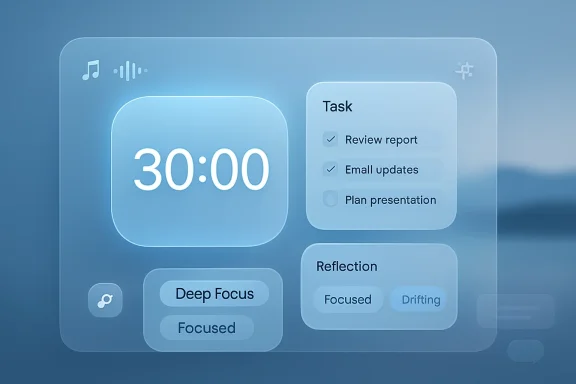
Microsoft appears to be preparing a substantial rethink of the Windows 11 Clock app, turning its familiar Focus sessions feature into a richer productivity dashboard with deeper Microsoft To Do integration, session reflections, personalization options, and early references to AI-powered assistance. A hands-on test build seen by Windows Latest suggests the app is moving beyond a simple Pomodoro-style timer toward something closer to a lightweight focus coach. The most intriguing wrinkle is the presence of NPU-related debugging references and AI task-suggestion hooks, hinting that Microsoft may be exploring on-device intelligence for focus insights on newer Windows PCs.
The Clock app has long been one of Windows’ quiet utilities: useful, predictable, and rarely the center of attention. In Windows 10, it was mostly a straightforward collection of alarms, timers, a stopwatch, and world clocks. Windows 11 changed that equation when Microsoft added Focus sessions, a feature designed to combine a timer, notification silencing, task selection, and optional music into a single concentration workflow.
That addition made sense in the early Windows 11 era. Microsoft was trying to make the operating system feel more polished, more lifestyle-aware, and more integrated with its cloud services. Focus sessions linked the Clock app with Microsoft To Do, and for a time also leaned heavily on Spotify integration, giving users a productivity ritual without requiring a third-party app.
Since then, however, the feature has felt slightly underdeveloped. Windows 11’s broader Focus mode can mute distractions and hide taskbar badges, but the Clock app itself has not evolved as aggressively as other inbox apps such as Paint, Photos, Notepad, or Snipping Tool. Those apps have received redesigns, AI features, tabbed interfaces, or quality-of-life improvements while Clock largely remained functional but static.
The new test experience changes that narrative. Instead of treating Focus as a small tab inside a utility app, Microsoft seems to be testing a more immersive workspace built around tasks, session mood, customization, and analytics. If the final release resembles the current test build, Clock could become one of Windows 11’s clearest examples of AI moving into ordinary productivity workflows rather than living only inside Copilot.
That shift mirrors a wider trend in productivity software. Dedicated focus tools no longer compete merely on timers; they compete on habit formation, analytics, mood tracking, and task decomposition. Microsoft is not inventing that category, but it has a unique advantage because Windows controls the notification layer, taskbar behavior, and system-level focus state.
A built-in focus workspace could therefore offer features that third-party apps struggle to match. It can sit closer to the operating system, respect Windows settings, and connect to Microsoft’s productivity graph without requiring users to assemble a stack of separate apps.
The larger task pane is especially important. In the current model, tasks can feel like an add-on to the timer. In the test build, the tasks area reportedly occupies much more vertical space, making it easier to scan, sort, and manage work before starting a session.
That matters because focus is not just a timer problem. It is a planning problem. If a user starts a session without a clear task, the timer becomes symbolic; if the app helps the user choose and break down work, the session has a better chance of producing something tangible.
By making To Do more central to Focus sessions, Microsoft can give the service a stronger reason to exist on the Windows desktop. Instead of asking users to maintain a task list in one app and focus in another, Clock can become the place where task selection turns into timed execution. That is a meaningful productivity loop.
The reported ability to add steps is particularly valuable. Large tasks often fail because they remain vague: “write report,” “study chapter,” or “prepare presentation.” Breaking them into smaller steps turns a focus session into a sequence of achievable actions.
For enterprises, deeper task integration could also make Focus sessions more acceptable as a sanctioned productivity tool. Employees are less likely to install random focus apps if Windows already includes a managed, account-aware alternative tied to Microsoft services.
This is the kind of AI feature Windows users may tolerate more readily than broad Copilot branding. It is contextual, optional, and tied to an immediate job. Instead of asking users to open a chatbot, the feature appears exactly where it might help: beside a task that needs clarification.
For example, a task called “finish quarterly deck” could become a set of smaller actions: collect metrics, draft outline, update charts, review notes, and rehearse. A student task called “study biology exam” could become review chapters, create flashcards, test weak areas, and summarize notes.
For a Clock app, NPU usage would be less obvious than in Paint or Live Captions. A focus timer does not need specialized silicon. But focus insights, attention detection, local summarization, and adaptive session behavior could plausibly benefit from on-device AI.
The reported setting for auto-pausing when focus fades is especially interesting. If that feature survives, it raises immediate questions about signals. Is the app watching window activity, keyboard and mouse patterns, camera presence, session interruptions, or something else entirely?
If Microsoft combines reflection data with session length, task category, time of day, breaks, and interruption patterns, the Insights page could become genuinely useful. It might identify when a user tends to focus best, which session lengths work, or whether certain tasks consistently produce distraction. For people managing attention challenges, that feedback could be more valuable than a generic streak counter.
There is also a risk of turning productivity into another dashboard that users feel pressured to optimize. Reflection should support self-awareness, not guilt. The language matters: “Drifting” is softer and more useful than “failed,” and that tone should carry through the final feature.
The ability to play music even when a session is not active is a small but telling design choice. It makes the app less transactional and more environmental. Users may open it at the start of the day, prepare their workspace, review tasks, and begin sessions when ready.
Sound customization is also practical. The current Windows notification environment can blur together, especially when multiple apps use similar tones. Distinct session-end and break-end sounds make the focus loop easier to recognize without constantly watching the screen.
This would also align with Microsoft’s long-running education strategy. Windows competes with Chromebooks in schools, and Microsoft 365 remains deeply embedded in many institutions. A native focus tool that connects to course platforms could make Windows feel more student-friendly without requiring schools to deploy another app.
The challenge is fragmentation. Canvas, Moodle, Blackboard, Teams for Education, and institutional portals all handle assignments differently. A robust integration layer requires authentication, permissions, due-date syncing, and careful handling of student data.
The concern about WebView2 is part of that larger debate. WebView2 can be useful for cross-platform content and rapid development, but users often associate it with higher memory usage and less native responsiveness. For a core Windows utility, Microsoft should aim for a native feel even if some components rely on web technologies behind the scenes.
AI features add another performance dimension. If insights or step suggestions require background services, local models, or cloud calls, Microsoft must ensure they do not interfere with the simple act of running a timer. Users should not need a premium PC to use basic Focus sessions well.
Enterprise users will care about governance. If the app integrates with Microsoft accounts, To Do, files, learning systems, or AI services, administrators will need policy controls. Organizations may want to disable AI suggestions, restrict data sharing, or prevent assignment connectors from being used on managed devices.
This split is familiar across Windows 11’s AI roadmap. Microsoft wants AI to feel ambient and helpful, but businesses want to know exactly what data is processed and where. A focus app may sound low risk, yet task names, notes, files, and reflection history can reveal sensitive projects, health patterns, or work habits.
This mirrors Microsoft’s broader strategy with apps such as Snipping Tool, Paint, Photos, and Notepad. Each began as a basic utility, then gained enough modern capability to satisfy mainstream users. Power users still seek specialized alternatives, but the baseline Windows experience improves.
For rivals, the challenge is differentiation. Dedicated focus apps will need stronger cross-platform support, deeper analytics, better habit coaching, team features, or integrations beyond Microsoft’s ecosystem. The low end of the market — simple timers with task lists — may become harder to justify on Windows.
The company also needs to preserve parity for older Windows 11 PCs. NPU acceleration is useful, but the Clock app should not become another reminder that a recent laptop has premium features unavailable elsewhere. Basic focus planning, task integration, reflection, and manual insights should work well across the Windows 11 installed base.
Source: Windows Latest AI may be coming to Windows 11’s Clock app as Microsoft turns it into a focus tool
 Background
The Clock app has long been one of Windows’ quiet utilities: useful, predictable, and rarely the center of attention. In Windows 10, it was mostly a straightforward collection of alarms, timers, a stopwatch, and world clocks. Windows 11 changed that equation when Microsoft added Focus sessions, a feature designed to combine a timer, notification silencing, task selection, and optional music into a single concentration workflow.That addition made sense in the early Windows 11 era. Microsoft was trying to make the operating system feel more polished, more lifestyle-aware, and more integrated with its cloud services. Focus sessions linked the Clock app with Microsoft To Do, and for a time also leaned heavily on Spotify integration, giving users a productivity ritual without requiring a third-party app.
Since then, however, the feature has felt slightly underdeveloped. Windows 11’s broader Focus mode can mute distractions and hide taskbar badges, but the Clock app itself has not evolved as aggressively as other inbox apps such as Paint, Photos, Notepad, or Snipping Tool. Those apps have received redesigns, AI features, tabbed interfaces, or quality-of-life improvements while Clock largely remained functional but static.
The new test experience changes that narrative. Instead of treating Focus as a small tab inside a utility app, Microsoft seems to be testing a more immersive workspace built around tasks, session mood, customization, and analytics. If the final release resembles the current test build, Clock could become one of Windows 11’s clearest examples of AI moving into ordinary productivity workflows rather than living only inside Copilot.
A Clock App Rebuilt Around Focus
The most immediate change is philosophical: the test build appears to put Focus at the center of the app, not at the edge. Windows Latest reports that its version did not show the traditional Clock modules such as Alarm, Timer, Stopwatch, and World Clock. That may simply reflect an early development build, but it also underlines how much attention Microsoft is giving the Focus surface.From Utility to Workspace
The current public Clock app is useful because it is simple. You start a session, optionally choose a task, and let Windows reduce interruptions while the timer runs. The upcoming design appears to treat focus as a broader activity: planning what to do, customizing the environment, measuring the outcome, and possibly receiving help from AI.That shift mirrors a wider trend in productivity software. Dedicated focus tools no longer compete merely on timers; they compete on habit formation, analytics, mood tracking, and task decomposition. Microsoft is not inventing that category, but it has a unique advantage because Windows controls the notification layer, taskbar behavior, and system-level focus state.
A built-in focus workspace could therefore offer features that third-party apps struggle to match. It can sit closer to the operating system, respect Windows settings, and connect to Microsoft’s productivity graph without requiring users to assemble a stack of separate apps.
- Focus sessions become the organizing principle, not an accessory.
- Microsoft To Do integration appears more prominent and more functional.
- Customization now includes sound, music volume, and background imagery.
- Reflection prompts introduce a lightweight productivity journal.
- Insights suggest a future analytics layer tied to session history.
The New Design Language Matters
Windows Latest describes the new interface as cleaner, more spacious, and more heavily rounded than the current app. That may sound cosmetic, but design consistency has been a recurring complaint among Windows 11 users since launch. Microsoft has modernized many surfaces, yet legacy dialogs, uneven spacing, and inconsistent controls still make the operating system feel like several eras stitched together.Cleaner UI, Higher Expectations
A redesigned Clock app gives Microsoft another opportunity to reinforce Fluent Design principles in a place users may open daily. Rounded corners, larger panes, and simplified controls can make focus sessions feel calmer and more intentional. For a feature about reducing distraction, the interface itself needs to avoid visual clutter.The larger task pane is especially important. In the current model, tasks can feel like an add-on to the timer. In the test build, the tasks area reportedly occupies much more vertical space, making it easier to scan, sort, and manage work before starting a session.
That matters because focus is not just a timer problem. It is a planning problem. If a user starts a session without a clear task, the timer becomes symbolic; if the app helps the user choose and break down work, the session has a better chance of producing something tangible.
- A larger task pane can reduce friction before a session begins.
- Sorting by title, creation date, and due date makes the feature more useful for real task lists.
- A cleaner layout can make Focus feel like part of Windows 11 rather than a bolted-on widget.
- A mini timer remains essential for users who want visibility without full-screen commitment.
Microsoft To Do Becomes More Central
The deeper task integration may be the most practical part of the new Clock experience. According to the hands-on report, each task can expose options such as steps, due dates, files, notes, and an AI-powered suggestion feature for breaking work into smaller actions. That points to a more serious role for Microsoft To Do inside Windows.Tasks as the Anchor
Microsoft To Do has often occupied an awkward space in the company’s productivity portfolio. It is simpler than Planner, less enterprise-heavy than Project, and less visible than Outlook tasks. Yet for individual users, students, and small teams, it remains a useful lightweight task manager.By making To Do more central to Focus sessions, Microsoft can give the service a stronger reason to exist on the Windows desktop. Instead of asking users to maintain a task list in one app and focus in another, Clock can become the place where task selection turns into timed execution. That is a meaningful productivity loop.
The reported ability to add steps is particularly valuable. Large tasks often fail because they remain vague: “write report,” “study chapter,” or “prepare presentation.” Breaking them into smaller steps turns a focus session into a sequence of achievable actions.
- Choose a task from Microsoft To Do.
- Break the task into smaller steps.
- Start a timed Focus session.
- Work through the steps while Windows reduces distractions.
- Reflect on the session when the timer ends.
For enterprises, deeper task integration could also make Focus sessions more acceptable as a sanctioned productivity tool. Employees are less likely to install random focus apps if Windows already includes a managed, account-aware alternative tied to Microsoft services.
AI Appears in the Task Workflow
The most attention-grabbing discovery is the apparent presence of AI step suggestions. In the test build, users can reportedly ask AI to suggest steps for a task, though it remains unclear whether the feature works yet, whether it will ship, or whether it will require a Copilot+ PC. That uncertainty is important, because early app builds often include experimental controls that never reach production.Useful AI, If It Stays Small
Task decomposition is one of the more sensible uses of AI in a productivity app. It does not require the system to make high-stakes decisions. It simply helps turn an ambiguous task into a practical checklist, which the user can accept, edit, or ignore.This is the kind of AI feature Windows users may tolerate more readily than broad Copilot branding. It is contextual, optional, and tied to an immediate job. Instead of asking users to open a chatbot, the feature appears exactly where it might help: beside a task that needs clarification.
For example, a task called “finish quarterly deck” could become a set of smaller actions: collect metrics, draft outline, update charts, review notes, and rehearse. A student task called “study biology exam” could become review chapters, create flashcards, test weak areas, and summarize notes.
- Low-friction AI works inside the existing task pane.
- User control matters because suggested steps should remain editable.
- Context awareness can make suggestions more relevant than generic advice.
- Privacy expectations will depend on whether processing is local, cloud-based, or hybrid.
NPU References Signal a Copilot+ Direction
Developer Gustave Monce reportedly spotted references to NPU-related functionality in the test version, including a dedicated page that currently appears to be for debugging. That does not prove the final Clock app will require an NPU, but it fits Microsoft’s broader push to make local AI a defining advantage of modern Windows PCs.Why the NPU Matters
A Neural Processing Unit is designed to accelerate AI workloads more efficiently than a general-purpose CPU. In the Copilot+ PC era, Microsoft has promoted NPUs as the hardware foundation for features such as local image generation, real-time translation, enhanced camera effects, and AI-assisted workflows. The argument is not just speed; it is also battery life, responsiveness, and potentially privacy.For a Clock app, NPU usage would be less obvious than in Paint or Live Captions. A focus timer does not need specialized silicon. But focus insights, attention detection, local summarization, and adaptive session behavior could plausibly benefit from on-device AI.
The reported setting for auto-pausing when focus fades is especially interesting. If that feature survives, it raises immediate questions about signals. Is the app watching window activity, keyboard and mouse patterns, camera presence, session interruptions, or something else entirely?
- Local inference could keep sensitive productivity patterns on the device.
- NPU acceleration could reduce battery impact during long sessions.
- Debug pages do not guarantee public features.
- Clear permissions will be essential if the app measures attention or distraction.
- Non-Copilot+ PCs should still receive a useful baseline experience.
Reflection and Insights Could Define the Feature
The new Reflection prompt may be the most human part of the redesign. After a session ends, the app reportedly asks users how the session felt, offering labels such as Deep focus, Focused, Steady, Drifting, and Distracted. Users can save that response or skip it, and settings apparently allow Reflection to be turned off.From Timer Data to Self-Awareness
This is a smart addition because time spent is not the same as focus achieved. A 45-minute session can be productive, scattered, frustrating, or surprisingly smooth. Asking the user to label the experience gives the app richer context than duration alone.If Microsoft combines reflection data with session length, task category, time of day, breaks, and interruption patterns, the Insights page could become genuinely useful. It might identify when a user tends to focus best, which session lengths work, or whether certain tasks consistently produce distraction. For people managing attention challenges, that feedback could be more valuable than a generic streak counter.
There is also a risk of turning productivity into another dashboard that users feel pressured to optimize. Reflection should support self-awareness, not guilt. The language matters: “Drifting” is softer and more useful than “failed,” and that tone should carry through the final feature.
- Reflection captures subjective quality, not just elapsed time.
- Insights could reveal patterns across days or weeks.
- Skip controls protect users who do not want journaling.
- Soft labels reduce shame and encourage honest feedback.
- Export or reset options would help users control their data history.
Customization Turns Focus Into an Environment
The test build reportedly includes new personalization options such as playing music, adjusting volume, choosing sounds for session and break endings, and adding a background image. These details may seem secondary, but they are central to how people actually use focus tools. The experience around the timer often determines whether users return to it.Atmosphere as Productivity
Different users focus differently. Some want silence. Others want instrumental music, ambient noise, or a visual cue that separates work time from ordinary desktop time. By making the Clock app more customizable, Microsoft acknowledges that focus is not one-size-fits-all.The ability to play music even when a session is not active is a small but telling design choice. It makes the app less transactional and more environmental. Users may open it at the start of the day, prepare their workspace, review tasks, and begin sessions when ready.
Sound customization is also practical. The current Windows notification environment can blur together, especially when multiple apps use similar tones. Distinct session-end and break-end sounds make the focus loop easier to recognize without constantly watching the screen.
- Music controls help users shape a work atmosphere.
- Volume adjustment avoids sending users into system settings.
- Background images could create a calmer dedicated focus surface.
- Session sounds make breaks and endings more recognizable.
- Mini-window mode preserves visibility while reducing screen usage.
Education Integrations Hint at a Broader Audience
One of the more surprising reported settings is an Assignments option with references to Canvas, Moodle, and other e-learning platforms. In the test version, the Connect button apparently does not yet work, and the feature is marked as coming soon. Still, its presence suggests Microsoft may be thinking beyond office productivity.Students, Courses, and Timed Work
If implemented, assignment integration could make the Clock app relevant for students who already live inside learning management systems. A focus session tied directly to a course assignment would be more concrete than a generic timer. It could help students turn coursework into scheduled, trackable blocks.This would also align with Microsoft’s long-running education strategy. Windows competes with Chromebooks in schools, and Microsoft 365 remains deeply embedded in many institutions. A native focus tool that connects to course platforms could make Windows feel more student-friendly without requiring schools to deploy another app.
The challenge is fragmentation. Canvas, Moodle, Blackboard, Teams for Education, and institutional portals all handle assignments differently. A robust integration layer requires authentication, permissions, due-date syncing, and careful handling of student data.
- Canvas and Moodle references suggest learning management system ambitions.
- Assignment timers could help students convert deadlines into work sessions.
- Due-date awareness would make focus planning more actionable.
- Privacy controls are critical for education environments.
- IT policy support will matter for schools and universities.
Performance and WebView2 Questions
Windows Latest observed that the test version used almost double the RAM of the current Clock app during a focus session. That number should be treated cautiously because unfinished builds often include debug code, unoptimized assets, and incomplete packaging. Even so, performance will be a major concern if Microsoft turns Clock into a richer, AI-adjacent app.Native Feel Still Matters
Windows users have become sensitive to inbox apps that feel heavier than their purpose suggests. A clock should be lightweight. A timer should launch quickly, run reliably, and avoid draining battery. If the new app feels sluggish or memory-hungry, users will judge it harshly regardless of how attractive the UI looks.The concern about WebView2 is part of that larger debate. WebView2 can be useful for cross-platform content and rapid development, but users often associate it with higher memory usage and less native responsiveness. For a core Windows utility, Microsoft should aim for a native feel even if some components rely on web technologies behind the scenes.
AI features add another performance dimension. If insights or step suggestions require background services, local models, or cloud calls, Microsoft must ensure they do not interfere with the simple act of running a timer. Users should not need a premium PC to use basic Focus sessions well.
- RAM usage must come down before general release.
- Launch speed matters because focus tools are often used impulsively.
- Offline behavior should remain predictable.
- Battery impact matters on laptops and tablets.
- Basic timers must never depend on AI availability.
Enterprise and Consumer Impact
For consumers, the upgraded Clock app could become a practical daily tool. It gives Windows a built-in alternative to Pomodoro timers, study trackers, and lightweight focus apps. For enterprises, the implications are different: manageability, compliance, data boundaries, and user training will matter more than background images or mood labels.Two Markets, Two Expectations
Consumer users will care about convenience. They want a focus session that starts from the notification center, shows a small timer, connects to tasks, and offers useful insights without demanding a subscription. If AI suggestions work well, they may become a quiet productivity boost.Enterprise users will care about governance. If the app integrates with Microsoft accounts, To Do, files, learning systems, or AI services, administrators will need policy controls. Organizations may want to disable AI suggestions, restrict data sharing, or prevent assignment connectors from being used on managed devices.
This split is familiar across Windows 11’s AI roadmap. Microsoft wants AI to feel ambient and helpful, but businesses want to know exactly what data is processed and where. A focus app may sound low risk, yet task names, notes, files, and reflection history can reveal sensitive projects, health patterns, or work habits.
- Consumers benefit from native convenience and fewer third-party installs.
- Students may gain assignment-aware study sessions.
- Enterprises need administrative controls for AI and data retention.
- IT teams will ask whether insights sync across devices or stay local.
- Accessibility users may benefit from structured sessions and reduced notification overload.
Competitive Implications
The focus and productivity app market is crowded, ranging from simple Pomodoro timers to advanced habit systems, task managers, calendar blockers, and analytics tools. Microsoft is unlikely to eliminate that market, but a stronger built-in Clock app could reduce the need for basic third-party utilities. That is especially true for users who already rely on Microsoft To Do.Built-In Beats Installed
The biggest competitive advantage is placement. Clock is already part of Windows, Focus is already integrated with the notification system, and users can start sessions from system surfaces. Third-party apps can offer more depth, but they cannot match the trust and convenience of being native.This mirrors Microsoft’s broader strategy with apps such as Snipping Tool, Paint, Photos, and Notepad. Each began as a basic utility, then gained enough modern capability to satisfy mainstream users. Power users still seek specialized alternatives, but the baseline Windows experience improves.
For rivals, the challenge is differentiation. Dedicated focus apps will need stronger cross-platform support, deeper analytics, better habit coaching, team features, or integrations beyond Microsoft’s ecosystem. The low end of the market — simple timers with task lists — may become harder to justify on Windows.
- Pomodoro apps face more pressure from a built-in alternative.
- Task managers remain differentiated by cross-platform depth and collaboration.
- Calendar blockers still offer scheduling features Clock does not appear to target.
- Wellness apps can compete on coaching, mindfulness, and behavioral design.
- Enterprise tools can win where compliance and reporting are required.
Strengths and Opportunities
The revamped Focus experience has promise because it appears to combine several useful ideas into a native Windows workflow: task selection, timed work, reflection, customization, and potentially AI assistance. The opportunity is not to build a heavyweight productivity suite inside Clock, but to make the first 30 seconds of focused work easier and the last 30 seconds more informative.- Native Windows integration gives Focus an advantage over standalone timers.
- Deeper To Do support can turn task lists into action sessions.
- AI-generated steps could make vague work more manageable.
- Reflection prompts add emotional and cognitive context to productivity data.
- Insights could help users understand when and how they work best.
- NPU support may enable private, efficient, on-device intelligence.
- Education connectors could expand the audience to students and lifelong learners.
Risks and Concerns
The same ambition that makes the new Clock app interesting also creates risk. A utility that becomes too complex can lose the simplicity that made it useful in the first place. Microsoft must also be careful with AI, attention tracking, and productivity scoring because these features can feel invasive if they are poorly explained.- Performance overhead could make the app feel too heavy for a clock.
- AI ambiguity may create distrust if users do not know where data goes.
- NPU exclusivity could fragment the experience across Windows 11 devices.
- Focus scoring might encourage unhealthy productivity pressure.
- Education integrations require careful privacy and consent handling.
- Web-based components could undermine the native feel users expect.
- Placeholder features may disappoint users if they appear in testing but never ship.
Looking Ahead
The biggest unknown is timing. The test build described by Windows Latest appears incomplete, with multiple coming-soon areas and inactive controls. That suggests the redesigned Focus experience may still be months away from broad rollout, and some features could change significantly before reaching Windows Insiders or stable users.What Microsoft Needs to Clarify
Microsoft should explain whether AI step suggestions and Focus insights are cloud-powered, locally processed, or dependent on Copilot+ hardware. It should also clarify whether reflection data remains on the device, syncs through a Microsoft account, or contributes to any broader productivity service. These details will determine whether the feature feels helpful or intrusive.The company also needs to preserve parity for older Windows 11 PCs. NPU acceleration is useful, but the Clock app should not become another reminder that a recent laptop has premium features unavailable elsewhere. Basic focus planning, task integration, reflection, and manual insights should work well across the Windows 11 installed base.
- Watch for the redesigned Clock app to appear in Windows Insider channels.
- Look for policy controls around AI suggestions and Focus insights.
- Check whether NPU usage appears in Task Manager during focus features.
- Monitor whether Canvas and Moodle connectors become functional.
- Compare memory usage between the current and redesigned Clock apps.
Source: Windows Latest AI may be coming to Windows 11’s Clock app as Microsoft turns it into a focus tool
