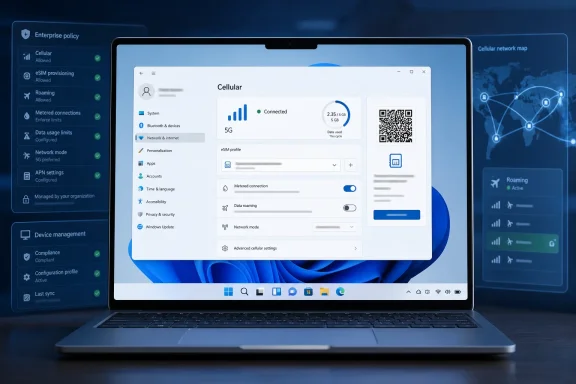
On June 23, 2026, Thurrott.com published two Windows 11 Field Guide attachment posts, “test-03” and “cellular-01,” tied to its Internet Connectivity chapter and showing Microsoft’s continuing effort to make network status, testing, and cellular setup visible inside Windows 11. The posts themselves are tiny, but the subject is not. Windows networking has moved from a background plumbing layer to a front-door user experience, and that shift says a great deal about where the PC is heading.
For years, Windows treated connectivity as something that either existed or failed mysteriously. The icon in the tray was a warning light, not a cockpit. Windows 11 is slowly turning that light into a dashboard, and cellular support is the piece that exposes both the ambition and the messiness of the project.
The modern PC is only intermittently a local machine. Sign-in, Microsoft Account setup, OneDrive restore, Teams calls, Copilot, Store apps, passkeys, cloud clipboard, device management, VPN, and Windows Update all assume that the network is present, usable, and trustworthy. When connectivity breaks, Windows itself now looks broken.
That is why a humble speed-test affordance matters more than it seems. Microsoft has been adding network testing access from the taskbar and Quick Settings, with the test opening in the browser rather than living as a fully native diagnostics tool. That design choice is very Microsoft: helpful, discoverable, and also faintly promotional, because it turns a system problem into a web-mediated workflow.
The old Windows answer to “Is my Internet working?” was a stack of dialog boxes, adapter resets, and increasingly desperate visits to Device Manager. The Windows 11 answer is becoming simpler: tap the network surface, inspect the connection, test the link, and decide whether the fault is local, wireless, carrier-side, or somewhere beyond the router. That is better for normal users, but it also changes expectations for IT departments. If Windows exposes more of the network story, users will expect Windows to explain more of the network failure.
Windows 11 supports physical SIMs and eSIMs on capable devices, and its Settings app routes users through Network & internet, Cellular, data plans, roaming behavior, metered-connection handling, and eSIM profile management. In theory, that makes a 5G laptop behave like a large phone: open the lid, connect anywhere, and stop begging airport Wi-Fi portals for mercy. In practice, cellular remains dependent on modem firmware, carrier support, OEM drivers, provisioning flows, and enterprise policy.
That dependency chain is why cellular PCs can feel magical when they work and brittle when they do not. A Wi-Fi adapter failure is annoying; a cellular failure may involve Windows, the OEM, the modem vendor, the carrier, the eSIM provider, and sometimes the company’s device-management stack. The Settings page is the friendly face of a surprisingly complex supply chain.
Microsoft’s documentation has long made clear that Cellular appears only on devices with the necessary hardware and driver support. That sounds obvious, but it is a recurring support trap. Users often look for a missing Cellular page as though it were a hidden Windows feature, when Windows is really saying: this PC does not currently expose a usable mobile broadband device.
But eSIM also imports the mobile carrier world’s abstractions into Windows administration. Profiles must be downloaded, activated, switched, removed, and sometimes recovered. The user sees a simple selector; the admin sees policy, provisioning, support tickets, and the uneasy question of who owns the failure when the modem has bars but the application cannot reach the service.
Windows 11’s cellular settings therefore sit at an awkward but important intersection. They are consumer-facing enough for a user to understand roaming and data limits, yet enterprise-relevant enough to affect VPN reliability, compliance, and remote support. A 5G PC is not merely a laptop with another radio. It is a laptop with another billing relationship and another failure mode.
That is why Microsoft’s steady work on network UI matters. Better Settings pages will not solve carrier provisioning. A taskbar speed test will not fix a bad modem driver. But surfacing more information earlier reduces the amount of time users and admins spend arguing with ghosts.
The metered-connection model is Microsoft’s attempt to translate that reality into OS behavior. On a metered connection, Windows can reduce background activity, defer some downloads, and behave less like a device plugged into limitless broadband. It is a crude but useful signal, and cellular makes it more important.
The trouble is that Windows is increasingly cloud-forward by design. If a fresh Windows 11 setup wants Microsoft Account sign-in, if OneDrive wants to hydrate files, if Teams wants to auto-start, if Store apps want updates, and if Copilot-era features assume network availability, then “metered” becomes more than a bandwidth preference. It becomes a negotiation between the operating system’s ambitions and the user’s bill.
This is where Microsoft has to be careful. A connected PC should not become a PC that silently spends someone else’s data plan. The more Windows depends on the cloud, the more respectfully it must behave when the cloud is reached through a cellular modem.
That is a quiet reversal of the old control-panel era. Windows once scattered network information across Control Panel, adapter properties, command-line tools, and troubleshooting wizards. Windows 11 has not finished cleaning that up, and some legacy paths remain necessary for advanced work. But the direction is clear: the first stop is Settings and Quick Settings, not a spelunking trip through ancient dialogs.
For enthusiasts, this can feel like simplification at the expense of control. For everyone else, it is overdue. A visible speed test, clearer Wi-Fi and cellular surfaces, and better state reporting are not power-user toys. They are basic instrumentation for an operating system that can no longer function well without the network.
Admins will still need PowerShell, logs, event traces, MDM policy, and vendor utilities. But better first-level diagnostics reduce noise. If a user can determine that the device has local connectivity, cellular signal, and measurable throughput before filing a ticket, the support conversation starts several steps ahead.
Microsoft can design the operating system experience, but OEMs ship the radios. They choose modems, antennas, firmware update paths, and support lifecycles. Carriers decide how smoothly eSIM onboarding works. Enterprises decide whether mobile broadband is treated as a core managed capability or an expensive add-on no one fully owns.
That fragmentation explains why cellular PCs have never achieved the inevitability of Wi-Fi. Wi-Fi is messy, too, but it is universal. Cellular on Windows remains conditional: if the model supports it, if the carrier cooperates, if the firmware is current, if the eSIM profile downloads, if the VPN does not collide with the connection stack.
The opportunity is obvious. The PC industry wants portable, AI-capable, always-ready devices. Copilot+ PCs, Arm laptops, and premium business ultraportables all benefit from connectivity that follows the user instead of the building. But the always-connected PC cannot be a slogan. It has to survive the help desk.
That is a sign of maturity, but also of complexity. Network connectivity is no longer one chapter about joining Wi-Fi. It includes Ethernet, Wi-Fi, cellular, eSIM, hotspot behavior, VPN, metered data, captive portals, speed testing, troubleshooting, privacy, device provisioning, and cloud service dependency. The PC’s relationship to the network has become a product area in its own right.
Microsoft’s challenge is to keep that product area coherent. Settings must be simple enough for a home user, explicit enough for a traveler on roaming data, and predictable enough for enterprise IT. That is a hard balance, and Windows has historically struggled when one interface tries to serve every audience.
Still, the direction is preferable to the alternative. A Windows that hides connectivity complexity until something fails is not simpler. It is merely less honest.
That assumption changes how buyers should evaluate hardware. A cheap laptop with poor wireless support is not just a cheap laptop; it is a future support problem. A premium cellular option is not just a convenience; in some roles, it is resilience. A clean Settings page is not merely aesthetic; it is part of the operational surface of the device.
For WindowsForum readers, the issue is familiar: Microsoft often announces the future through small UI changes before the strategy becomes obvious. Network testing in the shell and cellular management in Settings are not glamorous, but they fit the same pattern. Windows is absorbing more of the connectivity burden because the cloud-connected PC leaves it no choice.
For years, Windows treated connectivity as something that either existed or failed mysteriously. The icon in the tray was a warning light, not a cockpit. Windows 11 is slowly turning that light into a dashboard, and cellular support is the piece that exposes both the ambition and the messiness of the project.
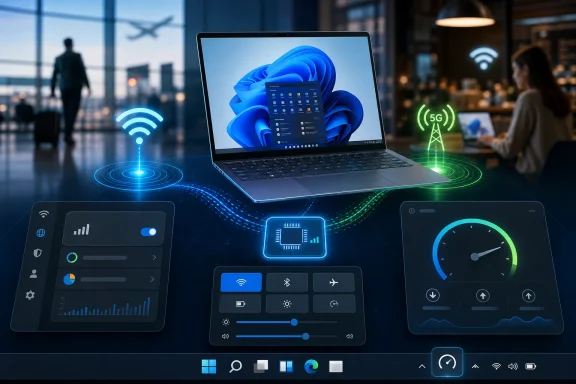 Windows No Longer Gets to Pretend the Network Is Someone Else’s Problem
The modern PC is only intermittently a local machine. Sign-in, Microsoft Account setup, OneDrive restore, Teams calls, Copilot, Store apps, passkeys, cloud clipboard, device management, VPN, and Windows Update all assume that the network is present, usable, and trustworthy. When connectivity breaks, Windows itself now looks broken.That is why a humble speed-test affordance matters more than it seems. Microsoft has been adding network testing access from the taskbar and Quick Settings, with the test opening in the browser rather than living as a fully native diagnostics tool. That design choice is very Microsoft: helpful, discoverable, and also faintly promotional, because it turns a system problem into a web-mediated workflow.
The old Windows answer to “Is my Internet working?” was a stack of dialog boxes, adapter resets, and increasingly desperate visits to Device Manager. The Windows 11 answer is becoming simpler: tap the network surface, inspect the connection, test the link, and decide whether the fault is local, wireless, carrier-side, or somewhere beyond the router. That is better for normal users, but it also changes expectations for IT departments. If Windows exposes more of the network story, users will expect Windows to explain more of the network failure.
Cellular Is the PC Feature That Still Feels Like an Exception
Cellular networking on Windows has always been caught between two worlds. On phones and tablets, mobile data is assumed. On PCs, it is still treated as a premium hardware option, a business-travel feature, or something Surface owners discover only after reading the small print.Windows 11 supports physical SIMs and eSIMs on capable devices, and its Settings app routes users through Network & internet, Cellular, data plans, roaming behavior, metered-connection handling, and eSIM profile management. In theory, that makes a 5G laptop behave like a large phone: open the lid, connect anywhere, and stop begging airport Wi-Fi portals for mercy. In practice, cellular remains dependent on modem firmware, carrier support, OEM drivers, provisioning flows, and enterprise policy.
That dependency chain is why cellular PCs can feel magical when they work and brittle when they do not. A Wi-Fi adapter failure is annoying; a cellular failure may involve Windows, the OEM, the modem vendor, the carrier, the eSIM provider, and sometimes the company’s device-management stack. The Settings page is the friendly face of a surprisingly complex supply chain.
Microsoft’s documentation has long made clear that Cellular appears only on devices with the necessary hardware and driver support. That sounds obvious, but it is a recurring support trap. Users often look for a missing Cellular page as though it were a hidden Windows feature, when Windows is really saying: this PC does not currently expose a usable mobile broadband device.
The eSIM Promise Runs Into the Enterprise Reality
The best argument for eSIM on Windows is operational. A company can buy connected PCs, assign profiles, avoid shipping plastic SIM cards, and give employees connectivity before they ever join a conference-room Wi-Fi network. For frontline workers, field engineers, journalists, consultants, and executives who live between networks, that is not a luxury. It is the difference between a managed device and a stranded device.But eSIM also imports the mobile carrier world’s abstractions into Windows administration. Profiles must be downloaded, activated, switched, removed, and sometimes recovered. The user sees a simple selector; the admin sees policy, provisioning, support tickets, and the uneasy question of who owns the failure when the modem has bars but the application cannot reach the service.
Windows 11’s cellular settings therefore sit at an awkward but important intersection. They are consumer-facing enough for a user to understand roaming and data limits, yet enterprise-relevant enough to affect VPN reliability, compliance, and remote support. A 5G PC is not merely a laptop with another radio. It is a laptop with another billing relationship and another failure mode.
That is why Microsoft’s steady work on network UI matters. Better Settings pages will not solve carrier provisioning. A taskbar speed test will not fix a bad modem driver. But surfacing more information earlier reduces the amount of time users and admins spend arguing with ghosts.
The Metered-Connection Switch Is Really a Trust Switch
Windows treats cellular differently from Wi-Fi and Ethernet because mobile data still carries economic consequences. Data caps, roaming charges, throttling, and unreliable coverage make cellular a network with a personality. Windows has to know not only whether it is online, but what kind of online it is.The metered-connection model is Microsoft’s attempt to translate that reality into OS behavior. On a metered connection, Windows can reduce background activity, defer some downloads, and behave less like a device plugged into limitless broadband. It is a crude but useful signal, and cellular makes it more important.
The trouble is that Windows is increasingly cloud-forward by design. If a fresh Windows 11 setup wants Microsoft Account sign-in, if OneDrive wants to hydrate files, if Teams wants to auto-start, if Store apps want updates, and if Copilot-era features assume network availability, then “metered” becomes more than a bandwidth preference. It becomes a negotiation between the operating system’s ambitions and the user’s bill.
This is where Microsoft has to be careful. A connected PC should not become a PC that silently spends someone else’s data plan. The more Windows depends on the cloud, the more respectfully it must behave when the cloud is reached through a cellular modem.
Diagnostics Are Becoming Part of the Shell
The most interesting part of the new connectivity experience is not any single toggle. It is the placement. Network testing and network selection are moving closer to the Windows shell, which is where ordinary users actually go when something feels wrong.That is a quiet reversal of the old control-panel era. Windows once scattered network information across Control Panel, adapter properties, command-line tools, and troubleshooting wizards. Windows 11 has not finished cleaning that up, and some legacy paths remain necessary for advanced work. But the direction is clear: the first stop is Settings and Quick Settings, not a spelunking trip through ancient dialogs.
For enthusiasts, this can feel like simplification at the expense of control. For everyone else, it is overdue. A visible speed test, clearer Wi-Fi and cellular surfaces, and better state reporting are not power-user toys. They are basic instrumentation for an operating system that can no longer function well without the network.
Admins will still need PowerShell, logs, event traces, MDM policy, and vendor utilities. But better first-level diagnostics reduce noise. If a user can determine that the device has local connectivity, cellular signal, and measurable throughput before filing a ticket, the support conversation starts several steps ahead.
Microsoft’s Connected-PC Vision Still Depends on OEM Discipline
The weakest link in Windows cellular is not the Settings app. It is consistency. A Surface device with a well-supported modem, current firmware, and documented carrier behavior is a different experience from a random business laptop with stale drivers and a half-supported WWAN module.Microsoft can design the operating system experience, but OEMs ship the radios. They choose modems, antennas, firmware update paths, and support lifecycles. Carriers decide how smoothly eSIM onboarding works. Enterprises decide whether mobile broadband is treated as a core managed capability or an expensive add-on no one fully owns.
That fragmentation explains why cellular PCs have never achieved the inevitability of Wi-Fi. Wi-Fi is messy, too, but it is universal. Cellular on Windows remains conditional: if the model supports it, if the carrier cooperates, if the firmware is current, if the eSIM profile downloads, if the VPN does not collide with the connection stack.
The opportunity is obvious. The PC industry wants portable, AI-capable, always-ready devices. Copilot+ PCs, Arm laptops, and premium business ultraportables all benefit from connectivity that follows the user instead of the building. But the always-connected PC cannot be a slogan. It has to survive the help desk.
The Small Field Guide Posts Point to a Larger Windows 11 Story
Thurrott’s Field Guide attachments are not breaking news in the usual sense. They are fragments from a larger documentation effort, and their sparseness is part of what makes them revealing. Windows 11 now has enough Internet-connectivity surface area that the screenshots themselves become artifacts worth cataloging.That is a sign of maturity, but also of complexity. Network connectivity is no longer one chapter about joining Wi-Fi. It includes Ethernet, Wi-Fi, cellular, eSIM, hotspot behavior, VPN, metered data, captive portals, speed testing, troubleshooting, privacy, device provisioning, and cloud service dependency. The PC’s relationship to the network has become a product area in its own right.
Microsoft’s challenge is to keep that product area coherent. Settings must be simple enough for a home user, explicit enough for a traveler on roaming data, and predictable enough for enterprise IT. That is a hard balance, and Windows has historically struggled when one interface tries to serve every audience.
Still, the direction is preferable to the alternative. A Windows that hides connectivity complexity until something fails is not simpler. It is merely less honest.
The Real Story Is the PC Becoming a Managed Endpoint Everywhere It Goes
The practical lesson is not that every Windows user needs a cellular laptop. Most do not. The lesson is that Windows is being redesigned around the assumption that the PC may move across networks constantly while still needing to remain secure, managed, updated, and cloud-connected.That assumption changes how buyers should evaluate hardware. A cheap laptop with poor wireless support is not just a cheap laptop; it is a future support problem. A premium cellular option is not just a convenience; in some roles, it is resilience. A clean Settings page is not merely aesthetic; it is part of the operational surface of the device.
For WindowsForum readers, the issue is familiar: Microsoft often announces the future through small UI changes before the strategy becomes obvious. Network testing in the shell and cellular management in Settings are not glamorous, but they fit the same pattern. Windows is absorbing more of the connectivity burden because the cloud-connected PC leaves it no choice.
The Connectivity Details That Will Matter After the Screenshot Fades
The headline feature may be easy to describe, but the consequences land in the daily work of using and supporting Windows. These are the points worth keeping in view:- Windows 11 is making network state more visible because cloud-dependent PCs cannot afford vague connectivity failures.
- Cellular support remains hardware-dependent, so the absence of a Cellular page usually points to missing capability, drivers, firmware, or modem exposure rather than a hidden Windows setting.
- eSIM improves deployment flexibility, but it also adds carrier provisioning and profile-management complexity to the Windows support model.
- Metered-connection behavior is becoming more important as Windows, Microsoft 365, OneDrive, Teams, and AI features assume persistent access to online services.
- Built-in or shell-adjacent speed testing helps users distinguish between a broken PC, a weak local network, and a broader service or carrier problem.
- The always-connected Windows PC will succeed only if Microsoft, OEMs, carriers, and enterprise admins treat cellular as core infrastructure rather than a premium checkbox.
References
- Primary source: thurrott.com
Published: 2026-06-23T23:10:38.288938
test-03 - Thurrott.com
 www.thurrott.com
- Official source: support.microsoft.com
Use an eSIM to get a cellular data connection on your Windows PC - Microsoft Support
Learn how to use an eSIM to connect your Windows PC to the internet over a cellular data connection.support.microsoft.com - Related coverage: windowscentral.com
How to manage network adapter settings on Windows 11 | Windows Central
In this guide, I will teach you the steps to manage Ethernet and Wi-Fi network adapters on Windows 11 using the Settings app.www.windowscentral.com - Official source: learn.microsoft.com
Windows 11 not connecting to cellular network - Microsoft Q&A
after upgrade from window 10 to window 11 i fail to connect to cellular networklearn.microsoft.com - Related coverage: pcgamer.com
Windows 11 is getting a handy internet speed test built right into the taskbar | PC Gamer
Plus a load of other quite welcome tweaks, fixes and enhancements.www.pcgamer.com - Official source: download.microsoft.com
- Related coverage: nfm.com
XPS 15 Touch 2-in-1 Notebook
Dell XPS 15 (Model 9575) touch 2-in-1 notebook computer, codename La Ferrari.www.nfm.com