
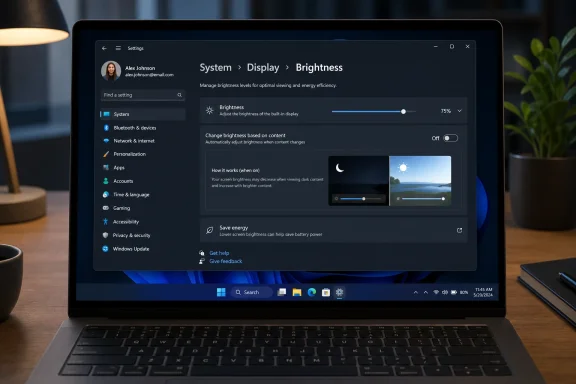
 Microsoft Mistook Movement for Context
Adaptive brightness makes obvious sense on a phone. A phone is a device in motion, carried from sunlight to shade to a dim bedroom, and its screen has to remain readable while the user’s hands are busy doing something else. The ambient light sensor is not a luxury there; it is part of the bargain of using a pocket computer in the physical world.
A laptop is not that kind of object most of the time. Yes, it can move, and yes, anyone who has tried to use a notebook near a window knows that changing light can matter. But the core PC experience is still defined by long sessions, fixed posture, and deliberate setup: a desk, a chair, a browser, a document, a spreadsheet, a remote desktop window, a game, or a creative app open for hours.
That distinction matters because Windows 11’s disputed behavior is not simply phone-style ambient brightness. The setting at issue, Content Adaptive Brightness Control, adjusts brightness and contrast based on the image being displayed. A dark web page, a video scene, or a window transition can be enough to make the panel change its output.
That is why the MakeUseOf complaint lands with more force than the usual “I dislike a default” grumble. The objection is not that Windows has automation. It is that this particular automation treats screen content as a power-management signal even when the user is treating the display as a stable work surface.
The Screen Is Not Just Another Battery Knob
Microsoft’s official justification is easy to understand. A display is one of the most power-hungry components in a mobile PC, and anything that can shave display power without forcing users into a visibly dimmer default looks attractive. In the age of thin laptops and all-day battery-life marketing, even modest savings become product language.
But the display is also the part of the PC users look at continuously. Unlike a background service, a telemetry task, or a processor governor, a display adjustment is not hidden. It is the interface becoming unstable.
That is the trade-off Microsoft too often understates. Content-based brightness is not merely a technical optimization; it is a perceptual intervention. It changes the visual baseline after the user has already chosen one.
For casual browsing, the effect may be tolerable or even unnoticed. For anyone doing color-sensitive work, comparing two images, editing photos, grading video, designing a web page, reading dense text, or trying to diagnose whether an app is rendering correctly, a screen that changes brightness or contrast based on content becomes an unreliable instrument.
The frustrating part is that this instability can masquerade as something else. Users may blame the panel, the graphics driver, HDR, browser rendering, dark mode, a flaky app, or their own eyes before discovering that Windows is deliberately changing the display. A setting that hides inside an expanded brightness menu is easy to miss and hard to diagnose.
The Toggle Is Simple, but the Discovery Is the Problem
The fix is mercifully straightforward. Open Settings, go to System, then Display, expand Brightness, and set “Change brightness based on content” to Off. Depending on the hardware, Windows may offer choices such as Off, On battery only, or Always.
That last detail is important. The feature is not universally present because it depends on hardware and driver support. Some users will not see the option at all, which can be confusing when they are following guides that assume it exists. Others may encounter vendor utilities or graphics control panels that expose similar behavior under different names.
Still, the real failure is not that the switch exists. It is that the setting’s placement and language do not match the annoyance it can cause. “Change brightness based on content” is accurate, but it sounds harmless until the user has watched the desktop pulse between different visual states for a day.
Windows has a long history of burying important behavior behind expandable panels, legacy Control Panel remnants, OEM utilities, and driver-specific overlays. This is one more case where the operating system technically gives the user control while practically making the cause hard to identify.
Ambient Light Is the Version That Actually Belongs on PCs
There is a better kind of automatic brightness for laptops, and it is the one users already understand from phones: adjustment based on ambient light. If a PC has a real light sensor and the room changes, automatically nudging brightness can be useful. It responds to the environment, not to the document.
That distinction should be the center of Microsoft’s design. Room-aware brightness preserves the display as a representation of content. Content-aware brightness makes the representation itself variable.
For enterprise buyers and IT administrators, the difference is not philosophical. It affects support calls. A user who says “my screen keeps changing brightness” is not describing a clean category of problem. It could be Windows, firmware, Intel or AMD graphics settings, HDR behavior, battery saver, an OEM control app, or a defective display.
That ambiguity wastes time. Help desks do not need another hidden adaptive layer when the same battery savings can often be pursued through clearer, more predictable policies: power mode, sleep timers, refresh-rate management, screen timeout, Battery Saver, and app background limits.
Windows 11 Keeps Confusing Helpful with Active
This is part of a broader Windows 11 pattern. Microsoft often equates helpfulness with intervention: recommending settings, surfacing widgets, nudging cloud accounts, changing defaults, integrating services, and adding background intelligence that assumes the user would prefer the system to decide.
Sometimes that works. Security defaults, memory protections, driver isolation, and update hygiene are areas where invisible help can be valuable. Most users do not want to manually harden every part of a modern OS.
But displays are personal. Brightness, contrast, scaling, refresh rate, color temperature, HDR, and dark mode are not mere efficiency variables. They shape comfort, perception, and trust.
That is why this feature feels more intrusive than its modest technical scope suggests. It touches the one surface every Windows user must constantly evaluate. When the screen itself becomes dynamic in ways the user did not request, the whole machine feels less settled.
Battery Life Has Better Places to Look
The most charitable defense of Content Adaptive Brightness Control is that laptops need every efficiency trick they can get. That is true as far as it goes. Battery life is still one of the most important quality-of-life metrics for mobile PCs, especially as Windows machines compete with highly efficient Apple silicon systems and increasingly capable Arm-based Windows laptops.
But users who care about battery life have better levers. Lowering brightness manually remains the most direct display-related saving because it is predictable and under user control. Reducing refresh rate, choosing an efficient power mode, shortening sleep timers, using Battery Saver, and identifying runaway background apps are easier to explain and less likely to interfere with the visual task at hand.
Windows 11’s Energy recommendations panel is a more honest version of the same impulse. It gathers power-saving options and lets the user apply them intentionally. That is the right model: show the trade-off, let the person choose, and avoid surprising them during work.
A display that quietly dims when content changes may save some power, but it spends something more valuable: user confidence. Once someone notices the screen shifting, they start looking for it. The optimization becomes the distraction.
The Real Setting to Change Is Microsoft’s Default Instinct
The fairest criticism is not that Microsoft built Content Adaptive Brightness Control. There are machines and users for whom it may be acceptable. There may even be edge cases where the power savings matter more than visual consistency.
The problem is making this kind of feature feel like an ordinary default rather than an explicit choice. If a setting affects display consistency, it deserves clearer presentation during setup or battery configuration. It should not require a user to reverse-engineer why a laptop looks different from one app to the next.
Microsoft also needs to separate terms more carefully. “Adaptive brightness” has historically meant ambient-light response to many users. Content-adaptive brightness is a different behavior with different consequences. Lumping both under the general aura of smart display management invites confusion.
This is especially important because Windows runs across a chaotic hardware ecosystem. A Surface, a Dell XPS, a Lenovo Yoga, an ASUS gaming laptop, and a budget retail notebook may all expose display automation differently. Windows should be the layer that clarifies those differences, not another participant in the blur.
The Fix Is Small, but the Lesson Is Larger
The practical advice is simple, and it belongs near the end because the broader point is the reason it matters. If your Windows 11 laptop seems to brighten or dim when you switch between light and dark content, check the brightness controls before blaming the display.
- Open Settings, choose System, then Display, and expand the Brightness section.
- Set “Change brightness based on content” to Off if you want the brightness level you chose to remain stable.
- If the option is missing, your built-in display or driver may not support Microsoft’s content-adaptive control.
- If brightness still changes, check your graphics vendor utility, OEM power software, HDR settings, and any ambient-light setting exposed elsewhere.
- If battery life is the goal, use power mode, Battery Saver, refresh-rate settings, sleep timers, and app battery usage before accepting a shifting display.
The annoyance here is not that Windows 11 borrowed an idea from phones. It is that Microsoft borrowed the wrong part of the idea and applied it to a device whose value still depends on control, consistency, and user intent. The best future version of Windows is not the one that automates every surface it can reach; it is the one that knows when to stop, leave the screen alone, and trust the person sitting in front of it.
