

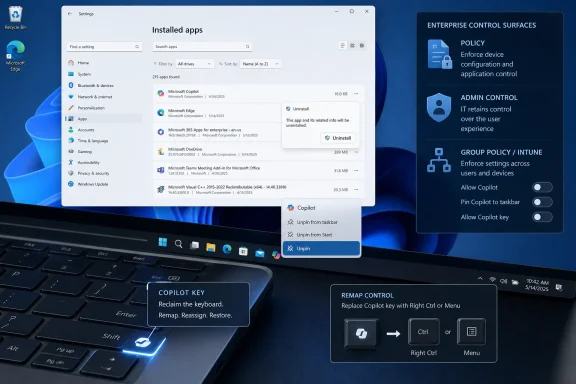
WTOP’s Data Doctors column on June 1, 2026, tells Windows 11 users in the United States that Copilot can be unpinned, uninstalled, remapped on newer keyboards, and more aggressively controlled by business administrators through policy, even if Microsoft keeps rebuilding AI into the desktop. The useful part of that advice is not that Copilot can be made to vanish forever; it is that Microsoft’s AI push has become a desktop management problem, not merely a personal preference. The Windows 11 Copilot story is now about control surfaces: taskbar icons, app packages, hardware keys, policies, and updates that may undo yesterday’s cleanup. If Windows is going to become an AI operating system by default, users and administrators need to treat Copilot less like an app and more like a recurring configuration decision.
Microsoft’s problem is not that it built an AI assistant into Windows. The company has integrated ambitious services into the operating system for decades, from Internet Explorer to OneDrive to Teams-adjacent hooks and Microsoft Account prompts. The difference with Copilot is that it arrived during a moment when users are already hyper-aware of telemetry, subscriptions, cloud dependency, and forced interface churn.
That makes the Copilot button feel larger than its pixel count. It is a symbol of Microsoft’s assumption that the default Windows experience should route users toward AI, even when the user did not ask for an assistant, did not buy a Copilot+ PC, and may have no desire to send work context to a cloud service. A shortcut is rarely just a shortcut when it sits on the taskbar, claims a keyboard key, and returns after updates.
The WTOP advice is practical because it starts where users actually feel the intrusion: the taskbar. Right-clicking Copilot and unpinning it is not a philosophical victory, but it reduces accidental launches and visual noise. For many people, that is the difference between a feature they can ignore and a feature that keeps demanding a reaction.
Still, the larger issue remains unresolved. Microsoft has blurred the line between optional software and operating-system direction. Copilot is not yet unavoidable in every Windows 11 workflow, but its repeated surfacing makes clear that the company sees AI as part of the operating system’s future center of gravity.
But unpinning is cosmetic by design. It does not necessarily remove the app package, revoke related shortcuts, or prevent Windows from advertising Copilot elsewhere. It simply changes the most visible entry point.
That distinction matters because Microsoft’s Windows 11 AI strategy has shifted shape repeatedly. Copilot has appeared as a sidebar, then more like an app, then in experiments and reports as a docked panel that can resize other windows to make room for itself. Those changes suggest that Microsoft is still testing where AI belongs in the shell, while users are trying to decide whether it belongs there at all.
This is why frustration persists even when a workaround exists. A feature that can be hidden but keeps returning in new forms feels less like software and more like a campaign. Users are not only asking how to remove Copilot; they are asking whether Windows will respect the answer.
The caveat is that “uninstall” does not mean the same thing for every Windows component. Some apps are ordinary packages. Some are system experiences. Some are placeholders, web wrappers, or entry points backed by services that remain available elsewhere. Copilot has lived in enough forms that users should assume removal means “remove the current user-facing app,” not “purge every AI-related capability from Windows.”
That is not necessarily sinister. Modern Windows is modular, and Microsoft frequently changes how inbox apps are delivered, updated, and reinstalled. But from a user-trust perspective, the effect is the same: the operating system can make a removed thing reappear after a major update, feature enablement package, Store restore, or account-driven migration.
The practical advice, then, is boring but important. After large Windows updates, check the taskbar, installed apps, startup behavior, and default shortcuts. If Copilot returns, remove it again using the least invasive supported method first. The more aggressively users modify Windows, the more likely they are to create servicing problems later.
For some buyers, the Copilot key is harmless or even useful. For others, it is a daily irritation, especially on compact laptops where every key earns its place. The complaint is not just that the key launches Copilot; it is that it replaced a known input with a vendor agenda.
Microsoft has acknowledged enough of this friction to support remapping paths, and PowerToys remains the enthusiast-friendly workaround for people who want broader control. Keyboard Manager can remap keys and shortcuts, and the Copilot key is commonly treated not as a magical AI button but as a shortcut sequence that can be redirected. That is good news for people willing to install and configure a Microsoft utility.
The limitation is that remapping is still a workaround layered over a decision the user did not make. Some machines and builds may behave differently, and not every remap will perfectly restore the semantics of a true Right Ctrl or context-menu key. When a hardware vendor, Microsoft, and Windows input handling all have a say, “just remap it” can be less universal than it sounds.
Microsoft’s newer Windows AI policy work is therefore more important than the consumer uninstall path. The newer “Remove Microsoft Copilot app” policy gives managed environments a more direct way to remove the Microsoft Copilot app under defined conditions. Microsoft’s own policy documentation describes scope, edition support, and prerequisites, including distinctions between Pro, Enterprise, Education, and IoT Enterprise support depending on the policy and management path.
That last phrase — “under defined conditions” — is where administrators should slow down. The policy is not a magic eraser for every Copilot-branded experience on every Windows build. Some policies apply to the older Windows Copilot experience, some to the app package, and Microsoft has also indicated that older “turn off” approaches may not map neatly onto newer Copilot packaging.
For IT departments, the right response is not panic but inventory. Determine which Copilot experiences are present, whether devices are running Windows 11 24H2 or later, how Microsoft 365 Copilot differs from consumer Copilot in the environment, and which policies affect installation, removal, app launch, and hardware key behavior. Copilot governance is now part of endpoint management, not a one-line tweak.
Those moves are not necessarily contradictory from Microsoft’s perspective. The company may be trying to remove low-quality AI buttons while preserving more prominent, deliberate Copilot surfaces. In Redmond language, that could be framed as reducing clutter and improving intentionality.
Users, however, experience it differently. If Copilot disappears from one corner of the OS and reappears as a panel that changes how windows are arranged, the message is not restraint. It is repositioning.
This is the central tension of Windows 11 in the AI era. Microsoft wants Copilot to feel native, contextual, and always close at hand. A meaningful portion of the Windows user base wants the opposite: AI that is available when requested, absent when not, and removable without a chase.
This is why the “it’s just one click” defense misses the point. Windows users have spent years absorbing interface shifts that each sound minor in isolation: Start menu changes, Settings migrations, notification prompts, account nudges, Edge defaults, Teams remnants, widgets, search advertising, and now AI surfaces. Copilot inherits all that accumulated annoyance.
The best version of Copilot would be boring in exactly the right way. It would install only where wanted, stay where placed, respect enterprise policy, avoid hijacking keyboard expectations, and never return after removal unless the user or administrator explicitly asks. That is not anti-AI; it is pro-agency.
Microsoft can still get there. But doing so requires treating user resistance as a product signal rather than a communication problem. The issue is not that people do not understand Copilot. Many understand it well enough to know they do not want it on their desktop.
For Copilot, ordinary users should start with supported controls. Unpin the taskbar icon. Uninstall the app if Windows exposes it in Settings. Use PowerToys or Windows’ own emerging remapping options for the Copilot key. Recheck after major feature updates.
That approach will not satisfy people who want absolute removal of every AI-related package, background capability, and cloud prompt. But it is safer for the majority of users, and it keeps the system closer to a supported state. The more invasive the removal method, the more responsibility the user assumes when Windows Update, Microsoft Store, Office, Edge, or Microsoft 365 components behave unexpectedly later.
There is also a privacy angle, but it should be handled carefully. Removing Copilot’s visible app reduces exposure to the assistant, but it does not by itself constitute a full Windows privacy strategy. Users concerned about data handling should review diagnostics, advertising ID, cloud content suggestions, Edge settings, Microsoft Account sync, and app permissions separately.
The distinction matters because a company may want Microsoft 365 Copilot for licensed employees while blocking the consumer Copilot app on managed Windows devices. It may want enterprise data protection and Entra-authenticated experiences while preventing users from launching consumer-grade AI tools from the desktop. It may want the Copilot key to open an approved internal app, or do nothing useful at all.
This is where Microsoft has to walk a narrow line. Enterprises are more likely to adopt AI when controls are granular, auditable, and well documented. They are less likely to trust AI when consumer and commercial experiences feel tangled together under the same brand.
For administrators, the immediate task is to write policy in plain language before writing policy in Intune or Group Policy. Decide which AI experiences are allowed, which accounts may use them, what data boundaries apply, and what users should see on first sign-in. Then implement the controls and test them on representative Windows builds, not just one pristine lab machine.
The company’s weakest argument is inevitability. Windows is not a phone platform where users expect every system surface to be curated by a single vendor strategy. It is the default operating system for accountants, gamers, engineers, local governments, hospitals, schools, developers, factories, help desks, and people trying to keep a five-year-old laptop useful.
Those users do not all share the same threat model or tolerance for experimentation. A feature that delights a consumer may violate an enterprise policy. A shortcut that helps one user may break another’s workflow. A cloud-connected assistant that feels harmless at home may raise procurement, compliance, or data-residency questions at work.
That diversity is why opt-out controls matter. Microsoft does not need to abandon AI in Windows to respect users. It needs to make refusal durable.
The concrete steps are not complicated, but they should be understood for what they are: layers of resistance, not a single kill switch.
 Copilot Has Become a Negotiation Over Who Owns the Desktop
Microsoft’s problem is not that it built an AI assistant into Windows. The company has integrated ambitious services into the operating system for decades, from Internet Explorer to OneDrive to Teams-adjacent hooks and Microsoft Account prompts. The difference with Copilot is that it arrived during a moment when users are already hyper-aware of telemetry, subscriptions, cloud dependency, and forced interface churn.That makes the Copilot button feel larger than its pixel count. It is a symbol of Microsoft’s assumption that the default Windows experience should route users toward AI, even when the user did not ask for an assistant, did not buy a Copilot+ PC, and may have no desire to send work context to a cloud service. A shortcut is rarely just a shortcut when it sits on the taskbar, claims a keyboard key, and returns after updates.
The WTOP advice is practical because it starts where users actually feel the intrusion: the taskbar. Right-clicking Copilot and unpinning it is not a philosophical victory, but it reduces accidental launches and visual noise. For many people, that is the difference between a feature they can ignore and a feature that keeps demanding a reaction.
Still, the larger issue remains unresolved. Microsoft has blurred the line between optional software and operating-system direction. Copilot is not yet unavoidable in every Windows 11 workflow, but its repeated surfacing makes clear that the company sees AI as part of the operating system’s future center of gravity.
Unpinning the Icon Fixes the Symptom, Not the Strategy
The taskbar is the most valuable real estate in Windows because it carries both muscle memory and Microsoft’s priorities. When Copilot appears there, it is not merely available; it is being normalized. Removing the icon is therefore a sensible first move, especially for home users who do not want to touch Group Policy, registry settings, or package management.But unpinning is cosmetic by design. It does not necessarily remove the app package, revoke related shortcuts, or prevent Windows from advertising Copilot elsewhere. It simply changes the most visible entry point.
That distinction matters because Microsoft’s Windows 11 AI strategy has shifted shape repeatedly. Copilot has appeared as a sidebar, then more like an app, then in experiments and reports as a docked panel that can resize other windows to make room for itself. Those changes suggest that Microsoft is still testing where AI belongs in the shell, while users are trying to decide whether it belongs there at all.
This is why frustration persists even when a workaround exists. A feature that can be hidden but keeps returning in new forms feels less like software and more like a campaign. Users are not only asking how to remove Copilot; they are asking whether Windows will respect the answer.
The Uninstall Button Is Real, but It Is Not a Guarantee
The second step in the Data Doctors advice — uninstalling the Copilot app through Settings — is the right escalation for everyday users. If Copilot appears under installed apps, removing it through Settings is cleaner and safer than hunting through dubious debloat scripts. It is the method Microsoft has increasingly exposed as Copilot moved from an OS-pane concept toward app-packaged experiences.The caveat is that “uninstall” does not mean the same thing for every Windows component. Some apps are ordinary packages. Some are system experiences. Some are placeholders, web wrappers, or entry points backed by services that remain available elsewhere. Copilot has lived in enough forms that users should assume removal means “remove the current user-facing app,” not “purge every AI-related capability from Windows.”
That is not necessarily sinister. Modern Windows is modular, and Microsoft frequently changes how inbox apps are delivered, updated, and reinstalled. But from a user-trust perspective, the effect is the same: the operating system can make a removed thing reappear after a major update, feature enablement package, Store restore, or account-driven migration.
The practical advice, then, is boring but important. After large Windows updates, check the taskbar, installed apps, startup behavior, and default shortcuts. If Copilot returns, remove it again using the least invasive supported method first. The more aggressively users modify Windows, the more likely they are to create servicing problems later.
The Copilot Key Turned a Software Preference Into a Hardware Argument
The dedicated Copilot key is the most revealing part of this story because it moves Microsoft’s AI ambitions from software into the physical keyboard. A taskbar icon can be unpinned. A sidebar can be closed. A key where Right Ctrl or Menu used to be is a different kind of statement.For some buyers, the Copilot key is harmless or even useful. For others, it is a daily irritation, especially on compact laptops where every key earns its place. The complaint is not just that the key launches Copilot; it is that it replaced a known input with a vendor agenda.
Microsoft has acknowledged enough of this friction to support remapping paths, and PowerToys remains the enthusiast-friendly workaround for people who want broader control. Keyboard Manager can remap keys and shortcuts, and the Copilot key is commonly treated not as a magical AI button but as a shortcut sequence that can be redirected. That is good news for people willing to install and configure a Microsoft utility.
The limitation is that remapping is still a workaround layered over a decision the user did not make. Some machines and builds may behave differently, and not every remap will perfectly restore the semantics of a true Right Ctrl or context-menu key. When a hardware vendor, Microsoft, and Windows input handling all have a say, “just remap it” can be less universal than it sounds.
Enterprise IT Finally Gets a Cleaner Lever, With Conditions Attached
Business users are in a different position because they need repeatability. A home user can remove an icon after Patch Tuesday. An administrator managing hundreds or thousands of Windows 11 machines needs policy, reporting, and a way to prevent support tickets from multiplying every time Microsoft changes an entry point.Microsoft’s newer Windows AI policy work is therefore more important than the consumer uninstall path. The newer “Remove Microsoft Copilot app” policy gives managed environments a more direct way to remove the Microsoft Copilot app under defined conditions. Microsoft’s own policy documentation describes scope, edition support, and prerequisites, including distinctions between Pro, Enterprise, Education, and IoT Enterprise support depending on the policy and management path.
That last phrase — “under defined conditions” — is where administrators should slow down. The policy is not a magic eraser for every Copilot-branded experience on every Windows build. Some policies apply to the older Windows Copilot experience, some to the app package, and Microsoft has also indicated that older “turn off” approaches may not map neatly onto newer Copilot packaging.
For IT departments, the right response is not panic but inventory. Determine which Copilot experiences are present, whether devices are running Windows 11 24H2 or later, how Microsoft 365 Copilot differs from consumer Copilot in the environment, and which policies affect installation, removal, app launch, and hardware key behavior. Copilot governance is now part of endpoint management, not a one-line tweak.
Microsoft’s AI Retrenchment Was Always Conditional
The most interesting part of the recent Copilot cycle is Microsoft’s apparent attempt to reduce some AI clutter while continuing to push AI deeper into Windows. Reports earlier this year described Microsoft scaling back unnecessary Copilot entry points in Windows 11 apps and rethinking how aggressively AI should appear in basic workflows. Then came renewed attention to sidebar-style Copilot behavior that can dock beside applications and alter the desktop layout.Those moves are not necessarily contradictory from Microsoft’s perspective. The company may be trying to remove low-quality AI buttons while preserving more prominent, deliberate Copilot surfaces. In Redmond language, that could be framed as reducing clutter and improving intentionality.
Users, however, experience it differently. If Copilot disappears from one corner of the OS and reappears as a panel that changes how windows are arranged, the message is not restraint. It is repositioning.
This is the central tension of Windows 11 in the AI era. Microsoft wants Copilot to feel native, contextual, and always close at hand. A meaningful portion of the Windows user base wants the opposite: AI that is available when requested, absent when not, and removable without a chase.
The Sidebar Fight Is Really About Interruption
A docked Copilot panel is more controversial than a floating app because it competes with active work. When a panel pushes other applications aside, it stops being a passive assistant and becomes a participant in window management. For people who carefully arrange displays, use ultrawide monitors, run remote sessions, or live in tiled workflows, that is not a small change.This is why the “it’s just one click” defense misses the point. Windows users have spent years absorbing interface shifts that each sound minor in isolation: Start menu changes, Settings migrations, notification prompts, account nudges, Edge defaults, Teams remnants, widgets, search advertising, and now AI surfaces. Copilot inherits all that accumulated annoyance.
The best version of Copilot would be boring in exactly the right way. It would install only where wanted, stay where placed, respect enterprise policy, avoid hijacking keyboard expectations, and never return after removal unless the user or administrator explicitly asks. That is not anti-AI; it is pro-agency.
Microsoft can still get there. But doing so requires treating user resistance as a product signal rather than a communication problem. The issue is not that people do not understand Copilot. Many understand it well enough to know they do not want it on their desktop.
Home Users Should Prefer Supported Removal Over Debloating Rituals
The Windows enthusiast community has a long tradition of debloating scripts, registry edits, package removals, and post-install hardening rituals. Some are useful. Some are outdated. Some create more instability than they solve, particularly when Windows servicing expects components to exist.For Copilot, ordinary users should start with supported controls. Unpin the taskbar icon. Uninstall the app if Windows exposes it in Settings. Use PowerToys or Windows’ own emerging remapping options for the Copilot key. Recheck after major feature updates.
That approach will not satisfy people who want absolute removal of every AI-related package, background capability, and cloud prompt. But it is safer for the majority of users, and it keeps the system closer to a supported state. The more invasive the removal method, the more responsibility the user assumes when Windows Update, Microsoft Store, Office, Edge, or Microsoft 365 components behave unexpectedly later.
There is also a privacy angle, but it should be handled carefully. Removing Copilot’s visible app reduces exposure to the assistant, but it does not by itself constitute a full Windows privacy strategy. Users concerned about data handling should review diagnostics, advertising ID, cloud content suggestions, Edge settings, Microsoft Account sync, and app permissions separately.
Administrators Need to Separate Consumer Copilot From Microsoft 365 Copilot
In business environments, “Copilot” is not one thing. There is the consumer Microsoft Copilot app, Microsoft 365 Copilot and Copilot Chat for work accounts, Copilot integrations inside Office apps, Edge sidebar experiences, Windows policies, and hardware key behavior. Treating all of that as a single toggle is a recipe for confusion.The distinction matters because a company may want Microsoft 365 Copilot for licensed employees while blocking the consumer Copilot app on managed Windows devices. It may want enterprise data protection and Entra-authenticated experiences while preventing users from launching consumer-grade AI tools from the desktop. It may want the Copilot key to open an approved internal app, or do nothing useful at all.
This is where Microsoft has to walk a narrow line. Enterprises are more likely to adopt AI when controls are granular, auditable, and well documented. They are less likely to trust AI when consumer and commercial experiences feel tangled together under the same brand.
For administrators, the immediate task is to write policy in plain language before writing policy in Intune or Group Policy. Decide which AI experiences are allowed, which accounts may use them, what data boundaries apply, and what users should see on first sign-in. Then implement the controls and test them on representative Windows builds, not just one pristine lab machine.
The Real Copilot Choice Is Between Convenience and Consent
Microsoft’s strongest argument for Copilot is convenience. A built-in assistant can summarize, search, answer, draft, explain settings, and eventually act across local and cloud contexts. If the assistant is genuinely useful, many users will keep it.The company’s weakest argument is inevitability. Windows is not a phone platform where users expect every system surface to be curated by a single vendor strategy. It is the default operating system for accountants, gamers, engineers, local governments, hospitals, schools, developers, factories, help desks, and people trying to keep a five-year-old laptop useful.
Those users do not all share the same threat model or tolerance for experimentation. A feature that delights a consumer may violate an enterprise policy. A shortcut that helps one user may break another’s workflow. A cloud-connected assistant that feels harmless at home may raise procurement, compliance, or data-residency questions at work.
That diversity is why opt-out controls matter. Microsoft does not need to abandon AI in Windows to respect users. It needs to make refusal durable.
The Windows Desktop Is Becoming a Managed AI Surface
The Data Doctors column is framed as consumer advice, but its implications are bigger. The Windows desktop is becoming a managed AI surface, and every class of user now needs a playbook. Home users need simple controls. Power users need reliable remapping and package behavior. Administrators need policy clarity. Microsoft needs to stop shipping AI entry points as if each one exists in a vacuum.The concrete steps are not complicated, but they should be understood for what they are: layers of resistance, not a single kill switch.
- Unpinning Copilot from the taskbar reduces accidental launches, but it does not remove the app or guarantee that future Windows changes will leave the taskbar alone.
- Uninstalling the Copilot app through Settings is the safest consumer removal path when it is available, but Windows updates may restore or reshape the experience later.
- Remapping the Copilot key can make newer keyboards less annoying, though some users will need PowerToys or Windows’ own limited remapping options rather than a perfect hardware-level replacement.
- Business administrators should use current Windows AI policies and app-control mechanisms rather than relying on old Copilot policies that may not govern newer app-based experiences.
- Organizations should distinguish consumer Copilot from Microsoft 365 Copilot before deciding what to block, allow, or redirect.
- After major Windows updates, users and IT teams should verify Copilot behavior again instead of assuming previous removals remain intact.
References
- Primary source: WTOP
Published: Mon, 01 Jun 2026 08:00:21 GMT
Data Doctors: Copilot won’t leave — here’s what to do - WTOP News
Everyday users running standard versions of Windows 11 have several practical options for reducing or eliminating Copilot’s presence.wtop.com - Related coverage: techradar.com
- Related coverage: windowscentral.com
Microsoft confirms plans to integrate Copilot with the Taskbar on Windows 11 this summer: Ask Copilot expected to debut "mid-2026" | Windows Central
First announced last year, a new document has confirmed that Microsoft's upcoming "Ask Copilot" feature for Windows 11's Taskbar is arriving mid-2026.www.windowscentral.com - Official source: support.microsoft.com
Understand updates to the Copilot key on Windows devices | Microsoft Support
Understand updates to the Copilot key on Windows devicessupport.microsoft.com - Related coverage: windowslatest.com
Windows 11 now lets you remove Microsoft Copilot app with Group Policy or Registry, as it tries to win back users
Microsoft wants to win back users, and it's making it easier for you to remove Copilot on Windows 11 using Group Policy. www.windowslatest.com
- Related coverage: techcrunch.com
Microsoft rolls back some of its Copilot AI bloat on Windows | TechCrunch
The company is reducing Copilot entry points on Windows, starting with Photos, Widgets, Notepad, and other apps.techcrunch.com
- Related coverage: notebookcheck.net
Windows 11: Microsoft backpedals on Copilot decision - Notebookcheck News
Microsoft is testing a revamped docked Copilot sidebar for Windows 11, pinning the AI to either screen edge and marking the AI assistant's sixth UI redesign. www.notebookcheck.net
- Related coverage: tweaktown.com
Microsoft's Copilot returns to ruin your Windows 11 experience, this time as a sidebar
One step forward, two steps back. After many updates that reduced Copilot's visibility, Microsoft is rolling out a new update that makes it a sidebar. www.tweaktown.com
- Related coverage: tomshardware.com
Admins finally get the power to uninstall Microsoft Copilot on Windows 11 Pro, Enterprise, and EDU versions — devices must meet specific conditions to allow the removal of the AI app | Tom's Hardware
One less bloatware on Windows 11.www.tomshardware.com - Related coverage: tomsguide.com
Microsoft is hiding Windows 11's 'eyes' — here's how to find Copilot Vision (and fully delete it) | Tom's Guide
Microsoft’s new AI can "see" your screen to fix errors and summarize docs. Here's how to master Copilot Vision or disable it entirely to protect your privacy.www.tomsguide.com - Related coverage: vendorcompliance.surf.nl
Manual advice on disabling Copilot applications in Microsoft products
PDF documentvendorcompliance.surf.nl
- Official source: news.microsoft.com
- Related coverage: selectagents.gov
