
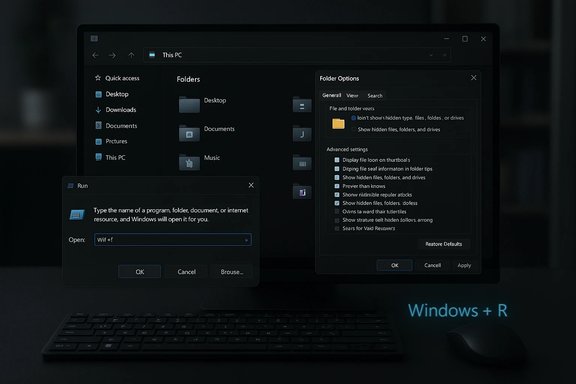
Windows 11’s dark theme has hit another visible milestone: the classic Run dialog and the long-neglected Folder Options panel are now being rendered in Dark mode in recent Insider preview builds, closing a glaring visual inconsistency that has frustrated dark‑theme users for years. This change is rolling out in Dev and Beta channel builds and—because Microsoft is gating the visuals server‑side—some Insiders see it immediately while others must wait; power users can force the visuals today using community tools such as ViVeTool, though that approach carries support and safety caveats.
Background / Overview
Dark mode has been a system-level option in Windows since Windows 10, but its coverage across Windows UI surfaces has always been uneven. Modern WinUI apps and many first‑party components adopted low‑luminance palettes while a large tail of legacy Win32 dialogs—file‑operation popups, confirmation boxes, and small utilities like the Run box—continued to render in bright white. That mismatch produced frequent “white flash” interruptions on dark desktops and OLED displays, undermining the ergonomics and perceived polish of a systemwide theme. Microsoft’s recent Insider work targets the most visible offenders first, theming File Explorer dialogs, progress views, confirmation prompts, and now the Run dialog and Folder Options to respect the system Dark setting.This is an incremental improvement rather than a single global flip: Microsoft is shipping the necessary binaries in preview builds but enabling the visuals selectively through staged, server‑side feature flags. The practical result is a staggered rollout—many Insiders will need patience, while enthusiasts can opt to enable the visuals via feature‑toggling utilities.
What changed: the surfaces that now honor Dark mode
High‑impact dialogs and utilities
The first wave of theming focuses on everyday, high‑frequency surfaces that caused the most jarring luminance shifts:- Copy / Move / Delete dialogs (compact and expanded views) now render with a darker background and adjusted contrast.
- File operation progress bars and charts display using darker surfaces and updated accent tints for paused/failed states.
- Conflict and confirmation dialogs (replace/skip/override, Empty Recycle Bin confirmations) follow the system theme.
- Permission and error prompts such as Access Denied and File In Use now appear in Dark mode where the code path has been updated.
- Run dialog (Win + R) has received Dark theming in preview artifacts, removing one of the most visible legacy white boxes.
- Folder Options in File Explorer now respects Dark mode in the builds where the flag is enabled.
Visual adjustments and state colors
Testers report that Microsoft isn’t merely swapping background colors; the team has adjusted state colors and accents to improve legibility on dark surfaces. For example, the familiar green transfer accent often appears as a blue tone in Dark mode previews, while yellow and deeper red are being used to denote paused and failed transfer states respectively. Some micro-controls and icons still show legacy styling in early flights, which Microsoft is iterating on.How Microsoft is shipping and why it matters
Staged enablement model
Rather than flipping a single switch, Microsoft is following its now‑standard approach: include the updated UI code in Insider preview builds and then enable the visuals via server‑side flags for subsets of Insiders to collect telemetry and accessibility feedback. This reduces the blast radius for regressions but creates temporary fragmentation: two identical machines on the same build may display different visuals until the feature flag is widened.The approach matters for reliability and accessibility. Color changes can interact badly with assistive technologies, automation scripts, and third‑party shell extensions; controlled exposure allows Microsoft to monitor these interactions and iterate before a broad public release.
Builds, KBs and channels
Community reporting and Insider release notes tie the theming work to the 26xxx build families used in recent Dev and Beta flights. Reported examples include builds in the 26120 and 26220 families and preview KB entries that reference File Explorer dark‑mode improvements. Exact build numbers and KBs observed by testers include the 26120 and 26220 family builds and preview KBs shipped in October–December preview cycles; because Microsoft may reassign or gate features, treat single-build attributions as provisional until Microsoft publishes final release notes.How to see it now (Insiders and power users)
Microsoft’s server‑side gating means many Insiders will only see the new visuals when Microsoft expands the rollout. For those who want to preview the changes immediately, community utilities such as ViVeTool can flip internal feature flags; the community has published sets of feature IDs reported to enable Dark mode for Run, Folder Options, and various File Explorer dialogs. A commonly circulated command set is:- Create a folder for ViVeTool (for example, C:\vive) and extract ViVeTool there.
- Open an elevated Command Prompt.
- Change to the ViVeTool folder:
- cd \vive
- Run ViVeTool with the reported feature IDs:
- vivetool /enable /id:57857165,57994323,48433719,49453572,58383338,59270880,59203365
- Reboot.
Known issues and reported regressions
White‑flash and display glitches
A recent optional Preview update that expanded dark‑mode coverage to File Explorer dialogs has been linked to reports of white flashes or brief bright screens when interacting with File Explorer in Dark mode. Microsoft acknowledged the issue in servicing notes, and community tests show the bug may appear for some users after the optional update; if you rely on a rock‑solid dark experience, some admins recommend waiting for a patched cumulative update rather than installing the optional preview.Incomplete coverage and mixed UI
The work is not finished. Multiple legacy areas still render in a light theme, including many Control Panel pages, some Properties dialogs, and older admin applets. This creates mixed UI experiences where most daily dialogs are dark but deeper properties or specialized tools still pop up in light. Enterprises and power users should test workflows that rely on those surfaces.Accessibility and automation risks
Color and contrast changes can affect screen readers, high‑contrast themes, keyboard focus cues, and automation scripts that expect particular UI element locations or renderings. Microsoft is collecting telemetry from staged rollouts to validate assistive workflows, but organizations should validate these scenarios in a lab before broad deployment.Enterprise and IT considerations
Testing and pilot strategy
For IT teams, treat the current Dark mode improvements as preview functionality. Practical guidance:- Enroll a small pilot fleet of VMs or non‑critical machines in Beta channel builds and map expected visuals to specific build/Kb pairs.
- Validate accessibility workflows: screen readers, keyboard navigation, high‑contrast modes, and automation scripts.
- Don’t enable ViVeTool on production devices; if you must, confine it to fully documented test images and record feature IDs and system snapshots.
Communication and user support
Because the staged rollout can produce visual fragmentation across identical systems, provide clear guidance to users and help desk staff explaining why some devices look different and how to check build and feature flags. Prepare troubleshooting steps (e.g., verify system theme settings, check Insider channel enrollment, and advise caution around third‑party flag toggles).Security, stability and the community tool tradeoff
Community tools such as ViVeTool offer an expedient path to preview work not yet enabled by Microsoft’s server flags. They are valuable for researchers and enthusiasts but impose real risks:- ViVeTool flips internal feature IDs and can expose untested code paths.
- Feature IDs are community‑reported and may vary by build; applying them blindly can cause unexpected behavior.
- Microsoft does not support systems altered by unsupported toggles, complicating official support and servicing.
Accessibility impact — improvements and unknowns
On balance, a consistent Dark mode across high‑frequency dialogs improves legibility and reduces eye strain for many users, especially in low‑light conditions and on OLED displays where near‑black backgrounds can also save battery. The larger input field and improved contrast of the Modern Run iterations (where present) should help low‑vision and keyboard‑focused users. That said, every color change must preserve screen‑reader semantics, keyboard focus visibility, and high‑contrast compatibility—which is precisely why Microsoft is staging the visuals and collecting telemetry from Insiders. Admins should prioritize validating assistive technology workflows in test images before wide deployment.What remains unfinished
- Several Control Panel and legacy admin applets still render in light mode.
- Some Properties dialogs and certain small confirmations are not yet themed.
- Button chrome, focus rings, and micro‑controls may still use legacy light styling in early flights.
- The extent to which custom system accent colors are honored in these dark dialogs remains inconsistent in some preview builds.
Practical how‑to (concise, cautionary)
If you want to preview the changes safely:- Use a virtual machine or spare test PC, not your production PC.
- Join the Windows Insider Program and set the test device to Beta or Dev channel as appropriate.
- Keep the system backed up and create a restore point before toggling experimental features.
- If you decide to try ViVeTool, follow community guidance precisely, and document the commands you run. Then reboot to see the effect.
- Revert changes or restore the VM snapshot if you encounter instability.
Critical analysis: strengths, risks and strategic takeaways
Strengths
- High practical value: Theming file‑operation dialogs and Run/Folders addresses a daily annoyance for dark‑theme users and improves perceived polish.
- Pragmatic prioritization: Microsoft is targeting the dialogs that produce the most frequent visual disruption first, delivering a high signal‑to‑effort payoff.
- Staged rollout reduces risk: Server‑side gating lets Microsoft catch regressions and accessibility issues in a controlled fashion before a broad rollout.
Risks and weaknesses
- Fragmentation during rollout: Server‑side flags mean identical builds can look different, complicating testing and support.
- Dependence on community tools: The use of ViVeTool to preview features highlights a gap between Microsoft's staged enablement and the expectations of power users; that gap tempts unsafely enabling hidden features on production systems.
- Incomplete coverage and regressions: Known white‑flash bugs and remaining light‑mode surfaces mean the experience isn’t yet universally polished; organizations should avoid assuming full parity until broad GA.
Strategic takeaway
This work is less about flashy new features and more about finishing the platform’s visuals and accessibility baseline. Polishing small, high‑frequency surfaces like Run and Folder Options delivers outsized perceived quality improvements and signals Microsoft’s shift from headline features to platform refinement. For enterprises, the prudent path is to monitor Insider notes, validate in lab images, and prepare end‑user communications rather than chasing early toggles.Outlook and likely timeline
Microsoft’s pattern suggests the current Insider theming work will broaden gradually: after staged Insider exposure and telemetry validation, themed dialogs are likely to be folded into broader servicing updates for supported Windows 11 branches. However, exact GA timing depends on telemetry, regression rates, and accessibility validation—so while the direction is clear, the calendar remains fluid. Administrators should watch official Windows Insider release notes and cumulative update KB entries for formal release signals rather than extrapolating from community sightings alone.Conclusion
The arrival of Dark mode in the Run dialog and Folder Options is a welcome, pragmatic improvement that fixes a persistent, day‑to‑day annoyance for dark‑theme users. Microsoft’s staged approach balances user experience polish with responsibility to accessibility and stability, but it also creates short‑term fragmentation and tempts enthusiasts to rely on unsupported toggles to accelerate visibility. For most users and organizations, the sensible route is measured testing: try the previews on test hardware, validate accessibility and automation workflows, and wait for Microsoft’s broader rollout for production deployments. The visual gap is shrinking; the final mile will be about consistent coverage, accessibility fidelity, and predictable servicing—not a single dramatic launch.Source: Dunia Games Portal Berita, Download Game dan Beli Voucher Game Terpercaya Di Indonesia
