
Microsoft’s final Patch Tuesday of the year lands as an unusually dense, user-facing package: December’s Windows 11 cumulative update bundles roughly 16 discrete UI, productivity and AI-related changes — from subtle visual polishing to new Copilot entry points and hardware‑gated on‑device AI features — alongside the usual stability and security fixes.
Microsoft packaged this collection of changes in the December cumulative (the preview iterations of which shipped in early December), and many of the headline items are being surfaced via a staged Controlled Feature Rollout (CFR). That means the code may be present on devices after the update, but visibility and functionality will often depend on server-side flags, device hardware (especially Copilot+ NPUs), OEM drivers and account entitlements. For administrators and enthusiasts this rollout model reduces risk but increases unpredictability: some users will see everything immediately, others will see nothing until Microsoft enables the features for their machine. The update’s documented feature set totals 16 items commonly highlighted in press and preview notes. These fall into a few clear categories:
However, the update also underscores ongoing tensions in Microsoft’s rollout strategy: aggressive CFR plus hardware gating delivers targeted innovation to high‑end, AI‑capable machines while leaving the broader base waiting. The File Explorer dark‑mode regression is a concrete reminder that polishing UI layers can introduce regressions; Microsoft has acknowledged it and is working on fixes, but the experience is an important caution for wide deployments in the near term. In short: Windows 11’s December package is useful and meaningful for both consumers and IT — but it’s not a frictionless upgrade. Test, tune and control the rollout, and manage expectations about who will see what and when.
The December update’s 16 changes are not revolutionary on their own, but collectively they show Microsoft continuing the 2025 push: leaner UI polish, deeper on‑device AI integration for qualifying hardware, and progressive consolidation of legacy settings into the modern Settings app. For users and admins who prioritize stability, a staged approach makes sense; for those chasing the latest Copilot and handheld gaming experiences, the update delivers welcome, if sometimes gated, improvements.
Source: PCWorld 16 genuinely useful changes in Windows 11's December update
 Background / Overview
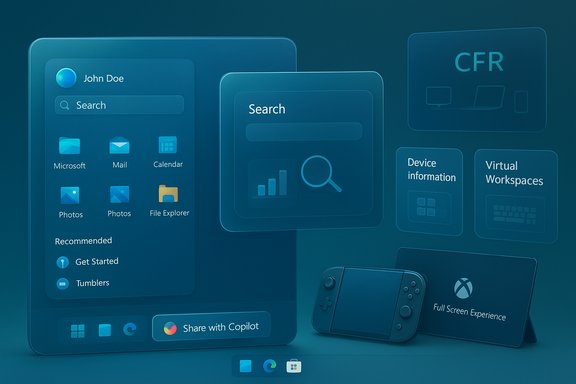
Microsoft packaged this collection of changes in the December cumulative (the preview iterations of which shipped in early December), and many of the headline items are being surfaced via a staged Controlled Feature Rollout (CFR). That means the code may be present on devices after the update, but visibility and functionality will often depend on server-side flags, device hardware (especially Copilot+ NPUs), OEM drivers and account entitlements. For administrators and enthusiasts this rollout model reduces risk but increases unpredictability: some users will see everything immediately, others will see nothing until Microsoft enables the features for their machine. The update’s documented feature set totals 16 items commonly highlighted in press and preview notes. These fall into a few clear categories:- Visual and UX polish across Start, Search, File Explorer and Widgets.
- Deeper integrations for Copilot and Copilot Vision (taskbar entry points, context menus).
- Settings consolidation and discoverability improvements (Device info card, Virtual Workspaces).
- Hardware-gated enhancements for Copilot+ devices (Windows Studio Effects, Click‑to‑execute).
- Gaming improvements for handhelds (Xbox Full Screen Experience) and small but practical input/accessibility upgrades.
What’s actually changing — feature by feature
1) Visual parity: Windows Search and the Start menu
Microsoft adjusted the visual height and alignment of the Windows Search panel so it visually matches the updated Start menu. This is a small but deliberate polish intended to reduce jarring transitions between Start and Search and improve perceived UI continuity. It’s cosmetic, broadly risk‑free, and will be visible to most users as the CFR rolls it out.2) “Share with Copilot” appears on the taskbar
A new Share with Copilot action appears on taskbar thumbnail previews. Hover an app icon, open the thumbnail and you may see a button that launches Copilot Vision scoped to that window — an immediate shortcut to multimodal analysis (summaries, translations, visual Q&A). Microsoft exposes settings to enable/disable the behavior in Copilot’s privacy controls. Note that richer local experiences are generally reserved for Copilot+ machines with on‑device acceleration.3) Desktop Spotlight gains right‑click actions
Spotlight on the desktop now supports quicker interactions: right‑click to Next background or Explore background (the latter surfaces information about the wallpaper). It’s a small discoverability win for users who enjoy dynamic Bing-sourced imagery.4) Official toggle to disable Drag Tray (Nearby sharing)
The often‑complained‑about Drag Tray (the UI that appears when you drag files to the top of the screen to share) gets an official disable toggle under Settings > System > Nearby sharing. This removes the need for hacks or registry edits for users who found the UX intrusive.5) Deeper File Explorer dark mode — and a regression to watch
File Explorer’s dark theme now covers more dialogs and progress surfaces (copy/move dialogs, confirmations). That brings visual consistency for dark‑theme users, but the preview experience surfaced a regression: a brief white flash when opening or switching Explorer views in Dark mode. Microsoft has acknowledged the issue and is investigating; community testing reproduced the symptom. Users sensitive to sudden brightness changes should be cautious before deploying widely.6) Device information card on Settings home
A new Device information card appears on the Settings home page, giving at‑a‑glance hardware details: CPU, memory, GPU and storage pointers. This reduces clicks for users who want a quick hardware snapshot and aids discoverability for Copilot eligibility checks.7) Mobile devices hub in Settings
Settings gains a dedicated Mobile devices area under Bluetooth & devices to add, manage and remove phones — simplifying Phone Link and pairing workflows without having to hunt through disparate menus.8) Redesigned About / Info page
The About (Info) page is reorganized, with a thumbnail snapshot of the desktop background and clearer rename options. Sections are relabeled for clarity; the net effect is reduced friction when users attempt to find device or OS details.9) Virtual Workspaces: virtualization controls moved into Settings
A new Virtual Workspaces page appears under Settings > System > Advanced to centralize virtualization features (Hyper‑V, Windows Sandbox, Virtual Machine Platform). This is primarily a discoverability and UX consolidation — the underlying management remains the same — but it makes enabling virtualization easier for developers, testers and power users.10) Keyboard and text cursor controls in Settings
Keyboard repetition rate, Copilot key reassignment, cursor blink rate and related text cursor accessibility options are now accessible under Settings > Bluetooth & devices > Keyboard. This moves controls previously split across Control Panel and Settings into a single, modernized place.11) Quick Machine Recovery default change
Quick Machine Recovery’s default behavior is changed to search for solutions once and then stop, preventing repeated, non‑actionable searches and the perception that the machine is “stuck” looking for fixes. This is a pragmatic, small change intended to improve the troubleshooting UX.12) Redesigned Widgets board
Widgets are visually separated from the Discover board and no longer use a page overlay. Notifications now show an icon indicating which widget board originated them, improving the clarity of widget alerts and the overall widgets experience.13) Haptic feedback for digital pens
On supported pen‑enabled hardware, subtle haptic feedback (vibrations) accompanies certain pen interactions — for example when closing windows or interacting with UI elements. This tactile refinement is hardware dependent and will only appear on devices with the appropriate haptic actuators and firmware.14) New “Click to execute” / Click to Do action menu (Copilot+ PCs)
Copilot+ PCs see a reworked context menu — often referred to as Click to execute — which arranges common actions (open, save, copy, share) and embeds a quick Copilot input field for faster queries. As with other advanced AI features, availability depends on hardware entitlement and regional/account gating.15) Xbox Full Screen Experience expands to more handhelds and PCs
The Xbox Full Screen Experience (FSE), a controller‑first, console‑style shell originally demonstrated on certain handhelds, is rolling out to a wider set of Windows 11 handhelds and is available in preview for other PC form factors. Microsoft and partners claim the mode can reduce background services and free memory — reviewers and Microsoft mention figures around up to roughly 1–2 GB on some handheld configurations, but the exact savings depend heavily on device configuration and running services, so treat single‑number claims as illustrative rather than guaranteed. You can enable FSE under Settings > Gaming > Full screen experience and apply after a restart.16) Windows Studio Effects on external/secondary cameras (Copilot+ PCs)
Windows Studio Effects — background blur, eye‑contact, voice focus and similar AI camera enhancements — can now be applied to external USB webcams and alternative integrated cameras on Copilot+ machines that meet the hardware/driver requirements. This closes a long‑standing gap for docked setups and multi‑camera workflows, but it’s gated to Copilot+ hardware and to devices with updated OEM driver support.What this means: practical benefits
- Polish that matters: Visual consistency changes (Search/Start parity, deeper File Explorer dark mode) reduce UI friction and make Windows feel more intentional for daily use. For users switching themes often, the consolidated dark surfaces are a tangible quality uplift.
- Reduced friction for common tasks: The Device info card, Mobile devices hub, Virtual Workspaces and keyboard consolidation cut clicks for frequent tasks — helpful for both power users and support desks.
- Faster AI access: Taskbar Share with Copilot and Click to execute put Copilot prompts closer to the user’s context, lowering the effort to ask a question about what’s on screen. On Copilot+ PCs, these shortcuts can speed workflows such as summarization, captioning and quick translations.
- Better gaming on handhelds: FSE can noticeably tidy the runtime environment on handheld hardware, improving controller navigation and potentially freeing memory for games. For handheld owners, that can translate to smoother performance and fewer desktop interruptions while playing.
Risks, regressions and the gating complexity
- File Explorer white‑flash regression — The dark mode coverage came with an unintended side effect: preview installs reported a bright white flash when opening or switching Explorer views in Dark mode. Microsoft has acknowledged the issue and is working on a fix, but the symptom is widely reproducible in early installs, so users sensitive to brightness changes should be cautious.
- Controlled Feature Rollout complexity — CFR reduces blast radius but complicates testing and deployment planning. Admins cannot assume a uniform experience across a fleet: a device might have the binaries installed yet show no new UI until Microsoft flips a server flag. This unpredictability raises testing and user‑education overhead.
- Privacy and compliance considerations — Features that hand on‑screen content to Copilot Vision (Share with Copilot) raise legitimate privacy questions for regulated environments. While Copilot Vision provides consent notices and on‑device processing for some workloads, organizations should review default settings and Entra/MDM policies before broad enablement.
- Hardware and driver gating — Many headline AI improvements are gated to Copilot+ devices (machines with an NPU and specific driver support). That means parity across the user base will be limited: some users will enjoy advanced local AI effects and performance boosts, while others will not — creating feature fragmentation.
- Single-number performance claims are illustrative — Statements like “FSE frees up roughly 2GB of memory” should be treated as estimates observed on specific devices rather than guaranteed outcomes on all hardware. Real-world gains vary widely with background services and device configuration.
Deployment guidance — how enthusiasts and IT teams should approach this update
- Validate in a controlled ring. Test the cumulative in a representative set of devices (including Copilot+ hardware if you rely on on‑device AI features). Pay special attention to File Explorer dark mode behavior and any Citrix/remote‑app interactions that can behave differently after UI changes.
- Review Copilot settings and privacy controls. For managed environments, identify whether Copilot Vision and “Share with Copilot” should be enabled by default and craft group policies or MDM profiles as required.
- Communicate to users. Because CFR means inconsistent visibility, prepare clear internal notes explaining which features are coming and how they will be enabled. Educate users on the new Nearby sharing Drag Tray toggle and where to find the Virtual Workspaces and Device info cards.
- Stagger broad deployment. If you manage many endpoints, stage the update and monitor for the File Explorer white‑flash regression or any driver incompatibilities reported by OEMs.
- Keep backups and rollback plans ready. While this isn’t a massive servicing stack rewrite, the best practice of having tested images and backups before monthly cumulative rollouts still applies.
Quick checklist: Where to look for the new settings
- Settings > System — Device information card and About / Info redesign.
- Settings > System > Advanced — Virtual Workspaces (Hyper‑V, Sandbox controls).
- Settings > Bluetooth & devices > Keyboard — keyboard repeat, Copilot key reassignment, text cursor controls.
- Settings > System > Nearby sharing — toggle to disable Drag Tray.
- Settings > Gaming > Full screen experience — enable Xbox Full Screen Experience (requires restart).
- Copilot app settings — control whether Start Vision from app in taskbar is allowed (for Share with Copilot).
Final assessment — balance of value versus risk
December’s cumulative is a pragmatic mix of polish and platform direction. The 16 items collectively move Windows 11 toward greater discoverability, tighter Copilot integration and improved handheld gaming ergonomics. For everyday users, many items are quality‑of‑life wins: the Device info card, Mobile devices hub, and the ability to turn off Drag Tray are straightforward improvements that reduce friction. Copilot shortcuts and context menus accelerate AI workflows, particularly for Copilot+ hardware where on‑device processing is available.However, the update also underscores ongoing tensions in Microsoft’s rollout strategy: aggressive CFR plus hardware gating delivers targeted innovation to high‑end, AI‑capable machines while leaving the broader base waiting. The File Explorer dark‑mode regression is a concrete reminder that polishing UI layers can introduce regressions; Microsoft has acknowledged it and is working on fixes, but the experience is an important caution for wide deployments in the near term. In short: Windows 11’s December package is useful and meaningful for both consumers and IT — but it’s not a frictionless upgrade. Test, tune and control the rollout, and manage expectations about who will see what and when.
The December update’s 16 changes are not revolutionary on their own, but collectively they show Microsoft continuing the 2025 push: leaner UI polish, deeper on‑device AI integration for qualifying hardware, and progressive consolidation of legacy settings into the modern Settings app. For users and admins who prioritize stability, a staged approach makes sense; for those chasing the latest Copilot and handheld gaming experiences, the update delivers welcome, if sometimes gated, improvements.
Source: PCWorld 16 genuinely useful changes in Windows 11's December update
