

Microsoft’s December Patch Tuesday for Windows 11 is a clear pivot from single‑big‑feature updates toward a dense, user‑facing bundle that mixes visual polish, usability fixes, and tightly gated AI features — a package that delivers roughly 16 practical changes while also introducing rollout complexity and a handful of known regressions.
Microsoft shipped preview cumulative bits for this wave in early December (preview builds appeared in Release Preview on December 1, 2025) and began the formal Patch Tuesday distribution in the first full week of December. The package is a hybrid release: many cosmetic and Settings improvements are broadly available, while the richer Copilot and on‑device AI features are being enabled via Microsoft’s Controlled Feature Rollout (CFR) and Copilot+ hardware gating. This means binaries may be present after an update but specific capabilities appear only once Microsoft flips entitlement flags or when a machine meets hardware and account requirements.
What to expect in practice: a tangible bump in day‑to‑day polish (Start/Search alignment, deeper File Explorer dark theme coverage, new Settings cards), convenience shortcuts to Copilot, and hardware‑dependent AI expansions (Windows Studio Effects on external cameras, Click‑to‑Execute menus). Availability will vary by device, OEM drivers, and region.
Important caveats and unverifiable claims to flag:
For individual users, the update brings welcome convenience and polish; for IT and enterprise teams, it’s an important reminder that modern Windows servicing mixes UX changes with AI entitlements — and that careful piloting, privacy auditing, and driver checks are now part of routine update planning.
Source: PCWorld 16 genuinely useful changes in Windows 11's big December update
 Background / Overview
Microsoft shipped preview cumulative bits for this wave in early December (preview builds appeared in Release Preview on December 1, 2025) and began the formal Patch Tuesday distribution in the first full week of December. The package is a hybrid release: many cosmetic and Settings improvements are broadly available, while the richer Copilot and on‑device AI features are being enabled via Microsoft’s Controlled Feature Rollout (CFR) and Copilot+ hardware gating. This means binaries may be present after an update but specific capabilities appear only once Microsoft flips entitlement flags or when a machine meets hardware and account requirements.What to expect in practice: a tangible bump in day‑to‑day polish (Start/Search alignment, deeper File Explorer dark theme coverage, new Settings cards), convenience shortcuts to Copilot, and hardware‑dependent AI expansions (Windows Studio Effects on external cameras, Click‑to‑Execute menus). Availability will vary by device, OEM drivers, and region.
What arrived — the 16 headline changes (at a glance)
Below is a concise inventory of the features most frequently reported across preview notes and hands‑on coverage. Each item is expanded in the sections that follow.- Visual parity: Windows Search field aligned to the updated Start menu height.
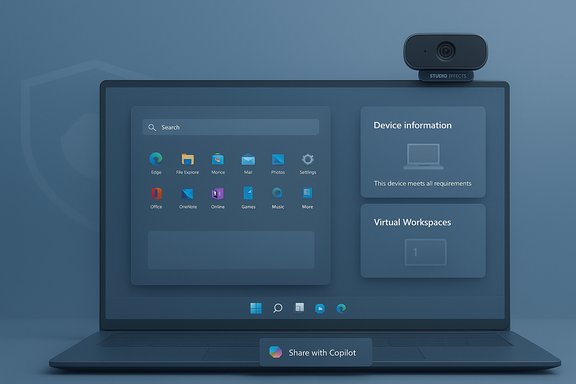
- Taskbar “Share with Copilot” thumbnail action (Copilot Vision integration).
- Desktop Spotlight right‑click actions: Next background and Explore background.
- Option to disable the Drag Tray (Nearby sharing drag‑to‑top).
- File Explorer dark mode improvements (dialogs, progress UI, confirmations).
- New Device information card on Settings home.
- A Settings page for managing Mobile devices.
- Redesigned About / Info page with background thumbnail and rename option.
- “Virtual Workspaces” page under Settings > System > Advanced to manage virtualization features.
- Keyboard and text cursor options moved under Settings > Bluetooth & devices > Keyboard.
- Quick Machine Recovery default behavior changed to avoid repeated solution searches.
- Redesigned Widgets board (separated from Discover, improved notification badges).
- Haptic feedback for digital pens on supported hardware.
- New “Click to execute” (Click to Do) action menu on Copilot+ PCs, including a fast Copilot input field.
- Xbox Full Screen Experience (FSE) extended to more handhelds and PCs.
- Windows Studio Effects for external / secondary cameras on Copilot+ PCs.
Deep dive — what each change means and how it behaves
1) Windows Search visual parity with Start
Microsoft resized the Search panel to match the height and visual rhythm of the updated Start menu. This is primarily a cosmetic polish designed to make UI transitions feel deliberate and consistent; it fixes a jarring mismatch many users saw when opening Search immediately after Start. This change is non‑functional but improves perceived quality.2) Taskbar “Share with Copilot”
A new Share with Copilot action can appear when you hover an open app thumbnail on the taskbar. That action snapshots or scopes the window and launches Copilot Vision to analyze visuals, summarize content, translate on‑screen text, or start a follow‑up chat. It’s a convenience shortcut that lowers the friction to ask Copilot about what’s on your screen. Expect explicit consent prompts and privacy controls; enterprise admins should evaluate policies because Copilot Vision touches on sensitive availability and telemetry decisions. Availability is gated (Copilot Vision and Copilot+ features are subject to entitlement).3) Desktop Spotlight context actions
When Desktop Spotlight is enabled, right‑clicking the desktop now offers Next background and Explore background. Explore background surfaces contextual information about the wallpaper (often via a Bing details page), reducing the need to visit Settings to learn about the image. Small but useful for users who enjoy dynamic wallpapers.4) Option to disable Drag Tray (Nearby sharing)
Microsoft added a proper Settings toggle to disable the Drag Tray — the flyout that opens when you drag a file to the top of the screen for quick sharing. You can turn it off at Settings > System > Nearby sharing. This solves a longstanding annoyance for users who accidentally trigger the tray.5) More consistent dark mode in File Explorer
Dark mode now extends into copy/move progress dialogs, confirmations, and other Explorer nested UI to reduce visual white flashes and theme mismatch. Note: early reports document a residual issue where File Explorer briefly flashes white on startup in some configurations; Microsoft has acknowledged this regression and is investigating. If you are sensitive to flashes (or rely on low‑light workflows), proceed cautiously and test before broad deployment.6) Device information card on Settings home
A new Device information card appears on the Settings home page and surfaces CPU, memory, RAM, and GPU at a glance. This reduces clicks to basic hardware details and helps users quickly verify machine specs, including checks for Copilot+ eligibility.7) Mobile devices hub in Settings
Windows 11 Settings now includes a Mobile devices section for pairing, accessing settings of connected phones, and removing devices from your account. It centralizes phone‑related actions previously spread across Phone Link and other locations.8) About / Info page redesign
The About page is streamlined: it now shows a thumbnail of the desktop background with a rename option, re‑labels sections, and offers concise links to device and Windows details. It’s a small UX reorganization that improves discoverability.9) Virtual Workspaces under Advanced Settings
A new Virtual Workspaces page under Settings > System > Advanced centralizes virtualization toggles for Hyper‑V, Windows Sandbox, Virtual Machine Platform, and related features. The underlying functionality remains the same, but discoverability and management are improved for developers and IT testers.10) Keyboard & text cursor settings centralized
Keyboard repeat rate, copilot key reassignment, cursor blink and text cursor accessibility options now live under Settings > Bluetooth & devices > Keyboard. This consolidates controls that were scattered between Control Panel and Settings.11) Quick Machine Recovery default behavior
Quick Machine Recovery’s default has been changed to perform a single search for solutions and then stop — preventing endless loops where a system appears to be stuck "searching for fixes." The change aims to make troubleshooting more deterministic.12) Redesigned Widgets board
Widgets are visually separated from the Discover feed, widgets no longer use a page overlay, and notifications include an icon pointing to the widget board that produced them. The redesign improves clarity and reduces feed confusion.13) Haptic feedback for digital pens
Supported pen‑enabled devices can now generate subtle haptic feedback (vibration) on certain interactions such as closing windows. This is hardware‑dependent: only devices with appropriate actuators and updated firmware will deliver the tactile effect.14) “Click to execute” / Click to Do menu (Copilot+ PCs)
On Copilot+ machines, context menus gain a “Click to execute” row that surfaces common actions (open, save, copy, share) and includes a small Copilot prompt for rapid queries. Availability is gated to Copilot+ hardware and account entitlements.15) Xbox Full Screen Experience (FSE) expands
The Xbox Full Screen Experience is now available on more handhelds and some standard PC form factors in preview. It offers a controller‑first, console‑style shell that reduces background services and, on some handhelds, has been claimed to free up roughly 1–2 GB of memory; treat such numbers as illustrative because actual savings vary by device and running services. Enable it at Settings > Gaming > Full screen experience and restart.16) Windows Studio Effects for external cameras (Copilot+ PCs)
Windows Studio Effects (background blur, eye contact, voice focus, etc. can now be applied to external USB webcams and alternate internal cameras on Copilot+ hardware — closing a workflow gap for docked laptops and multi‑camera setups. This capability remains gated by Copilot+ hardware entitlements and updated OEM drivers.Verification and cross‑checks
Multiple independent preview reports and community summaries converge on this feature list; preview cumulative notes and Release Preview testing show the same headline items. The preview build identifiers and rollout cadence were reported consistently: preview cumulative bits were visible in early December and the staged Patch Tuesday rollout began in the first week of December. The Copilot/Copilot+ gating model is repeatedly referenced across reporting, and Microsoft’s CFR approach explains the staggered visibility of advanced features.Important caveats and unverifiable claims to flag:
- Some reporting references an internal NPU performance threshold (for example, roughly ~40 TOPS) used by Microsoft to qualify Copilot+ hardware. That number appears in community testing and commentary but has not been universally published in a single Microsoft consumer‑facing spec; treat it as reportedly referenced but not formally documented for consumers.
- Memory‑saving figures for Xbox FSE (a claim of “up to 2 GB” on specific handhelds) are device‑dependent and illustrative; results vary by running services, background tasks and device configuration.
Notable strengths of the December package
- Everyday polish that improves perceived quality. Small visual fixes like Start/Search alignment and broader dark mode coverage materially improve the day‑to‑day experience for many users. These changes are low‑risk and high‑value for user satisfaction.
- Better discoverability in Settings. New cards (Device information), centralized virtualization controls (Virtual Workspaces), and consolidated keyboard controls reduce clicks and support helpdesk workflows. These are the sort of pragmatic UX changes that save time.
- Convenient Copilot entry points. Share with Copilot and Click‑to‑Execute reduce friction to multimodal AI assistance — useful for productivity, accessibility, and rapid troubleshooting on supported machines.
- Containerized rollout reduces systemic risk. Microsoft’s CFR ensures new, hardware‑sensitive features do not "blast" every device at once, which protects large fleets from widespread regressions while rolling out features more safely.
Potential risks, regressions and enterprise considerations
- Gated complexity and unpredictability. Binaries present but entitlements withheld mean administrators and power users may see inconsistent feature visibility across otherwise identical devices. This complicates support documentation and user training.
- Privacy and compliance concerns with Copilot Vision. Shortcuts that send window contents to an assistant — even when on‑device — require careful policy decisions in regulated environments. Administrators should evaluate telemetry, consent flows, and default opt‑in/opt‑out settings.
- Cosmetic regressions still possible. The File Explorer white‑flash symptom is an example: a dark‑mode improvement introduced a visual regression for some configurations. Organizations should validate dark‑mode workflows if those are critical.
- Driver and firmware dependencies. Windows Studio Effects for external cameras and haptic pen features rely on updated OEM drivers and firmware; expect partial availability until vendors ship compatible updates.
- Operational testing overhead. The breadth of small changes across Settings, taskbar, virtualization, and sharing means larger fleets need broader test matrices to prevent surprises during user support escalations.
Practical guidance: how to approach this update
- Pilot first. Deploy to a small group (consumer testers, IT lab machines, or a controlled business pilot) to verify the features you care about.
- Check hardware entitlements. If you plan to use Copilot+ features (Windows Studio Effects on external webcams, Click‑to‑Execute, Click‑to‑Do), validate that target devices meet OEM firmware/driver requirements and that Microsoft has enabled the entitlement for those machines.
- Verify dark mode flows. Test File Explorer startup and file operations on low‑light setups to detect the white‑flash regression and determine whether workarounds or wait cycles are necessary.
- Audit Copilot privacy settings. Confirm default Copilot Vision and window‑sharing settings align with corporate policy. If necessary, disable the taskbar shortcut or restrict Copilot Vision by policy for managed devices.
- Use Settings paths to guide users:
- Disable Drag Tray: Settings > System > Nearby sharing.
- Enable Xbox Full Screen Experience: Settings > Gaming > Full screen experience (restart required).
- Keyboard and cursor options: Settings > Bluetooth & devices > Keyboard.
What to watch for next
- Follow subsequent cumulative updates: Microsoft commonly ships follow‑up fixes to address regressions surfaced by a broad rollout (for example, the File Explorer white flash).
- Monitor OEM driver updates for expanded Windows Studio Effects and haptic pen support.
- Watch Microsoft’s Copilot documentation and entitlement announcements for clearer, consumer‑facing definitions of Copilot+ hardware thresholds. Current community references to thresholds (e.g., ~40 TOPS) should be treated as reported but not formally documented until Microsoft publishes an official spec.
Conclusion
December’s Windows 11 package is not a single headline feature but a deliberate set of pragmatic upgrades that, when taken together, improve usability, polish, and the proximity of AI to everyday workflows. The win for most users is incremental: fewer visual mismatches, clearer Settings surfaces, and faster access to Copilot where available. The tradeoffs are real: staged gating increases unpredictability across fleets, hardware and driver dependencies delay some experiences, and a few cosmetic regressions remain to be ironed out.For individual users, the update brings welcome convenience and polish; for IT and enterprise teams, it’s an important reminder that modern Windows servicing mixes UX changes with AI entitlements — and that careful piloting, privacy auditing, and driver checks are now part of routine update planning.
Source: PCWorld 16 genuinely useful changes in Windows 11's big December update
