

A large Windows update should not turn a fast broadband connection into a stuttering mess, yet that is exactly what can happen when Delivery Optimization is allowed to consume too much of the line. Windows 11’s update-sharing system is designed to make downloads faster and more resilient, especially across homes and organizations with multiple PCs, but its default behavior is not always aligned with a household that is gaming, streaming, video conferencing, uploading files, or simply trying to use the internet without interruption.
For many Windows users, the answer is not to disable Windows Update or resort to blunt workarounds that leave a PC unpatched. The more sensible fix is to understand Delivery Optimization, restrict where it can share update content, and apply a realistic bandwidth ceiling to its background and foreground activity. Those few settings can make Windows updates substantially less intrusive while preserving the security and reliability benefits of keeping the system current.
The important caveat is that Delivery Optimization is more nuanced than it first appears. It is not merely a hidden upload feature, nor is every Windows update download governed by exactly the same rules. Local-network transfers, peer-to-peer downloads, Microsoft-hosted content, metered connections, foreground downloads, background downloads, and administrator-managed policies can all affect the result.
Still, for a typical Windows 11 PC on a home network, Delivery Optimization bandwidth controls are among the most practical settings available for preventing update downloads from choking day-to-day connectivity.
Delivery Optimization is Microsoft’s content-distribution system for Windows updates, Microsoft Store apps, and certain other Microsoft-delivered content. Rather than relying exclusively on Microsoft’s servers, Windows can obtain portions of a download from other PCs that already have the same files.
The system works in pieces. A PC may retrieve some portions of an update directly from Microsoft, other portions from nearby devices, and potentially additional portions from internet peers if that sharing mode is enabled. Windows verifies downloaded content before installation, so peer delivery is not a mechanism for exchanging personal files or arbitrary data between computers.
That architecture has genuine advantages:
A household might have 500 Mbps downstream service but only 20 Mbps upstream. Saturating much of that upload capacity can cause more than slow file transfers. It can introduce latency, packet loss, unstable game sessions, robotic-sounding voice chat, buffering during live streams, and degraded quality during video meetings. In other words, a seemingly modest background upload can make the entire connection feel broken.
On current Windows configurations, Delivery Optimization commonly defaults to sharing among devices on the local network, rather than broadly with internet peers. That is still worth reviewing, because the exact configuration can vary by Windows version, device setup, organization policy, and user choice.
The key setting is found here:
Under Allow downloads from other devices, Windows presents options that determine the scope of peer sharing.
The practical choices are usually:
For homes with two or more Windows PCs, the local-network-only setting is often the sweet spot. It allows one machine to seed update files to another without allowing the household’s connection to serve unrelated internet peers.
A manually initiated update download is visible. A user may notice the Windows Update page, decide to wait, or temporarily avoid starting a bandwidth-heavy task. Background activity is different. Windows can begin downloading content while the PC is otherwise idle, or while the user is focused on a video call, a game download, cloud backup, remote desktop session, or work upload.
Delivery Optimization has built-in dynamic bandwidth management. By default, Windows attempts to adjust its use of available capacity rather than blindly using every available bit of throughput. However, dynamic does not always mean unnoticeable.
Microsoft’s documented default targets can allow Delivery Optimization to use a substantial portion of available capacity:
This is where manually configured limits matter. They replace a dynamic, system-determined target with a ceiling that better reflects the actual needs of a household or workstation.
Depending on the Windows 11 build, the screen may present bandwidth controls under headings such as Download settings, Background download settings, and Foreground download settings.
Windows generally offers two ways to configure download throttling:
This is generally the more practical choice for households that know their typical internet capacity and want reliable behavior. A fixed cap makes it easy to reserve bandwidth for everything else.
A connection with 100 Mbps download service might tolerate a background update cap of 10 Mbps without any noticeable impact on browsing, streaming, or multiplayer gaming. A slower 25 Mbps connection may need a more conservative ceiling, perhaps in the 2 Mbps to 5 Mbps range.
The advantage is consistency. A fixed 5 Mbps cap remains 5 Mbps regardless of how Windows estimates the current condition of the network.
Microsoft also recommends absolute-value limits for lower-bandwidth environments. That makes sense. When every megabit matters, a percentage-based formula can still produce a result that is too aggressive during periods when Windows detects more capacity than the connection can comfortably spare.
For example, setting a background update download limit to 10% means that Delivery Optimization should scale its use relative to its measured available bandwidth. On a high-speed fiber connection, that might allow updates to complete quickly without monopolizing the line. On a slower service tier, the same percentage remains restrained.
The drawback is that percentage settings depend on Windows’ bandwidth measurement and can be less intuitive. A user who wants to ensure that a background update never exceeds a particular rate will generally prefer an absolute limit.
A sensible home configuration often looks like this:
Windows does distinguish between foreground and background download activity, and user-initiated downloads can be classified as foreground. However, Microsoft provides separate foreground bandwidth controls specifically so administrators and users can manage the impact of those interactive downloads.
In practice, this means a manual update request may use the foreground configuration rather than the more conservative background configuration. If foreground settings are left unrestricted, a user-initiated update can still consume a large portion of the connection.
The practical lesson is straightforward:
When a household connection’s upload path is overloaded, latency-sensitive applications can deteriorate rapidly. Video calls struggle, cloud services pause, multiplayer games become erratic, and even ordinary web pages can feel sluggish because basic requests are delayed behind a full upstream queue.
Delivery Optimization’s upload behavior therefore deserves as much attention as download throttling.
The next-best option for homes with multiple PCs is Devices on my local network. This retains the benefit of sharing update content among systems inside the home while preventing broader internet peer sharing.
This setting is especially important on cable, DSL, fixed wireless, cellular, satellite, and other services where upstream bandwidth is limited or latency is already variable.
For a typical home user who chooses internet peer sharing, a low upload percentage and a modest monthly data cap are prudent safeguards. For users who do not need internet peer sharing at all, restricting Delivery Optimization to the local network is cleaner and easier to manage.
To configure it for a Wi-Fi network:
For Ethernet, the equivalent path is generally:
Marking a connection as metered tells Windows that data usage should be handled more conservatively. On a metered or capped connection, Delivery Optimization does not automatically download or upload parts of updates and apps to other PCs on the internet.
This is particularly useful for:
For a permanent home broadband connection with unlimited data, a tailored Delivery Optimization configuration is usually a more precise solution. For temporary or expensive connections, metered mode is an excellent defensive layer.
Active hours are useful, but they solve a different problem.
They tell Windows when the PC is normally in use so the system can avoid automatically restarting to complete an update during that time. This can prevent a disruptive reboot in the middle of a presentation, remote session, game, or work project.
What Active hours do not do is throttle downloads or uploads. They do not stop Delivery Optimization from using network bandwidth.
It is best to think of the settings this way:
This view can show useful information, including:
For users comfortable with PowerShell, the following command can provide more detailed Delivery Optimization status information:
The command can reveal active download information and provide visibility into Delivery Optimization behavior. More advanced variants, including peer-related options, can help diagnose whether a PC is finding or using peer sources.
The important point is not to obsess over every status field. It is to verify the practical outcome: the PC should remain usable during updates, and the Activity Monitor should reflect the desired sharing model.
The issue is that Windows cannot fully understand a user’s immediate priorities. It does not know that a ranked match is about to begin, a cloud backup must complete before a deadline, a family member is on a video call, or a connection’s limited upstream capacity is already under pressure.
That is why sensible Windows 11 tuning is less about disabling features and more about establishing boundaries.
Delivery Optimization should be allowed to keep Windows patched, download Store content, and help local devices stay current. But it should do so within limits that protect the activities users care about most.
A low background cap, a reasonable foreground cap, local-network-only sharing, and metered mode when appropriate create a far more predictable update experience. Windows remains secure and up to date, while the internet connection stays responsive enough for everything else that matters.
For many Windows users, the answer is not to disable Windows Update or resort to blunt workarounds that leave a PC unpatched. The more sensible fix is to understand Delivery Optimization, restrict where it can share update content, and apply a realistic bandwidth ceiling to its background and foreground activity. Those few settings can make Windows updates substantially less intrusive while preserving the security and reliability benefits of keeping the system current.
The important caveat is that Delivery Optimization is more nuanced than it first appears. It is not merely a hidden upload feature, nor is every Windows update download governed by exactly the same rules. Local-network transfers, peer-to-peer downloads, Microsoft-hosted content, metered connections, foreground downloads, background downloads, and administrator-managed policies can all affect the result.
Still, for a typical Windows 11 PC on a home network, Delivery Optimization bandwidth controls are among the most practical settings available for preventing update downloads from choking day-to-day connectivity.
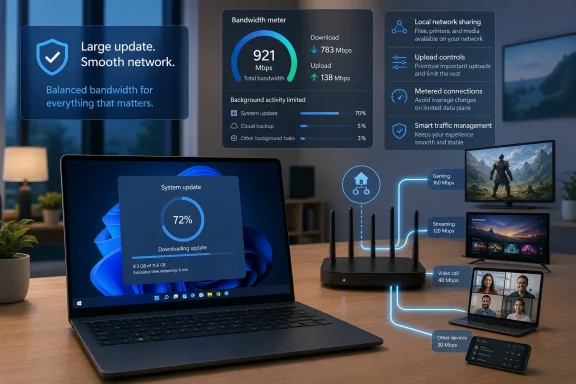 What Delivery Optimization Actually Does
Delivery Optimization is Microsoft’s content-distribution system for Windows updates, Microsoft Store apps, and certain other Microsoft-delivered content. Rather than relying exclusively on Microsoft’s servers, Windows can obtain portions of a download from other PCs that already have the same files.The system works in pieces. A PC may retrieve some portions of an update directly from Microsoft, other portions from nearby devices, and potentially additional portions from internet peers if that sharing mode is enabled. Windows verifies downloaded content before installation, so peer delivery is not a mechanism for exchanging personal files or arbitrary data between computers.
That architecture has genuine advantages:
- Multiple Windows PCs in one household can avoid repeatedly pulling the same multi-gigabyte update from the internet.
- Devices with inconsistent or congested internet service may benefit from alternative download sources.
- Businesses can reduce duplicated external bandwidth consumption across large fleets of PCs.
- Microsoft can distribute major updates without depending solely on its own download infrastructure.
A household might have 500 Mbps downstream service but only 20 Mbps upstream. Saturating much of that upload capacity can cause more than slow file transfers. It can introduce latency, packet loss, unstable game sessions, robotic-sounding voice chat, buffering during live streams, and degraded quality during video meetings. In other words, a seemingly modest background upload can make the entire connection feel broken.
The Default Is More Restrained Than Many Users Assume
Windows users often describe Delivery Optimization as if every PC is automatically sharing updates with the entire internet. That is an oversimplification.On current Windows configurations, Delivery Optimization commonly defaults to sharing among devices on the local network, rather than broadly with internet peers. That is still worth reviewing, because the exact configuration can vary by Windows version, device setup, organization policy, and user choice.
The key setting is found here:
Settings > Windows Update > Advanced options > Delivery OptimizationUnder Allow downloads from other devices, Windows presents options that determine the scope of peer sharing.
The practical choices are usually:
- Off
The PC receives update and app content directly through Microsoft’s delivery infrastructure. It does not download from or upload to other PCs through Delivery Optimization. - Devices on my local network
The PC can exchange update content with other compatible Windows devices on the same local network. This is often the best balance for homes with several Windows PCs. - Devices on the internet and my local network
The PC may participate more broadly with internet peers as well as local devices. This can potentially improve content availability, but it also creates a stronger case for limiting uploads.
For homes with two or more Windows PCs, the local-network-only setting is often the sweet spot. It allows one machine to seed update files to another without allowing the household’s connection to serve unrelated internet peers.
Why Background Update Traffic Can Feel So Aggressive
The frustrating part of automatic Windows updates is not simply that they consume bandwidth. It is that they arrive at times when users are not actively managing them.A manually initiated update download is visible. A user may notice the Windows Update page, decide to wait, or temporarily avoid starting a bandwidth-heavy task. Background activity is different. Windows can begin downloading content while the PC is otherwise idle, or while the user is focused on a video call, a game download, cloud backup, remote desktop session, or work upload.
Delivery Optimization has built-in dynamic bandwidth management. By default, Windows attempts to adjust its use of available capacity rather than blindly using every available bit of throughput. However, dynamic does not always mean unnoticeable.
Microsoft’s documented default targets can allow Delivery Optimization to use a substantial portion of available capacity:
- Background downloads can target up to roughly 45% of available bandwidth.
- Foreground, user-initiated downloads can target up to roughly 90% of available bandwidth.
This is where manually configured limits matter. They replace a dynamic, system-determined target with a ceiling that better reflects the actual needs of a household or workstation.
The Most Effective Change: Set a Download Bandwidth Limit
The primary controls are located under Delivery Optimization’s advanced settings:Settings > Windows Update > Advanced options > Delivery Optimization > Advanced optionsDepending on the Windows 11 build, the screen may present bandwidth controls under headings such as Download settings, Background download settings, and Foreground download settings.
Windows generally offers two ways to configure download throttling:
- Percentage of measured bandwidth
- Absolute bandwidth limit, expressed as Mbps or an equivalent fixed-rate value
Absolute bandwidth caps are easier to reason about
An absolute cap gives Delivery Optimization a fixed maximum rate. For example, a user could limit background update downloads to 5 Mbps or 10 Mbps.This is generally the more practical choice for households that know their typical internet capacity and want reliable behavior. A fixed cap makes it easy to reserve bandwidth for everything else.
A connection with 100 Mbps download service might tolerate a background update cap of 10 Mbps without any noticeable impact on browsing, streaming, or multiplayer gaming. A slower 25 Mbps connection may need a more conservative ceiling, perhaps in the 2 Mbps to 5 Mbps range.
The advantage is consistency. A fixed 5 Mbps cap remains 5 Mbps regardless of how Windows estimates the current condition of the network.
Microsoft also recommends absolute-value limits for lower-bandwidth environments. That makes sense. When every megabit matters, a percentage-based formula can still produce a result that is too aggressive during periods when Windows detects more capacity than the connection can comfortably spare.
Percentage limits adapt to faster connections
A percentage-based cap is useful for users whose bandwidth varies substantially or whose connection is very fast.For example, setting a background update download limit to 10% means that Delivery Optimization should scale its use relative to its measured available bandwidth. On a high-speed fiber connection, that might allow updates to complete quickly without monopolizing the line. On a slower service tier, the same percentage remains restrained.
The drawback is that percentage settings depend on Windows’ bandwidth measurement and can be less intuitive. A user who wants to ensure that a background update never exceeds a particular rate will generally prefer an absolute limit.
Foreground and background settings should not be treated the same
Windows distinguishes between background and foreground downloads:- Background downloads are automatic or otherwise non-interactive tasks that Windows handles without an explicit request at that moment.
- Foreground downloads are commonly associated with user-initiated activity, such as starting a download directly from Windows Update or initiating content acquisition through the Microsoft Store.
A sensible home configuration often looks like this:
- Keep background downloads at a low, conservative limit.
- Allow foreground downloads a moderately higher limit.
- Use a more restrictive profile during work hours, competitive gaming sessions, or on limited broadband plans.
- Raise the foreground cap temporarily when a major update needs to finish quickly and the connection is otherwise free.
A Crucial Correction: Manual Downloads Are Not Automatically Exempt
One common claim about Delivery Optimization settings is that manually pressing Download & install in Windows Update causes Windows to ignore bandwidth caps. That should be treated cautiously.Windows does distinguish between foreground and background download activity, and user-initiated downloads can be classified as foreground. However, Microsoft provides separate foreground bandwidth controls specifically so administrators and users can manage the impact of those interactive downloads.
In practice, this means a manual update request may use the foreground configuration rather than the more conservative background configuration. If foreground settings are left unrestricted, a user-initiated update can still consume a large portion of the connection.
The practical lesson is straightforward:
For complete control, configure both:Do not configure only the background limit and assume every update transfer is constrained.
- A lower cap for background downloads
- A higher but still reasonable cap for foreground downloads
Upload Traffic Is the Setting That Can Protect Latency
Download saturation is visible. Upload saturation is often more destructive.When a household connection’s upload path is overloaded, latency-sensitive applications can deteriorate rapidly. Video calls struggle, cloud services pause, multiplayer games become erratic, and even ordinary web pages can feel sluggish because basic requests are delayed behind a full upstream queue.
Delivery Optimization’s upload behavior therefore deserves as much attention as download throttling.
Disable internet peer sharing if it provides no value
The simplest solution is to set Allow downloads from other devices to Off. That prevents Delivery Optimization from exchanging update content with both local and internet peers.The next-best option for homes with multiple PCs is Devices on my local network. This retains the benefit of sharing update content among systems inside the home while preventing broader internet peer sharing.
This setting is especially important on cable, DSL, fixed wireless, cellular, satellite, and other services where upstream bandwidth is limited or latency is already variable.
Use Delivery Optimization upload limits
Delivery Optimization also includes controls for upload behavior. These can include:- A percentage limit for the amount of upload bandwidth Delivery Optimization can use.
- A monthly upload data limit, measured in gigabytes.
- Additional policy-based controls in managed environments.
For a typical home user who chooses internet peer sharing, a low upload percentage and a modest monthly data cap are prudent safeguards. For users who do not need internet peer sharing at all, restricting Delivery Optimization to the local network is cleaner and easier to manage.
Metered Connections Add a Useful Safety Net
Windows also includes a broader network setting that can reduce Delivery Optimization’s automatic peer-to-peer behavior: Metered connection.To configure it for a Wi-Fi network:
Settings > Network & internet > Wi-Fi > [Your connected network] > Metered connectionFor Ethernet, the equivalent path is generally:
Settings > Network & internet > Ethernet > [Your connected network] > Metered connectionMarking a connection as metered tells Windows that data usage should be handled more conservatively. On a metered or capped connection, Delivery Optimization does not automatically download or upload parts of updates and apps to other PCs on the internet.
This is particularly useful for:
- Laptop users connected through a phone hotspot
- Cellular broadband users
- Travelers using hotel Wi-Fi
- Satellite internet customers with strict usage limits
- Connections with expensive overage charges
- Backup links that should be preserved for essential traffic
For a permanent home broadband connection with unlimited data, a tailored Delivery Optimization configuration is usually a more precise solution. For temporary or expensive connections, metered mode is an excellent defensive layer.
Active Hours Prevent Restarts, Not Network Congestion
Another setting often grouped with update bandwidth management is Active hours:Settings > Windows Update > Advanced options > Active hoursActive hours are useful, but they solve a different problem.
They tell Windows when the PC is normally in use so the system can avoid automatically restarting to complete an update during that time. This can prevent a disruptive reboot in the middle of a presentation, remote session, game, or work project.
What Active hours do not do is throttle downloads or uploads. They do not stop Delivery Optimization from using network bandwidth.
It is best to think of the settings this way:
- Delivery Optimization bandwidth limits manage network impact.
- Delivery Optimization sharing mode manages peer-to-peer behavior.
- Metered connection manages data-sensitive network behavior.
- Active hours manage update restart timing.
How to Check Whether the Changes Are Working
Windows provides an Activity Monitor inside Delivery Optimization:Settings > Windows Update > Advanced options > Delivery Optimization > Activity monitorThis view can show useful information, including:
- The amount of update data received from Microsoft
- Data obtained from local-network peers
- Data obtained from internet peers
- Delivery Optimization upload activity
- Average download speed
- Monthly upload totals
For users comfortable with PowerShell, the following command can provide more detailed Delivery Optimization status information:
Get-DeliveryOptimizationStatusThe command can reveal active download information and provide visibility into Delivery Optimization behavior. More advanced variants, including peer-related options, can help diagnose whether a PC is finding or using peer sources.
The important point is not to obsess over every status field. It is to verify the practical outcome: the PC should remain usable during updates, and the Activity Monitor should reflect the desired sharing model.
Recommended Configurations for Common Windows 11 Setups
There is no single ideal Delivery Optimization profile. The right settings depend on how many devices share the network, how much upload capacity is available, and whether the internet connection has a data cap.One PC on a typical home connection
For a household with one Windows PC, the simplest configuration is:- Turn Allow downloads from other devices off.
- Set a moderate background download cap.
- Set a higher but finite foreground download cap.
- Leave the connection unmetered unless data usage is limited.
- Configure Active hours to avoid surprise restarts.
Several Windows PCs in one home
For homes with multiple Windows 11 PCs:- Choose Devices on my local network.
- Use an absolute background download cap.
- Keep foreground limits higher for planned update sessions.
- Avoid internet peer sharing unless there is a specific reason to use it.
- Review Activity Monitor after large updates to confirm local sharing is delivering a benefit.
Gaming, streaming, and video-call households
For latency-sensitive networks:- Set a low background download cap.
- Restrict sharing to the local network or disable it.
- Keep Delivery Optimization upload limits low if internet peer sharing remains enabled.
- Use Active hours for the times when uninterrupted availability matters.
- Pause Windows Update manually before an important competitive event, livestream, or presentation if a large update has already started.
Mobile broadband, hotspot, and capped-data users
For constrained connections:- Mark the active network as metered.
- Disable peer sharing or restrict it to the local network.
- Set tight download caps.
- Apply a strict monthly upload data limit if internet sharing is enabled.
- Review Windows Update settings before initiating a large feature update.
The Larger Lesson: Windows Background Services Need Boundaries
Delivery Optimization is not inherently a problem. It is a sensible distribution technology that can reduce redundant downloads and improve update reliability. In a well-managed office, school, or household with multiple PCs, local peer sharing can be genuinely useful.The issue is that Windows cannot fully understand a user’s immediate priorities. It does not know that a ranked match is about to begin, a cloud backup must complete before a deadline, a family member is on a video call, or a connection’s limited upstream capacity is already under pressure.
That is why sensible Windows 11 tuning is less about disabling features and more about establishing boundaries.
Delivery Optimization should be allowed to keep Windows patched, download Store content, and help local devices stay current. But it should do so within limits that protect the activities users care about most.
A low background cap, a reasonable foreground cap, local-network-only sharing, and metered mode when appropriate create a far more predictable update experience. Windows remains secure and up to date, while the internet connection stays responsive enough for everything else that matters.
References
- Primary source: TweakTown
Published: 2026-07-22T14:22:07+00:00
Loading…
www.tweaktown.com - Official source: learn.microsoft.com
Delivery Optimization reference | Microsoft Learn
This article provides a summary of references and descriptions for all of the Delivery Optimization settings.learn.microsoft.com - Official source: support.microsoft.com
Windows Update Delivery Optimization and privacy | Microsoft Support
Find answers to frequently asked questions about Windows Update Delivery Optimization.support.microsoft.com