

Microsoft’s Windows 11 desktop can now be streamed natively into Meta’s Quest 3 and Quest 3S headsets: Mixed Reality Link has moved out of preview into broad availability, shipping alongside Meta’s Horizon OS v81 rollout and an updated Windows client that together deliver a private, multi‑monitor virtual workspace for mainstream users.
Microsoft and Meta have spent the last year iterating on a joint concept: let Windows 11 act as a remote, cloud or local desktop that can be streamed into a mixed‑reality headset so users get the productivity benefits of large, multi‑monitor screens without additional physical displays. That effort, launched as a public preview in December 2024, now appears to be generally available for Quest 3 and Quest 3S owners through a combination of the Windows-side Mixed Reality Link app and a Quest-side Windows App delivered with Horizon OS updates (widely referenced around v81).
This is not a native port of Windows to Quest hardware. Instead, the headset becomes a spatial display and input controller while the Windows session (local PC, Windows 365 Cloud PC, Azure Virtual Desktop, or similar cloud endpoints) continues to run on the host machine or cloud VM. That architecture preserves full Windows compatibility, letting standard desktop apps — from Microsoft 365 to developer tools — run unchanged while the headset handles compositing and passthrough.
At the same time, this model puts the onus on connectivity, host compute, and device ergonomics. For organizations, the right move is an incremental, measured pilot: validate networking, test critical applications and peripherals, and confirm compliance and security postures before committing to broad deployment. For individual users, the experience is best enjoyed as a supplement to a traditional setup — a portable, flexible workspace for certain tasks, not yet a wholesale replacement for an all‑day desktop.
Mixed Reality Link is Microsoft’s practical answer to device‑first spatial computers: it harnesses Windows’ ubiquity and Meta’s headset reach to deliver spatial productivity to a far broader audience. The feature is ready for real‑world testing now, but the long‑term promise depends on steady improvements in display fidelity, network reliability, and enterprise validation — the exact areas where real adoption will be won or lost.
Conclusion: the streaming paradigm has arrived for Windows users on Quest 3 — compelling, pragmatic, and immediately useful for the right workflows — but adoption should be guided by pilots, suitable networking, and realistic expectations about comfort, clarity, and security.
Source: Dataconomy Windows 11 on Quest 3: Microsoft’s answer to Vision Pro
 Background / Overview
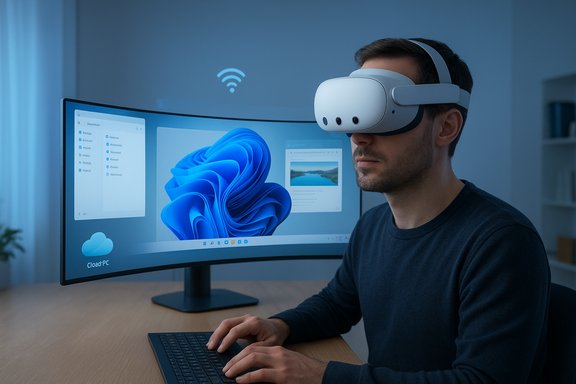
Microsoft and Meta have spent the last year iterating on a joint concept: let Windows 11 act as a remote, cloud or local desktop that can be streamed into a mixed‑reality headset so users get the productivity benefits of large, multi‑monitor screens without additional physical displays. That effort, launched as a public preview in December 2024, now appears to be generally available for Quest 3 and Quest 3S owners through a combination of the Windows-side Mixed Reality Link app and a Quest-side Windows App delivered with Horizon OS updates (widely referenced around v81).This is not a native port of Windows to Quest hardware. Instead, the headset becomes a spatial display and input controller while the Windows session (local PC, Windows 365 Cloud PC, Azure Virtual Desktop, or similar cloud endpoints) continues to run on the host machine or cloud VM. That architecture preserves full Windows compatibility, letting standard desktop apps — from Microsoft 365 to developer tools — run unchanged while the headset handles compositing and passthrough.
What the rollout delivers
Key features at launch
- Multi‑monitor virtual desktops: Users can spawn and place multiple high‑resolution virtual monitors around them — commonly three independent displays in mixed‑reality configurations — to reproduce familiar multi‑screen workflows.
- Ultrawide / curved mode: A new ultrawide, curved display mode wraps a single continuous desktop around the user’s field of view, creating a single, massive workspace similar in effect to the large spatial canvas Apple’s Vision Pro promotes. This mode was one of the more notable additions seen in later builds.
- Passthrough and Full Passthrough: Users can choose mixed presence (see their real keyboard and desk via passthrough) or go fully immersive. A quick “Full Passthrough” quick‑check gesture (double‑tap the side of the Quest or press the action button on Quest 3S) lets you peek at the real world without leaving the session.
- Resizing, rescaling and multitasking: Horizon OS updates accompanying this rollout expand multitasking capabilities (up to 12 concurrent apps in some builds) and give users finer control over display sizing and pixel scaling across apps.
- Windows 365 and cloud PC support: The Windows App and Mixed Reality Link support streaming from a Windows 365 Cloud PC or similar Azure-hosted endpoints, allowing the compute to live in the cloud while the headset renders frames.
How pairing and setup work (practical steps)
- Install the Mixed Reality Link app on a Windows 11 PC (Windows 11 version 22H2 or later is the baseline requirement).
- Update the Quest 3 / Quest 3S to the latest Horizon OS build (the broader GA rollout references v81).
- On the headset, enable the experimental/Pair to PC option if it still appears, then look at your keyboard or PC; a floating “Pair” or “Connect” affordance should appear.
- Confirm pairing (flows vary slightly by build — some earlier previews used a Windows+Y flow and QR code; later builds emphasize glance-and-tap pairing). Expect minor differences in the UX depending on your local Horizon OS version and Windows client.
Technical requirements and best‑practice recommendations
Minimum and recommended hardware / network
- PC OS: Windows 11 (22H2 or later) is required to run the Mixed Reality Link client.
- Supported headsets: Officially supported devices are Meta Quest 3 and Meta Quest 3S; older Quest models and Quest Pro are not supported for this Microsoft experience.
- Network: The headset and PC should be on the same local network. Wi‑Fi 5 (802.11ac) is the practical minimum; Wi‑Fi 6 / 6E is recommended for best latency and throughput. Enterprise deployments should target high signal strength and segregated SSIDs for predictable performance.
- Compute: For local streaming, the PC does the rendering; for cloud sessions, Windows 365 or Azure VMs do. High CPU/GPU capability on the host will reduce compression and encoding artifacts and lower latency.
- Use a wired Ethernet connection for the Windows PC when possible to remove wireless instability from the equation.
- Ensure headset and router are on the same 5GHz/6GHz band and placed for optimal signal strength; interference and distance materially affect clarity and lag.
- Be prepared to lower virtual display resolution or frame rate if you encounter text clarity issues or perceptible input lag.
Why this matters: strengths and productivity upside
- Immediate Windows compatibility: Because the session is streamed from a standard Windows 11 environment, existing applications, workflows, and enterprise management tools remain usable without re‑engineering or repackaging. This gives organizations and power users an easier, lower‑risk path to try mixed reality productivity.
- Huge virtual real estate without hardware clutter: The ultrawide / curved mode and multi‑monitor floating windows let users assemble giant, ergonomically flexible workspaces that would otherwise require multiple large monitors and a lot of desk space. For roles that benefit from many simultaneous windows (developer dashboards, trading, monitoring, creative suites), that’s a clear advantage.
- Portability with cloud continuity: When combined with Windows 365 Cloud PCs, the headset + cloud arrangement gives road warriors access to their full Windows environment from anywhere with sufficient network connectivity — no need to carry multiple laptops or external screens.
- Affordability vs. device‑first spatial computers: Compared with premium spatial devices that ship as purpose‑built spatial computers, pairing a $299–$399 Quest headset with an existing Windows PC or Windows 365 cloud VM is a lower‑cost way to explore spatial productivity. That price delta is why many pundits frame this as a pragmatic alternative to more expensive mixed‑reality hardware.
Risks, limitations and unanswered questions
Latency and text legibility
Remote streaming inherently introduces compression and encoding trade‑offs. For text‑heavy workflows (code, spreadsheets, legal documents), legibility depends on network quality, the PC’s encoder, and headset display scaling. Users with poor Wi‑Fi will see artifacting, blurriness or increased input lag — a real productivity drag. This is an area where the experience can degrade quickly without careful network tuning.Not a native OS — implications for access and control
Because Windows runs remotely, peripheral compatibility (specialized USB dongles, hardware tokens, bespoke input devices) depends on host-side passthrough and driver support. Some enterprise peripherals may not behave identically when driven through a streamed session. Administrators should thoroughly test mission‑critical peripherals before large rollouts.Privacy, security, and compliance concerns
Streaming a full Windows desktop into a headset raises several security considerations for IT:- Encrypted network paths and validated certificates are essential if sessions cross enterprise boundaries.
- Conditional Access, MFA and endpoint management must be applied to cloud PCs; local PC sessions require the same policies as any remote desktop access.
- The passthrough cameras raise privacy questions in shared or regulated spaces — where are frames processed, and how long are they stored? Administrators should confirm telemetry and camera data handling with vendor documentation where compliance is required.
Physical ergonomics and human factors
Headset comfort, weight distribution, and prolonged wear concerns remain. Extended work sessions in headsets can cause neck strain, eye fatigue, or motion sickness for sensitive users. Companies should not assume VR replaces ergonomic desks and chairs; mixed‑reality workstations will likely be used intermittently or for specific tasks rather than as 8‑hour continuous replacements for traditional setups.Enterprise deployment and certification gaps
While consumer adoption can be quick, enterprise adoption lags when validations are needed. Questions remain about:- Windows on Arm support and specific device certification for business laptops (community tests show growing Arm support but enterprise validation is advised).
- Per‑monitor pixel density documentation and precise supported resolutions for regulated workflows (e.g., medical imaging, CAD) — Microsoft and Meta are still clarifying these technical specifications. Enterprises should pilot before broad deployment.
How WindowsForum readers should approach Mixed Reality Link
Who should test this now
- Power users who already rely on multiple monitors and want a portable alternative for travel, hotel rooms, or small workspaces.
- Developers and designers who value a large, reconfigurable visual canvas and can tolerate occasional network noise.
- IT teams piloting Windows 365 cloud PC strategies and looking for compelling end‑user scenarios to justify cloud investments.
Who should wait
- Users with weak or congested Wi‑Fi, or those with stringent latency and pixel‑perfect display needs (e.g., professional video graders, medical imaging).
- Organizations that require audited, certified peripheral compatibility out of the box — until vendors publish explicit enterprise guidance.
- Anyone with known motion sensitivity who has not previously adapted to headset usage.
Recommended pilot checklist
- Confirm the Windows 11 baseline (22H2+) on test PCs and install the Mixed Reality Link client.
- Update a Quest 3 / Quest 3S to the latest Horizon OS build (look for v81+ availability) and ensure the Windows App is present.
- Test local streaming over a wired PC+Wi‑Fi6 router first, then introduce representative wireless conditions your staff will encounter.
- Validate key business applications and any specialized peripherals with the streamed session.
- Document security controls for cloud PC sessions (Conditional Access, MFA, DLP) and assess passthrough camera policies for privacy compliance.
Comparative context: Vision Pro vs. Quest + Windows 11 approach
Apple’s Vision Pro promotes a device‑first spatial computing model with deep visionOS integration to macOS. Microsoft and Meta’s approach is different: streaming first, leveraging Windows 11 and cloud PCs to maximize compatibility and to lower device cost. Each model has trade‑offs:- Vision Pro: tighter OS integration, higher per‑device hardware capabilities and sensor fusion, but a much higher price point and a more controlled app ecosystem.
- Quest 3 + Mixed Reality Link: lower entry cost, immediate access to the enormous Windows app ecosystem via streaming, but more reliance on network quality and the host PC/cloud instance for performance.
What still needs verification and what to watch next
- Exact per‑monitor pixel density and official supported resolutions in GA documentation remain somewhat opaque and should be confirmed for workflows that need precise visual fidelity. Treat current published numbers as provisional until Microsoft or Meta publishes detailed technical specs.
- Pairing UX differences (QR code vs. glance‑and‑tap) vary across builds; installation and onboarding flows may change in incremental updates, so expect the vendor UX to evolve.
- Broad enterprise certification, formal Windows on Arm statements, and detailed guidance for peripheral redirection (especially USB dongles and hardware keys) are areas where formal vendor guidance should be consulted before large scale rollouts.
Final analysis and practical verdict
Mixed Reality Link’s general availability on Meta Quest 3 and Quest 3S is a pivotal moment: it moves mixed‑reality productivity from demos and enthusiast experiments into a supported product scenario that enterprises and consumers can adopt pragmatically. The combination of streamed Windows 11 sessions, Windows 365 cloud PC support, and a newly introduced ultrawide curved workspace gives users a compelling alternative to physical monitor arrays — especially when mobility and cost are major considerations.At the same time, this model puts the onus on connectivity, host compute, and device ergonomics. For organizations, the right move is an incremental, measured pilot: validate networking, test critical applications and peripherals, and confirm compliance and security postures before committing to broad deployment. For individual users, the experience is best enjoyed as a supplement to a traditional setup — a portable, flexible workspace for certain tasks, not yet a wholesale replacement for an all‑day desktop.
Mixed Reality Link is Microsoft’s practical answer to device‑first spatial computers: it harnesses Windows’ ubiquity and Meta’s headset reach to deliver spatial productivity to a far broader audience. The feature is ready for real‑world testing now, but the long‑term promise depends on steady improvements in display fidelity, network reliability, and enterprise validation — the exact areas where real adoption will be won or lost.
Conclusion: the streaming paradigm has arrived for Windows users on Quest 3 — compelling, pragmatic, and immediately useful for the right workflows — but adoption should be guided by pilots, suitable networking, and realistic expectations about comfort, clarity, and security.
Source: Dataconomy Windows 11 on Quest 3: Microsoft’s answer to Vision Pro
