

Microsoft’s latest Windows 11 Dev Channel flight is less about flashy consumer features and more about quietly tightening the bolts that keep modern PCs trustworthy. Build 26300.8170, released on April 10, 2026, brings a clearer Secure Boot status experience, trims unnecessary UAC prompts in Storage, and fixes a misleading network data counter that had been confusing testers. Taken together, the build shows Microsoft leaning hard into a familiar 2026 theme: make security more visible, make risky decisions less casual, and remove friction where it no longer serves a purpose.
Secure Boot is one of those technologies that most users never think about until something goes wrong. It sits low in the boot chain and helps ensure a device starts only with trusted code, which makes it an important defense against bootkits, firmware tampering, and persistence techniques that can survive reinstallations. Microsoft’s own guidance says Secure Boot certificates issued in 2011 are approaching expiration in 2026, and that updated 2023 certificates are being delivered through Windows Update.
That certificate transition matters because trust infrastructure is easy to ignore when it is working and hard to manage when it is not. When a platform-level trust anchor ages out, the consequence is not always an immediate outage. More often, the system drifts into a degraded security posture where newer protections, boot components, or future update paths may become unreliable. Microsoft’s April guidance is explicitly trying to get ahead of that problem before it turns into a support crisis.
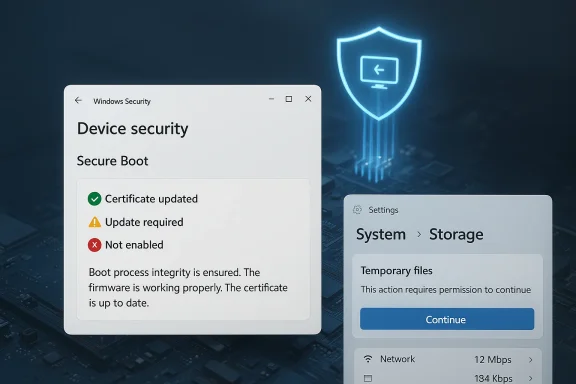
The new Windows Security experience is meant to translate a deeply technical state into something ordinary users can actually understand. Rather than forcing people into firmware menus, script-based diagnostics, or vendor-specific tools, Microsoft now uses familiar green, yellow, and red badge states inside Device security > Secure Boot. That is an important usability shift because security only helps if people can tell, at a glance, whether action is needed.
This build also lands in a broader Insider pattern that has been visible throughout 2026: Microsoft is using the Dev Channel to preview structural changes that are not necessarily headline-grabbing, but are designed to alter how Windows behaves under the hood. The current 26300-series builds are based on Windows 11 version 25H2, and Microsoft says many features are delivered through Controlled Feature Rollout so only a subset of Insiders receives them at first. That staged approach is not just product caution; it is a practical way to test security and UX changes before they hit the wider fleet.
The design choice also reflects a broader truth about endpoint security: visibility is part of enforcement. If users cannot tell that a security control is aging out or misconfigured, they are less likely to fix it, and support teams are more likely to discover the issue after a failure. Microsoft is trying to move the discovery point earlier in the lifecycle.
That matters because certificate expiration is not just theoretical housekeeping. Microsoft warns that outdated Secure Boot certificates can eventually interfere with future security updates or compatibility with newer operating systems, firmware, and Secure Boot-dependent software. In plain terms, ignoring the warning may not break the PC tomorrow, but it increases the odds of future friction that is harder to unwind later.
The timing is also notable. Microsoft says these Secure Boot enhancements started rolling out in April 2026, and additional notifications outside the app are expected in May 2026. That suggests the company is intentionally phasing the user education model, beginning with in-app clarity and then expanding to broader alerts once the ecosystem has had time to absorb the change.
IT teams can still enable the experience if they want the visibility, but the default respects the reality of managed fleets. In practice, many organizations already have monitoring, remediation, and configuration-management tools in place, so a consumer-style warning in every Windows Security app would be more distracting than useful. Microsoft is essentially acknowledging that one size does not fit all.
That said, the feature could still be valuable in mixed environments or smaller organizations that do not have a dense endpoint management stack. A yellow or red badge may surface problems earlier than a routine audit cycle, especially where local administrators are expected to act quickly. The trade-off is between centralized control and human-friendly signaling, and Microsoft is trying to support both without forcing the same workflow on everyone.
That is a classic usability-security compromise, and it is usually worth making only when the original warning is no longer helping. If a prompt appears too early in a workflow, it may not be protecting anything meaningful; it may simply be training users to ignore it. Less friction can actually produce better security outcomes when the friction was arbitrary to begin with.
The timing of the prompt also matters from a design standpoint. Asking for elevation right when users open Storage is broader than necessary if the privileged operation only begins when they inspect temporary files. By moving the prompt later, Microsoft aligns the privilege request more closely with the action that actually needs it.
For IT teams, the change is also interesting because it nudges Windows closer to a principle of least astonishment. Users in a support environment often navigate Settings while trying to diagnose a problem, and a prompt thrown up too early can create confusion that is mistaken for a permissions issue. This update should make the path through Storage more predictable.
There is, however, a subtle risk in every prompt-reduction initiative: if Microsoft suppresses too many warnings, users may lose awareness of when privilege boundaries are actually crossed. The challenge is not removing prompts wholesale, but preserving the ones that still carry useful security meaning. That balance is harder than it looks.
This is one of those changes that enterprise readers should not dismiss as consumer convenience. If Windows becomes less noisy in benign scenarios, organizations may see a better signal-to-noise ratio in the very moments where user judgment is required. That can be a meaningful security improvement even when the underlying mechanism has not changed.
This does not mean Microsoft is encouraging FAT32 for every large disk. The file system still has well-known limits and inefficiencies, especially for large files and modern storage use cases. But for certain removable devices, embedded scenarios, or interoperability workflows, the expanded ceiling removes an annoying artificial barrier.
It is also worth noting that Microsoft specifically says the change applies via command line. That suggests the company wants to empower advanced scenarios without necessarily reshaping the consumer-facing formatting UI around a file system that is, frankly, dated by modern standards. This is a controlled loosening, not a broad repositioning of FAT32 as the default choice.
The rendering optimization for storage data is similarly practical. When Settings struggles to display capacity, partitions, or usage information in a responsive way, users lose confidence that the numbers are current. Even small latency improvements can make the interface feel more trustworthy, and trust is the real currency in system-management tools.
These changes also complement the FAT32 update. If Microsoft is making the storage stack more capable at the low level, it makes sense to ensure the Settings front end remains usable when browsing large or unusual configurations. A useful storage tool is one that can keep pace with the complexity of the disks it is describing.
The broader strategic point is that Microsoft is making Windows feel less brittle around edge cases. In a world where external storage, recovery media, and cross-platform workflows still matter, compatibility updates can be just as valuable as brand-new features. The best systems are the ones that remain practical when users step outside the happy path.
The fix also reinforces a larger principle: telemetry-adjacent interfaces are only valuable when the math is consistent. If Windows is going to surface usage data prominently inside Settings, it needs to be accurate enough to support user action. Otherwise it becomes decorative rather than functional.
This issue is a good reminder that Insider testing is not just about new features. It also exposes how quickly a seemingly simple UI change can distort trust if the underlying values are wrong. Microsoft’s willingness to fix the display is as important as the original bug was embarrassing.
The fix does not sound dramatic, but it helps restore the credibility of the Settings app as a monitoring surface. That is important because Microsoft is clearly pushing more administrative visibility into Windows Security and Settings rather than keeping all meaningful diagnostics buried in legacy tools. If those surfaces are going to matter, they have to be right.
That may not sound like product innovation, but it is operationally valuable. Insider programs depend on frictionless reporting, and the best reporting systems are the ones users barely think about while using them. Tiny usability wins often produce the highest-quality telemetry.
The changes also suggest Microsoft is paying attention to the quality of its own test ecosystem. If it wants people to validate Secure Boot transitions, storage changes, and notification behavior, then the reporting channel itself has to be dependable. That is a sensible bit of dogfooding.
The mouse navigation fix is also a subtle accessibility improvement. Small input refinements can make the difference between a tool that is tolerated and a tool that is actually used. Microsoft rarely gets credit for these details, but they influence the quality of the data the company receives.
The toggle to receive the latest updates in Settings > Windows Update also gives testers more control over how quickly they get new features. That matters because some Insiders want the earliest possible access, while others want fewer surprises. Microsoft is clearly trying to satisfy both camps.
It also acknowledges a basic reality of pre-release software: features may be changed, removed, or never ship at all. That caveat is not boilerplate. In builds like this, the line between previewing a concept and shipping a policy change can be surprisingly thin.
The split highlights how Windows has become two products layered on top of each other: a consumer operating system with visible UX changes and an enterprise platform with policy, telemetry, and compliance implications. Build 26300.8170 touches both worlds, but it is careful not to force the same behavior onto each one. That restraint is a strength.
More broadly, build 26300.8170 feels like part of a longer campaign to make Windows better at surfacing risk without overwhelming the user. That is an ambitious goal, because every piece of system transparency risks becoming clutter if it is not scoped carefully. But if Microsoft gets the balance right, the payoff could be a more legible, more resilient Windows platform as the 2026 Secure Boot transition unfolds.
Source: cyberpress.org New Windows 11 Dev Build Improves Secure Boot Monitoring and Storage Controls
 Background
Secure Boot is one of those technologies that most users never think about until something goes wrong. It sits low in the boot chain and helps ensure a device starts only with trusted code, which makes it an important defense against bootkits, firmware tampering, and persistence techniques that can survive reinstallations. Microsoft’s own guidance says Secure Boot certificates issued in 2011 are approaching expiration in 2026, and that updated 2023 certificates are being delivered through Windows Update.That certificate transition matters because trust infrastructure is easy to ignore when it is working and hard to manage when it is not. When a platform-level trust anchor ages out, the consequence is not always an immediate outage. More often, the system drifts into a degraded security posture where newer protections, boot components, or future update paths may become unreliable. Microsoft’s April guidance is explicitly trying to get ahead of that problem before it turns into a support crisis.
The new Windows Security experience is meant to translate a deeply technical state into something ordinary users can actually understand. Rather than forcing people into firmware menus, script-based diagnostics, or vendor-specific tools, Microsoft now uses familiar green, yellow, and red badge states inside Device security > Secure Boot. That is an important usability shift because security only helps if people can tell, at a glance, whether action is needed.
This build also lands in a broader Insider pattern that has been visible throughout 2026: Microsoft is using the Dev Channel to preview structural changes that are not necessarily headline-grabbing, but are designed to alter how Windows behaves under the hood. The current 26300-series builds are based on Windows 11 version 25H2, and Microsoft says many features are delivered through Controlled Feature Rollout so only a subset of Insiders receives them at first. That staged approach is not just product caution; it is a practical way to test security and UX changes before they hit the wider fleet.
Secure Boot Becomes Easier to Read
The most consequential part of Build 26300.8170 is the new Secure Boot monitoring flow in the Windows Security app. Instead of treating Secure Boot as a binary on/off flag, Microsoft now exposes certificate state, update status, and action guidance in a single place. That is a smarter model because the real-world problem is no longer just whether Secure Boot is enabled, but whether the device is prepared for the certificate transition happening during 2026.Why the badge model matters
The color-coded badge system is effective because it compresses complexity without hiding it. Green means the device is sufficiently protected and no action is recommended, yellow means there is a cautionary state or some limitation to address, and red means immediate attention is needed. Microsoft also notes that a green check alone does not automatically mean every certificate detail is perfect, which is a subtle but important caveat for anyone reading the UI too casually.The design choice also reflects a broader truth about endpoint security: visibility is part of enforcement. If users cannot tell that a security control is aging out or misconfigured, they are less likely to fix it, and support teams are more likely to discover the issue after a failure. Microsoft is trying to move the discovery point earlier in the lifecycle.
- Green indicates the device is in a healthy state.
- Yellow flags a recommendation or limitation.
- Red signals a problem that needs immediate attention.
- The text guidance is as important as the icon itself.
- Enterprise and server devices do not see the same default behavior.
What this changes for home users
For consumer PCs, the practical win is simpler troubleshooting. Many users would never inspect Secure Boot status on their own, and even fewer would know how to interpret firmware state, certificate age, or boot-trust updates. By moving the information into the Windows Security app, Microsoft lowers the barrier between “something is wrong” and “I know what to do next.”That matters because certificate expiration is not just theoretical housekeeping. Microsoft warns that outdated Secure Boot certificates can eventually interfere with future security updates or compatibility with newer operating systems, firmware, and Secure Boot-dependent software. In plain terms, ignoring the warning may not break the PC tomorrow, but it increases the odds of future friction that is harder to unwind later.
The timing is also notable. Microsoft says these Secure Boot enhancements started rolling out in April 2026, and additional notifications outside the app are expected in May 2026. That suggests the company is intentionally phasing the user education model, beginning with in-app clarity and then expanding to broader alerts once the ecosystem has had time to absorb the change.
What enterprise admins should note
Enterprise environments are treated differently, and that distinction is critical. Microsoft says the Secure Boot badge changes and app notifications are disabled by default on managed and enterprise devices, as well as Windows Server. That is not a minor implementation detail; it is a deliberate decision to reduce noise in environments where centralized policy, not end-user prompting, should drive compliance.IT teams can still enable the experience if they want the visibility, but the default respects the reality of managed fleets. In practice, many organizations already have monitoring, remediation, and configuration-management tools in place, so a consumer-style warning in every Windows Security app would be more distracting than useful. Microsoft is essentially acknowledging that one size does not fit all.
That said, the feature could still be valuable in mixed environments or smaller organizations that do not have a dense endpoint management stack. A yellow or red badge may surface problems earlier than a routine audit cycle, especially where local administrators are expected to act quickly. The trade-off is between centralized control and human-friendly signaling, and Microsoft is trying to support both without forcing the same workflow on everyone.
UAC Gets a Little Less Noisy
The Storage changes in this build are less dramatic than Secure Boot, but they address a real and well-known security problem: prompt fatigue. Microsoft has altered the Settings > System > Storage page so users no longer get a UAC prompt immediately when opening the page; the elevation request only appears when they go into temporary files. On paper, that sounds like a convenience tweak, but in practice it is an attempt to preserve the meaning of privileged prompts.Why prompt fatigue matters
Security warnings lose power when they become habitual background noise. If users see elevation prompts too often, they start clicking through them reflexively, which makes malicious or unexpected prompts easier to approve. Microsoft’s change is trying to reduce unnecessary interruptions so that the prompts people do see feel more consequential.That is a classic usability-security compromise, and it is usually worth making only when the original warning is no longer helping. If a prompt appears too early in a workflow, it may not be protecting anything meaningful; it may simply be training users to ignore it. Less friction can actually produce better security outcomes when the friction was arbitrary to begin with.
The timing of the prompt also matters from a design standpoint. Asking for elevation right when users open Storage is broader than necessary if the privileged operation only begins when they inspect temporary files. By moving the prompt later, Microsoft aligns the privilege request more closely with the action that actually needs it.
Enterprise and consumer implications
For consumers, this will likely feel like a smoother Settings experience with fewer interruptions. It should also reduce the sense that Windows is overreacting every time someone explores disk usage. That is good for trust, because users are less likely to view legitimate security prompts as nuisances.For IT teams, the change is also interesting because it nudges Windows closer to a principle of least astonishment. Users in a support environment often navigate Settings while trying to diagnose a problem, and a prompt thrown up too early can create confusion that is mistaken for a permissions issue. This update should make the path through Storage more predictable.
There is, however, a subtle risk in every prompt-reduction initiative: if Microsoft suppresses too many warnings, users may lose awareness of when privilege boundaries are actually crossed. The challenge is not removing prompts wholesale, but preserving the ones that still carry useful security meaning. That balance is harder than it looks.
Why this is a security story, not just UX polish
The connection between UI prompts and attack resistance is easy to underestimate. Many successful social-engineering attacks depend on users being conditioned to accept elevated access requests without thinking. By making the system calmer and more selective, Microsoft is trying to keep users attentive when the prompt really matters.This is one of those changes that enterprise readers should not dismiss as consumer convenience. If Windows becomes less noisy in benign scenarios, organizations may see a better signal-to-noise ratio in the very moments where user judgment is required. That can be a meaningful security improvement even when the underlying mechanism has not changed.
- Fewer unnecessary prompts can reduce auto-approval behavior.
- Prompts are more meaningful when they appear closer to the real privileged action.
- Smoother workflows may improve support diagnostics.
- Over-suppressing warnings would be counterproductive.
- This is a usability change with direct security consequences.
Storage Management Gets More Practical
Build 26300.8170 also improves storage handling in ways that matter to anyone working with large volumes or legacy-compatible media. The headline change is the increase in the FAT32 formatting limit from 32GB to 2TB when using the command line. That is a significant expansion, especially for admins or power users who still need FAT32 compatibility for specific hardware, firmware, or boot scenarios.The FAT32 limit shift
For years, FAT32 has been constrained by a combination of history and platform tooling, not just technical possibility. Microsoft’s decision to raise the formatting ceiling in the command line suggests it sees continuing value in keeping the file system available for larger devices, even if modern workloads usually prefer NTFS or exFAT. In other words, legacy compatibility still matters in 2026.This does not mean Microsoft is encouraging FAT32 for every large disk. The file system still has well-known limits and inefficiencies, especially for large files and modern storage use cases. But for certain removable devices, embedded scenarios, or interoperability workflows, the expanded ceiling removes an annoying artificial barrier.
It is also worth noting that Microsoft specifically says the change applies via command line. That suggests the company wants to empower advanced scenarios without necessarily reshaping the consumer-facing formatting UI around a file system that is, frankly, dated by modern standards. This is a controlled loosening, not a broad repositioning of FAT32 as the default choice.
Performance improvements in Settings
Microsoft also says navigation performance has improved when viewing storage on large volumes under Settings > System > Storage > Advanced Storage Settings > Disks & Volumes. This kind of optimization may not sound glamorous, but anyone who has used Windows on systems with many partitions, external drives, or huge disks knows how quickly storage pages can become sluggish.The rendering optimization for storage data is similarly practical. When Settings struggles to display capacity, partitions, or usage information in a responsive way, users lose confidence that the numbers are current. Even small latency improvements can make the interface feel more trustworthy, and trust is the real currency in system-management tools.
These changes also complement the FAT32 update. If Microsoft is making the storage stack more capable at the low level, it makes sense to ensure the Settings front end remains usable when browsing large or unusual configurations. A useful storage tool is one that can keep pace with the complexity of the disks it is describing.
Who benefits most
Advanced users, IT departments, and repair technicians are the obvious winners here. They are the ones most likely to encounter quirky formatting needs, large removable media, or storage topologies that stress the Settings app. For mainstream users, the improvements may be less visible, but they still reduce friction in common troubleshooting paths.The broader strategic point is that Microsoft is making Windows feel less brittle around edge cases. In a world where external storage, recovery media, and cross-platform workflows still matter, compatibility updates can be just as valuable as brand-new features. The best systems are the ones that remain practical when users step outside the happy path.
Network Data Accuracy Finally Catches Up
The build also fixes an issue in Settings > Network & Internet > Data Usage that had been showing unrealistically large values in recent Insider builds. That bug may have been harmless in the sense that it did not break networking itself, but it undermined confidence in a feature designed to help people understand consumption.Why bogus data matters
Network usage data is only helpful if users believe it. If the counter is inflated or plainly absurd, people stop using it for diagnostics, metering, or capacity planning. That is especially annoying on metered connections, remote work setups, or environments where tethering and mobile broadband are still in play.The fix also reinforces a larger principle: telemetry-adjacent interfaces are only valuable when the math is consistent. If Windows is going to surface usage data prominently inside Settings, it needs to be accurate enough to support user action. Otherwise it becomes decorative rather than functional.
This issue is a good reminder that Insider testing is not just about new features. It also exposes how quickly a seemingly simple UI change can distort trust if the underlying values are wrong. Microsoft’s willingness to fix the display is as important as the original bug was embarrassing.
Impact on admins and testers
For administrators, accurate data usage information can support policy review, troubleshooting, and user education. For Insiders, it is also a sanity check that the build is behaving predictably enough to trust. When a bug affects a basic indicator like this, it can distort how testers interpret the rest of the system.The fix does not sound dramatic, but it helps restore the credibility of the Settings app as a monitoring surface. That is important because Microsoft is clearly pushing more administrative visibility into Windows Security and Settings rather than keeping all meaningful diagnostics buried in legacy tools. If those surfaces are going to matter, they have to be right.
Feedback Hub Gets Less Frustrating
Microsoft also included a small but thoughtful set of Feedback Hub improvements. The app now remembers its window size across sessions, mouse back-button navigation works more naturally, and feedback visibility issues should be reduced. These are not headline features, but they matter because Feedback Hub is the channel through which Insiders report many of the very issues that preview builds are supposed to surface.Why these tweaks matter
A feedback tool that feels clumsy discourages use. If the window resets every time, navigation feels awkward, or community feedback appears inconsistent, people are less likely to file high-quality reports. Microsoft is smoothing the path between “I noticed a bug” and “I submitted something useful.”That may not sound like product innovation, but it is operationally valuable. Insider programs depend on frictionless reporting, and the best reporting systems are the ones users barely think about while using them. Tiny usability wins often produce the highest-quality telemetry.
The changes also suggest Microsoft is paying attention to the quality of its own test ecosystem. If it wants people to validate Secure Boot transitions, storage changes, and notification behavior, then the reporting channel itself has to be dependable. That is a sensible bit of dogfooding.
Practical effect on the Insider loop
For Windows Insiders, a better Feedback Hub can improve the cadence of feature refinement. More complete reports mean fewer back-and-forth questions and a higher chance that Microsoft can reproduce issues quickly. That creates a cleaner loop between build delivery and build correction.The mouse navigation fix is also a subtle accessibility improvement. Small input refinements can make the difference between a tool that is tolerated and a tool that is actually used. Microsoft rarely gets credit for these details, but they influence the quality of the data the company receives.
- Window size persistence makes repeated use easier.
- Mouse back-button support improves navigation flow.
- Better feedback visibility may increase report quality.
- Small UI fixes can improve the quality of Insider telemetry.
- An easier reporting loop helps Microsoft refine riskier features faster.
Controlled Rollout Remains the Operating Model
One of the most important parts of the announcement is not a feature at all, but the delivery model. Microsoft says many changes are being rolled out through Controlled Feature Rollout, starting with a subset of Insiders and expanding over time. That approach is essential when features touch security, device management, and user prompts, because these are areas where a bad first impression can quickly become a support headache.Why Microsoft is being cautious
Security-status UI changes can be easy to misunderstand, and prompt behavior can be controversial if it changes too abruptly. A staged rollout lets Microsoft see whether users interpret the new signals correctly, whether enterprise environments need additional guardrails, and whether any regressions emerge in real usage. That is especially important when the change involves boot trust and privilege elevation.The toggle to receive the latest updates in Settings > Windows Update also gives testers more control over how quickly they get new features. That matters because some Insiders want the earliest possible access, while others want fewer surprises. Microsoft is clearly trying to satisfy both camps.
It also acknowledges a basic reality of pre-release software: features may be changed, removed, or never ship at all. That caveat is not boilerplate. In builds like this, the line between previewing a concept and shipping a policy change can be surprisingly thin.
Consumer versus enterprise expectations
For consumers, controlled rollout usually means patience. You might read about a feature before it appears on your device, and that is normal. For enterprises, it means planning around uncertainty, which is another reason Microsoft disables some Secure Boot notifications by default in managed environments.The split highlights how Windows has become two products layered on top of each other: a consumer operating system with visible UX changes and an enterprise platform with policy, telemetry, and compliance implications. Build 26300.8170 touches both worlds, but it is careful not to force the same behavior onto each one. That restraint is a strength.
Strengths and Opportunities
Microsoft is doing several things right here, and the most encouraging part is that the changes reinforce one another rather than competing for attention. Secure Boot visibility, less noisy elevation prompts, and better storage handling all point toward a Windows experience that is easier to trust and easier to manage. The build also shows Microsoft is thinking about the coming Secure Boot certificate transition as a lifecycle event, not a one-off patch.- Clearer Secure Boot status should reduce user confusion during the 2026 certificate transition.
- Better badge signaling can surface problems before they become support incidents.
- Reduced UAC noise may improve real security by preserving user attention.
- FAT32 expansion keeps Windows useful in legacy and interoperability scenarios.
- Storage performance improvements help large-volume systems feel more responsive.
- More accurate network usage data restores trust in Settings diagnostics.
- Feedback Hub refinements can improve the quality of Insider reporting.
Risks and Concerns
The biggest risk is that Microsoft’s helpful simplification could be misunderstood by users who assume a green badge is the full story. Secure Boot status is now more nuanced, and if the messaging is not clear enough, users may stop at the icon and miss the explanatory text. There is also a chance that reducing prompts in Storage could unintentionally dull awareness of privilege boundaries if the balance is not maintained carefully.- Users may over-trust a green badge without reading the supporting text.
- Enterprise admins could ignore the feature if default-disabled controls are not well documented.
- Prompt reduction could be misread as a license to become less attentive.
- FAT32’s larger size limit may encourage poor storage choices in some scenarios.
- Staged rollout fragmentation can create inconsistent user experiences across devices.
- Certificate messaging complexity may still overwhelm less technical users.
- Insider-only validation means some edge cases may not appear until later flights.
Looking Ahead
The next few weeks should be revealing, because Microsoft says additional Secure Boot-related guidance and notifications will appear in May 2026. That will tell us whether the new Windows Security experience is merely informational or the first step in a broader compliance workflow for consumers and IT teams. It will also show how aggressively Microsoft intends to push certificate-awareness into everyday Windows maintenance.More broadly, build 26300.8170 feels like part of a longer campaign to make Windows better at surfacing risk without overwhelming the user. That is an ambitious goal, because every piece of system transparency risks becoming clutter if it is not scoped carefully. But if Microsoft gets the balance right, the payoff could be a more legible, more resilient Windows platform as the 2026 Secure Boot transition unfolds.
- Watch for broader Secure Boot notifications outside the Windows Security app.
- Look for enterprise policy guidance on when to enable the new status experience.
- Track whether the FAT32 command-line limit expands into more visible tooling.
- Monitor whether prompt-fatigue reductions continue in other parts of Settings.
- Pay attention to whether Insiders report fewer false alarms and clearer status messaging.
Source: cyberpress.org New Windows 11 Dev Build Improves Secure Boot Monitoring and Storage Controls
