

Microsoft has pushed a small-but-focused Dev Channel update — Windows 11 Insider Preview Build 26300.7877 (KB5077232) — that continues the 26300-series platform work while rolling out a handful of practical user-facing refinements, most notably a tweak to the context menu for executable files, further Settings refinements (the Device info card and a reorganized About page), taskbar and system tray polish, fixes for File Explorer and Nearby Sharing, and a Paint update that introduces freeform rotation for selections. / Overview
Windows Insiders in the Dev Channel are continuing to receive builds from the 26300 series — a branch Microsoft has described as a place for behind‑the‑scenes platform changes and early experimentation. Those builds in this series are delivered as enablement packages layered on top of Windows 11, version 25H2, and many features are being distributed incrementally using Microsoft’s Controlled Feature Rollout (CFR) system. That means what you see on your PC depends both on your channel and whether you’ve enabled the “get the latest updates as they are available” toggle inside Settings > Windows Update.
This particular update is small in scope — it’s not a large UI overhaul — but it’s illustrative of Microsoft’s current approach: stage platform-level plumbing and deliver incremental user-facing improvements and app updates while monitoring telemetry and Feedback Hub signals before widening the rollout. Insiders should expect more targeted, incremental changes rather than headline new features in these builds.
Source: Microsoft - Windows Insiders Blog Announcing Windows 11 Insider Preview Build 26300.7877 (Dev Channel)
Windows Insiders in the Dev Channel are continuing to receive builds from the 26300 series — a branch Microsoft has described as a place for behind‑the‑scenes platform changes and early experimentation. Those builds in this series are delivered as enablement packages layered on top of Windows 11, version 25H2, and many features are being distributed incrementally using Microsoft’s Controlled Feature Rollout (CFR) system. That means what you see on your PC depends both on your channel and whether you’ve enabled the “get the latest updates as they are available” toggle inside Settings > Windows Update.
This particular update is small in scope — it’s not a large UI overhaul — but it’s illustrative of Microsoft’s current approach: stage platform-level plumbing and deliver incremental user-facing improvements and app updates while monitoring telemetry and Feedback Hub signals before widening the rollout. Insiders should expect more targeted, incremental changes rather than headline new features in these builds.
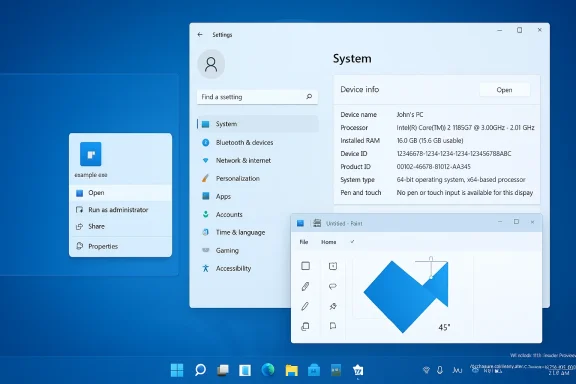 What’s included in Build 26300.7877 — Quick summary
- Context menu behaviour: the “Open” command icon now matches the default app’s icon for .exe, .bat, and .cmd files.
- Settings refinements: a refined Device info card on Settings Home, and a reorganized Settings > System > About page that surfaces key hardware details and makes copying device details easier.
- Taskbar and System Tray: improved hover animations for app groups and better reliability for icons when the taskbar is in auto‑hide.
- File Explorer: fix for an issue that could make open File Explorer windows and tabs unexpectedly jump to Desktop or Home.
oved reliability when sending larger files. - Paint app: Paint version 11.2601.391.0 is called out as receiving freeform rotate for shapes, text, and selections (rotate by dragging a handle or entering a precise angle).
- Reminders: desktop watermark remains for Insider builds; build is based on Windows 11, version 25H2 via an enablement package; features are gate‑rolled to Insiders by CFR.
Deep dive: Settings, Device info card, and About
What changed
Microsoft has refined the Device info card that appears on the Settings Home page and adjusted the About (System > About) view so key hardware details are more prominent. The Settings Home card simplifies thee CPU, RAM, storage, and graphics easier to scan, and the About page now consolidates additional system details (graphics, storage) in one place with an explicit copy/paste affordance for sharing system details when troubleshooting. The consumer variant is being rolled out to Insiders in the United States first; enterprise‑targeted variants for managed devices remain separate.Why it matters
- Fewer clicks to essential info: tech‑savvy users, support staff, and helpdesk scenarios benefit from an at‑a‑glance hardware summary without navigating multiple pages or running system utilities.
- Better support workflows: the explicit copy/paste support reduces friction when filing bug reports, opening support tickets, or sharing system manifests.
- CFR gating: Microsoft’s phased rollout means not every Insider will see the same card at once — the experience may differ by geography and device management state.
My read
This is a small but high‑leverage UX improvement. It addresses a common pain point—finding system specs quickly—and is low‑risk from an engineering perspective. Enterprise admins should note the segregation between consumer and managed-device experiences and validate that the enterprise card presents the right fields for their management scenarios. Independent reporting eaf the Device info card shows Microsoft iterating on discoverability and layout, which is consistent with this refinement.Taskbar and System Tray polish
What changed
- Hover animations for mousing over app groups on the taskbar were improved, aiming for smoother visual feedback.
- Reliability improvements for system tray icons when the taskbar was set to auto‑hide, reducing cases where icons don’t reappear reliably after un-hiding.
Why it matters
The taskbar and system tray are sensitive surfaces where small visual regressions produce outsized frustration. Fixes here deliver immediate day‑to‑day polish and fewer UI anomalies during common tasks like switching apps,s, or interacting with background utilities.My read
These are quality‑of‑life fixes rather than feature changes. Given past Dev builds produced taskbar flicker and layout regressions, this iteration is an incremental stabilization step. Insiders who rely on a stable taskbar (presentation mode, remote desktop, or kiosk deployments) should validate this fix in their workflows.File Explorer: stability fix
What changed
Build 26300.7877 addresses a bug where all open File Explorer windows and tabs could jump unexpectedly to Desktop or Home. That could be disorienting for users with many windows and pinned tabs.Why it matters
File Explorer remains the primary file management surface for most Windows users; regressior navigation state affect productivity directly. This fix reduces the risk of lost context or accidentally taking destructive actions when window focus changes unexpectedly.My read
A practical, necessary fix. Insiders who test complex Explorer workflows (tabs, many windows, Quick Access, network shares) should verify the behaviour, particularly across multi‑monitor setups.Nearby Sharing improvements
What changed
The build claims improved reliability when sending larger files through Nearby Sharing. The goal is to reduce failures and timeouts when sharing big items across nearby devices.Why it matters
Nearby Sharing can be a reliable alternative to email, cloud uploads, or removable media for quick, local transfers. Improving large‑file stability extends the feature’s usefulness for high‑resolution photos, video clips, or archives.My read (and caveat)
The claim is straightforward, but "improved reletric until validated with reproducible tests (different radios, Bluetooth vs. Wi‑Fi Direct, and mixed vendor hardware). If you rely on Nearby Sharing for large transfers, test across your device fleet — especially older phones and non‑Microsoft PCs — and file targeted Feedback Hub reports if you hit regressions.Context menu tweak for executables
What changed
Right‑clicking a .exe, .bat, or .cmd file will now show the context menu’s “Open” verb with the icon that matches the file’s default app. It’s a subtle visual alignment of the verb with the app icon.Why it matters
This is subtle cosmetic polish, but consistent visuals help reduce cognitive friction — particularly for users who manage scripts or double‑click different execution artifacts. It also signals Microsoft’s attention to small UX refinements that collectively improve perceived quality.My read
A low‑rior consistency. Expect it to be one of those quality touches that most users won’t call out explicitly, but that contributes to a more coherent UI ecosystem.Paint (version 11.2601.391.0): freeform rotate
What changed
Paint is listed as updating to version 11.2601.391.0, introducing freeform rotate: a rotate handle for arbitrary rotation of shapes, text, and selections, plus a Custom rotate input for exact angles. Microsoft highlights this as a frequently requested feature and asks Insiders to file feedback under Apps > Paint in Feedback Hub.Why it matters
- Creative flexibility: freeform rotate turns Paint into a more usable lightweight editor for layout and composition tasks.
- Precision control: custom-angle entry makes Paint more credible for quick editorial tasks that previously required heavier tools.
Verification and caveats
I could not find a separate standalone Microsoft documentation page listing the exact Paint version number and release notes at the time of writing; independent outlets have reported Paint AI and Copilot features during the last year, but the specific freeform rotate claim in this build is currently tied to the Insider blog notes. Until the Microsoft Store release notes (or the app package metadata) show the version and changelog, treat the version number as coming from the Insider release announcement and validate on your device or by checking the Paint app details after updating.What this means for Insiders and IT admins
Controlled Feature Rollout and the toggle
Microsoft’s CFR approach means the exact feature set you see depends on:- The Insider channel you’re in (Dev channel for thisu turned ON the toggle in Settings > Windows Update to get the latest rollouts as they become available.
Enterprise testing considerations
- Builds in the Dev Channel are early-stage and sometimes unstable; they are not matched to a specific release and may include breaking changes. Expect and plan for potential regressions in managed environments.
- Because 26300-series builds are delivered atop Windows 11, versionckages, IT pros should test compatibility across imaging, driver stacks, and update pipelines (WSUS, SCCM/ConfigMgr, and MDM policies). Early reporting suggests Microsoft continues to refine enablement/package models and enterprise media for imaging.
Stability, known issues, and risk areas
Known‑class problems around Dev flights
Previous Dev Channel flights have produced issues with update failures and odd taskbar or Explorer behaviour; these remain a possibility in the 26300 family. Community and Insider blog posts previously called out installation failures (error codes like 0x80070002 and 0xc1900101), taskbar flicker, and other edge cases that can block workflows. Insiders should consult the build notes, Flight Hub, and Feedback Hub for current known issues before installing.Validation guidance
- Check peripheral vendor drivers and firmware before installing early Dev builds, especially for networking and storage components.
- For production or imaging systems, delay adoption until builds are promoted to Beta or Release Preview (or the public release) unless you’re explicitly testing.
- If you manage fleets, use test rings and automation to validate key line-of-business apps, drivers, and security tooling against the new build.
How to test this build and file useful feedback
- Ensure your PC is registered in the Windows Insider Program and in the Dev Channel.
- Open Settings > Windows Update and, if you want the earliest rollouts, turn ON the toggle that lets Microsoft deliver the latest feature rollouts as they become available.
- Update to Build 26300.7877 (KB5077232) and reboot; confirm the desktop watermark indicates a pre‑release build.
- Verify targeted scenarios:
- Right‑click a .exe/.bat/.cmd to see the context menu icon align with the default app.
- Open Settings Home and check for the Device info card; then open Settings > System > About to confirm the reorganized hardware details and copy/paste flow.
- Test taskbar interactions (hover over app groups; toggle auto‑hide and unhide the tray).
- Reproduce File Explorer scenarios with multiple windows/tabs open to confirm the jump-to-Desktop/Home bug is resolved.
- Share a large file using Nearby Sharing to validate reliability across devices and radios.
- Launch Paint and exercise freeform rotate on shapes and selections; if you rely on the Paint change, verify the app’s version number in the app’s About dialog.
- File targeted Feedback Hub entries (WIN + F) following the categories Microsoft requested (e.g., File Folders and Online Storage > File Explorer for Explorer issues, and Apps > Paint for Paint feedback). Provide repro steps, driver and OS version, and attach traces or a short screen recording where possible.
Critical analysis — strengths and remaining risks
Notable strengths
- Practical polish over flash: Microsoft continues to prioritize stability and UX polish for core surfaces (Settings, Taskbar, File Explorer), which benefits everyday productivity.
- Incremental enablement model: The enablement package approach keeps installs lightweight and reduces disruption for pilot groups — a pragmatic approach for enterprise deployment.
- **Faster iteration forut high‑utility changes (copy/paste in About, consistent context menu icons) show Microsoft listening to feedback and shipping adjustments quickly to Insiders.
Potential risks and shortcomings
- Fragmentation under CFR: Because features are gate‑rolled, Insiders may see inconsistent experiences across devices and geographies. That makes it harder to say definitively whether a build “fixed” or “broke” something without broader testing.
- Dev Channel instability: The Dev Channel’s role as an early testbed means these builds can introduce regressions that affect daily workflows; they are not suitable for dependent production systems. Historical Dev build problems (update errors, taskbar/Explorer regressions) remain a caveat.
- Limited external validation for app updates: App-level claims — such as Paint’s version number and the exact shipping mechanics for freeform rotate — sometimes only appear in a build note before the Microsoft Store changelog and package metadata are published. Until those authoritative app artifacts are available, treat the versioning detail as an Insider announcement rather than a fully validated app‑store release.
Recommendations
- If you are an avid Insider who enjoys early access and can tolerate occasional regressions, enable the toggle in Settings > Windows Update and test the new behaviours — pay attention to the Feedback Hub categories the Windows Insider team specified.
- If you are an IT pro or manage a mixed fleet, treat Dev Channel builds as test only. Validate imaging, driver compatibility, and update pipelines in an isolated test ring before any broader pilot.
- For users who depend on Paint for creative work, confirm the app’s new rotate controls in the Paint UI and verify the exact app version via the Microsoft Store or the app’s About dialogue before relying on the functionality in production creative workflows.
- Always document repro steps and provide logs/screenshots when filing Feedback Hub reports — high‑quality reports accelerate triage.
Conclusion
Build 26300.7877 (KB5077232) is a tidy Dev Channel flight that doubles down on the incremental, quality‑first approach Microsoft has used across the 26300 family: small UX refinements, stability and reliability fixes, plus a targeted app update for Paint. Nothing here is revolutionary, but for Insiders it’s precisely the kind of iterative polish that makes daily Windows usage feel more reliable and consistent. As always with Dev Channel software, treat this build as a testing and feedback opportunity rather than a candidate for production machines; validate the changes you care about, file clear Feedback Hub reports, and keep an eye on Flight Hub and subsequent flights for roll‑forward fixes and wider rollouts.Source: Microsoft - Windows Insiders Blog Announcing Windows 11 Insider Preview Build 26300.7877 (Dev Channel)
