

For most Windows 11 PCs, first turn off Optional diagnostic data and Tailored experiences; disable DiagTrack only as a reversible test when you have a specific privacy or resource-use objective and can compare results before and after.
What changes: Optional diagnostic data is additive, Required diagnostic data remains,
Choose the least disruptive change that meets your objective:
WindowsForum’s telemetry-reduction report treats this switch as the simplest boundary for users who want to reduce behavioral and usage information while avoiding a service-level change.
Microsoft’s Windows diagnostics, feedback, and privacy guidance explains the diagnostic-data controls. Microsoft’s Required service data documentation separately explains that data necessary to provide connected experiences can still be sent. Diagnostic-data preferences therefore do not stop data required to operate connected experiences.
Settings > Privacy & security > Diagnostics & feedback > Tailored experiences
Turning it off prevents Microsoft from using your diagnostic data, excluding information about websites you browse, to provide personalized tips, ads, and recommendations. It does not turn off Required diagnostic data or disable DiagTrack.
If Windows explicitly says either setting is managed by an organization, do not try to bypass that restriction. Record what the page displays and ask the responsible administrator about the approved configuration.
This guide therefore does not prescribe a Local Group Policy path, registry key, or telemetry value. An unverified recipe can create a false impression that a particular data level has been enforced.
Administrators should instead:
Use a repeatable test:
A WindowsForum user report about disabling DiagTrack describes a perceived improvement after the change. Treat that experience as a prompt to measure your own PC, not as a guaranteed performance outcome. If the comparison shows no meaningful benefit, restore the original service configuration.
One scope limitation applies throughout this guide: disabling DiagTrack does not prove that all Windows communications have stopped, and it does not govern the separate communications or privacy controls of other Windows components, connected experiences, Microsoft applications, or third-party software.
It is not:
The durable approach is to use the supported Optional diagnostic data and Tailored experiences controls first, measure any suspected DiagTrack activity, and disable the service only as a documented, reversible test.
What changes: Optional diagnostic data is additive, Required diagnostic data remains,
DiagTrack is the internal name for Connected User Experiences and Telemetry, and disabling it can prevent services that explicitly depend on it from starting.
 Use this privacy decision tree
Choose the least disruptive change that meets your objective:- You want to reduce the detail sent to Microsoft: Turn off Send optional diagnostic data.
- You do not want diagnostic data used for personalized tips, ads, and recommendations: Turn off Tailored experiences.
- You are investigating CPU, disk, or network activity: Measure the relevant activity before changing a service.
- You still want Connected User Experiences and Telemetry stopped: Disable DiagTrack temporarily, repeat the same workload, and compare the results.
- Windows says a setting is controlled by an organization: Contact the responsible administrator before changing services or policies.
First turn off Optional diagnostic data
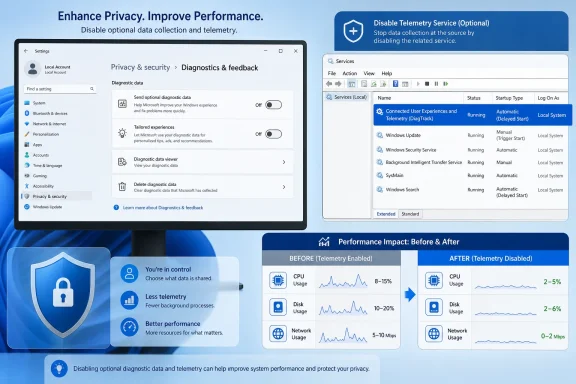
Use the supported Windows Settings control before changing a service:- Press Windows key + I to open Settings.
- Select Privacy & security.
- Open Diagnostics & feedback.
- Find Send optional diagnostic data.
- Turn it Off.
- Close and reopen the page to confirm that the setting remains off.
WindowsForum’s telemetry-reduction report treats this switch as the simplest boundary for users who want to reduce behavioral and usage information while avoiding a service-level change.
Microsoft’s Windows diagnostics, feedback, and privacy guidance explains the diagnostic-data controls. Microsoft’s Required service data documentation separately explains that data necessary to provide connected experiences can still be sent. Diagnostic-data preferences therefore do not stop data required to operate connected experiences.
Turn off Tailored experiences
The supported personalization control is on the same Settings page:- Open Settings.
- Select Privacy & security.
- Open Diagnostics & feedback.
- Expand or select Tailored experiences.
- Turn Let Microsoft use your diagnostic data, excluding info about websites you browse, to enhance your product experiences with personalized tips, ads, and recommendations to Off.
Settings > Privacy & security > Diagnostics & feedback > Tailored experiences
Turning it off prevents Microsoft from using your diagnostic data, excluding information about websites you browse, to provide personalized tips, ads, and recommendations. It does not turn off Required diagnostic data or disable DiagTrack.
If Windows explicitly says either setting is managed by an organization, do not try to bypass that restriction. Record what the page displays and ask the responsible administrator about the approved configuration.
Do not use an unverified Group Policy recipe
A registry-policy guide discussed by WindowsForum argues that policy controls can go beyond the normal Settings toggle. That may be relevant to administrators, but policy names, available values, and their effects must be verified against the documentation and administrative templates used in the environment.This guide therefore does not prescribe a Local Group Policy path, registry key, or telemetry value. An unverified recipe can create a false impression that a particular data level has been enforced.
Administrators should instead:
- Consult the documentation approved for the deployed Windows environment.
- Confirm that the applicable administrative templates are in use.
- Record the original policy state.
- Apply the organization’s approved diagnostic-data policy.
- Refresh policy or restart as required.
- Verify the effective state with the organization’s normal management tools.
Measure DiagTrack before disabling it
DiagTrack is the internal service name for Connected User Experiences and Telemetry. Disabling it changes the availability of a Windows service, so determine first whether it is relevant to the activity you are investigating.Use a repeatable test:
- Restart the PC.
- Let it remain idle for several minutes.
- Press Ctrl + Shift + Esc to open Task Manager.
- Record overall CPU, disk, and network activity.
- Press Windows key + R.
- Enter
resmonand select OK to open Resource Monitor. - Check the CPU, Disk, and Network tabs during the workload you want to test.
- Record the workload, test duration, and relevant measurements.
- Disable DiagTrack using the procedure below.
- Restart the PC.
- Repeat the same workload for approximately the same amount of time.
- Compare the before-and-after results.
A WindowsForum user report about disabling DiagTrack describes a perceived improvement after the change. Treat that experience as a prompt to measure your own PC, not as a guaranteed performance outcome. If the comparison shows no meaningful benefit, restore the original service configuration.
Disable DiagTrack for a controlled test
A disabled service cannot perform its normal functions, and services explicitly dependent on it may not start. Treat the change as a reversible troubleshooting experiment:- Press Windows key + R.
- Enter
services.mscand select OK. - Find Connected User Experiences and Telemetry.
- Double-click the service.
- Record its current Startup type exactly.
- Select Stop.
- Set Startup type to Disabled.
- Select Apply.
- Select OK.
- Restart Windows.
- Repeat the workload and measurements recorded earlier.
- Test the Windows features and applications you normally use.
- Keep the service disabled only if you can demonstrate a useful result and have not found an unacceptable dependency.
DiagTrack.One scope limitation applies throughout this guide: disabling DiagTrack does not prove that all Windows communications have stopped, and it does not govern the separate communications or privacy controls of other Windows components, connected experiences, Microsoft applications, or third-party software.
Re-enable DiagTrack
Restore the service if a needed feature fails or the comparison shows no worthwhile improvement:- Press Windows key + R.
- Enter
services.mscand select OK. - Double-click Connected User Experiences and Telemetry.
- Restore the Startup type you recorded before the test.
- Select Apply.
- Select Start if that option is available.
- Select OK.
- Restart Windows.
- Repeat the affected task and confirm that normal behavior has returned.
Troubleshoot the result
The optional-data or Tailored experiences control is unavailable
Read any message displayed on the Diagnostics & feedback page. If Windows says the control is managed by an organization, document the message and contact the administrator. Do not substitute an unverified registry edit or policy recipe.A setting does not remain off
Restart Windows, return to Settings > Privacy & security > Diagnostics & feedback, and check it again. If Windows displays an organization-management notice, provide that information to the administrator. Otherwise, document when the setting changed and any Windows changes made between checks.Disabling DiagTrack produced no measurable improvement
Restore the recorded startup type. Then investigate other active processes, startup applications, storage health, drivers, background synchronization, and thermal conditions instead of attributing the symptom to telemetry without evidence.A feature stopped working after DiagTrack was disabled
Restore DiagTrack, restart Windows, and test the feature again. If restoring the service resolves the problem, leave it enabled unless you have an approved alternative.The service cannot be stopped or changed
Confirm that you opened the Services console with an account permitted to manage services. If Windows reports that the configuration is controlled or access is denied on a managed PC, stop and contact the administrator.What disabling DiagTrack can and cannot accomplish
Disabling DiagTrack stops the Connected User Experiences and Telemetry service from running. That is a broader intervention than turning off Optional diagnostic data through Settings and can affect explicitly dependent services.It is not:
- A guaranteed CPU, disk, network, temperature, or responsiveness fix.
- A substitute for testing the same workload before and after the change.
- A replacement for an organization’s approved privacy and device-management policies.
Frequently Asked Questions
Is DiagTrack malware or spyware?
DiagTrack is the internal service name for Microsoft’s Windows Connected User Experiences and Telemetry service. The Services console displays that full name.Will disabling Optional diagnostic data stop all data collection?
No. Optional diagnostic data is additive, so turning it off does not eliminate Required diagnostic data. Data necessary to provide connected experiences can also remain necessary even when optional diagnostics are disabled.What exactly does turning off Tailored experiences change?
It prevents Microsoft from using your diagnostic data, excluding information about websites you browse, to provide personalized tips, ads, and recommendations. The exact path is Settings > Privacy & security > Diagnostics & feedback > Tailored experiences.Does turning off Tailored experiences disable telemetry?
No. It changes the specified use of diagnostic data for tailored product experiences. It does not turn off Required diagnostic data or stop the Connected User Experiences and Telemetry service.Will disabling DiagTrack improve performance?
It may change resource use on a particular PC, but there is no universal result. Measure the same workload before and after disabling the service. Restore its original startup type if the test shows no meaningful benefit.Can disabling DiagTrack break Windows features?
Services explicitly dependent on it may be unable to start. Test the features and applications you rely on, and re-enable DiagTrack if a needed function stops working.Should I edit Group Policy or the registry instead?
Only when you have verified documentation appropriate to the environment you administer. Do not copy an unverified policy path, registry value, or preset merely because it promises a lower telemetry level.The durable approach is to use the supported Optional diagnostic data and Tailored experiences controls first, measure any suspected DiagTrack activity, and disable the service only as a documented, reversible test.
References
- Primary source: learn.microsoft.com
Configure Windows diagnostic data in your organization - Windows Privacy | Microsoft Learn
Use this article to make informed decisions about how you can configure Windows diagnostic data in your organization.learn.microsoft.com - Independent coverage: support.microsoft.com
Diagnostics, feedback, and privacy in Windows | Microsoft Support
Learn how Microsoft collects and uses different kinds of diagnostic information to help fix problems quickly and improve your Windows experience, and how to control the data you share.support.microsoft.com - Primary source: WindowsForum
How to Disable Windows Telemetry for Enhanced Privacy in Windows 11 | Windows Forum
In an era where digital surveillance and data collection have become integral to the functioning of modern operating systems, concerns around personal...windowsforum.com
