

MakeUseOf writer Brandon Miniman made Windows 11 feel calmer on a Lenovo Yoga laptop by replacing Windows Spotlight and lock-screen status content, hiding the taskbar’s Widgets button, and using the DisableSearchBoxSuggestions registry value to stop Bing-powered web results from crowding ordinary Start-menu searches. None of the changes is revolutionary, but together they expose a persistent Windows 11 problem: Microsoft treats surfaces that users regard as private workspace as distribution channels for online content. The result is an operating system that can feel less like a tool awaiting instructions and more like a feed competing for attention. These three changes restore a simpler bargain—show the user’s picture, launch the user’s applications, and leave the news elsewhere.
Miniman’s complaint is not that Windows 11 is unusable. It is that the operating system repeatedly inserts information at moments when the user has expressed no desire to consume it: before signing in, while glancing at the taskbar, and while searching for a locally installed application.
That distinction matters. Weather, sports scores, financial updates, quizzes, news stories, and web suggestions are not inherently unwanted. The problem is that Microsoft places them inside interfaces whose established purposes are authentication, application launching, and system navigation.
On Miniman’s Lenovo Yoga, Windows Spotlight was the reported lock-screen default. The screen accumulated items such as “Bing Social Media Quiz” and “Daily Wonder,” turning the first view of the PC into another route toward Bing, MSN, and browser-delivered content.
The taskbar repeated the pattern. Its Widgets area presented weather at a glance, but opening it revealed a broader panel containing news, sports, stocks, and other continuously refreshed material. Microsoft describes Widgets as a way to remain informed and organized; Miniman experienced the same feature as visual clutter.
Start search was the most intrusive of the three because it interfered with an active command. Typing a local query such as
The common thread is not simply advertising, nor is every piece of content necessarily an ad. It is intent substitution: Windows takes a narrow user action and broadens it into an opportunity to display, retrieve, or promote something else.
Individually, each feature can be defended as optional convenience. Together, they create an attention tax: a small amount of irrelevant information attached to several of the most frequently used parts of the operating system.
Microsoft has nevertheless turned that boundary into a content surface. Its own documentation describes Windows Spotlight as a rotating set of images accompanied by tips, tricks, and notifications. Lock-screen status can add still more information, while selecting certain displayed items can lead into Microsoft Edge after sign-in.
For users who want a glanceable dashboard, that may be useful. Weather before unlocking the PC is a defensible feature, and some people enjoy changing images or discovering details about photographs chosen by Spotlight.
Miniman’s objection is more fundamental: the lock screen did not feel like his screen. Items such as the Bing quiz and “Daily Wonder” competed with the wallpaper and made the laptop appear busy before any work had begun.
The remedy starts at Personalization > Lock screen. Windows users can also search the Start menu for
Under Personalize your lock screen, Miniman recommends selecting either Picture or Slideshow instead of Windows Spotlight. Picture is the most controlled option because it fixes one chosen image in place; Slideshow is better suited to users with a prepared folder of personal photographs.
The next step is to turn off Get fun facts, tips, tricks and more on your lock screen. The wording is revealing. Microsoft describes the material as an enhancement, but the setting combines several categories of content under one friendly label, forcing the user to accept or reject the bundle rather than make finer distinctions.
Finally, setting Lock screen status to None removes the remaining status module. Microsoft officially supports None as a normal configuration, so this is not a hack or an attempt to disable an essential Windows component. It is the operating system’s own clean-screen option.
The result is not a redesigned lock screen. It is a lock screen reduced to the functions many users assumed it had in the first place: display an image, show basic system indicators such as battery and Wi-Fi status, and wait for authentication.
That reduction is important because the lock screen establishes the tone of the machine. A quiet image suggests that the computer belongs to its user. A rotating collection of prompts and online material suggests that even an idle PC remains part of someone else’s engagement system.
There is also a practical difference between useful status and actionable distraction. Battery state helps the user understand the device. Wi-Fi state helps diagnose connectivity. A news teaser, quiz, or curiosity prompt asks the user to abandon the act of signing in and follow a different path.
Microsoft’s design is not irrational. Every integrated content surface can increase use of the company’s wider services, and a lock-screen item that opens in Edge gives the Windows ecosystem another chance to retain the user. But that commercial logic is precisely why the ability to remove the material should be obvious and granular.
The calm configuration demonstrates that Windows already contains the necessary controls. The problem is not an absolute lack of choice; it is that the busier experience can be the one users encounter first, while the restrained experience must be assembled afterward.
Microsoft positions Widgets as interactive, personalized cards for weather, traffic, finance, sports, photos, and news. The board can be useful when configured carefully, and the taskbar weather indicator can provide legitimate information without requiring a separate application.
But the feature has two identities. It is both a collection of utilities and a content feed. A user who wants the temperature may find that the visible weather element is also the entrance to a larger stream of headlines and recommendations.
That mismatch explains why Widgets can feel more intrusive than an ordinary pinned application. A pinned weather app waits to be opened. The Widgets area lives in the taskbar, changes over time, and continually reminds the user that more material is available behind it.
Miniman removed that invitation by right-clicking the taskbar, selecting taskbar settings, and disabling Widgets. The change takes effect immediately and does not require Registry Editor, Group Policy, or a reboot.
This is the easiest of the three modifications and arguably the most reversible. Users can return to the same settings page and enable Widgets again if they miss the weather display or decide to configure the board more carefully.
There is an important nuance: hiding Widgets from the taskbar is not necessarily equivalent to eradicating the entire Widgets experience from Windows. Microsoft documents other ways to reach the board, including the Windows key plus W. The setting primarily removes the taskbar presence—the part responsible for persistent visual competition.
For many users, that is enough. The objective is not to conduct a scorched-earth removal of every connected Windows component. It is to stop a feature from occupying premium interface space when its value does not justify the attention it demands.
This distinction should guide enterprise administrators as well. An organization may not need to prohibit Widgets outright to improve focus. It may simply decide that the taskbar is operational space and should not advertise a consumer-oriented information board on managed PCs.
The case is particularly strong in focused environments such as classrooms, support desks, call centers, shared workstations, and presentation systems. A dynamic weather or news element can be irrelevant at best and distracting at worst, especially when the device is supposed to present a consistent interface to multiple users.
There are users who will prefer the opposite approach. Someone who monitors markets, local weather, or sports may find the board genuinely useful. Miniman acknowledges that Widgets can be improved through configuration rather than removed.
That makes this less a verdict on the existence of Widgets than a verdict on their placement. The taskbar is too central for Microsoft to assume that everyone wants a continuously updated information service embedded within it.
Windows is at its best when the taskbar behaves like infrastructure: predictable, stable, and visually subordinate to the application currently in use. Removing Widgets does not add a new productivity feature. It simply returns a strip of the screen to that quieter role.
The familiar workflow is nearly instantaneous. Press the Windows key, type part of an application’s name, and press Enter. Miniman uses
Windows can return the correct local application while also displaying Bing results related to calculators. From Microsoft’s perspective, this makes Search more capable by combining applications, files, settings, and the web in one place.
From the user’s perspective, it creates uncertainty where none was necessary. A local launcher query becomes a mixed results page, with web links competing against the installed software that prompted the search.
Microsoft’s documentation openly describes Windows Search as supporting files, applications, settings, and Bing-powered web results. This is therefore not an accidental leak from the browser into Start. It is the intended architecture.
The difficulty is that a universal search box is only useful when its ranking and boundaries match user intent. Combining multiple indexes can save time when the query is ambiguous. It can also degrade the experience when the query is obvious.
A person typing
Miniman’s solution uses the Registry because the relevant consumer-facing control is not exposed as a straightforward switch in the stable Settings experience described by the source. That asymmetry is the most damning part of the story: turning off a visible taskbar feature requires one toggle, while restoring local-only search requires editing a configuration database capable of affecting the user’s Windows environment.
The procedure begins with Windows+R, which opens the Run dialog. Entering
The relevant parent path is:
The configuration belongs under the Explorer subkey. If the required Explorer location is absent, it must be created so that the final value resides in the intended policy path rather than in an unrelated part of the Registry.
Within Explorer, the user creates a DWORD (32-bit) value named:
Its value data is set to:
After the machine is rebooted, Bing suggestions should no longer accompany Start-menu searches. The expected result is a cleaner search interface that prioritizes content on the PC.
Windows Central has documented the same Registry value and path as a way to suppress web results, while noting that local search for applications, files, settings, and system features continues to operate. That corroboration matters because Registry advice circulates widely, and minor errors in paths or value types can make a purported fix ineffective.
It is still essential not to oversell the outcome. Windows behavior can change through servicing, feature rollouts, account configurations, and policy handling. A Registry value that works in one Windows 11 configuration should be tested on the actual systems an administrator intends to manage.
Nor should a reported speed improvement be treated as a benchmark result. Miniman found Start cleaner and potentially a little faster without web suggestions, which is plausible because the interface has less online material to retrieve and display. But the available account does not establish a measured performance gain across Windows 11 hardware.
The dependable benefit is predictability. Search for an application, and Windows concentrates on the application. Search for local content, and the interface is no longer crowded by an additional class of results with a different destination and purpose.
That is not hostility to web search. Browsers already provide web search, complete with tabs, history, chosen search engines, privacy controls, and visible addresses. Removing Bing results from Start preserves a boundary between launching something on the computer and looking something up online.
Registry Editor presents none of the reassurance or reversibility of an ordinary Settings toggle. It exposes a hierarchical configuration system in which spelling, placement, type, and value all matter. Users must distinguish keys from values, confirm that they are operating under the current-user policy path, and reboot to verify the result.
That burden filters who gets to exercise the choice. Technically confident users can follow the instructions. Everyone else must tolerate the behavior, seek help, or run an unverified script downloaded from somewhere on the internet.
This is how a user-experience decision becomes a security concern at the margins. When Windows withholds an ordinary switch, it creates demand for registry files, command scripts, debloating utilities, and one-click customization tools. Some are legitimate; others are poorly written, overly broad, or malicious.
A visible setting would be safer than forcing users toward those alternatives. It could explain what will change, preserve local search, offer immediate reversal, and avoid normalizing Registry modification as routine desktop housekeeping.
Recent reporting has indicated that Microsoft is exploring more explicit controls for web suggestions in Windows Search. That would be a welcome acknowledgment that local and online results serve different intents, but reported development work is not the same as a broadly available control. Users should configure the Windows 11 version actually deployed on their PCs rather than rely on an experimental interface that may change or never reach them in the same form.
The larger issue is consent. Microsoft already knows how to design a switch for Widgets and a None option for lock-screen status. The absence of an equally clear, stable control for web suggestions suggests that Bing integration has received greater protection than user preference.
That is why the three tweaks belong in the same story. They form a ladder of resistance. Lock-screen clutter can be reduced through several Settings choices. Widgets can be hidden with one toggle. Start-menu web results require a Registry policy value.
The more closely a surface is tied to Microsoft’s online discovery ecosystem, the more effort the user must expend to reclaim it. Whether intentional or not, the design creates the impression that adding connected content is a default, while removing it is an advanced administrative act.
Windows Spotlight can deliver attractive photography. Widgets can provide useful information. Bing results can answer queries without requiring the user to open a browser first. None of the features is fraudulent merely because Miniman dislikes it.
The argument is instead about defaults and context. A capable feature becomes intrusive when it appears in a surface where the user’s likely purpose is narrower than the feature’s ambitions.
This is why the word calm is more useful than minimal. A calm operating system can still be visually rich, connected, and intelligent. It simply refrains from interrupting obvious workflows or treating every idle pixel as an opportunity to display new material.
The three modifications do not remove Microsoft Edge, disable networking, uninstall applications, or sever the Microsoft account. They leave Windows 11 fully recognizable. What changes is the number of unsolicited prompts presented during routine use.
That restraint can produce an outsized subjective improvement because these surfaces are highly repetitive. A lock-screen teaser may consume only a second of attention, but it appears whenever the computer wakes. A taskbar widget occupies few pixels, but it remains visible throughout the session. A web suggestion may be harmless, but it accompanies searches performed again and again.
Interface friction compounds. Each element is small enough to defend in isolation, yet their repetition makes the operating system feel persistently busy.
The inverse is also true. Removing three small sources of friction can make the entire machine feel more coherent, even though no application has been accelerated and no major subsystem has changed.
Miniman reported, “After a week with these tweaks, I’ve found zero downsides.” That conclusion should be understood as one user’s experience rather than a universal guarantee, but it captures why the changes are appealing: the removed features were contributing little to his workflow, so their absence felt like pure relief.
Other users will notice trade-offs. Anyone who relies on glanceable weather must obtain it elsewhere. Someone who enjoys Spotlight imagery will lose its automatic rotation by choosing a fixed Picture. A user who deliberately searches the web from Start will need to open a browser or use another entry point.
Those are real costs, but they are transparent costs. The user can decide whether they matter. Windows personalization should work exactly this way: expose the competing benefits, make the controls easy to find, and allow the owner of the PC to choose.
A news-rich Widgets panel may be harmless on a personal laptop but inappropriate on a shared workstation. Lock-screen stories may be undesirable on devices used for public demonstrations, exams, health care, customer interactions, or controlled presentations.
Mixed web and local search can also complicate training. Support documentation may tell employees to press the Windows key and type the name of an approved application. If the resulting interface includes online suggestions, users have more opportunities to select the wrong destination or mistake web content for an installed tool.
This does not mean every organization should impose an aggressively blank desktop. It means the presence of online content should be an explicit design decision rather than an inherited consumer default.
Administrators should also distinguish cosmetic preferences from enforceable policy. A manual toggle is sufficient for one personal Lenovo Yoga. It may not be durable enough for a large fleet, where users can change settings, profiles differ, and Windows servicing may alter presentation or behavior.
The Registry setting deserves particular caution. The current-user location means the configuration is associated with the user context rather than simply being a one-time machine-wide alteration. Deployment plans must account for how the organization provisions and maintains user policies.
Testing must include reversal as well as activation. A successful pilot should demonstrate that administrators can restore the original behavior, that local search remains functional, and that updates do not leave the device in an ambiguous state.
The safest principle is narrow change. If the goal is to remove web suggestions, change the value governing web suggestions rather than importing a sweeping “debloat” package that disables unrelated services. If the goal is to clear the taskbar, disable Widgets rather than uninstalling loosely associated components.
Miniman’s three-step approach is valuable precisely because it is restrained. It identifies three visible symptoms and applies three targeted remedies. That is a better operational model than attempting to transform Windows through an opaque collection of unsupported scripts.
The danger is that integration can collapse into saturation. When every surface becomes connected, recommended, personalized, or dynamically refreshed, the operating system loses hierarchy. A sign-in screen begins to resemble a feed; a taskbar begins to resemble a dashboard; an application launcher begins to resemble a search portal.
Good integration should disappear when it is irrelevant. It should infer context conservatively, defer to explicit user intent, and provide an ordinary way to be disabled.
The lock-screen configuration comes closest to meeting that standard because Windows provides Picture, Slideshow, content controls, and None for status. The taskbar also provides an accessible Widgets switch. Search falls short because the user must reach for Registry Editor to obtain the cleaner behavior.
A proper design would separate local applications and files, web results, store suggestions, and highlighted content into clearly labeled controls. It would preserve local search regardless of how the online components were configured. It would also make the state visible enough that a support technician could diagnose it without inspecting obscure policy paths.
That would not diminish Bing. Users who value integrated web results could leave them enabled. It would merely require the feature to win on usefulness instead of relying on default placement.
The distinction matters as Windows becomes more proactive. The more recommendations, summaries, suggestions, and online answers Microsoft adds, the more important it becomes to offer meaningful boundaries. Otherwise, users will perceive every new capability through the accumulated irritation of the features they were never allowed to decline cleanly.
Microsoft does not need to stop building connected experiences into Windows 11. It needs to recognize that a personal computer is not improved merely by increasing the amount of content it can surface. The next step toward a calmer Windows should not require another Registry recipe; it should be a first-class promise that when users turn a connected feature off, the operating system will respect both the setting and the intent behind it.
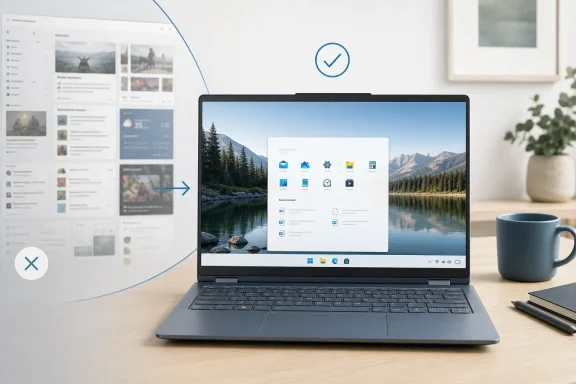 Three Small Changes Expose Windows 11’s Larger Attention Problem
Miniman’s complaint is not that Windows 11 is unusable. It is that the operating system repeatedly inserts information at moments when the user has expressed no desire to consume it: before signing in, while glancing at the taskbar, and while searching for a locally installed application.That distinction matters. Weather, sports scores, financial updates, quizzes, news stories, and web suggestions are not inherently unwanted. The problem is that Microsoft places them inside interfaces whose established purposes are authentication, application launching, and system navigation.
On Miniman’s Lenovo Yoga, Windows Spotlight was the reported lock-screen default. The screen accumulated items such as “Bing Social Media Quiz” and “Daily Wonder,” turning the first view of the PC into another route toward Bing, MSN, and browser-delivered content.
The taskbar repeated the pattern. Its Widgets area presented weather at a glance, but opening it revealed a broader panel containing news, sports, stocks, and other continuously refreshed material. Microsoft describes Widgets as a way to remain informed and organized; Miniman experienced the same feature as visual clutter.
Start search was the most intrusive of the three because it interfered with an active command. Typing a local query such as
calc correctly surfaced Calculator, but it also produced related Bing results. A short instruction intended to launch software was effectively interpreted as permission to search the internet.The common thread is not simply advertising, nor is every piece of content necessarily an ad. It is intent substitution: Windows takes a narrow user action and broadens it into an opportunity to display, retrieve, or promote something else.
| Windows surface | Reported or normal behavior | Change applied | Intended result | Main trade-off |
|---|---|---|---|---|
| Lock screen | Windows Spotlight, status information, tips, and online content | Use Picture or Slideshow, disable extra tips, set status to None | A static, uncluttered sign-in view | No glanceable lock-screen updates |
| Taskbar | Widgets button displays weather and opens a larger information feed | Right-click the taskbar, open taskbar settings, and disable Widgets | Less taskbar clutter and fewer invitations to open the feed | Widgets are no longer directly visible there |
| Start search | Local results appear alongside Bing-powered web suggestions | Set DisableSearchBoxSuggestions to 1 in the Registry | Search focuses on applications, files, settings, and system content | Requires a careful Registry change |
The Lock Screen Works Better When It Stops Trying to Be a Portal
The lock screen occupies a peculiar position in Windows. It is visible before the user reaches the desktop, yet it is not the desktop itself; it is primarily a boundary between a sleeping or locked computer and an authenticated session.Microsoft has nevertheless turned that boundary into a content surface. Its own documentation describes Windows Spotlight as a rotating set of images accompanied by tips, tricks, and notifications. Lock-screen status can add still more information, while selecting certain displayed items can lead into Microsoft Edge after sign-in.
For users who want a glanceable dashboard, that may be useful. Weather before unlocking the PC is a defensible feature, and some people enjoy changing images or discovering details about photographs chosen by Spotlight.
Miniman’s objection is more fundamental: the lock screen did not feel like his screen. Items such as the Bing quiz and “Daily Wonder” competed with the wallpaper and made the laptop appear busy before any work had begun.
The remedy starts at Personalization > Lock screen. Windows users can also search the Start menu for
lock, which is often faster than navigating through Settings manually.Under Personalize your lock screen, Miniman recommends selecting either Picture or Slideshow instead of Windows Spotlight. Picture is the most controlled option because it fixes one chosen image in place; Slideshow is better suited to users with a prepared folder of personal photographs.
The next step is to turn off Get fun facts, tips, tricks and more on your lock screen. The wording is revealing. Microsoft describes the material as an enhancement, but the setting combines several categories of content under one friendly label, forcing the user to accept or reject the bundle rather than make finer distinctions.
Finally, setting Lock screen status to None removes the remaining status module. Microsoft officially supports None as a normal configuration, so this is not a hack or an attempt to disable an essential Windows component. It is the operating system’s own clean-screen option.
The result is not a redesigned lock screen. It is a lock screen reduced to the functions many users assumed it had in the first place: display an image, show basic system indicators such as battery and Wi-Fi status, and wait for authentication.
That reduction is important because the lock screen establishes the tone of the machine. A quiet image suggests that the computer belongs to its user. A rotating collection of prompts and online material suggests that even an idle PC remains part of someone else’s engagement system.
There is also a practical difference between useful status and actionable distraction. Battery state helps the user understand the device. Wi-Fi state helps diagnose connectivity. A news teaser, quiz, or curiosity prompt asks the user to abandon the act of signing in and follow a different path.
Microsoft’s design is not irrational. Every integrated content surface can increase use of the company’s wider services, and a lock-screen item that opens in Edge gives the Windows ecosystem another chance to retain the user. But that commercial logic is precisely why the ability to remove the material should be obvious and granular.
The calm configuration demonstrates that Windows already contains the necessary controls. The problem is not an absolute lack of choice; it is that the busier experience can be the one users encounter first, while the restrained experience must be assembled afterward.
Widgets Turn a Utility Strip Into a Content Invitation
The taskbar has less room for ambiguity. It is persistent working space, containing application controls, system indicators, and entry points to core Windows features. Anything added there competes with tools the user may access hundreds of times in a working day.Microsoft positions Widgets as interactive, personalized cards for weather, traffic, finance, sports, photos, and news. The board can be useful when configured carefully, and the taskbar weather indicator can provide legitimate information without requiring a separate application.
But the feature has two identities. It is both a collection of utilities and a content feed. A user who wants the temperature may find that the visible weather element is also the entrance to a larger stream of headlines and recommendations.
That mismatch explains why Widgets can feel more intrusive than an ordinary pinned application. A pinned weather app waits to be opened. The Widgets area lives in the taskbar, changes over time, and continually reminds the user that more material is available behind it.
Miniman removed that invitation by right-clicking the taskbar, selecting taskbar settings, and disabling Widgets. The change takes effect immediately and does not require Registry Editor, Group Policy, or a reboot.
This is the easiest of the three modifications and arguably the most reversible. Users can return to the same settings page and enable Widgets again if they miss the weather display or decide to configure the board more carefully.
There is an important nuance: hiding Widgets from the taskbar is not necessarily equivalent to eradicating the entire Widgets experience from Windows. Microsoft documents other ways to reach the board, including the Windows key plus W. The setting primarily removes the taskbar presence—the part responsible for persistent visual competition.
For many users, that is enough. The objective is not to conduct a scorched-earth removal of every connected Windows component. It is to stop a feature from occupying premium interface space when its value does not justify the attention it demands.
This distinction should guide enterprise administrators as well. An organization may not need to prohibit Widgets outright to improve focus. It may simply decide that the taskbar is operational space and should not advertise a consumer-oriented information board on managed PCs.
The case is particularly strong in focused environments such as classrooms, support desks, call centers, shared workstations, and presentation systems. A dynamic weather or news element can be irrelevant at best and distracting at worst, especially when the device is supposed to present a consistent interface to multiple users.
There are users who will prefer the opposite approach. Someone who monitors markets, local weather, or sports may find the board genuinely useful. Miniman acknowledges that Widgets can be improved through configuration rather than removed.
That makes this less a verdict on the existence of Widgets than a verdict on their placement. The taskbar is too central for Microsoft to assume that everyone wants a continuously updated information service embedded within it.
Windows is at its best when the taskbar behaves like infrastructure: predictable, stable, and visually subordinate to the application currently in use. Removing Widgets does not add a new productivity feature. It simply returns a strip of the screen to that quieter role.
Start Search Crosses the Line From Decoration Into Interference
The lock screen and taskbar changes remove visual clutter. The Start-search change addresses something more consequential: whether Windows follows the scope of a direct user command.The familiar workflow is nearly instantaneous. Press the Windows key, type part of an application’s name, and press Enter. Miniman uses
calc as the example because it captures the simplicity of the interaction: the user is plainly attempting to open Calculator.Windows can return the correct local application while also displaying Bing results related to calculators. From Microsoft’s perspective, this makes Search more capable by combining applications, files, settings, and the web in one place.
From the user’s perspective, it creates uncertainty where none was necessary. A local launcher query becomes a mixed results page, with web links competing against the installed software that prompted the search.
Microsoft’s documentation openly describes Windows Search as supporting files, applications, settings, and Bing-powered web results. This is therefore not an accidental leak from the browser into Start. It is the intended architecture.
The difficulty is that a universal search box is only useful when its ranking and boundaries match user intent. Combining multiple indexes can save time when the query is ambiguous. It can also degrade the experience when the query is obvious.
A person typing
calc after opening Start is giving Windows several contextual clues. The query is short, it closely matches a built-in application, and it originates from the operating system’s launcher. Sending that interaction toward general web content solves a problem the user did not present.Miniman’s solution uses the Registry because the relevant consumer-facing control is not exposed as a straightforward switch in the stable Settings experience described by the source. That asymmetry is the most damning part of the story: turning off a visible taskbar feature requires one toggle, while restoring local-only search requires editing a configuration database capable of affecting the user’s Windows environment.
The procedure begins with Windows+R, which opens the Run dialog. Entering
regedit launches Registry Editor, subject to the normal permission warning.The relevant parent path is:
HKEY_CURRENT_USER\Software\Policies\Microsoft\WindowsThe configuration belongs under the Explorer subkey. If the required Explorer location is absent, it must be created so that the final value resides in the intended policy path rather than in an unrelated part of the Registry.
Within Explorer, the user creates a DWORD (32-bit) value named:
DisableSearchBoxSuggestionsIts value data is set to:
1After the machine is rebooted, Bing suggestions should no longer accompany Start-menu searches. The expected result is a cleaner search interface that prioritizes content on the PC.
Windows Central has documented the same Registry value and path as a way to suppress web results, while noting that local search for applications, files, settings, and system features continues to operate. That corroboration matters because Registry advice circulates widely, and minor errors in paths or value types can make a purported fix ineffective.
It is still essential not to oversell the outcome. Windows behavior can change through servicing, feature rollouts, account configurations, and policy handling. A Registry value that works in one Windows 11 configuration should be tested on the actual systems an administrator intends to manage.
Nor should a reported speed improvement be treated as a benchmark result. Miniman found Start cleaner and potentially a little faster without web suggestions, which is plausible because the interface has less online material to retrieve and display. But the available account does not establish a measured performance gain across Windows 11 hardware.
The dependable benefit is predictability. Search for an application, and Windows concentrates on the application. Search for local content, and the interface is no longer crowded by an additional class of results with a different destination and purpose.
That is not hostility to web search. Browsers already provide web search, complete with tabs, history, chosen search engines, privacy controls, and visible addresses. Removing Bing results from Start preserves a boundary between launching something on the computer and looking something up online.
The Registry Workaround Reveals a Failure of Product Priorities
EditingDisableSearchBoxSuggestions is not especially difficult for an experienced Windows user. It is still unreasonable as the primary escape route from a mainstream interface behavior.Registry Editor presents none of the reassurance or reversibility of an ordinary Settings toggle. It exposes a hierarchical configuration system in which spelling, placement, type, and value all matter. Users must distinguish keys from values, confirm that they are operating under the current-user policy path, and reboot to verify the result.
That burden filters who gets to exercise the choice. Technically confident users can follow the instructions. Everyone else must tolerate the behavior, seek help, or run an unverified script downloaded from somewhere on the internet.
This is how a user-experience decision becomes a security concern at the margins. When Windows withholds an ordinary switch, it creates demand for registry files, command scripts, debloating utilities, and one-click customization tools. Some are legitimate; others are poorly written, overly broad, or malicious.
A visible setting would be safer than forcing users toward those alternatives. It could explain what will change, preserve local search, offer immediate reversal, and avoid normalizing Registry modification as routine desktop housekeeping.
Recent reporting has indicated that Microsoft is exploring more explicit controls for web suggestions in Windows Search. That would be a welcome acknowledgment that local and online results serve different intents, but reported development work is not the same as a broadly available control. Users should configure the Windows 11 version actually deployed on their PCs rather than rely on an experimental interface that may change or never reach them in the same form.
The larger issue is consent. Microsoft already knows how to design a switch for Widgets and a None option for lock-screen status. The absence of an equally clear, stable control for web suggestions suggests that Bing integration has received greater protection than user preference.
That is why the three tweaks belong in the same story. They form a ladder of resistance. Lock-screen clutter can be reduced through several Settings choices. Widgets can be hidden with one toggle. Start-menu web results require a Registry policy value.
The more closely a surface is tied to Microsoft’s online discovery ecosystem, the more effort the user must expend to reclaim it. Whether intentional or not, the design creates the impression that adding connected content is a default, while removing it is an advanced administrative act.
Action checklist for admins
- Test all three changes on a representative Windows 11 device before applying them broadly.
- Under Personalization > Lock screen, select Picture or Slideshow, disable Get fun facts, tips, tricks and more on your lock screen, and set Lock screen status to None where a clean sign-in experience is required.
- Right-click the taskbar, open taskbar settings, and disable Widgets on systems where taskbar news and weather do not serve an operational purpose.
- Back up the relevant Registry configuration or create an appropriate recovery point before modifying search behavior.
- Verify that
DisableSearchBoxSuggestionsis a DWORD (32-bit) value under the intendedHKEY_CURRENT_USER\Software\Policies\Microsoft\Windows\Explorerlocation and that its value data is1. - Reboot, test representative searches such as
calc, and confirm that applications, files, settings, and other required local results remain available. - Document the reversal procedure and recheck the behavior after significant Windows servicing or policy changes.
Calm Windows Is Not the Same as Stripped-Down Windows
There is a temptation to frame every unwanted Windows component as “bloat” and every removal as optimization. That framing is too crude for these changes.Windows Spotlight can deliver attractive photography. Widgets can provide useful information. Bing results can answer queries without requiring the user to open a browser first. None of the features is fraudulent merely because Miniman dislikes it.
The argument is instead about defaults and context. A capable feature becomes intrusive when it appears in a surface where the user’s likely purpose is narrower than the feature’s ambitions.
This is why the word calm is more useful than minimal. A calm operating system can still be visually rich, connected, and intelligent. It simply refrains from interrupting obvious workflows or treating every idle pixel as an opportunity to display new material.
The three modifications do not remove Microsoft Edge, disable networking, uninstall applications, or sever the Microsoft account. They leave Windows 11 fully recognizable. What changes is the number of unsolicited prompts presented during routine use.
That restraint can produce an outsized subjective improvement because these surfaces are highly repetitive. A lock-screen teaser may consume only a second of attention, but it appears whenever the computer wakes. A taskbar widget occupies few pixels, but it remains visible throughout the session. A web suggestion may be harmless, but it accompanies searches performed again and again.
Interface friction compounds. Each element is small enough to defend in isolation, yet their repetition makes the operating system feel persistently busy.
The inverse is also true. Removing three small sources of friction can make the entire machine feel more coherent, even though no application has been accelerated and no major subsystem has changed.
Miniman reported, “After a week with these tweaks, I’ve found zero downsides.” That conclusion should be understood as one user’s experience rather than a universal guarantee, but it captures why the changes are appealing: the removed features were contributing little to his workflow, so their absence felt like pure relief.
Other users will notice trade-offs. Anyone who relies on glanceable weather must obtain it elsewhere. Someone who enjoys Spotlight imagery will lose its automatic rotation by choosing a fixed Picture. A user who deliberately searches the web from Start will need to open a browser or use another entry point.
Those are real costs, but they are transparent costs. The user can decide whether they matter. Windows personalization should work exactly this way: expose the competing benefits, make the controls easy to find, and allow the owner of the PC to choose.
Enterprises Should Treat Consumer Content as a Workspace Decision
For administrators, these changes raise questions beyond aesthetics. A managed Windows desktop is part of the organization’s working environment, and dynamic consumer content can conflict with requirements for consistency, focus, privacy, and supportability.A news-rich Widgets panel may be harmless on a personal laptop but inappropriate on a shared workstation. Lock-screen stories may be undesirable on devices used for public demonstrations, exams, health care, customer interactions, or controlled presentations.
Mixed web and local search can also complicate training. Support documentation may tell employees to press the Windows key and type the name of an approved application. If the resulting interface includes online suggestions, users have more opportunities to select the wrong destination or mistake web content for an installed tool.
This does not mean every organization should impose an aggressively blank desktop. It means the presence of online content should be an explicit design decision rather than an inherited consumer default.
Administrators should also distinguish cosmetic preferences from enforceable policy. A manual toggle is sufficient for one personal Lenovo Yoga. It may not be durable enough for a large fleet, where users can change settings, profiles differ, and Windows servicing may alter presentation or behavior.
The Registry setting deserves particular caution. The current-user location means the configuration is associated with the user context rather than simply being a one-time machine-wide alteration. Deployment plans must account for how the organization provisions and maintains user policies.
Testing must include reversal as well as activation. A successful pilot should demonstrate that administrators can restore the original behavior, that local search remains functional, and that updates do not leave the device in an ambiguous state.
The safest principle is narrow change. If the goal is to remove web suggestions, change the value governing web suggestions rather than importing a sweeping “debloat” package that disables unrelated services. If the goal is to clear the taskbar, disable Widgets rather than uninstalling loosely associated components.
Miniman’s three-step approach is valuable precisely because it is restrained. It identifies three visible symptoms and applies three targeted remedies. That is a better operational model than attempting to transform Windows through an opaque collection of unsupported scripts.
Microsoft’s Connected Desktop Still Needs a Real Off Switch
Microsoft’s strategy is easy to understand. Windows is no longer merely a launcher for locally installed Win32 software. It is the front end to cloud storage, Microsoft accounts, web search, news, services, subscriptions, and increasingly intelligent assistance.The danger is that integration can collapse into saturation. When every surface becomes connected, recommended, personalized, or dynamically refreshed, the operating system loses hierarchy. A sign-in screen begins to resemble a feed; a taskbar begins to resemble a dashboard; an application launcher begins to resemble a search portal.
Good integration should disappear when it is irrelevant. It should infer context conservatively, defer to explicit user intent, and provide an ordinary way to be disabled.
The lock-screen configuration comes closest to meeting that standard because Windows provides Picture, Slideshow, content controls, and None for status. The taskbar also provides an accessible Widgets switch. Search falls short because the user must reach for Registry Editor to obtain the cleaner behavior.
A proper design would separate local applications and files, web results, store suggestions, and highlighted content into clearly labeled controls. It would preserve local search regardless of how the online components were configured. It would also make the state visible enough that a support technician could diagnose it without inspecting obscure policy paths.
That would not diminish Bing. Users who value integrated web results could leave them enabled. It would merely require the feature to win on usefulness instead of relying on default placement.
The distinction matters as Windows becomes more proactive. The more recommendations, summaries, suggestions, and online answers Microsoft adds, the more important it becomes to offer meaningful boundaries. Otherwise, users will perceive every new capability through the accumulated irritation of the features they were never allowed to decline cleanly.
What a Quieter Windows 11 Actually Requires
The practical lesson is not that every Windows 11 user should copy Miniman’s configuration exactly. It is that three heavily used surfaces can be made substantially quieter without replacing the shell, installing a third-party customization suite, or abandoning Microsoft services entirely.- Choose Picture or Slideshow if Windows Spotlight makes the lock screen feel promotional or unpredictable.
- Disable the lock-screen tips option and set status to None when the screen should do nothing beyond presenting a clean entry point.
- Turn off Widgets when taskbar weather and its associated content board create more distraction than value.
- Use
DisableSearchBoxSuggestionsonly after confirming the correct Registry location, type, and value. - Reboot and test local searches rather than assuming the Registry change worked.
- Prefer small, documented adjustments over broad debloating tools that alter unrelated Windows components.
Microsoft does not need to stop building connected experiences into Windows 11. It needs to recognize that a personal computer is not improved merely by increasing the amount of content it can surface. The next step toward a calmer Windows should not require another Registry recipe; it should be a first-class promise that when users turn a connected feature off, the operating system will respect both the setting and the intent behind it.
References
- Primary source: MakeUseOf
Published: Fri, 10 Jul 2026 22:00:18 GMT
I disabled the 3 most annoying Windows 11 features and my desktop finally feels calm
Stop Bing from making annoying recommendations in your Start menu, lock screen, and taskbar www.makeuseof.com
- Official source: support.microsoft.com
Stay up to date with Widgets in Windows | Microsoft Support
Learn more about how to use the widgets board to keep track of the things you care about.support.microsoft.com - Related coverage: allthings.how
How to Turn Off Bing Web Results in the Windows 11 Start Menu
A registry tweak, a Group Policy switch, and a Settings toggle that strip Bing links out of Start menu search.allthings.how - Related coverage: pureinfotech.com
How to disable web search results on Windows 11 – and remove Bing - Pureinfotech
To disable web search in Start menu or Windows Search box, use Group Policy or Registry on Windows 11. This also removes the Copilot button. pureinfotech.com
- Related coverage: askwoody.com
- Related coverage: partner.zetron.com
- Related coverage: wiki.plecko.hr
- Related coverage: u3ahavelocknorth.com
- Related coverage: windowscentral.com
How to stop internet results in Search for Windows 11 | Windows Central
Turn off online suggestions inside the Windows Search feature and regain a local-only experience on Windows 11.www.windowscentral.com - Related coverage: tomshardware.com
How to Disable Windows Web Search and Speed Up Your PC | Tom's Hardware
Stop Windows from showing you web results when you just want files and apps.www.tomshardware.com - Related coverage: techradar.com
Is Microsoft finally going to de-spam Windows 11 search? It looks that way — and I'm shocked that my most-wanted change could be incoming | TechRadar
Another crowd-pleasing move from Microsoft (hopefully)www.techradar.com
