

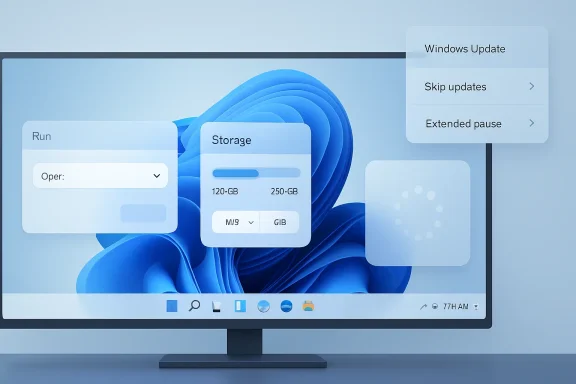
Microsoft’s newest Windows 11 Experimental build looks modest on paper, but its hidden changes tell a much bigger story about where the operating system is headed. Build 26300.8289 officially focuses on Windows Update controls, Insider channel changes, printing, and small fixes, yet testers have also found a modernized Run dialog, a smarter Storage resizing interface, a new sign-in animation, and early traces of Taskbar relocation. These are not flashy AI demos or marketing-stage features, but they touch some of the oldest and most frequently used parts of Windows. For everyday users, administrators, and longtime Windows enthusiasts, that makes them unusually important.
Windows 11 has spent much of its life balancing two competing priorities: modernizing the desktop and calming users who felt that too much familiar functionality disappeared in the transition from Windows 10. The operating system launched with a cleaner design language, centered taskbar icons, rounded corners, revised Settings pages, and a more touch-friendly shell. It also arrived without several long-standing customization options, including the ability to move the taskbar to the top or sides of the screen.
That trade-off became one of the defining criticisms of Windows 11. Microsoft had rebuilt large parts of the shell and taskbar, which gave the company a cleaner technical foundation but also removed behaviors that power users had depended on for years. Since then, the Windows team has been slowly restoring practical features while preserving the visual and architectural direction of Windows 11.
The latest Experimental Channel build fits that pattern. Microsoft’s public release notes for build 26300.8289 emphasize a redesigned Insider channel structure, new Windows Update choices during setup, update pause improvements, print driver preparation, and small polish fixes. The more intriguing story is what appears to be present but not formally announced.
That distinction matters. Hidden or partially enabled features in Insider builds are not promises, and Microsoft routinely tests ideas that never ship broadly. Still, these additions align with a broader trend: Windows 11 is becoming less rigid, more responsive to user feedback, and more willing to revisit legacy workflows that Microsoft once seemed ready to leave behind.
For WindowsForum readers, the key point is simple: Experimental does not mean imminent, but it does mean serious. Microsoft does not usually wire unfinished shell components into public builds unless it wants telemetry, internal validation, or early feedback from advanced testers. These changes may be hidden, buggy, or gated behind feature flags, but their presence shows active engineering work.
The official build also introduces broader Windows Update changes that are not hidden at all. Those include the ability to skip updates during the out-of-box experience, extend update pauses repeatedly, and get more information before installing available updates. Those improvements form the visible layer of the release, while the hidden UI changes reveal the direction of Microsoft’s desktop polish work.
More importantly, the redesign appears to add practical behavior rather than only cosmetic polish. A wider input field, recent command access, and matching suggestions for apps or paths turn Run into something closer to a lightweight launcher. It still serves the old keyboard-first audience, but it starts to acknowledge that users expect discovery and context in modern interfaces.
There is a delicate balance here. If Microsoft makes Run too heavy, it risks ruining the speed and predictability that made the tool valuable. If it only reskins the window, it misses an opportunity to reduce friction for users who remember commands imperfectly or switch between many administrative tools.
The smartest path is optional modernization. Reports indicate that Microsoft may allow users to enable the redesigned Run dialog through Settings, which would preserve the classic workflow for those who prefer it. That is exactly the kind of compromise Windows 11 needs more often.
Adding recent commands and intelligent matching could make Run more useful without diluting its identity. A technician moving between Device Manager, Disk Management, Event Viewer, and Services could save time if the dialog remembers patterns cleanly. A developer jumping into project folders or environment tools could benefit from reliable path suggestions.
The enterprise angle is also significant. Support desks often give users instructions that involve Run because it bypasses cluttered menus and inconsistent Start layouts. A more readable, modern, and forgiving interface could reduce mistakes when users are asked to open troubleshooting tools remotely.
That said, Microsoft must avoid pushing web-style search behavior into Run. This tool should remain local, fast, and predictable. If suggestions introduce latency, ads, cloud prompts, or ambiguous results, the redesign will be judged harshly by the very users most likely to notice it.
A visible unit selector makes the operation more human. Most consumers think about storage in gigabytes or terabytes, not megabytes. Administrators may still prefer precise values, but even they benefit when the UI makes unit conversion explicit rather than assumed.
This is also part of Microsoft’s long migration from legacy Control Panel tools to the modern Settings app. Disk Management remains powerful, but it feels dated and can be unfriendly to users who only need to adjust a volume or inspect a drive. Settings has been absorbing more of that functionality, and each practical refinement makes the migration more credible.
For power users, the feature is unlikely to replace PowerShell, DiskPart, or third-party partition tools. But for everyday resizing tasks, it lowers the chance of confusion. That is the kind of improvement that rarely makes headlines but prevents support calls.
A unified spinner can make Windows feel more intentional. Users may not consciously praise a consistent loading animation, but they notice when one screen feels modern and another feels leftover. The sign-in path is especially visible because it appears on every PC, including managed devices, kiosks, classrooms, and shared workstations.
There is also an accessibility and performance angle. Animations must remain smooth on low-end hardware, remote sessions, and systems under update load. If the new animation drops frames or delays transitions, it will feel worse than the older one, no matter how polished the design appears in screenshots.
The deeper point is that Microsoft seems to be tightening the seams of Windows 11. A modern OS is not only judged by its major features. It is judged by the dozens of small transitions that determine whether the system feels coherent or assembled from parts.
The Windows 11 taskbar was not a simple continuation of the Windows 10 taskbar. Microsoft rebuilt it, which helped enable modern visuals but also meant legacy behaviors had to be recreated rather than merely switched back on. That helps explain why relocation did not return quickly, even as complaints persisted.
If Microsoft brings the feature back properly, it would signal a meaningful shift in philosophy. The company would be acknowledging that personalization is not just decoration. For many users, taskbar placement is ergonomic, spatial, and productivity-related.
Vertical taskbars are especially valuable on ultrawide monitors, portrait displays, and laptop screens where vertical space is precious. Top taskbars appeal to users who prefer menu bars, browser tabs, and system controls clustered near the top of the display. Windows does not need to force one layout when hardware diversity is wider than ever.
Windows 11 narrowed that flexibility at launch. Third-party tools stepped in to restore classic taskbar behavior, Start menu designs, and shell customization. Those tools are valuable, but they also create fragility because shell updates can break them unexpectedly.
If Microsoft restores taskbar relocation natively, it reclaims part of the customization story. Users should not have to patch the shell to place a core interface element where their workflow demands it. Native support is safer, more stable, and easier for IT departments to manage.
There are also developer considerations. Apps that assume a bottom taskbar may need to behave correctly when work areas change. Snap Layouts, widgets, system tray flyouts, notification positioning, touch targets, and multi-monitor logic all need careful handling.
The opportunity is clear: Microsoft can make Windows 11 feel more personal without fragmenting the platform. The risk is equally clear: a half-finished taskbar relocation feature would amplify the very frustrations it is meant to resolve.
Enterprises will view this differently. On one hand, faster provisioning and more flexible setup can help IT teams image, enroll, or hand off devices more efficiently. On the other hand, skipping updates during setup could leave systems temporarily behind on security fixes unless policies, management tools, or enrollment flows catch up quickly.
The expanded pause controls also deserve scrutiny. More user control is welcome, especially when updates conflict with travel, deadlines, presentations, or specialized equipment. But indefinite or repeated deferrals can become a security problem if users treat update pauses as a permanent escape hatch.
Microsoft’s challenge is to offer flexibility without recreating the inconsistent patching behavior that haunted older Windows fleets. The ideal model gives users breathing room but keeps organizations informed and protected. That requires clear messaging, strong policy controls, and transparency about what each update contains.
Taskbar relocation is more complicated. Many organizations standardize desktop layouts for training, kiosk use, compliance, or support. If users can freely move the taskbar, administrators may want policy controls to lock placement or define defaults. Without those controls, a personalization feature can become a support variable.
Storage resizing improvements are less controversial but still relevant. IT pros often avoid letting standard users resize partitions, yet technicians and power users benefit from clearer controls. In environments with recovery partitions, BitLocker, OEM tools, or dual-boot configurations, Microsoft must ensure the Settings interface communicates constraints clearly.
Windows Update flexibility will likely be the biggest enterprise discussion. Faster setup is valuable, but skipping updates must integrate cleanly with Autopilot, Intune, Windows Update for Business, and existing patch rings. The feature should not create a window where newly deployed devices are active but missing required fixes.
These are not marquee features like Copilot or new hardware acceleration. They are quality-of-life changes, and quality of life is often what determines whether users describe an operating system as pleasant or frustrating. The most successful Windows improvements are frequently the ones that make familiar tasks feel less annoying.
Microsoft also has a trust problem to repair with some enthusiasts. Windows 11’s early restrictions, hardware requirements, Start menu changes, default app friction, and update behavior created a perception that user choice had been downgraded. Restoring practical customization can help shift that narrative.
The consumer risk is uneven rollout. If features appear for some Insiders, disappear later, or require hidden toggles, confusion will spread quickly. Microsoft should communicate clearly when features are experiments and avoid letting screenshots create expectations before engineering work is complete.
That is the right direction. Windows has always succeeded because it supports many kinds of users at once: gamers, office workers, developers, students, administrators, creators, and kiosk operators. A rigid desktop may be easier to design, but it is less aligned with the diversity of Windows hardware and workflows.
The competitive pressure is also real. ChromeOS wins on simplicity, macOS wins on coherence, and Linux wins on customization. Windows has to offer all three in moderation, which is difficult but not impossible. The hidden features in this build suggest Microsoft understands that Windows 11 cannot be only a showcase for new experiences; it must also be a better version of the familiar desktop.
The biggest lesson is that user feedback is cumulative. Taskbar complaints did not vanish because Microsoft ignored them. Run dialog aging did not matter less because the tool was small. Eventually, enough small annoyances become a product strategy problem.
Insiders should also watch whether the new taskbar controls move from debug-style context menu entries into Settings. That migration would suggest Microsoft is designing the user-facing experience rather than merely exposing internal scaffolding. The same applies to policy surfaces, accessibility behavior, and multi-monitor testing.
If Microsoft follows through, build 26300.8289 may be remembered less for what it officially announced and more for what it quietly revealed. The future of Windows 11 may not depend on one massive redesign, but on dozens of careful reversals, refinements, and practical concessions that make the OS feel more capable without feeling less familiar. For a platform as mature as Windows, that is exactly the kind of progress that matters.
Source: Windows Central https://www.windowscentral.com/micr...n-in-the-experimental-channel-for-windows-11/
 Overview
Windows 11 has spent much of its life balancing two competing priorities: modernizing the desktop and calming users who felt that too much familiar functionality disappeared in the transition from Windows 10. The operating system launched with a cleaner design language, centered taskbar icons, rounded corners, revised Settings pages, and a more touch-friendly shell. It also arrived without several long-standing customization options, including the ability to move the taskbar to the top or sides of the screen.That trade-off became one of the defining criticisms of Windows 11. Microsoft had rebuilt large parts of the shell and taskbar, which gave the company a cleaner technical foundation but also removed behaviors that power users had depended on for years. Since then, the Windows team has been slowly restoring practical features while preserving the visual and architectural direction of Windows 11.
The latest Experimental Channel build fits that pattern. Microsoft’s public release notes for build 26300.8289 emphasize a redesigned Insider channel structure, new Windows Update choices during setup, update pause improvements, print driver preparation, and small polish fixes. The more intriguing story is what appears to be present but not formally announced.
That distinction matters. Hidden or partially enabled features in Insider builds are not promises, and Microsoft routinely tests ideas that never ship broadly. Still, these additions align with a broader trend: Windows 11 is becoming less rigid, more responsive to user feedback, and more willing to revisit legacy workflows that Microsoft once seemed ready to leave behind.
The Experimental Channel Is Now the Place to Watch
Microsoft’s shift from the old Dev Channel structure to the new Experimental Channel is more than a naming exercise. It changes how enthusiasts, IT testers, and developers should interpret early Windows features. Experimental builds are explicitly designed for ideas that may evolve, stall, or disappear before reaching mainstream Windows PCs.Why the channel reboot matters
The new channel model is meant to give Microsoft more room to test unfinished ideas without implying that every feature is on a direct path to general availability. That is especially important for shell changes, because the Windows desktop has a vast compatibility surface. A change to taskbar behavior, update flow, or sign-in visuals can affect consumers, managed business devices, assistive technologies, remote desktops, and third-party utilities.For WindowsForum readers, the key point is simple: Experimental does not mean imminent, but it does mean serious. Microsoft does not usually wire unfinished shell components into public builds unless it wants telemetry, internal validation, or early feedback from advanced testers. These changes may be hidden, buggy, or gated behind feature flags, but their presence shows active engineering work.
The official build also introduces broader Windows Update changes that are not hidden at all. Those include the ability to skip updates during the out-of-box experience, extend update pauses repeatedly, and get more information before installing available updates. Those improvements form the visible layer of the release, while the hidden UI changes reveal the direction of Microsoft’s desktop polish work.
- Experimental builds are better understood as test beds, not release candidates.
- Feature flags now play a larger role in letting Insiders opt into selected experiences.
- Hidden shell work can indicate priorities before Microsoft is ready to announce them.
- Telemetry and feedback will likely determine whether these ideas survive.
- Power-user features appear to be back on the Windows roadmap in a more cautious form.
The Run Dialog Finally Gets a Modern Face
The Run dialog is one of the most durable pieces of Windows. For decades, pressing Win + R has brought up a compact utility that lets users launch commands, open folders, start tools, and jump directly into system components. It has never been beautiful, but it has always been fast.From legacy utility to Fluent interface
The redesigned Run dialog reportedly brings Windows 11’s visual language to a component that has long looked almost untouched. Rounded corners, improved spacing, theme awareness, translucency, and cleaner layout all make the dialog feel less like a preserved relic from a previous era. That matters because Windows 11 still contains many surfaces where old and new design philosophies collide.More importantly, the redesign appears to add practical behavior rather than only cosmetic polish. A wider input field, recent command access, and matching suggestions for apps or paths turn Run into something closer to a lightweight launcher. It still serves the old keyboard-first audience, but it starts to acknowledge that users expect discovery and context in modern interfaces.
There is a delicate balance here. If Microsoft makes Run too heavy, it risks ruining the speed and predictability that made the tool valuable. If it only reskins the window, it misses an opportunity to reduce friction for users who remember commands imperfectly or switch between many administrative tools.
The smartest path is optional modernization. Reports indicate that Microsoft may allow users to enable the redesigned Run dialog through Settings, which would preserve the classic workflow for those who prefer it. That is exactly the kind of compromise Windows 11 needs more often.
- Recent commands can reduce repeated typing for administrators and enthusiasts.
- Path and app suggestions make the dialog friendlier without turning it into full search.
- Dark and light mode support helps unify the desktop experience.
- Optional enablement would limit backlash from users who prefer the classic dialog.
- Keyboard-first behavior must remain instant for the redesign to succeed.
Why a Better Run Dialog Could Change Daily Workflows
It is easy to dismiss the Run dialog as a niche feature, but that misses how many Windows workflows still depend on direct command entry. Users launchregedit, cmd, powershell, services.msc, devmgmt.msc, appwiz.cpl, and network paths from Run every day. For many technicians, it is muscle memory.Small launcher, big productivity impact
The redesigned Run dialog could become a bridge between old-school Windows administration and modern launcher design. Windows Search has improved, but it still mixes apps, files, web results, settings, and suggestions in ways that can feel unpredictable. Run has always been more deterministic: type a command, press Enter, and Windows obeys.Adding recent commands and intelligent matching could make Run more useful without diluting its identity. A technician moving between Device Manager, Disk Management, Event Viewer, and Services could save time if the dialog remembers patterns cleanly. A developer jumping into project folders or environment tools could benefit from reliable path suggestions.
The enterprise angle is also significant. Support desks often give users instructions that involve Run because it bypasses cluttered menus and inconsistent Start layouts. A more readable, modern, and forgiving interface could reduce mistakes when users are asked to open troubleshooting tools remotely.
That said, Microsoft must avoid pushing web-style search behavior into Run. This tool should remain local, fast, and predictable. If suggestions introduce latency, ads, cloud prompts, or ambiguous results, the redesign will be judged harshly by the very users most likely to notice it.
- Preserve instant Win + R launch behavior.
- Keep typed commands as the highest-priority action.
- Make suggestions local, relevant, and unobtrusive.
- Allow history clearing for privacy and compliance.
- Provide a clear toggle for users who want the classic experience.
Storage Settings Get a Practical Unit Switch
The Storage change is smaller but surprisingly useful. In build 26300.8289, the volume resize interface reportedly gains a unit selector that lets users switch between MB and GB when changing partition size. That sounds minor until you remember how intimidating disk management remains for many users.Reducing mistakes in disk resizing
Windows has historically mixed storage units across different tools. Disk Management, Settings, File Explorer, PowerShell, and vendor utilities do not always present capacity in the same way or with the same level of clarity. When users are resizing a partition, the difference between megabytes and gigabytes is not just cosmetic; it can determine whether they allocate enough space, shrink too far, or misunderstand what Windows is asking.A visible unit selector makes the operation more human. Most consumers think about storage in gigabytes or terabytes, not megabytes. Administrators may still prefer precise values, but even they benefit when the UI makes unit conversion explicit rather than assumed.
This is also part of Microsoft’s long migration from legacy Control Panel tools to the modern Settings app. Disk Management remains powerful, but it feels dated and can be unfriendly to users who only need to adjust a volume or inspect a drive. Settings has been absorbing more of that functionality, and each practical refinement makes the migration more credible.
For power users, the feature is unlikely to replace PowerShell, DiskPart, or third-party partition tools. But for everyday resizing tasks, it lowers the chance of confusion. That is the kind of improvement that rarely makes headlines but prevents support calls.
- GB selection matches how most users understand drive capacity.
- MB precision remains useful for administrators and advanced scenarios.
- Settings integration continues the gradual replacement of legacy disk tools.
- Clearer resizing reduces the risk of accidental under-allocation.
- Better labels are essential when storage changes can affect bootability or recovery.
The Sign-In Animation Is About Consistency, Not Decoration
The new sign-in, sign-out, shutdown, and restart animation reportedly replaces the old dotted spinner with a more solid spinning indicator similar to what users see during boot. That sounds trivial, but visual consistency at transition points matters. These are the moments when users wait, wonder, and sometimes worry.The psychology of waiting
Windows has a long history of inconsistent loading indicators. Boot screens, update screens, account sign-in, shutdown, app launchers, and Microsoft Store installs have all used slightly different motion systems over the years. Individually, each animation is harmless; collectively, inconsistency makes the operating system feel less cohesive.A unified spinner can make Windows feel more intentional. Users may not consciously praise a consistent loading animation, but they notice when one screen feels modern and another feels leftover. The sign-in path is especially visible because it appears on every PC, including managed devices, kiosks, classrooms, and shared workstations.
There is also an accessibility and performance angle. Animations must remain smooth on low-end hardware, remote sessions, and systems under update load. If the new animation drops frames or delays transitions, it will feel worse than the older one, no matter how polished the design appears in screenshots.
The deeper point is that Microsoft seems to be tightening the seams of Windows 11. A modern OS is not only judged by its major features. It is judged by the dozens of small transitions that determine whether the system feels coherent or assembled from parts.
- Consistent motion can make Windows feel more polished.
- Sign-in screens are high-visibility surfaces across consumer and enterprise PCs.
- Low-end performance matters more than animation style.
- Remote and virtual desktops need predictable rendering behavior.
- Small design fixes can improve perceived quality over time.
Taskbar Relocation Is the Headline Feature Hiding in Plain Sight
The most consequential discovery is early work on Taskbar relocation. Windows 11 famously removed the native ability to dock the taskbar at the top, left, or right side of the screen. For users who built years of muscle memory around vertical or top-aligned taskbars, that removal was not a minor inconvenience.Restoring trust with power users
Reports suggest build 26300.8289 contains early context-menu options for moving the taskbar to the top or sides, though the implementation is buggy and side docking may not function properly. The options appear to be for debugging rather than final UI, with the finished controls likely destined for the Taskbar settings page if the feature ships. Even in that rough state, the work is significant.The Windows 11 taskbar was not a simple continuation of the Windows 10 taskbar. Microsoft rebuilt it, which helped enable modern visuals but also meant legacy behaviors had to be recreated rather than merely switched back on. That helps explain why relocation did not return quickly, even as complaints persisted.
If Microsoft brings the feature back properly, it would signal a meaningful shift in philosophy. The company would be acknowledging that personalization is not just decoration. For many users, taskbar placement is ergonomic, spatial, and productivity-related.
Vertical taskbars are especially valuable on ultrawide monitors, portrait displays, and laptop screens where vertical space is precious. Top taskbars appeal to users who prefer menu bars, browser tabs, and system controls clustered near the top of the display. Windows does not need to force one layout when hardware diversity is wider than ever.
- Top placement would satisfy many users who relied on classic desktop layouts.
- Left and right placement could benefit ultrawide and multi-monitor setups.
- Settings-based controls would be cleaner than hidden context-menu debug options.
- App compatibility must be tested against window maximization and snapping.
- Tablet posture behavior may complicate final implementation.
A More Flexible Taskbar Has Competitive Implications
Taskbar relocation is not only about nostalgia. It affects how Windows competes with macOS, ChromeOS, Linux desktops, and third-party Windows customization tools. The more Microsoft locks down the shell, the more users look elsewhere for flexibility.Windows should own its customization story
Linux desktop environments have long treated panel placement as a basic preference. macOS offers less structural flexibility, but it is tightly consistent and deeply integrated with its own design assumptions. Windows historically occupied a different space: mainstream enough for everyone, flexible enough for tinkerers.Windows 11 narrowed that flexibility at launch. Third-party tools stepped in to restore classic taskbar behavior, Start menu designs, and shell customization. Those tools are valuable, but they also create fragility because shell updates can break them unexpectedly.
If Microsoft restores taskbar relocation natively, it reclaims part of the customization story. Users should not have to patch the shell to place a core interface element where their workflow demands it. Native support is safer, more stable, and easier for IT departments to manage.
There are also developer considerations. Apps that assume a bottom taskbar may need to behave correctly when work areas change. Snap Layouts, widgets, system tray flyouts, notification positioning, touch targets, and multi-monitor logic all need careful handling.
The opportunity is clear: Microsoft can make Windows 11 feel more personal without fragmenting the platform. The risk is equally clear: a half-finished taskbar relocation feature would amplify the very frustrations it is meant to resolve.
Windows Update Changes Add the Official Half of the Story
While the hidden features grab attention, the official Windows Update changes in build 26300.8289 are also important. Microsoft is testing the ability to skip updates during the out-of-box experience, extend update pauses as needed, maintain shutdown and restart options involving updates, and provide more insight into available updates before installation. These changes address one of the most persistent complaints about Windows: the feeling that updates happen on Microsoft’s schedule, not the user’s.More control during setup and servicing
The ability to skip updates during setup could make a real difference for new PCs, clean installs, and recovery scenarios. Anyone who has set up a machine under time pressure knows the frustration of being trapped in a long update phase before reaching the desktop. Giving users a way to defer that step acknowledges real-world constraints.Enterprises will view this differently. On one hand, faster provisioning and more flexible setup can help IT teams image, enroll, or hand off devices more efficiently. On the other hand, skipping updates during setup could leave systems temporarily behind on security fixes unless policies, management tools, or enrollment flows catch up quickly.
The expanded pause controls also deserve scrutiny. More user control is welcome, especially when updates conflict with travel, deadlines, presentations, or specialized equipment. But indefinite or repeated deferrals can become a security problem if users treat update pauses as a permanent escape hatch.
Microsoft’s challenge is to offer flexibility without recreating the inconsistent patching behavior that haunted older Windows fleets. The ideal model gives users breathing room but keeps organizations informed and protected. That requires clear messaging, strong policy controls, and transparency about what each update contains.
- OOBE update skipping can speed setup and recovery.
- Extended pauses give users flexibility during critical work.
- Update insight may reduce fear of unknown patches.
- Enterprise policy must prevent unmanaged long-term deferral.
- Security baselines remain essential even with friendlier controls.
Enterprise Impact: Useful, but Not Automatically Simple
For business environments, these hidden and official changes land differently than they do for home users. A modern Run dialog, storage unit selector, consistent sign-in animation, taskbar relocation, and new update controls all sound beneficial. But enterprises care about manageability, predictability, accessibility, and support costs.Policy, training, and compatibility
A redesigned Run dialog could help support teams, but only if its behavior remains consistent across managed devices. If some users have the classic dialog and others have the new one, help desk scripts may need to account for both. That is manageable, but it reinforces why Microsoft should provide clear policy and documentation if the feature ships broadly.Taskbar relocation is more complicated. Many organizations standardize desktop layouts for training, kiosk use, compliance, or support. If users can freely move the taskbar, administrators may want policy controls to lock placement or define defaults. Without those controls, a personalization feature can become a support variable.
Storage resizing improvements are less controversial but still relevant. IT pros often avoid letting standard users resize partitions, yet technicians and power users benefit from clearer controls. In environments with recovery partitions, BitLocker, OEM tools, or dual-boot configurations, Microsoft must ensure the Settings interface communicates constraints clearly.
Windows Update flexibility will likely be the biggest enterprise discussion. Faster setup is valuable, but skipping updates must integrate cleanly with Autopilot, Intune, Windows Update for Business, and existing patch rings. The feature should not create a window where newly deployed devices are active but missing required fixes.
- Run dialog policy may be needed for standardization.
- Taskbar placement controls should be manageable through enterprise tools.
- Storage changes must respect BitLocker, recovery, and OEM layouts.
- OOBE update skipping should align with device enrollment workflows.
- Accessibility testing is essential across all redesigned shell components.
- Documentation timing matters before broad deployment.
Consumer Impact: Less Friction, More Familiarity
For consumers, the appeal is more emotional and immediate. Windows 11 has often felt like an operating system asking users to adapt to it rather than adapting to users. These changes suggest Microsoft may be loosening that stance.Everyday annoyances are product-defining
A better Run dialog helps anyone who knows a few commands but does not want to search through Settings. A GB/MB switch in Storage makes partition resizing less intimidating. A consistent spinner makes system transitions feel less jarring. Taskbar relocation, if finished, gives users back a piece of control they lost when moving from Windows 10.These are not marquee features like Copilot or new hardware acceleration. They are quality-of-life changes, and quality of life is often what determines whether users describe an operating system as pleasant or frustrating. The most successful Windows improvements are frequently the ones that make familiar tasks feel less annoying.
Microsoft also has a trust problem to repair with some enthusiasts. Windows 11’s early restrictions, hardware requirements, Start menu changes, default app friction, and update behavior created a perception that user choice had been downgraded. Restoring practical customization can help shift that narrative.
The consumer risk is uneven rollout. If features appear for some Insiders, disappear later, or require hidden toggles, confusion will spread quickly. Microsoft should communicate clearly when features are experiments and avoid letting screenshots create expectations before engineering work is complete.
- More familiar controls reduce resistance from Windows 10 holdouts.
- Optional UI modernization respects different user preferences.
- Taskbar flexibility could become a major goodwill win.
- Clear rollout messaging will prevent false expectations.
- Small polish changes can improve everyday satisfaction more than big slogans.
Why Microsoft Is Reopening Old Windows Debates
These changes show Microsoft revisiting arguments that seemed settled when Windows 11 launched. Should the desktop be tightly controlled or deeply customizable? Should legacy utilities be preserved exactly or modernized? Should updates prioritize security timelines or user convenience?The return of pragmatic Windows
The answer now appears more pragmatic than ideological. Microsoft is not abandoning the Windows 11 design system, but it seems more willing to bend. A modern Run dialog keeps an old shortcut alive while making it fit the new desktop. Taskbar relocation restores flexibility without necessarily reverting to the Windows 10 shell.That is the right direction. Windows has always succeeded because it supports many kinds of users at once: gamers, office workers, developers, students, administrators, creators, and kiosk operators. A rigid desktop may be easier to design, but it is less aligned with the diversity of Windows hardware and workflows.
The competitive pressure is also real. ChromeOS wins on simplicity, macOS wins on coherence, and Linux wins on customization. Windows has to offer all three in moderation, which is difficult but not impossible. The hidden features in this build suggest Microsoft understands that Windows 11 cannot be only a showcase for new experiences; it must also be a better version of the familiar desktop.
The biggest lesson is that user feedback is cumulative. Taskbar complaints did not vanish because Microsoft ignored them. Run dialog aging did not matter less because the tool was small. Eventually, enough small annoyances become a product strategy problem.
Strengths and Opportunities
The most encouraging part of build 26300.8289 is not any single feature, but the pattern across them. Microsoft appears to be refining Windows 11 at the level where users actually live: launching tools, managing disks, signing in, arranging the desktop, and controlling updates.- Taskbar relocation could restore one of the most requested Windows 11 customization options.
- Run dialog modernization can preserve power-user speed while improving discoverability.
- Storage unit switching makes risky disk operations easier to understand.
- Consistent sign-in animation improves perceived polish across common system transitions.
- Windows Update flexibility gives users more control during setup and maintenance.
- Experimental feature flags create a cleaner path for testing unfinished experiences.
- Settings migration becomes more credible when Microsoft adds practical controls, not just new visuals.
Risks and Concerns
The same build also highlights why Microsoft must be careful. Hidden features can excite users, but they can also create confusion when they are incomplete, unstable, or not guaranteed to ship. The Windows shell is too central to tolerate rushed implementation.- Taskbar relocation bugs could frustrate users if the feature appears before it is ready.
- Run dialog suggestions could undermine the tool if they add latency or irrelevant results.
- Update skipping during setup could leave unmanaged PCs temporarily exposed.
- Enterprise inconsistency may increase support complexity without policy controls.
- Feature flag fragmentation can make troubleshooting harder across Insider devices.
- Accessibility regressions are possible when legacy dialogs receive new visual treatments.
- Unannounced experiments may create expectations Microsoft is not prepared to meet.
What to Watch Next
The next important signal will be whether Microsoft begins documenting any of these hidden features in official release notes. The Run dialog and Storage unit selector seem closer to public testing because they are practical, contained, and easier to validate. Taskbar relocation is larger, riskier, and likely to require more visible iteration before it can be trusted.Insiders should also watch whether the new taskbar controls move from debug-style context menu entries into Settings. That migration would suggest Microsoft is designing the user-facing experience rather than merely exposing internal scaffolding. The same applies to policy surfaces, accessibility behavior, and multi-monitor testing.
- Official release note mentions would indicate features are moving beyond discovery-stage testing.
- Taskbar Settings integration would be a major sign of serious productization.
- Policy and MDM controls will determine enterprise readiness.
- Multi-monitor behavior should be tested carefully once relocation becomes usable.
- Performance on low-end hardware will decide whether visual polish feels like progress.
If Microsoft follows through, build 26300.8289 may be remembered less for what it officially announced and more for what it quietly revealed. The future of Windows 11 may not depend on one massive redesign, but on dozens of careful reversals, refinements, and practical concessions that make the OS feel more capable without feeling less familiar. For a platform as mature as Windows, that is exactly the kind of progress that matters.
Source: Windows Central https://www.windowscentral.com/micr...n-in-the-experimental-channel-for-windows-11/
