

Paul Thurrott’s June 28, 2026 Windows 11 Field Guide update documents Microsoft’s current PC gaming stack in Windows 11, including the bundled Xbox app, Game Bar, Game Pass, cloud gaming, controller support, third-party library aggregation, and the newer Xbox Mode full-screen gaming experience. The interesting part is not that Windows can play games; that has been true for decades. The interesting part is that Microsoft is trying, again, to make Windows feel less like Windows when the user is holding a controller. That ambition says a great deal about where the PC, Xbox, and handheld gaming markets are now colliding.
The Xbox app used to be easy to ignore. For many Windows users, it sat in the Start menu as another Microsoft-bundled app that mattered mostly to Game Pass subscribers and Xbox console owners. That era is fading.
The newer Xbox app is being positioned as the front door for gaming on Windows 11, not merely Microsoft’s own storefront. Thurrott’s guide describes an app that can surface Xbox PC games, Game Pass titles, cloud games, and installed games from major third-party stores such as Steam and Epic Games Store. That is a meaningful shift because Microsoft is no longer pretending that the Microsoft Store won the PC gaming launcher war.
Instead, the company is trying to sit above that war. If the Xbox app can become the place where users launch games regardless of where they bought them, Microsoft gets a strategic win even when Valve, Epic, or Blizzard owns the sale. It is the Windows shell strategy applied to gaming: control the surface, even when you do not control every app beneath it.
That also explains why library aggregation matters more than it first appears. A unified game library is not glamorous, but it is exactly the kind of glue feature that makes a handheld PC or living-room PC feel less chaotic. Nobody wants to juggle four launchers with a thumbstick.
That admission matters. Windows has the biggest PC game compatibility story in the industry, but it also carries the weight of taskbars, notifications, desktop windows, driver utilities, update prompts, launchers, and decades of UI assumptions built around keyboard and mouse. SteamOS does not beat Windows on breadth of compatibility; it beats Windows by getting out of the way.
Xbox Mode is Microsoft’s attempt to close that experiential gap without giving up the Windows ecosystem. On handheld gaming PCs, that could be decisive. A Windows handheld with a good full-screen shell, strong sleep behavior, sane controller navigation, and broad game compatibility is far more compelling than a Windows handheld that dumps the user at a desktop scaled for a laptop.
The feature’s expansion beyond dedicated handhelds also signals a broader ambition. Microsoft is not just building for the ROG Xbox Ally class of devices. It is preparing for desktops connected to TVs, gaming laptops used with controllers, small-form-factor PCs, and whatever hybrid Xbox-PC hardware comes next.
That duality is also the weakness. A console-style mode layered on top of Windows can only be as seamless as the system beneath it allows. If a game launches a separate updater, if a third-party launcher demands attention, if a driver utility throws a modal dialog, or if Windows Update decides to intrude, the illusion breaks.
This is where Microsoft’s challenge differs from Valve’s. SteamOS can be opinionated because it controls a narrower experience. Windows must remain general-purpose, backwards-compatible, enterprise-manageable, and friendly to an unruly ecosystem of hardware and software. Xbox Mode is therefore not a replacement for Windows complexity; it is a negotiation with it.
For enthusiasts, that negotiation may be acceptable. They understand why Steam opens behind a Steam game or why a Battle.net title may still depend on Battle.net. For mainstream users, every escape hatch back into desktop awkwardness will feel like a broken promise.
That matters in Xbox Mode because the shell is only part of the experience. Console users expect system controls to appear over a game, not behind it. They expect to switch tasks, check status, capture a clip, or access friends without reaching for a mouse.
Windows has historically struggled with that kind of coherence. The operating system can do nearly anything, but it often asks the user to remember which subsystem does which thing. Game Bar helps unify those actions into a gaming context.
The result is not yet as polished as a console dashboard, but it is directionally right. Microsoft is building a gaming control plane that floats above the messier Windows substrate. If Xbox Mode is the new front door, Game Bar is the hallway that keeps the user from falling back into desktop plumbing too often.
But the Game Pass-centered design also creates a perception problem. Many PC gamers do not want their library organized around Microsoft’s subscription business. They want Steam, mods, local files, performance tools, cloud saves, storefront independence, and the habits they have built over many years.
That is why third-party library aggregation is so important. Microsoft cannot make the Xbox app the center of Windows gaming by serving only Xbox content. It has to make the app useful even when the user’s favorite games were bought somewhere else.
The risk is that the Xbox app becomes a promotional layer rather than a trusted launcher. If users feel that it exists primarily to upsell Game Pass, promote cloud gaming, or steer them toward Microsoft’s store, they will route around it. PC gamers have a long memory for unwanted middleware.
It is not, however, a substitute for the PC gaming model Microsoft is trying to harness. Latency, image quality, network dependence, catalog limits, and input expectations still make cloud gaming feel like an adjunct rather than the core experience. The most demanding players still want games rendered locally, tuned locally, and modded locally.
Thurrott’s guide reflects that practical balance. Cloud play gets a place in the Xbox app, but local installation remains central. The app offers streaming where appropriate, while still treating the PC as a machine capable of running games itself.
That distinction matters because Microsoft has sometimes talked about cloud gaming as if access were the primary problem to solve. On Windows, the bigger problem is coherence. The cloud can broaden the library, but it cannot make the operating system feel elegant under a controller.
Features such as Auto Super Resolution help, and Microsoft has clearly improved the Arm gaming story compared with earlier Windows on Arm efforts. Still, PC gaming is an ecosystem of engines, anti-cheat systems, launchers, overlays, drivers, and assumptions. The CPU architecture is only one part of that compatibility matrix.
For mainstream users, this creates a messaging hazard. A Windows 11 on Arm laptop may be a great productivity machine and a surprisingly capable casual gaming device. It is not automatically a gaming PC in the way an x86 system with dedicated Nvidia, AMD, or Intel graphics is.
Microsoft needs to be careful here. If Xbox branding, Game Pass access, and Auto SR make users expect console-like reliability on Arm PCs, disappointment will follow. The experience may be good enough for many games, but it is not yet simple enough to market without caveats.
The Store was supposed to be the trusted marketplace for Windows apps and games. In practice, PC gaming consolidated around Steam, publisher launchers, Epic’s store, GOG, itch.io, and direct distribution. Microsoft can still sell games, but it cannot plausibly pretend that Windows users live inside the Store.
So the Xbox app becomes the more realistic product. It is not just a store. It is a library, launcher, subscription portal, cloud client, controller-oriented shell, and Microsoft account hub. That flexibility gives Microsoft more ways to be relevant.
There is a strategic humility in that approach, but also a strategic grab. Microsoft is conceding that users buy games elsewhere while still trying to own the experience of returning to those games. In platform terms, that may be more valuable than owning every transaction.
For Windows users, this could be genuinely helpful if executed with restraint. A launcher that respects other launchers, hides complexity, and reduces friction is welcome. A launcher that becomes another noisy layer in the pile is not.
The Steam Deck made that contrast unavoidable. Valve showed that PC games could live inside a console-like interface with suspend-friendly behavior, controller-first navigation, and a store-library experience that made sense from the couch or the train. It did not need to run everything perfectly to prove the point.
Windows handhelds had the opposite problem. They could run more games, especially titles with anti-cheat or Windows-only dependencies, but the surrounding experience often felt like using a laptop through a keyhole. That gap created the opening for Xbox Mode.
Microsoft’s advantage is that it can improve Windows for every OEM at once. Its disadvantage is that OEMs, drivers, launchers, and game publishers all shape the final experience. Xbox Mode can make Windows handhelds more coherent, but it cannot single-handedly make the ecosystem disciplined.
The Xbox app is a consumer feature, but it lives on a general-purpose operating system used across schools, businesses, kiosks, and shared devices. Even if it is harmless in most environments, administrators may want to understand where it appears, how it updates, whether it auto-starts, and how it interacts with Microsoft accounts.
There is also a broader management question. As Windows accumulates more role-specific experiences — Copilot surfaces, gaming shells, widgets, consumer account prompts, subscription portals — the default installation becomes less neutral. Microsoft’s answer is usually policy and configuration. The admin’s answer is usually image hygiene.
For home users, this may simply mean checking Xbox app settings and disabling auto-launch behavior if it is unwanted. For managed fleets, it reinforces the need to treat Windows consumer experiences as configurable components rather than background decoration.
That is the tradeoff Microsoft has never escaped. Consoles are simpler because they narrow the range of possibilities. Windows is more capable because it embraces variation. Every gaming improvement in Windows 11 is an attempt to make that variation feel less like work.
For desktop gamers, the most valuable settings may still be outside the Xbox app entirely. Graphics drivers, monitor configuration, firmware updates, chipset drivers, storage choices, and per-game settings can matter more than the launcher. The Xbox layer organizes the experience; it does not replace PC maintenance.
For newer users, however, the Xbox app and Xbox Mode could provide a sane starting point. That is not trivial. The PC’s greatest strength has always been that it lets users go deeper. Its weakness has been that it often pushes them deeper before they are ready.
But if Microsoft overloads the experience with subscriptions, promotions, redundant notifications, and half-integrated storefront hooks, users will treat it like every other unwanted launcher. PC gamers are not opposed to convenience. They are opposed to convenience that arrives carrying a business model.
The better version of this future is one where Windows adapts to the context. Keyboard and mouse users get the full desktop. Controller users get a clean gaming shell. Handheld users get a low-friction launcher that hides the worst parts of desktop Windows until they are needed. Administrators get controls, power users get escape hatches, and mainstream gamers get fewer reasons to wonder why their expensive handheld PC behaves like a tiny office laptop.
That is the promise behind these seemingly ordinary Field Guide updates. Microsoft is not merely documenting where the Xbox settings live in Windows 11. It is inching toward a version of Windows that understands gaming as a mode of use, not just a category of software — and the success of that effort will depend on whether the company can make Windows powerful without making it constantly visible.
 Microsoft Is Turning the Xbox App Into Windows’ Gaming Front Door
The Xbox app used to be easy to ignore. For many Windows users, it sat in the Start menu as another Microsoft-bundled app that mattered mostly to Game Pass subscribers and Xbox console owners. That era is fading.The newer Xbox app is being positioned as the front door for gaming on Windows 11, not merely Microsoft’s own storefront. Thurrott’s guide describes an app that can surface Xbox PC games, Game Pass titles, cloud games, and installed games from major third-party stores such as Steam and Epic Games Store. That is a meaningful shift because Microsoft is no longer pretending that the Microsoft Store won the PC gaming launcher war.
Instead, the company is trying to sit above that war. If the Xbox app can become the place where users launch games regardless of where they bought them, Microsoft gets a strategic win even when Valve, Epic, or Blizzard owns the sale. It is the Windows shell strategy applied to gaming: control the surface, even when you do not control every app beneath it.
That also explains why library aggregation matters more than it first appears. A unified game library is not glamorous, but it is exactly the kind of glue feature that makes a handheld PC or living-room PC feel less chaotic. Nobody wants to juggle four launchers with a thumbstick.
Xbox Mode Is Microsoft’s SteamOS Answer, Not a Cute Overlay
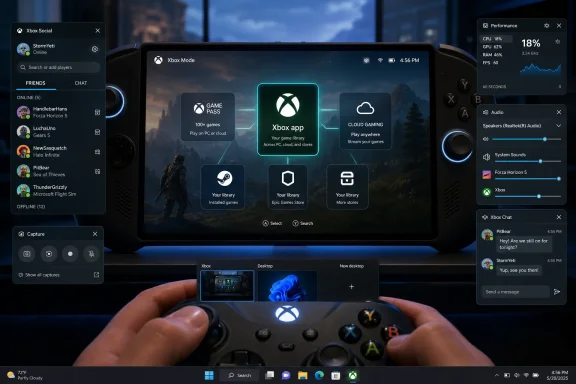
The most consequential piece in Thurrott’s update is Xbox Mode, formerly known in Microsoft materials as the full-screen gaming experience. It replaces the standard desktop flow with a console-like, controller-first interface built around the Xbox app. In plain terms, Microsoft is admitting that the traditional Windows desktop is a poor starting point for handheld and couch gaming.That admission matters. Windows has the biggest PC game compatibility story in the industry, but it also carries the weight of taskbars, notifications, desktop windows, driver utilities, update prompts, launchers, and decades of UI assumptions built around keyboard and mouse. SteamOS does not beat Windows on breadth of compatibility; it beats Windows by getting out of the way.
Xbox Mode is Microsoft’s attempt to close that experiential gap without giving up the Windows ecosystem. On handheld gaming PCs, that could be decisive. A Windows handheld with a good full-screen shell, strong sleep behavior, sane controller navigation, and broad game compatibility is far more compelling than a Windows handheld that dumps the user at a desktop scaled for a laptop.
The feature’s expansion beyond dedicated handhelds also signals a broader ambition. Microsoft is not just building for the ROG Xbox Ally class of devices. It is preparing for desktops connected to TVs, gaming laptops used with controllers, small-form-factor PCs, and whatever hybrid Xbox-PC hardware comes next.
The Desktop Is Still There, and That Is Both the Point and the Problem
The cleverness of Xbox Mode is that it does not kill the Windows desktop. It hides it when hiding it is useful. Users can still return to the desktop through Task View or related controls, which preserves the flexibility that makes Windows valuable in the first place.That duality is also the weakness. A console-style mode layered on top of Windows can only be as seamless as the system beneath it allows. If a game launches a separate updater, if a third-party launcher demands attention, if a driver utility throws a modal dialog, or if Windows Update decides to intrude, the illusion breaks.
This is where Microsoft’s challenge differs from Valve’s. SteamOS can be opinionated because it controls a narrower experience. Windows must remain general-purpose, backwards-compatible, enterprise-manageable, and friendly to an unruly ecosystem of hardware and software. Xbox Mode is therefore not a replacement for Windows complexity; it is a negotiation with it.
For enthusiasts, that negotiation may be acceptable. They understand why Steam opens behind a Steam game or why a Battle.net title may still depend on Battle.net. For mainstream users, every escape hatch back into desktop awkwardness will feel like a broken promise.
Game Bar Has Quietly Become the System Layer Microsoft Needed
Game Bar is easy to underrate because it began life as a capture-and-social overlay. In the current Windows gaming stack, however, it functions more like a bridge between desktop Windows and console-style gaming. It gives Microsoft a controller-friendly layer for capture, audio, widgets, friends, and navigation without forcing users to abandon the game they are playing.That matters in Xbox Mode because the shell is only part of the experience. Console users expect system controls to appear over a game, not behind it. They expect to switch tasks, check status, capture a clip, or access friends without reaching for a mouse.
Windows has historically struggled with that kind of coherence. The operating system can do nearly anything, but it often asks the user to remember which subsystem does which thing. Game Bar helps unify those actions into a gaming context.
The result is not yet as polished as a console dashboard, but it is directionally right. Microsoft is building a gaming control plane that floats above the messier Windows substrate. If Xbox Mode is the new front door, Game Bar is the hallway that keeps the user from falling back into desktop plumbing too often.
Game Pass Gives the Xbox App Purpose, but It Also Narrows the Pitch
The Xbox app’s strongest native reason to exist remains Game Pass. Thurrott’s guide lays out the obvious appeal: browse available titles, install included games, launch cloud-supported games, and manage a library tied to a Microsoft account. For subscribers, the Xbox app is not bloat; it is the catalog.But the Game Pass-centered design also creates a perception problem. Many PC gamers do not want their library organized around Microsoft’s subscription business. They want Steam, mods, local files, performance tools, cloud saves, storefront independence, and the habits they have built over many years.
That is why third-party library aggregation is so important. Microsoft cannot make the Xbox app the center of Windows gaming by serving only Xbox content. It has to make the app useful even when the user’s favorite games were bought somewhere else.
The risk is that the Xbox app becomes a promotional layer rather than a trusted launcher. If users feel that it exists primarily to upsell Game Pass, promote cloud gaming, or steer them toward Microsoft’s store, they will route around it. PC gamers have a long memory for unwanted middleware.
Cloud Gaming Is Useful, but It Does Not Replace the Local PC
Cloud Gaming fits neatly into Microsoft’s cross-device story. A Windows 11 PC can stream a supported game through the Xbox app without installing tens or hundreds of gigabytes locally. For casual play, travel, low-end systems, or quick sampling, that is legitimately useful.It is not, however, a substitute for the PC gaming model Microsoft is trying to harness. Latency, image quality, network dependence, catalog limits, and input expectations still make cloud gaming feel like an adjunct rather than the core experience. The most demanding players still want games rendered locally, tuned locally, and modded locally.
Thurrott’s guide reflects that practical balance. Cloud play gets a place in the Xbox app, but local installation remains central. The app offers streaming where appropriate, while still treating the PC as a machine capable of running games itself.
That distinction matters because Microsoft has sometimes talked about cloud gaming as if access were the primary problem to solve. On Windows, the bigger problem is coherence. The cloud can broaden the library, but it cannot make the operating system feel elegant under a controller.
Windows on Arm Still Has a Gaming Credibility Gap
The guide’s mention of Windows 11 on Arm is a reminder that Microsoft’s gaming ambitions run straight into the realities of compatibility. Qualcomm’s Snapdragon X and newer Arm-based PCs have improved Windows battery life and portability, but most PC games still target x86. Emulation can be impressive, but impressive is not the same as invisible.Features such as Auto Super Resolution help, and Microsoft has clearly improved the Arm gaming story compared with earlier Windows on Arm efforts. Still, PC gaming is an ecosystem of engines, anti-cheat systems, launchers, overlays, drivers, and assumptions. The CPU architecture is only one part of that compatibility matrix.
For mainstream users, this creates a messaging hazard. A Windows 11 on Arm laptop may be a great productivity machine and a surprisingly capable casual gaming device. It is not automatically a gaming PC in the way an x86 system with dedicated Nvidia, AMD, or Intel graphics is.
Microsoft needs to be careful here. If Xbox branding, Game Pass access, and Auto SR make users expect console-like reliability on Arm PCs, disappointment will follow. The experience may be good enough for many games, but it is not yet simple enough to market without caveats.
The Store Lost the Launcher War, So Microsoft Is Moving the Battlefield
One of the more revealing details in Thurrott’s guide is that the Microsoft Store itself is not the cleanest way to find Xbox-compatible PC games. The Xbox app does that job better. That says a lot about how Microsoft’s consumer software strategy has evolved.The Store was supposed to be the trusted marketplace for Windows apps and games. In practice, PC gaming consolidated around Steam, publisher launchers, Epic’s store, GOG, itch.io, and direct distribution. Microsoft can still sell games, but it cannot plausibly pretend that Windows users live inside the Store.
So the Xbox app becomes the more realistic product. It is not just a store. It is a library, launcher, subscription portal, cloud client, controller-oriented shell, and Microsoft account hub. That flexibility gives Microsoft more ways to be relevant.
There is a strategic humility in that approach, but also a strategic grab. Microsoft is conceding that users buy games elsewhere while still trying to own the experience of returning to those games. In platform terms, that may be more valuable than owning every transaction.
For Windows users, this could be genuinely helpful if executed with restraint. A launcher that respects other launchers, hides complexity, and reduces friction is welcome. A launcher that becomes another noisy layer in the pile is not.
The Handheld PC Forced Microsoft to Fix What Desktop Gamers Tolerated
Windows gamers have tolerated rough edges for years because the payoff was enormous compatibility and performance. Handheld gaming PCs changed the equation. On a seven-inch or eight-inch screen, with no keyboard in reach, the old Windows compromises become glaring.The Steam Deck made that contrast unavoidable. Valve showed that PC games could live inside a console-like interface with suspend-friendly behavior, controller-first navigation, and a store-library experience that made sense from the couch or the train. It did not need to run everything perfectly to prove the point.
Windows handhelds had the opposite problem. They could run more games, especially titles with anti-cheat or Windows-only dependencies, but the surrounding experience often felt like using a laptop through a keyhole. That gap created the opening for Xbox Mode.
Microsoft’s advantage is that it can improve Windows for every OEM at once. Its disadvantage is that OEMs, drivers, launchers, and game publishers all shape the final experience. Xbox Mode can make Windows handhelds more coherent, but it cannot single-handedly make the ecosystem disciplined.
Administrators Should Notice the Consumer Shell Creep
Most enterprise IT departments are not deploying Xbox Mode to finance laptops. Still, WindowsForum readers know that consumer features often travel through Windows in ways that administrators eventually have to account for. Bundled apps, account hooks, background services, notification surfaces, and policy controls all matter.The Xbox app is a consumer feature, but it lives on a general-purpose operating system used across schools, businesses, kiosks, and shared devices. Even if it is harmless in most environments, administrators may want to understand where it appears, how it updates, whether it auto-starts, and how it interacts with Microsoft accounts.
There is also a broader management question. As Windows accumulates more role-specific experiences — Copilot surfaces, gaming shells, widgets, consumer account prompts, subscription portals — the default installation becomes less neutral. Microsoft’s answer is usually policy and configuration. The admin’s answer is usually image hygiene.
For home users, this may simply mean checking Xbox app settings and disabling auto-launch behavior if it is unwanted. For managed fleets, it reinforces the need to treat Windows consumer experiences as configurable components rather than background decoration.
The Practical Windows Gamer Still Has Homework
Thurrott’s guide is useful because it does not reduce Windows gaming to one magic setting. A good Windows 11 gaming setup still involves display refresh rate, HDR, variable refresh rate, hardware-accelerated GPU scheduling, capture settings, controller firmware, install locations, and app startup behavior. The platform is powerful because it is configurable, and messy for the same reason.That is the tradeoff Microsoft has never escaped. Consoles are simpler because they narrow the range of possibilities. Windows is more capable because it embraces variation. Every gaming improvement in Windows 11 is an attempt to make that variation feel less like work.
For desktop gamers, the most valuable settings may still be outside the Xbox app entirely. Graphics drivers, monitor configuration, firmware updates, chipset drivers, storage choices, and per-game settings can matter more than the launcher. The Xbox layer organizes the experience; it does not replace PC maintenance.
For newer users, however, the Xbox app and Xbox Mode could provide a sane starting point. That is not trivial. The PC’s greatest strength has always been that it lets users go deeper. Its weakness has been that it often pushes them deeper before they are ready.
The Real Win Is Fewer Moments Where Windows Reminds You It Is Windows
The most concrete lesson from this update is that Microsoft’s Windows gaming strategy is now less about raw capability and more about reducing context switches. The company already has DirectX, driver support, Game Pass, cloud infrastructure, and decades of game compatibility. The missing piece has been an experience that feels coherent when the keyboard is absent.- Windows 11’s Xbox app is being positioned as a cross-store gaming hub rather than just a Microsoft storefront.
- Xbox Mode matters because it makes Windows more plausible on handhelds, TVs, and controller-first PCs.
- Game Bar is becoming the system overlay that connects traditional Windows with console-style expectations.
- Game Pass gives the Xbox app a strong subscription identity, but Microsoft must avoid making the app feel like an upsell engine.
- Windows on Arm remains promising for casual and selected games, but x86 compatibility still defines serious PC gaming.
- Administrators and power users should review Xbox app startup behavior, bundled components, and gaming settings instead of assuming the defaults match their needs.
Microsoft’s Gaming Strategy Now Depends on Restraint
Microsoft has a credible path here, but it is a narrow one. If the Xbox app becomes a respectful aggregator and Xbox Mode becomes a reliable controller-first shell, Windows 11 can answer SteamOS without becoming SteamOS. That would be a major achievement: the compatibility of Windows with more of the coherence of a console.But if Microsoft overloads the experience with subscriptions, promotions, redundant notifications, and half-integrated storefront hooks, users will treat it like every other unwanted launcher. PC gamers are not opposed to convenience. They are opposed to convenience that arrives carrying a business model.
The better version of this future is one where Windows adapts to the context. Keyboard and mouse users get the full desktop. Controller users get a clean gaming shell. Handheld users get a low-friction launcher that hides the worst parts of desktop Windows until they are needed. Administrators get controls, power users get escape hatches, and mainstream gamers get fewer reasons to wonder why their expensive handheld PC behaves like a tiny office laptop.
That is the promise behind these seemingly ordinary Field Guide updates. Microsoft is not merely documenting where the Xbox settings live in Windows 11. It is inching toward a version of Windows that understands gaming as a mode of use, not just a category of software — and the success of that effort will depend on whether the company can make Windows powerful without making it constantly visible.
References
- Primary source: thurrott.com
Published: 2026-06-29T02:10:10.207697
cg-landing - Thurrott.com
 www.thurrott.com
- Related coverage: ftp.barnabastoday.com
- Related coverage: gamespot.com
Xbox App Now Launches Games From Steam And Other Game Stores - GameSpot
The long-promised aggregated library update finally comes to all Xbox PC users.www.gamespot.com - Official source: support.microsoft.com
Windows Gaming: Full screen experience - Microsoft Support
 support.microsoft.com
- Related coverage: news.xbox.com
Xbox Mode Begins Rolling Out to Players on Windows 11 PCs Today - XBOX Wire
Beginning today, we’re excited to share that Xbox mode will begin rolling out to Windows 11 PCs, bringing a console-inspired Xbox experience to more players than ever.news.xbox.com - Related coverage: tomshardware.com
Microsoft tests Xbox app with Battle.net integration — updated app brings third-party game library aggregation | Tom's Hardware
Could Steam, Epic Games, and GoG support be on the horizon.?www.tomshardware.com
- Related coverage: windowslatest.com
Tested: First look at the new Xbox Mode for Windows 11 PCs with console-style gaming UI
Microsoft confirms Xbox Mode for Windows 11 PCs coming in 2026, and I tested the new console-style gaming interface on a Windows PC www.windowslatest.com
- Related coverage: tomsguide.com
The Xbox Full Screen Experience just arrived on all Windows handhelds — here's how to enable it | Tom's Guide
Microsoft quietly announced that all Windows-based handheld consoles will get the Xbox Full Screen Experience starting November 21.www.tomsguide.com - Related coverage: windowscentral.com
Steps for putting for Xbox Full Screen Experience on handhelds | Windows Central
Xbox FSE is rolling out to all Windows handhelds, and it's really easy to set up.www.windowscentral.com - Related coverage: business-standard.com
- Related coverage: techspot.com
Xbox app now lets Windows Insiders launch games from Steam, Epic, and more | TechSpot
Juggling games across Steam, the Epic Games Store, GOG, the Xbox app, and other clients has long frustrated users. Some launchers, like GOG Galaxy, have tried to...www.techspot.com - Related coverage: thetechbasic.com
Steam Library Now Integrated into Xbox App on Windows PCs
Xbox Insiders can now access Steam and Battle.net games in the Xbox PC app. Full launch is coming in 2025, with support for ROG Ally handheld consoles included.thetechbasic.com - Official source: blogs.windows.com
Xbox full screen gaming experience now available for Windows 11 handhelds and in preview for PCs
If you have a Windows 11 gaming handheld, you can try out the Xbox full screen experience, now available for a smoother, more seamless way to play. Designed to minimize friction and get players into their games faster, this update helps deliver a conblogs.windows.com - Related coverage: techradar.com
If you're wondering why Microsoft's Xbox mode is still missing after installing the latest Windows 11 update, here's why | TechRadar
Hopefully, the rollout will be completed soonwww.techradar.com - Related coverage: pcgamer.com
Holy cow, the Epic Games Store supports preloading now | PC Gamer
A bold new future is upon us.www.pcgamer.com
